




How to Add File Exclusion in Windows Defender - Full Guide
Here is how to add file exclusion in Windows Defender step by step, so you can make it skip from scans. And there is another way to help you protect Windows files from ransomware easily.

By Jonna Updated on May 13, 2026


Why Add Microsoft Defender Exclusion?
Microsoft Defender (formerly Windows Defender) is the built-in security solution for Windows, designed to protect the system against malware, ransomware, and emerging threats. It provides real-time protection against viruses, ransomware, spyware, rootkits, and other modern threats. It scans files in real time, monitors running processes, and evaluates behaviors that look suspicious. While this level of protection is essential, it can sometimes become intrusive.
In the following situations, you can add Windows Defender exclusions on Windows 11 to ignore specific files, folders, file types, or processes during scans.
- Trusted applications are being blocked or deleted repeatedly
- Development environments are triggering false positives
- Backup files and disk images are being scanned constantly
- Large databases or virtual machines are causing system slowdowns
- Scripts or automation tools are being flagged incorrectly
Once excluded, Defender will not scan or block that item - even during real-time protection or scheduled scans. This prevents interruptions and improves performance without disabling antivirus protection. Now, let's get down to the business of how to add file exclusion in Windows Defender.
How to Add File Exclusion in Windows Defender
Before getting down to how to add an exclusion to Windows Defender, please confirm that the selected item will no longer be scanned by Microsoft Defender. And Windows Defender supported exclusion types include:
- File exclusion for a single file
- Folder exclusion for an entire directory
- File type exclusion using extensions such as .iso or .bak
- Process exclusion for specific executables
File and folder exclusions are the most common choices. Folder exclusions are especially useful for directories that contain large numbers of files that change frequently, such as backup locations or development folders. You can follow the steps below about how to add exception in Windows Defender:
Step 1. Click Start and type Windows Security, then open it.
Step 2. Select Virus & threat protection, scroll down, and click Manage settings under Virus & threat protection settings.
Step 3. Scroll to Exclusions and click Add or remove exclusions.
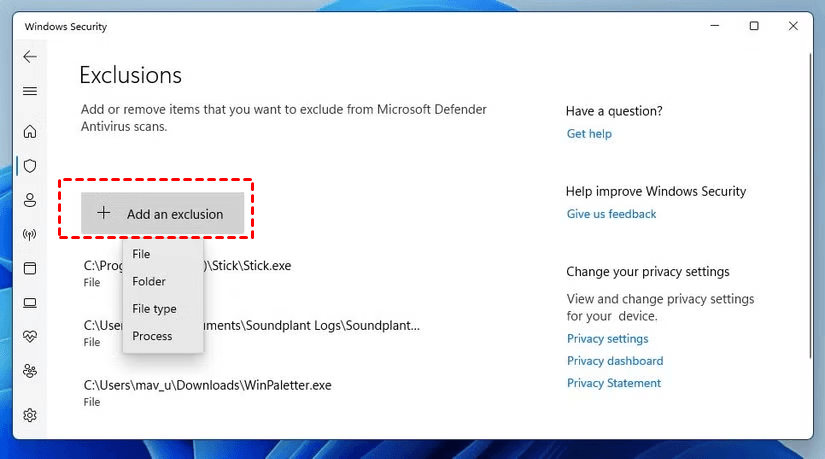
Step 4. Click Add an exclusion, choose File, and browse to the file you want to exclude and select it.
Troubleshoot: Windows Defender Exclusions Not Working
That’s all about Windows Defender how to add exception. But sometimes, users add exclusions only to discover that Windows Defender continues to scan or block the excluded items. You can try the following solutions:
Fix 1: Disable Tamper Protection temporarily
Tamper Protection prevents malwareand usersfrom modifying Defender settings. And it can also block legitimate exclusion changes. Please go to Windows Security > Virus & threat protection > Manage settings > turn off Tamper Protection and then re-add the exclusion.
Fix 2: Check controlled folder access
Controlled folder access can override exclusions by blocking file access at the folder level. Open Windows Security > select Ransomware protection > click Manage ransomware protection > check if Controlled folder access is enabled > either disable it temporarily or add the app under Allow an app through Controlled folder access.
Fix 3: Use a Folder Instead of a File Exclusion
Some programs generate temporary files or update executables dynamically. Excluding a single file may not cover all instances. In such cases, you can exclude the entire application folder instead of a single file and ensure the path is static and not version-dependent.
Fix 4: Check Group Policy Settings
On some systems, especially work or domain-joined PCs, Group Policy can override exclusions. You can press Win + R, type gpedit.msc, and press Enter > Navigate to: Computer Configuration -> Administrative Templates -> Windows Components -> Microsoft Defender Antivirus > Check policies related to exclusions and real-time protection.
Better Way to Protect Files/Folders on Windows 11/10
Exclusions improve workflow, but they do not protect files from ransomware that bypasses antivirus detection. This is where file protection becomes essential. AOMEI Backupper Professional is designed to provide reliable data protection without complex configuration. Instead of relying solely on real-time scanning, it focuses on preserving prottecting your files from ransomware attacks.
- Full backup & restore: It allows you to create system backup, disk backup, partition backup, and file backup to external hard drive, network locations, NAS, cloud storage, and various locations.
- Data protection from ransomware: It offers a Ransomware Protection function to protect backup images, specific file types, or specific files and folders per your need.
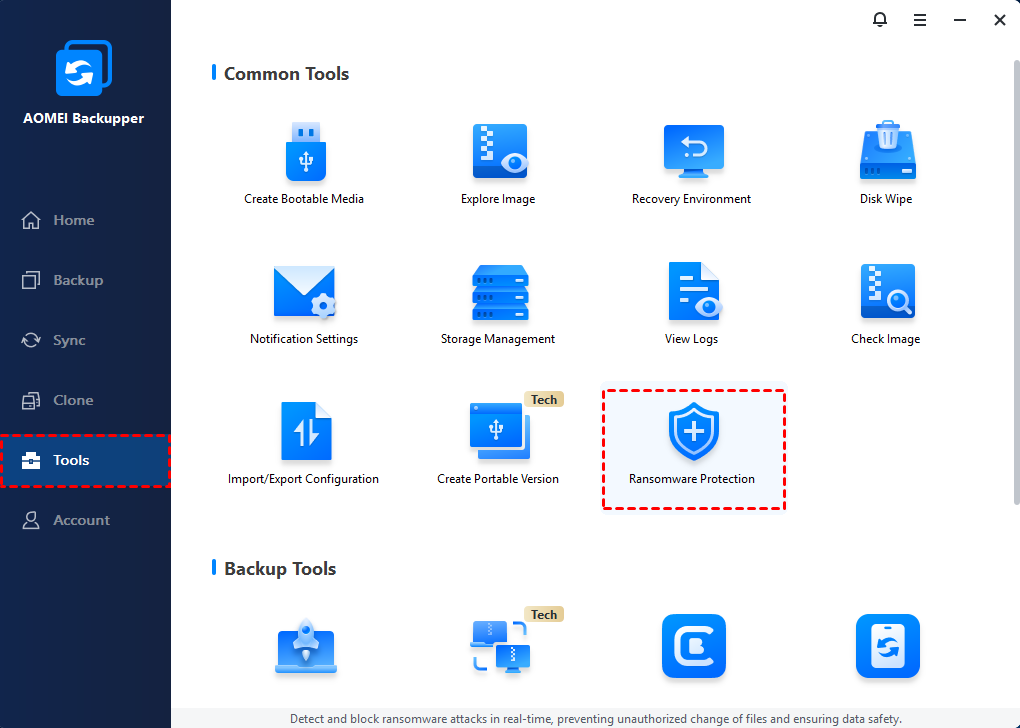
Step 1. Install AOMEI Backupper on your computer, go to Tools > Ransomware Protection.
Step 2. Enable the Ransomware Protection feature, tick the checkbox next to Protect Backup Images of AOMEI Backupper, Protect Specific File Types, or Protect Specific Files and Folders as needed.
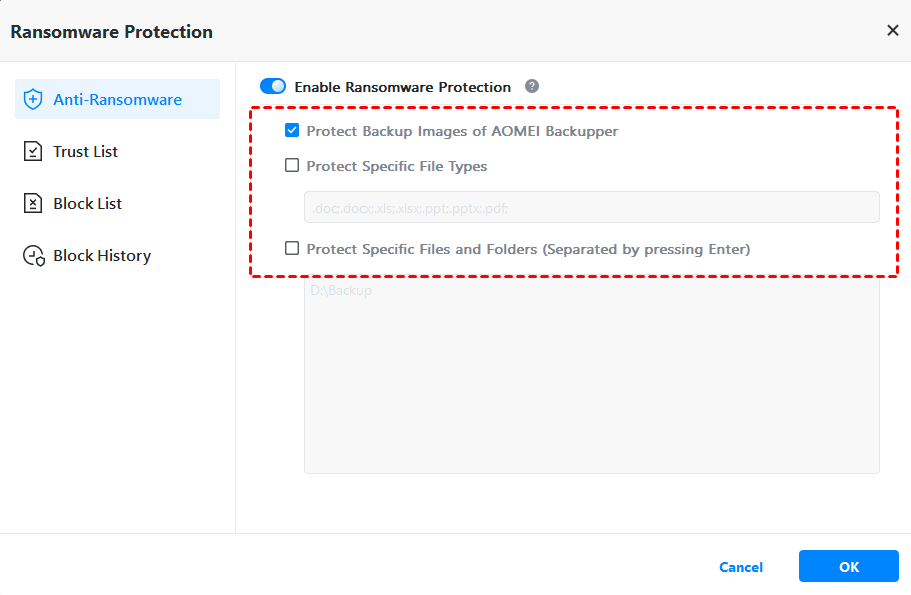
Step 3. For specific file protection, please add file type extensions or folder paths, and click OK.
Conclusion
Understanding how to add file exclusion in Windows Defender gives you control over unnecessary interruptions. When used carefully, exclusions allow trusted programs and files to operate without interference. However, antivirus tools focus on prevention, while backups focus on recovery. When both are used together, the result is a system that is not only secure but also resilient.
In such a case, you can use AOMEI Backupper with Windows Defender. The latter software is able to create full backup images for the computer, and protect them from ransomware to make sure they are safe and can be restored whenever needed.

 as a preferred
source on Google
as a preferred
source on Google