




Fixed: Kernel Power 41 on Windows 11 (6 Methods)
This article covers how to fix Kernel Power 41 on Windows 11 with 6 practical solutions, and a free way to back up Windows 11 for data/system security.

By Jonna Updated on May 13, 2026


Why Does Critical 41 Kernel Power Error Occur?
Few things are more frustrating than a Windows PC that suddenly restarts, freezes, or shuts down without warning. And the Kernel Power 41 on Windows 11 is one of the critical system errors that may cause unexpected shutdown or power loss.
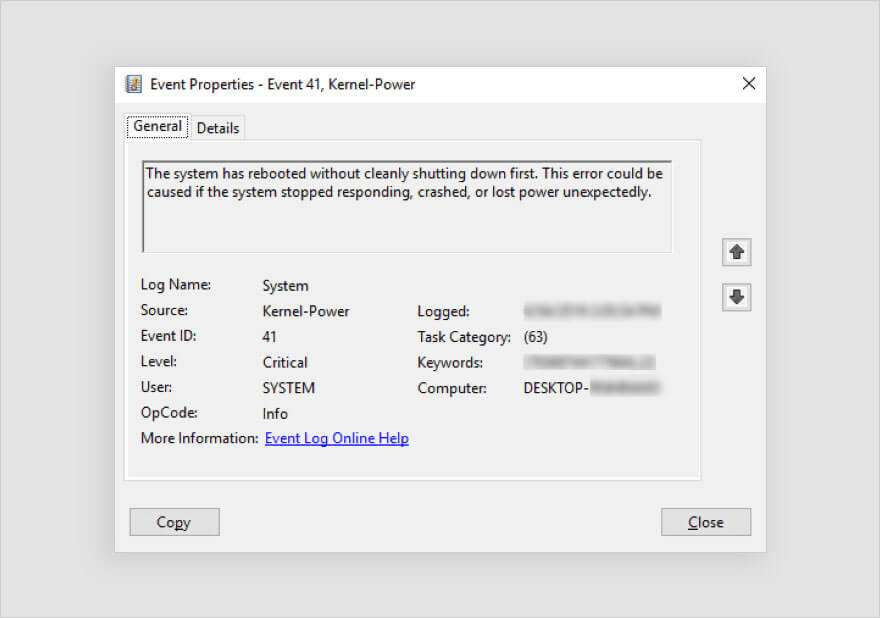
The Kernel Power 41 error is not a traditional crash message. It's more like a witness statement from Windows saying, "Something went wrong, but I didn't see it happen." That's why diagnosing it can feel tricky. Windows logs this error when your computer shuts down or restarts unexpectedly without going through the normal shutdown process. So, what is the cause of Kernel Power error 41? Common scenarios that often precede the error include:
- Sudden system restarts while gaming or under heavy load
- PC shuts down during sleep or wake-up
- System freezing followed by forced reboot
- Unexpected power loss or unstable power supply
How to Fix Kernel Power 41 on Windows 11
To resolve Kernel Power 41 while gaming or Kernel Power 41 black screen on Windows 11, try the following solutions.
Way 1. Update Available Drivers
Outdated or incompatible drivers are one of the most common triggers for event ID 41 Kernel Power error on Windows 11. Windows 11 is more demanding than earlier versions, and older drivers don’t always keep up. You can follow these steps to update drivers safely:
Step 1. Press Windows + X and select Device Manager.
Step 2. Expand key categories like Display adapters, System devices, and Storage controllers.
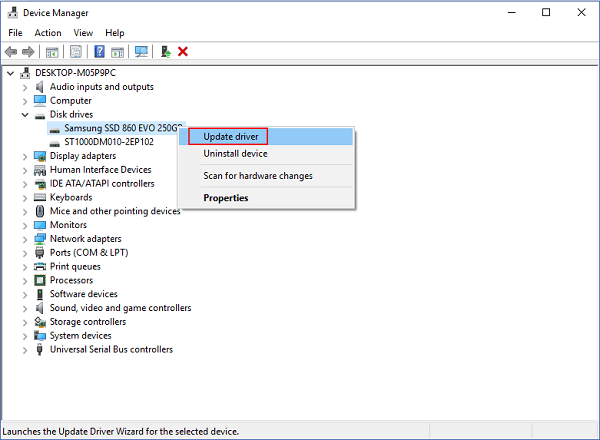
Step 3. Right-click each major device and choose Update driver.
Step 4. Select Search automatically for drivers and allow Windows to install updates.
Way 2. Run Memory Diagnostic Tool
Unstable or failing RAM can cause sudden reboots without warning, especially under load. Windows includes a built-in tool to test memory integrity. In such a case, you may run Memory Diagnostic to check and fix Event 41 Kernel Power in Windows 11:
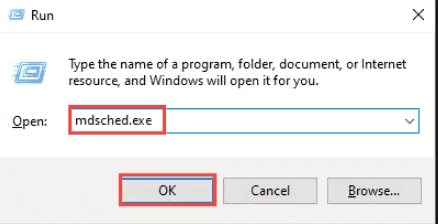
Step 1. Press Windows + R, type mdsched.exe, and press Enter.
Step 2. Choose Restart now and check for problems.
Step 3. Allow the system to reboot and complete the memory test. Log back into Windows and review the results in Event Viewer.
Way 3. Change Power Settings
Aggressive power settings can push hardware into unstable states, especially on desktops with custom components or laptops with aging batteries. Adjusting power settings helps stabilize system behavior and get rid of Kernel-Power Event 41 Task 63 random shutdown.
Step 1. Open Control Panel > Power Options. Choose Balanced instead of High Performance.
Step 2. Click Change plan settings, then Change advanced power settings.
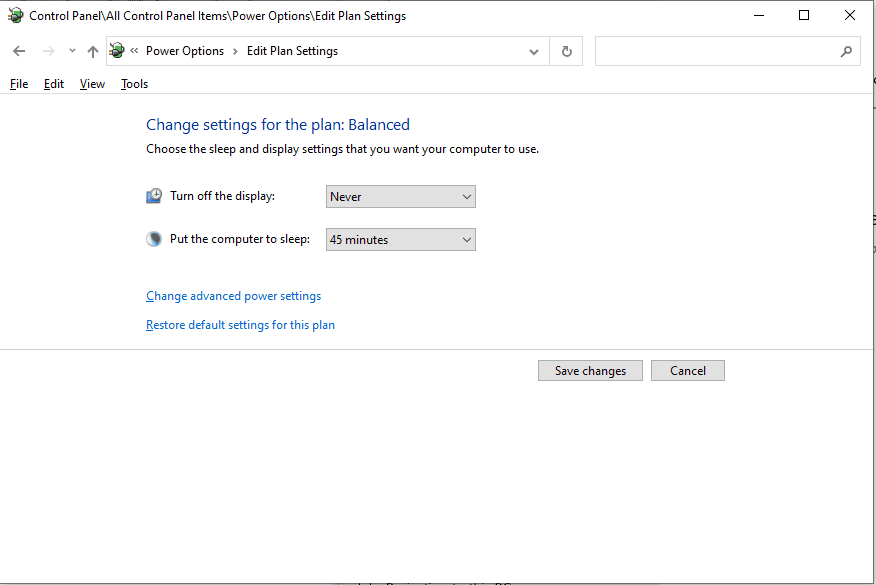
Step 3. Expand Processor power management. Set Minimum processor state to 5% and Maximum processor state to 99%.
Step 4. Apply changes and restart the system.
Way 4. Disable Fast Startup
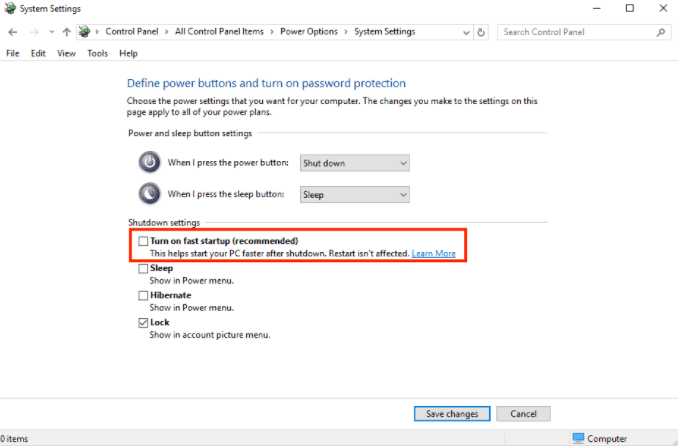
Fast Startup blends shutdown and hibernation to speed up boot times. While convenient, it can cause conflicts with certain drivers and hardware configurations. Disable it using these steps:
Step 1. Open Control Panel and select Power Options. Click Choose what the power buttons do.
Step 2. Select Change settings that are currently unavailable.
Step 3. Uncheck Turn on fast startup (recommended). Save changes and restart the computer.
Way 5. Perform DISM and SFC Scans
Corrupted system files can destabilize Windows at a fundamental level. DISM and SFC scans repair these files using built-in Windows tools, helping fix Kernel Power 41 on Windows 11.
Step 1. Open Command Prompt as an administrator.
Step 2. Type DISM /Online /Cleanup-Image /RestoreHealth and press Enter. Wait for the process to complete fully.
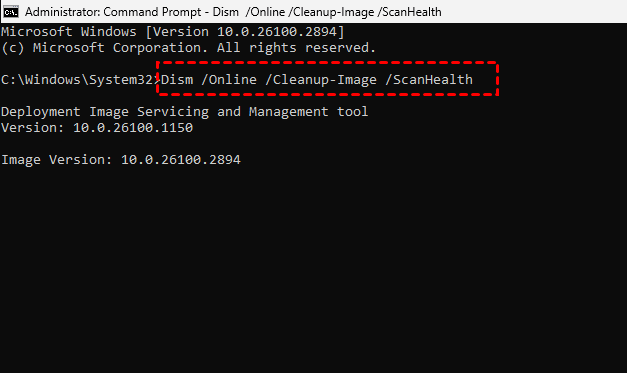
Step 3. Then, type sfc /scannow and press Enter.
Step 4. Restart the system after both scans finish, and check if hidden corruption that contributes to Kernel Power Event 41 on Windows 11 is repaired.
Way 6. Disable Overclocking in BIOS
Overclocking pushes hardware beyond factory specifications. While it can improve performance, it also increases instability risks. Disabling it may be an effective Kernel Power 41 Windows 11 fix:
Step 1. Restart your PC and enter BIOS/UEFI (usually Del, F2, or F10).
Step 2. Look for Overclocking, XMP, or Performance settings.
Step 3. Load Optimized Defaults or Factory Defaults. Save changes and exit.
Always Backup Windows 11 for System/Data Security
Troubleshooting system-level errors always carries some risk. A failed update, corrupted file, or misconfigured setting can make things worse before they get better. That’s why backing up Windows 11 beforehand is essential. A reliable backup ensures that no matter what happens during troubleshooting, your system and data can be restored quickly.
AOMEI Backupper Standard is a free yet professional Windows backup solution designed for both beginners and advanced users. It offers flexible options for protecting your system before making critical changes.
 AOMEI Backupper
- Verstalie backup features: It offers System/Disk/Partition/FileBackup for different backup needs.
- Various devices: You can backup Windows 11 to external drive, USB drives, network drives, and cloud storage, etc.
- Automatic backup: It allows you to create daily/weekly/monthly backups using incremental or differential backup methods to optimize backup efficiency(differential backup is available in the paid edition).
- Bootable media: You can create bootable USB or CD/DVD in case of system failure or hard drive crashes.
 100% Secure
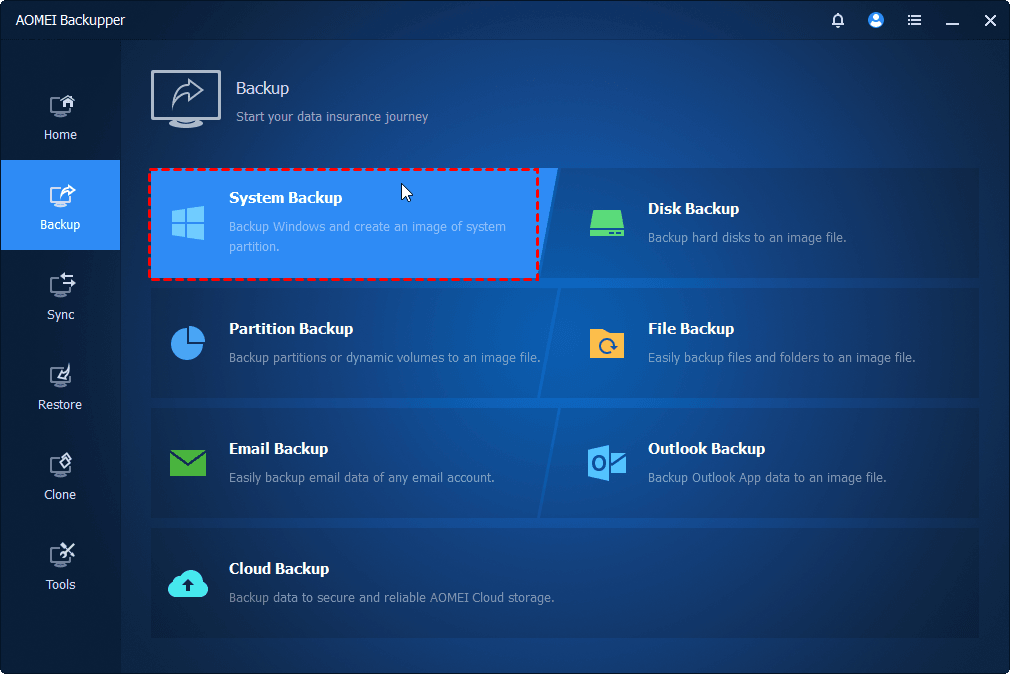
Step 1. You can run AOMEI Backupper > select Backup > System Backup or another backup option per your need.
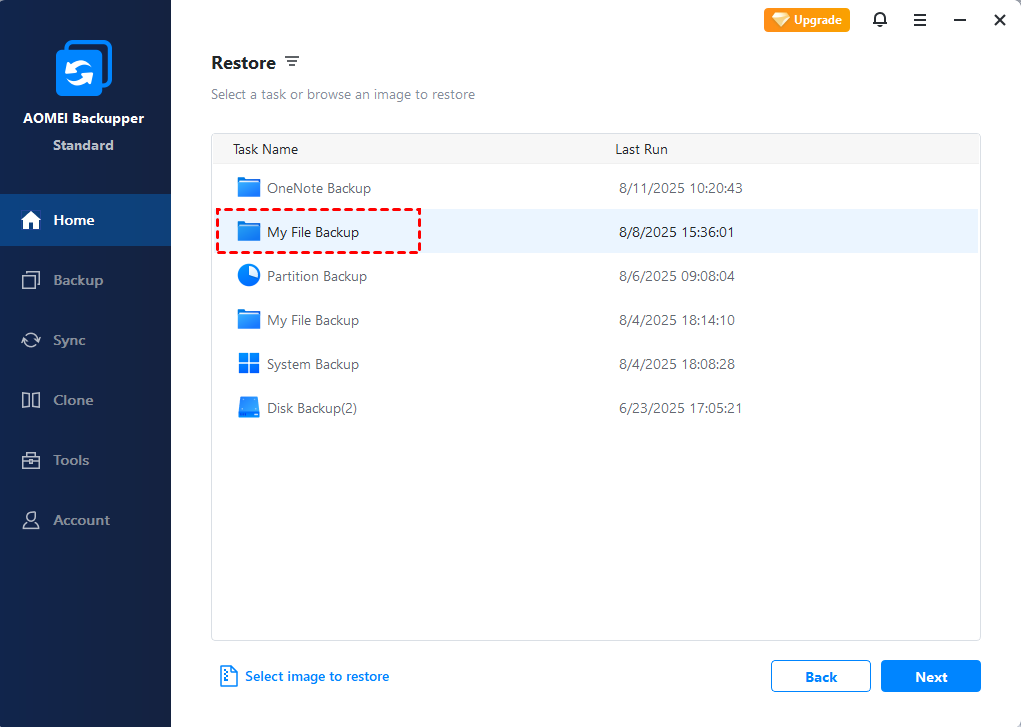
Step 2. To restore a system image, go to Home > Restore > select the file backup task and follow the wizard to complete the recovery process.
👉Tips:
- To restore system image created on another computer which may contain dissimilar hardware, please upgrade to higher editions and enable the "Universal Restore" function.
- There is also a Recovery Environment feature on AOMEI Backupper that can enable a self-booting environment to enter the recovery interface without loading Windows.
FAQs on Kernel Power 41 on Windows 11
#1. Does kernel power 41 mean my PSU is bad?
Not always. While a failing power supply can cause sudden shutdowns, the error can also appear due to software issues, driver conflicts, or unstable hardware settings. A PSU becomes suspect only after software causes are ruled out.
#2. Can RAM cause kernel power 41?
Yes. Faulty or incompatible RAM can cause system instability and unexpected reboots. Running memory diagnostics is one of the most effective early troubleshooting steps.
#3. How do I prevent kernel power 41?
Preventive measures include keeping drivers updated, avoiding unnecessary overclocking, maintaining stable power settings, and regularly backing up your system. These steps reduce the likelihood of encountering Kernel Power 41 on Windows 11 again.
Conclusion
The Kernel Power 41 in Windows 11 may appear alarming, but it is typically not unsolvable. In most cases, it’s the result of instability rather than catastrophic failure. By updating drivers, checking memory, adjusting power settings, repairing system files, and disabling overclocking, you can restore system stability and regain confidence in your PC.
And it is always recommended to backup Windows using reliable backup software like AOMEI Backupper for disaster recovery. It supports C drive backup, file sync across drives/devices, etc. Why not give it a try?

 as a preferred
source on Google
as a preferred
source on Google