




What Is Google Workspace (G Suite) Ransomware Protection?
Google Workspace (formerly G Suite) ransomware protection is very useful to protect data in the cloud, but its local folder can still be infected, whereas AOMEI Ransomware Protection can address this gap.

By Ivy Updated on April 30, 2026


What Is G Suite Ransomware and Why Does It Matter?
G Suite ransomware refers to malicious attacks that target data stored in Google Workspace services such as Gmail, Google Drive, and Google Docs. Attackers no longer infect traditional on-premises systems; instead, they target files in the cloud - encrypting, deleting, or stealing sensitive data and demanding payment for recovery. As more businesses rely on cloud collaboration tools, Google Workspace has become an attractive target due to its centralized data storage and widespread use.
The impact of such attacks can be severe. Even though Google provides strong infrastructure security, ransomware often exploits user behavior, weak access controls, or connected devices rather than the platform itself. This makes it critical for organizations to understand how these attacks work and why relying solely on built-in protections may not be enough.
How Ransomware Targets Google Workspace (Gmail, Drive, Docs)
Ransomware targeting Google Workspace typically operates through indirect methods. Attackers may gain access to a user’s Gmail account and use it to distribute malicious links or attachments internally, increasing trust and spreading. In Google Drive, synced files can be encrypted locally by ransomware on an infected endpoint, which then automatically syncs the encrypted versions back to the cloud.
Additionally, attackers may manipulate or overwrite files in Google Docs, effectively locking users out of critical information. Because these actions often appear as legitimate user activity, they can bypass traditional cloud-based defenses and remain undetected until significant damage is done.
Common Attack Vectors: Phishing, OAuth Apps, and File Sync Exploits
Phishing remains one of the most common entry points for G Suite ransomware. Users may receive convincing emails that trick them into revealing login credentials or granting access to malicious links. Once compromised, attackers can move laterally within the organization.
Another growing threat comes from malicious OAuth applications. These apps request permissions to access Google Workspace data, and if approved by users, they can read, modify, or delete files without needing a password.
File sync exploits are also a major risk. When Google Drive is synced with a local device, ransomware infections on that device can encrypt files, which are then synced to the cloud in real time- effectively spreading the damage across both local and cloud environments.
Business Risks of G Suite Ransomware Attacks
The consequences of a G Suite ransomware attack go beyond temporary file loss. Businesses may face operational downtime, data breaches, compliance violations, and reputational damage. Critical documents, customer records, and internal communications can become inaccessible or permanently lost if not properly backed up.
Financial losses can also escalate quickly, whether from ransom payments, recovery costs, or interrupted business operations. More importantly, without a proactive protection strategy, including secure backups and endpoint-level defenses, organizations may struggle to recover fully and prevent future incidents.
Does Google Workspace Provide Built-in Ransomware Protection?
Google Workspace includes several built-in security features designed to protect users from malware, phishing, and unauthorized access. While these tools provide a strong baseline of protection, they are not specifically designed to stop ransomware attacks end-to-end. Understanding both their strengths and limitations is essential for building a more resilient defense strategy.
Native Security Features in Google Workspace
📌 Spam filtering and malware detection:
Google Workspace uses advanced filtering to block suspicious emails, phishing attempts, and known malware before they reach users’ inboxes. This helps reduce the likelihood of ransomware entering through email-based attacks.
📌 Version history and file recovery:
Google Drive automatically keeps version histories of files, allowing users to restore previous versions if files are modified or encrypted. This feature can be useful in mitigating damage caused by ransomware, especially for recently affected files.
📌 Admin security controls:
Administrators can enforce security policies such as multi-factor authentication (MFA), user access restrictions, and data loss prevention (DLP) rules. These controls help reduce the attack surface and limit unauthorized access to sensitive data.
Limitations of Native Protection
📌 Limited rollback windows:
Version history is not a full backup solution. Recovery options may be limited by time or user actions, and large-scale data corruption can make manual restoration time-consuming and incomplete.
📌 No real-time detection:
Google Workspace does not actively monitor or block ransomware behavior at the endpoint level. If a synced device is infected, encrypted files can still be uploaded to the cloud without immediate detection.
📌 Vulnerabilities through third-party integrations:
Third-party apps connected via OAuth can introduce security risks. If users grant excessive permissions to malicious or compromised apps, attackers may gain persistent access to files and data without triggering traditional security alerts.
Best Practices for Strengthening G Suite Ransomware Protection
Protecting Google Workspace from ransomware requires more than default settings. Organizations need a proactive strategy that combines strong access control, continuous monitoring, reliable backups, and user awareness. The following best practices help reduce risk and improve resilience against evolving ransomware threats.
Enable Multi-Factor Authentication (MFA) Across All Accounts
Multi-Factor Authentication (MFA) is one of the most effective ways to prevent unauthorized access. Even if attackers obtain user credentials through phishing or data breaches, MFA adds an extra verification layer that blocks login attempts.
For best results, enforce MFA across all users, especially administrators, and require secure methods, such as authenticator apps or hardware security keys. This significantly reduces the chances of account compromise, which is often the first step in ransomware attacks.
- On the Google Admin console, navigate to Security > Authentication > 2-Step Verification.
- Turn on enforcement for your organization.
- Require strong verification methods (Authenticator app or security keys).

Regularly Audit Third-Party App Access and Permissions
Third-party apps connected via OAuth can introduce hidden security risks. Some apps may request excessive permissions, allowing access to emails, files, or sensitive data without requiring a password.
Regularly review all connected apps in the admin console and remove any that are unnecessary, outdated, or untrusted. Restrict access to only approved apps and educate users to avoid granting permissions to unknown services. This helps prevent attackers from exploiting app integrations as a backdoor into your environment.
- Go to Security > API Controls > App access control.
- Set app access to Restricted or Trusted only.
- Review and remove risky or unused apps.
Implement Secure Backup Strategies for Google Workspace Data
While Google Workspace offers version history, it is not a complete backup solution. A secure backup strategy ensures that clean, independent copies of your data are always available, even in large-scale ransomware incidents.
Follow the 3-2-1 backup rule: keep multiple copies of your data, store them in different locations, and maintain at least one offline or isolated backup. Automated backups of Google Drive, Gmail, and other services allow for fast, full recovery without relying on limited native restore options.
Train Employees to Recognize Phishing and Social Engineering Attacks
Human error remains one of the biggest vulnerabilities in ransomware attacks. Employees are often targeted with phishing emails, fake login pages, or deceptive links designed to steal credentials or install malware.
Regular security training helps users identify suspicious emails, avoid clicking unknown links, and report potential threats quickly. Building a security-aware culture within your organization can dramatically reduce the success rate of ransomware attacks and strengthen your overall defense.
Add an Extra Layer of Security with AOMEI Ransomware Protection
While Google Workspace provides strong cloud-level security, it does not actively stop ransomware running on local devices. This is where an additional layer of endpoint protection becomes essential. AOMEI Backupper Professional helps bridge this gap. It integrates the Ransomware Protection feature to monitor disk I/Oactivity in real time and prevent ransomware from encrypting or deleting critical data - especially files synced with Google Drive.

 AOMEI Backupper
- Monitor system I/O operations in real-time and block any attempts to delete, encrypt, or tamper with protected files.
- Prevent local Google Drive folders from being encrypted and avoid using the sync mechanism to overwrite the files in the cloud.
- Protect backup images created by AOMEI Backupper and other backup software (by specifying their file extensions).
- Only trusted apps can modify or delete protected data. Such attempts from blocked apps or suspected malware will be blocked.
- Integrated with complete backup solutions, enabling schedule backup of your operating system, disks, files, partitions, emails, etc., along with a suite of auto and optional space-saving features, as well as encryption to enhance security.
 100% Secure
In addition, it’s designed for simplicity, making it easy for both individuals and businesses to protect their data continuously without a complex setup.
- You need to create at least a backup before enabling Ransomware Protection.
- You can choose to backup local Google Drive folder, emails, etc., and enable scheduled backup, such as daily, weekly, event triggers, etc.
- For higher security, it’s suggested to enable encryption for backup.
- To save space and keep more versions, it’s a good idea to enable incremental backup, backup cleanup, compression, etc.
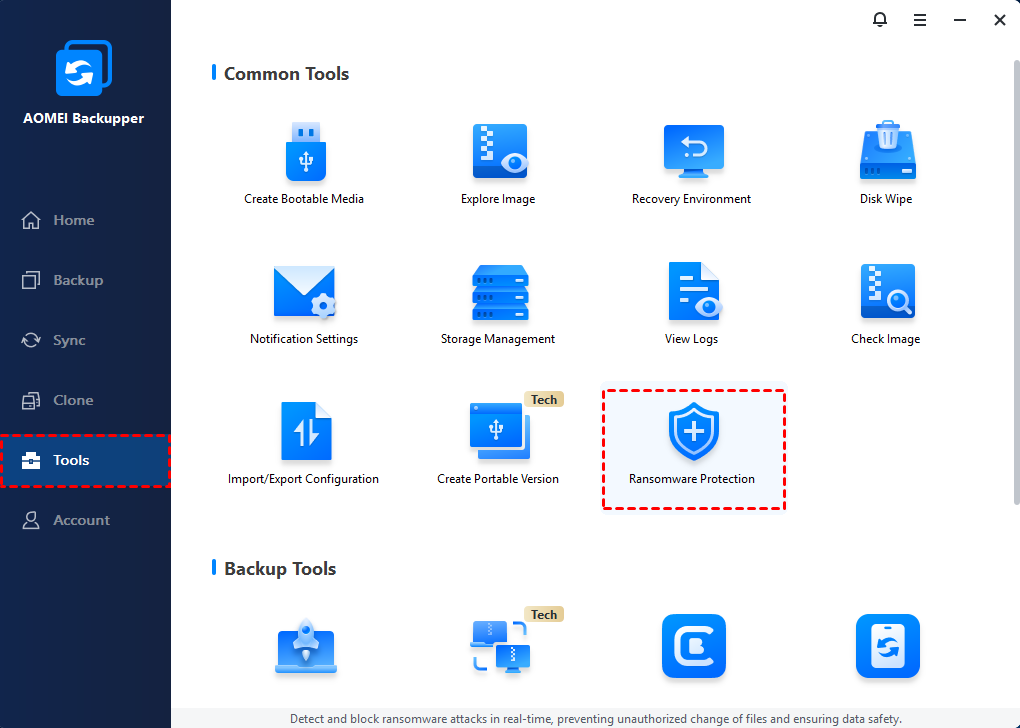
Step 1. Open AOMEI Backupper Professional after installing. Under the Tools tab, click Ransomware Protection.
Step 2. Toggle the Enable Ransomware Protection tab. The option to protect backup images created by AOMEI Backupper is automatically checked. To protect the local Google Drive folder, check Protect Specific Files and Folders and enter its path, such as C:\Users\Username\MyDrive.
Once enabled, you’ll be asked to add apps to the trust or block list. Check the specific app and click Add to Trust List or Add to Block List. Or simply click Ignore.
Step 3. Switch to the Trust List, Block List, Block History, and manually configure them. In the Block History window, you can choose to clear block history, add to trust list, or add to block list.
Conclusion
G Suite ransomware protection requires more than just built-in security features. While Google Workspace helps prevent many threats, it cannot fully stop ransomware, especially when attacks come from compromised accounts or infected devices. So businesses need a layered approach that includes MFA, controlled app access, employee awareness, and reliable backups.
To further reduce risk, adding endpoint protection like AOMEI Ransomware Protection helps detect and block suspicious disk I/O activity in real time to protect Google Drive sync folders. By combining cloud and local security with proactive protection, users can better prevent attacks and recover quickly if ransomware occurs.

 as a preferred
source on Google
as a preferred
source on Google