




OneDrive Ransomware Data Recovery [Complete Guide]
If you are looking for a OneDrive ransomware data recovery method, try Restore Your OneDrive or Version History provided by Microsoft. Alternatively, try backup images (if it exists).

By Ivy Updated on April 23, 2026


Can OneDrive Protect You from Ransomware?
OneDrive automatically syncs all file changes, which means that if ransomware encrypts your files, those encrypted versions can instantly replace clean files in the cloud and spread to all connected devices. Many users mistakenly think cloud storage protects against ransomware, but OneDrive does not block malware. Shared folders and limited version history can even make recovery harder if attacks happen.
Signs of ransomware in OneDrive include sudden file extension changes, inaccessible files, and ransom notes appearing in synced folders. Acting quickly is crucial: pausing sync can prevent clean versions from being overwritten, and fast recovery increases the chance of avoiding permanent data loss.
OneDrive Ransomware Data Recovery Methods & Guide
OneDrive offers 2 primary recovery methods after a ransomware attack: Version Historyand Restore Your OneDrive.
- Version History lets you roll back individual files to a previous state, usually within 30 days, but it may fail if ransomware encrypts files faster than the version updates or if older versions have expired.
- For widespread attacks, a full restore can roll back your entire OneDrive to a chosen date, though it may not recover everything if the attack occurred outside the restore window or if encrypted files already overwritten versions.
Here’s a simple, recommended set of steps for ransomware deletion and recovery in OneDrive.
Step 1. Confirm Your Files Are Infected
If Microsoft detects ransomware activity, you’ll receive a notification guiding you through the recovery process on the OneDrive website. You’ll be asked to confirm your files are infected before start.

Step 2. Clean All Infected Devices
Before restoring your OneDrive, you must use antivirus software to clean all infected devices that sync with OneDrive. Otherwise, your data will be infected again. Select the link for the version of Windows that you're using and follow the instructionsto clean your device. On the Clean all your deviceswindow, click All my devices are clean or Antivirus can't clean all my devices.
Select the second option if you can’t clean all your devices. The system will guide you to the Reset window. Finally, go back to the Reset devices window and be sure to select My devices are all clean or reset.
Step 3. Restore Your OneDrive
Once all infected devices are clean, you can restore the entire OneDrive toa point before the ransomware attack. The attack date and time to roll back are chosen automatically. Confirm and click Restore to perform OneDrive ransomware data recovery.
Combine Backups with Ransomware Protection for Enhanced Security
Some ransomware attacks can bypass OneDrive recovery entirely. Slow-encryption ransomwaregradually encrypts files, sometimes overwriting version histories before you can restore them. Multi-stage attacks may also target connected backups and cloud sync, leaving cloud-only recovery unreliable.
Thus, it’s essential to create a “real” backup instead of sync files, and in combination with ransomware protection. AOMEI Backupper Professional integrates the Ransomware Protection feature that can protect backup images created by AOMEI Backupper, specific file types, files, and folders from being encrypted or tampered with.
Meanwhile, it provides users with multiple backup solutions, including system backup, disk backup, file backup, etc., alongwide complete suite of features to enhance security or save space, such as schedule backup, backup cleanup, encryption, compression, etc.
Step 1. Create a backup image using AOMEI Backupper
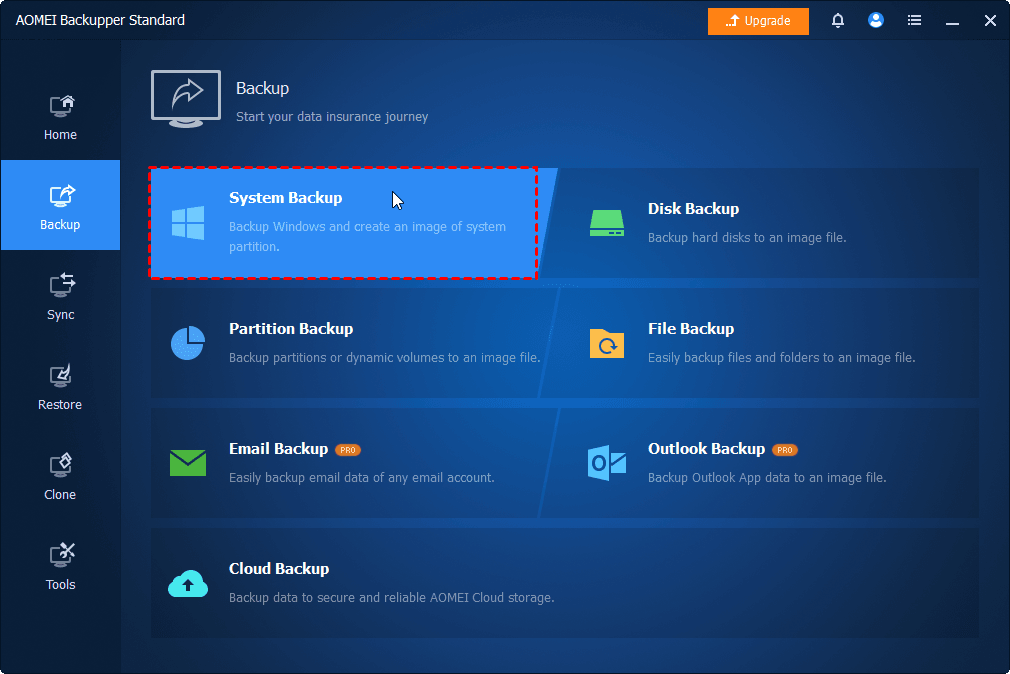
Open AOMEI Backupper Professional after installing. Click Backup and select the desired backup solution, preferably system or disk backup. Follow the on-screen instructions to create backup images.
📍📍📍Note:
✅ To set up or change backup settings, click Options, Backup Scheme, Schedule.
✅ The incremental backup is the default option in a scheduled task.
✅ You can change the backup settings in the Home tab. Locate the backup task, click the three-dot icons, and select the corresponding options.
Step 2. Enable Ransomware Protection
Switch to the Tools tab, click Ransomware Protection.
Toggle the Enable Ransomware Protection tab to enable it. Then, specify file type, files, and folders to enhance data security.
- The backup images created by AOMEI Backupper are protected automatically.
- Enter the file extensions you frequently use to protect specific file types.
- Enter specific folder paths, such as C:\Program Files (x86), C:\ProgramData, etc., to protect important files and folders.
Once enabled, you’ll be asked to add apps to the trust or block list. Check the specific app and click Add to Trust List or Add to Block List. Or simply click Ignore.
Step 3. Set up Trust List, Block List, Block History
Switch to the Trust List, Block List, and Block History one by one and manually configure them. In the Block History window, you can choose to clear block history, add to trust list, or add to block list.
📍📍📍Note: Adding trusted apps or folder paths to the trust list allows them to modify or delete protected files/folders. Conversely, adding blocked apps or folder paths will prohibit these activities.
Luckily, your backup remain intact even after an attack. You can choose to restore system in the recovery environment. Please create a recovery disk to start the computer without accessing it. Once loading, you can:
- Under the Home tab, click Restore. Then, select the latest system backup to restore.
- Check Restore this system image.
- Check Restore to new location and select a new hard drive. At last, click Start Restore.
Conclusion
What works best for OneDrive ransomware data recovery depends on the attack and account type.
- Fast-spreading ransomware: OneDrive Full Restore or Version History can work if the attack is detected quickly and clean versions still exist.
- Delayed or slow encryption: Recovery is harder as older versions may already be overwritten, making external backups critical.
- Personal vs business OneDrive accounts: Business accounts often have longer retention and more recovery options, while personal accounts rely heavily on fast detection and timely restores.
For long-term resilience, layered protection is key. OneDrive recovery features are useful but limited on their own. Combining them with independent backup solutions like AOMEI Backupper provides reliable ransomware protection even when cloud versions are compromised, offering true confidence against future ransomware attacks.

 as a preferred
source on Google
as a preferred
source on Google