




Complete Guide to Google Drive Ransomware Protection
Ransomware doesn't just target your local drives—cloud storage can be vulnerable too. This article shows you how Google Drive ransomware detection works and offers the best ransomware protection software.

By Lily Updated on April 28, 2026


Can Google Drive Files Be Encrypted by Ransomware?
Yes, Google Drive files can be encrypted by ransomware — but not in the way many people assume.
Google Drive itself is not typically “infected” directly. Instead, ransomware usually attacks your local computer first, then encrypted files are automatically synced to Google Drive. Because Google Drive sync mirrors file changes, the encrypted versions can quickly replace the clean originals stored in the cloud.
Is There Built-In Google Drive Ransomware Protection?
Yes, Google Drive has built-in AI-powered ransomware detection for Drive for desktop (Windows and macOS) that automatically identifies malicious encryption, pauses file syncing to prevent further spread, and enables file restoration. This feature is available for commercial Google Workspace plans, with protections designed to detect and contain ransomware threats.
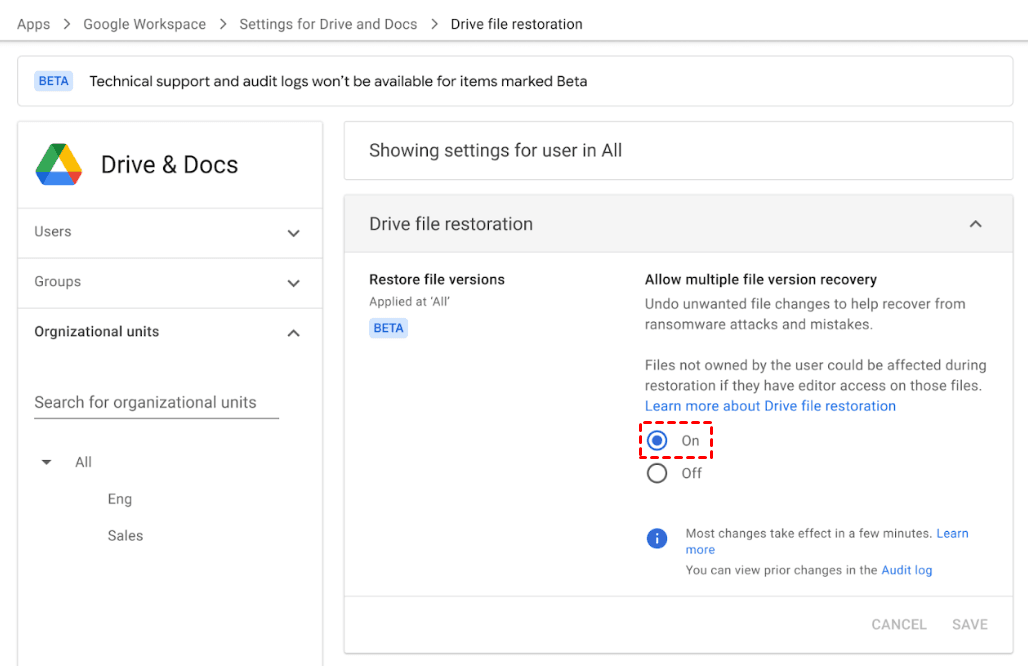
Google Drive ransomware detection is enabled by default. You can follow the steps below to enable Drive file restoration:
1. Sign in with an administrator account to the Google Admin console.
2. Go to Menu and then Apps > Google Workspace > Drive and Docs.
3. Click Malware and Ransomware and then Ransomware detection.
4. Click Drive file restoration.
5. For Allow multiple file version recovery, select On. Click Save.
How to Perform Google Drive Ransomware Recovery
When Drive detects unusual activity that suggests a ransomware attack, it automatically pauses syncing of affected files. Users then receive an alert on their desktop and via email, guiding them to restore their files. Learn how to restore Google Drive files from ransomware attacks below:
🔔 Important: Before restoration, you should use a trusted antivirus or anti-malware program to scan your computer and remove the ransomware.
1. In the ransomware warning pop-up, click Take action.
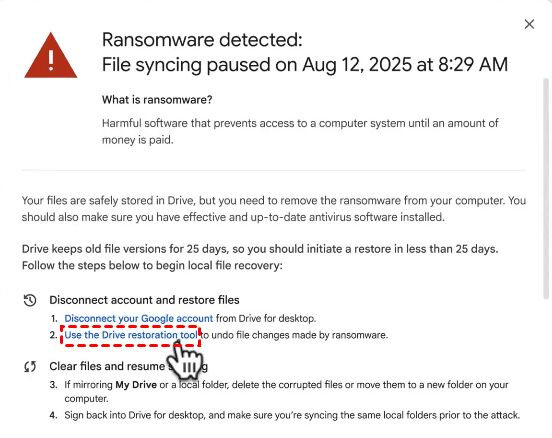
2. In the next window, click the link Use the Drive restoration tool.
3. You’ll enter the Google Drive website. Review your file change history, select the version you want to roll back to, and click Restore to this time.
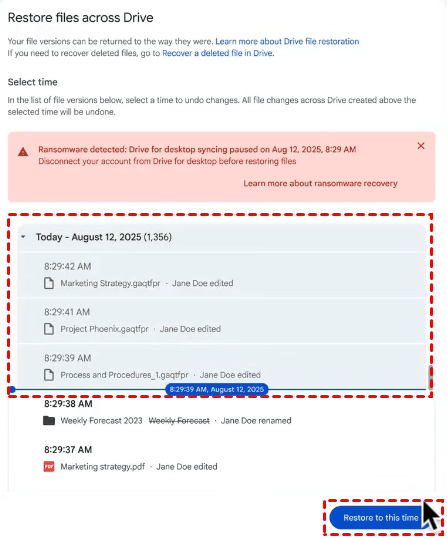
💡 Note: You can't select individual files to restore.
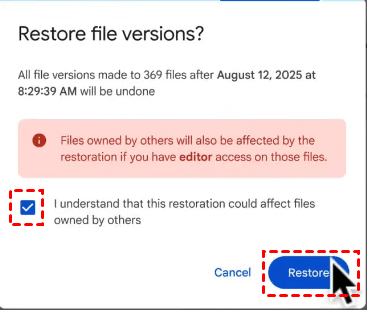
4. Confirm file restoration and click Restore.
5. A progress page displays which automatically updates once the restore completes.
💡 Notes:
- Don’t edit these files until they are restored.
- If you mirror folders, delete the encrypted files from your computer's hard drive. If you don’t clean up your encrypted files, you’ll have both the restored and the encrypted versions of your files.
Alternative Way to Protect Google Drive from Ransomware
AOMEI Backupper Professional is dedicated backup software for Windows that includes integrated ransomware protection. It protects backups and specific file types from unauthorized encryption and provides dependable recovery options in the event that ransomware bypasses your defenses.

 AOMEI Backupper
- Granular File Protection: Defends user-defined file types and directories from encryption or modification by ransomware.
- Backup Immutability: Ensures backup integrity by preventing them from being locked, encrypted, or deleted during an attack.
- Rapid Recovery: Enables swift restoration of a computer to a last-known good configuration, significantly reducing downtime.
 100% Secure
Download AOMEI Backupper and use it to protect your Google Drive files from ransomware now.
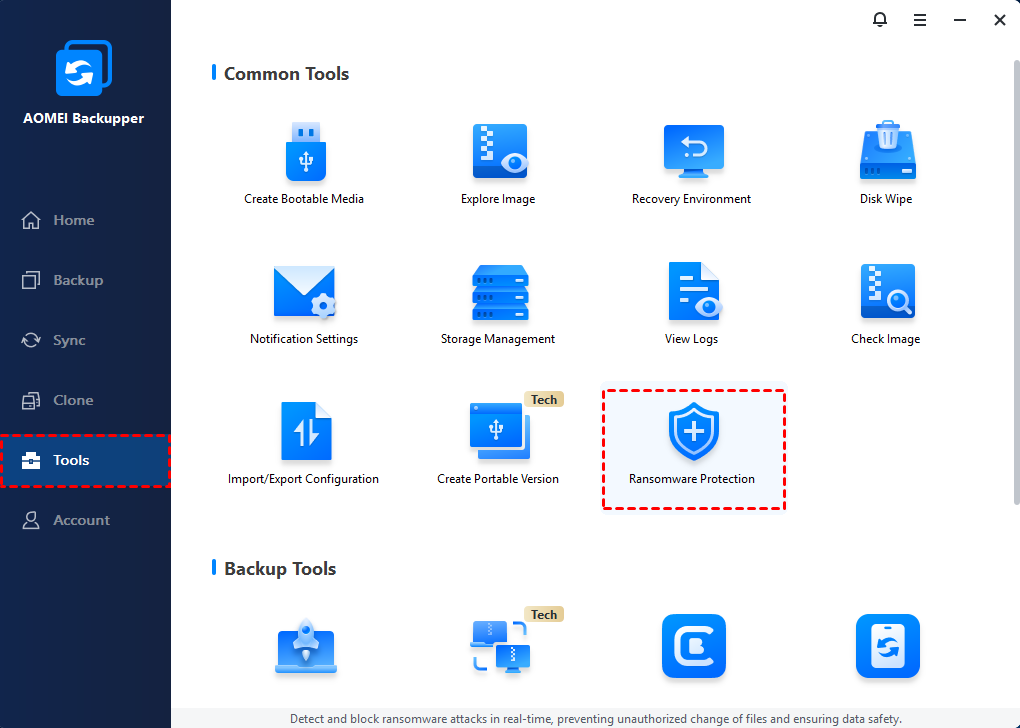
Step 1. Install and run AOMEI Backupper. Click Tools > Ransomware Protection.
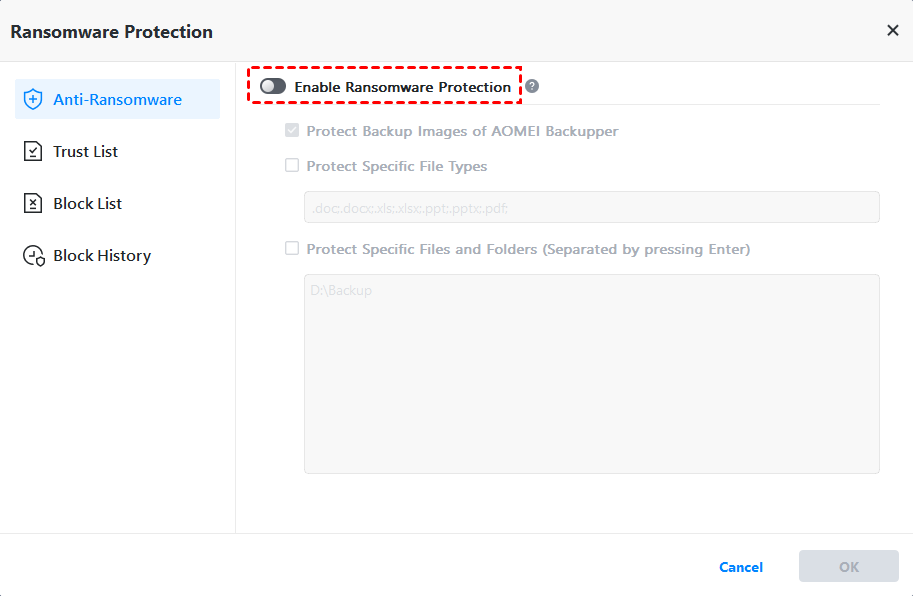
Step 2. In the pop-up window, turn on the switch for Enable Ransomware Protection.
Step 3. The first protection option is checked by default. Check Protect Specific Files and Folders and input your Google Drive local folder path (e.g., C:\Users\Username\My Drive).
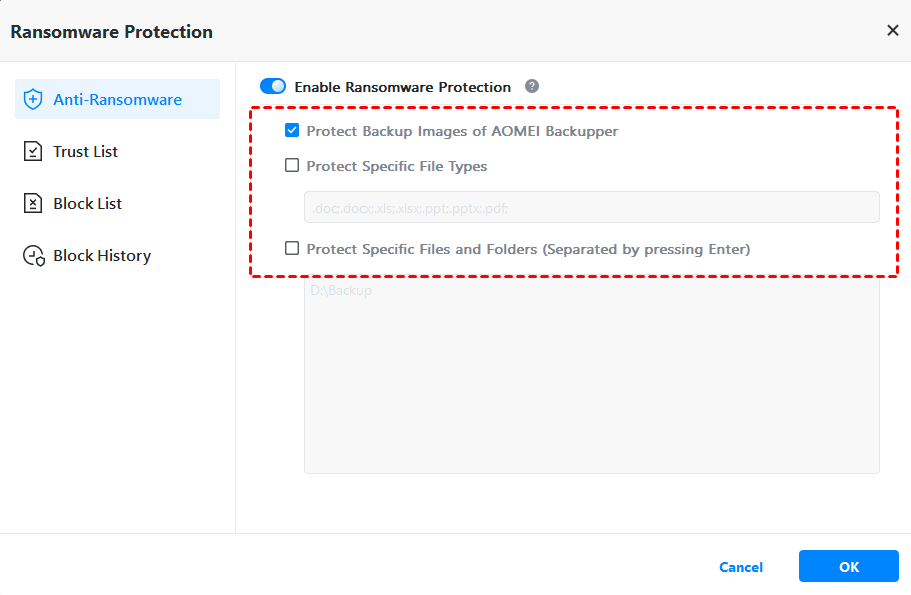
💡 Note: The Google Drive local folder is only available when you enable the Mirror files option in Google Drive for Desktop.
Step 4. Confirm your settings and click OK.
Bonus: Advanced Google Drive Ransomware Protection for Businesses
For organizations using Google Workspace, basic account security isn’t enough. Businesses face higher risks, including targeted phishing, credential theft, insider threats, and API-based attacks. Here’s how to build a stronger defense.
1️⃣ Strengthen Security with Google Workspace Admin Controls
Google Workspace provides powerful administrative tools that significantly improve ransomware resilience. Key configurations include:
- Enforce Multi-Factor Authentication (MFA) for all users
- Restrict third-party app access to approved integrations only
- Limit external file sharing permissions
- Disable risky OAuth applications
- Monitor login anomalies and suspicious IP activity
2️⃣ Implement the Principle of Least Privilege
Many ransomware incidents escalate because users have excessive permissions. Best practices include:
- Grant access only to necessary folders
- Avoid shared drives with full editing rights for all members
- Separate admin accounts from daily-use accounts
- Regularly audit shared drive memberships
3️⃣ Deploy Endpoint Detection & Response (EDR)
Because most Google Drive ransomware infections originate from synced devices, endpoint security is essential. Businesses should deploy:
- Anti-ransomware software
- Behavior-based threat detection
- Real-time file encryption monitoring
- Automated device isolation
4️⃣ Use Independent Cloud Backup for Google Drive
Google Workspace does not provide immutable, air-gapped backups by default. Version history is helpful, but not sufficient for enterprise-grade recovery. A business-ready backup strategy should include:
- Automated backups of Google Drive data
- Multiple restore points
- Long-term retention policies
- Storage outside the Google ecosystem
Verdict
That’s all for how to enable Google Drive ransomware protection. Both Google Drive built-in features and powerful ransomware protection software can give you a hand. Actually, AOMEI Backupper can do much more than ransomware protection. You can use it to backup PC to cloud, external hard drive, or NAS, etc. Don’t hesitate to try it out!

 as a preferred
source on Google
as a preferred
source on Google