




Your Account Has Been Disabled in App Store and iTunes? 5 Fixes
Your account has been disabled in the App Store and iTunes? Try 5 fixes - online unlock, password reset, restrictions check, hard reset, and Apple Support. Plus backup your data first.

By Kelsey Updated on May 14, 2026


My Apple Account Disabled
What should I do if I can't download an app from the App Store? 'Your account has been disabled from Apple Store and iTunes.' That's the response I got.
- Question from Apple Community
You tap the App Store icon, ready to download a new app or update an existing one. Instead, a message appears: Your account has been disabled in the App Store and iTunes. Suddenly, your Apple ID, the key to almost everything on your iPhone is locked. No downloads, no iCloud sync, no iTunes purchases. Just the ability to make calls and send texts.
If you've seen this message, you're probably wondering why it happened and how to get back in. This guide covers the common reasons your Apple ID gets disabled and walks you through five ways to fix it, plus a backup tool to protect your data before any drastic steps.
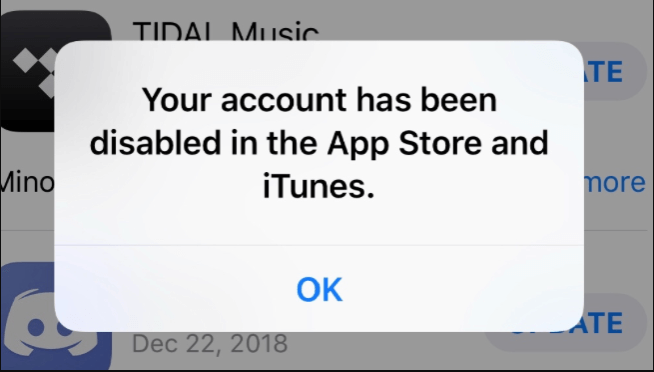
Why Your Account Has Been Disabled?
Apple disables Apple IDs for security reasons. Here are the most common triggers:
⛔Too many incorrect password attempts- Apple locks the account after several failed logins to prevent unauthorized access. Waiting 24 hours sometimes resolves it.
⛔Frequent sign‑in on multiple devices- If Apple detects your account being used on many different devices in a short time, it may suspect suspicious activity and lock you out.
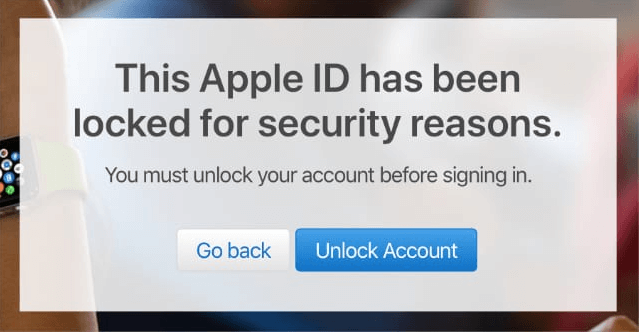
⛔Long period of inactivity- If you haven't signed in for months or years, Apple may disable the account for security.
⛔Billing issues or disputed charges - Unpaid App Store or iTunes purchases can lead to a disabled account.
Knowing the cause helps you choose the right fix.
5 Fixes for a Disabled Apple ID on Apple Store and iTunes
Try these methods in order. Most are quick and don't require special tools.
Method 1. Unlock Your Apple ID Online
If you forgot your password or entered it incorrectly too many times, the official Apple account recovery page is your first stop.
Step 1. On any device, go to iforgot.apple.com.
Step 2. Enter your Apple ID email address and click Continue. Apple may ask security questions or send a verification code to a trusted phone number.
Step 3. Follow the instructions to reset your password and unlock your account. Once done, sign in again on your iPhone.
Method 2. Reset Your Apple ID Password
If unlocking via the website doesn't work, resetting your password directly from your iPhone can sometimes clear the disabled status.
Step 1. On your iPhone, go to Settings > tap your name at the top > Password & Security.
Step 2. Tap Change Password. Enter your device passcode when prompted.
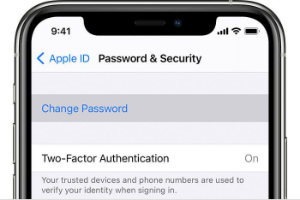
Step 3. Follow the on‑screen steps to create a new password. Then sign out of the App Store and iTunes, and sign back in with the new password.
Method 3. Check Your Restrictions
In‑App Purchases might have been accidentally turned off, which can prevent App Store access and sometimes trigger account restrictions.
Step 1. Go to Settings > Screen Time > Content & Privacy Restrictions.
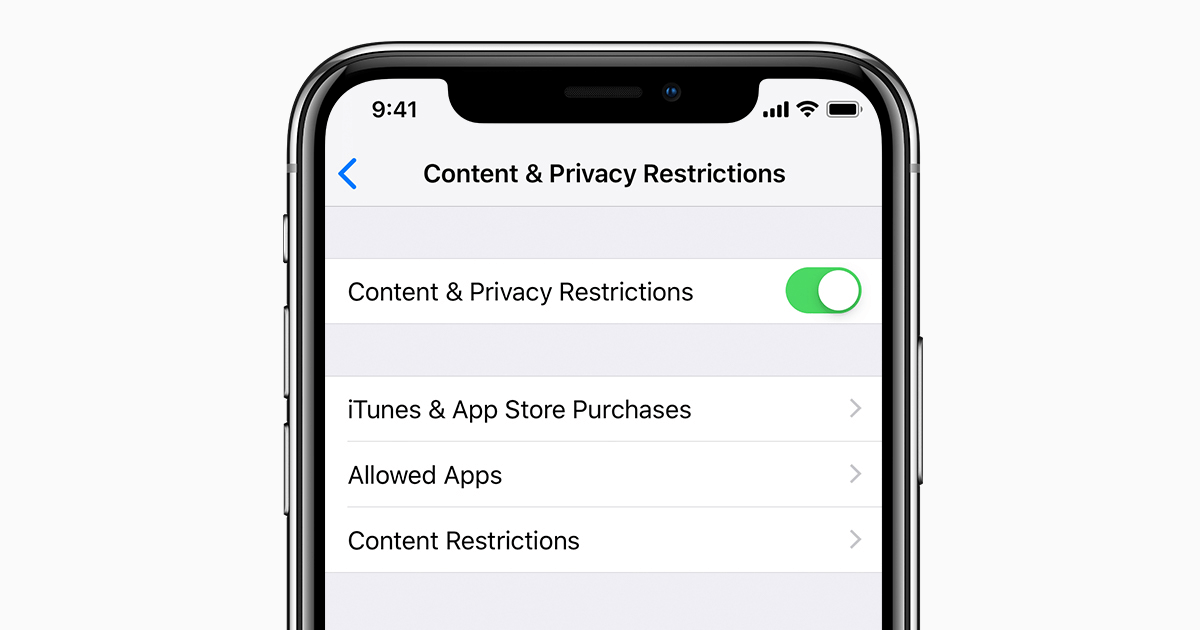
Step 2. If restrictions are on, tap iTunes & App Store Purchases. Make sure In‑App Purchases is set to Allow.
Step 3. If you previously set a restrictions passcode, you'll need it to change these settings.
Method 4. Hard Reset Your iPhone
If none of the above works, a factory reset can clear any system glitches that might be interfering with your Apple ID. This erases all data on your iPhone, so back up first.
✅How to back up your iPhone before resetting:
AOMEI FoneBackup is a free Windows tool that creates a full backup of your iPhone to your computer, no iCloud or iTunes required.
 AOMEI FoneBackup
- Full backup: Save everything, like photos, contacts, messages, app data, system settings.
- No storage limits: Transfer data to your PC or external drive.
- Works with all iOS devices: iPhone 4 up to the latest iPhone modeland iOS version.
- Easy restore: Get your data back after the reset without losing anything.
 100% Secure
Step 1. Download and install AOMEI FoneBackup on your Windows PC. Connect your iPhone with a USB cable and tap "Trust This Computer" when prompted.
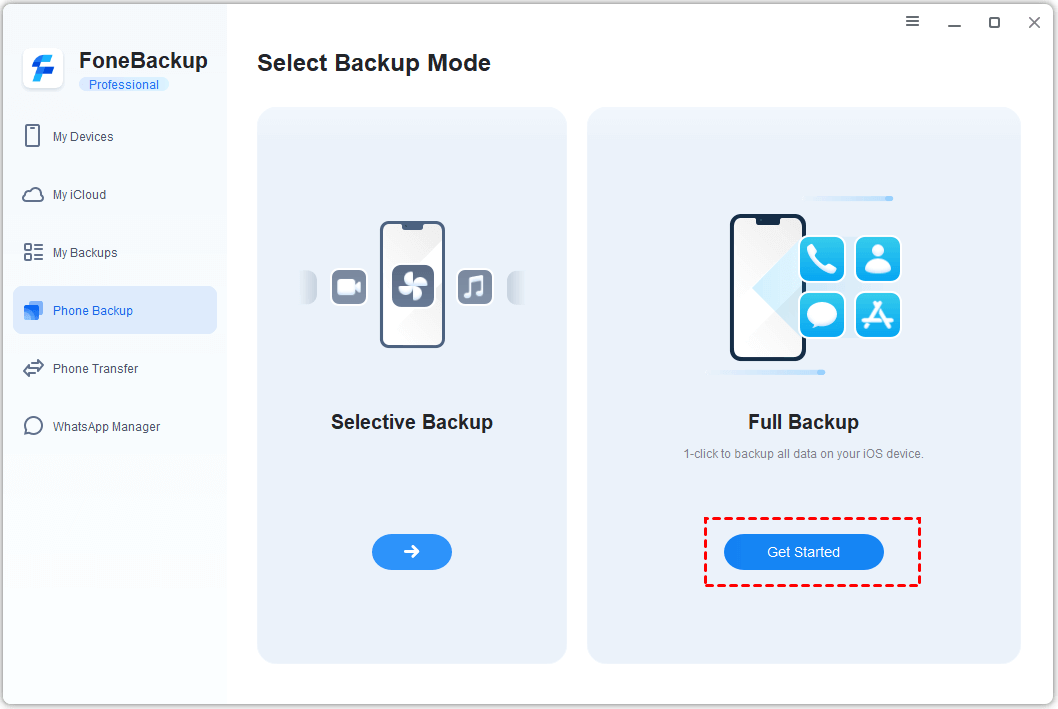
Step 2. Open AOMEI FoneBackup. Click Phone Backup, then under Full Backup, click Get Started.
Enable Backup Encryption to protect sensitive data like Health and Keychain.
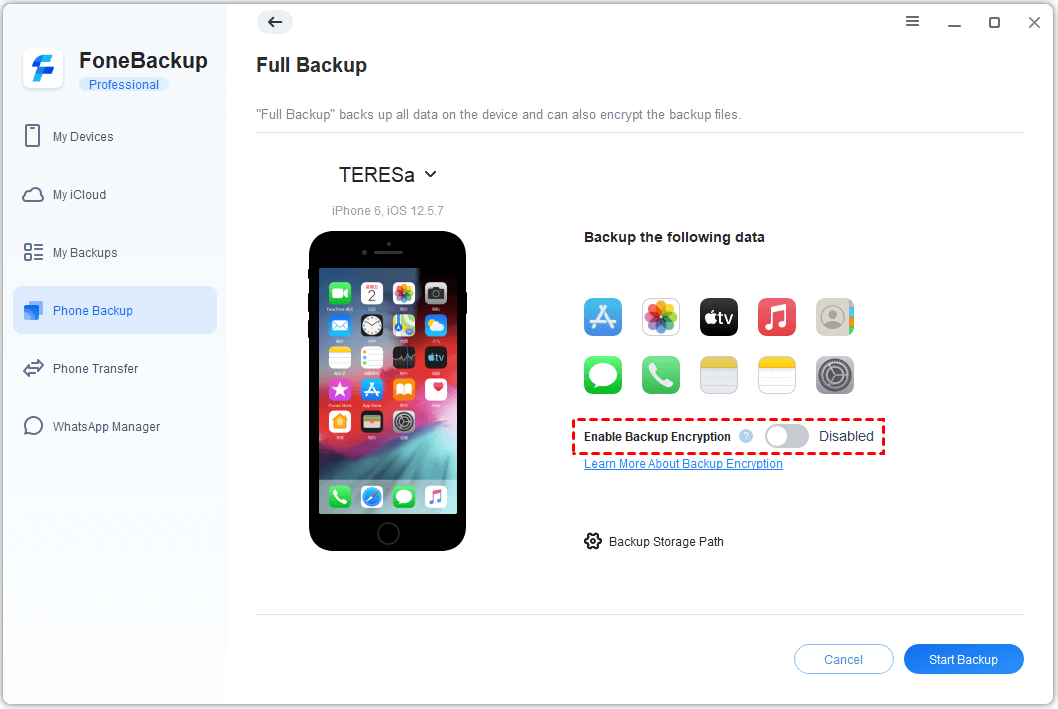
Step 3. Choose a location on your PC or external drive to save the backup.
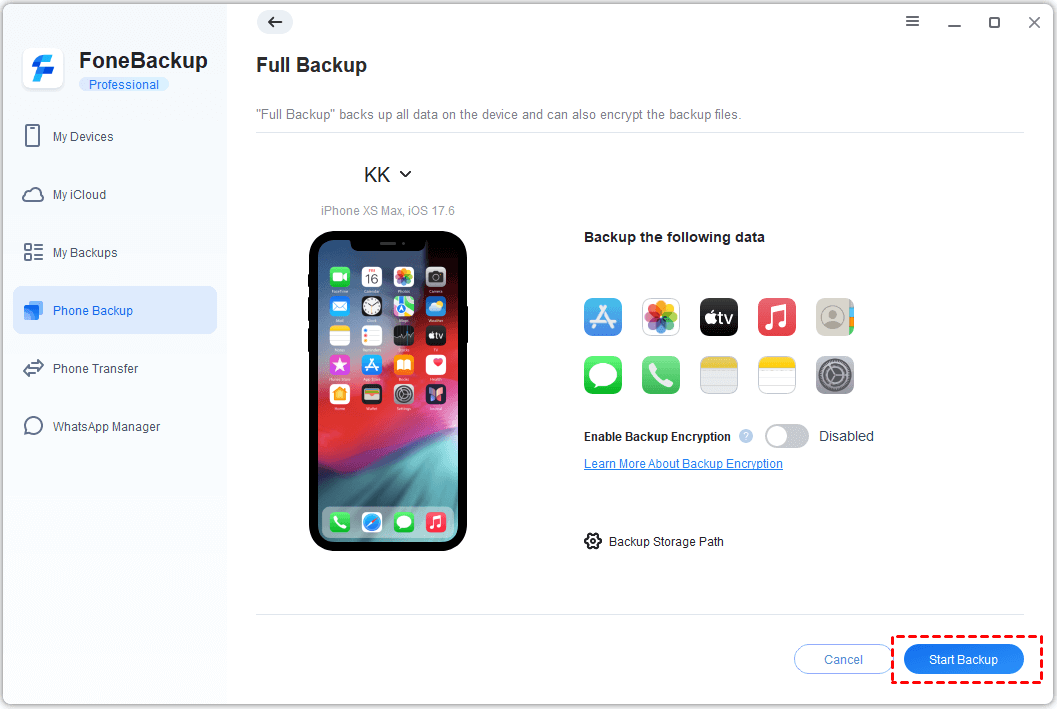
Step 4. Click Start Backup. Wait for it to complete. Your data is now safe.
📱Now, hard reset your iPhone:
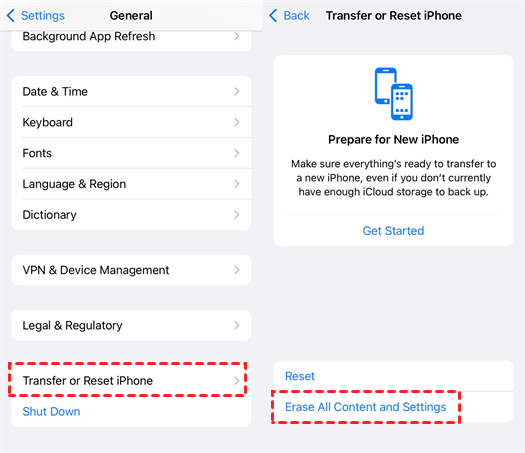
Step 1. Go to Settings > General > Transfer or Reset iPhone > Erase All Content and Settings. Confirm your passcode.
Step 2. After the reset, set up your iPhone as new. Sign in with your Apple ID to see if the account is still disabled.
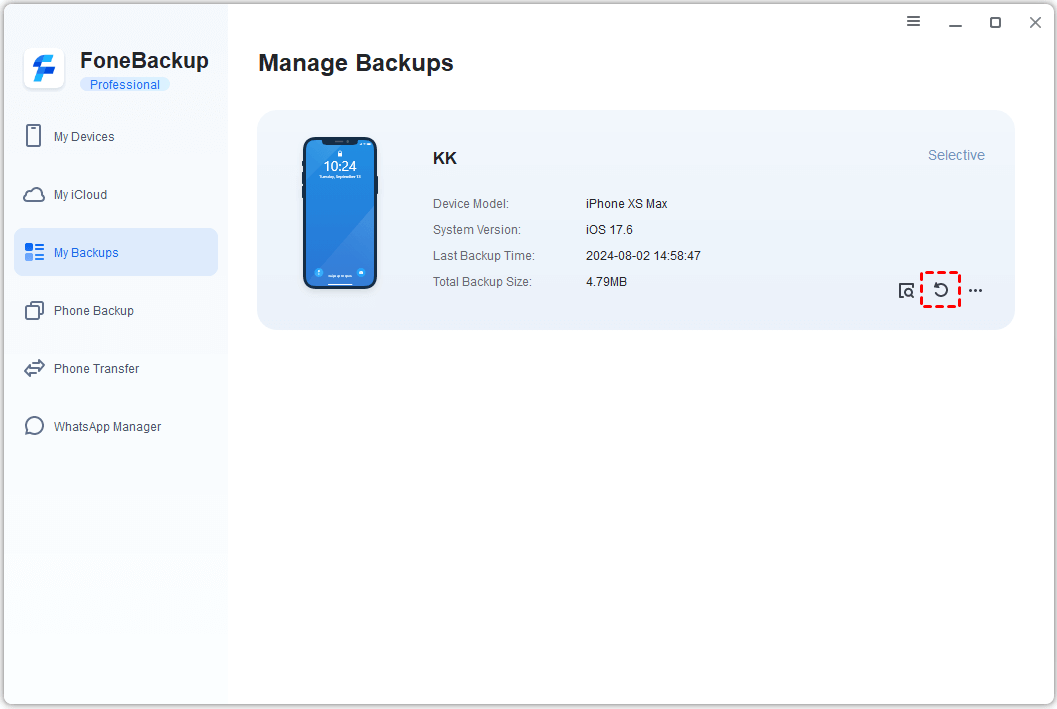
Step 3. If it works, restore your data from the AOMEI FoneBackup backup: open the tool, go to My Backups, find your backup, and click Restore.
Method 5. Contact Apple Support
If your account remains disabled after trying everything, reach out to Apple directly.
Step 1. Go to the Apple Support website.
Step 2. Select Apple ID > Disabled Apple ID.
Step 3. Choose to chat online, schedule a call, or email. Have your Apple ID information ready. Apple Support can verify your identity and unlock the account if there's no security breach.
Conclusion
Seeing your account has been disabled in the App Store and iTunes is alarming, but it's usually fixable. Start with the online recovery page or a password reset. If those don't work, check your restrictions, and if all else fails, a factory reset with a backup first, can clear stubborn glitches. And before you take any step that might erase your phone, a full backup with AOMEI FoneBackup ensures you won't lose a thing.

 as a preferred
source on Google
as a preferred
source on Google