



How to Transfer Everything Except Photos to New iPhone - 4 Ways
When switching to a new iPhone, many users want to keep important data like contacts, messages, apps, and settings but avoid transferring thousands of photos and videos. This guide introduces four practical ways to transfer everything except photos to new iPhone, helping you save storage space and complete the migration more efficiently.

By Jonna Updated on August 20, 2026


Can You Transfer to a New iPhone but Not Transfer the Photos?
If you want a fresh start without cluttering your new device with old screenshots, duplicate photos, and meme downloads, you might naturally wonder how to transfer everything except photos to new iphone. Moving your contacts, messages, apps, call history, and system settings - while leaving your photos behind - is one of the best ways to keep your new iPhone clean, fast, and organized. Yes, you can transfer iPhone data without photos.
In this ultimate guide, we will explore four effective ways to transfer everything but photos to your new iPhone, helping you start fresh with maximum available storage space.
🌟 Pro tip: Before excluding photos from your migration, it is advised to backup iPhone photos to an external hard drive, your computer, or a cloud service like Google Photos, so you don't permanently lose precious memories.
Way 1. Transfer Everything but Photos to New iPhone via iCloud Sync
Instead of restoring a complete device backup, you can use individual iCloud sync toggles. By enabling iCloud sync for Contacts, Messages, Notes, Calendars, and Keychains - while keeping iCloud Photos turned OFF - you can sync all core data to your new iPhone without pulling down your photo library.
Step 1. On your Old iPhone, go to Settings > tap [Your Name / Apple ID] > iCloud.
Step 2. Under Apps Using iCloud, tap Show All. Ensure that Contacts, Messages, Notes, Reminders, Passwords, and Calendars are toggled ON.
Step 3. Tap on Photos and turn the toggle to turn it OFF. Connect to Wi-Fi to allow all other data to sync to iCloud.
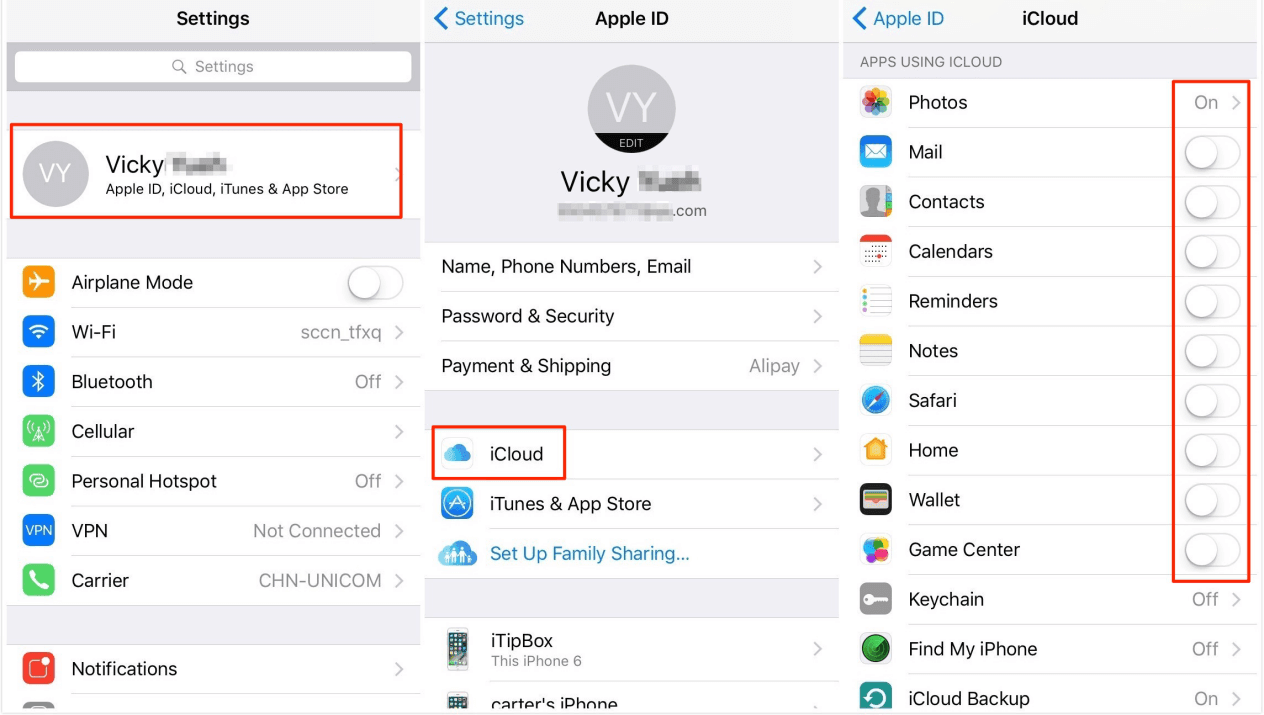
Step 4. On your New iPhone, set up the device as a new iPhone without restoring a full backup. Sign in with the same Apple ID during setup.
Step 5. Once at the home screen, go to Settings > [Your Name] > iCloud. Turn on Contacts, Messages, Notes, etc., while ensuring Photos remains OFF. Your data will automatically download in the background.
Way 2. How to Not Transfer Photos to New iPhone with iCloud Backup
If you plan to set up your new iPhone using an iCloud Backup, you can manually exclude Photo Library from your iCloud Backup settings on your old iPhone before creating the backup. When you restore that backup onto your new phone, photos will be skipped entirely.
Step 1. Open Settings > tap [Your Name] > iCloud on your old iPhone.
Step 2. Go to iCloud Backup > turn on the toggle for Back Up This iPhone.
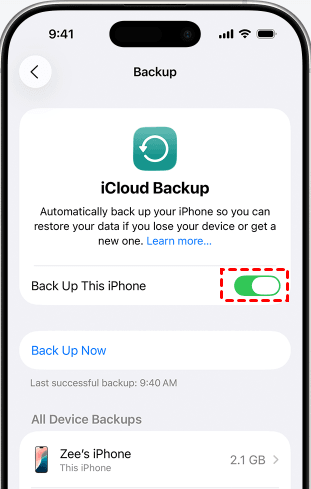
Step 3. Under Saved to iCloud, locate Photo Library and turn the toggle OFF. Confirm by tapping Turn Off & Delete (this only removes photos from the backup file, not from your physical old phone).
Step 4. Go back to Settings > [Your Name] > iCloud > iCloud Backup and then tap Back Up Now to create an immediate backup..
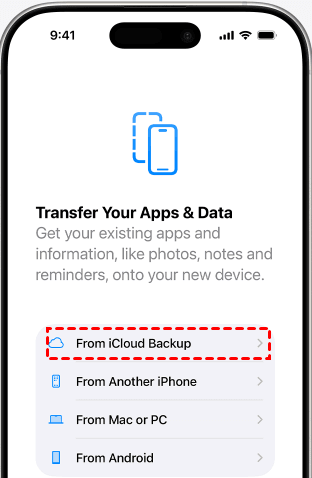
Step 5. On your new iPhone, turn on the new iPhone, begin setup, and on the Transfer Your Apps & Data screen, choose Restore from iCloud Backup. Select the backup you just created.
Way 3. Setup New iPhone without Photos from Old Phone with Quick Start
Apple's direct migration feature, Quick Start, transfers data directly from phone to phone. By default, Quick Start transfers everything. However, you can prevent photos from transferring by combining Quick Start with iCloud downloads after disabling photo syncing on your old device.
Step 1. Disbale iCloud Photos (Settings > [Your Name] > iCloud > Photos > toggle OFF on the old iPhone. Ensure all other data toggles (Contacts, Messages, etc.) are ON.
Step 2. Place both iPhones next to each other. Turn on the new iPhone and wait for the Quick Start prompt to appear on your old iPhone screen.
Step 3. Scan the animation on the new iPhone using your old iPhone’s camera, then enter your old passcode on the new iPhone.
Step 4. When prompted for how to transfer your data, choose Download from iCloud (instead of Transfer from iPhone).
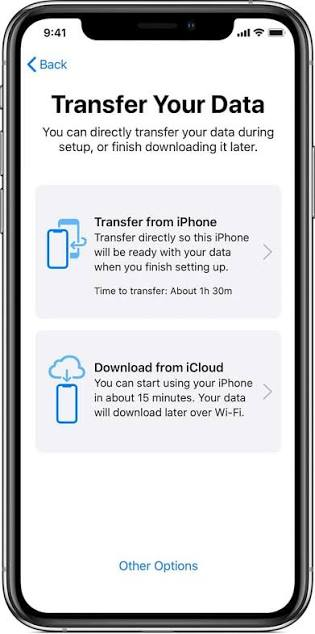
Step 5. Since Photos was excluded from your iCloud data sync/backup, your new iPhone will download apps, settings, and messages while leaving photo libraries behind.
Way 4. Transfer Everything Except Photos to New iPhone with Transfer Software
If you want the most reliable, customizable, and straightforward way to transfer everything except photos to new iPhone without messing around with complicated iCloud settings, AOMEI FoneBackup is the ultimate solution.
AOMEI FoneBackup is a professional iOS data transfer and management tool designed for Windows PCs. It gives you total control over what gets migrated and what gets left behind. You can choose to perform a full phone transfer or selectively pick exact contacts, messages, music, and videos you want to transfer from your old device.
 AOMEI FoneBackup
- Transfer between iPhones: 1-click iPhone to iPhone full migration or selectively move media files and personal data to new iPhone instantly.
- No Storage Limits & No Internet Needed: Operates via direct USB connection, making it much faster than Wi-Fi or iCloud transfers.
- No Overwriting Risk: Selectively transfer data without erasing existing files on your target iPhone.
- Full Data Protection: Keeps your passwords, app data, call logs, and personal settings intact.
- Universal Compatibility: Fully supports all iOS versions and iPhone models (including the latest iPhone series).
 100% Secure
Step 1. Run AOMEI FoneBackup on your computer. Connect your old and new iPhones to the PC using USB cables. Tap Trust This Computer.
Step 2. On the main interface, click Phone Backup > navigate to Selective Backup.
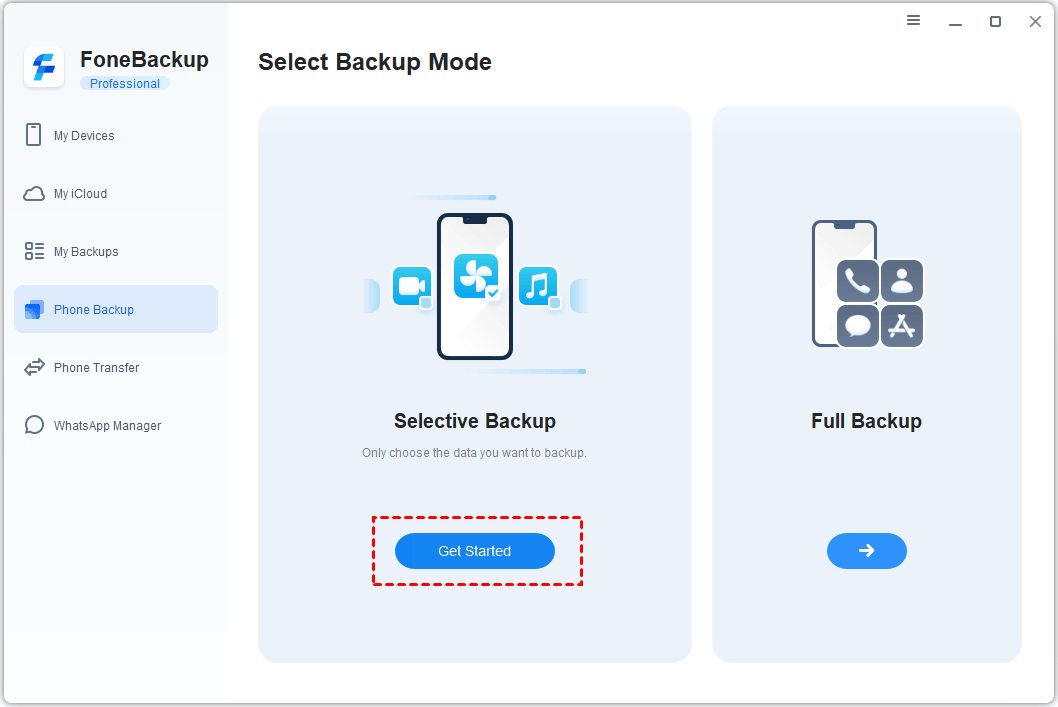
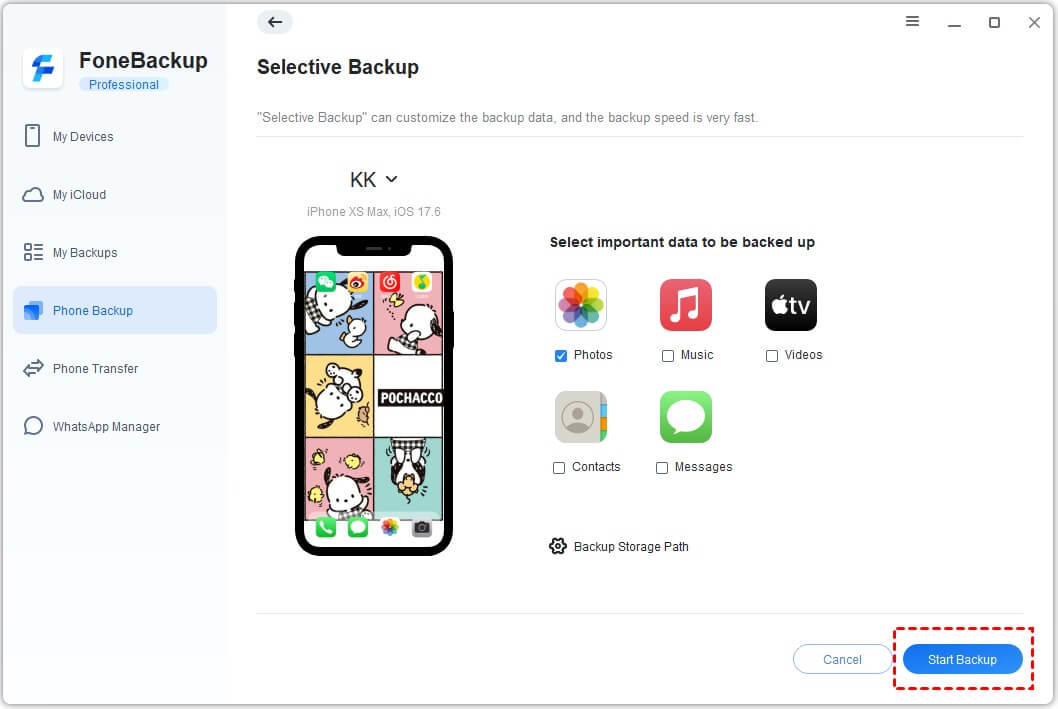
Step 3. On the transfer setup panel, you will see a list of data categories; select Contacts, Messages, Music, Videos, except Photos, then go on to pick specific items.
Step 4. Select a path to save your old iPhone data > Click Start Backup.
Step 5. Unplug the old iPhone and plug in the new iPhone > Go to My Backups > Locate the old iPhone backup file > Click Restore.
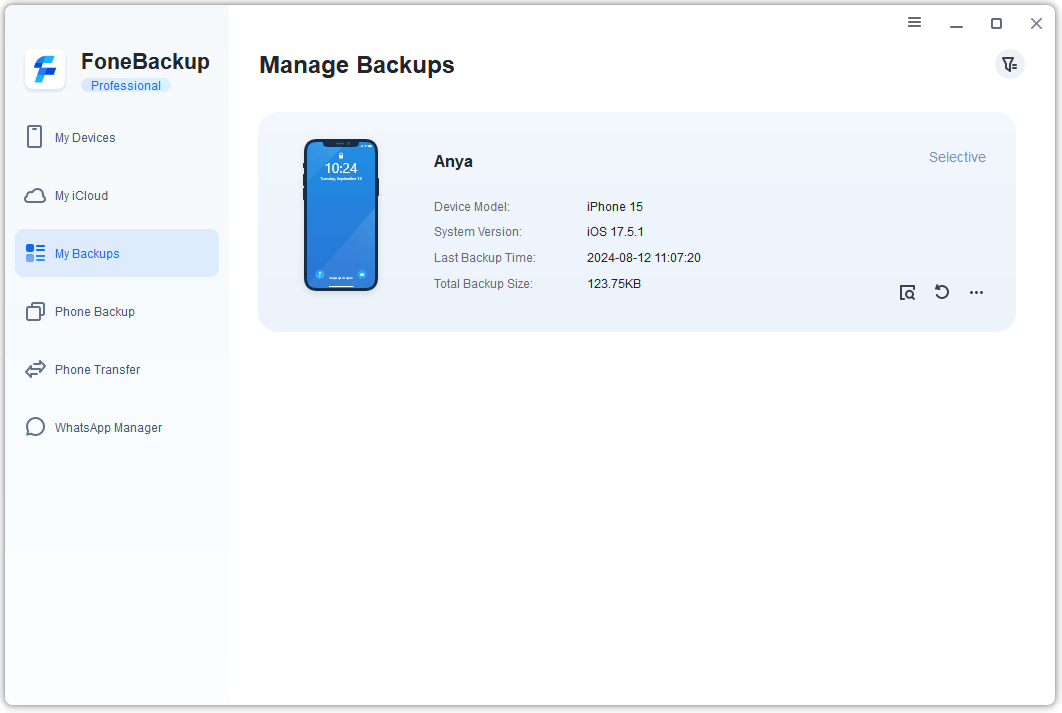
Step 6. Preview and choose the data to restore to your new iPhone, then click Start Restore to transfer data to new iPhone without photos.
FAQs About Transferring Everything Except Photos to New iPhone
Q1: Can I transfer my photos later after setting up my new iPhone?
Yes, absolutely. Skipping photos during initial transfer does not lock you out. You can transfer photos at any later time using AOMEI FoneBackup, iCloud Photos, Google Photos, or by connecting your phone to a computer with a USB cable.
Q2: Will skipping photos speed up my iPhone transfer process?
Yes, significantly! Media files (photos and 4K videos) usually make up 80% to 90% of total iPhone backup sizes. Skipping them reduces transfer time from hours to just a few minutes.
Q3: Will excluding photos also delete them from my old iPhone?
No. Excluding photos during setup or backup configuration only prevents them from being copied to your new iPhone. Your original photos remain safely stored on your old iPhone.
Q4: How do I transfer apps and messages without photos?
The easiest method is using AOMEI FoneBackup's "iPhone to iPhone" transfer tool. It allows you to select Apps, Messages, Contacts, and Settings while leaving the Photos option unchecked.
Summary
Knowing how to transfer everything except photos to new iphone is the best way to enjoy a clean, fast, and clutter-free upgrade. Whether you want to save precious storage space or leave behind years of accumulated screenshots and duplicate photos, you have several dependable methods at your disposal.
While Apple’s native iCloud sync and backup toggles offer workable solutions, they often require tedious pre-configuration and stable cloud storage. For a seamless, fast, and foolproof solution, AOMEI FoneBackup provides the easiest one-click option to migrate all your essential data, contacts, and more personal data. To migrate all apps, and settings from old iPhone to new iPhone, try the its iPhone to iPhone transfer function.

 as a preferred
source on Google
as a preferred
source on Google