




iPhone Quick Start Not Detecting Old Phone? 4 Fixes to Try
iPhone Quick Start not detecting old phone? This guide covers 4 fixes, from Bluetooth/Wi‑Fi reset, iOS updates, and wired connections to a direct transfer alternative when nothing works. Keep reading.

By Ivy Updated on July 13, 2026


You just got your hands on a brand-new iPhone, maybe an iPhone 17, iPhone 16e, or the latest model. You power it on, follow the setup prompts, and bring your old iPhone close, waiting for the Quick Start screen to appear.
And... nothing happens.
You wait a little longer. Still nothing. Your new iPhone doesn't seem to find your old one, and you're stuck wondering what went wrong.
This is one of the most common frustrations when switching to a new iPhone. The good news? In most cases, the problem is caused by something simple and easy to fix.
This guide walks you through 5 practical solutions, starting with the quickest fixes to get your iPhone Quick Start working again. If none of them work, we'll also show you a reliable alternative that bypasses the issue entirely.
Quick Diagnosis: Which Fix Should You Try First?
Not sure where to start? Here's a quick guide based on what you're experiencing:
| Your Situation | Most Likely Cause | Try This |
|---|---|---|
| Quick Start screen never appears | Connection issue (Bluetooth/Wi‑Fi) or iOS version | Fix 1 or Fix 3 |
| Quick Start appears but gets stuck | Temporary system glitch | Fix 2 |
| Old iPhone runs an older iOS version | Quick Start requires iOS 12.4 or later | Fix 3 |
| Wireless Quick Start keeps failing | Unstable wireless connection | Fix 4 |
| None of the fixes work, need to transfer now | Skip troubleshooting | Use a Quick Start alternative |
Why Is iPhone Quick Start Not Detecting Old Phone?
Quick Start is Apple's wireless data transfer feature that helps you move everything from your old iPhone to a new one. It uses a combination of Bluetooth and Wi‑Fi to establish a connection between the two devices.
If Quick Start isn't detecting your old phone, it's usually due to one of these common reasons:
-
iOS version mismatch: Quick Start requires iOS 12.4 or later on the old iPhone. If your old iPhone is running an older version, Quick Start simply won't appear.
-
Bluetooth or Wi‑Fi is turned off: Both iPhones need Bluetooth and Wi‑Fi enabled for Quick Start to work.
-
Poor connection or range: Your iPhones need to be close to each other (within a few centimeters) for Quick Start to detect the old device.
-
Power issues: If either iPhone has low battery, Quick Start may not function properly.
-
Temporary glitches: Sometimes the connection gets stuck for no apparent reason, and a simple restart can fix it.
-
Wrong setup process: Quick Start only appears during the initial setup of a new iPhone, not after it's already set up.
Before diving into the fixes, let's first make sure your Quick Start setup is correct.
Quick Start Pre‑Check: Make Sure Your Setup Is Correct
If your iPhone Quick Start isn't detecting the old phone, the first step is to confirm that you've set it up properly. Here's a quick checklist:
-
Check your iOS version: Your old iPhone must run iOS 12.4 or later. If it's running an older version, Quick Start won't appear at all. Go to Settings > General > About to check your current iOS version.
-
Connect both iPhones to power: Plug both devices into a power source throughout the process to avoid any battery‑related interruptions.
-
Enable Bluetooth on both iPhones: Make sure Bluetooth is turned on for both devices.
-
Keep them close: Place both iPhones within a few centimeters of each other, side by side.
-
Start from the right place: Quick Start only appears during the initial iPhone setup, after selecting your language and country. If you've already completed the setup, you'll need to erase your new iPhone and start over, or use an alternative transfer method.
If everything on this checklist is correct and Quick Start still isn't working, try the fixes below.
4 Fixes for iPhone Quick Start Not Finding Old Phone
Fix 1: Reset Bluetooth and Wi‑Fi Connections on Both iPhones
The most common reason why your old iPhone isn't detecting Quick Start is an unstable connection between the two devices. Since Quick Start relies on Bluetooth and Wi‑Fi to connect, resetting these connections can often resolve the issue.
How to do it:
Step 1. Open Settings > Bluetooth on both iPhones and turn Bluetooth off, then turn it back on.
Step 2. Open Settings > Wi‑Fi on both iPhones and turn Wi‑Fi off, then turn it back on.
Step 3. Bring both iPhones close together again and wait for the Quick Start prompt to appear.
After resetting both connections, Quick Start should detect your old iPhone. If not, move to Fix 2.
Fix 2: Restart Both iPhones
Sometimes, your iPhone may become stuck for unknown reasons, and restarting it can resolve temporary glitches that interfere with Quick Start. This is a quick, risk‑free fix that often solves the problem.
How to restart your iPhone:
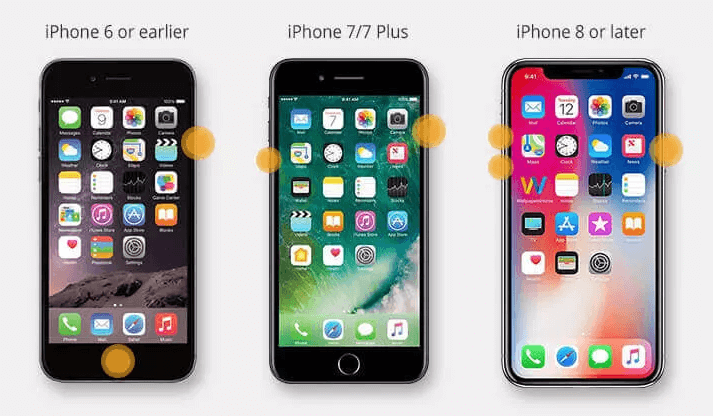
👉 For iPhone 8/8 Plus/X or later: Press and quickly release the Volume Up button. Press and quickly release the Volume Down button. Then press and hold the Side button until the Apple logo appears.
👉 For iPhone 7/7 Plus: Press and hold both the Sleep/Wake and Volume Down buttons until the Apple logo appears.
👉 For iPhone 6 or earlier: Press and hold both the Home and Sleep/Wake buttons until the Apple logo appears.
After restarting both devices, start the iPhone setup process again and check if Quick Start works. If not, move to Fix 3.
Fix 3: Update iOS on Your Old iPhone
An outdated version of iOS can cause unknown errors on iPhone, including Quick Start not working properly. Since Quick Start requires iOS 12.4 or later, updating to the latest version may resolve the issue.
How to update iOS:
Step 1. On your old iPhone, go to Settings > General > Software Update.
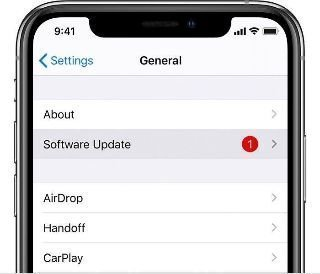
Step 2. Wait for your device to check for available updates. If an update is available, tap Download and Install and follow the prompts.
After updating to the latest iOS version, your old iPhone should be compatible with Quick Start. Reconnect both devices and try again.
Fix 4: Try a Wired Connection with Quick Start
Many factors can impact wireless Quick Start data transfer. If wireless Quick Start keeps failing, you can use a wired connection to complete the transfer. Apple provides both wireless and wired data migration solutions for Quick Start.
✅ What you'll need:
-
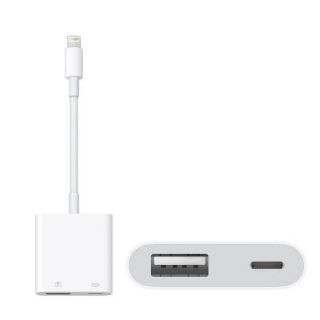
A Lightning to USB 3 Camera Adaptor
-
A Lightning to USB cable
How to do it:
Step 1. Connect the Lightning to USB 3 Camera Adaptor to your new iPhone.
Step 2. Use a Lightning to USB cable to connect your old iPhone to the adaptor.
Step 3. Follow the on‑screen instructions to complete the data transfer.
With a physical connection between the two iPhones, the transfer should proceed without wireless connection issues.
Quick Start Still Not Working? Directly Transfer Data with AOMEI FoneBackup
If you've tried all the fixes above and Quick Start still won't detect your old iPhone — or if you simply don't want to spend more time troubleshooting — there's a reliable alternative.
AOMEI FoneBackup is a professional iOS transfer tool that works when Quick Start doesn't. Instead of relying on wireless connections, it transfers data directly between two iPhones via a USB cable.
 AOMEI FoneBackup
-
Works when Quick Start doesn't: No more troubleshooting wireless connection issues
-
3 transfer modes: iPhone to PC, PC to iPhone, iPhone to iPhone. No iCloud or Apple ID needed.
-
Selective or full transfer: Move all data or choose exactly what to transfer.
-
Fast transfer speed: Takes less than half an hour to complete the transfer.
-
Offline and stable: The USB connection makes the process more stable and prevents your iPhone from getting stuck.
-
Wide compatibility: Works with iPhone 4 to iPhone 17, and Windows 7/8/10/11
 100% Secure
 How to transfer data from old iPhone to new iPhone with AOMEI FoneBackup:
Step 1. Download and install AOMEI FoneBackup on your Windows PC. Connect both iPhones to the computer via USB cables and tap Trust on both devices.
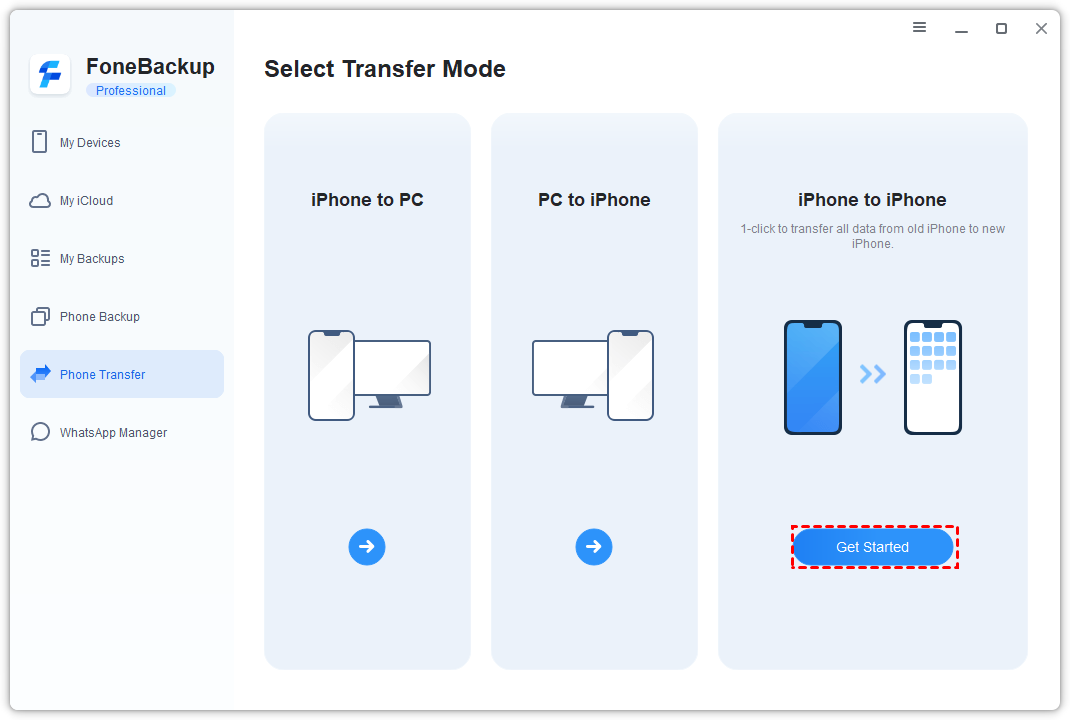
Step 2. Launch AOMEI FoneBackup, select Phone Transfer in the left panel. Then, choose iPhone to iPhone and click Get started.
Step 3. (Optional) Enable Backup encryption to protect your privacy. The password will be required to access the data in the future.
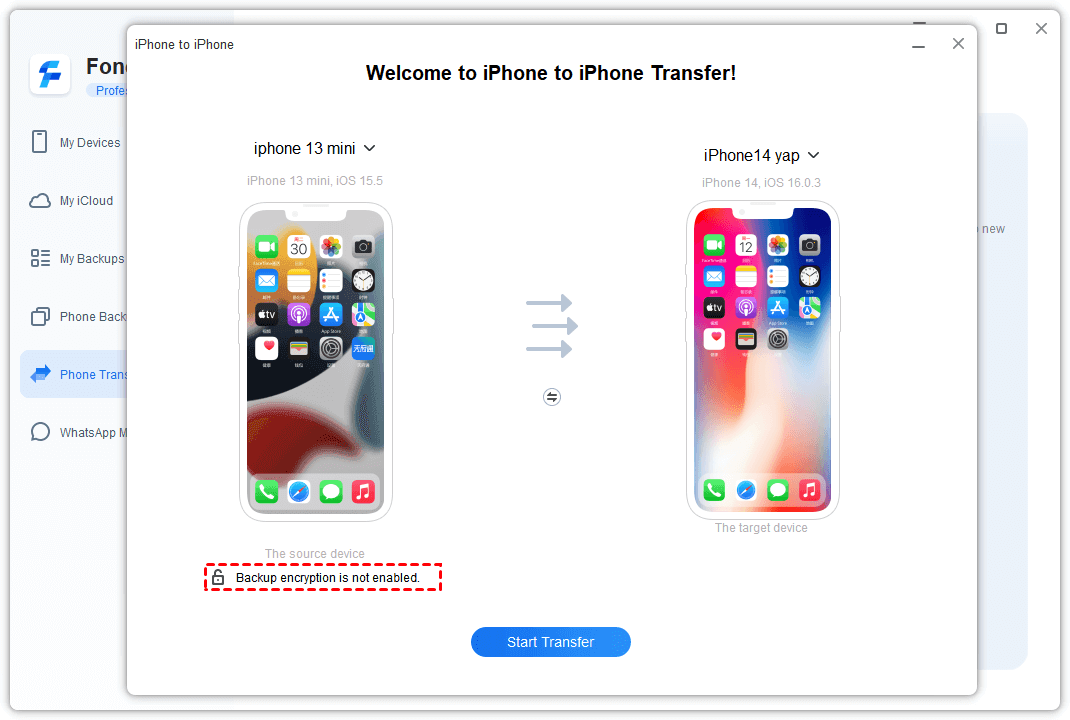
Step 4. Click Start Transfer to begin. Wait for the transfer to finish, and the new iPhone will restart automatically.
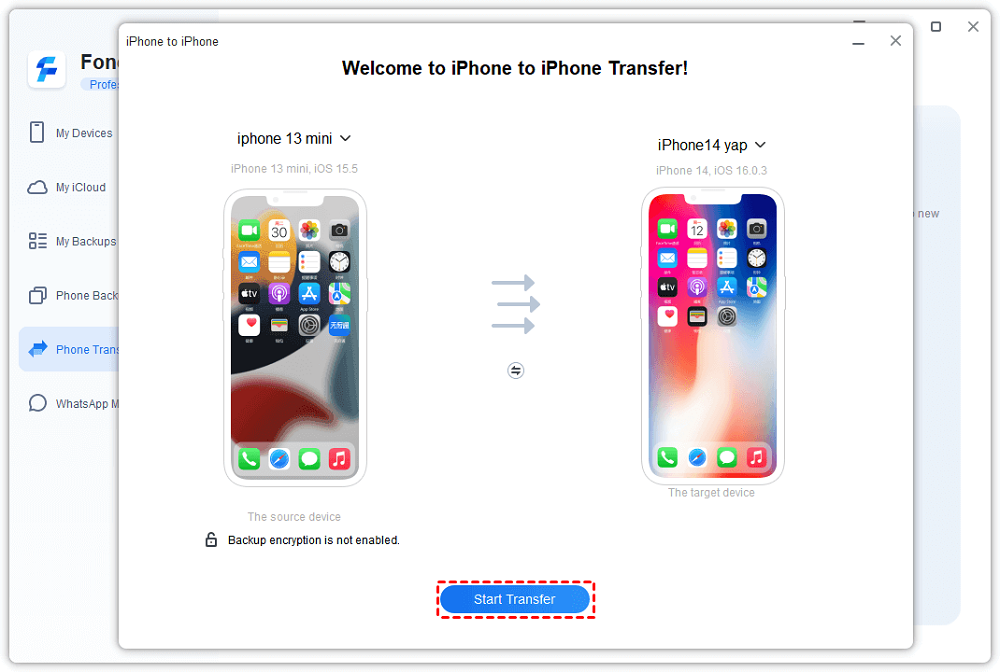
Once the transfer is complete, check your new iPhone to confirm everything, including photos, contacts, messages, apps, and settings, has been transferred successfully.
Final Words
If your iPhone Quick Start isn't detecting your old phone, don't panic. In most cases, the problem is caused by something simple — a Bluetooth or Wi‑Fi glitch, an outdated iOS version, or a temporary system issue.
Here's the simple rule:
-
Start with the Pre‑Check - make sure both iPhones meet Quick Start requirements.
-
Try Fix 1 (Reset Bluetooth/Wi‑Fi) - this is the most common cause and often solves the problem.
-
If that doesn't work, try Fix 2 (Restart both iPhones) - a quick, risk‑free fix.
-
If your old iPhone is running an older iOS version, use Fix 3 (Update iOS) - Quick Start needs iOS 12.4 or later.
-
If wireless Quick Start keeps failing, use Fix 4 (Wired connection) - a physical connection can bypass wireless issues.
-
If nothing works, use a transfer alternative (AOMEI FoneBackup) - it bypasses all the troubleshooting and transfers data directly.
Your data is too important to lose. Try these fixes, and you'll likely be up and running with your new iPhone in no time.

 as a preferred
source on Google
as a preferred
source on Google