




How to Perform iPad Clone: Transfer Everything to New iPad Safely
Want to create an iPad clone when upgrading to a new device? This guide explains 4 practical methods for transferring data from one iPad to another. Learn how to move your important data safely and efficiently.

By Jonna Updated on September 1, 2026


Can You Clone iPad to Another iPad?
Yes, you can clone iPad to new iPad. Getting a new iPad is exciting, but moving everything from your old device can be challenging. You may have thousands of photos, important documents, app data, contacts, messages, and personalized settings that you do not want to lose. This is where an iPad clone can help.
Performing an iPad clone - cloning all contents, configurations,app data, and media directly from your old device to your new one - is the fastest way to get your new tablet set up exactly like your old one. In this guide, we will explore four practical solutions to clone iPad data safely and efficiently, catering to both wireless preferences and fast wired PC tools.
How to Perform an iPad Clone to a New iPad
Apple and third-party software provide several ways to clone iPad to new iPad. You can learn detailed info below to get it done.
Way 1. iPad Clone via AOMEI FoneBackup (Fastest & Offline)
If you want a direct iPad clone process that doesn't rely on Wi-Fi speeds or cloud storage restrictions, using a specialized desktop iOS tool like AOMEI FoneBackup is highly recommended. It offers a dedicated "iPhone/iPad to iPad" transfer feature that migrates all system settings, app data, photos, videos, contacts, and personal files with a single click.
You can also run it as reliable iPad backup software to back up photos, music, videos, contacts, etc, or create a full iPad backup to computer, external hard drive, and other locations. Key Advantages of AOMEI FoneBackup for Cloning iPad without iCloud:
 AOMEI FoneBackup
- Full data migration: Clones photos, music, videos, contacts, messages, call history, app data, and personal preferences seamlessly.
- High-speed USB transfer: Bypasses internet bandwidth limitations, finishing full device transfers in minutes via a physical cable connection.
- No cloud storage needed: Eliminates iCloud storage limits and subscription upgrades.
- User-friendly interface: Straightforward layout requiring no technical expertise.
 100% Secure
Step 1. Download and install AOMEI FoneBackup on a Windows computer. Use USB cables to connect the old and new iPads.
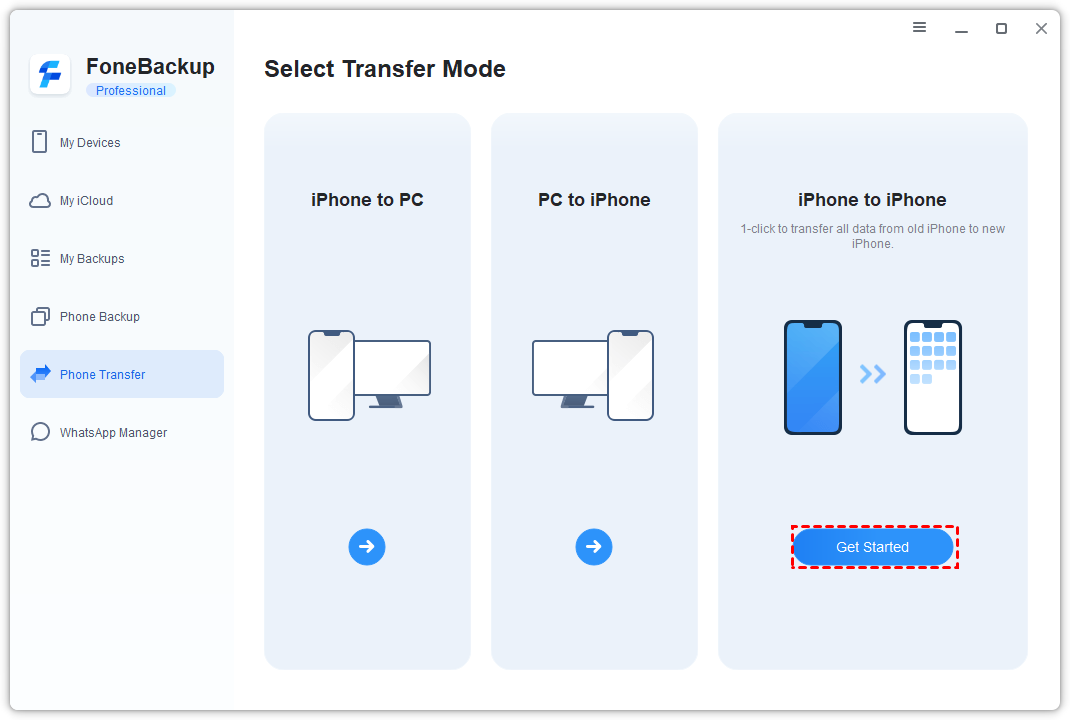
Step 2. Select Phone Transfer from the left menu, select iPhone to iPhone (which fully supports iPad-to-iPad transfer), and click Get Started.
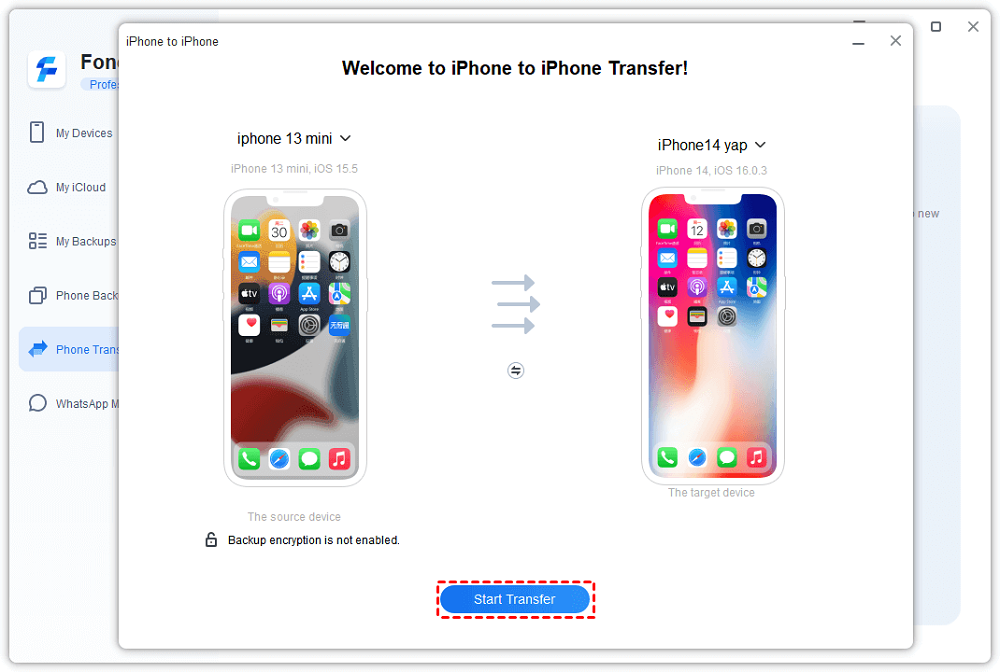
Step 3. Confirm your source iPad and target iPad are positioned correctly. Enable Backup Encryption if you wish to transfer private health data and saved passwords.
Step 4. Click Start Transfer to begin the iPad to iPad transfer.
Way 2. Clone an iPad to Another iPad with Quick Start
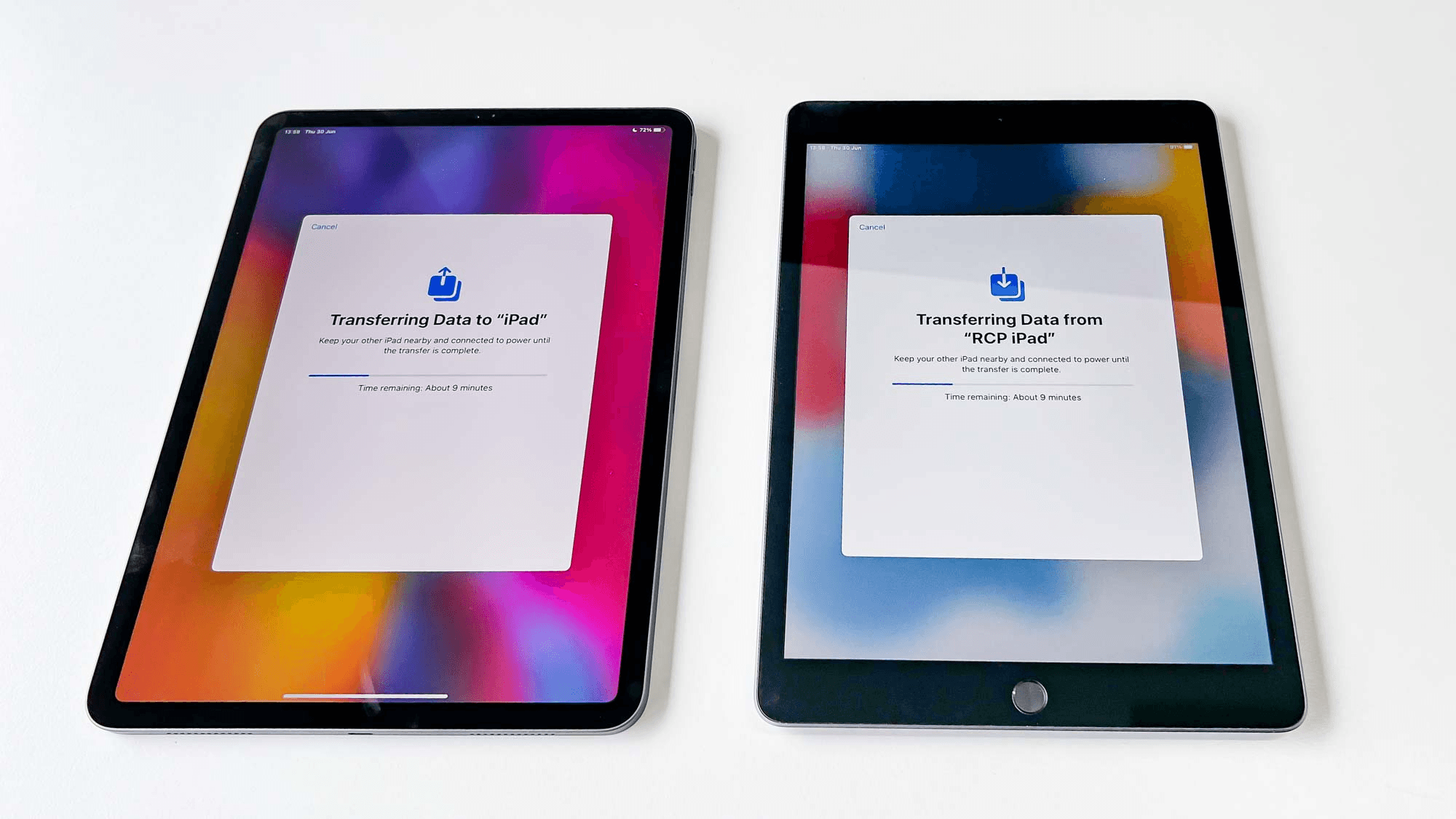
Quick Start is Apple's built-in setup feature for transferring information from an existing Apple device to a new one. When you turn on a new iPad and place it near your old device, Quick Start can guide you through the setup and data transfer process. Apple currently requires compatible software versions for certain transfer options, and the devices should be prepared according to the on-screen instructions.
Step 1. Turn on Bluetooth and Wi-Fi on your old iPad. Place your new iPad near your old iPad and turn on the new device.
Step 2. A Set Up New iPad prompt will appear on your old iPad screen. Tap Continue.
Step 3. An animation will appear on the new iPad screen. Hold your old iPad camera over the new iPad to scan the pattern.
Step 4. Enter your old iPad passcode on the new device when prompted.
Step 5. Select Transfer Directly from iPad and follow the on-screen prompts for Touch ID/Face ID setup to start cloning.
Way 3. Clone iPad via iCloud Backup & Restore
For users who already use iCloud to back up their iPad regularly, you can complete an iPad clone by restoring a fresh iCloud backup onto your new device.
Step 1. On your old iPad, go to Settings > [Your Name] > iCloud > iCloud Backup and tap Back Up Now.
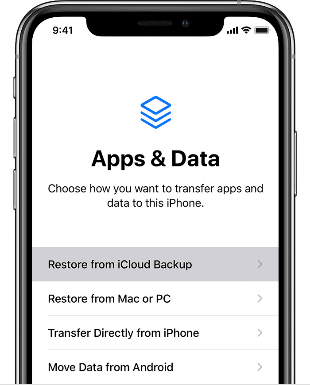
Step 2. Turn on your new iPad and begin the setup process until you reach the Apps & Data screen.
Step 3. Tap Restore from iCloud Backup.
Step 4. Sign in with your Apple ID and select the most recent backup created from your old iPad.
Step 5. Stay connected to Wi-Fi while the data, settings, and apps download to your new device.
Way 4. iPad Clone via iTunes
If you prefer traditional desktop software, iTunes can clone your iPad by taking a complete snapshot of your old iPad and flashing it onto the new one.
Step 1. Connect your old iPad to your computer and open iTunes.
Step 2. Select your iPad icon and go to the Summary page.
Step 3. Under Backups, select This Computer, check Encrypt local backup (to save passwords), and click Back Up Now.
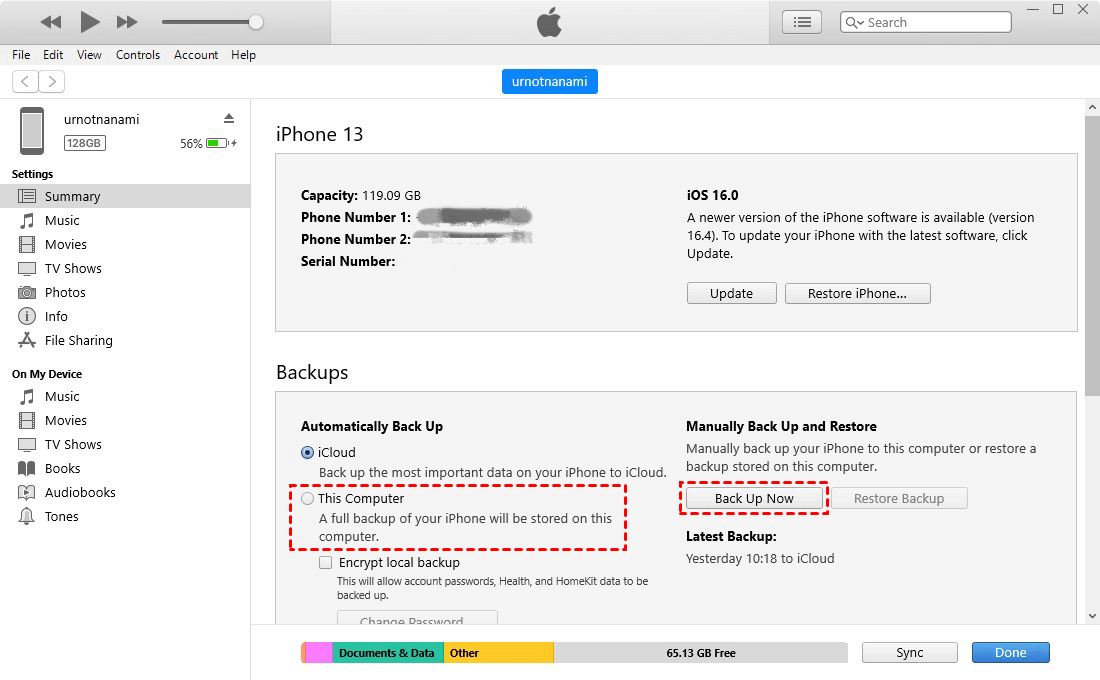
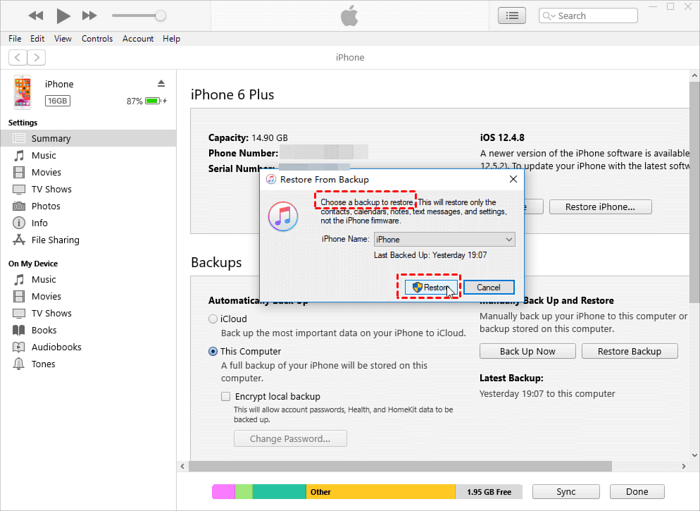
Step 4. Once the backup completes, disconnect the old iPad and connect your new iPad.
Step 5. During setup or on the main screen in iTunes, choose Restore Backup, select the latest backup file, and click Restore, then wait for completion to transfer old iPad to new iPad.
Common iPad Clone Problems and Fixes
The New iPad Cannot Detect the Old iPad:
Please make sure:
- Bluetooth is enabled.
- Wi-Fi is turned on.
- Both devices are charged.
- The devices are close to each other.
- The operating systems are compatible.
- Restarting both devices may also help.
The Transfer Is Taking Too Long:
- Large photo and video libraries can significantly increase migration time.
- Keep the devices connected to power and avoid interrupting the process.
Not Enough Storage on the New iPad:
- Check how much storage your old iPad uses before starting.
- If necessary, transfer only important files or remove unnecessary data from the old device.
Some Apps Are Missing:
During an iPad migration, apps may need to be downloaded again from the App Store. Make sure your new device remains connected to Wi-Fi after setup so that associated content can continue downloading.
FAQs About iPad Clone
#1. Can I clone an iPad after setting up the new device?
Some full migration methods are designed primarily for the initial setup process. If the new iPad is already configured, you may need to reset it before using a full setup-based transfer, or use a tool that supports transferring selected data afterward.
#2. Will an iPad clone transfer everything?
It can transfer a large amount of your data, but not every item necessarily transfers in exactly the same way. Certain apps, security credentials, and account-specific information may require additional setup.
#3. Can I clone an iPad without iCloud?
Yes. Quick Start, local computer backups, and AOMEI FoneBackup provide alternatives to copy iPad to iPad, not rely entirely on iCloud storage.
Final Thoughts
Creating an iPad clone is one of the easiest ways to make the transition to a new device without manually moving every photo, contact, document, and setting. For a straightforward Apple-to-Apple setup, Quick Start is an excellent option. iCloud provides a convenient wireless alternative, while computer backups give you more control over local storage.
For Windows users looking for additional transfer flexibility, AOMEI FoneBackup provides a practical option for moving data between iOS devices quickly and safely. Also, it allows to create iPad backup to Synology NAS, local drive, USB, etc.

 as a preferred
source on Google
as a preferred
source on Google