




How to Backup iPad to Computer Without iTunes Easily
This guide explains when to avoid iTunes, how to back up iPad data to a computer, and how to verify that the backup is usable before updating or resetting your device.

By Jonna Updated on August 13, 2026


Why Backup iPad without iTunes?
iTunes can still create a local iPad backup, but many users avoid it because it feels heavy, has limited backup visibility, or does not fit their workflow. If the goal is to protect iPad data before an iPadOS update, a factory reset, a device replacement, or a storage cleanup, a clearer backup method can save time later. If you want to backup iPad to computer without iTunes, use a computer-based iPad backup tool when you need a local backup path, easier backup management, or a restore workflow that does not depend on iTunes.
A local computer backup is useful because it is not limited by iCloud's free storage tier and does not need to download everything again from the cloud. The tradeoff is that you need a working USB connection, enough computer storage, and a backup tool that supports the data type you care about.
Before You Start - Checklist
A backup is only useful if it finishes and can be found later. Prepare the iPad and computer first, especially if you are backing up before a system update or reset.
- Charge the iPad or keep it connected to power during a long backup.
- Use a stable USB cable and trust the computer on the iPad when prompted.
- Check that the computer or external drive has enough free storage.
- Decide whether you need a full backup or only selected items such as photos, videos, contacts, or messages.
- Keep the old backup until you have verified the new one.
How to Backup iPad to Computer Without iTunes - 3 Ways
Here are 3 methods to backup ipad to PC without iTunes. You can either choose to use the free iPad backup software, use File Explorer, or use iCloud.
Method 1. Backup iPad to Computer without iTunes using AOMEI FoneBackup
AOMEI FoneBackup is designed for computer-based iPhone and iPad backup, transfer, and management. It is a great option when you want to backup iPad to PC without iTunes and manage the backup from Windows.
 AOMEI FoneBackup
- iPhone/iPad backup: Selectively backup photos, videos, and other files on iPad or 1-click full iPad backup as needed.
- Multiple paths: Support iPad backup to external drives, NAS, USB drives, and other storage devices
- Fast backup: Backup data fast and simply without iTunes or iCloud.
 100% Secure
Follow the steps below to create an iPad backup without using iTunes.
Step 1. Connect the iPad to the Windows computer with a USB cable and tap Trust This Computer on the iPad if the prompt appears. Then, open AOMEI FoneBackup on the computer.
Step 2. Choose Phone Backup from the main interface, then select Full Backup for a comprehensive iPad backup or Selective Backup if you only need specific data types. Then, click Get Started.
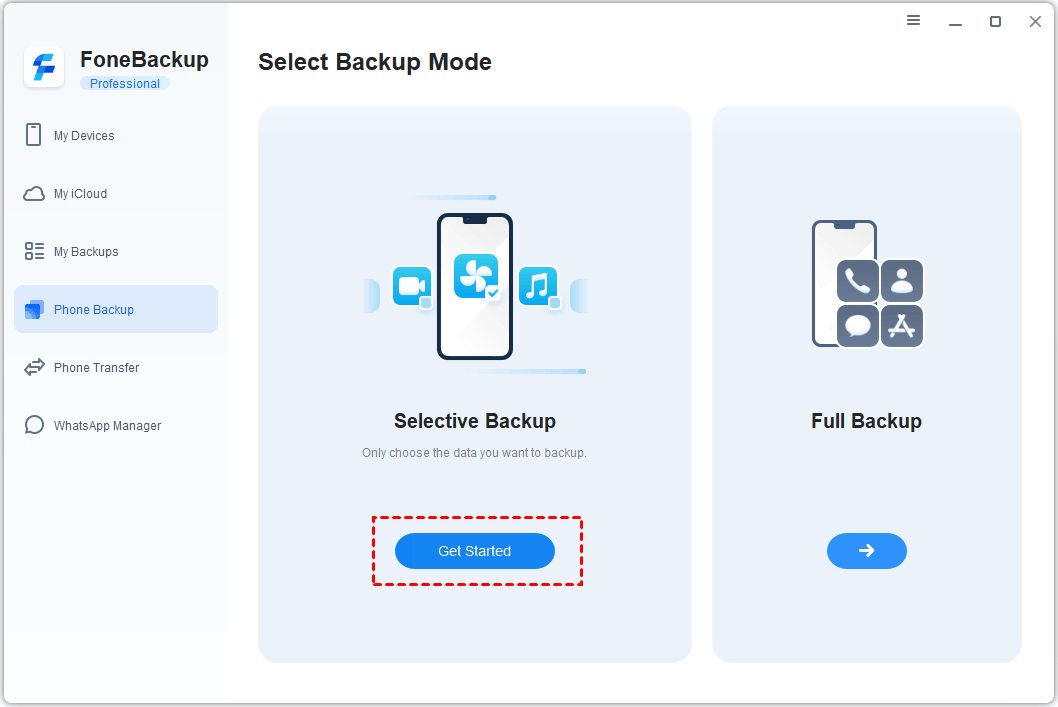
Step 3. (Optional) If you need to protect private data, enable backup encryption and save the password carefully.
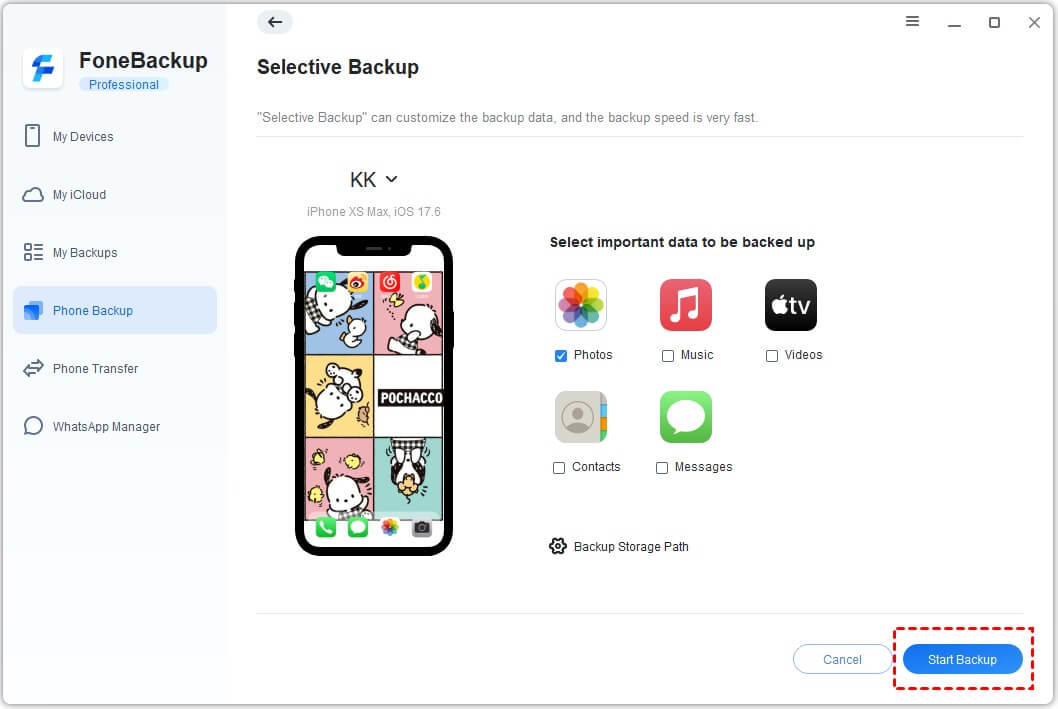
Step 4. Click Backup Storage Path and choose where to save the backup, such as a local folder or an external drive connected to the computer.
Step 5. Click Start Backup and keep the iPad connected until the task finishes.
After the backup is complete, open My Backups or the backup history area in AOMEI FoneBackup to confirm that the new backup record appears, then review the selected backup and restore target, and then click Start Restore. This extra check matters because a folder on the PC is not enough; you also need the software to recognize the backup when you want to restore it.
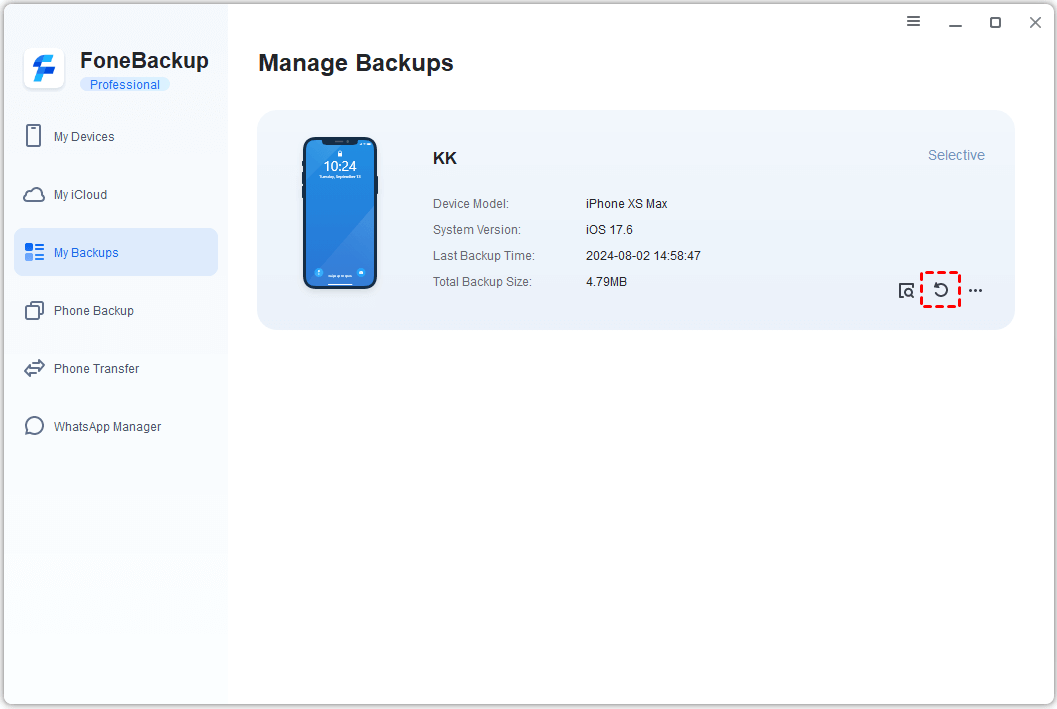
If you are restoring to a different iPad, check the result after the device restarts or reconnects. Avoid deleting the original iPad data until the restored copy looks correct.
Method 2. Copy iPad Photos and Videos to Computer with File Explorer
Windows File Explorer is a simple non-iTunes option when you only need photos and videos from the iPad camera roll. It is not a full iPad backup, but it can be enough before you clear media files or move pictures to a PC folder.
Step 1. Connect the iPad to the computer with a USB cable and unlock the iPad. Tap Trust This Computer on the iPad if prompted.
Step 2. Open File Explorer on Windows and choose the iPad under This PC. Open Internal Storage > DCIM.
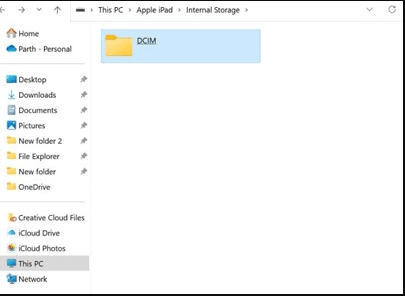
Step 3. Copy the photo or video folders you need. Paste them into a local folder on the computer and open several files to confirm the copy worked.
Choose this method only for iPad photos and videos. If you need app data, settings, contacts, messages, or a restore-ready backup, use AOMEI FoneBackup instead.
Method 3. Download iPad Files to Computer with iCloud
iCloud is useful when your iPad files or photos are already syncing with your Apple Account, and you want to download copies to a computer without iTunes, like downloading messages from iCloud. It is cloud-based, so it should be treated as a synced-file download method rather than a full local iPad backup.
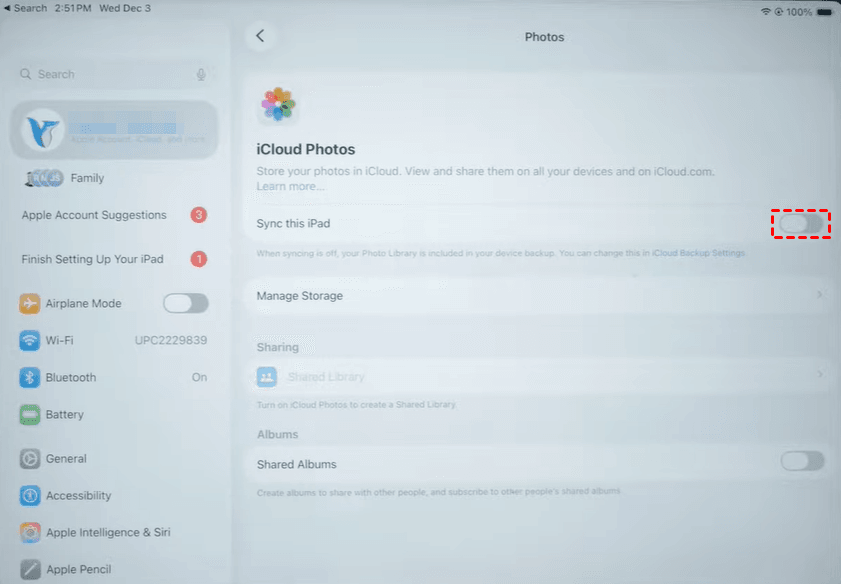
Step 1. On the iPad, connect to Wi-Fi and open Settings. Tap [your name] and turn on Sync this iPad to make sure that iCloud Photos or iCloud Drive is enabled for the data you need.
Step 2. On the computer, open iCloud.com in a browser or open iCloud for Windows.
Step 3. Sign in with the same Apple Account used on the iPad.
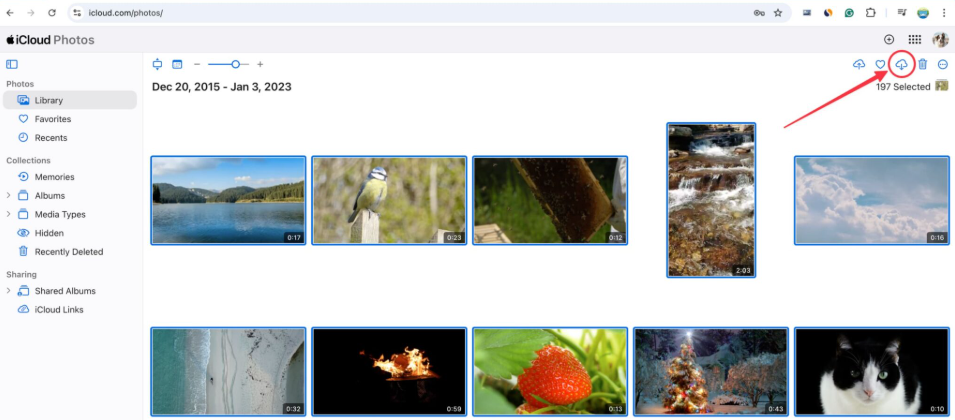
Step 4. Open Photos or iCloud Drive, select the synced items, and download them to a PC folder.
Can You Backup iPad to an External Hard Drive Without iTunes
Yes, you can backup iPhone/iPad to external hard drive without iTunes. Many users want a local iPad backup but do not want that backup to fill the computer's internal drive. The practical way is to connect the external hard drive to Windows first, confirm it appears in File Explorer, and then select that drive as the backup destination inside your iPad backup software when supported.
This workflow is especially helpful if you manage large iPad photo libraries, downloaded files, videos, or work documents. However, avoid unplugging the external drive during backup. If the drive disconnects, the backup may fail or become incomplete.
FAQ About Backing Up iPad to Computer Without iTunes
1️⃣ Can I fully backup iPad without iTunes?
Yes. AOMEI FoneBackup can help Windows users create an iPad backup without relying on iTunes. iCloud is another non-iTunes option, but it stores the backup in iCloud rather than directly on your computer.
2️⃣ Is iCloud the same as backing up iPad to computer?
No. iCloud stores the backup online under your Apple Account. A computer backup is stored locally on the PC or another selected storage location.
3️⃣ Can I choose what to back up from my iPad?
Yes, if you use a selective backup workflow. AOMEI FoneBackup offers selective backup options, depending on the data types available in the current version.
4️⃣ Should I still keep an iTunes or Finder backup?
It can be useful as an extra fallback if you rely on Apple's restore process. For everyday backup management, many users prefer a clearer non-iTunes workflow.
5️⃣ What should I do before resetting my iPad?
Create a fresh backup, verify that it appears in backup history, and keep the iPad connected until the backup finishes. Do not erase the device until you know the backup is usable.
Conclusion
To backup iPad to computer without iTunes, choose the method based on where you want the backup stored. AOMEI FoneBackup is a practical option for Windows users who want a local iPad backup path and manageable backup records. iCloud is convenient for wireless backup, but it is not the same as storing a backup on your computer. Before any iPadOS update, reset, or device switch, create the backup, verify it, and keep an extra copy if the data is important.

 as a preferred
source on Google
as a preferred
source on Google