




iPad Backup Software: 10 Best Tools to Protect Your Data [2026]
Which iPad backup software actually works for your situation? This guide compares 10 top options for 2026 - free and paid, cloud and desktop, so you can choose the right one. No fluff, just practical recommendations.

By Ivy Updated on July 8, 2026


Your iPad holds years of memories, important documents, work files, and personal data. Then one day, it stops working. Or you accidentally delete something critical. Or an iOS update goes wrong. Suddenly, all data is at risk.
Backing up your iPad regularly isn't just a good habit - it's essential. But with so many backup solutions out there, how do you choose the right one?
This guide cuts through the noise. We've researched and compared the top iPad backup software in 2026, organized by what matters most: your needs and your budget.
What Type of iPad User Are You?
Before we dive into the tools, let's figure out which one fits you best.
| Your Situation | What You Need | Best Choice |
|---|---|---|
| want free, easy, and flexible backups | Selective backup, no iCloud limits, one-click operation | AOMEI FoneBackup |
| an Apple ecosystem user | Built-in cloud sync, automatic daily backups | iCloud |
| manage multiple Apple devices professionally | Advanced backup management, scheduled backups, cross-platform | iMazing |
| only backup media and contacts | Simple, fast, selective media backup | CopyTrans |
| want comprehensive cloud backup with version history | Cloud storage, file sharing, multi-device support | iDrive |
| need wireless and automatic backups | Auto-backup, screen recording, flexible restore | Dr.Fone |
Quick Comparison: iPad Backup Software at a Glance
| Software | Price | Platform | Backup Type | Selective Backup | Free Version |
|---|---|---|---|---|---|
| AOMEI FoneBackup | Free | Windows | Full + Selective | ✅ Yes | Full |
| iCloud | Free (5GB) | iOS, Mac | Full backup | ❌ No | 5GB free |
| iMazing | $49.99 | Windows, Mac | Full + Selective | ✅ Yes | Limited trial |
| Syncios | Freemium | Windows, Mac | Full + Selective | ⚠️ Limited | Limited trial |
| iTunes | Free | Windows, Mac | Full only | ❌ No | Full |
| AnyTrans | $39.99 | Windows, Mac | Selective | ✅ Yes | Limited trial |
| CopyTrans | $39.95 | Windows | Selective | ✅ Yes | No free trial |
| iTransor | P$39.95 | Windows, Mac | Full + Selective | ✅ Yes | Limited trial |
| iDrive | Freemium | Cross-platform | Cloud backup | ✅ Yes | Free tier |
| Dr.Fone | $59.95 | Windows, Mac | Full + Selective | ✅ Yes | Limited trial |
The 10 Best iPad Backup Software in 2026
Option 1. AOMEI FoneBackup – Best Free iPad Backup Software
🏆 Best for: Anyone who wants free, flexible, and easy iPad backups without iCloud limitations.
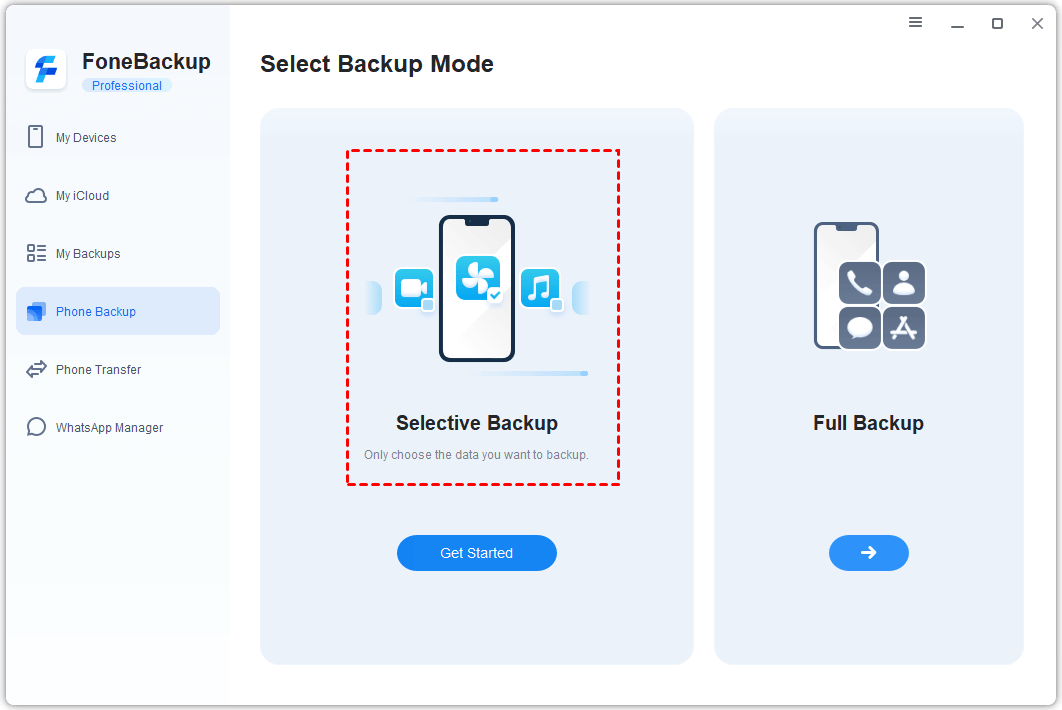
AOMEI FoneBackup is a free yet professional iOS data backup tool that gives you full control over your iPad data. Unlike iCloud, it doesn't limit you to 5GB or tie you to a Wi-Fi connection. You can back up directly to your computer or external drive.
It supports both full backup and selective backup, so you can choose to back up everything or only what matters most. It also offers a mobile app that allows wireless transfers between iOS and Android devices.
🔑 Key Features:
-
Full backup & selective backup – Back up everything in one go, or choose exactly what you want (photos, messages, contacts, WhatsApp, app data, and more)
-
Fast transfer
-
Zero-traffic transfer – No Wi-Fi or cellular data required
-
Privacy-first, no data collection
-
Works with all iOS devices, including iPhone 17 and latest iPad models.
👍 Pros:
-
Completely free with no feature limitations
-
Preview and select files before backup
-
Clear, intuitive interface
-
Supports iCloud Drive management and sync
-
Mobile app available for wireless transfer
👎 Cons:
-
macOS version is not currently supported
Option 2. iCloud – Best Built-in Cloud Backup
🏆 Best for: Apple users who want automatic, set-and-forget cloud backups.
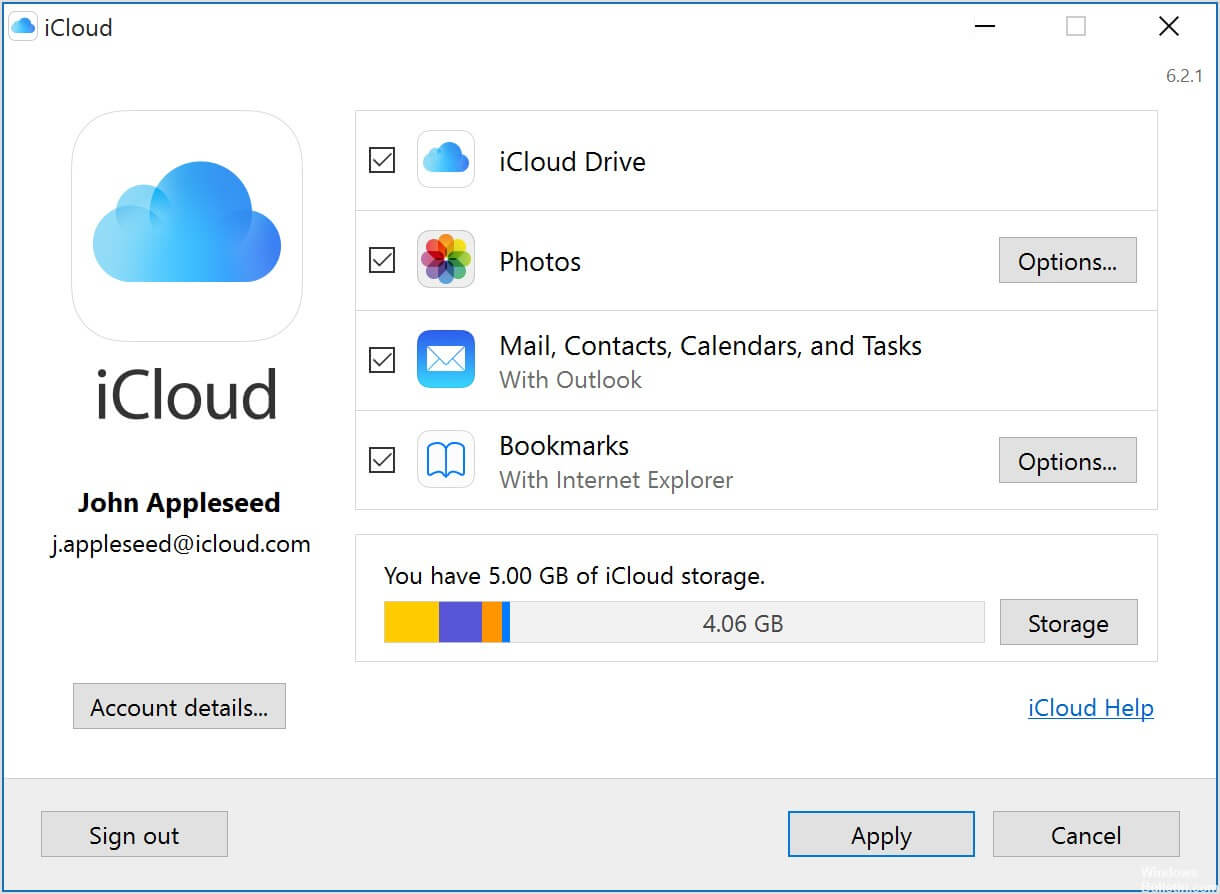
iCloud is Apple's native cloud storage service, automatically backing up your iPad when connected to Wi-Fi and plugged in. It's the most seamless option for users already in the Apple ecosystem, offering deep integration with all Apple devices and services.
iCloud Drive works like Dropbox or Google Drive, storing your files in the cloud with access from all your Apple devices. With iCloud Photo Library enabled, your device backups appear smaller since media is already backed up separately.
🔑 Key Features:
-
Automatic daily backups over Wi-Fi
-
Integration with Apple's ecosystem - Photos, iCloud Drive, Backup, Find My, and Keychain
-
Access your data directly on all linked Apple devices
-
Fast file movement function
👍 Pros:
-
Free, automatic backup
-
Baked into all Apple OS platforms
-
Sync across devices simple
👎 Cons:
-
Cannot keep multiple backup copies for your iPad
-
Cannot selectively back up files
-
Only works under a Wi-Fi connection
-
The free tier is limited to 5GB
-
The backup may be too large for the available storage
-
Slow internet = slow restores.
Option 3. iMazing – Best for Advanced Users and Professionals
🏆 Best for: Users who manage multiple iOS devices and need advanced backup management.
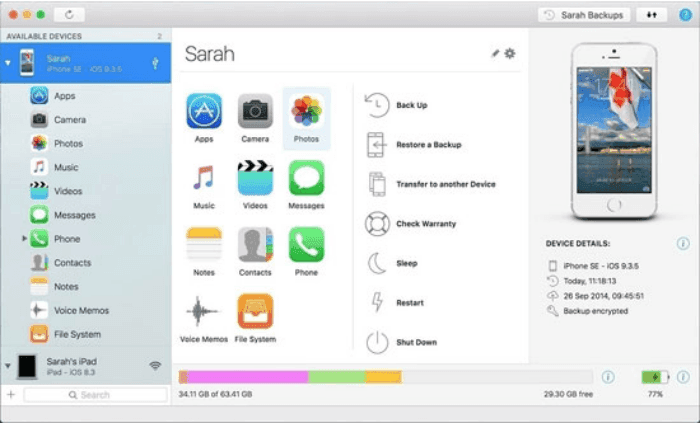
iMazing is a versatile iOS device management tool often compared to a Swiss Army knife for its many features. It allows you to manage every aspect of your iPhone, iPad, and iPod effortlessly, whether you're backing up, restoring, or transferring data.
The software works wirelessly and supports both Windows and macOS. One of its standout features is the ability to store dozens of backup snapshots without crowding your hard drive - Apple limits each device to one local backup, but iMazing uniquely provides multiple backups per device.
🔑 Key Features:
-
Effortlessly back up your iPhone or iPad with multiple snapshots saved for easy recovery
-
Instantly transfer files between your computer and iOS devices
-
Schedule backups daily, weekly, or monthly
-
Browse through any backup, preview data, and restore only what you need
-
Store backups on your computer, external drive, or NAS
-
Backup encryption and end-to-end encryption for device connections
👍 Pros:
-
Wireless and automatic backup
-
Stores dozens of backups without crowding your hard drive
-
Data stored locally - your Apple ID and login details are well-protected
-
User-friendly interface with consistent design
-
USB-C or Thunderbolt connections offer roughly 10x faster backup speeds than Lightning
👎 Cons:
-
Not free - requires a license for full access
-
Limited features in the free trial
-
Sharing only up to 10 messages, 50 photos, 50 music tracks, etc. in free trial
Option 4. Syncios – Best for Cross-Platform Media Management
🏆 Best for: Users who need to manage music and media files across iOS and Android.
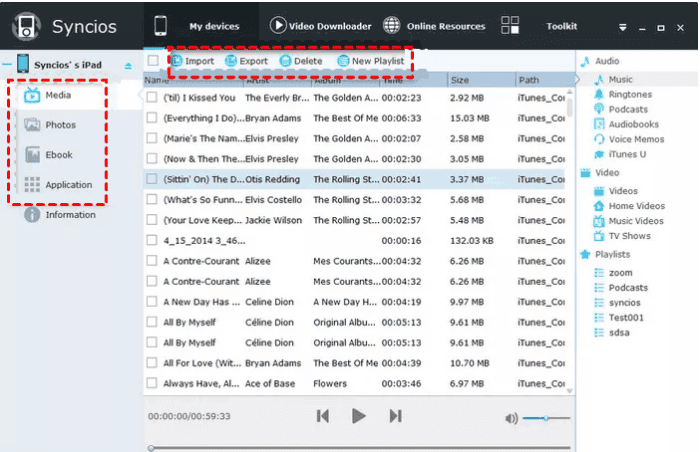
Syncios is a functional tool that delivers data backup and retrieval functions for both iOS and Android devices. It provides the ultimate transfer solution between iOS devices and PC, allowing you to easily manage music files, edit song details, and remove duplicates.
With a clear and intuitive interface, you can effortlessly back up and restore contacts, SMS, call history, and notes. Syncios can also scan and retrieve lost or deleted data directly from your iPhone or iPad.
🔑 Key Features:
-
Transfer data between iOS and Android devices
-
Manage music files, edit song details, and remove duplicates
-
Recover data from iTunes backup files without overwriting existing data
-
Back up and restore contacts, SMS, call history, and notes
👍 Pros:
-
Free version available
-
Straightforward layout - easy to find features like photo transfer, message backup, and music management
-
Fully compatible with iOS 15 and Android 11
-
Works on most Windows systems
👎 Cons:
-
Limited functionality in the free version
-
Only provides 4 types of files with its 1-click backup feature
-
Requires an upgrade for full access
Option 5. iTunes – Best Free Full Backup (with Limitations)
🏆 Best for: Users who want a free, complete device backup without selecting individual files.
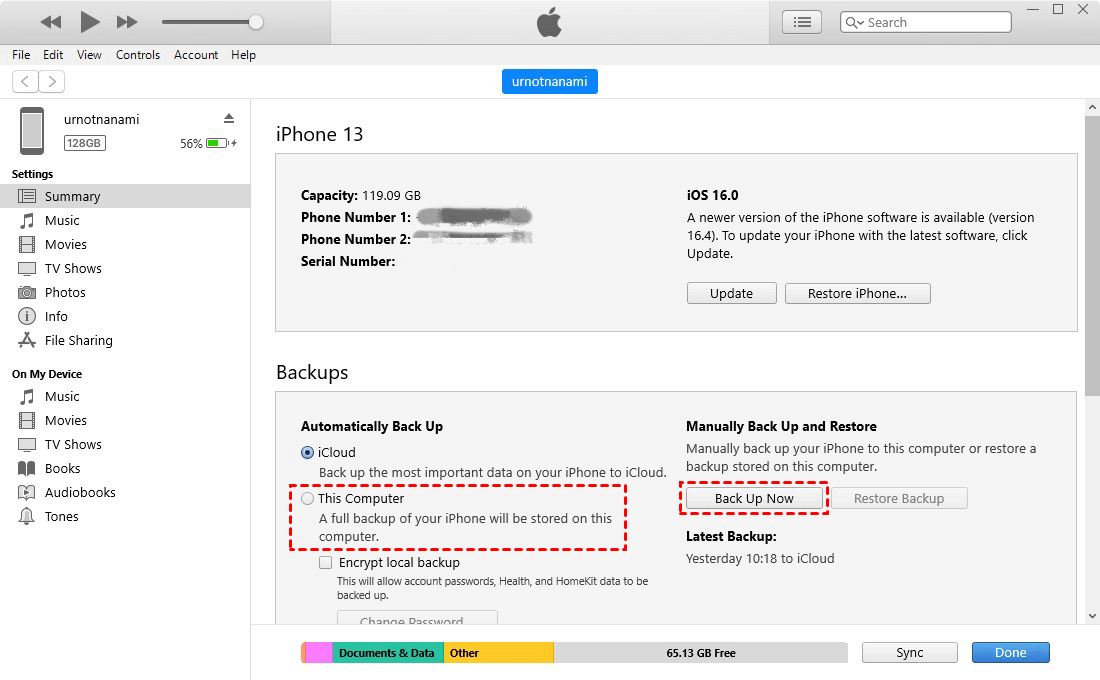
iTunes is Apple's official backup software for iPhone and iPad. It backs up everything on your device, but you can't choose what to include, which can take up a lot of storage and time. The backup size is limited only by your computer's hard drive capacity.
Encrypted backups can store all your data, including account passwords and other private information. While comprehensive, the interface can be complex and frustrating to navigate.
🔑 Key Features:
-
Backs up everything on the device
-
Encrypts your data to prevent unauthorized access
-
Archive backups create secure, untouched copies of your data
👍 Pros:
-
Completely free to use
-
Backs up all device data, including account passwords (when encrypted)
👎 Cons:
-
Complex interface - some features are difficult to find
-
Cannot selectively back up files
-
Frequent freezes and crashes
-
Skip movies, music, podcasts, and apps — they sync separately
-
Switching PCs requires wiping your device and starting fresh
Option 6. AnyTrans – Best for Content Management
🏆 Best for: Users who want to control, view, and organize their backup content.
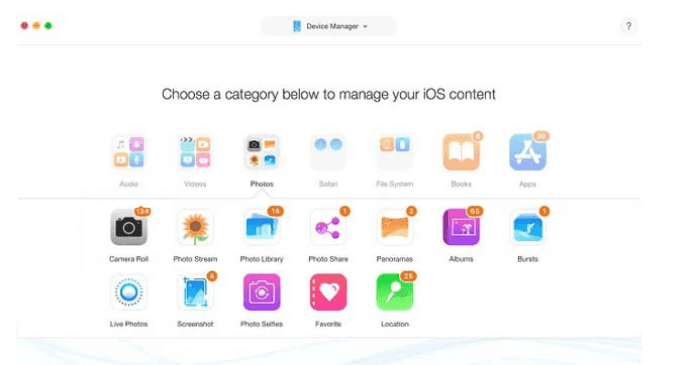
AnyTrans is an all-in-one iPhone and iPad data management tool developed by iMobie. It's designed to replace or improve on iTunes by giving you full control over your device data.
You can transfer files between iPhone, Android, PC, and Mac, backup and restore data, manage iCloud and iTunes, and even move WhatsApp chats and media. It supports 27+ data types, including photos, messages, contacts, and apps. The tool also offers extra features like a ringtone creator, video downloader, screen mirroring, and HEIC to JPG converter.
🔑 Key Features:
-
Full or selective backup - a huge advantage over iTunes
-
iPhone ↔ iPhone and Android → iPhone transfers
-
Manage iCloud files in one place
-
WhatsApp chat and media transfer
-
Wireless or USB transfer options
👍 Pros:
-
Great for upgrading to a new iPhone
-
Selective backups (not just full backups)
-
All-in-one tool (transfer + backup + management)
-
Very easy to use with a drag-and-drop interface
👎 Cons:
-
Expensive compared to alternatives
-
Occasional bugs or transfer glitches
-
Limited free version
-
Requires a computer - no full mobile-only version
-
Some users report slow performance
Option 7. CopyTrans – Best for Media and Contacts Backup
🏆 Best for: Users who primarily need to back up media files and contacts.
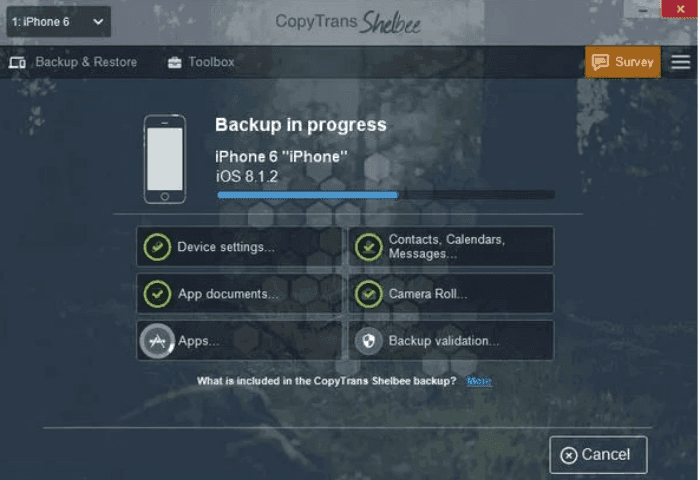
CopyTrans is a reliable iOS data transfer and management tool that has been on the market for a long time. It's suitable for coping with iOS media files and contacts selectively.
Unlike most other tools, CopyTrans doesn't require iTunes to be installed. It keeps your data original and safe and allows you to organize, edit, and delete data on your iPhone/iPad from your computer. The software receives frequent updates to ensure compatibility with the latest iOS versions.
🔑 Key Features:
-
Transfer and back up iOS media files and contacts
-
No iTunes required
-
Organize, edit, and delete device data from your computer
-
View iPad/iPhone images in a two-window view (device on the left, PC on the right)
-
Drag-and-drop backup and restore for images
👍 Pros:
-
Backup without an internet connection
-
Restoration possible for diversified file formats
-
User-friendly interface, easy to navigate
-
No iTunes required
-
Regular updates for iOS compatibility
👎 Cons:
-
No free trial offered
-
Preview photos are not supported
-
Windows only
Option 8. iTransor – Best for Selective Restore and Data Preview
🏆 Best for: Users who want to preview files before restoring.
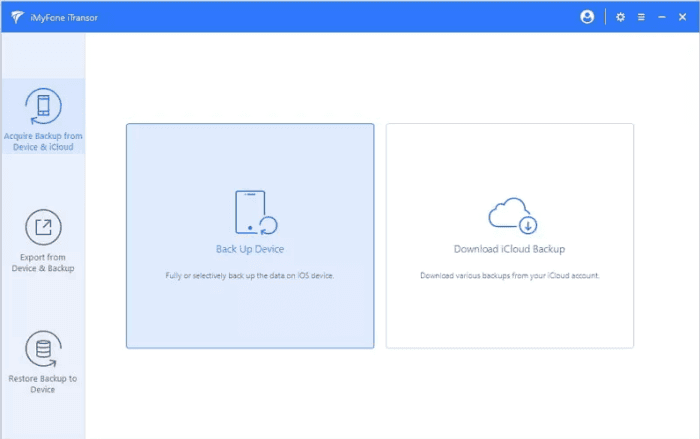
iTransor enables you to back up and restore iPhone/iPad files easily while keeping their original quality. Its standout feature is that it lets you check the files before restoring them to ensure proper file recovery.
You can merge data from backup and devices, and the software backs up over 18 data types, including calls, photos, and media.
🔑 Key Features:
-
View data before restoration
-
Merge data in backup and devices
-
Backs up 18+ data types, including calls, photos, and media
-
Maintains the original quality of files
👍 Pros:
-
Preview files before restoration
-
Merge data from backup and devices
-
Supports 18+ data types
👎 Cons:
-
A bit pricey
Option 9. iDrive – Best Cloud Backup with Version History
🏆 Best for: Users who want comprehensive cloud backup with file versioning.
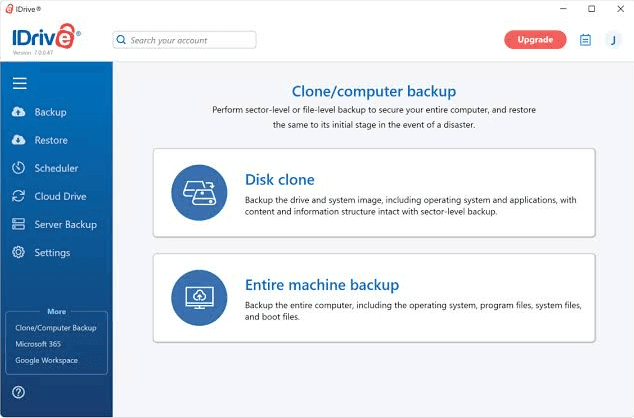
iDrive is a comprehensive and free iPad backup software that meets all your needs. It supports online backups, cloud storage, syncing, and file sharing.
A standout feature is the ability to keep up to 10 versions of files permanently. You can back up multiple devices to one account, making it a great choice for users with multiple Apple devices.
🔑 Key Features:
-
Online backups, cloud storage, syncing, and file sharing
-
Keep up to 10 versions of files permanently
-
Back up multiple devices to one account
-
Works with all iOS devices
👍 Pros:
-
Keep up to 10 versions of files permanently
-
Back up multiple devices to one account
-
Comprehensive cloud backup solution
👎 Cons:
-
Only works from iOS 7.0 and upwards
-
Slow running speed
Option 10. Dr.Fone – Best for Wireless Backup and Screen Recording
🏆 Best for: Users who want automatic wireless backups and additional iOS tools.
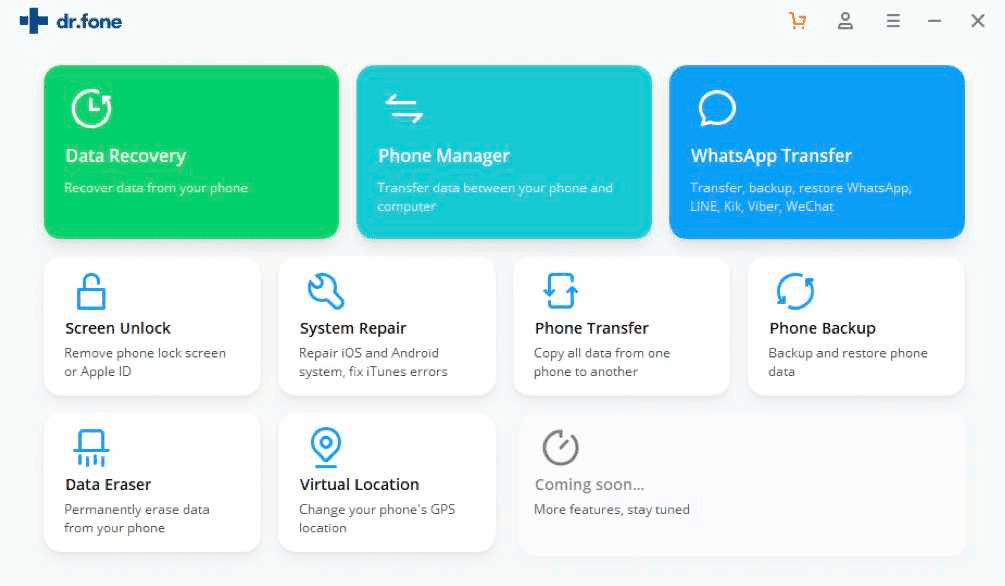
Dr.Fone is a comprehensive iOS toolkit that enables quick backups of your iPhone/iPad on your computer and can restore iCloud/iTunes backups selectively. It supports automatic and wireless backups, making it convenient for users who don't want to deal with cables.
Beyond backup, Dr.Fone also offers screen recording capabilities and can restore iCloud/iTunes backups to your iOS device without data loss.
🔑 Key Features:
-
Automatic and wireless backup
-
Restore iCloud/iTunes backups selectively
-
Record iPad/iPhone screen
-
Full iOS toolkit with multiple features
👍 Pros:
-
Backup automatically and wirelessly
-
Selective restore from iCloud/iTunes backups
-
Screen recording capability
-
Comprehensive toolkit for iOS devices
👎 Cons:
-
Some files cannot be deleted with the trial version
-
Expensive compared to basic backup tools
-
Many features are sold as add-ons
📌 Still unsure? Here's a simple decision guide:
| If you want... | Choose... |
|---|---|
| Free, flexible backup with no iCloud limits | FoneBackup |
| Seamless Apple cloud backup | iCloud |
| Professional-grade backup management | iMazing |
| Media and contacts backup | CopyTrans |
| Cloud backup with version history | iDrive |
| Wireless auto-backup | Dr.Fone |
How to Backup iPad with FoneBackup (Step-by-Step Guide)
If you're looking for a free backup tool that gives you full control over what to back up - without an Apple ID or iCloud limits, AOMEI FoneBackup is the only option on this list that does it all. That's why we've included a step‑by‑step guide below.
 AOMEI FoneBackup
Easily to backup and restore iOS data, including iPad, iPhone, and more.
Here's how to back up your iPad with FoneBackup in minutes:
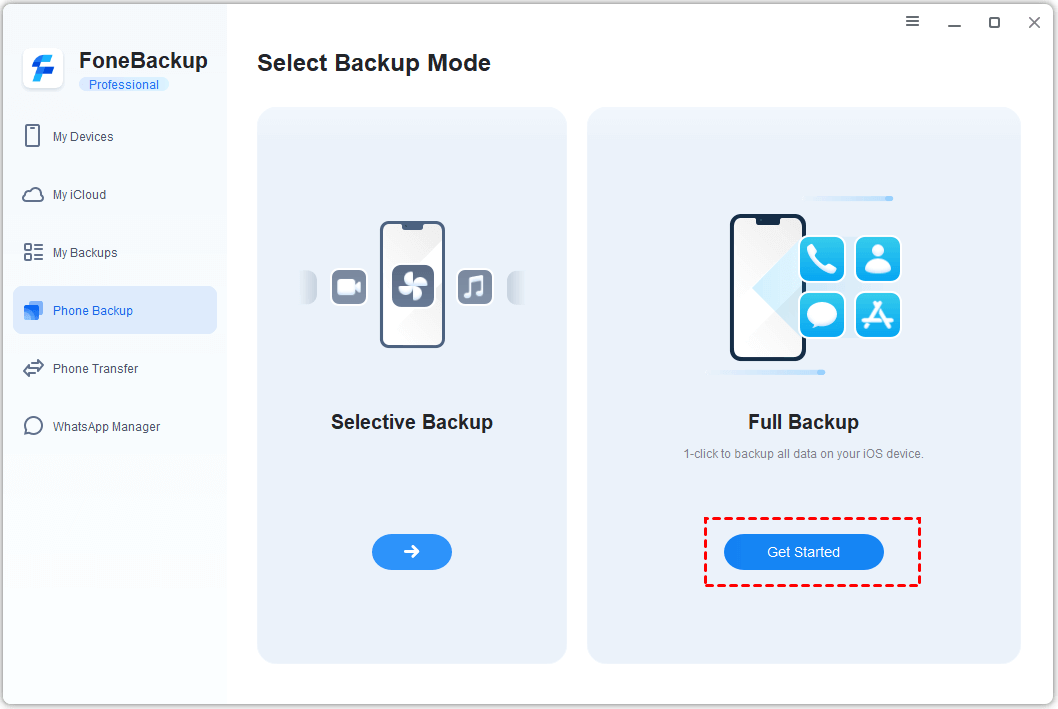
Step 1. Download and install AOMEI FoneBackup on your Windows PC. Be sure to plug in your iPad for backup. Under the Phone Backup tab, select Selective Backup or Full Backup, depending on what you want to back up. Click Get Started to confirm.
Step 2. It will automatically include all data on the device. You just need to select a destination by clicking Backup Storage Path and click Start Backup to back up data on the iPad.
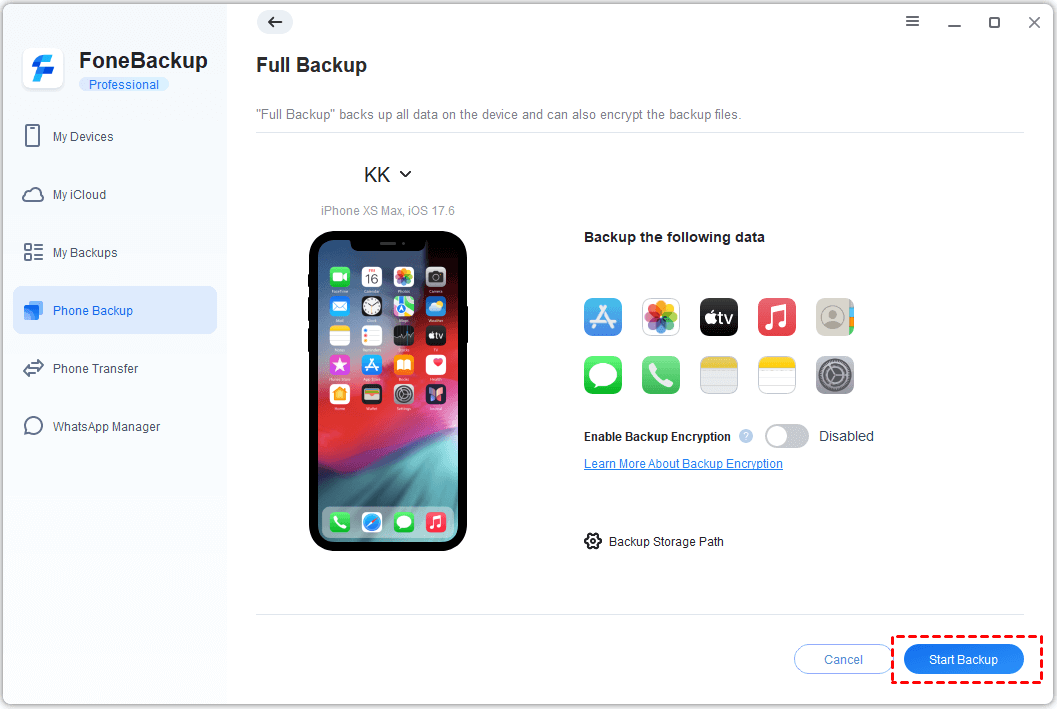
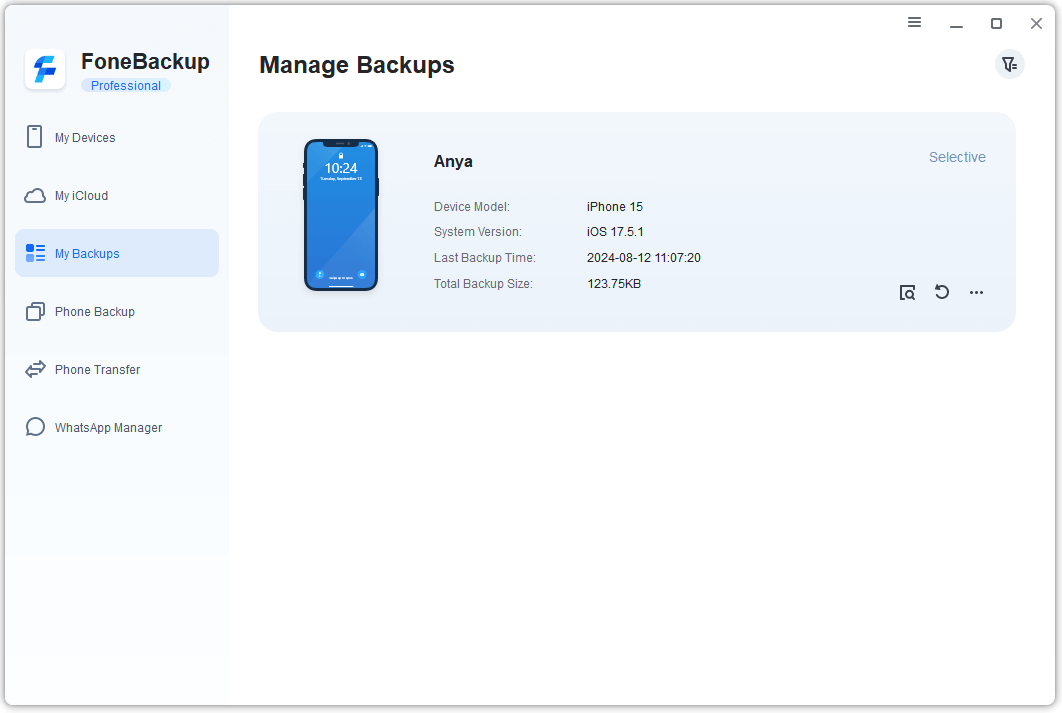
After backing up, your data is safely stored. You can view and manage all backups under the My Backups tab.
Why Backup Your iPad Regularly?
Before you go, here's why this matters. Data loss can happen in many ways:
-
Accidental deletion: You delete a file without realizing it's important.
-
Device damage: Your iPad gets dropped, water-damaged, or simply stops working.
-
iOS update errors: A failed update can wipe or corrupt data.
-
Virus or malware attacks: Though rare on iOS, they're not impossible.
A good backup strategy protects you from all of these. And the best part? It only takes a few minutes to set up.
Conclusion: Your Best Backup Starts Here
This guide has covered the 10 best iPad backup software options for 2026, each with its own strengths and weaknesses.
If you're on a budget or new to backing up, we recommend FoneBackup - it's free, safe, convenient, and meets most backup and restore needs for any user. It gives you the flexibility that iCloud and iTunes simply don't offer.
If you're deeply invested in the Apple ecosystem, iCloud is a solid choice for automatic daily backups.
If you manage multiple devices professionally, iMazing or AnyTrans offers the advanced features you need.
Whichever you choose, the most important thing is to start backing up today. Your data is worth it.

 as a preferred
source on Google
as a preferred
source on Google