



iPhone Connect to PC Software: Which Tool Should You Use?
This guide compares 4 iPhone connect to PC software for Windows, covering different needs, from data transfer to local backup, photo import, or phone integration.

By Ivy Updated on August 18, 2026


You connect your iPhone to a Windows PC, but what should happen next? You may want to copy a few photos, create a full local backup, sync music, or answer calls from your computer. These tasks need different tools.
The right iPhone connect to PC software therefore depends on your goal.
- AOMEI FoneBackup is suitable for data backup and transfer, especially only selected data.
- Apple Devices handles Apple’s official backup, restore, and synchronization workflows.
- Microsoft Photos imports photos and videos, while Phone Link connects calls, messages, and notifications.
Quick Guide: Choose the Right iPhone Connect to PC Software
Use this table to find the best starting point for your task.
| 💡 If you want to… | 👆 Choose… | 🔑 Key consideration |
|---|---|---|
| Transfer selected iPhone data to a Windows PC | AOMEI FoneBackup | The free Transfer workflow is limited to 30 files per day |
| Create a local iPhone backup on Windows | AOMEI FoneBackup | Backup features are totally free |
| Create, restore, or manage an Apple device backup | Apple Devices | Best suited to Apple’s official backup |
| Sync music, movies, or other supported content | Apple Devices | Some content requires the corresponding Apple Windows app |
| Import camera photos and videos | Microsoft Photos | This does not create a complete iPhone backup |
| Access calls, messages, and notifications on a PC | Phone Link | This is phone integration, not full device management |
Before using a wired method, unlock your iPhone and connect it with a reliable USB cable. If the iPhone only charges, does not appear in Windows, shows no Trust This Computer prompt, or has an empty DCIM folder, refer to iPhone not showing in File Explorer before continuing.
Method 1. Transfer and Back Up iPhone to PC using AOMEI FoneBackup
👍 Best for: You want to transfer selected iPhone data or store an iPhone backup in a location you choose on a Windows PC.
AOMEI FoneBackup is a dedicated iPhone backup and transfer software for Windows. It lets you transfer files to your PC for everyday use or create a backup for future restoration.
 AOMEI FoneBackup
- ⚙️Task flexibility: Transfer selected data or create a local iPhone backup -full or selective.
- 📂Flexible storage: Save dataon your PC, external drive, USB stick, NAS, etc.
- 🎯Selective: Preview and select data you want instead of moving everything.
- 💰 Free boundary: Backup features are free. The free Transfer workflow is limited to 30 files per day.
- 🔍 View backup anytime: Access and check your backups whenever you need.
 100% Secure
Transfer selected iPhone data to Windows PC
Step 1. Download and install AOMEI FoneBackup on your Windows PC. Connect the iPhone to the PC, unlock it, and tap Trust if prompted.
Step 2. Select Phone Transfer in the left panel. Choose iPhone to PC, and click Get Started.
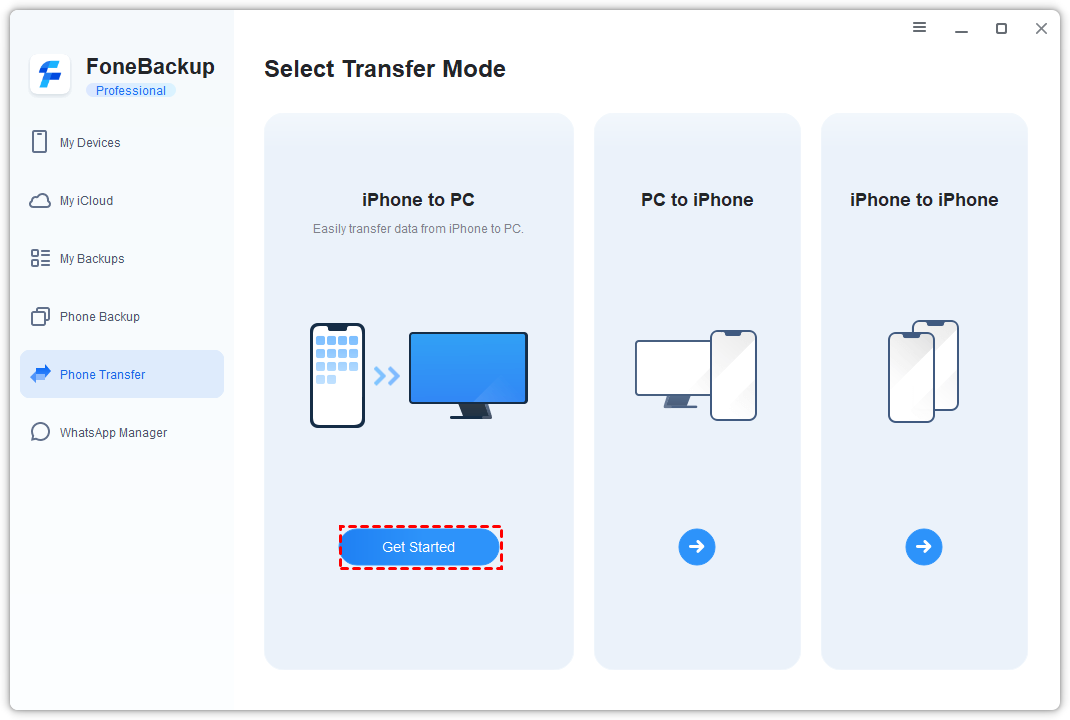
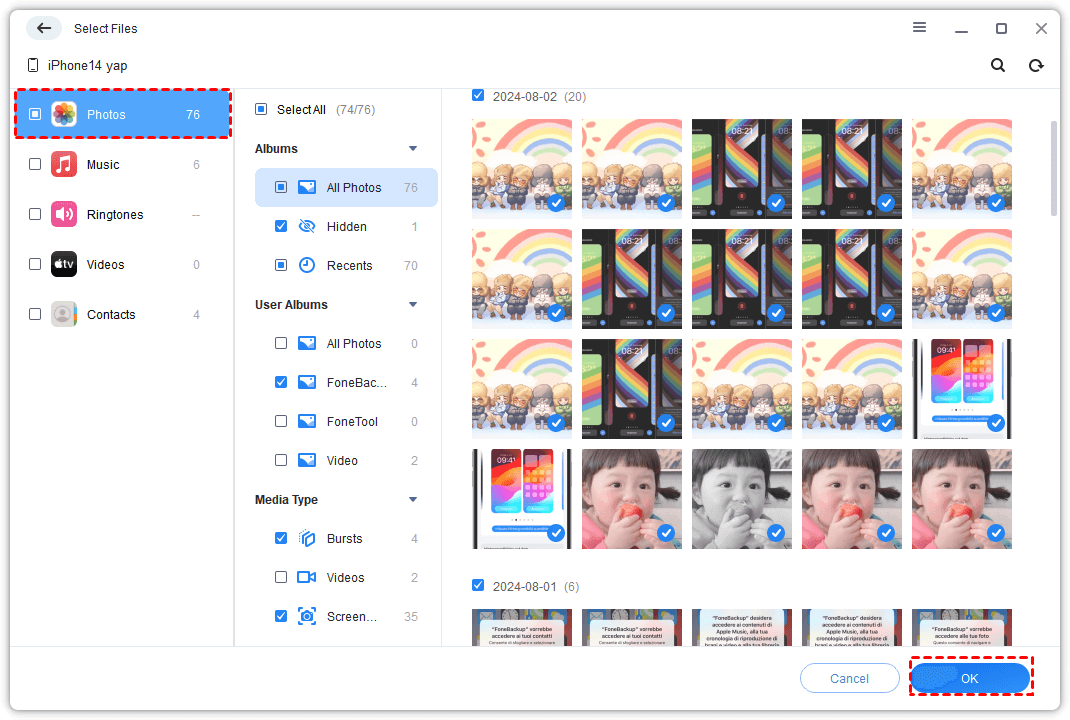
Step 3. Click the Photos icon to preview and select the photos you want to transfer. You can also select Music, Ringstones, Videos, and Contacts.
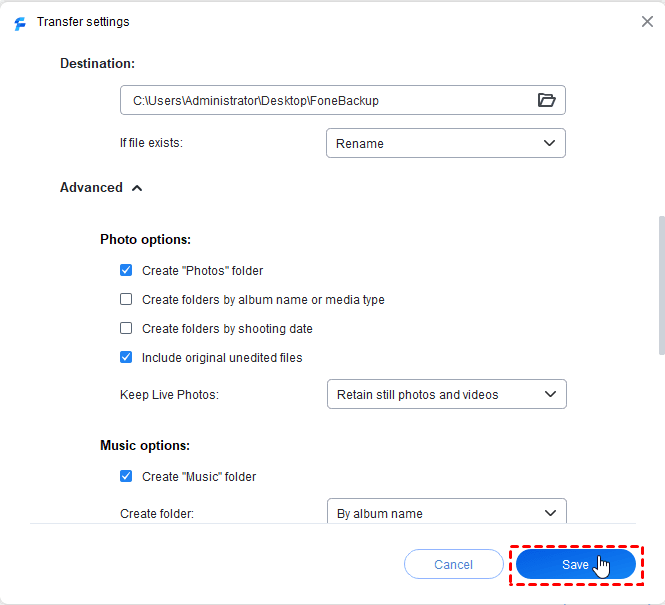
Step 4. Choose a destination under Transfer Settings, and then click Start Transfer.
Keep the iPhone connected until the process finishes. Open the destination folder afterward and confirm that several transferred files can be viewed normally.
Create a local iPhone backup on PC
Step 1. Connect and unlock the iPhone. In AOMEI FoneBackup, select Phone Backup.
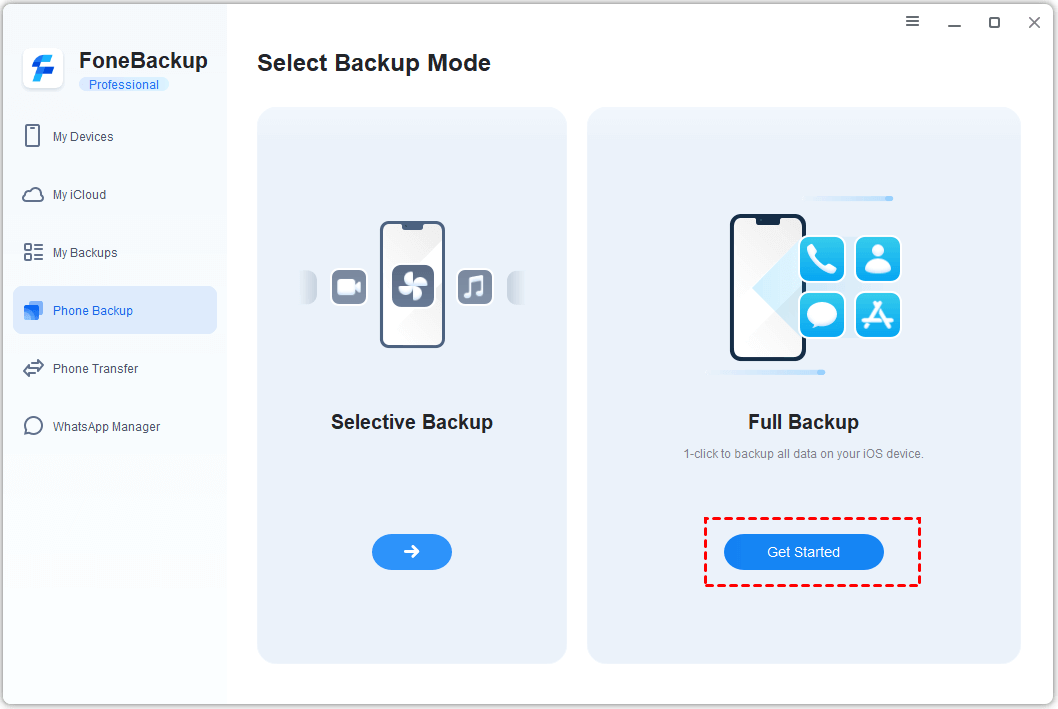
Step 2. Choose Full Backup to back up your entire device, or Selective Backup to pick specific data. Then, tap Get Started.
Step 3. Select the required content when using Selective Backup. Then, choose a destination through Backup Storage Path. If required, turn on Enable Backup Encryption and create a password.
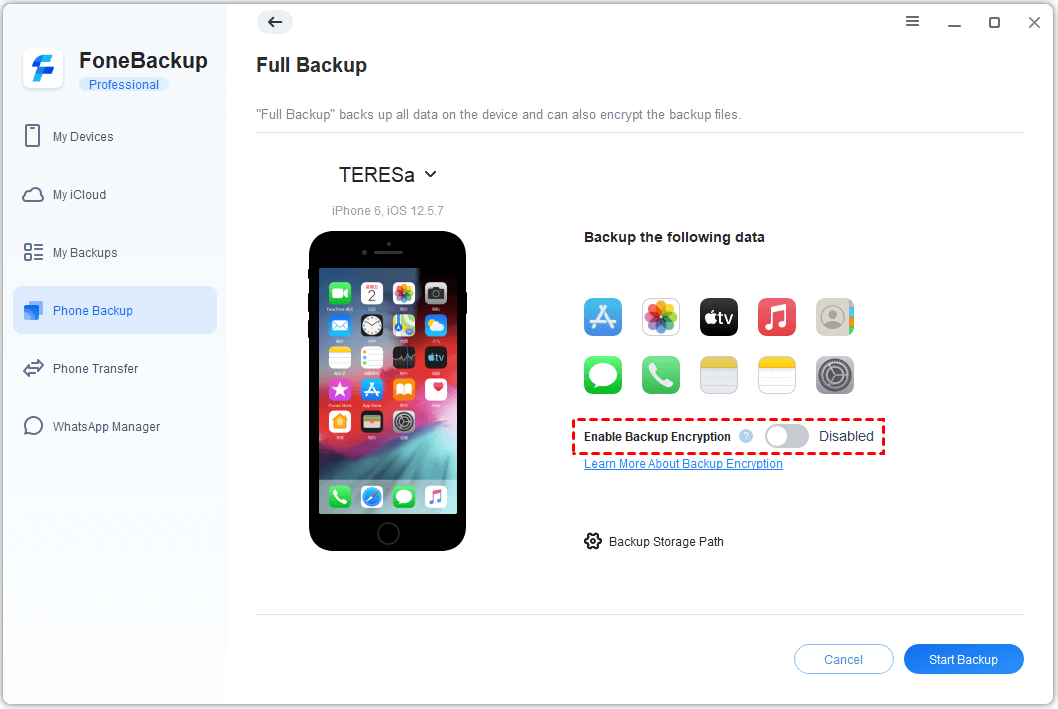
Step 4. Click Start Backup and leave the iPhone connected until the completion status appears.
Before relying on the backup:
- Confirm that the new task appears in My Backups.
- Check that its completion time matches the backup you just created.
- Make sure the destination remains accessible.
- Keep any required backup password in a secure place.
If the backup is missing or incomplete, confirm that the destination has enough free space and create a new backup before deleting anything from the iPhone.
Method 2. Connect iPhone to Windows for Backup and Sync with Apple Devices
👍 Best for: You want Apple’s official Windows workflow for backing up, restoring, updating, or synchronizing an iPhone.
Apple Devices is now the primary Apple app for managing an iPhone or iPad on a supported Windows PC. iTunes may still be relevant when a PC cannot use Apple’s newer Windows apps or when you need older media-management functions, but it should no longer be the default recommendation for most current Windows system.
Step 1. Download and install Apple Devices from the Microsoft Store. Connect your unlocked iPhone with a USB cable, tap Trust if asked.
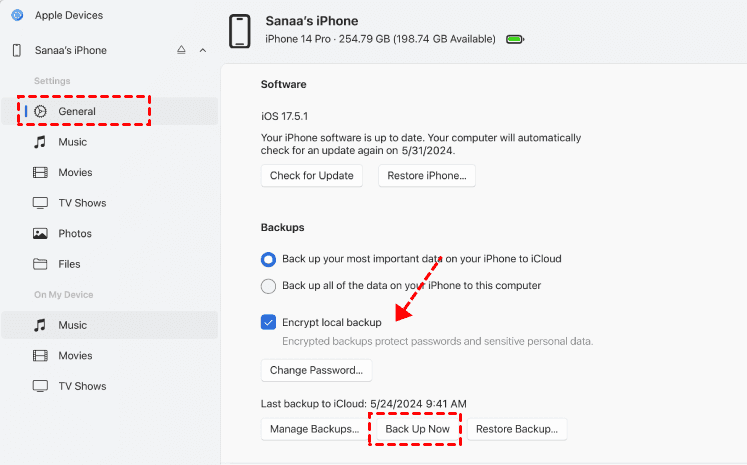
Step 2. Select your iPhone in the Apple Devices sidebar. Then, select the following options, depending on if you want to backup, sync, etc.
- General: Manage a device backup, restore a backup, or check for an update. Simply click the corresponding button.
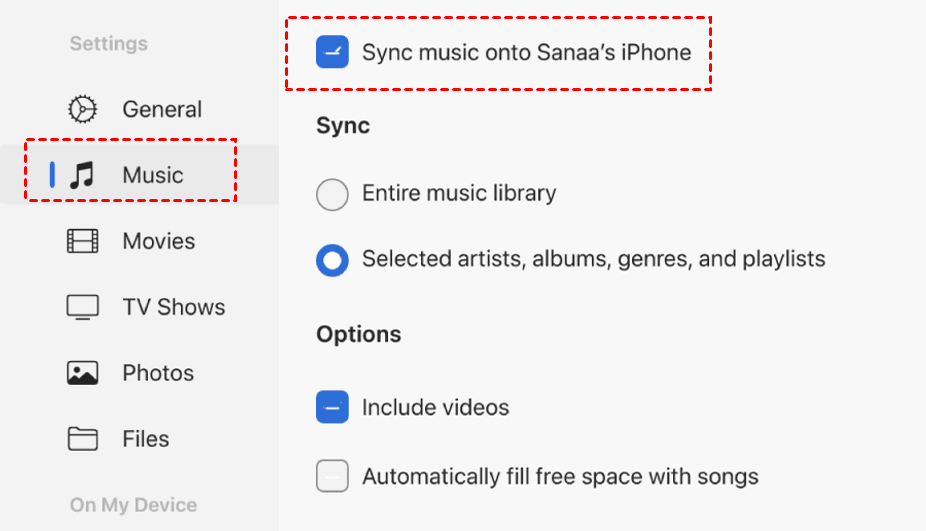
- Data categories (e.g., Music): Configure a file synchronization. Start by checking Sync music onto username's iPhone. Wi‑Fi sync available after first connection.
- Files: Transfer documents to and from apps that support File Sharing. Click Add Files to choose what you want.

Choose this method when you want Apple’s backup and restore system. Do not choose it merely to export a few individual photos; Microsoft Photos or a selective transfer tool is more direct for that task.
Method 3. Import iPhone Photos to PC via Microsoft Photos
👍 Best for: You only need to copy photos and videos from the iPhone camera library to Windows without creating a full device backup.
Microsoft Photos is the simplest built-in option for many photo-import tasks. It does not transfer contacts or messages, and the imported media cannot replace a restorable iPhone backup.
Step 1. Connect the iPhone to the PC with a USB cable. Unlock it and tap Trust if prompted.
Step 2. Open the Photos app in Windows. Select Import > From a USB device, then choose your iPhone.
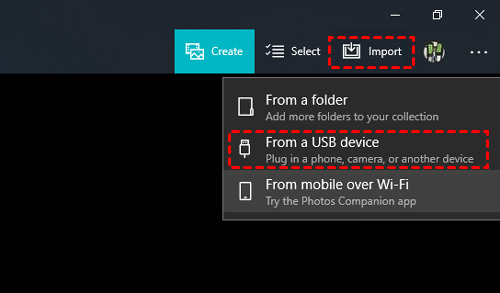
Step 3. Select your iPhone and wait for the scan to complete. Once loaded, choose the photos and videos you want to import.
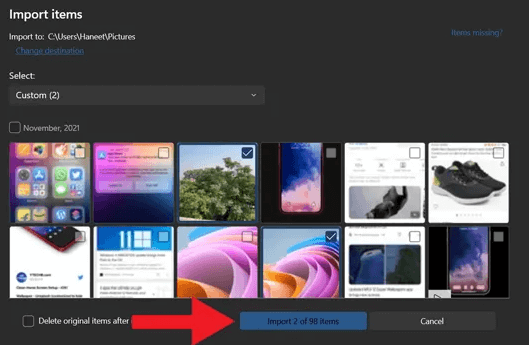
Step 4. Change destination if you want and start the import.
If iCloud Photos is enabled, some full‑resolution originals may not be stored locally on your iPhone. Apple recommends downloading the originals to your device before importing them directly to a PC. This makes Microsoft Photos less convenient when you use Optimized iPhone Storage and have a large cloud library. Try AOMEI FoneBackup instead.
Method 4. Connect iPhone to Windows Wirelessly with Phone Link
👍Best for: You want to view iPhone notifications, handle recent messages, or place and receive calls from a Windows PC.
Phone Link connects an iPhone to Windows PC through Bluetooth. Its purpose is everyday phone integration, with fewer interuptions, not full iPhone backup, restoration, or file management.
Step 1. Turn on Bluetooth on the iPhone and Windows PC.
Step 2. Open Phone Link in Windows and select iPhone as the device type.
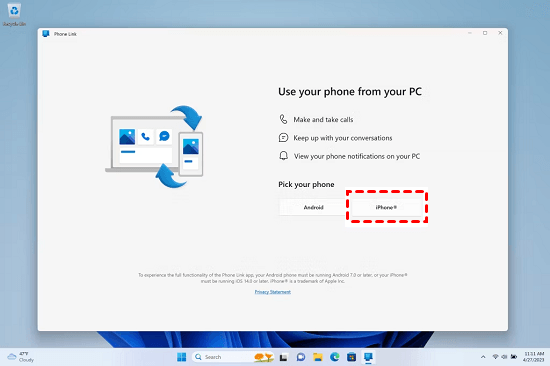
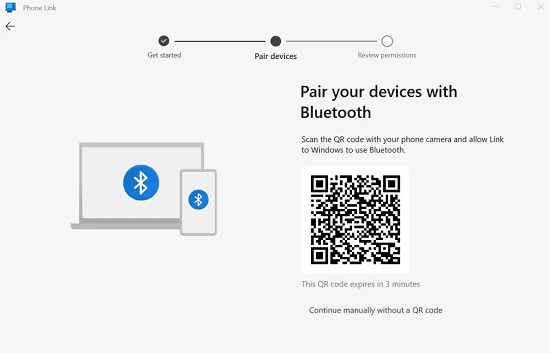
Step 3. Scan the displayed QR code with the iPhone to pair devices.
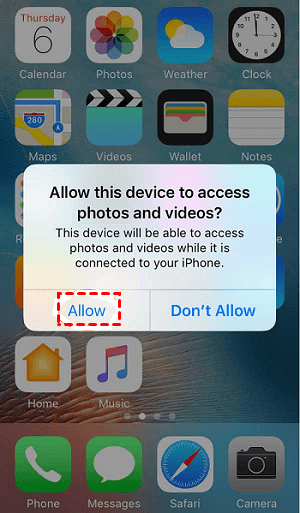
Step 4. Once paired, grant permission on your iPhone to sync data, such as contacts, messages, notification and more. Click Allow.
Step 5. Go back to Phone Link and check if your synced data is available.
Side-by-Side Comparison of iPhone-to-PC Software
| Tool | 👍 Best for | Connection | Backup | Selective transfer | Main limitation |
|---|---|---|---|---|---|
| AOMEI FoneBackup | Transfer selected data or create a local iPhone backup | USB | Yes | Yes | Windows only; free Transfer limit applies |
| Apple Devices | Official backup, restore, update, and sync | USB; optional Wi-Fi sync | Yes | Limited | Not designed for convenient individual-file export |
| Microsoft Photos | Import camera photos and videos | USB | No | Photos and videos only | Not a complete iPhone management tool |
| Phone Link | Calls, messages, and notifications | Bluetooth | No | No | Not intended for backup or restoration |
The choice is straightforward.
- Use AOMEI FoneBackup when you want more control over transferring or backing up iPhone data on Windows.
- Use Apple Devices for Apple’s official device-level backup, restore, and sync workflow.
- Choose Microsoft Photos for a straightforward media import, and use Phone Link when computer-based communication is your priority.
FAQs
1. Do I still need iTunes to connect an iPhone to Windows?
Not usually. On a supported Windows PC, Apple Devices handles most device backup, restore, update, and synchronization tasks. iTunes remains relevant for certain older systems and media functions.
2. Is copying the DCIM folder the same as backing up an iPhone?
No. The DCIM folder mainly exposes camera photos and videos. Copying it does not preserve settings, messages, app data, or other information included in a device backup.
3. Can I connect an iPhone to a PC without a USB cable?
Yes, but the available functions depend on the method. Phone Link uses Bluetooth for communication features, and Apple Devices can support Wi-Fi synchronization after an initial wired setup. Neither option automatically replaces a complete wired data-transfer workflow.
4. Which software should I use to transfer selected iPhone files?
AOMEI FoneBackup is the most relevant option in this comparison when you want to preview and select supported data before transferring it to a Windows location. Remember that its free Transfer workflow is limited to 30 files per day.
5. Which method should I use for thousands of photos?
Microsoft Photos provides an official import route, but a large import may take time and can be affected by iCloud optimization. AOMEI FoneBackup is worth considering when you want selection controls and a clearly chosen Windows destination.
Summary
No single iPhone connect to PC software serves every purpose:
- Choose AOMEI FoneBackup for selective iPhone-to-PC transfer or a local Windows backup.
- Choose Apple Devices for Apple’s official backup, restore, update, and synchronization workflow.
- Choose Microsoft Photos when you only need to import photos and videos.
- Choose Phone Link for calls, messages, and notifications on your PC.
If your main goal is to keep iPhone data on a Windows computer and decide what to transfer or where to save a backup, try AOMEI FoneBackup and select the workflow that matches your task.

 as a preferred
source on Google
as a preferred
source on Google