



How to Reset iPhone Without Losing Contacts Safely
Worried about losing your contacts when resetting your iPhone? Back them up safely with iCloud or AOMEI FoneBackup – then reset with confidence.

By Lily Updated on September 4, 2026


Factory resetting an iPhone removes the data stored on the device, including contacts, photos, messages, and settings. Therefore, if you're wondering how to reset iPhone without losing contacts, the key is to save your contacts somewhere safe before starting the reset.
This guide explains how to back up contacts before factory reset iPhone, reset the device safely, and restore your important information afterward.
Before You Reset Your iPhone: Back Up Your Contacts First
A factory reset cannot preserve contacts that exist only on your iPhone's local storage. Before selecting Erase All Content and Settings, make sure your contacts have been synchronized or backed up successfully.
You can save iPhone contacts before reset using either iCloud or AOMEI FoneBackup.
Option 1. Save Contacts Before Resetting iPhone with iCloud
If you regularly use iCloud, you can enable iCloud Contacts to synchronize your contacts with your Apple Account. After resetting the iPhone, signing in with the same account and enabling contact synchronization can bring the contacts back to your device.
Before starting, ensure that your iPhone has a stable internet connection.
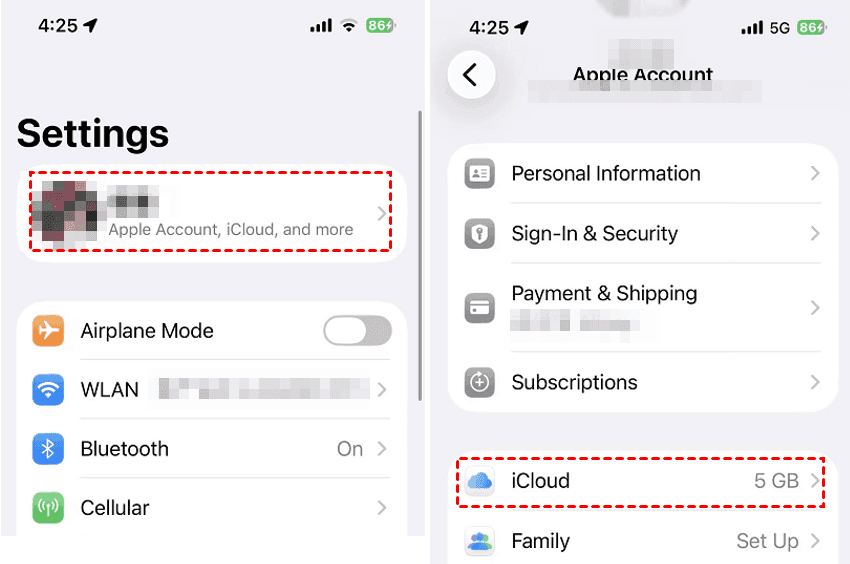
Step 1. Open Settings on your iPhone. Then tap [your name] > iCloud.
Step 2. Next to "Saved to iCloud", tap See All, then turn on Contacts.
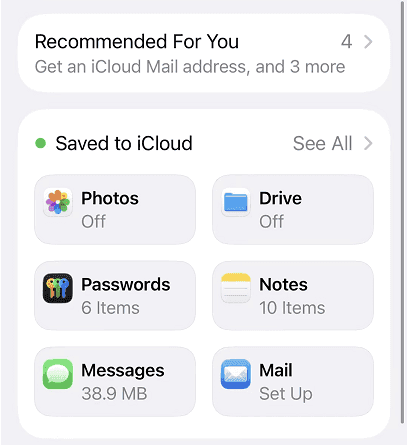
Step 3. If you see a prompt asking whether you want to Merge or cancel, choose Merge.
Step 4. Wait for your contacts to finish syncing before resetting your iPhone.
💡 Note: iCloud is convenient, but you may not always be able to verify exactly when every contact has finished syncing. If you prefer to create a local copy of your contacts on a computer, try option 2.
Option 2. Back Up iPhone Contacts with AOMEI FoneBackup
If you want more control over your contact backup, AOMEI FoneBackup provides a way to back up selected contacts to a Windows computer before resetting your iPhone.
 AOMEI FoneBackup
- Selective backup: Choose specific photos, videos, contacts, messages, and other supported data instead of backing up everything.
- Full backup: Create a complete iPhone backup with a simple operation.
- Flexible storage: Save your iPhone backup to flash drives, external hard drives, or NAS devices without depending on an internet connection.
- Easy restoration: Restore backed-up data to an iOS device without relying on the original Apple ID.
 100% Secure
Learn how to back up contacts before factory reset iPhone using AOMEI FoneBackup below:
Step 1. Connect your iPhone to the computer with a USB cable. Unlock the iPhone and tap Trust if prompted.
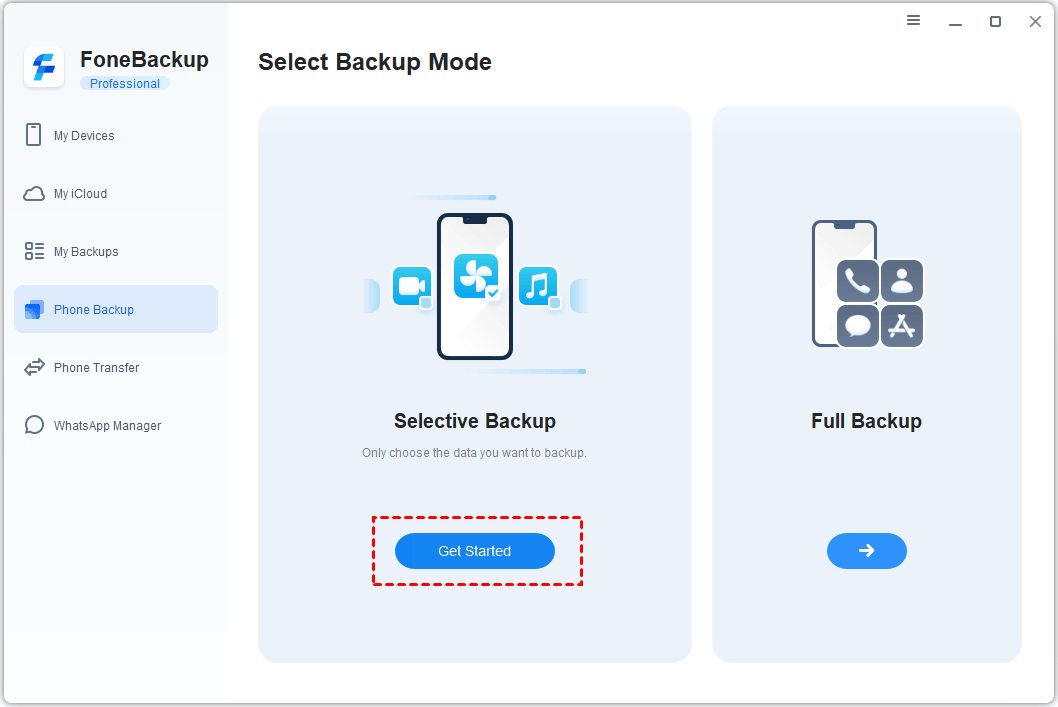
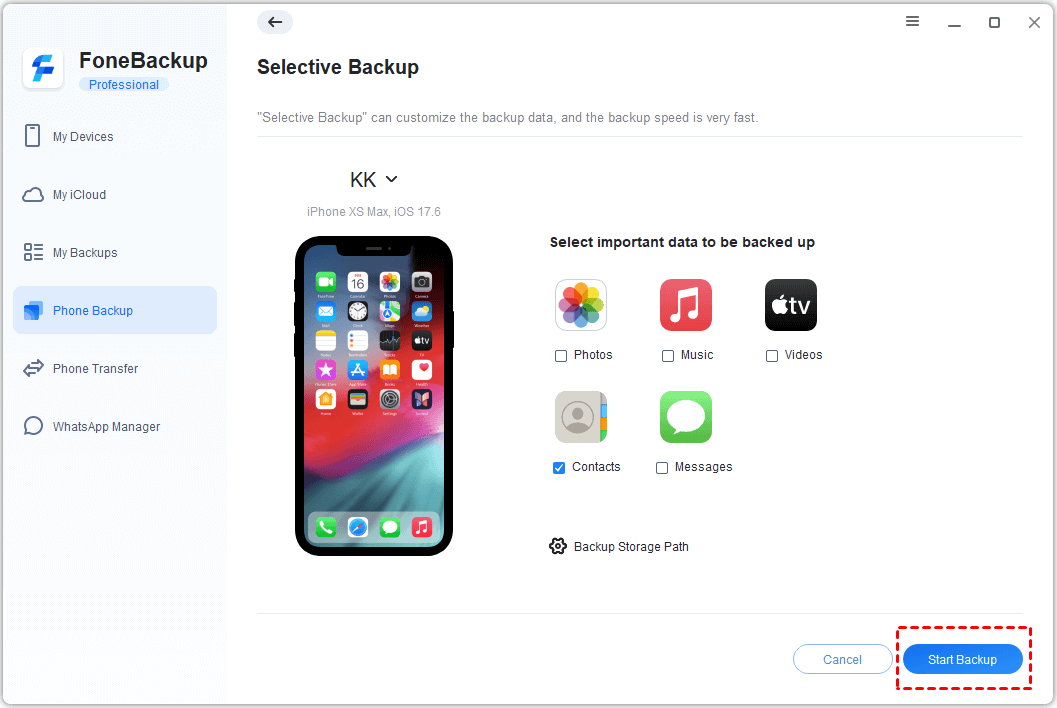
Step 2. Launch AOMEI FoneBackup and select Phone Backup from the left panel. Then choose Selective Backup and click Get Started.
Step 3. Click the Contacts icon. Then preview the available contacts and select the ones you want to save. Click OK to continue.
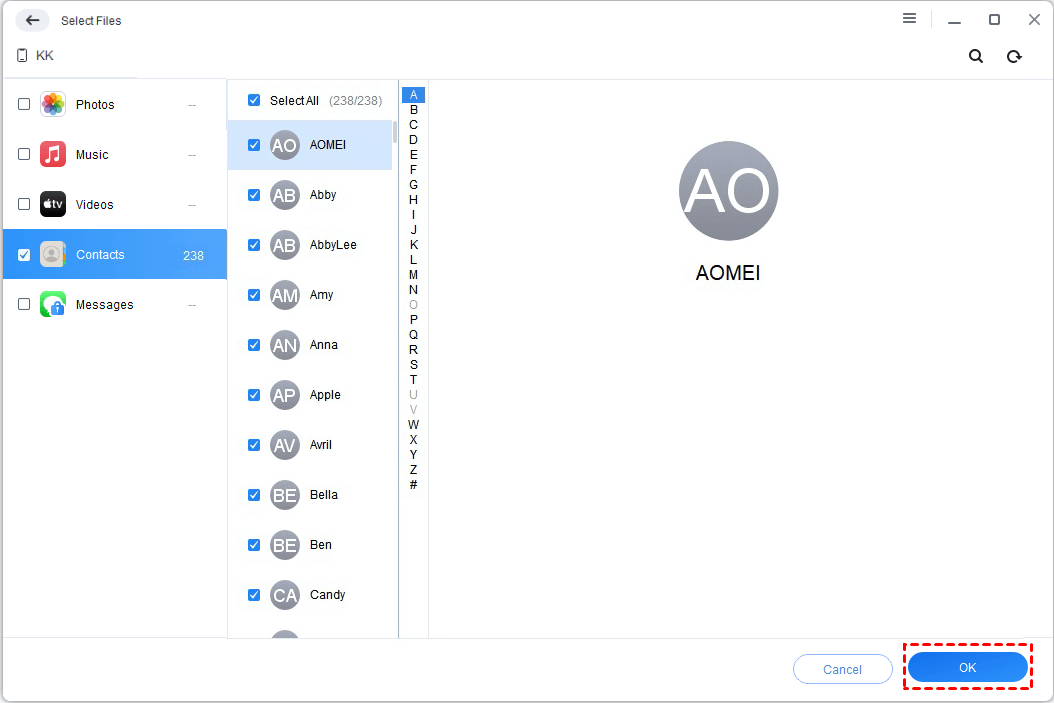
💡 Note: If you want to reset iPhone without losing contacts and photos, select your needed photos in this window as well.
Step 4. Click Backup Storage Path to choose a location on your computer where you want to store the backup.
Step 5. Click Start Backup and wait for the backup process to finish.
🌟 Bonus: Another Way to Export Your Contacts
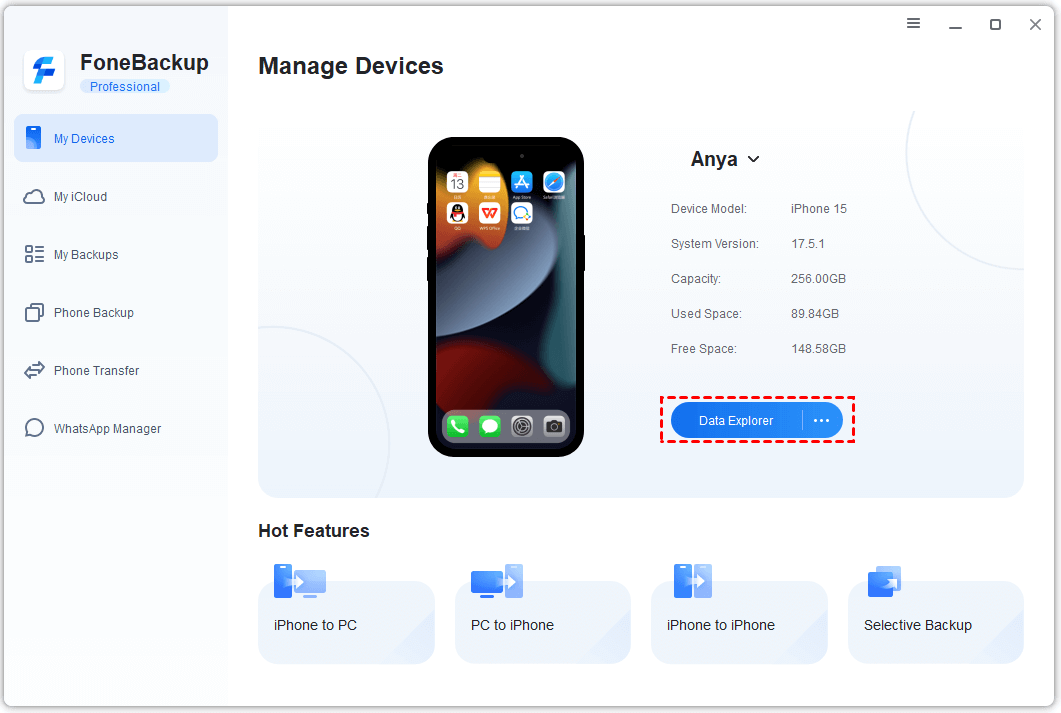
You can also use the Data Explorer feature in AOMEI FoneBackup to export contacts from your iPhone to your computer. This gives you an additional local copy that you can import after resetting the device.
Just go to My Devices > Data Explorer > Contacts to export needed contacts.
How to Reset iPhone Without Losing Contacts
Once you have confirmed that your contacts are safely backed up, you can factory reset your iPhone. There are two ways available - reset the iPhone through Settings or use iTunes on a Windows computer.
Way 1. Factory Reset iPhone from Settings
The Settings app provides the simplest way to erase and reset an iPhone.
Step 1. Open Settings on your iPhone.
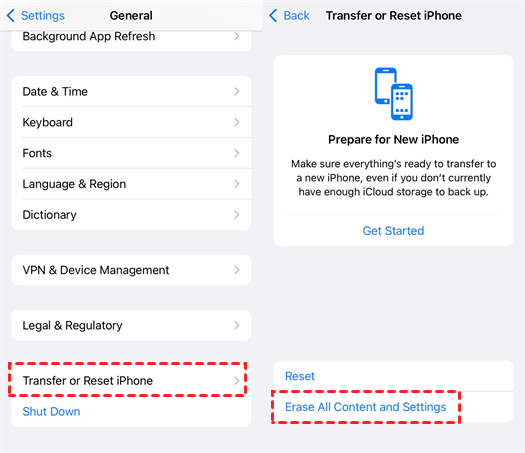
Step 2. Tap General. Scroll down and select Transfer or Reset iPhone > Erase All Content and Settings.
Step 3. Review the information shown on the screen and tap Continue if you're ready to proceed.
Step 4. Enter your iPhone passcode or Apple Account password when requested.
Step 5. Follow the on-screen instructions to complete the factory reset. Your iPhone will restart after the erase process is complete.
Way 2. Reset iPhone with iTunes
If your iPhone is not working properly or you cannot complete the reset from Settings, you can use iTunes on your PC to reinstall the software on your device and restore it to its default settings. Follow the instructions below:
💡 Note: Restoring software on iPhone erases all data and settings. However, iTunes automatically backs up your device before the restore, so you can later recover your information from that backup if needed.
Step 1. Make sure iTunes is installed and updated on your Windows PC.
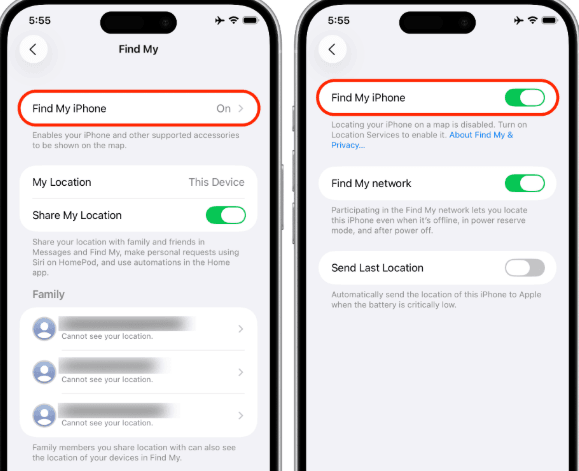
Step 2. If necessary, turn off Find My iPhone by opening Settings > [your name] > Find My > Find My iPhone.
Step 3. Connect your iPhone to the computer with a USB cable.
Step 4. Open iTunes and click the Device icon near the top left of the iTunes window.
Step 5. Click Summary. Then select Restore iPhone….
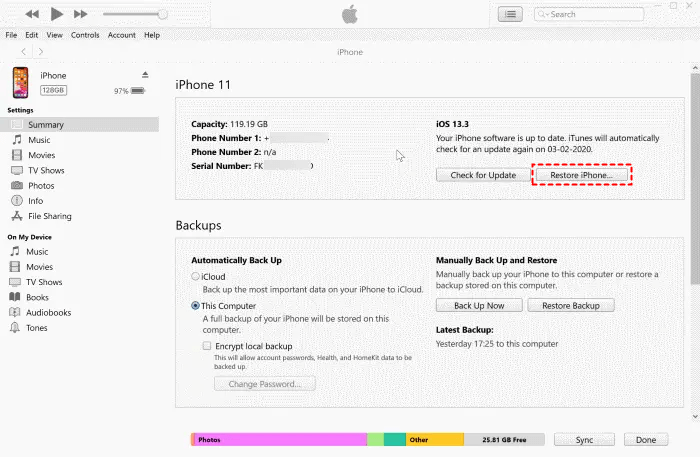
Step 6. Click Restore and Update to confirm the operation. iTunes will erase the iPhone and reinstall the appropriate version of iOS.
How to Restore Contacts After Resetting Your iPhone
After completing the factory reset, you can restore your contacts according to the backup method you used.
👉 Restore Contacts from iCloud
Step 1. Complete the initial iPhone setup.
Step 2. Sign in with the same Apple Account used before the reset.
Step 3. Open Settings > [your name] > iCloud and turn on Contacts.
Step 4. Connect the iPhone to Wi-Fi and wait for your contacts to synchronize.
👉 Restore Contacts with AOMEI FoneBackup
Step 1. Connect your reset iPhone to the computer.
Step 2. Open AOMEI FoneBackup and go to My Backups.
Step 3. Locate the contact backup you created before resetting the iPhone and click Restore.
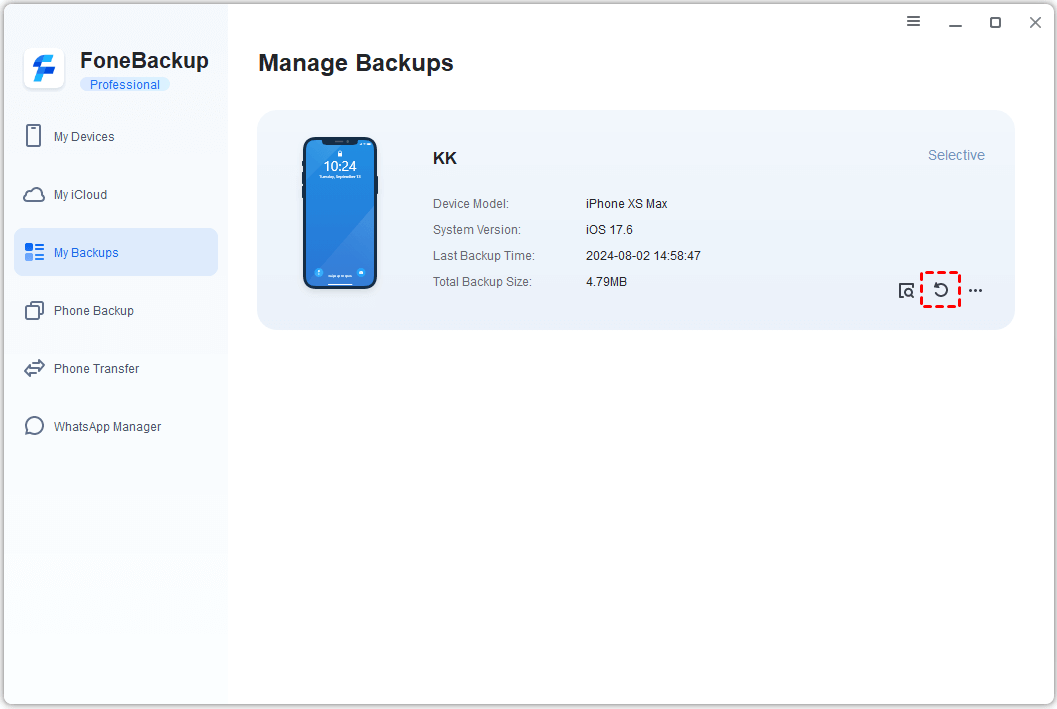
Step 4. Follow the on-screen instructions to restore your contacts to the iPhone.
FAQs About Resetting an iPhone Without Losing Contacts
1. Does factory reset delete contacts on iPhone?
Yes. A factory reset erases the data stored on the iPhone, which can include locally stored contacts. To avoid permanently losing them, back up or synchronize your contacts before resetting the device.
2. Will iCloud contacts come back after a factory reset?
Yes, if your contacts were successfully synchronized with iCloud before the reset. Sign in with the same Apple Account after resetting the iPhone and enable Contacts in iCloud to synchronize them again.
3. What should I do if I want to keep photos and contacts before resetting my iPhone?
Create a backup that includes both contacts and photos before resetting the device. You can use a selective backup to choose the data you need or create a full backup to protect more information.
Wrapping Things Up
Now you know how to reset iPhone without deleting contacts. The safest way to reset iPhone without losing contacts is to back them up before erasing the device. You can use iCloud to synchronize your contacts or create a local backup with AOMEI FoneBackup. After the reset is complete, simply synchronize or restore your contacts to the iPhone.
Besides backing up and restoring contacts, you can also use AOMEI FoneBackup to transfer CD to iPhone. Just go for it!

 as a preferred
source on Google
as a preferred
source on Google