




How to Backup Kik Messages on iPhone | 2 Practical Ways
Learn how to backup Kik messages on iPhone with two practical methods. Use iCloud for automatic backups, or save specific conversations with screenshots and AOMEI FoneBackup.

By Kelsey Updated on May 14, 2026


Kik is one of those apps where conversations can really matter. Maybe you've connected with someone across the world, shared things you wouldn't tell anyone else, or kept a thread of messages that you'd hate to lose. Then one day, accidental deletion, a phone glitch, or an update gone wrong and those messages are gone.
If that thought makes you uneasy, you're probably wondering how to backup Kik messages on iPhone. The app itself doesn't offer a built-in export feature, but there are ways to save your conversations. This guide covers two approaches: one that runs automatically in the background, and one that puts you in full control.
Method 1. Enable iCloud Backup for Kik Messages
iCloud backs up nearly everything on your iPhone, including app data. That means if you have iCloud Backup enabled, your Kik messages are getting saved alongside everything else. No extra steps, no manual work.
Step 1. On your iPhone, open Settings > tap your name at the top > iCloud.
Step 2. Tap iCloud Backup. Make sure the toggle next to "iCloud Backup" is turned on.
Step 3. If you want to trigger a backup immediately, tap "Back Up Now." Otherwise, your iPhone will back up automatically whenever it's connected to Wi-Fi, locked, and plugged into power.
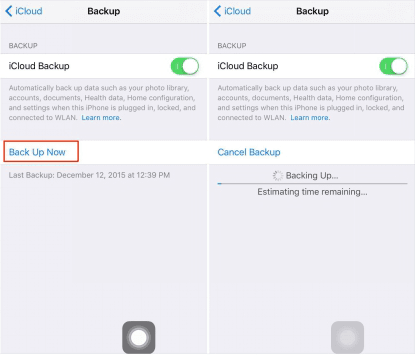
Step 4. To restore later, you'd need to wipe your iPhone and restore from that iCloud backup, which brings back everything, not just your Kik messages.
-
iCloud backups are convenient, but they're a package deal. You can't peek inside and pull out just your Kik conversations. And if you run out of iCloud storage (the free tier is only 5GB), backups stop until you free up space or pay for more.
Method 2. Save Kik Messages Screenshot to PC
If you only want to save specific conversations, or you prefer to have actual images you can look at anytime screenshots are the way to go. It takes a few minutes, but you end up with a visual record that lives outside the Kik app.
Step 1. Take Screenshots of Your Kik Conversations
Navigate to the conversation you want to save. Then:
-
On iPhones with Face ID: Press and quickly release the Side button and the Volume Up button at the same time.
-
On iPhones with Touch ID: Press and quickly release the Home button and the Top/Side button at the same time.
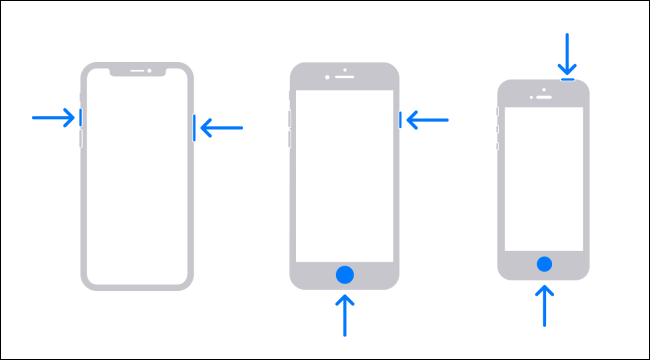
The screenshots save to your Photos app. If you have a long conversation, you'll need to scroll and repeat.
Step 2. Move Those Screenshots to Your Computer
Once your screenshots are in the Photos app, you can back them up to a computer using AOMEI FoneBackup. It's a free Windows tool that lets you select exactly which photos to save—no need to export your whole camera roll.
How to backup Kik message screenshots with AOMEI FoneBackup:
Step 1. Download and install AOMEI FoneBackup on your Windows PC. Connect your iPhone with a USB cable and tap "Trust This Computer" when prompted.
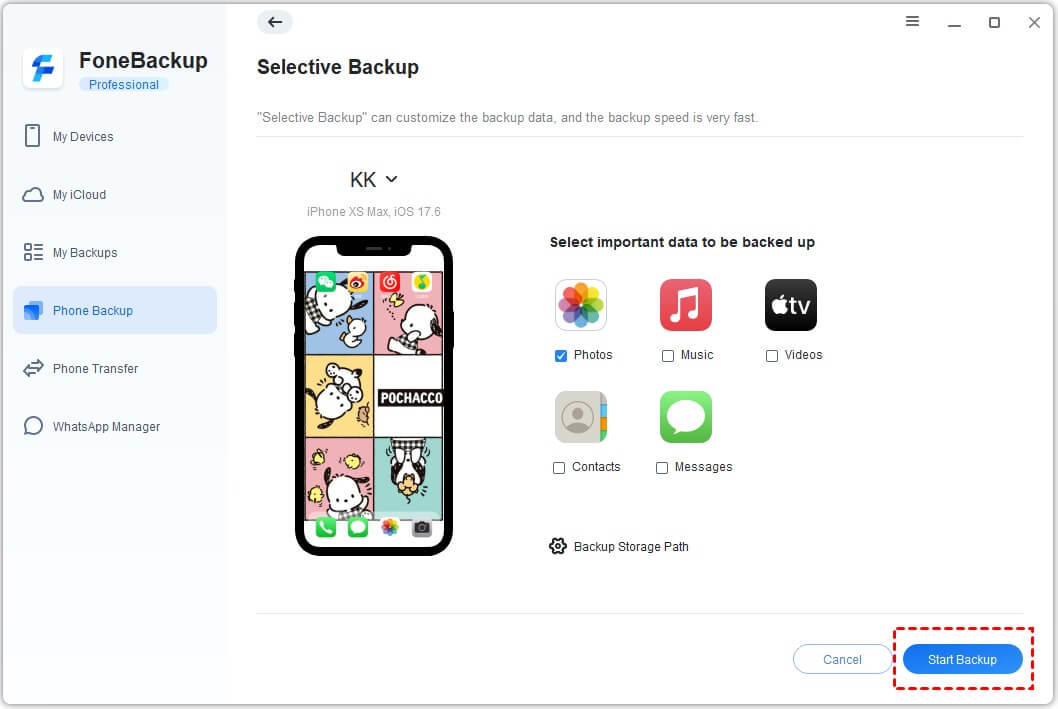
Step 2. Open AOMEI FoneBackup. Click Phone Backup on the main interface, then choose Selective Backup and click Get Started.
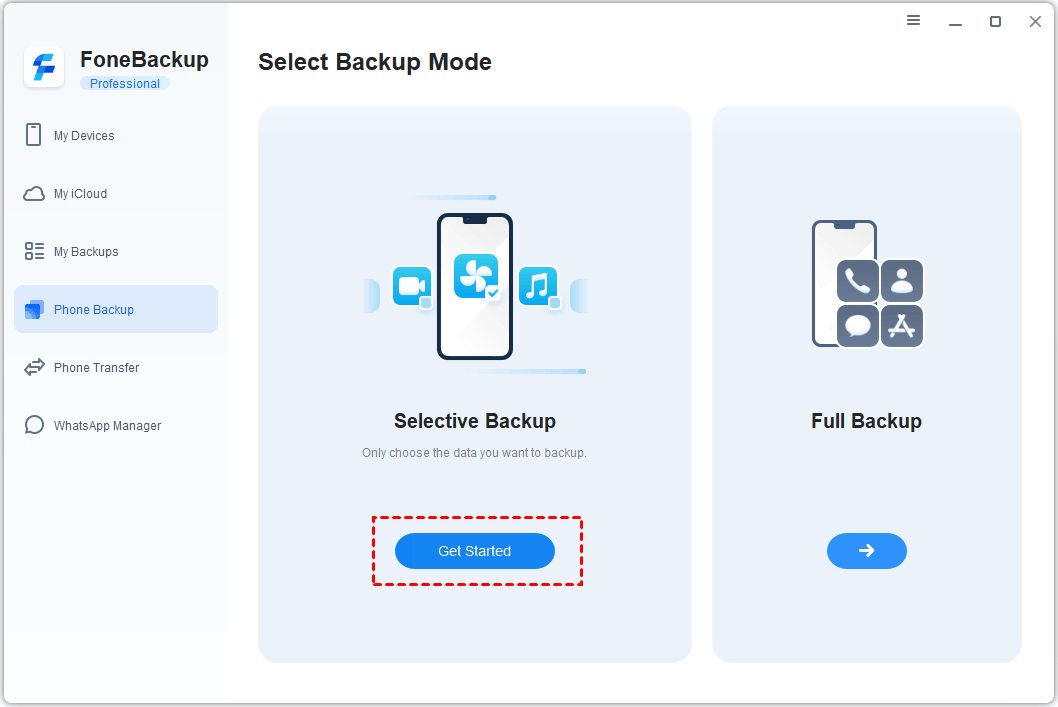
Step 3. Click the Photos icon. You'll see a preview of your camera roll. Scroll through and select only the screenshots you just took. Click OK.
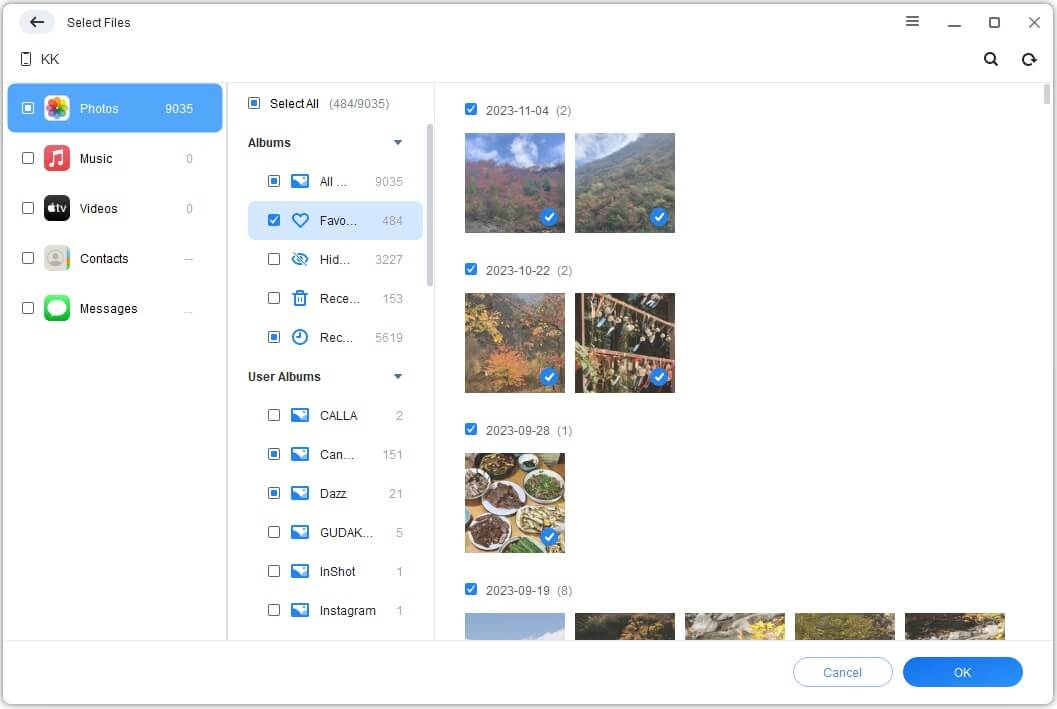
Step 4. Choose a folder on your computer to save the backup. (You can change this in Backup Storage Path.)
Step 5. Click Start Backup. A few seconds later, your Kik message screenshots are safely stored on your PC.
AOMEI FoneBackup also has a Full Backup option if you ever want to save everything on your iPhone, apps, settings, messages, the whole package. It's a solid alternative to iCloud with no monthly fees.
Wrapping Things Up
Kik conversations can be hard to replace. iCloud backs them up automatically, but you're locked into Apple's storage limits and all‑or‑nothing restore process. If you'd rather pick and choose which conversations to save, and keep them as images, you can actually look at screenshots paired with AOMEI FoneBackup, which gives you that control.

 as a preferred
source on Google
as a preferred
source on Google