




How to Backup Camera Roll to Snapchat iPhone [Full Guided]
Learn how to backup camera roll to Snapchat iPhone with two methods—via stories or directly to Memories. Plus a free tool for permanent PC backups. Step‑by‑step.

By Kelsey Updated on March 24, 2026


Most people don't think about backing up their camera roll to Snapchat, until they lose a photo they meant to save. Snapchat's Memories feature is designed to keep your photos and videos safe, but the settings aren't always set up to do it automatically. If you've ever lost a photo because you forgot to save it, you're not alone.
This guide walks you through exactly how to backup camera roll to Snapchat iPhone, both with and without creating stories. Plus, a backup method that gives you a permanent copy on your computer.

Part 1. Backup Camera Roll via Snapchat Stories
If you don't want to change your default backup settings, this method lets you manually save photos from your camera roll by turning them into Snapchat stories. The story gets saved to Memories automatically.
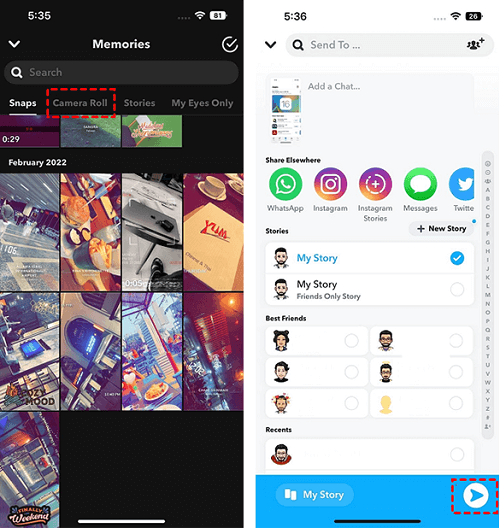
Step 1. Open Snapchat on your iPhone. From the camera screen, swipe up or tap the small icon next to the shutter button to open Memories.
Step 2. Tap the Camera Roll tab at the top. You'll see all the photos and videos stored on your device.
Step 3. Select the photo or video you want to back up. Tap the arrow icon at the bottom, then choose My Story.
Step 4. Tap the arrow again to post it. The story is now saved to Memories, and your camera roll photo is backed up in Snapchat.
-
Videos longer than 10 seconds won't save this way. Snapchat has a time limit for stories.
Part 2. Backup Camera Roll Without Creating Stories
If you'd rather skip the story part and just save multiple photos at once, there's a different approach.
Step 1. Open Snapchat and swipe up to enter Memories. Tap the Camera Roll tab.
Step 2. Long‑press on any photo to enter selection mode. Tap to select all the images you want to back up.
Step 3. Once selected, tap Create Story at the bottom.
Step 4. After the story is created, tap Save Story. Your selected camera roll photos are now saved in the Memories section.
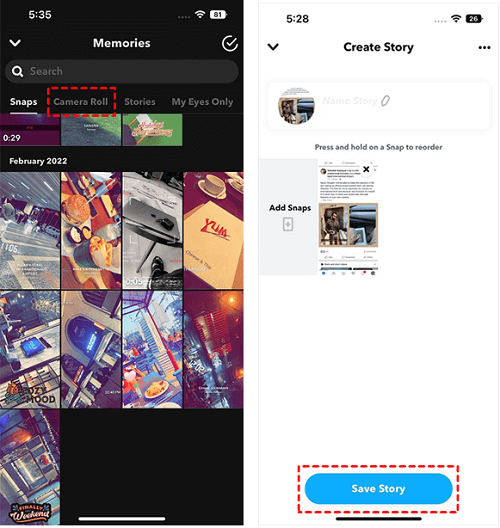
This method lets you batch‑save multiple photos without posting them to your public story.
Bonus: A Better Way to Backup Your iPhone Camera Roll
Snapchat's Memories are convenient, but they're not a true backup. If you ever delete the app or lose access to your account, those photos are gone. For permanent safekeeping, consider a local backup on your computer.
AOMEI FoneBackup is a free Windows tool that transfers photos and videos from your iPhone to your PC, quickly, with original quality preserved.
- Transfer unlimited files between iPhone and PC.
- Easily move photos, videos, music, contacts and ringtones.
- Fast transfer speed allows you to move 1000 + photos in 10 minutes.
- Preview and select files as you like to begin the transfer.
- Safe USB connections protect all your iPhone data from loss.
- Support various iOS models and versions (iPhone 17/iOS 26).
Way 1. Backup Camera Roll to PC (Full or Selective)
Step 1. Download and install AOMEI FoneBackup on your Windows PC. Connect your iPhone with a USB cable and tap "Trust This Computer" when prompted.
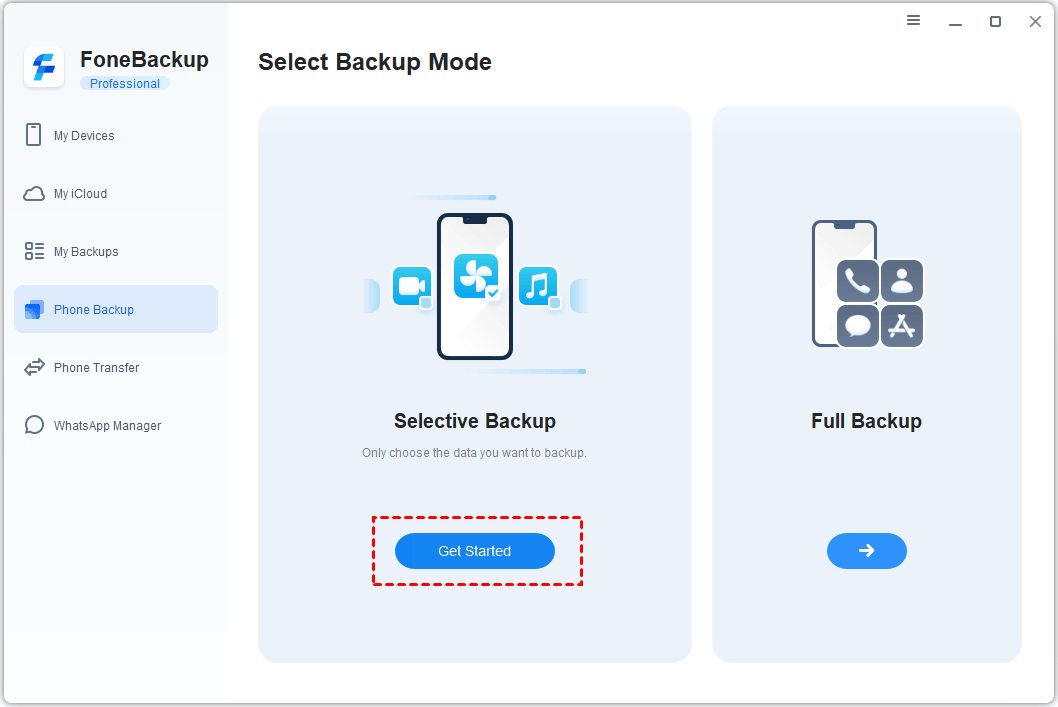
Step 2. Open AOMEI FoneBackup. Click Phone Backup, then choose Selective Backup and click Get Started.
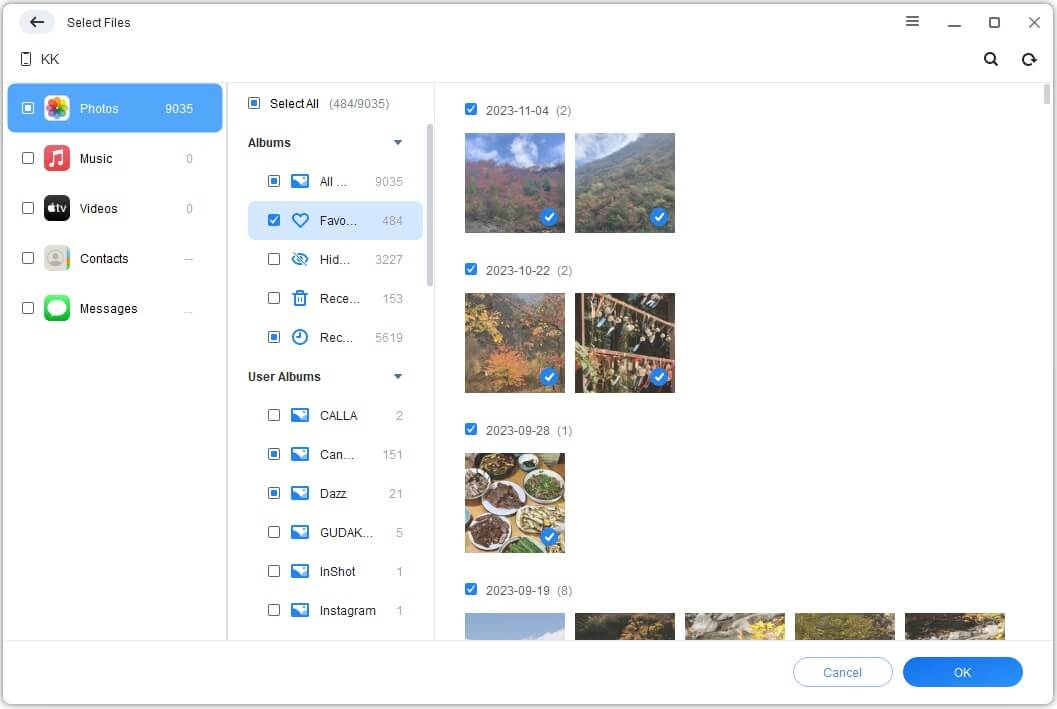
Step 3. Click the Photos and Videos icons to preview what's on your iPhone. Select the files you want to back up. Click OK.
Step 4. Choose a folder on your computer to save the backup. (You can change this in Backup Storage Path.)
Step 5. Click Start Backup. A few minutes later, your camera roll is safely stored on your PC.
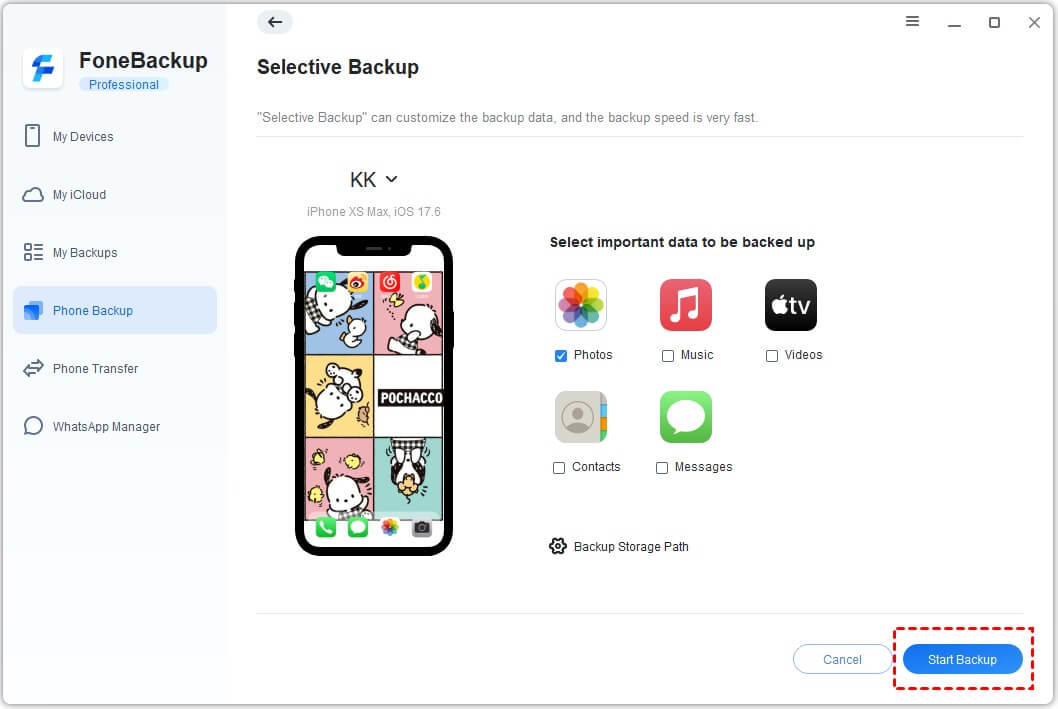
You can choose Full Backup instead of Selective Backup. This saves everything on your iPhone - settings, apps, messages, the whole package.
Way 2. Selectively Transfer Photos and Videos to PC
If you prefer to transfer rather than back up (meaning you want the files on your PC but not necessarily as a compressed backup), use the transfer function.
Step 1. In AOMEI FoneBackup, click Phone Transfer > iPhone to PC > Start Transfer.
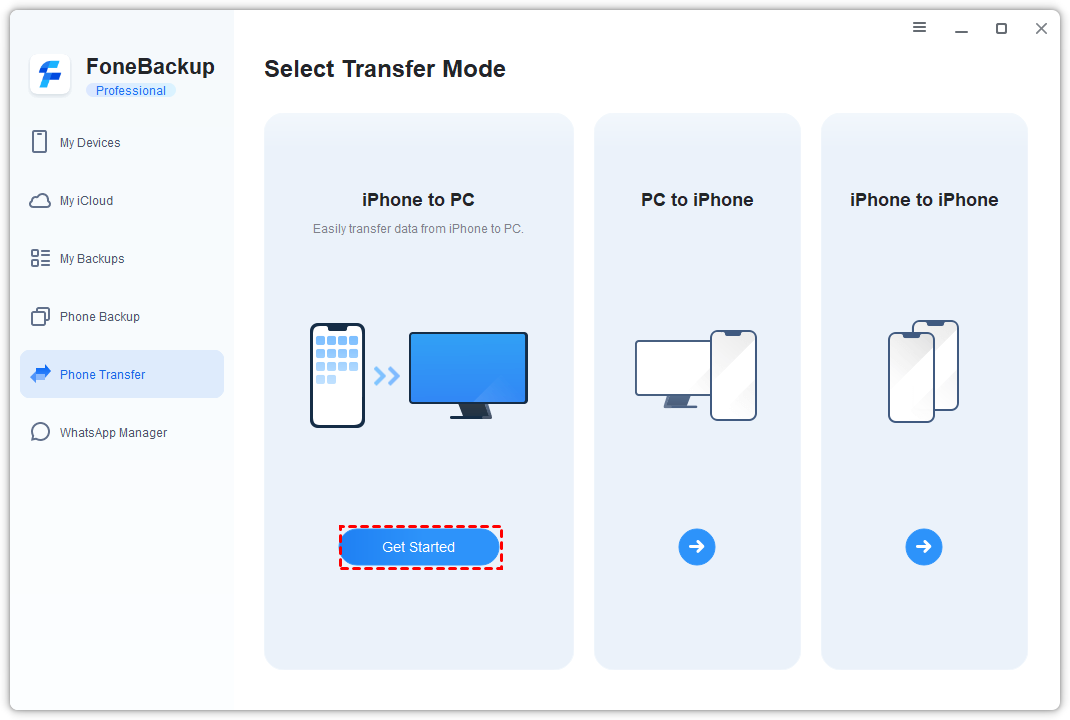
Step 2. Click the plus icon, then select Photos and Videos. Preview and pick the files you want. Click OK.
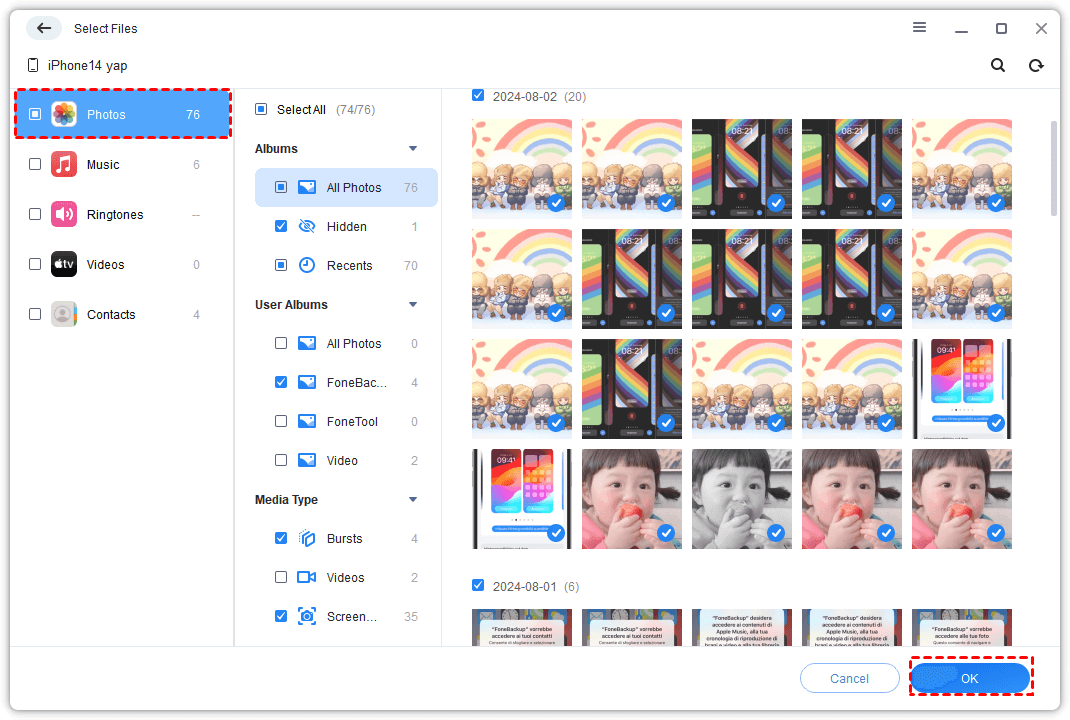
Step 3. Click Start Transfer. Choose where to save them, then click Transfer.
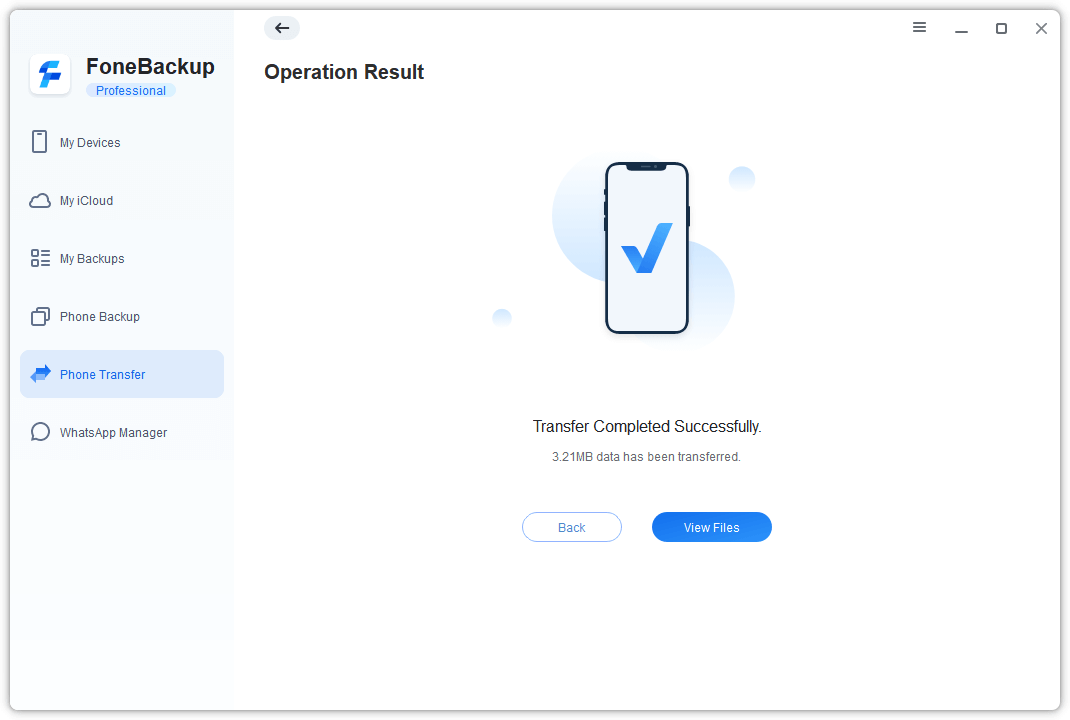
The files will be copied to your PC as regular photos and videos, no special backup format, just the files themselves.
Conclusion
Snapchat's Memories feature makes it convenient to save your favorite camera photos in the app, whether you post them as stories or save them directly. But for true peace of mind, it's safer to transfer photos to a computer that doesn't rely on backups of apps or accounts. AOMEI FoneBackup makes this process simple, fast and free.

 as a preferred
source on Google
as a preferred
source on Google