




How to Backup WhatsApp on iPhone: 4 Easy & Reliable Methods
This guide explains how to backup WhatsApp on iPhone with several practical methods, including iCloud, single-chat export, and a WhatsApp transfer software - AOMEI FoneBackup.

By Jonna Updated on September 1, 2026


WhatsApp has become an essential part of daily communication, storing thousands of vital personal conversations, photos, work messages, audio notes, and attachments. Losing access to your WhatsApp history due to devicedamage, loss, or software glitches can be frustrating. Knowing how to backup WhatsApp on iPhone efficiently is crucial for keeping your valuable memories and data safe.
Whether you are upgrading to a new iPhone model, freeing up iCloud storage space, or looking for an offline local solution to safeguard your sensitive information, this guide walks you through 4 easy, reliable methods tocreate a WhatsApp backup on your iOS device.
Way 1. Backup WhatsApp on iPhone using iCloud
The most seamless way to back up your WhatsApp chat history is directly within the app using Apple’s native iCloud service. This method stores your messages and attached media straight to your iCloud account.
👉 Here are the steps to backup WhatsApp to iCloud on iPhone
Step 1. Open your iPhone Settings and tap your Apple ID profile at the top.
Step 2. Select iCloud, then scroll down to ensure iCloud Drive and WhatsApp are toggled ON.
Step 3. Open the WhatsApp application on your iPhone.
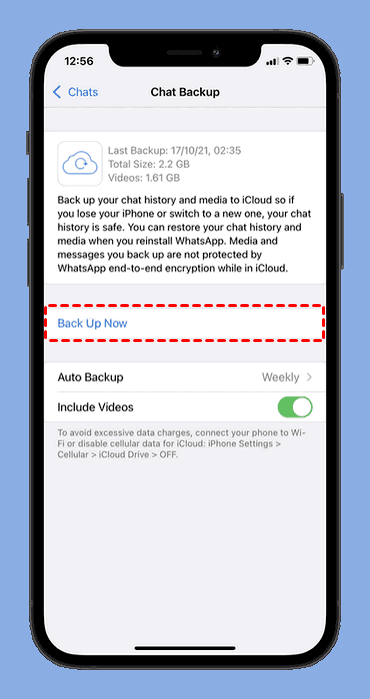
Step 4. Go to Settings (gear icon at the bottom right) > Chats > Chat Backup.
Step 5. Tap Back Up Now to initiate an immediate backup. Alternatively, select Auto Backup to configure daily, weekly,or monthly automatic backups. Toggle on Include Videos if desired.
💥 Important limitations of iCloud backup:
- Storage Limit: Free iCloud accounts only offer 5GB of total storage, which fills up quickly if you send or receive heavy media files.
- Network Dependent: Requires a fast, stable Wi-Fi network connection to complete successfully.
- No Selective Restore: You cannot view individual backup contents and must reinstall WhatsApp entirely to restore data.
Method 2: Backup WhatsApp on iPhone to PC via AOMEI FoneBackup (Recommended)
If you have run out of free iCloud storage or prefer keeping a private, full backup of your WhatsApp data offline on a computer without relying on network speeds, AOMEI FoneBackup is an ideal professional solution. It provides a reliable, fast, and secure way to back up WhatsApp messages, pictures, videos, and attachments to your Windows PC. You can also use this tool to backup WhatsApp to Google Drive, and various locations.
 AOMEI FoneBackup
- No Cloud Storage Limits: Save unlimited WhatsApp chat backups directly to your PC's local hard drive or external disk.
- WhatsApp Backup & Transfer: Back up WhatsApp/WhatsApp Business to PC and transfer between iPhones, including chats, photos, videos, and stickers with one click.
- High Speed & Stability: Physical USB cable transfers ensure fast backups without network timeouts.
- Complete Data Privacy: Offline storage prevents cloud data leaks or account access risks.
- Flexible Management: Supports selective backup, full preview, and restoring data to a different iOS device without data overwrite risks.
 100% Secure
👉 Step-by-Step Guide to Backup WhatsApp from iPhone to PC with AOMEI FoneBackup
Step 1. Download, install, and launch AOMEI FoneBackup on your Windows PC.
Step 2. Connect your iPhone to the computer using a Lightning or USB-C cable, and tap Trust This Computer on your iPhone screen.
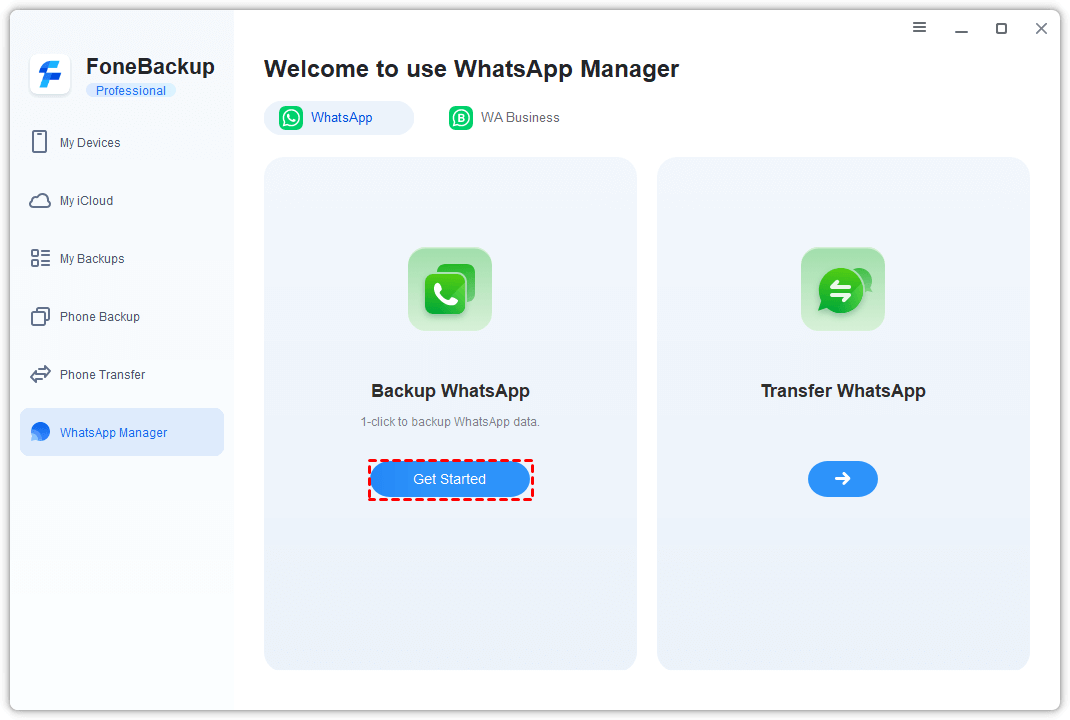
Step 3. On the home interface of AOMEI FoneBackup, click on WhatsApp Manager. Select Backup WhatsApp and click Get Started.
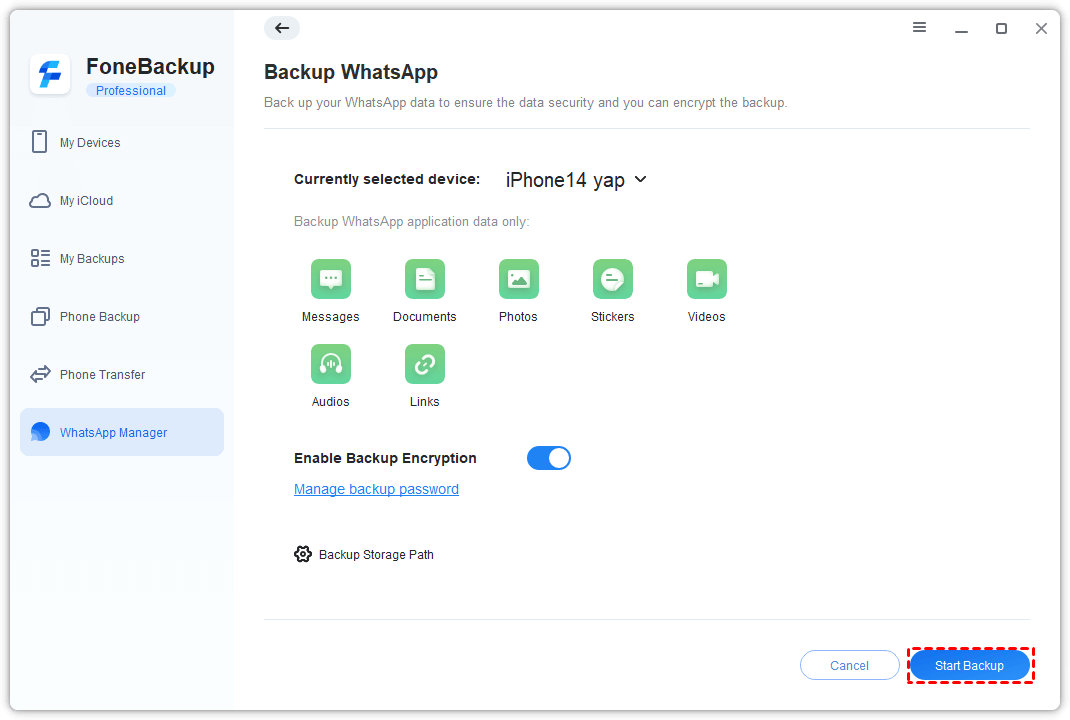
Step 4. Configure your backup path on your PC by clicking Backup Storage Path. Enable Backup Encryption if you wish to password-protect your chat logs.
Step 5. Click Start Backup. Wait for the progress bar to finish. Your entire WhatsApp database is now safely stored on your PC.
Method 3: Backup Entire iPhone including WhatsApp via iTunes
Another classic offline approach is using iTunes. This creates a full, comprehensive snapshot of your entire iPhone system, including WhatsApp app data.
👉 Steps to Backup via iTunes:
Step 1. Connect your iPhone to your computer and launch iTunes.
Step 2. Click the iPhone icon in the upper-left corner of the window.
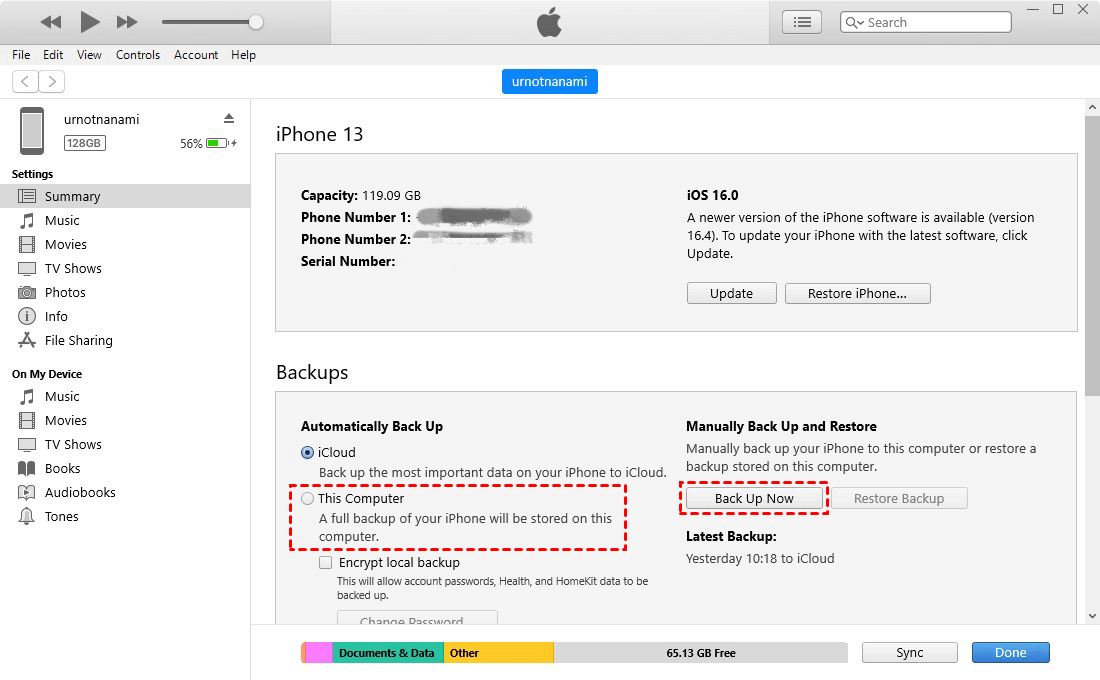
Step 3. Under the Summary tab, go to the Backups section.
Step 4. Select This Computer. Check Encrypt local backup if you want to save account credentials and Health data alongside WhatsApp records.
Step 5. Click Back Up Now and wait for the process to complete.
💥 Drawbacks of iTunes Backup:
iTunes backs up your whole phone instead of isolating WhatsApp. Restoring requires wiping target devices completely, and you cannot preview individual WhatsApp messages or media files inside the backup container.
Method 4: Export WhatsApp Conversations via Email (for Specific Chats)
If you only need to preserve individual chat logs or small conversations with specific contacts, WhatsApp’s built-inExport Chat function offers a quick solution without needing a full system backup.
👉 Steps to Export WhatsApp Chat via Email:
Step 1. Open WhatsApp on your iPhone and select the specific conversation you wish to back up.
Step 2. Tap the contact's name or group subject at the top to enter Contact Info.
Step 3. Scroll down and tap Export Chat.
Step 4. Choose whether to Attach Media (includes photos/videos) or export Without Media (text only).
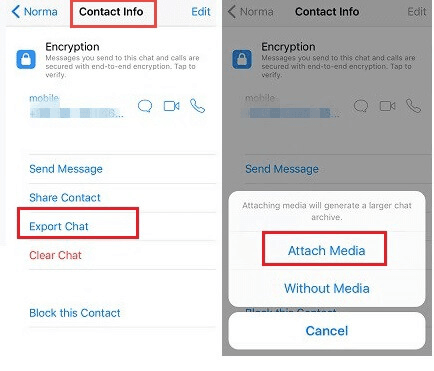
Step 5. Select the Mail app from the share sheet, enter your email address, and send the message.
💥 Note:
Exported email files are saved in .txt format. While great for legal or reference documentation, they cannot be directly re-imported back into the WhatsApp application.
Comparison of iPhone WhatsApp Backup Solutions
|
Method |
Storage Location |
Selective Backup |
PC Access / Viewable |
Best For |
|
iCloud |
Cloud Storage |
No |
No |
Daily automatic cloud backups |
|
AOMEI FoneBackup |
Local PC / External Drive |
Yes |
Yes |
Fast offline storage & high security |
|
iTunes / Finder |
Local PC / Mac |
No |
No |
Full system iOS backups |
|
Email Export |
Email Inbox /Device |
Yes (Per Contact) |
Yes (.txt format) |
Saving critical individual conversations |
Conclusion
Regularly creating a backup WhatsApp iPhone strategy is the best way to safeguard your vital conversations and media against unexpected data loss. If you prefer seamless background cloud sync, iCloud is the standard choice. However, if you are running out of cloud storage or prefer keeping your sensitive data secure on a local hard drive, AOMEI FoneBackup offers a flexible, fast, and reliable solution. Also, it offers to create full device backup, which works as an iTunes alternative for quick iPhone protection.

 as a preferred
source on Google
as a preferred
source on Google