




Best iTunes Alternative for Windows for Music, Backup, and Transfer
Compare 4 options for anyone seeking an iTunes alternative for Windows, whether you want to manage music, sync an Apple device, back up an iPhone, or transfer selected files.

By Ivy Updated on August 19, 2026


You open iTunes on your Windows PC because you need to back up your iPhone, add a few songs, or organize your music library. Instead, you face a slow app or a syncing process that does more than you need.
The right iTunes alternative for Windows depends on which part of iTunes you want to replace.
- AOMEI FoneBackup - a practical choice for free iPhone backup and selective file transfer.
- Apple Music - handles Apple‑based music libraries.
- Apple Devices - provides official device management.
- MusicBee - great for organizing local music on Windows.
Ready to learn more?
What Has Replaced iTunes on Windows?
Apple has divided the main functions of iTunes among several Windows apps. There is no single new Apple app that replaces everything.
- Apple Music manages music, playlists, local songs, and iTunes Store music purchases.
- Apple TV manages movies and TV shows.
- Apple Devices syncs, updates, backs up, and restores an iPhone, iPad, or iPod.
- iTunes for Windows remains available for podcasts and audiobooks. You can also use it if your PC cannot run Apple’s newer Windows apps.
This split works well if you want to stay with Apple. However, installing several apps may feel unnecessary when you mainly want to back up an iPhone, move selected files, or manage an offline music collection.
Quick Guide: Which iTunes Alternative Should You Choose?
| 🎯 What you want | ✅ Recommended option | 💡 Why |
|---|---|---|
| Back up an iPhone for free | AOMEI FoneBackup | Supports full and selective backup |
| Transfer selected files between iPhone and PC | AOMEI FoneBackup | Avoids syncing an entire media library |
| Manage Apple music, purchases, and playlists | Apple Music | Replaces the music-library part of iTunes |
| Use official device sync, backup, and restore | Apple Devices | Provides Apple’s current device controls |
| Organize and play local Windows music | MusicBee | Offers free local-library management |
Option 1. AOMEI FoneBackup - Free iPhone Backup and Flexible Transfer
👍 Best for: Backing up an iPhone to a Windows PC and moving selected files without syncing a complete Apple media library.
AOMEI FoneBackup is an iPhone backup and transfer tool for Windows PCs. It covers two primary iTunes tasks - iPhone backup and file transfer, with greater flexibility.
 AOMEI FoneBackup
- Full or selective backup: Back up everything or just what you need. No iCloud, no iTunes required.
- Pick what to move: Backup or transfer photos, videos, music, contacts, messages, and more.
- Save anywhere: PC, external drive, USB, NAS - your call.
- Preview first: see exactly what you're about to back up or transfer.
- View backup anytime: Access and check your backups whenever you need.
- Transfer on the go: Move files between iPhone and PC, or even between two iPhones, without syncing your whole library.
- Free to use: Backup features are always free. The free version gives you 30 file transfers per day.
 100% Secure
Create a Free iPhone Backup
Step 1. Download and install AOMEI FoneBackup on your Windows PC. Connect your iPhone, unlock it and tap Trust if prompted.
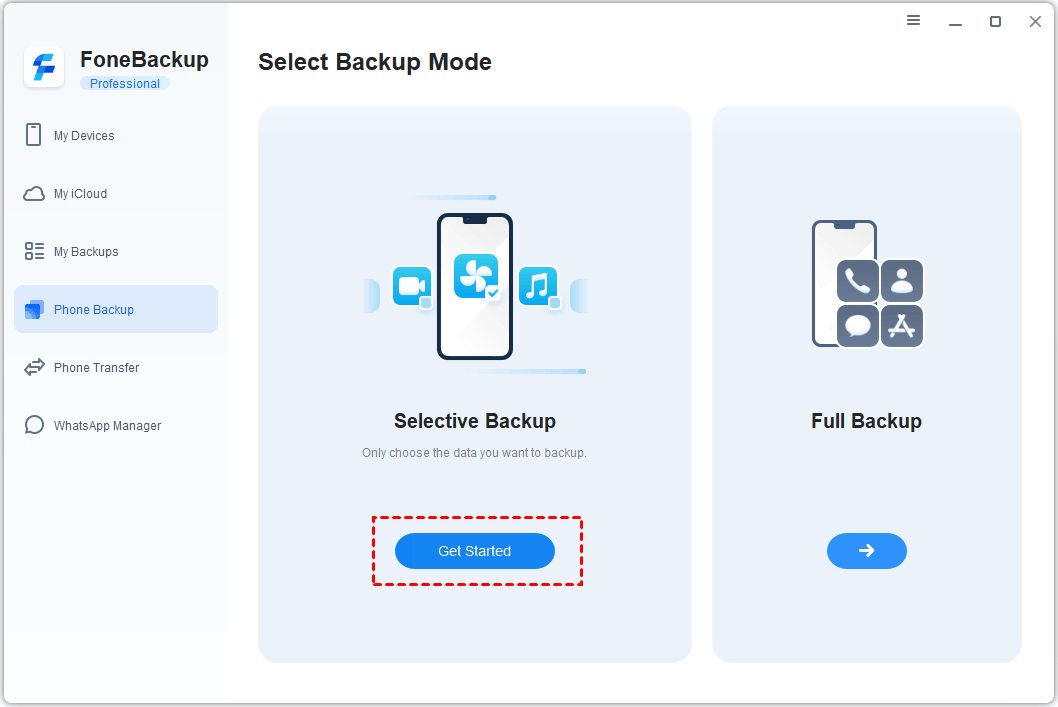
Step 2. Select Phone Backup> Full or Selective Backup, then click Get Started.
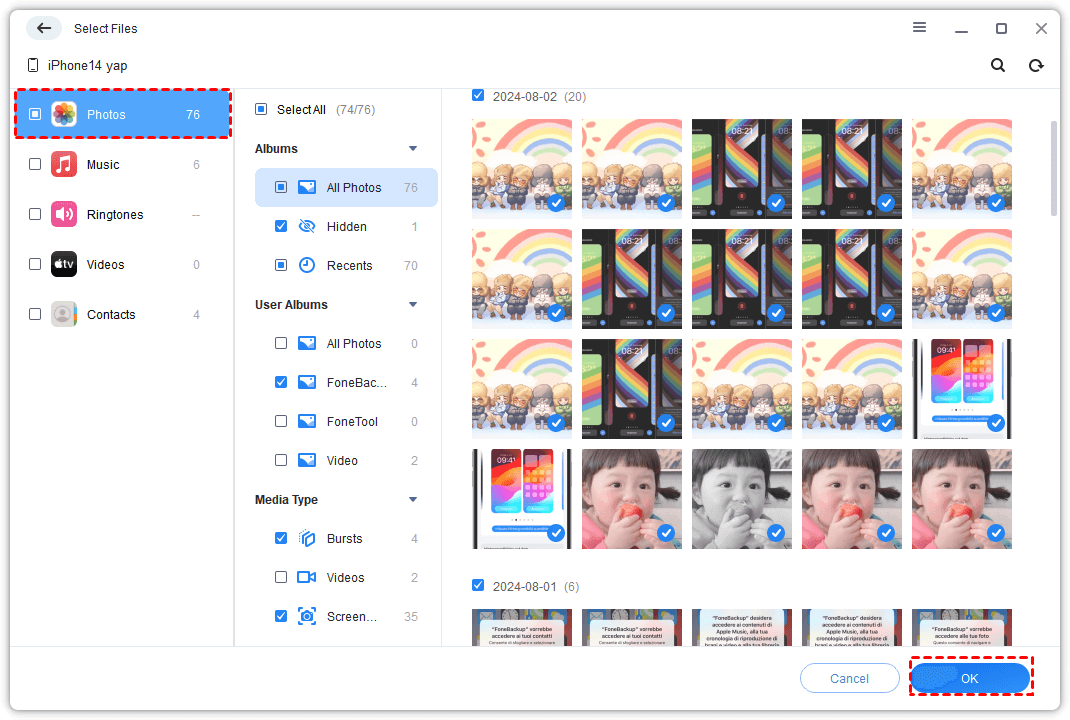
Step 3. Click the Photos icon to preview and select the photos you want to transfer. You can also select Messages, Music, etc.
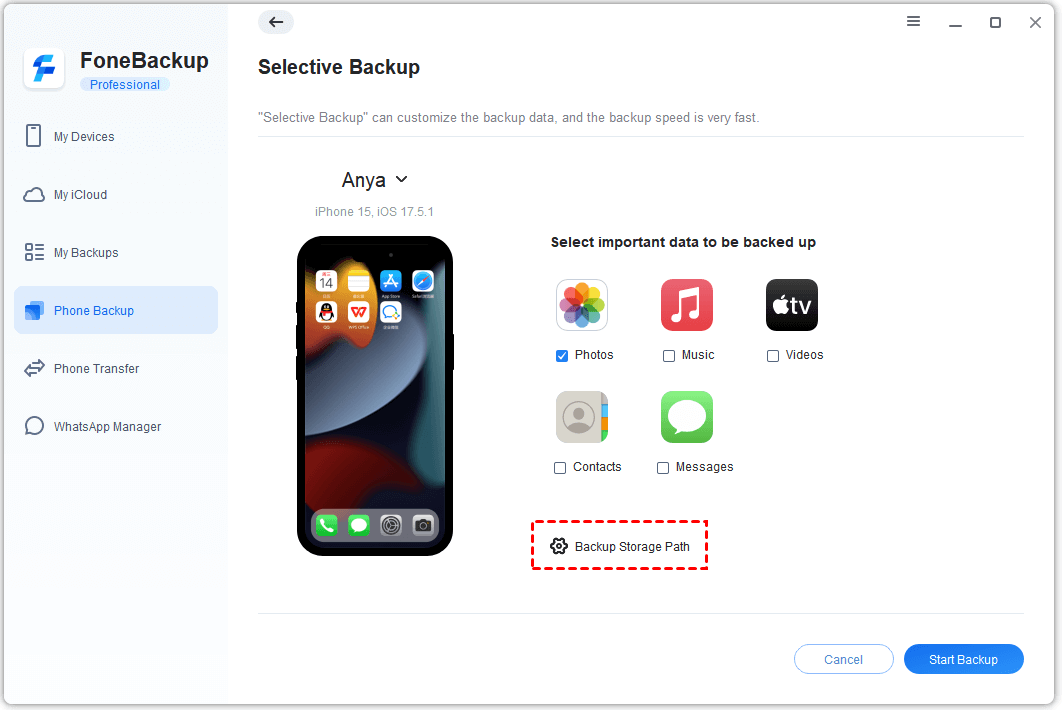
Step 4. Click Backup Storage Path and choose where to save the backup. Click Start Backup.
A full backup does not include content from the iTunes Store, App Store, Apple Music, Apple TV, Apple Books, or audiobooks. Keep separate access to these purchased or subscription items through the relevant Apple service.
After the backup finishes, use this checklist:
- Open My Backups and confirm that the new backup appears.
- Check the backup’s completion time.
- Make sure the management or restore options are available.
- Keep the backup folder or external drive connected when you need to restore it.
If the task does not appear or looks incomplete, reconnect the iPhone and run the backup again. When the iPhone is detected but no data appears, refer to iPhone files not showing up on a PC before retrying.
Transfer Selected Files Between iPhone and PC
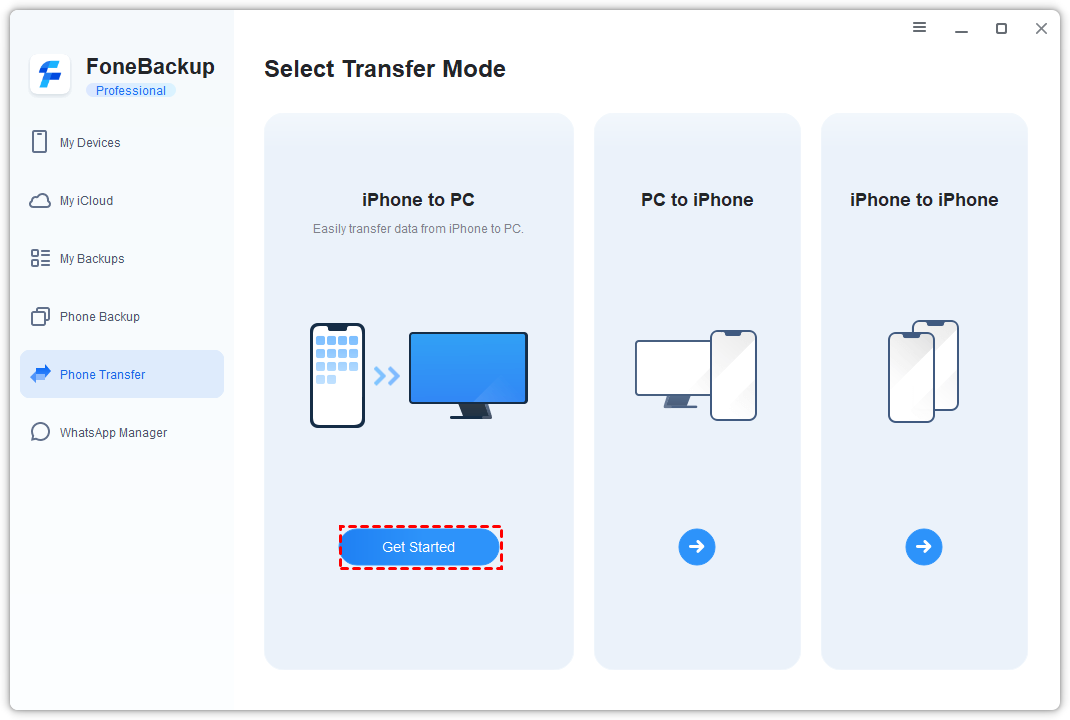
Step 1. Connect and unlock the iPhone. Open AOMEI FoneBackup, select Phone Transfer > iPhone to PC or PC to iPhone, then tap Get Started.
Step 2. Select the files you want to move by click Photos, Music, etc., then click OK.
Step 3. Click Transfer Settings and choose a folder or drive where you want to save your data. Click Save >Start Transfer. Leave the iPhone connected until the process finishes.
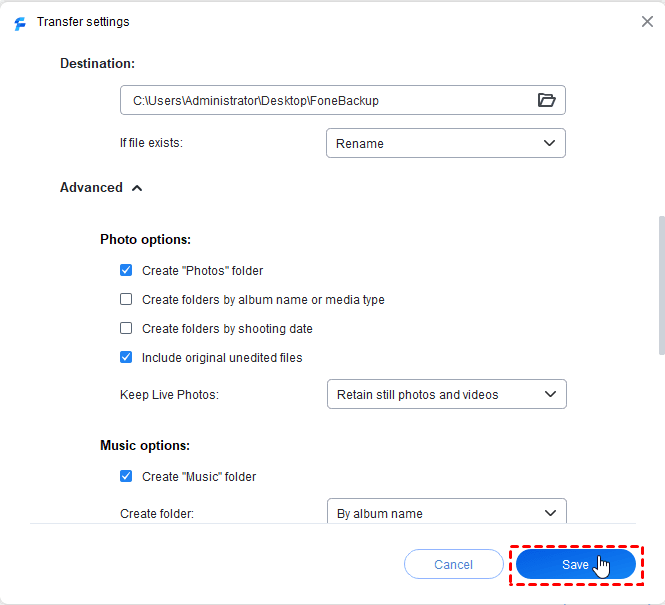
Choose AOMEI FoneBackup when backup or direct transfer is your priority. If you mainly want playlists, subscription music, or continuous library access, Apple Music is a better match.
Option 2. Apple Music - Official Music Library Replacement
👍 Best for: Managing an existing iTunes music library, importing local songs, creating playlists, and accessing Apple Music or iTunes Store content on Windows.
Apple Music takes over the music-library part of iTunes. It lets you play and organize local songs, manage playlists, access eligible iTunes Store purchases, and use an Apple Music subscription.
It does not manage iPhone backups or system settings. If you want to copy local music from the Windows library to an iPhone, you first add the songs to Apple Music and then complete the device sync in Apple Devices.
Import Local Music into Apple Music
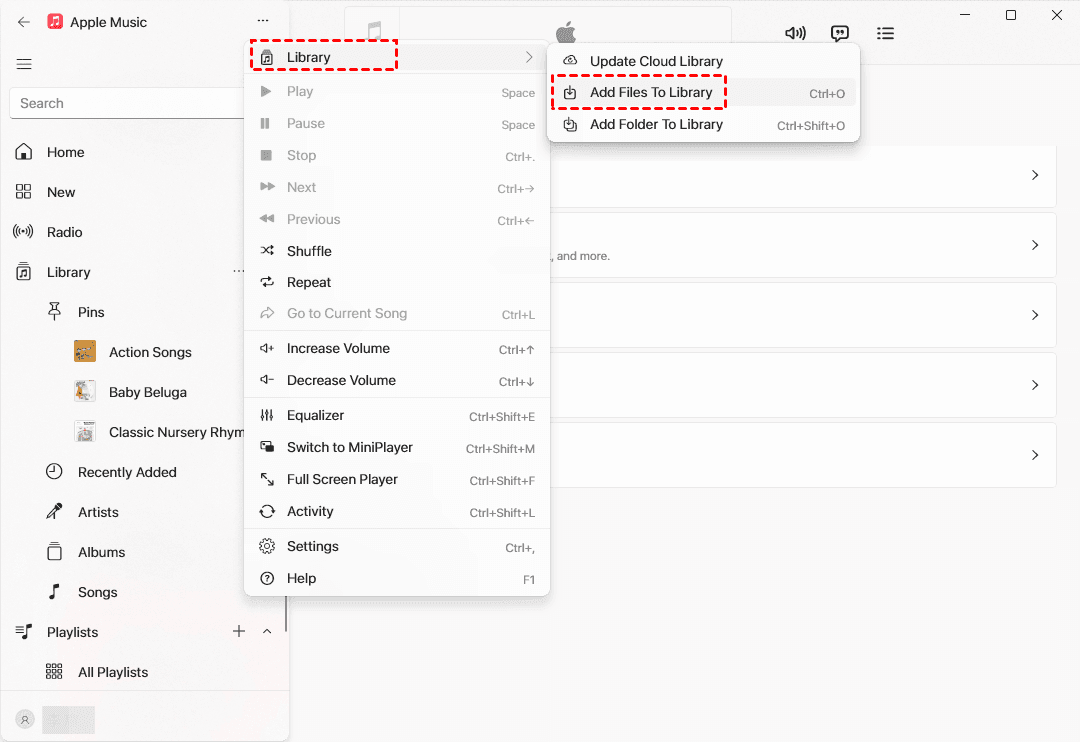
Step 1. Open the Apple Music app on your Windows PC. Select SiderBar Action button at the top, then choose Library > Add Files To Library or Add Folder to Library.
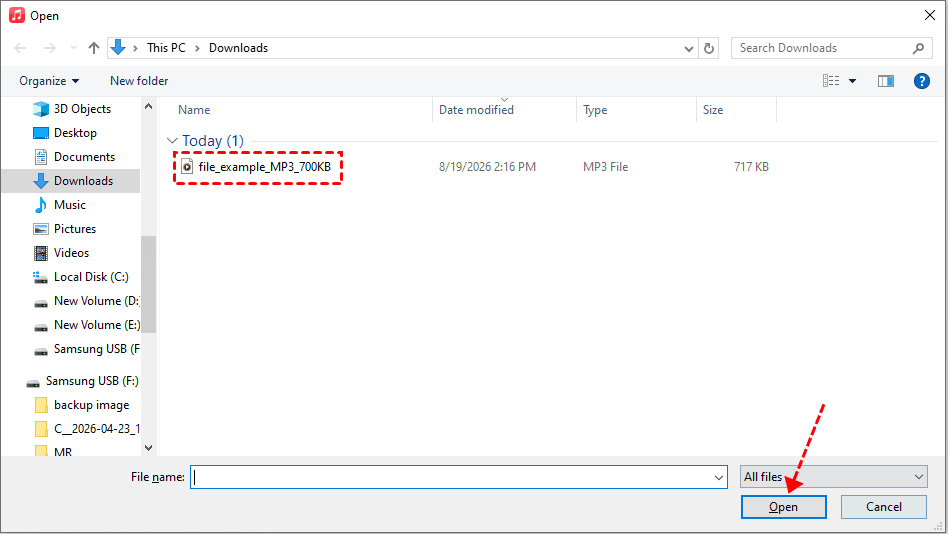
Step 2. Find the song or folder you want to add. Select it and click Open. If you import a folder, the supported music files inside it are added to the library.
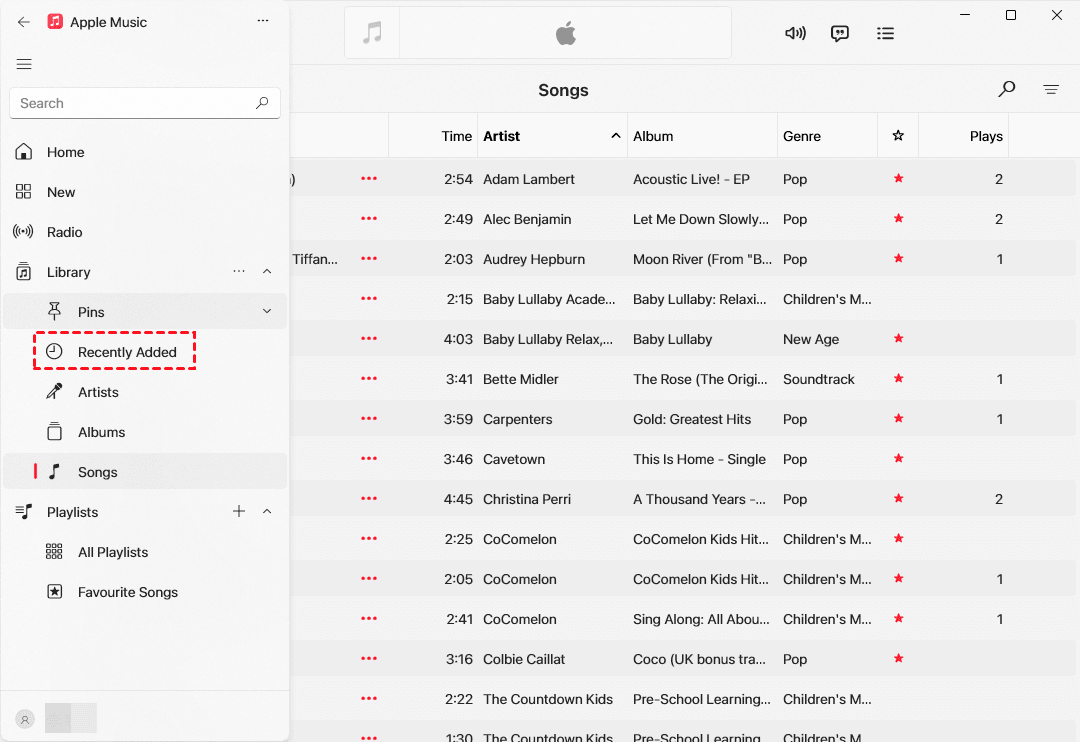
Step 3. Select Recently Added in the sidebar to confirm that the imported music appears.
You can also drag a song or folder from File Explorer into the Apple Music window. Avoid moving or deleting the original files until you confirm that the songs still play correctly from the library.
Make Your Music Library Available on Other Devices
If you subscribe to Apple Music or iTunes Match, you can use Sync Library instead of manually connecting the iPhone.
Step 1. Open Apple Music and sign in with the Apple Account used for your subscription.
Step 2. Click the SiderBar Action button at the top, then choose Settings > General and turn on Sync Library.
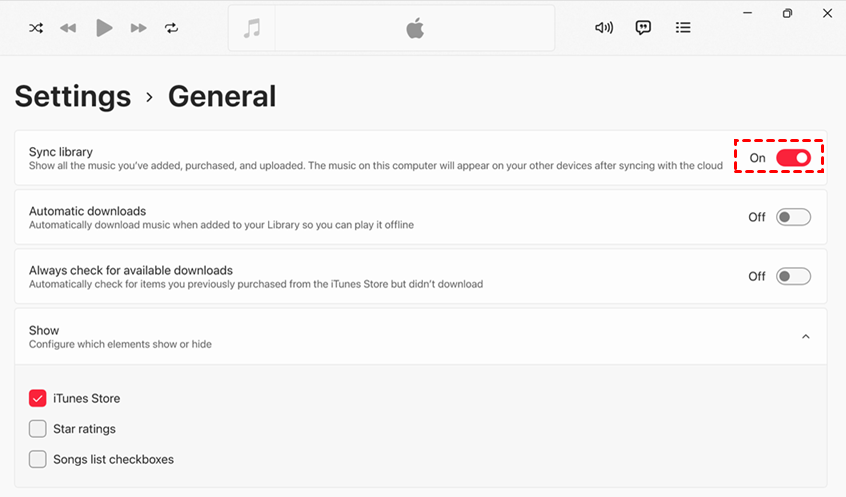
Step 4. On the iPhone, go to Settings > Apps > Music, then turn on Sync Library using the same Apple Account.
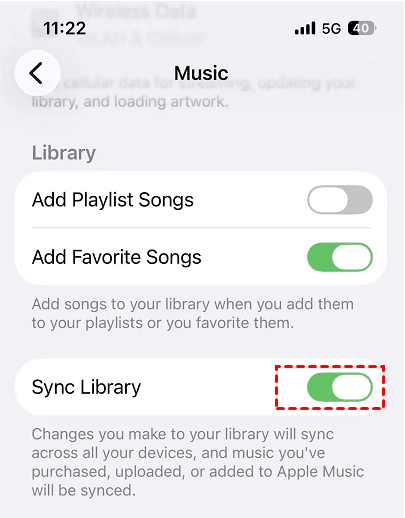
Wait for the library to update before checking your songs and playlists on the iPhone. Sync Library requires an Apple Music or iTunes Match subscription. If you do not want a subscription, use Apple Devices to sync local music manually.
Option 3. Apple Devices - Official Device Sync and Restore
👍Best for: Using Apple’s official Windows app to sync, update, back up, and restore an iPhone, iPad, or iPod.
Apple Devices replaces the device-management section of iTunes. It can create a complete local backup, encrypt the backup, restore an Apple device, install software updates, and sync selected media.
It works with Apple’s other Windows apps. You need Apple Music to sync music and Apple TV to sync movies or TV shows. If Sync Library or iCloud Photos is enabled, the corresponding manual sync controls may not appear in Apple Devices.
Back Up an iPhone with Apple Devices
Step 1. Connect the iPhone to your Windows PC with a USB or USB-C cable. Unlock it and tap Trust if prompted.
Step 2. Open Apple Devices and select the iPhone in the sidebar.
Step 3. Under the General tab, check Back up all of the data on your [device] to this computer and tap Back Up Now. Keep the iPhone connected until the backup finishes.
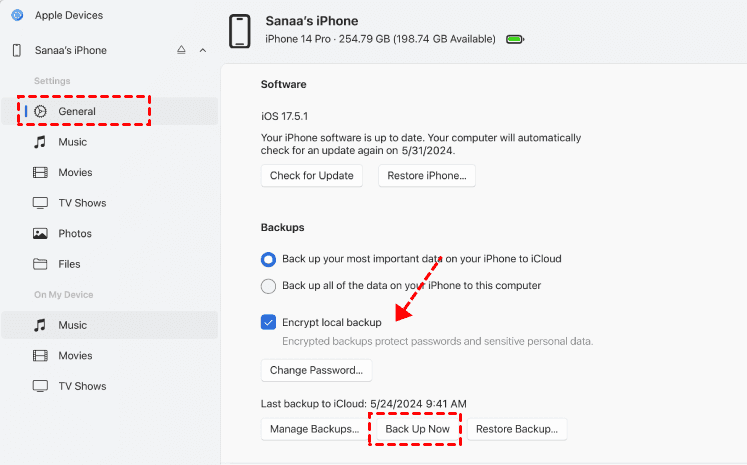
Afterward, select Manage Backups and confirm that the new backup appears. Store an encrypted-backup password safely because you cannot restore that backup without it.
Sync Local Music to an iPhone
Before you begin, install Apple Music on the PC and import the local songs into its library.
Step 1. Connect the iPhone and select it in the Apple Devices sidebar.
Step 2. Select Music in the sidebar. Check Sync music onto [device name] and then choose Entire music library or Selected artists, albums, genres, and playlists.
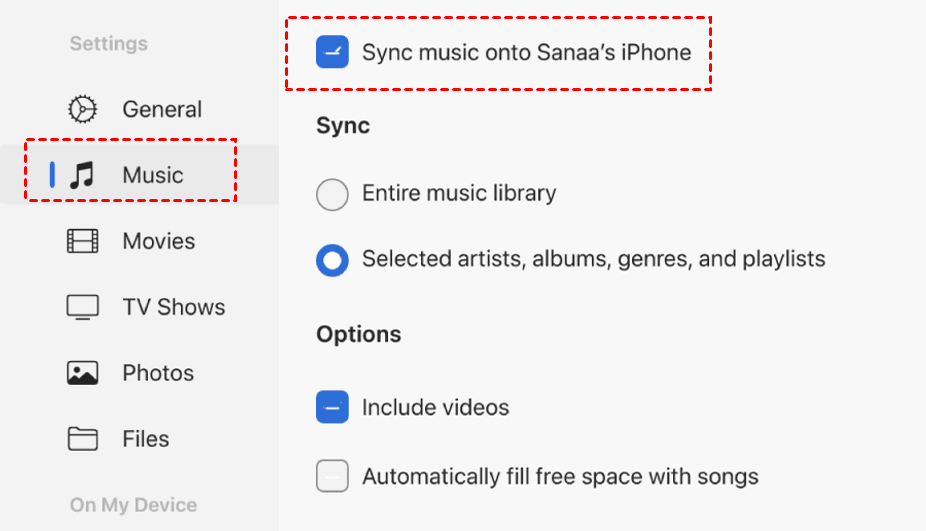
Step 3. Select Apply to start syncing. Use the Eject button before disconnecting the iPhone.
When you delete an automatically synced item from the Windows library, it may also be removed from the iPhone during the next sync. If Sync Library is enabled, turn it off before using this manual music-sync method.
Option 4. MusicBee - Free Local Music Manager
👍 Best for: Organizing, tagging, and playing a large local music collection on Windows without an Apple Music subscription.
MusicBee is a free Windows music manager and player. It is suitable if you mainly used iTunes to import CDs or downloaded songs, organize albums, edit tags, create playlists, and play music on your PC.
It does not provide complete iPhone backup, restore, or current Apple-device management. Choose it for a local Windows music library, not as a replacement for Apple Devices or AOMEI FoneBackup.
Import Music into MusicBee
Step 1. Install and open MusicBee. During the initial setup, choose the folders that contain your music.
Step 2. If the initial setup is already complete, open File and select Scan Folders for New Files.
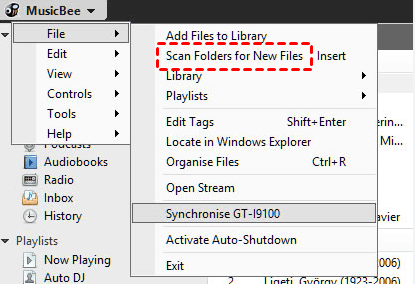
Step 3. Click Choose Folders to select the local or network folders you want MusicBee to scan.
Step 4. Under the destination setting, choose Add to Library. You can choose Add to Inbox instead if you want to inspect new files before adding them to the main library.
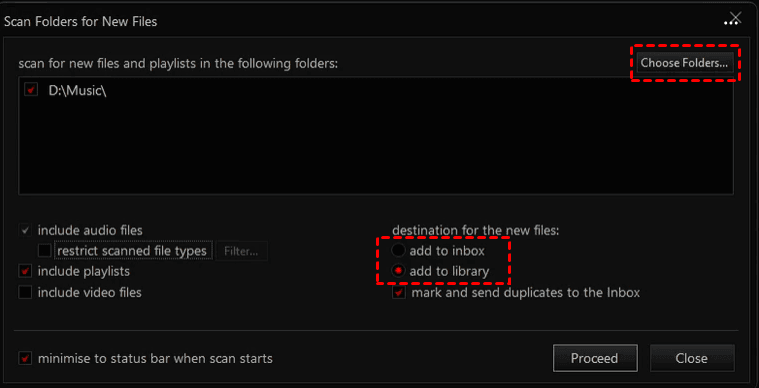
Step 5. Click Proceed to start the scan and wait for MusicBee to add the detected files.
By default, scanning adds references to files in their current locations rather than moving them. Avoid renaming or moving the original folders outside MusicBee unless you are ready to update their paths.
Organize the Music Library
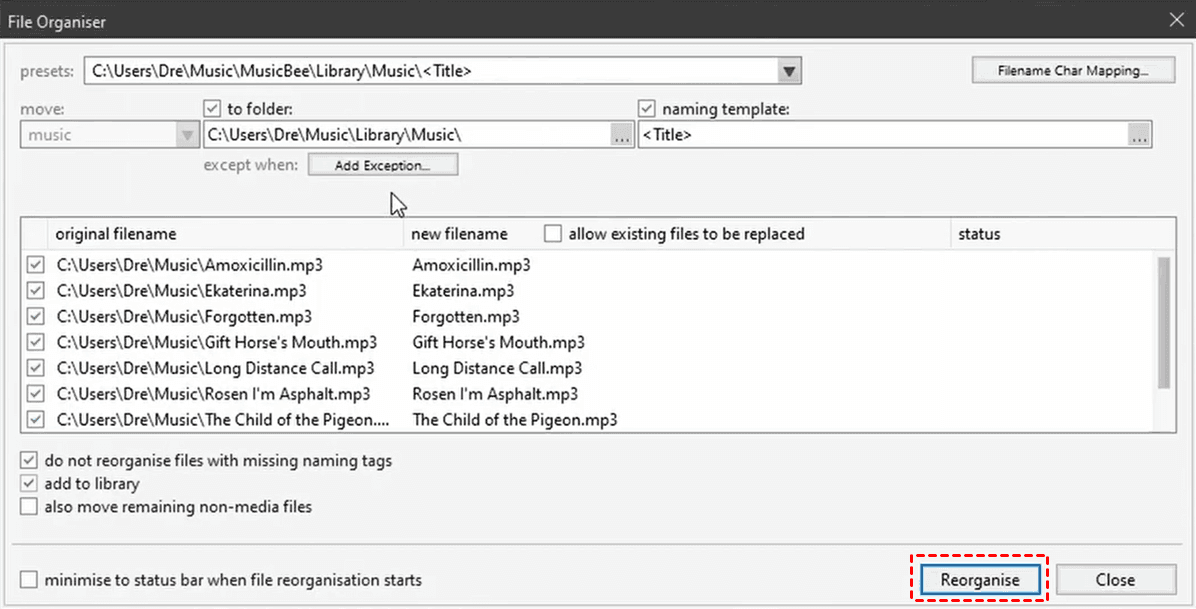
Step 1. Open the music library, select the tracks you want to move or rename. Then, select Tools > Organise Files.
Step 2. In the File Organiser window, review the destination and naming pattern carefully. You can also choose whether to move the files. Click Reorganise to apply the changes.
MusicBee is a good free iTunes replacement for local music management. However, use Apple Music plus Apple Devices if you need official iPhone music syncing, or AOMEI FoneBackup if you need iPhone backup and selected file transfer.
Compare the 4 iTunes Alternatives for Windows
| Option | Can It Back Up? | How It Works | Key limitation |
|---|---|---|---|
| AOMEI FoneBackup | Full and selective iPhone backup | Direct, selected file transfer | Free transfer is limited to 30 files per day |
| Apple Music | No device backup | Apple music library and cloud access | Apple Devices is needed for manual device syncing |
| Apple Devices | Complete local device backup | Apple library-based media sync | Separate Apple media apps may be required |
| MusicBee | No iPhone backup | Local Windows music management | Does not provide complete Apple-device management |
The key difference is control. AOMEI FoneBackup focuses on backup and selected transfer. Apple Music focuses on the music library. Apple Devices focuses on official device-level management, while MusicBee focuses on local playback and organization.
FAQs
1. What is Apple’s official replacement for iTunes on Windows?
Apple uses several apps instead of one replacement. Apple Music handles music, Apple TV handles movies and TV shows, and Apple Devices manages an iPhone, iPad, or iPod.
2. What is the best free iTunes alternative for Windows?
It depends on what you need. AOMEI FoneBackup provides free full and selective iPhone backup. MusicBee is free for local music management. Apple Devices provides Apple’s official backup and device-management controls.
3. Can I manage an iPhone without iTunes?
Yes. Apple Devices can sync, update, back up, and restore an iPhone. AOMEI FoneBackup can back up iPhone data and move selected files between the iPhone and PC.
4. Do I need Apple Music and Apple Devices together?
You need both when you want to manage local music in Apple Music and manually sync that library to an iPhone through Apple Devices. You do not need Apple Music just to create an Apple Devices backup.
5. Is AOMEI FoneBackup a syncing tool?
AOMEI FoneBackup is better described as a backup and transfer tool. You select the files and transfer direction for each task. It does not continuously synchronize a complete music library in the same way as Apple Music or Apple Devices.
6. Do I still need iTunes for Windows?
You may still need it for podcasts or audiobooks, or when your PC cannot use Apple’s newer apps. Otherwise, a newer Apple app or a task-specific alternative may be more suitable.
Summary
If backup and file transfer are the 2 iTunes functions you use most, start with AOMEI FoneBackup. Its backup features are free, while its limited free transfer feature lets you handle small file transfers before deciding whether you need additional capacity.
You can also try:
- Apple Music - manage Apple music, purchases, and playlists.
- Apple Devices - official device syncing, encrypted backup, restore, or software updates.
- MusicBee - a free local Windows music library and player.

 as a preferred
source on Google
as a preferred
source on Google