



2 Ways to Perform Google Drive WhatsApp Backup on iPhone
Need a Google Drive WhatsApp backup on iPhone? Learn 2 ways to save media via camera roll, or back up everything to PC then upload. Step‑by‑step guide.

By Kelsey Updated on May 14, 2026


iPhone users have long relied on iCloud for backups, but what if you prefer Google Drive? Maybe you have more free space there, or you want to keep your WhatsApp chats separate from your iCloud storage. Whatever the reason, creating a Google Drive WhatsApp backup on iPhone isn’t as straightforward as on Android, but it’s absolutely possible.
This guide covers two methods. The first saves your WhatsApp media to your camera roll, then to Google Drive. The second gives you a full backup of chats and media to your PC, which you can then upload to Google Drive. Let’s get started.
Way 1. Backup WhatsApp Media to Google Drive via Camera Roll
If your main concern is saving the photos and videos you receive in WhatsApp, this method is the simplest. It uses your iPhone’s camera roll as a bridge: WhatsApp media gets saved to your phone, and Google Drive backs up your camera roll.
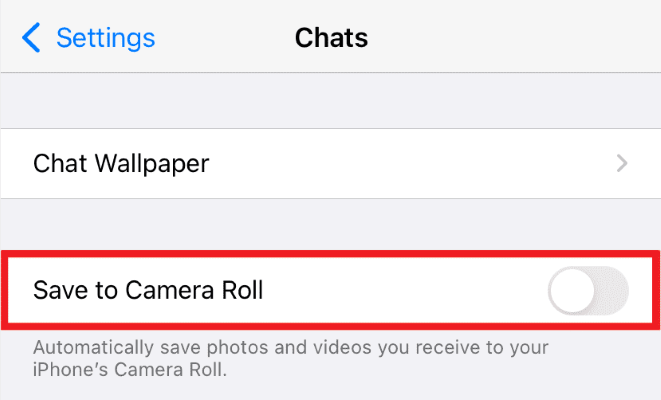
Step 1. Open WhatsApp on your iPhone. Go to Settings > Chats and toggle on Save to Camera Roll. This ensures all incoming photos and videos are saved to your iPhone’s Photos app.
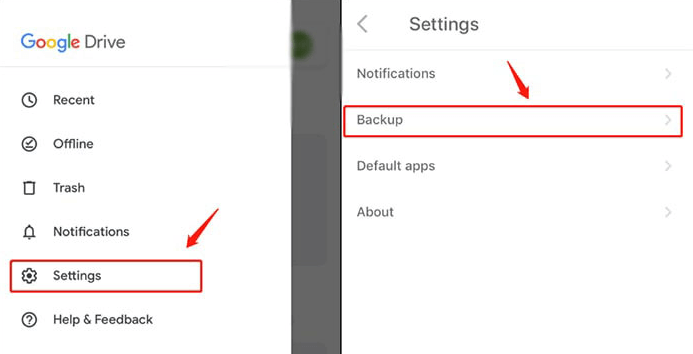
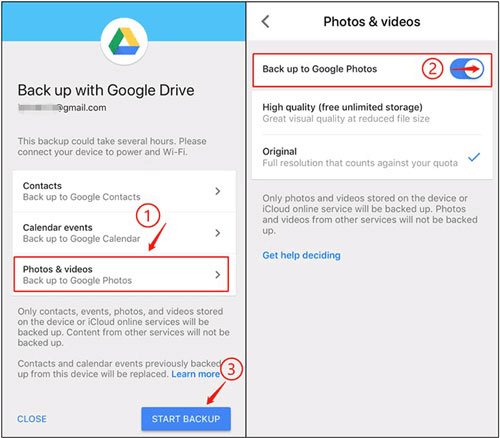
Step 2. Open the Google Drive app. Tap your profile picture or the three‑line menu, then select Settings > Backup. Under Photos & videos, toggle on Back up to Google Photos.
Step 3. Still in the Backup section, tap Start Backup. Google Drive will now upload the media from your camera roll, including all WhatsApp photos and videos, to your Google account.
🔍Where to find the backup?
Open Google Drive, tap the menu icon, then select Backups. WhatsApp‑saved media will appear as part of your camera roll backup.
-
This method only backs up photos and videos, not your chat history or messages.
Way 2. Full WhatsApp Backup via PC, Then to Google Drive
If you need a complete backup, including messages, attachments, and chat history, this method gives you full control. You’ll first back up WhatsApp to your PC using a dedicated tool, then upload the backup to Google Drive.
AOMEI FoneBackup is a free Windows tool that lets you back up WhatsApp data directly from your iPhone to your computer—no iCloud or iTunes involved.
 AOMEI FoneBackup
-
One‑click backup: Back up your entire WhatsApp history with a single button.
- Encrypted backups: Keep your chats private with optional encryption.
- Selective restore: Preview the backup and restore only what you need.
- No Internet required: The backup happens over USB, so you don’t need Wi‑Fi.
- WhatsApp transfer: Transfer WhatsApp chats, photos, videos, and stickers between iPhones with one click.
- Transfer between iPhone and PC: Move media files and personal data to PC/iPhone instantly - no iCloud or Wi-Fi required.
 100% Secure
Part 1. Backup WhatsApp to Your PC
Step 1. Download and install AOMEI FoneBackup on your Windows PC. Connect your iPhone with a USB cable and tap "Trust This Computer" when prompted.
Step 2. Open AOMEI FoneBackup. In the main menu, click WhatsApp Manager. Select WhatsApp and then Backup WhatsApp. Click Get Started.
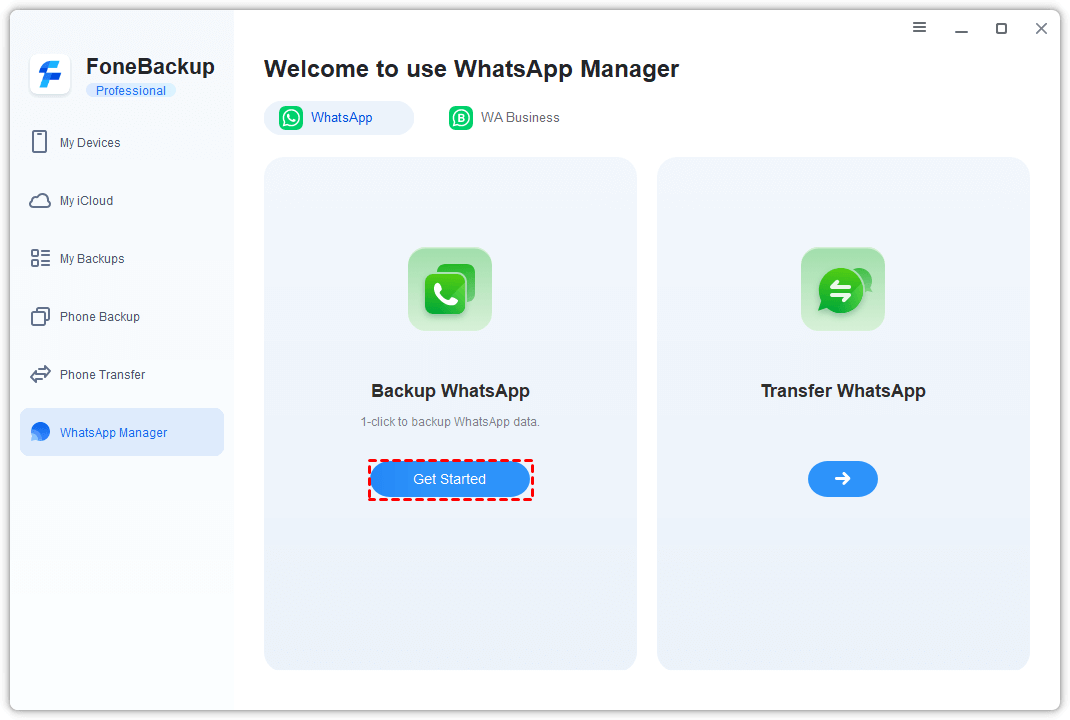
You can enable Backup Encryption to secure your backup with a password.
Step 3. Choose a storage location for the backup. You can save it to your PC, an external hard drive, or a USB stick. ClickStart Backup.
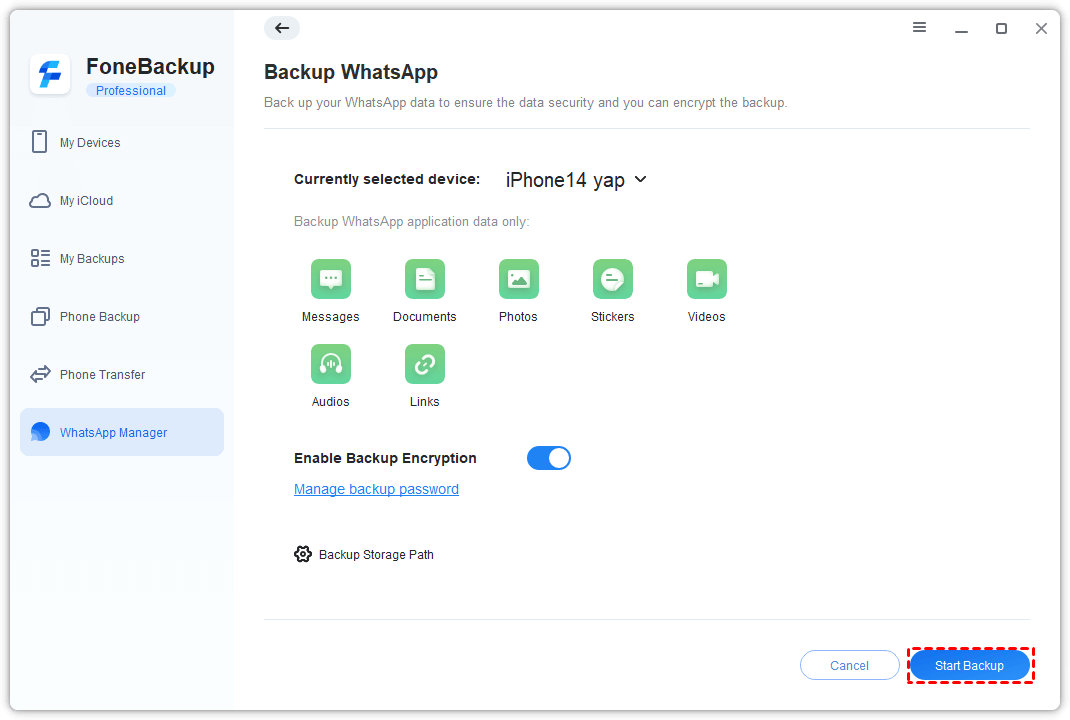
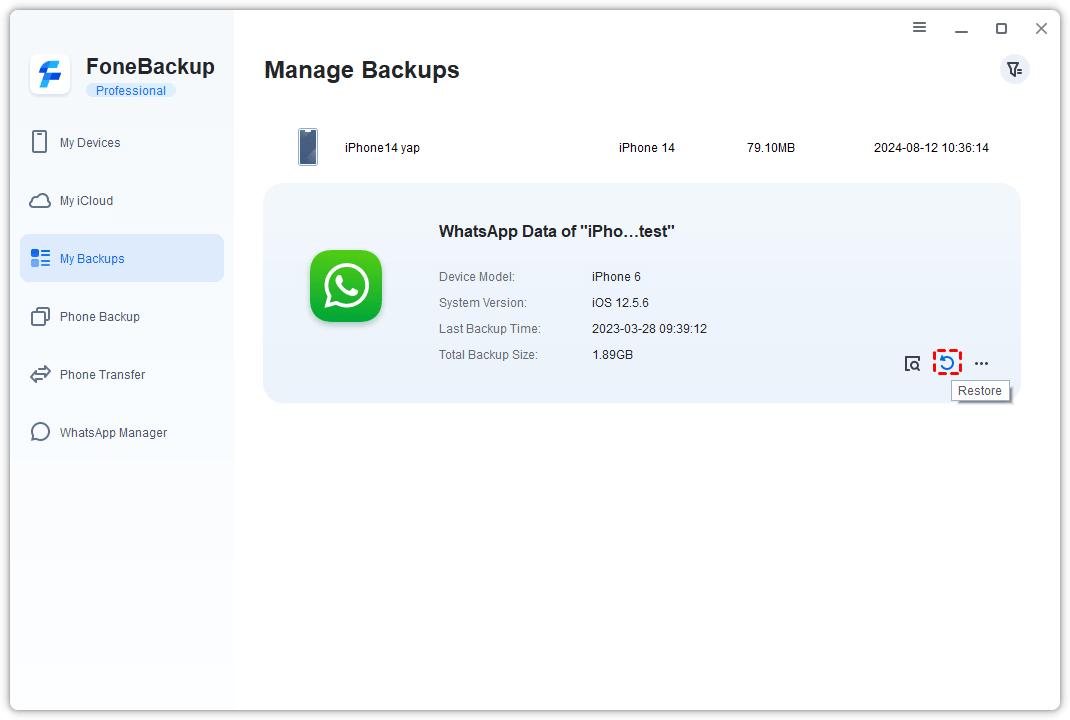
Step 4. The tool will copy your WhatsApp data to the chosen location. When finished, you’ll see the backup in My Backups.
Part 2. Upload the Backup to Google Drive
Step 1. On your PC, open a browser and go to drive.google.com. Sign in to your Google account.
Step 2. Navigate to the folder where you saved your WhatsApp backup.
Step 3. Click New > File upload (or Folder upload) and select the WhatsApp backup file(s). They will be uploaded to your Google Drive.
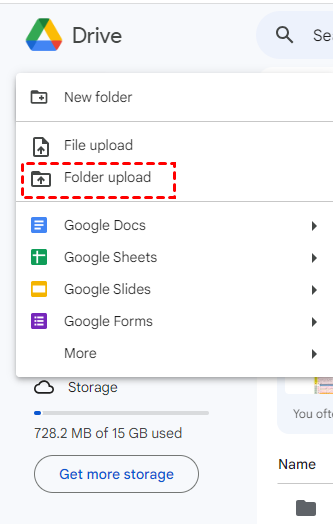
Now your WhatsApp data is safely stored in Google Drive, ready to be downloaded and restored whenever needed.
The Bottom Line
This guide helps iPhone users to create a Google Drive WhatsApp backup. By now, you might understand that it is not possible to make a backup directly between iPhone and Google Drive.
AOMEI FoneBackup, one of the best free iPhone WhatsApp transfer and backup software plays a crucial role as an intermediary to optimally accomplish this task. All the above transfers took place without any data loss. Try it out!

 as a preferred
source on Google
as a preferred
source on Google