



How to Backup iPhone Without iTunes: 3 Easy Methods
Want to back up your iPhone without using iTunes? This guide shows you simple methods to save your photos, messages, and contacts to PC, Mac, or iCloud.

By Lily Updated on August 24, 2026


Can You Backup iPhone Without iTunes?
Yes, you can backup iPhone without iTunes. Although iTunes was once the standard solution for backing up an iPhone, it has several limitations. For example, you cannot easily choose individual files to back up, and restoring a traditional iTunes backup can replace existing data on the iPhone.
If you want more control, below are three practical ways to backup iPhone without iTunes.
- Windows PC: Use AOMEI FoneBackup if you want selective or full backups and more flexibility.
- Mac: Use Finder if you prefer Apple's built-in local backup solution.
- No computer: Use iCloud when you want to back up your iPhone wirelessly.
Method 1. Best Way to Backup iPhone to PC Without iTunes or iCloud
If you want to backup iPhone to computer without iTunes, AOMEI FoneBackup provides a straightforward solution. Unlike a traditional full-device backup, it lets you choose specific data or create a more comprehensive backup according to your needs.
 AOMEI FoneBackup
- Selective backup: Choose specific photos, videos, contacts, messages, and other supported data instead of backing up everything.
- Full backup: Create a complete iPhone backup with a simple operation.
- Flexible storage: Save your iPhone backup to flash drives, external hard drives, or NAS devices, etc.
- Fast backup: Transfer large amounts of iPhone data without complicated procedures.
- Easy restoration: Restore backed-up data to an iOS device without relying on the original Apple ID.
 100% Secure
Download AOMEI FoneBackup and learn how to backup iPhone without iTunes or iCloud below.
Part 1. Selectively Backup iPhone to Windows PC
Selective Backup is useful when you only need to save certain files. You can preview your data before choosing what to transfer, which can also help save storage space on your computer.
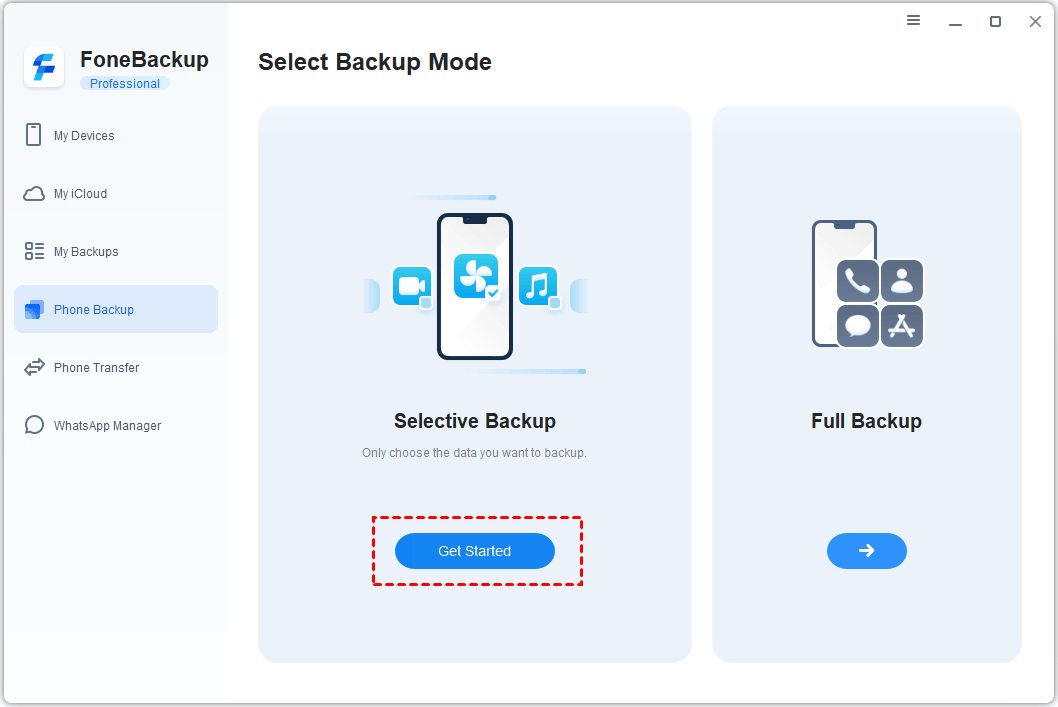
Step 1. Install and open AOMEI FoneBackup. Connect your iPhone to the Windows PC with a USB cable and select Phone Backup > Selective Backup > Get Started.
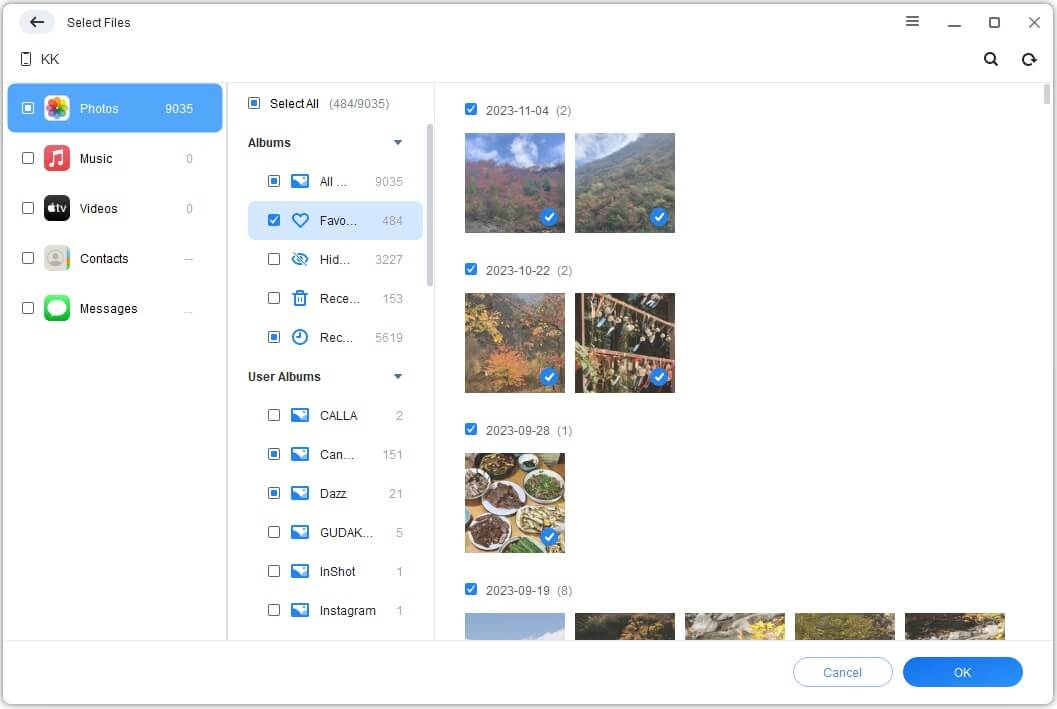
Step 2. Click the data category you want to back up. Preview the available files, select the items you need, and click OK.
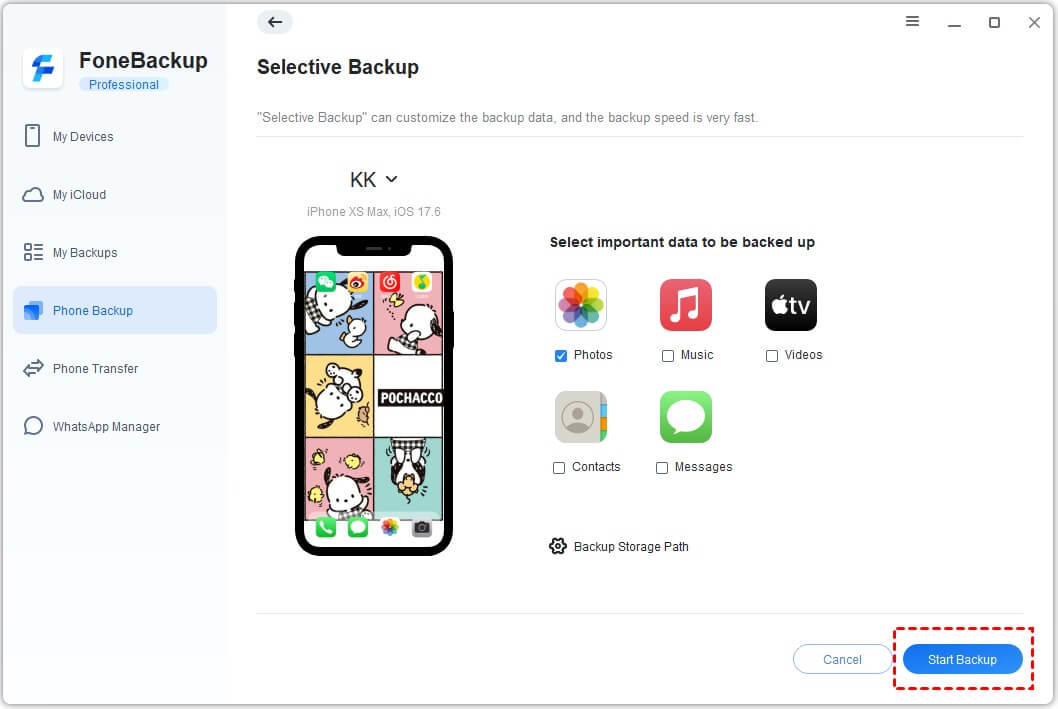
Step 3. Choose a destination under Backup Storage Path, then click Start Backup to save the selected iPhone data to your computer.
💡 Note: You can later access your backup tasks from My Backups, where you can view and manage the backups you have created.
Part 2. Fully Backup iPhone to PC
If you want an alternative to a traditional iTunes backup, the Full Backup feature can save multiple types of iPhone data at once. Depending on the iPhone and data involved, this can include photos, contacts, call history, messages, notes, calendars, Safari data, app data, and system settings.
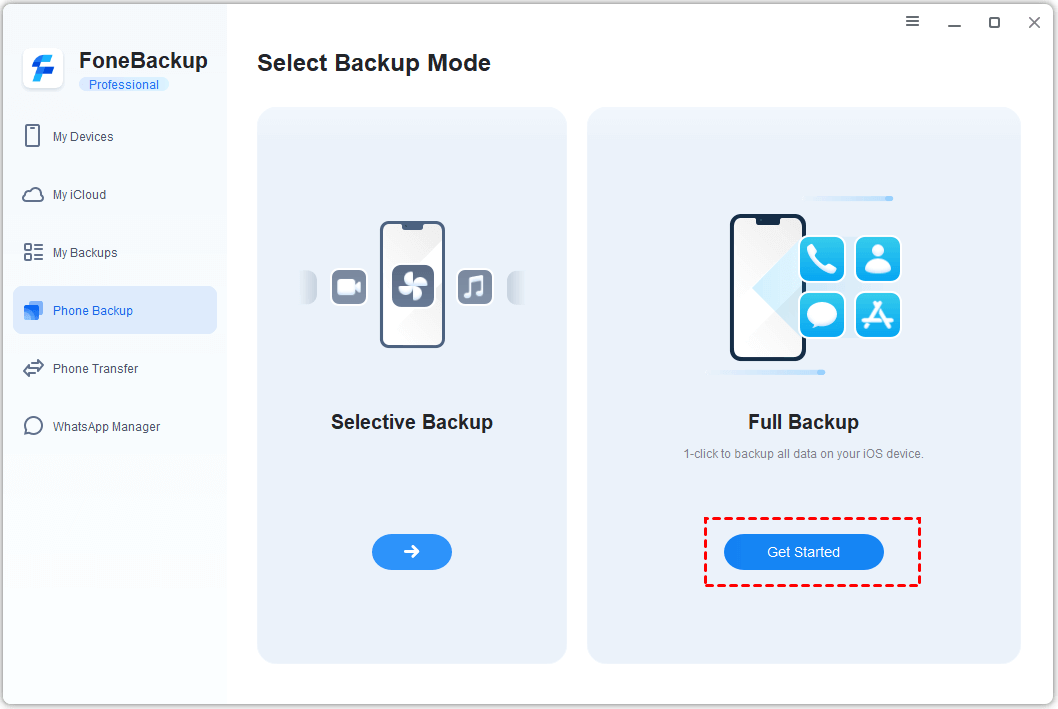
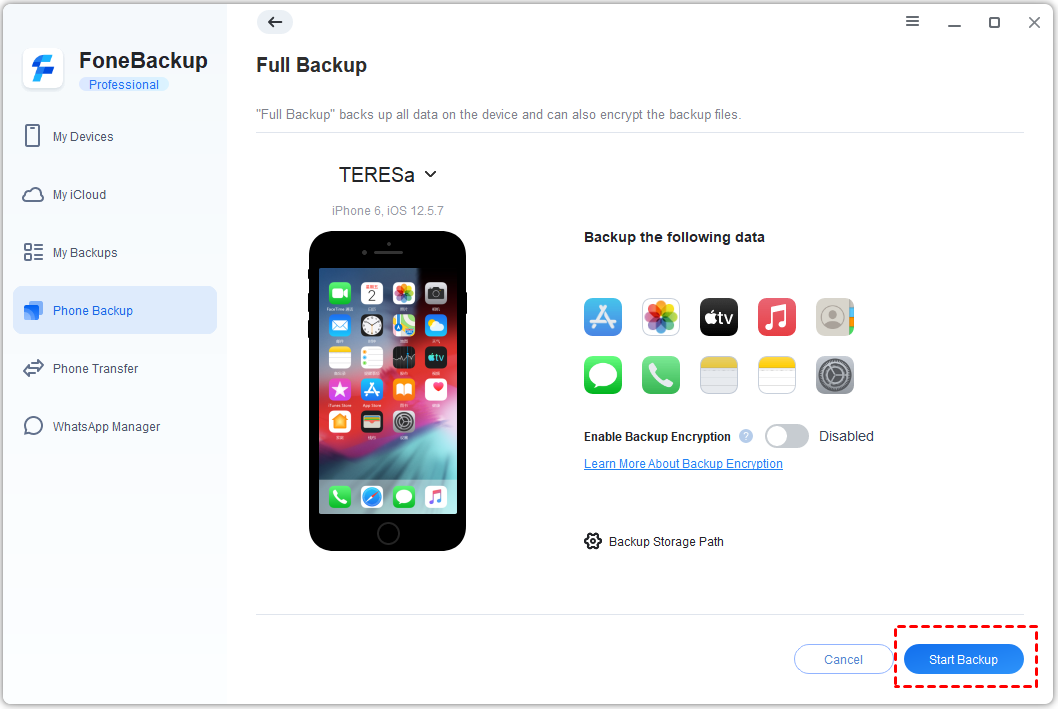
Step 1. Launch AOMEI FoneBackup and connect your iPhone. Select Phone Backup > Full Backup > Get Started.
Step 2. If you want additional protection for the backup, enable Backup Encryption. Then choose a destination under Backup Storage Path.
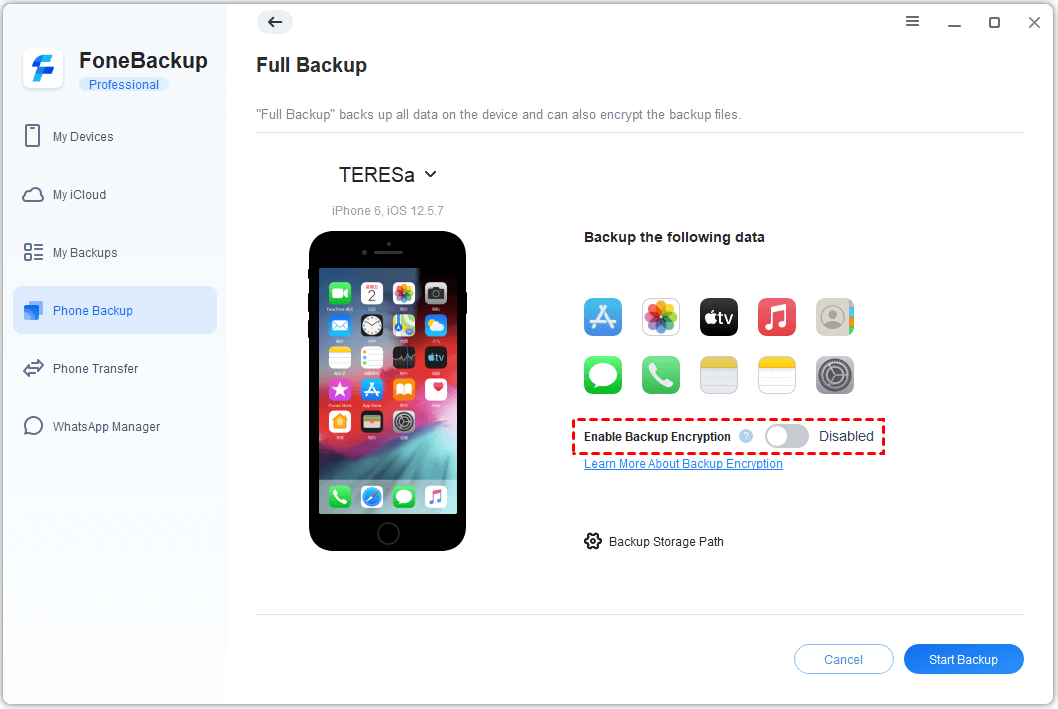
Step 3. Click Start Backup and wait for the process to finish.
Method 2. Backup iPhone to Mac Without iTunes Using Finder
If you use a Mac running macOS Catalina or later, you do not need iTunes to back up your iPhone. Apple moved iPhone backup and device management functions from iTunes to Finder. Learn how to backup iPhone without iTunes using Finder below:
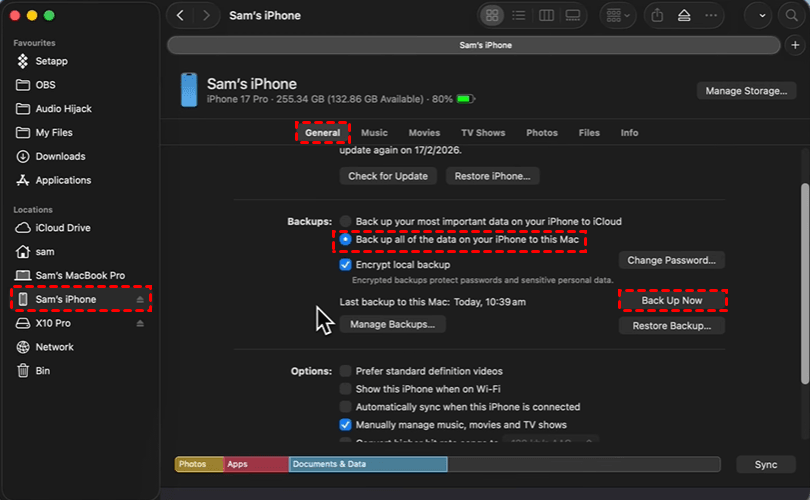
Step 1. Connect your iPhone to your Mac using a compatible USB cable. Open Finder.
Step 2. Select your iPhone from the sidebar. If prompted, follow the instructions to trust the computer and unlock your iPhone.
Step 3. Select General in the iPhone management window.
Step 4. Under the backup section, select Back up all of the data on your iPhone to this Mac, then click Back Up Now.
💡 Notes:
- If you want to save Health and Activity data, enable Encrypt local backup and create a password that you can remember.
- Finder stores the backup locally on your Mac. However, like traditional iTunes backups, the contents are not designed for convenient file-by-file browsing. Restoring the backup may also replace existing content on the iPhone.
Method 3. Backup iPhone Without iTunes Using iCloud
If you do not have access to a computer, iCloud is another way to backup iPhone without iTunes. The backup is stored in Apple's cloud service and can be created over Wi-Fi.
This method is convenient because you do not need a USB cable or computer. However, your available iCloud storage can limit how much data you can back up. Follow the instructions below to backup iPhone to iCloud:
Step 1. Connect your iPhone to a stable Wi-Fi network.
Step 2. Open Settings, tap [your name], select iCloud, and then tap iCloud Backup.
Step 3. Turn on Back Up This iPhone if it is not already enabled.
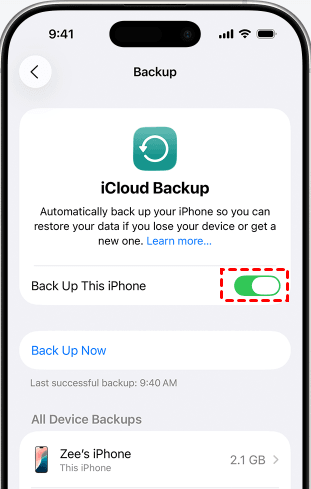
Step 4. To create a backup immediately, tap Back Up Now. Otherwise, your iPhone can automatically back up when the required conditions are met, such as being connected to power and Wi-Fi with the device locked.
What If iCloud Storage Is Not Enough?
If your iPhone contains a large amount of data, you may receive an alert that there is not enough available iCloud storage for a backup. You can check which apps are using backup storage and decide whether some app data needs to be excluded.
Step 1. Open Settings and tap [your name] > iCloud.
Step 2. Tap Storage or Manage Storage, depending on your iOS version.
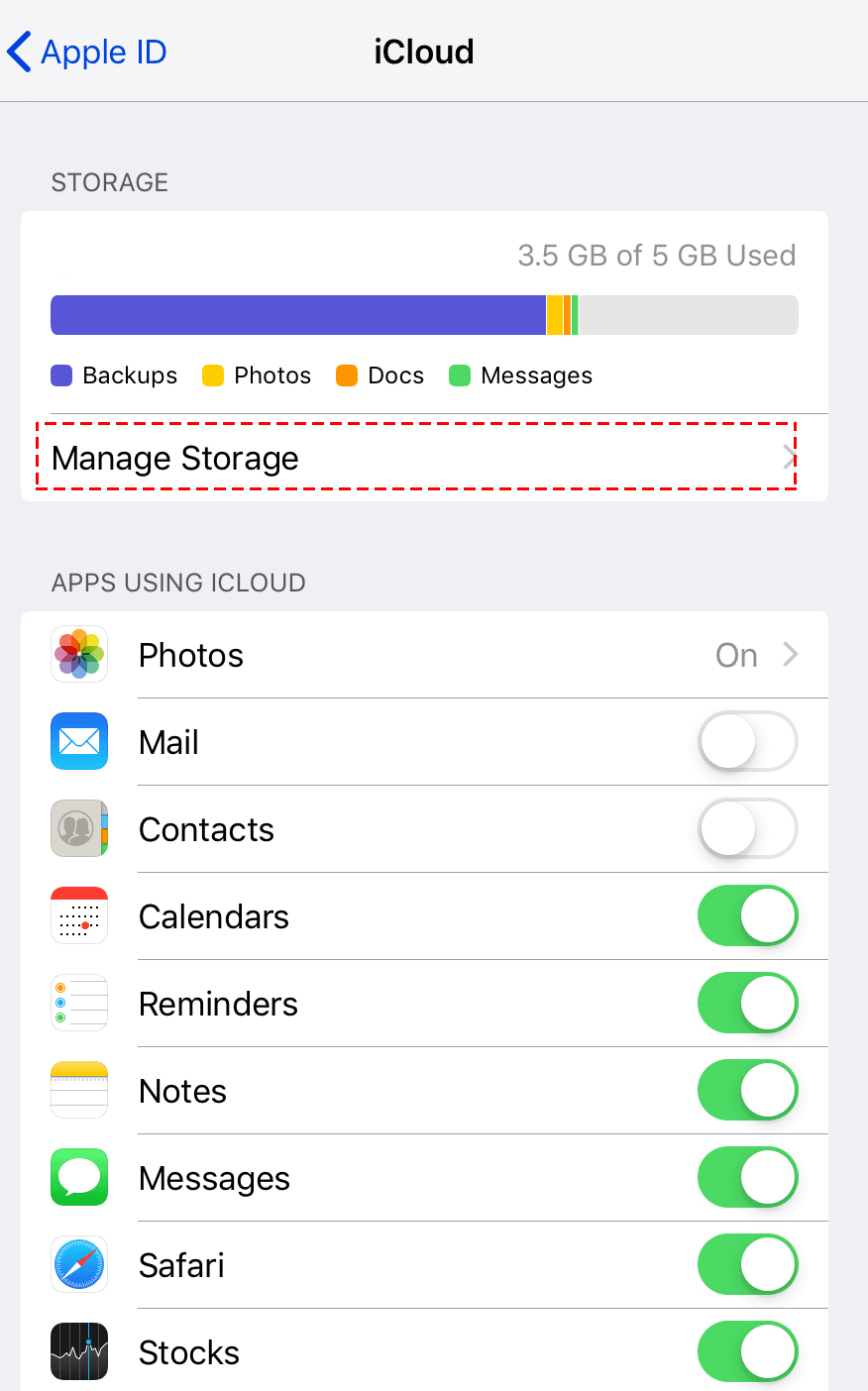
Step 3. Select Backups and choose your iPhone.
Step 4. Review the apps included in the backup and turn off unnecessary app data if appropriate.
FAQs About Backing Up iPhone Without iTunes
1. Can I backup my iPhone to a computer without iTunes?
Yes. On Windows, you can use AOMEI FoneBackup to selectively or fully back up supported iPhone data to your computer. On Mac, Finder can create a local iPhone backup without iTunes.
2. Can I backup my iPhone without a computer?
Yes. iCloud lets you create an iPhone backup over Wi-Fi without connecting the phone to a computer. Make sure sufficient iCloud storage is available.
3. Does backing up an iPhone erase its data?
No. Creating a backup does not normally erase the data currently stored on your iPhone. However, some restoration processes can replace existing data, so you should check the restoration options before proceeding.
Conclusion
This article offers 3 easy ways to backup iPhone without iTunes. Windows users can use AOMEI FoneBackup for selective or full backups, while Mac users can use Finder to create a local backup. If you prefer a wireless solution, iCloud can back up your iPhone without a computer.
Beyond backup and restoration, AOMEI FoneBackup also includes powerful data transfer features, allowing you to transfer photos, videos, music, and contacts, etc. Why not give it a shot?

 as a preferred
source on Google
as a preferred
source on Google