



How to Add Music to iPod Nano Without iTunes on PC/Mac
Want to add music to your iPod Nano but don't want to use iTunes? Whether you're on Windows or Mac, this guide has a solution for you.

By Lily Updated on September 1, 2026


Why Add Music to iPod Nano Without iTunes?
iTunes was traditionally Apple's primary tool for managing an iPod library from a computer. While it provides music synchronization and device-management features, its syncing model isn't ideal for every situation.
There are several reasons you might look for an alternative:
- Avoid unwanted synchronization: Syncing an iPod with a different music library can potentially replace previously synchronized content.
- Transfer selected songs: You may only want to add several tracks instead of synchronizing an entire music library.
- Simplify music management: A dedicated transfer utility can provide a more direct way to move individual files.
- Use music from a computer: You may already have MP3s or other compatible audio files on your PC that you simply want to copy to the iPod.
Whatever the reason, the following methods can help you transfer music to iPod nano without iTunes.
Method 1. Transfer Music to iPod Nano Without iTunes on PC
For users who want to transfer songs from a Windows PC without going through the traditional iTunes synchronization process, AOMEI FoneBackup provides a convenient option.
AOMEI FoneBackup is designed to manage and transfer data between Apple devices and computers. Instead of synchronizing an entire music library, you can choose the songs you want and transfer them to the connected device.
 AOMEI FoneBackup
- Effortless use: Transfer your music in just a few simple steps.
- Full control: Preview and select only the tracks you want to move.
- No restrictions: Works with both purchased and non-purchased music files.
- Lightning speed: Move massive playlists in bulk—no manual file handling required.
- Universal fit: Compatible with most iPhones, iPads, iPods, and supported iOS releases.
 100% Secure
Here's how to add songs to iPod nano from computer with AOMEI FoneBackup:
Step 1. Install and launch AOMEI FoneBackup on your Windows computer. Connect your iPod nano to the computer with a compatible USB cable and wait for the device to be detected.
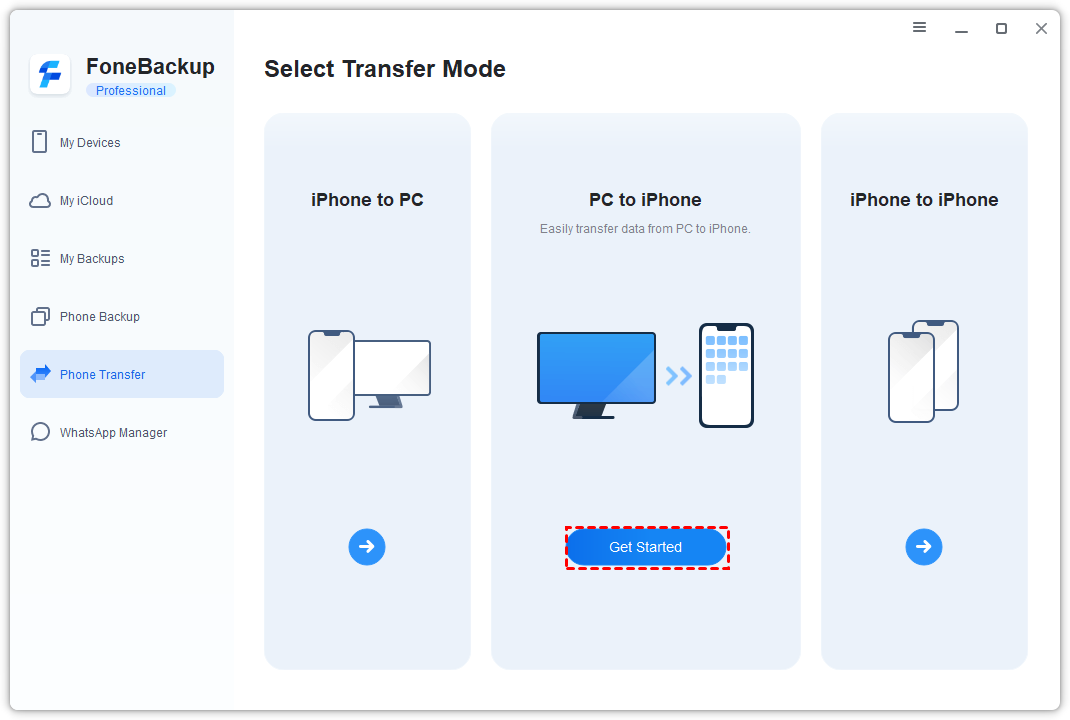
Step 2. Go to Phone Transfer and select PC to iPhone > Get Started.
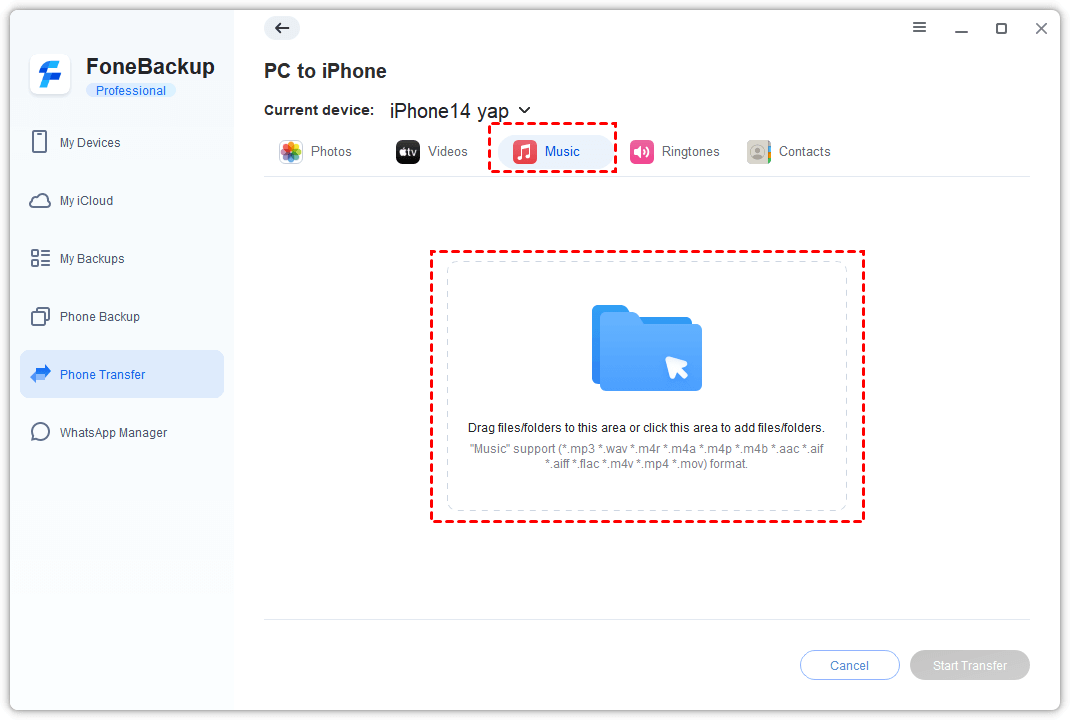
Step 3. Click the Music icon to browse the music files stored on your computer. Select the songs you want to transfer and click Open to add your selected files to the transfer list.
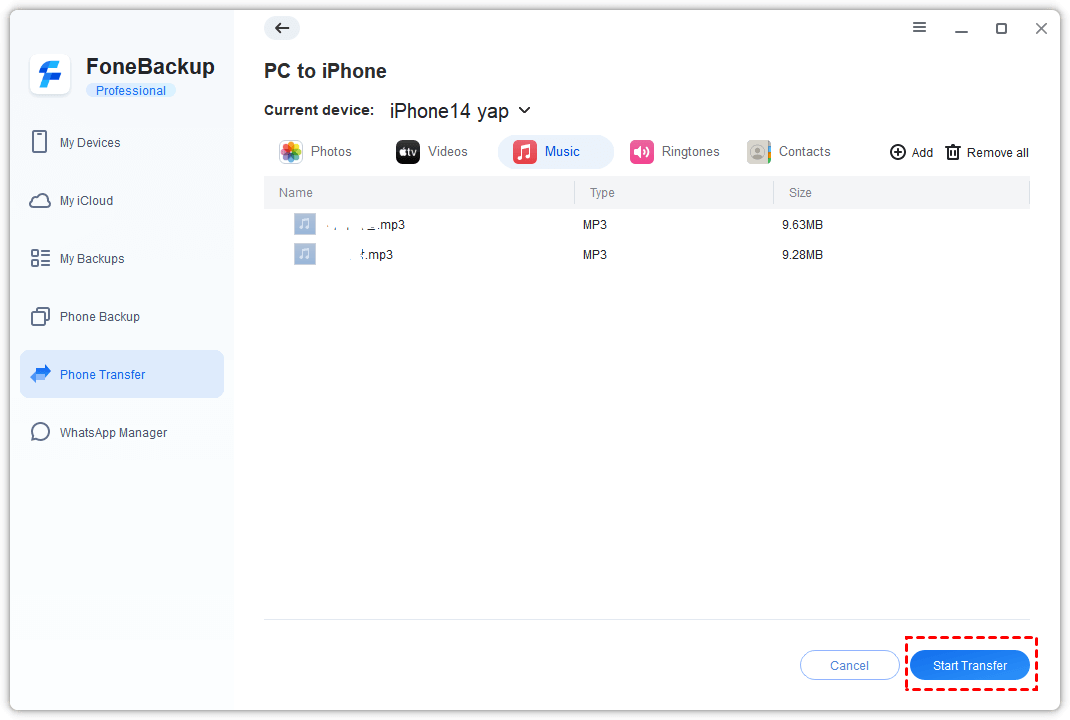
Step 4. Review the songs you've selected and click Start Transfer to begin adding them to your device.
Step 5. Wait for the process to complete before disconnecting the iPod. Check the music library afterward to confirm that the transferred songs are available.
Method 2. Put Music on iPod Nano Without iTunes on Mac
If you're using a newer version of macOS, you don't need iTunes to manage an iPod nano. Apple separated iTunes into several apps starting with macOS Catalina, with the Music app handling your music library and Finder handling device synchronization. Follow these steps to download music to iPod nano without iTunes:
Step 1. Connect the iPod nano to your computer using a USB cable.
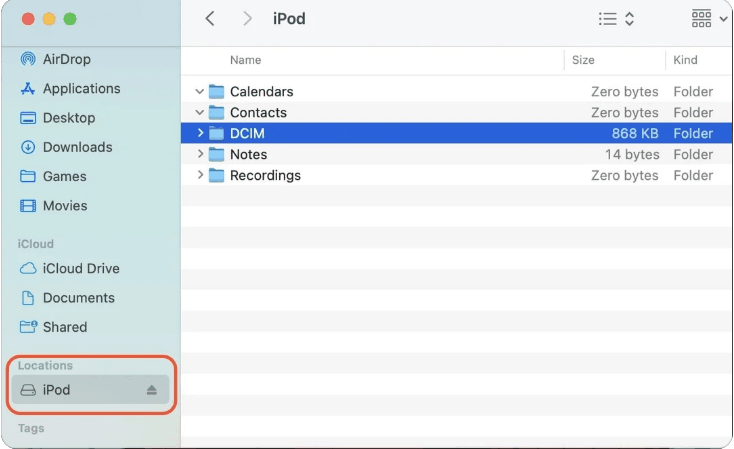
Step 2. Open Finder. Your iPod Nano will show up in the left sidebar under Locations.
Step 3. Open the native Music app on your Mac and find the local MP3 or AAC music files you own.
Step 4. Drag and drop the tracks or albums directly from the Music app window onto your iPod icon in Finder.
💡 Notes:
- If your iPod isn’t showing up in Finder, make sure the "CDs, DVDs and iOS Devices" option is checked in the Finder Menu ➜ Settings ➜ SideBar.
- Apple Music subscription songs cannot be transferred to an iPod Nano, because these files are DRM-protected. Only DRM-free music—such as MP3s or iTunes Store purchases—can be transferred.
FAQs About Adding Music to iPod Nano Without iTunes
1. Can you put music on an iPod nano without iTunes?
Yes, alternative device-management software may allow you to transfer compatible music files from a computer to an iPod nano without using the traditional iTunes synchronization workflow. The exact options available can depend on your iPod nano generation and computer.
2. Can I use Apple Music on an iPod nano?
No. An iPod nano does not run the modern Apple Music app and cannot directly use Apple Music's subscription streaming and offline-download features like an iPhone or iPod touch can.
3. Can I add individual songs instead of syncing my entire library?
Yes. A selective transfer tool such as AOMEI FoneBackup can be more suitable when you only want to add certain songs from your computer rather than synchronize a complete music collection.
4. Will adding new music erase the songs already on my iPod?
That depends on the transfer method. Traditional synchronization can replace content when an iPod is associated with a different music library. A selective transfer method is preferable when your goal is to add songs while retaining existing content.
Summary
There are two options if you want to add music to iPod nano without iTunes. If you're using a newer version of macOS, you can use Finder and the Music app to put music on iPod Nano. For music already stored on a Windows PC, AOMEI FoneBackup provides a convenient way to select individual tracks and transfer them without relying on a full iTunes library sync.
Besides transferring music, AOMEI FoneBackup enables you to upload photos from iPhone to Dropbox on computer. Don’t hesitate to try it out!

 as a preferred
source on Google
as a preferred
source on Google