



How to Upload Photos from iPhone to Dropbox on Computer
Need to get your iPhone photos to Dropbox on your computer? Discover two simple methods – using the Dropbox app or AOMEI FoneBackup – for safe and secure photo storage.

By Lily Updated on September 1, 2026


Why Upload iPhone Photos to Dropbox?
Dropbox is a cloud-based file storage and synchronization service. Instead of keeping every file on a single device, you can store copies online and access them from supported computers, phones, and other devices after signing in to your account.
For iPhone users, uploading pictures to Dropbox can be particularly useful. It can help you:
- Keep an additional copy of important iPhone photos in cloud storage.
- Access uploaded pictures from a computer without keeping the iPhone connected.
- Share photos and folders with others more conveniently.
- Reduce your dependence on your iPhone's local storage.
- Organize pictures in Dropbox folders for easier access across devices.
If your main goal is to backup iPhone photos to Dropbox automatically, the Dropbox mobile app is the more direct option. If you prefer to choose specific pictures and save a local computer copy before uploading them, AOMEI FoneBackup provides another approach.
Method 1. Upload iPhone Photos to Dropbox with the Dropbox App
The Dropbox app for iPhone includes a camera upload feature that can automatically send photos from your device to your Dropbox account. Once uploaded, those pictures become available through the same Dropbox account on your computer.
This method is convenient if you want to upload iPhone photos to Dropbox without manually connecting the phone to your PC every time. Here's how to set it up:
💡 Note: Keep in mind that the amount of content you can store depends on the available storage in your Dropbox account. If your photo library is larger than your available cloud space, you may need to manage existing files or consider a plan with additional storage.
Step 1. Download the Dropbox app from the App Store, install it on your iPhone, and sign in to your Dropbox account.
Step 2. Open Dropbox and go to the app's Account, then locate Camera uploads.
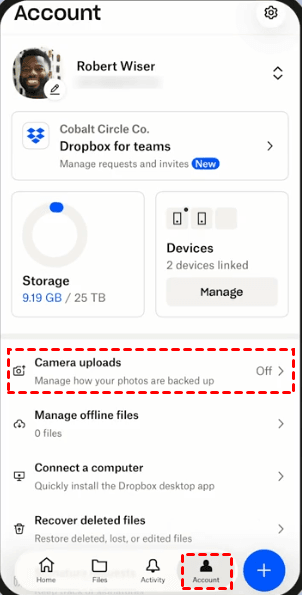
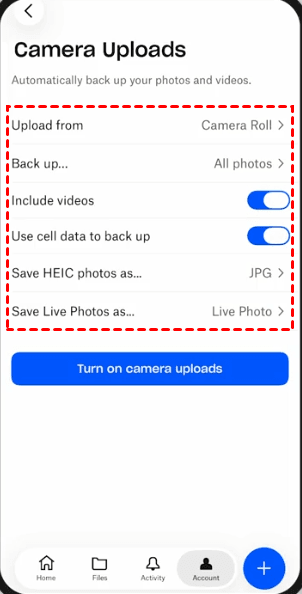
Step 3. Tap Upload from, then choose Camera Roll or smart albums to upload photos from.
Step 4. Tap Back up…, then choose to backup all photos or photos after a certain date.
Step 5. Decide whether to include videos or use cellular data as per your needs. Finally, tap Turn on camera uploads.
Step 6. On your computer, visit dropbox.com and sign in to the same Dropbox account.
Step 7. Open the folder containing your camera uploads. You can then view or manage the synchronized iPhone photos on your computer.
Method 2. Transfer Photos to PC with AOMEI FoneBackup and Upload Them to Dropbox
If you don't want to automatically upload your entire photo collection, you can first transfer selected pictures from the iPhone to your Windows computer. After that, upload only the photos you need to Dropbox.
AOMEI FoneBackup is an iPhone data transfer and backup utility for Windows. It lets you preview and select photos before exporting them, making it useful when you need more control over which images are moved.
Compared with uploading everything directly from the iPhone, this method also gives you a local copy of your pictures on the PC before you move photos from iPhone to Dropbox.
 AOMEI FoneBackup
- You can preview and select individual photos instead of transferring the entire photo library.
- In addition to photos, it supports transferring or backing up other common iPhone data types, such as transferring non-purchased music.
- Unlike wireless transfers that can drop out, it uses a USB connection for stable, uninterrupted data transfer.
- It supports a broad range of iPhone models.
 100% Secure
Follow these steps to transfer photos from iPhone to Dropbox on PC:
Step 1. Download and install AOMEI FoneBackup on your Windows computer. Connect your iPhone to the computer with a suitable USB cable and trust the computer on your iPhone if prompted.
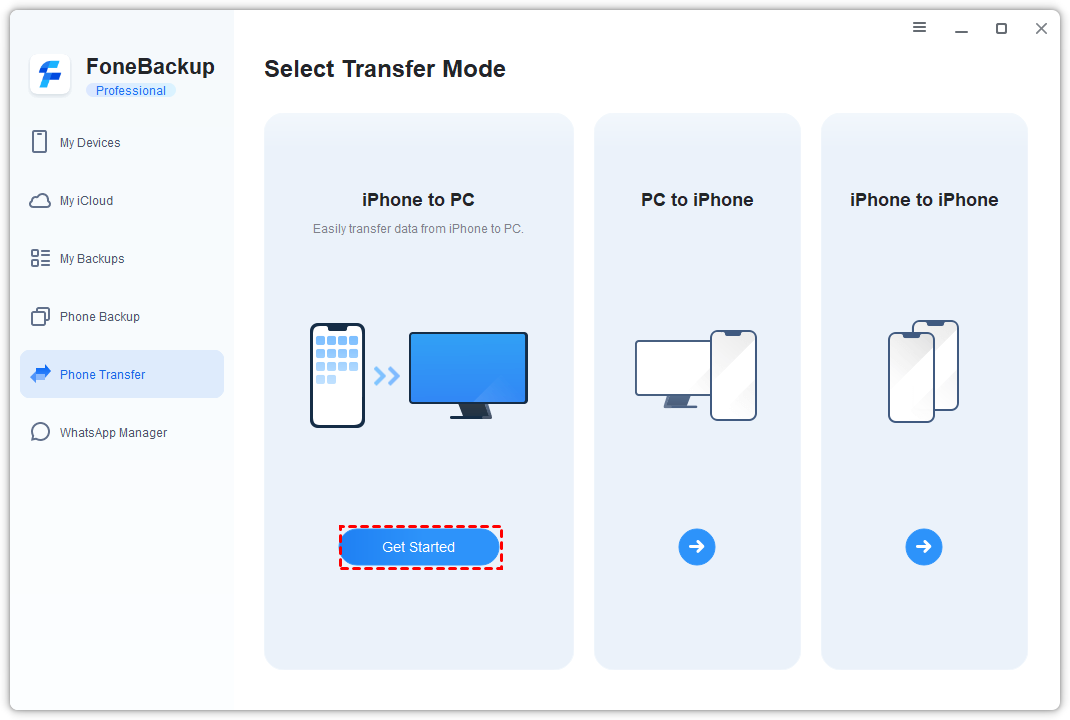
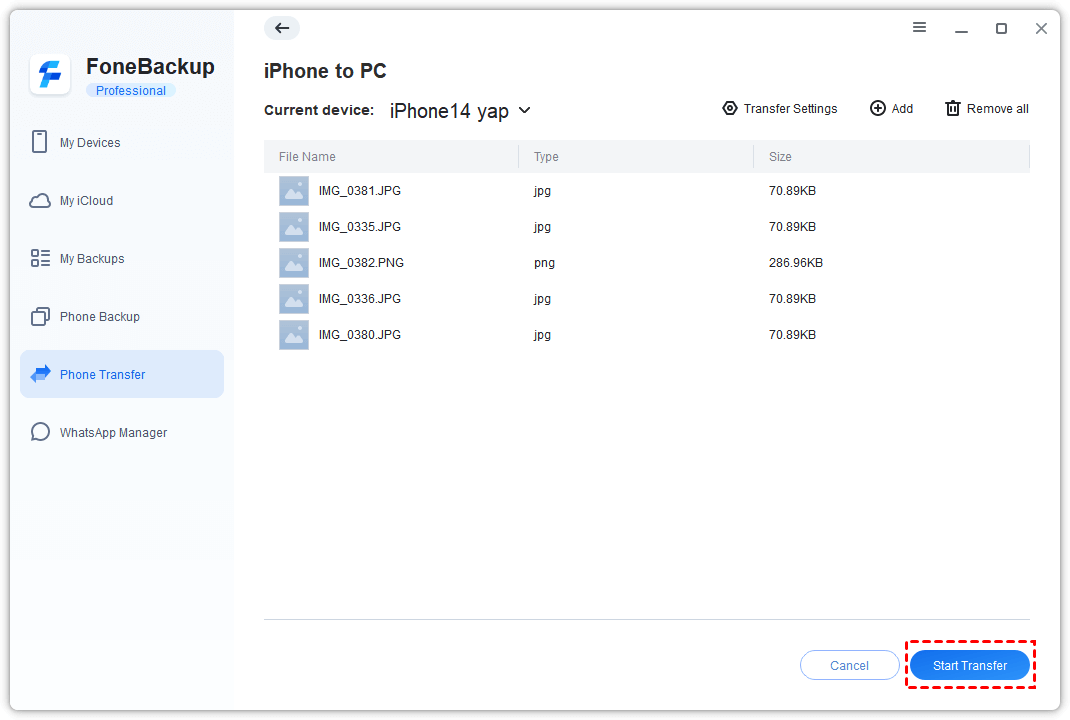
Step 2. Launch AOMEI FoneBackup and choose Phone Transfer > iPhone to PC > Get Started.
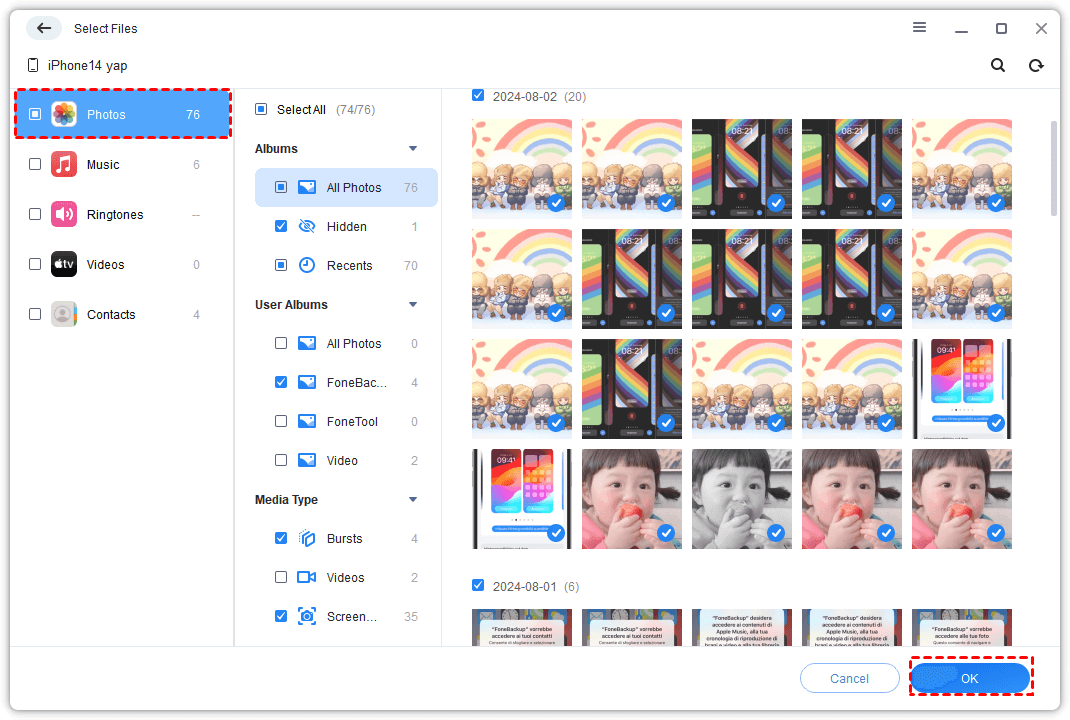
Step 3. Click the Photos icon. In the Select Files window, select the photos you want to transfer and click OK.
Step 4. Choose where the exported photos should be stored on your PC under Transfer Settings, then click Start Transfer. Wait until the transfer is complete.
Step 5. Sign in to your Dropbox account through a web browser.
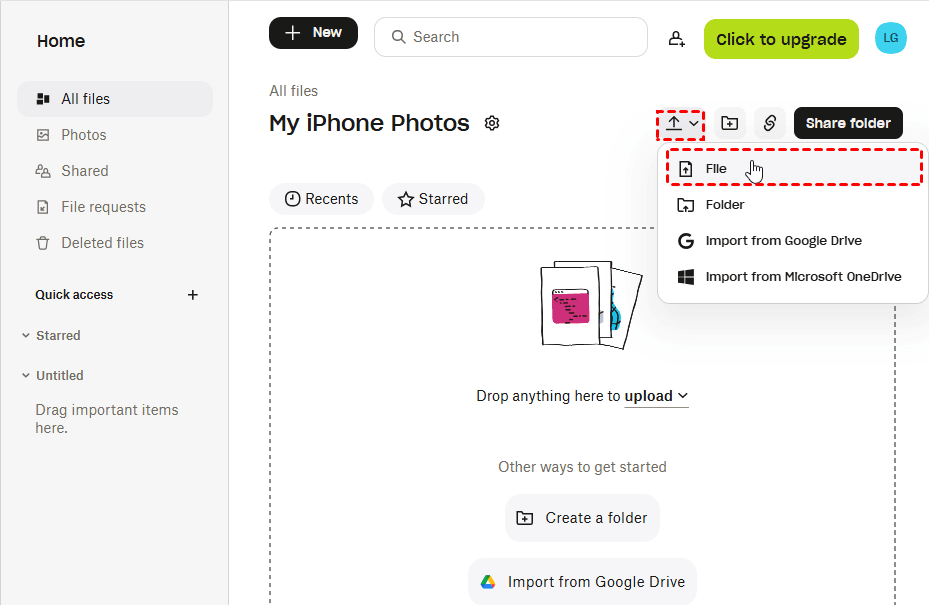
Step 6. Open All files and navigate to the Dropbox folder where you want to save the iPhone photos. You can also create a new folder to keep the uploaded pictures organized.
Step 7. Click Upload > File, select the photos you exported with AOMEI FoneBackup, and start the upload. Wait for Dropbox to finish uploading the files.
What to Do If iPhone Photos Won't Upload to Dropbox
Sometimes Dropbox may fail to upload photos or the process may appear to stop. Before trying the entire procedure again, check the following common issues.
1. Check the Internet Connection
Cloud uploads require a stable network connection. If you're uploading a large number of photos, Wi-Fi is generally more suitable than a weak or unstable cellular connection.
2. Check Available Dropbox Storage
Photos cannot continue uploading if your Dropbox account doesn't have enough available storage. Review your storage usage and make room if necessary.
3. Check Dropbox's Photo Permissions
If Dropbox cannot see the pictures stored on your iPhone, verify that the app has permission to access your photos.
Step 1. Open the iPhone Settings app.
Step 2. Find Dropbox in the app list and open its settings.
Step 3. Check Photos and make sure Dropbox has the level of photo access required for the images you want to upload.
4. Keep the iPhone and App Ready for Large Uploads
A large photo library may take considerable time to upload. Keep the iPhone connected to a reliable network and sufficient power while the transfer is running.
If automatic uploads remain inconvenient, you can use Method 2 instead. Transfer the desired pictures to your PC with AOMEI FoneBackup and manually upload them to Dropbox.
FAQs About Uploading iPhone Photos to Dropbox
1. Can I upload photos from my iPhone directly to Dropbox?
Yes. The Dropbox iPhone app can upload pictures from your device to your Dropbox account. Enabling camera uploads is particularly convenient if you want new photos to be sent to cloud storage automatically.
2. Can I access my Dropbox iPhone photos on a computer?
Yes. Once the pictures have been successfully uploaded to Dropbox, sign in to the same Dropbox account on your computer. The uploaded photos should be accessible from the corresponding Dropbox folder.
3. Does uploading photos to Dropbox delete them from my iPhone?
Uploading creates a cloud copy and does not normally remove the original pictures from your iPhone. Before deleting any local photos to free up space, verify that the upload has completed and that the images can be opened successfully from Dropbox.
Conclusion
Now you know how to upload photos from iPhone to Dropbox on computer using two different approaches. For an automatic approach, enable camera uploads in the Dropbox app and access the uploaded pictures from your computer afterward. If you want to select particular photos and keep a copy on your Windows PC at the same time, AOMEI FoneBackup provides a convenient alternative.
What’s more, AOMEI FoneBackup can help you print contacts from iPhone without iCloud. Try it now to discover more!

 as a preferred
source on Google
as a preferred
source on Google