




How to Transfer Music from iPhone to CD with or without iTunes
This guide shows how to transfer music from iPhone to CD with or without iTunes. Export eligible songs to a Windows PC and burn them to an audio or MP3 CD.

By Ivy Updated on August 14, 2026


You want to play your iPhone music in an older car, make a personal collection, or create a CD for someone else. However, connecting the iPhone to a computer does not make its music library appear as a normal folder.
You cannot burn a CD directly from an iPhone. You must first transfer eligible songs to a Windows PC and then burn them with a supported program.
AOMEI FoneBackup is a flexible choice when transferable local music exists only on your iPhone. For eligible iTunes Store purchases, you can also use iTunes. This guide explains both methods and the restrictions you need to check first.
Can You Transfer Music from iPhone to CD?
Yes, but you cannot transfer music directly from an iPhone to a CD. You must first export eligible songs to a Windows PC and then burn them with a CD-burning program.
Whether this works depends on where the songs came from. Music downloaded for offline listening is not always an unrestricted audio file.
| Music source | Burnable? | What to Do Next |
|---|---|---|
| Apple Music subscription download | No | Purchase the song or use an audio file you own |
| iTunes Store purchase | Usually | Transfer or redownload it on an authorized PC |
| Music previously synced from a PC | Usually | Use the original file or export an eligible copy |
| Local MP3, AAC, or WAV file | Yes | Transfer it to Windows and burn it |
| Offline music from another streaming service | Usually not | Check whether the service allows file export |
To transfer music from iPhone to CD, you will need:
- A Windows PC
- A built-in or external CD/DVD writer
- A blank CD-R
- Transferable audio files
Choose an Audio CD if you want to play the music in a standard CD player or older car stereo. It normally holds up to about 80 minutes of music.
An MP3 or data CD can store more songs, but it will work only if the target player supports MP3 or other digital audio formats. When you are unsure about compatibility, choose an audio CD.
How to Transfer Music from iPhone to CD without iTunes
This method is best for transferable local music that is available on your iPhone but missing from your Windows PC. First, export the eligible songs with AOMEI FoneBackup, and then burn them to a CD with Windows Media Player Legacy.
Part 1: Export Music from iPhone to PC Music with AOMEI FoneBackup
AOMEI FoneBackup is a professional iPhone data transfer software on Windows PC. With it, you can easily transfer music from iPhone to a Windows folder without iTunes. What's more, you can preview and choose individual songs instead of moving an entire library
Note that the free edition supports up to 30 files per day. If you have a large number of music files to transfer, consider upgrading to the advanced version.
Step 1. Download AOMEI FoneBackup and connect the iPhone to the Windows PC. Unlock the iPhone and tap Trust if prompted.
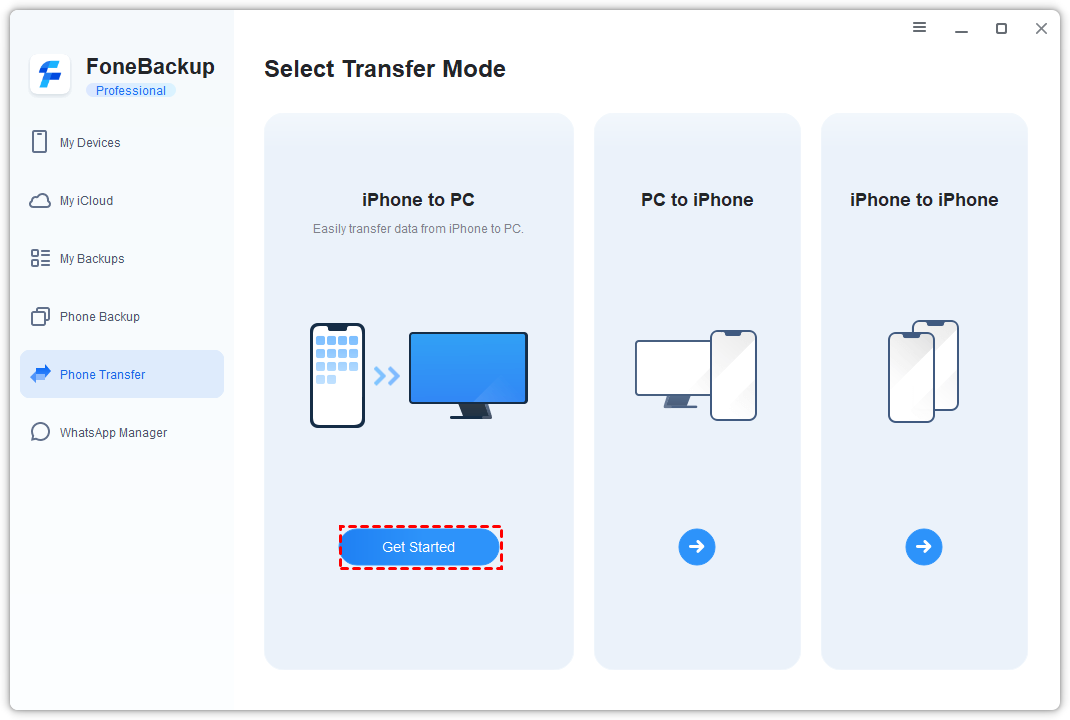
Step 2. From the main scren, select Phone Transfer > iPhone to PC, and tap Get Started.
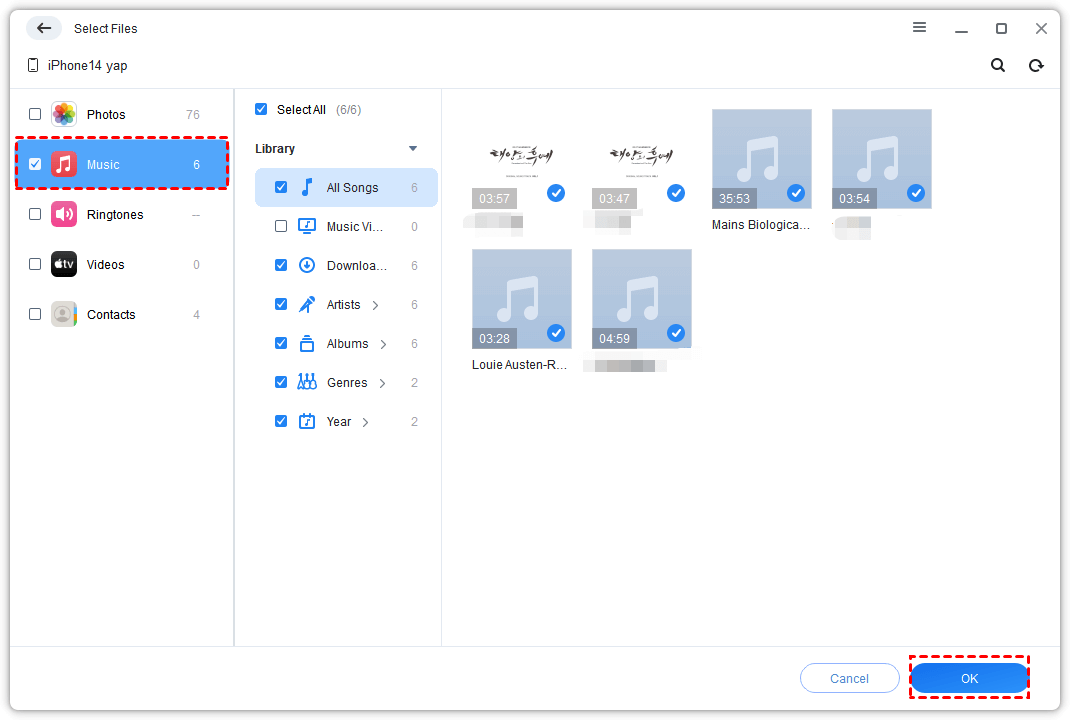
Step 3. Select Music to preview and choose the available songs you want.
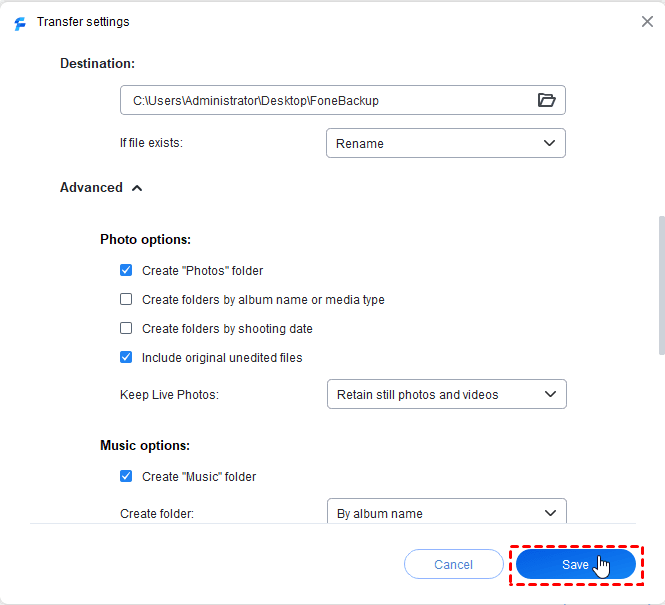
Step 4. Click Transfer Settings to choose where you want to save your songs. Adjust other settings if needed and click Save.
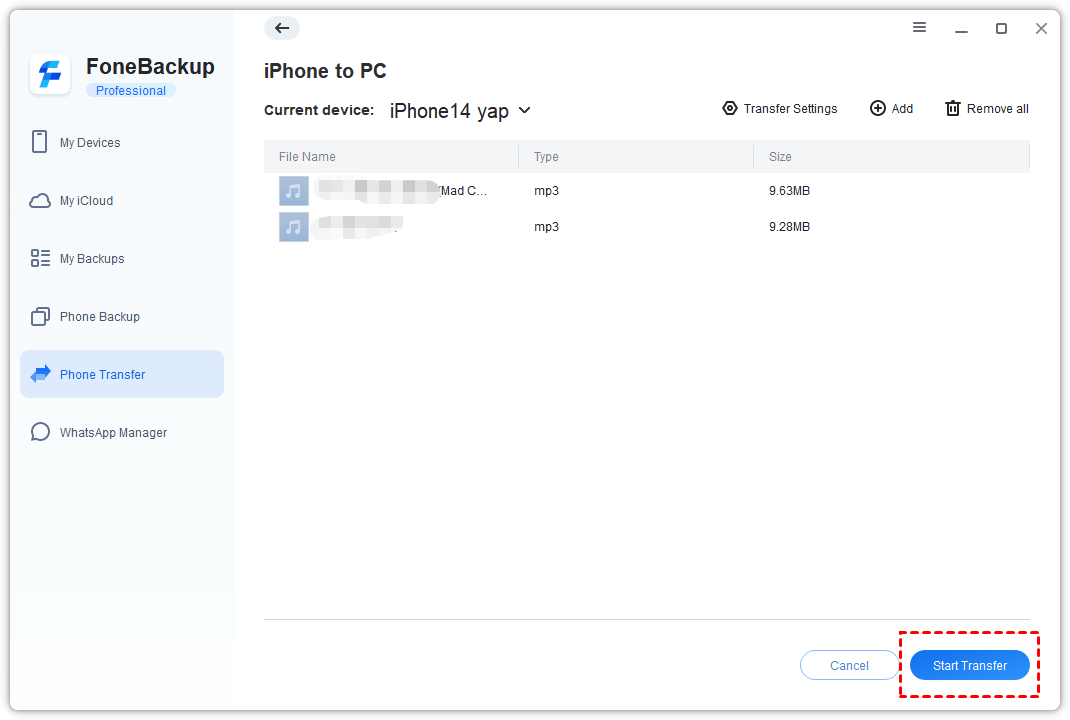
Step 5. Click Start Transfer and wait for the files to be copied.
Open the destination folder and play several songs before burning the CD. You may notice some tracks are unavailable. If needed, check how to transfer non-purchased music from iPhone to computer.
Part 2: Burn Transferred iPhone Music to CD
Once the songs are stored as playable files on your PC, burn them with Windows Media Player Legacy. On some Windows 11 computers, you may need to enable it through Settings > System > Optional Features.
Step 1. Connect an external CD writer if your PC does not have a built-in drive. Insert a blank CD-R and open Windows Media Player Legacy.
Step 2. Under the Burn tab, open Burn options and choose Audio CD for a standard player or Data CD or DVD for a player that supports digital audio files.
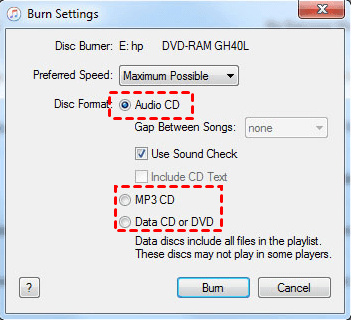
Step 3. Find the exported songs in the Player Library and drag them to the Burn List. Adjust the song order, then select Start burn.
Test the completed disc in the car or CD player where you plan to use it. Keep the transferred files until you confirm that the disc works.
How to Transfer Music from iPhone to CD with iTunes
This method is best for music purchased from the iTunes Store. First, transfer the purchased songs from your iPhone to iTunes, and then burn them to a CD. It cannot transfer all types of iPhone music.
Part 1: Transfer Purchased Music from iPhone to iTunes
Step 1. Open iTunes and select Account > Authorizations > Authorize This Computer.
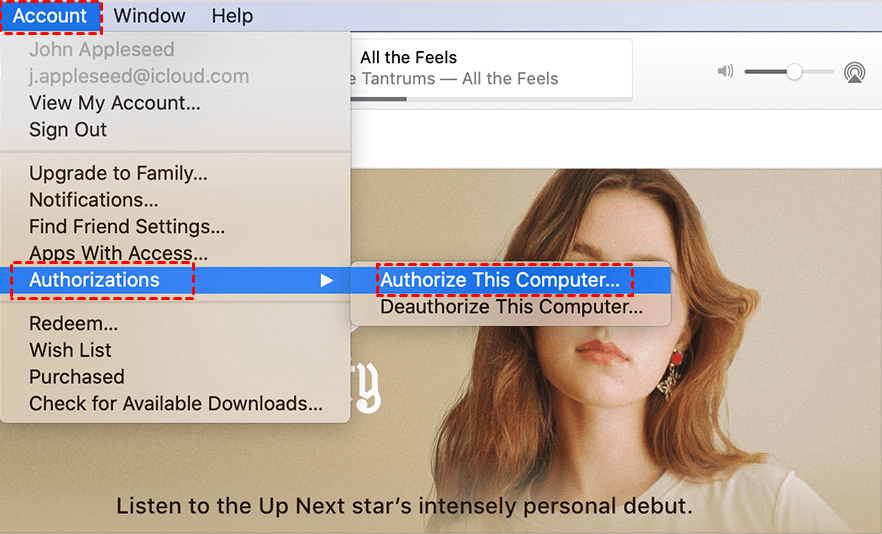
Step 2. Sign in with the Apple Account used for the purchases, then click Authorize.
Step 3. Connect and unlock the iPhone. Tap Trust if prompted. Select File > Devices > Transfer Purchases from [your iPhone].
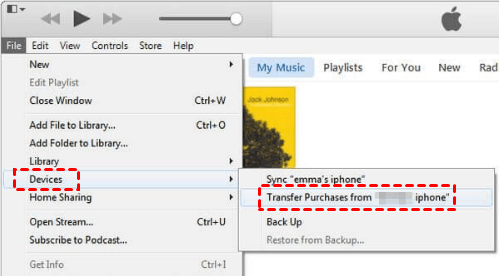
Wait for the transfer to finish, then check the iTunes music library.
If a purchased song is no longer on the iPhone, check your iTunes Store purchase history. You may be able to download it directly to the authorized PC.
Part 2: Burn an iTunes Playlist to CD
Step 1. Create a playlist in iTunes and add the songs you want to burn.
Step 2. Select View > View As > Songs and check the required tracks.
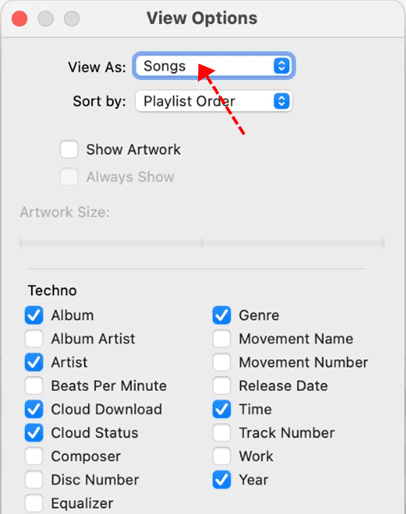
Step 3. Insert a blank CD-R into the disc writer. Select the playlist and choose File > Burn Playlist to Disc > Audio CD, MP3 CD, or Data CD or DVD.
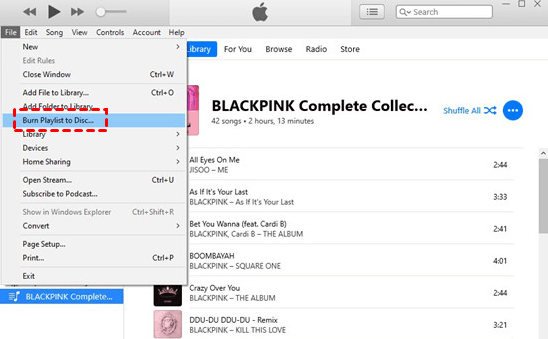
Step 4. Adjust options such as Preferred Speed or Gap Between Songs, then click Burn.
How to Transfer Music from iPhone to CD: Compare the Methods
| Factor | AOMEI FoneBackup | iTunes |
|---|---|---|
| Best for | Transferable local music on an iPhone | Eligible iTunes Store purchases |
| Operating system | Windows | Windows |
| Requires iTunes | No | Yes |
| Saves files to a selected PC folder | Yes | Not the main workflow |
| Burns the CD directly | No; use Windows Media Player Legacy | Yes |
| Apple Music subscription songs | Not transferable or burnable | Not burnable |
| Main limitation | Protected or app-managed music may not appear | Transfer Purchases does not retrieve all music |
🔥 Top recommendation:
- Use AOMEI FoneBackup when eligible local songs exist only on your iPhone.
- Use iTunes when the songs are qualifying iTunes Store purchases.
Neither method can turn Apple Music subscription downloads into burnable files.
Why You May Have Problems Transferring iPhone Music to CD
Some users still encounter problems because the iPhone is not trusted, a USB connection or driver is not working, the playlist contains restricted songs, or the wrong CD format was selected.
The following are the 3 most important problems to check.
The iPhone or Music Is Not Detected:
The PC may not recognize your iPhone if it is locked, not trusted, or connected through a faulty cable or USB port. A music list may also be empty when the tracks are stored only in the cloud or protected by a subscription.
Keep the iPhone unlocked, tap Trust, reconnect the cable, and try another USB port. Confirm that the required songs are stored locally and available for export.
For more solutions, see iPhone not showing up in iTunes on Windows.
“Burn Playlist to Disc” Is Missing:
This iTunes command may be missing if you selected an album instead of a playlist, the computer is not authorized, or the playlist contains Apple Music subscription tracks.
Create and select a regular playlist containing eligible local or purchased songs. Authorize the computer and check File > Burn Playlist to Disc again.
The CD Does Not Play in the Car:
The disc may have been created as a data CD even though the car supports only standard audio CDs.
Create a new Audio CD and use a lower recording speed when the option is available. Test the disc in the target player before deleting the music from your PC.
FAQs
1. Can I transfer music directly from an iPhone to a CD?
No. An iPhone cannot burn a disc directly. You must transfer eligible music to a computer and use a CD-burning program.
2. Can AOMEI FoneBackup transfer Apple Music downloads?
AOMEI FoneBackup can transfer eligible music available for export from the iPhone. It cannot remove protection from Apple Music subscription downloads or make them burnable.
3. Do I need iTunes to burn iPhone music?
No. You can export eligible songs with AOMEI FoneBackup and burn them with Windows Media Player Legacy.
4. Should I create an audio CD or an MP3 CD?
Choose an audio CD for a standard CD player or older car stereo. Choose an MP3 CD only if the target player supports MP3 discs.
Final Recommendation
Choose the method according to the source of your music:
- Use AOMEI FoneBackup when transferable local songs remain on your iPhone and you want to save selected files to Windows.
- Use iTunes when you need to retrieve qualifying iTunes Store purchases.
- Use Windows Media Player Legacy to burn exported audio files.
- Do not attempt to burn Apple Music subscription downloads because neither method can remove their restrictions.
For Windows users who want to transfer music from iPhone to CD without iTunes, AOMEI FoneBackup provides a clear workflow: export the available songs, verify the files, and burn them with Windows Media Player Legacy.

 as a preferred
source on Google
as a preferred
source on Google