



How to Remove a Windows Password without Knowing it
If you are wondering how to remove a Windows password without knowing it, you come to the right place. This article will guide you through the full steps to help you remove an unknown password.

By Hedy Updated on May 29, 2026


This guide explains several effective ways to remove or reset a forgotten Windows password on Windows 7, 8, 10, and 11 systems.
|
The best Windows password removal tool to remove the forgotten password |
AOMEI Partition Software helps users remove or reset forgotten Windows passwords using a bootable USB drive. It supports Windows 7/8/10/11 and requires no previously created password reset disk. |
|
Resetting the password using Command Prompt |
This method uses Windows recovery tools and Command Prompt to replace Utility Manager, allowing users to reset the account password through command lines without knowing the original password. |
|
Change the password with password reset disk |
A password reset disk allows users to create a new Windows password quickly. After connecting the disk, the Password Reset Wizard guides users through the recovery process safely. |
|
Reset the password on Microsoft Account Recovery page |
Users can reset a Microsoft account password online by verifying their identity through email or phone. After verification, a new password can be created to regain computer access. |
Keep reading to know more details.
The best Windows password removal tool to remove the forgotten password
For users locked out of their computers, removing a forgotten Windows password can seem difficult. A practical solution is using AOMEI Partition Software, a reliable Windows password removal tool designed to reset or remove lost login passwords with ease.
The software lets users create a bootable USB drive and access password recovery tools even when the original password is unknown. Unlike a traditional password reset disk, there is no need to prepare anything beforehand. The bootable media can be created immediately after the password issue occurs, making the recovery process faster and more convenient.
In addition, the program supports nearly all major Windows systems, including Windows 11, Windows 10, Windows 8, Windows 8.1, and Windows 7. This wide compatibility allows users to remove passwords on different Windows versions without worrying about system limitations.
 AOMEI Partition Software
A safe and reliable disk partition management tool that helps you migrate OS to SSD or HDD, reorganize disk space, and improve overall PC performance.
The following guide explains how to remove Windows password if forgotten.
Part 1. Create a Bootable USB to remove the forgotten password
Step 1. Insert a blank USB drive into another accessible computer. Install and open AOMEI Partition Software. From the top menu, click “Tools” and choose “Reset Windows Password” to begin the operation.
.png)
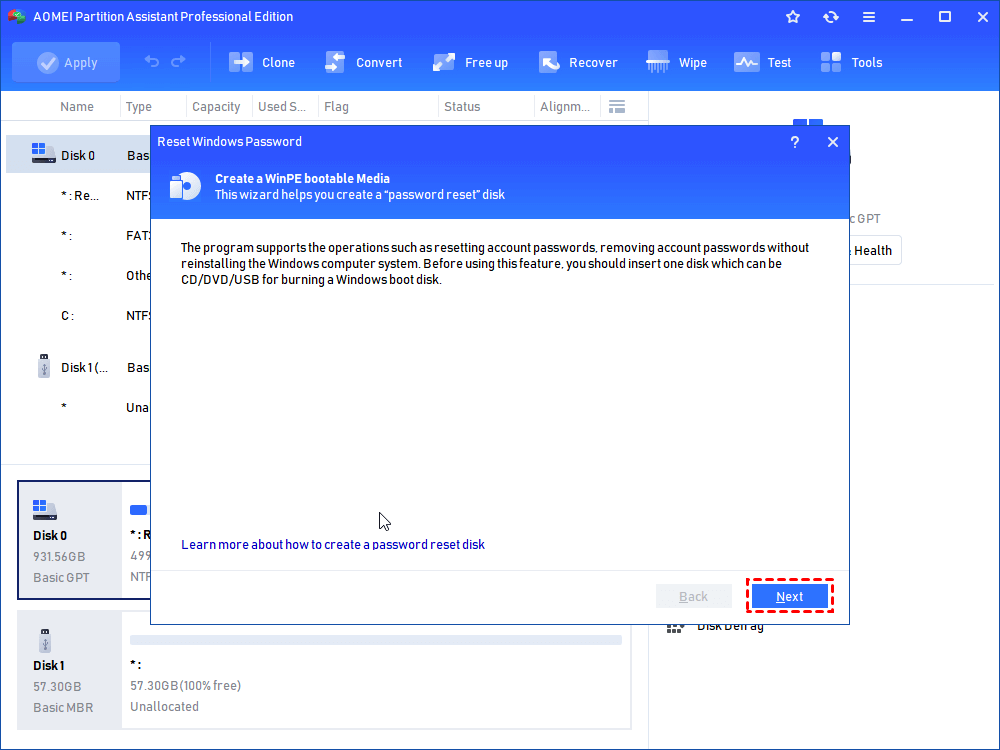
Step 2. A new window will appear asking you to create WinPE bootable media. Press “Next” to continue to the next stage.
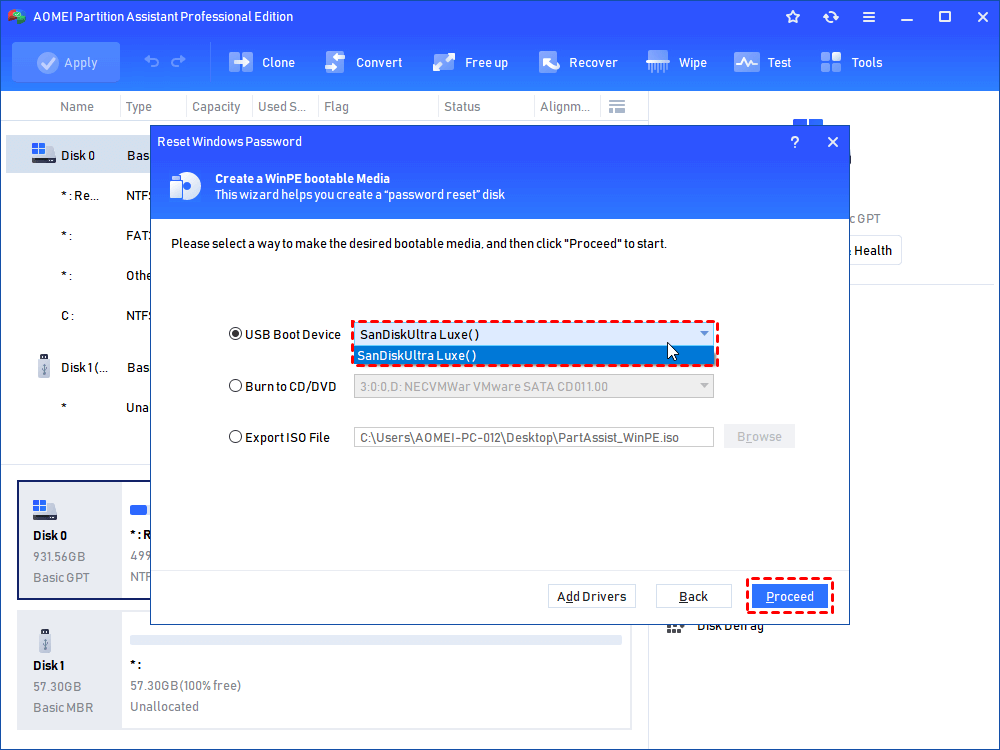
Step 3. Choose “USB Boot Device” as the target media type. After that, select the inserted USB drive and click “Proceed” to start creating the bootable disk.
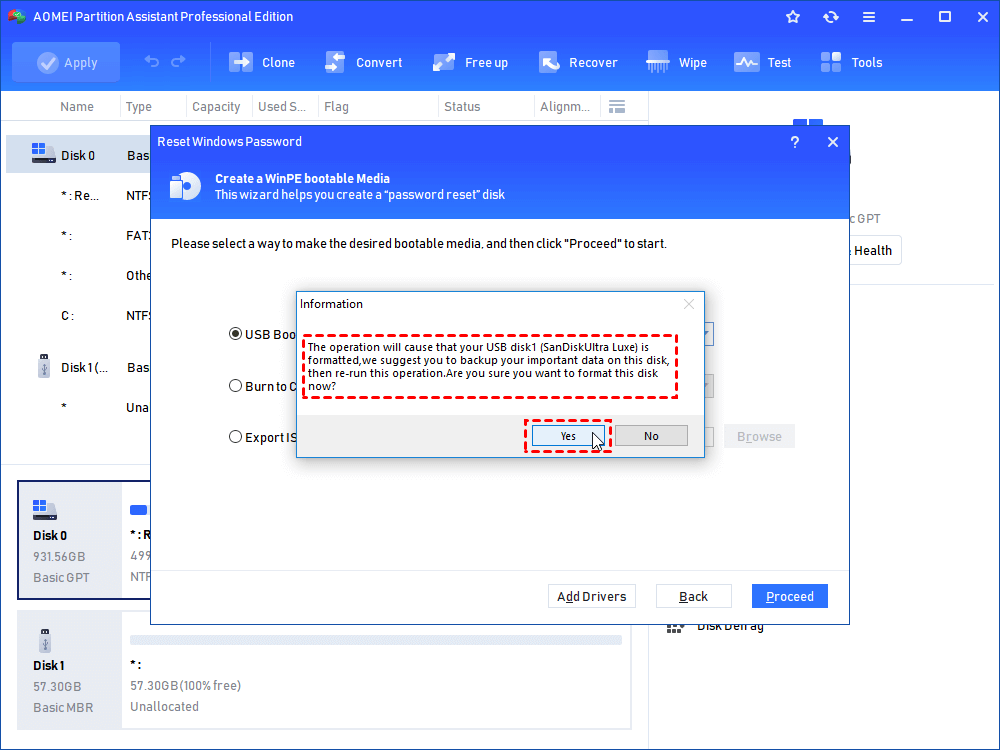
Step 4. Keep in mind that the selected USB drive will be formatted during the process, which means all saved files will be erased. Back up important data in advance to avoid accidental loss.
The software will spend several minutes generating the bootable USB. Once finished, safely remove the USB drive and connect it to the locked computer.
Part 2. Reset or remove the Windows password
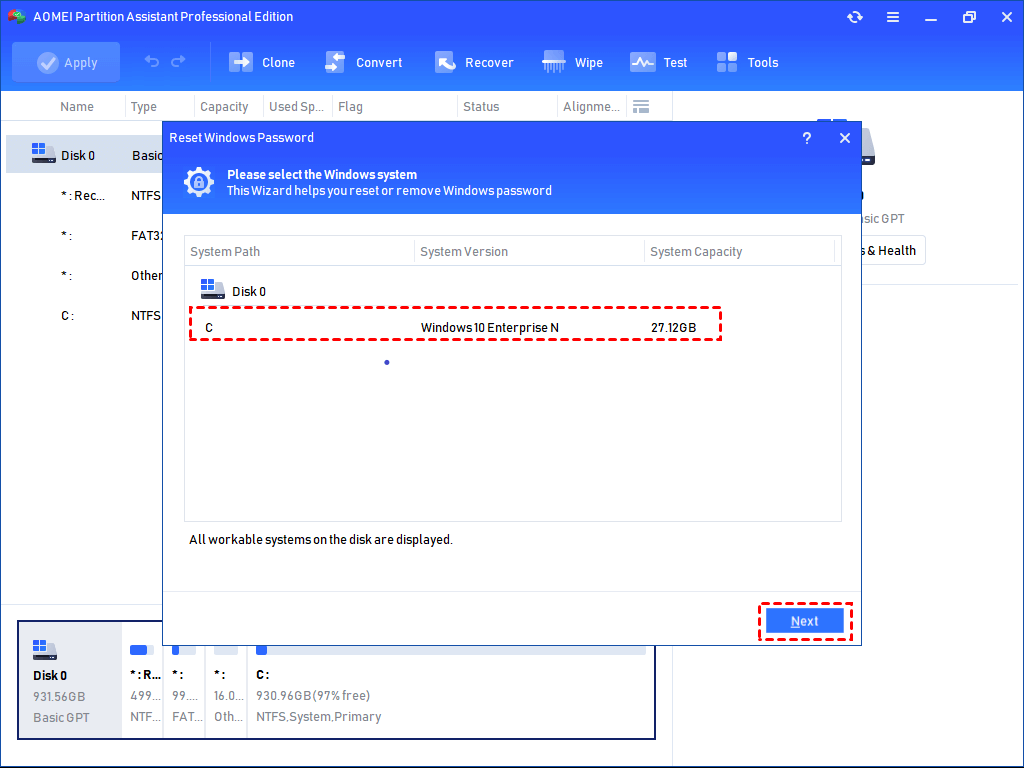
Step 1. Restart the locked PC and boot it from the newly created USB drive. After AOMEI Partition Software loads, click “Reset Password”. Select the target Windows operating system and click “Next”.
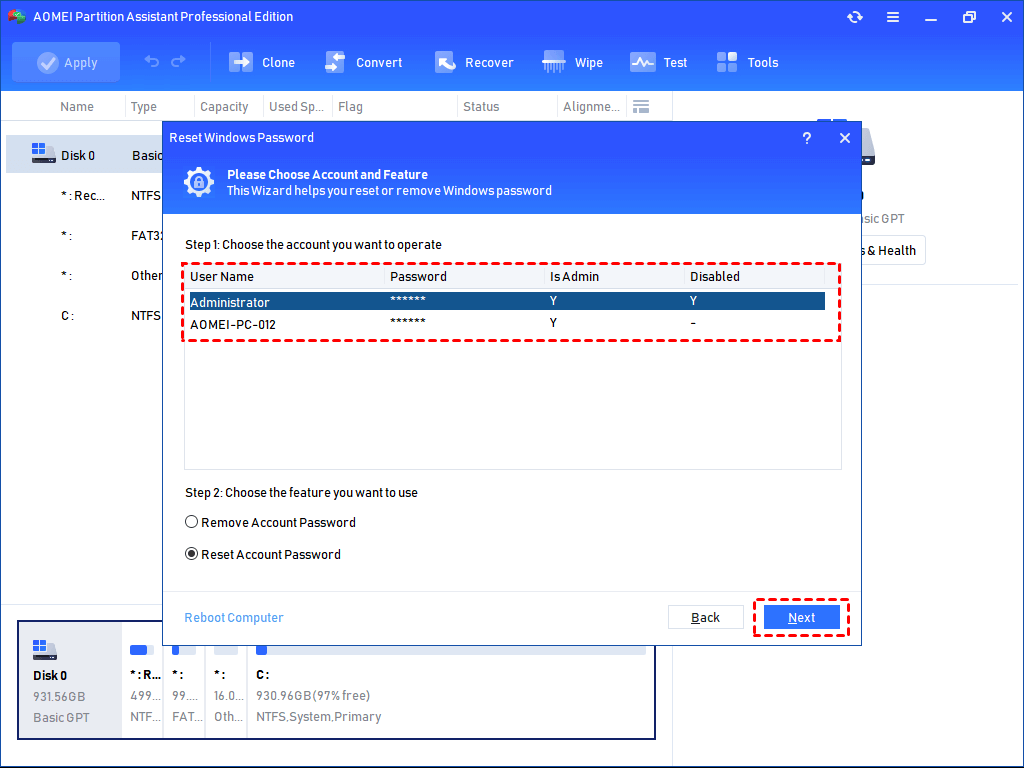
Step 2. Choose the account that needs modification. Then decide whether to use “Remove Account Password” or “Reset Account Password” according to your needs. Click “Next” to continue.
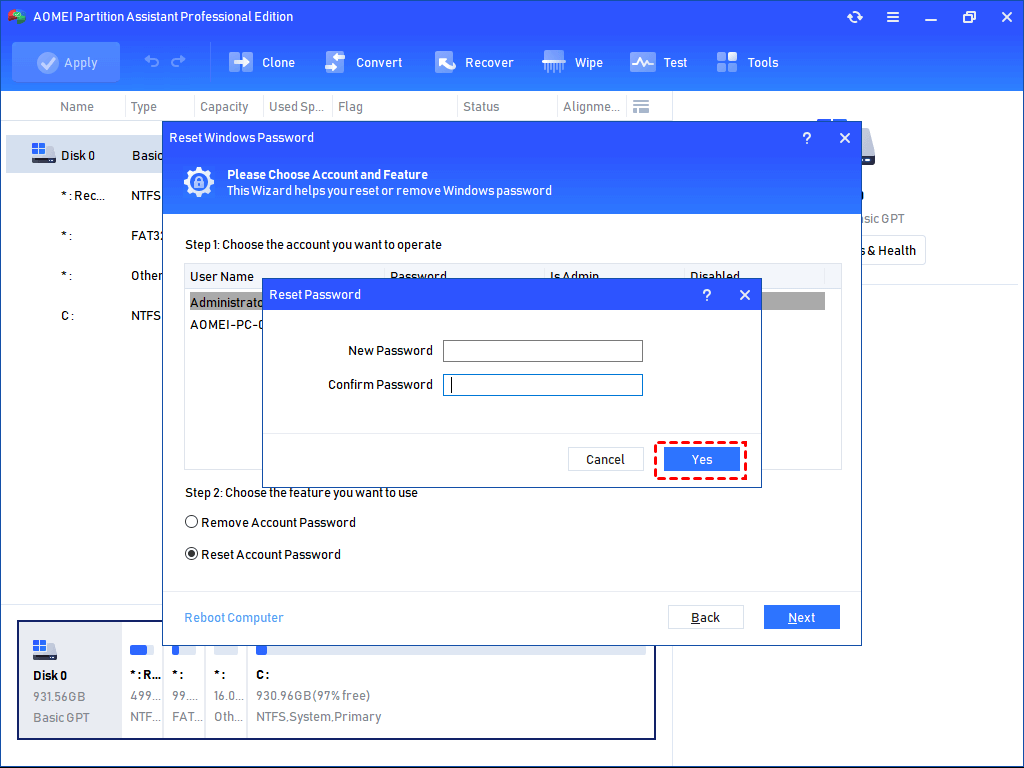
Step 3. A confirmation window will appear, allowing you to create a new password. Enter and confirm the new password, then click “Yes” to complete the password reset procedure.
How to remove a Windows password without knowing it
Forgetting a Windows password does not necessarily mean losing access to the computer permanently. Several reliable solutions can help remove or reset the password, allowing users to regain entry to their systems quickly and securely. By applying the correct recovery method, it is possible to bypass the login screen and restore normal access without major difficulty.
Method 1. Resetting the password using Command Prompt
Using the built-in Command Prompt utility is another effective way to reset or remove a forgotten Windows password. With several command-line operations, users can regain access to their computers without entering the original login credentials.
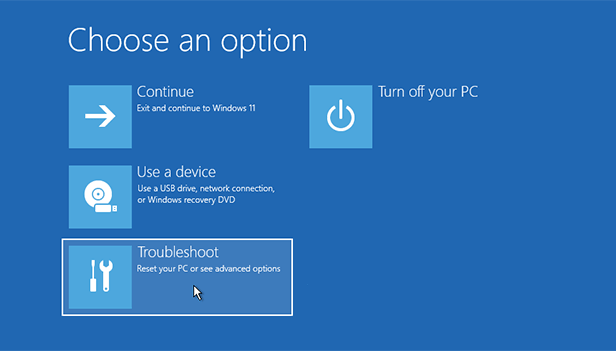
Step 1. At the Windows sign-in screen, press and hold the “Shift” key while selecting “Restart”. Once the recovery menu appears, choose “Troubleshoot” to continue.
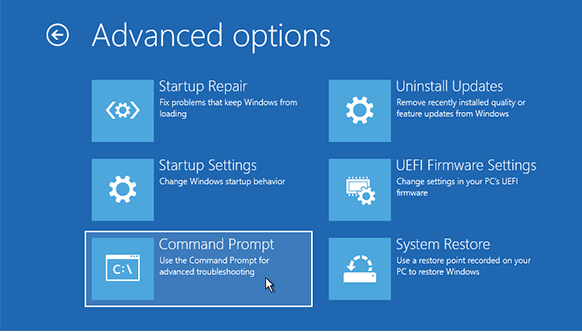
Step 2. Inside the Troubleshoot section, open “Advanced options” and then select “Command Prompt” to launch the command-line interface.
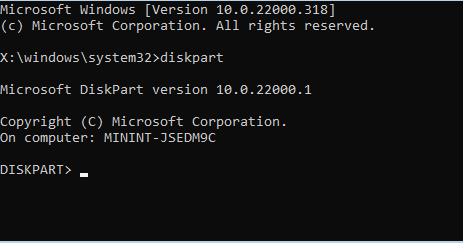
Step 3. When the Command Prompt window appears, type the “diskpart” command and press “Enter”:
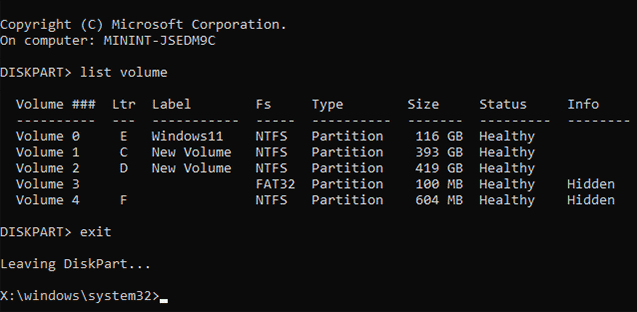
Step 4. To display all available disk volumes, enter the “list volume” command and press “Enter”.
Identify the drive letter of the Windows system partition. After noting it down, type the “exit” command to leave DiskPart:
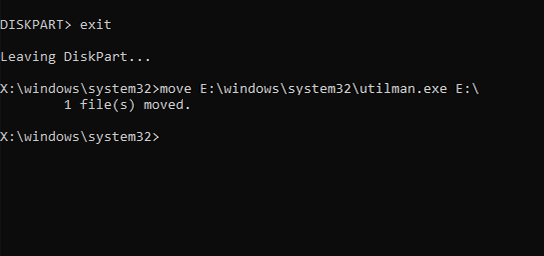
Step 5. Run the following command to move the utilman.exe file back to the system drive location: move E:\windows\system32\utilman.exe E:. Then press “Enter”.
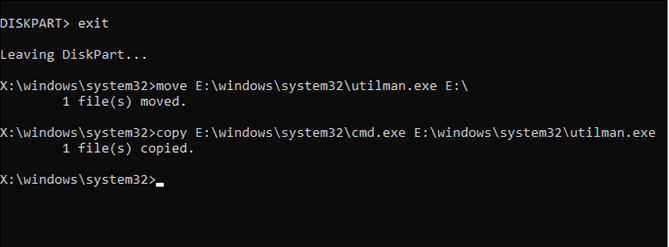
Step 6. Next, replace the Utility Manager with Command Prompt by entering the command below:
copy E:\windows\system32\cmd.exe E:\windows\system32\utilman.exe
Step 7. To restart the computer, type the following command and hit “Enter”:
wpeutil reboot
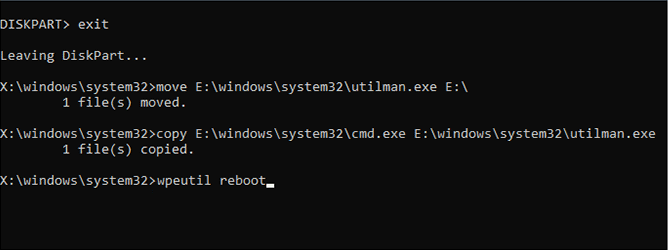
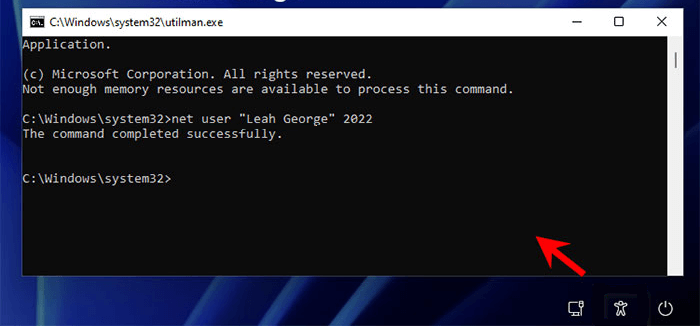
Step 8. After the computer reboots to the login screen, click the accessibility icon in the lower-right corner. A Command Prompt window will open. Then type the command below to create a new password for the selected account and press “Enter” to apply the password reset successfully.
net user "Leah George" 2022
Method 2. Change the password with password reset disk
Using a password reset disk is one of the most dependable ways to recover access to a Windows computer. If the reset disk was created before the password was forgotten, the account password can be changed quickly without reinstalling the system or losing personal data.
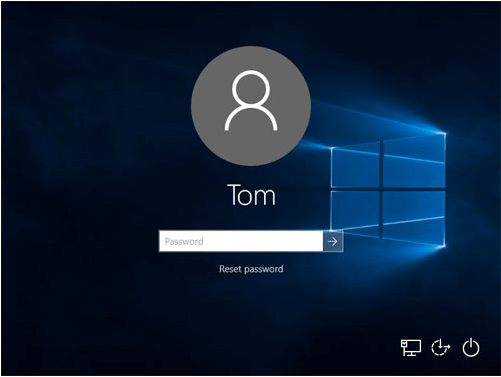
Step 1. On the Windows login screen, enter the account password as usual. After an unsuccessful login attempt, the “Reset password” option will appear below the password box. Click it to continue.
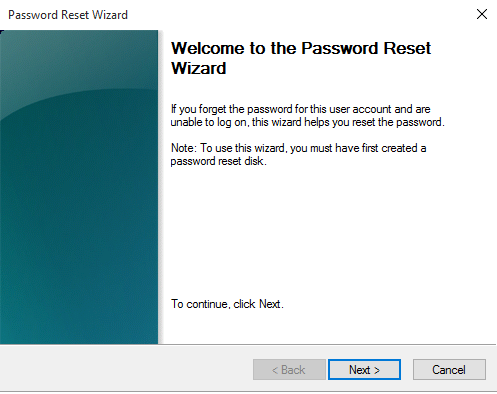
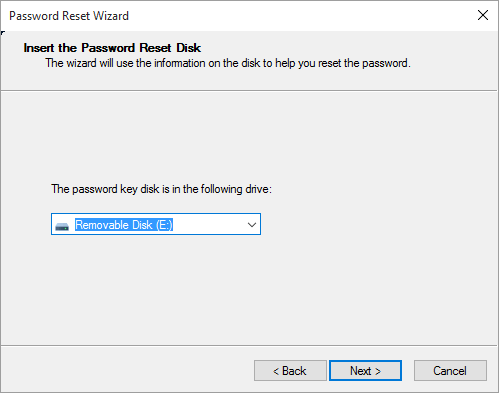
Step 2. When the Password Reset Wizard opens, connect the previously created password reset disk to the computer. Click “Next” to move forward.
Step 3. Choose the correct password reset disk from the available list. After selecting the target disk, click “Next” to proceed with the recovery process.
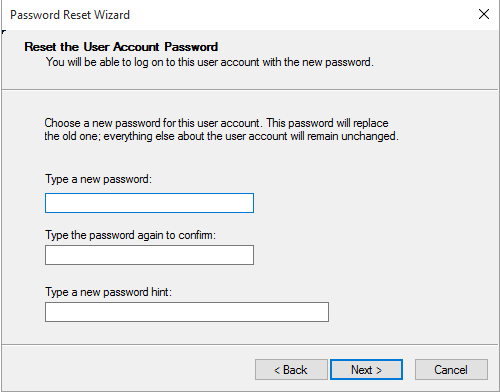
Step 4. Type a new password for the account. You can also create a password hint to help remember it in the future. Once completed, click “Next” to save the changes.
Step 5. After the password reset is completed successfully, click “Finish” to close the wizard. Restart the computer, then sign in to Windows 10 using the newly created password.
Method 3. Reset the password on Microsoft Account Recovery page
Using the Microsoft Account Recovery page is a simple and secure way to recover access to a locked Microsoft account. After completing the verification process, users can create a new password and sign back into their devices normally.
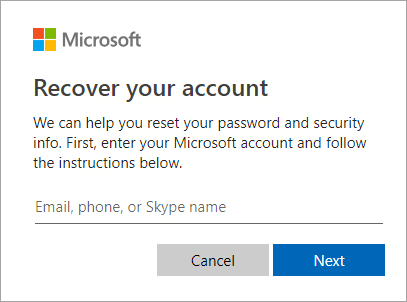
Step 1. Open the Microsoft Account Recovery page. Enter the email address, phone number, or Skype ID connected to the Microsoft account, then click “Next” to continue.
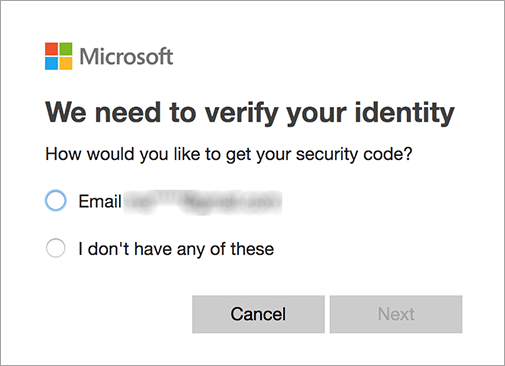
Step 2. Microsoft will request identity verification to confirm account ownership. Select the verification option linked to your account, check the corresponding email or contact method, and click “Next” to proceed.
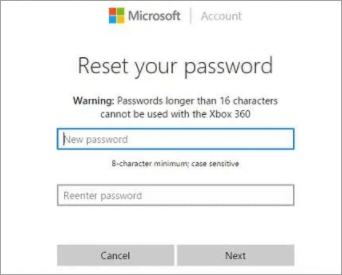
Step 3. After the verification is completed successfully, you will be allowed to create a new password for the account. Once the password reset is finished, you can use the updated credentials to log back into the laptop and access the system again.
FAQs
1. Can I remove a Windows password without reinstalling Windows?
Yes. Most users can reset or remove passwords through Microsoft recovery tools, Safe Mode, security questions, or password reset software without reinstalling Windows or deleting files.
2. Does resetting a Windows password delete files?
Usually no. Password resets normally preserve personal files, installed programs, and Windows settings unless you choose to reset or reinstall the entire operating system.
3. What is the easiest way to recover a Microsoft account password?
The easiest method is using Microsoft’s official password reset website and verifying your identity through email, phone number, or authentication apps.
4. Can Safe Mode help remove a forgotten password?
Yes. Safe Mode may allow administrator access or Command Prompt usage to reset local account passwords using tools like the net user command.
5. Is it safe to use password reset software?
Yes, if downloaded from trusted official websites. Avoid unknown tools because malicious software can damage Windows or steal personal information.
Conclusion
In conclusion, forgetting a Windows password is no longer an impossible problem to solve. Whether using Command Prompt, a password reset disk, Microsoft account recovery, or specialized tools like AOMEI Partition Software, users can regain access safely without reinstalling Windows. Choosing the right method based on your situation can save time, protect important files, and restore normal computer access quickly and efficiently.

 as a preferred
source on Google
as a preferred
source on Google