Installation and Login
Installation and Login
Download Windows AIK and How to Mount it?
Updated April 23, 2026
Table of Contents
Before you do
To create a WinPE (Windows Preinstallation Environment) bootable media with AOMEI programs on Windows XP/2003/Vista/2008, you need to download Windows AIK.
The Windows Automated Installation Kit (Windows AIK)
ISO Version: 3.0 KB3AIK_EN.iso (1.7GB)
Platform: Windows Server 2000, 2003, 2008, Windows Home Server 2011, Windows Small Business Server 2003, 2008, 2011, and Windows 7, Vista, XP, 2000 (32-bit and 64-bit)
Download from Microsoft Download Center
Windows AIK is short for Windows Automated Installation Kit. As its name suggests, it is a set of tools that could help you (mostly OEM and IT professionals) to configure and deploy the operating system to new hardware. In brief, that meant you could customize your own OS, as well as create a WinPE bootable CD.
How to Install the Windows AIK ISO file
After you download the Windows AIK ISO file, first you need virtual CD-ROM software, and then you can install it on your computer. The following are concrete steps:
Step 1. Download the latest version of UltraISO and install it.
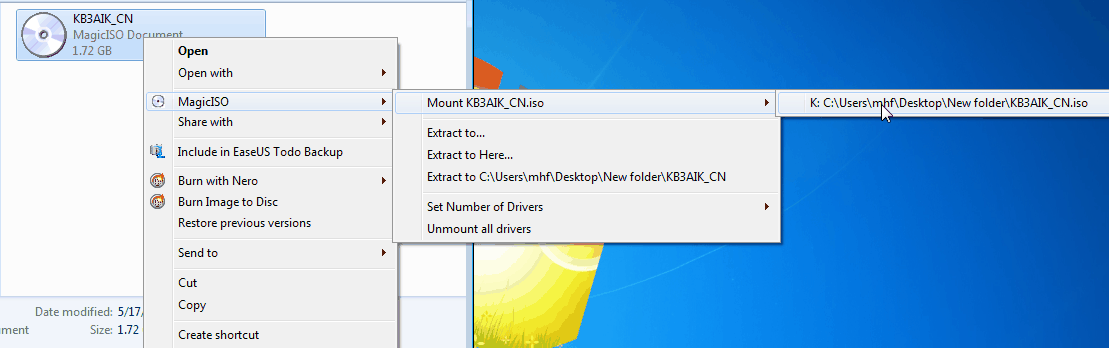
Step 2. Right-click on the Windows AIK ISO file -> select UltraISO -> Mount -> the ISO file path, as the picture shows.
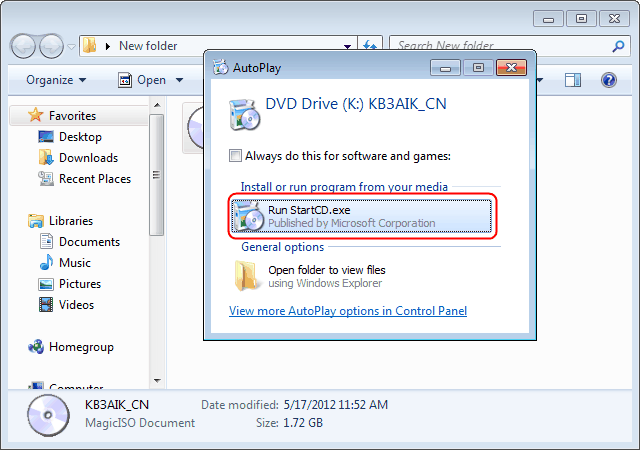
Step 3. Select "Run StartCD.exe". And then follow the setup wizard to install Windows AIK on your computer.
Note: Windows AIK cannot be installed on Windows 8/8.1, Windows 2012 R2 or Windows 10/11. So if your system is Windows 8/10, in some cases, you may need to download Windows ADK for creating bootable media.