




Why Does My E Drive Keep Disappearing? Fix It Safely
If you are asking why does my E drive keep disappearing, protect its files first, check how Windows detects the disk, and choose the fix that matches its current status.

By Ivy Updated on September 8, 2026


You shut down your computer last night, everything was fine. This morning, you boot it up, open File Explorer and your E drive is just... gone.
You restart, it comes back. You start copying files, it disappears again.
What's going on?
Most of the time, Windows hasn't actually lost your drive, it's just having trouble talking to it. Maybe the drive letter got dropped. Maybe the disk was taken offline. Maybe a loose cable or a flaky driver is to blame.
The good news: if Windows still detects the storage, your data is probably still there. The bad news: if you format, initialize, or create a new volume before recovering your files, you might never see them again.
Here's how to figure out what's happening and what to do next.
Check Your Drive's Status and Choose the Right Fix
Right-click Start and select Disk Management. Identify the affected storage by its capacity, file system, partitions, and model, not only by the letter E, since Windows may have changed it.
| 🔍 What You See | 🧩 What's Probably Going On | 🚀 Try This First |
|---|---|---|
| The drive returns, but files are missing | Deleted files or damaged partition info | Recover the files first |
| A healthy volume has no letter | Its drive letter was removed | Assign a letter |
| The disk is marked Offline | Windows detects but has not mounted it | Rescan and bring it online |
| An external disk disconnects randomly | Port, cable, or power problem | Test its connection |
| Device Manager reports an error | Storage driver or controller issue | Update or reinstall the device |
| The volume is RAW or Unallocated | File-system or partition damage | Recover before changing it |
| The disk is absent from Windows and BIOS | Connection or hardware failure | Stop using the device |
Do not initialize a previously used disk merely because Windows labels it Not Initialized. Initialization is intended for a new, empty disk and is not a recovery method.
Do This First: Recover Deleted or Missing Files from E Drive
👍 Best for: A detectable E drive with missing files, or a familiar disk displayed as RAW, Unallocated, or without its original partition. The device must remain stable enough to scan.
Before attempting repairs that may change the disk, scan the E drive with AOMEI FastRecovery, a Windows data recovery software, to find recoverable files, up to 1000+ data types, from documents to videos, photos, compressed files, etc.
 AOMEI FastRecovery
- 🔎 Dual-Scan Mode: Quick Scan for recently deleted files and Deep Scan for more thorough recovery
- 🧠 Smart Matching: Auto‑selects the best scan mode - fast, smart, hands‑off.
- 📋 Multiple Loss Scenarios: Handles accidental deletion, formatting, RAW drives, viruses, and lost partitions.
- 📂 Browse by Type or Path: Navigate results in the way that suits you best - clean, intuitive, and beginner‑friendly.
- 🚀 Pinpoint What You Need: Use search, sorting, and filters to quickly locate files.
- 🖼️ Thumbnail Previews: See files before you recover them.
 100% Secure
Step 1. Open AOMEI FastRecovery on your Windows computer. Choose Deleted Files Recovery for missing files, or Partition Lost Recovery if the E: drive is lost.

Step 2. Select the E: drive and click Scan. With Deleted Files Recovery, Quick Scan begins by default. If the required files are not in the results, choose Deep Scan for a more thorough search.
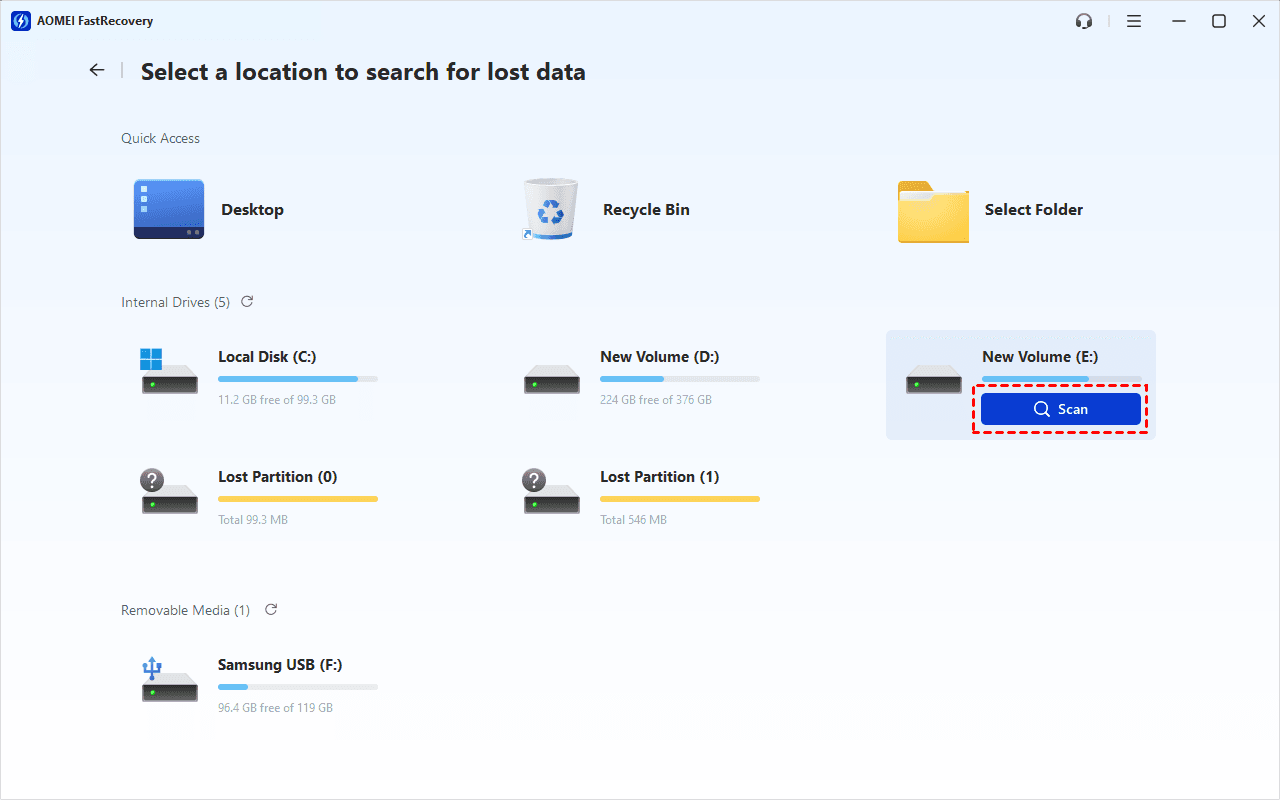
Step 4. Check the results under Type or Path. Search by filename or extension, or narrow the results with filters and sort options. Preview recoverable files as thumbnails before recovery.
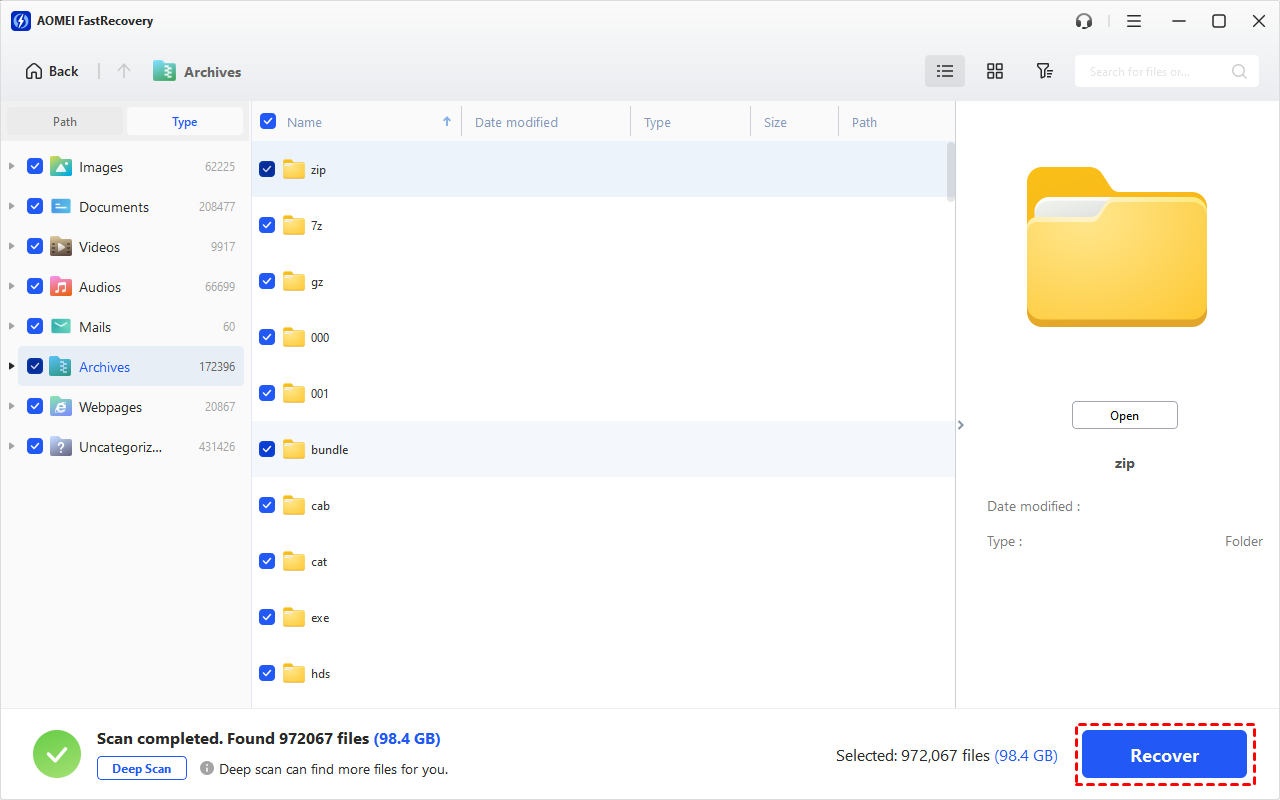
Step 5. Select the files you need and click Recover. Save them to another physical drive (not the E drive) to prevent overwriting.
- The free edition can scan and recover data up to 500MB. Recovering more than 500MB requires an upgraded edition.
- If you're using an external hard drive, see files disappearing from an external hard drive.
Method 1: Assign the Missing E Drive Letter
👍 Best for: A healthy volume that appears in Disk Management without a letter. Assigning one normally restores File Explorer access without deleting files.
Step 1. Right-click the Start menu, select Disk Management.
Step 2. Identify the right volume by its capacity, file system, and disk position. Right-click it and choose Change Drive Letter and Paths.
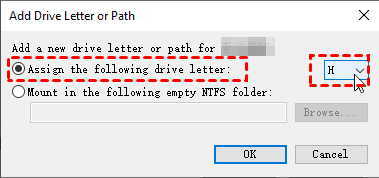
Step 3. Select Add if no drive letter is assigned. If the volume has an unwanted drive letter, select Change. Choose E: if it is available, then select OK.
Method 2: Rescan the Disks or Bring the Drive Online
👍 Best for: A disk shown in Disk Management as Offline, Missing, or temporarily unavailable. A rescan can restore detection but cannot repair unstable hardware.
Step 1. Open Disk Management, select Action > Rescan Disks. Wait for Windows to refresh the storage list.
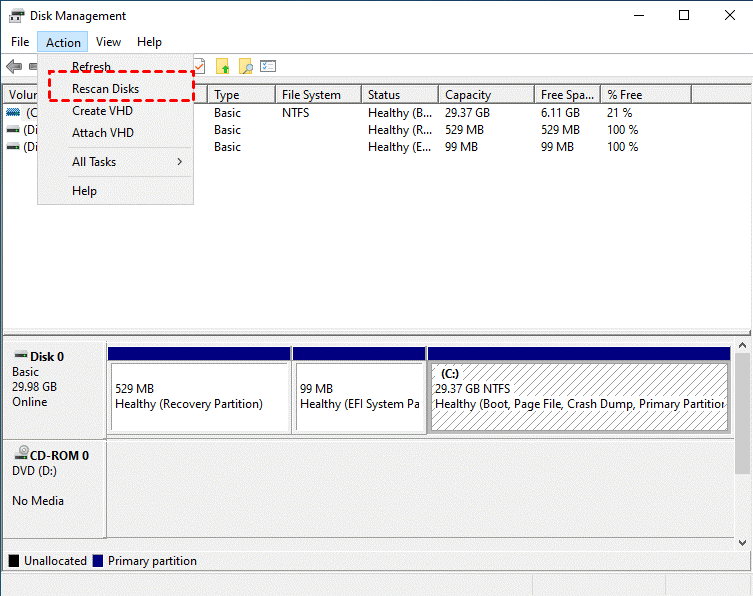
Step 2. If the disk appears as Offline, right-click its disk label and select Online.
The E drive should now appear in File Explorer. If rescanning only works temporarily, copy your important files to another location. A drive that keeps disappearing after sleep, restart, or heavy use needs further investigation.
Method 3: Check the Connection and Power
👍 Best for: An external E drive that appears and disappears unpredictably. This method helps separate Windows problems from a faulty cable, port, or power supply.
-
If Windows recognizes the drive, safely disconnect it and connect to another USB port - avoid unpowered hubs.
-
Replace the data cable with a known‑good one.
-
If the drive uses an external power adapter, ensure it's securely connected.
-
Test the drive on another computer.
For an internal HDD or SSD, shut down and unplug the PC before checking its SATA cable, power cable, or physical seating. Follow the manufacturer’s instructions if you are not comfortable opening the computer.
For more device-specific troubleshooting, see external hard drive not showing up in Windows 11.
Method 4: Update or Reinstall the Storage Device
👍 Best for: A disk listed in Device Manager with an error, or one that started disappearing after a driver or system change. This method does not repair physical disk damage.
Step 1. Right-click the Start menu and select Device Manager.
Step 2. Expand Disk drives, right-click the affected device and select Properties. Review the message and error node under Device status. Also, check Storage controllers
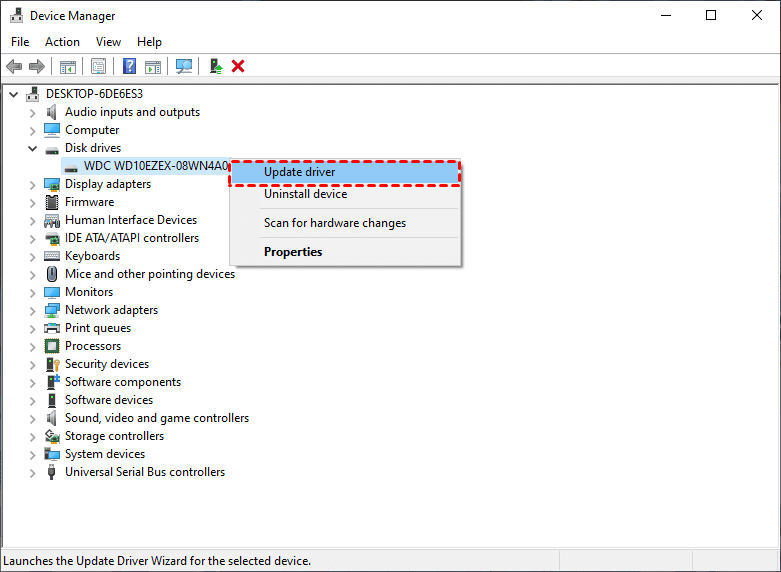
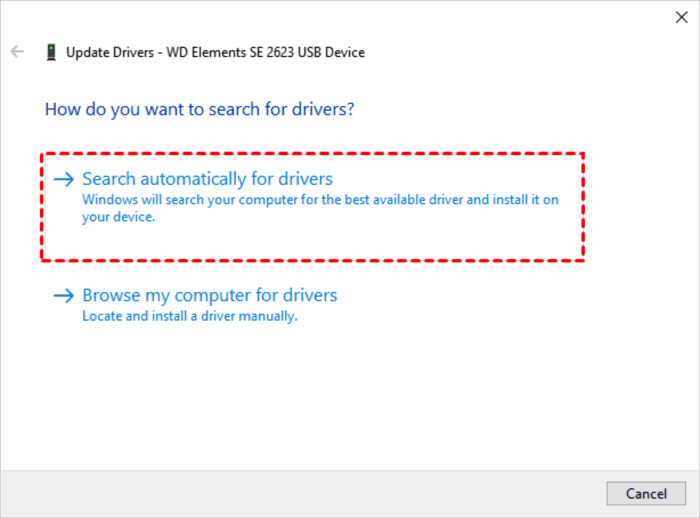
Step 3. Select Update driver > Search automatically for drivers. You can also obtain an appropriate storage or chipset driver from the official PC, motherboard, or drive manufacturer.
Step 4. If the device still does not work, right-click it and select Uninstall device.
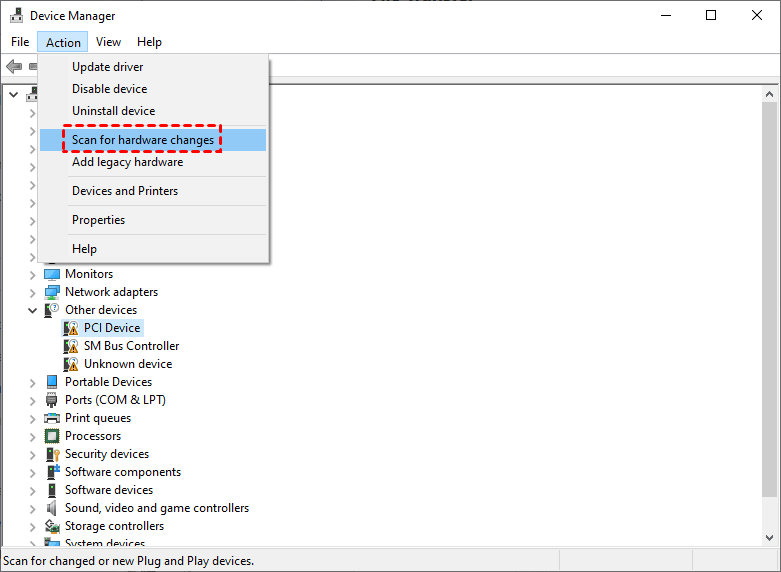
Step 5. Select Action > Scan for hardware changes, or restart Windows to detect the device again.
A driver is unlikely to be the only cause when the disk also disappears from BIOS/UEFI or fails on another computer.
Method 5: Stop When Hardware Failure Is Possible
👍 Best for: A drive that clicks, overheats, freezes Windows, disconnects during scanning, or is absent from Disk Management, BIOS/UEFI, and another computer.
- Stop using and disconnect the affected storage.
- Avoid repeatedly restarting, reconnecting, initializing, formatting, or scanning it.
- Check the manufacturer’s warranty and official diagnostic guidance.
- Contact a professional data recovery service if the files are irreplaceable.
AOMEI FastRecovery requires a Window PC to recognize the underlying storage device. It cannot repair a failed controller, broken connector, damaged circuit board, or mechanically failing disk.
Review the recovery boundaries and checks for a hard drive that cannot be detected before continuing with DIY attempts.
Compare the Solutions
| Drive condition | 👍 Recommended action | Key benefit | Limitation |
|---|---|---|---|
| Detectable, but files are missing | Scan for recoverable files | Protects files before repair | Results depend on drive condition |
| Healthy volume without a letter | Assign a drive letter | Quick, built-in fix | E may already be occupied |
| Disk marked Offline | Rescan and bring it online | Restores Windows mounting | May only work temporarily |
| External disk disconnects | Test cable, port, and power | Finds connection problems | Does not repair the disk |
| Device Manager shows an error | Update or reinstall the device | Addresses driver detection | Cannot fix hardware failure |
| Missing from BIOS/UEFI | Stop and seek assistance | Avoids additional stress | May require professional recovery |
Why the E Drive May Keep Disappearing
The location where the drive disappears provides the best clue. A volume that remains visible in Disk Management may simply have lost its letter. A complete disk that vanishes from Disk Management may have a connection, power, driver, controller, firmware, or hardware problem.
Some cases begin after Windows Update, a restart, or waking the PC from sleep. The timing is relevant, but it does not prove that Windows caused the failure. Check Disk Management, Device Manager, BIOS/UEFI, and another computer before deciding.
If you repeatedly wonder why does my E drive keep disappearing even after a rescan or restart, treat the behavior as a warning. Secure the files while the disk is accessible instead of continuing to trust it as your only storage location.
FAQs
Will assigning a new drive letter delete my files?
Adding or changing the letter of the correct healthy data volume does not normally delete its files. Confirm the volume’s size and file system first, and do not modify Windows, EFI, or recovery partitions.
Should I initialize a missing E drive?
Only initialize a genuinely new, empty disk. If an existing disk suddenly appears as Not Initialized and contains important files, recover or professionally assess them before changing the disk.
Can CHKDSK restore a disappearing drive?
CHKDSK can address some file-system errors, but it cannot restore a device that Windows does not detect. It also changes file-system metadata, so recover irreplaceable files before using it on a damaged volume.
Why does the E drive return after restarting Windows?
A restart reloads storage drivers and forces Windows to detect devices again. It may also temporarily restore an unstable connection. If the problem returns, check the drive’s connections and health.
Can AOMEI FastRecovery repair the missing drive?
Its role is recovering files from a detectable drive, formatted volume, or lost partition. Assigning drive letters, repairing connections, and replacing failed hardware are separate tasks.
Conclusion
When asking why does my E drive keep disappearing, first determine whether Windows can still detect the underlying disk. If it can and important files are missing, use AOMEI FastRecovery before formatting, initializing, or attempting repairs that may change the storage.
After protecting the files, assign a missing drive letter, bring an offline disk online, or investigate its connection and driver. If the device also disappears from BIOS/UEFI or another computer, stop using it and seek professional assessment rather than placing additional stress on the disk.

 as a preferred
source on Google
as a preferred
source on Google