




No Data to Recover Detected? Fixed!
No data to recover detected? Refer here to get useful tips to fix it. In addition, you can also run hard drive data recovery software to recover data after accidental deletion.

By Ivy Updated on March 10, 2026


Over the years, external hard drives have played an increasing role in work because these portable devices make it easy to store and transfer large files. But have you been bothered by no data to recover detected? Why is my PC not detecting my hard drives? Furthermore, what would be the solution if the hard disk is not detected?
I have an external hard drive, and it worked fine until last night. Today, I connected my external hard drive to the HP laptop, which appears in the system. But it shows no data in it. Could anyone tell me the possible reasons behind this issue and how I can resolve it? Thanks.
- A user from xda-developers
If yes, continue to read this article.
Possible factors of undetected external hard drive
You’d better get an overview of the following possible causes of external hard drives not showing up first. Then, you’re ready to learn how to recover data from undetected hard disks.
- ✍Poor connection: Your external hard drive might not be powered sufficiently if the ports do not receive power directly from the motherboard. Besides, malfunctioning USB ports or improperly connected cables also causeexternal hard drive access denied.
- ✍ Hidden devices: Windows OS will automatically prevent users from accessing hidden files, folders, or drives using File Explorer.
- ✍ Missing drive letters: Both desktop and laptop PCs can only recognize disks with assigned drive letters.
- ✍ Outdated/corrupteddrivers: Drivers are in charge of interacting between your hard drives and PCs. Outdated/corrupted device drivers could disrupt communications.
- ✍ Corrupted or Incompatible file systems: If there are bad sectors/errors on your external hard drives, you will be prompted to recover corrupted hard drives.
- ✍ Viruses or malware attacks: Viruses can lead to files being deleted automatically in Windows 10/11 computers or format your entire drive.
How to recover data from undetected hard disks & external hard drives
Are you wondering how to recover data from undetected hard disks? Please scroll down to find approaches.
▶ Solution 1. Show hidden devices via Device Manager
Sometimes, your Windows operating system might have detected your connected external hard drive. Although it’s hidden from you, Device Manager can also help you show hidden devices. Ensure the external hard drive is securely connected to your computer.
Step 1. Connect your external hard drive to the computer. Then open Device Manager by typing it into the search box.
Step 2. Click View > Show hidden devices after entering the main interface.

▶ Solution 2. Assign a new drive letter
As mentioned above, the Windows operating system can discourage you from accessing unlettered drives because drive letters are identifiers of volumes. At this point, you may have no choice but to assign a drive letter in Disk Management. No data to recover detected? Please refer to the following steps to address this problem.
Step 1. After connecting the external hard drive to your PC, press “Win + R” and type “diskmgmt.msc” in the Run box.
Step 2. Right-click on your connected external hard drive and click the “Change Drive Letter and Paths” button.
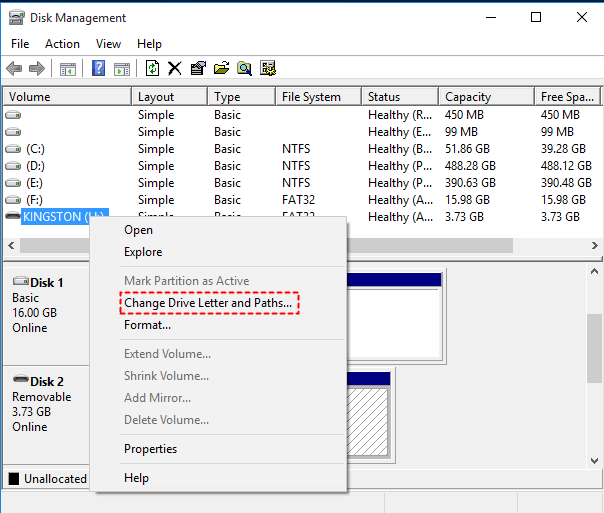
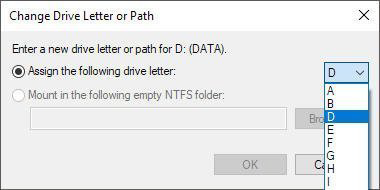
Step 3. Click “Add” and select a new driver letter. Be sure the drive letter is not the same as any of the existing drive letters.
▶ Solution 3. Enable USB Root Hub
If you never activated your USB Root Hub, your Windows computer naturally will not recognize the connected external hard drive. So, how to recover files from external hard drive not detected? Please read further.
Step 1. Connect the external hard drive to your computer. Then, open Device Manager by entering it in the search bar.
Step 2. Expand Universal Serial Bus Controllers and right-click on your chosen USB Root Hub. Then, click the “Properties” button.
Step 3. Under the Power Management tab, uncheck “Allow the computer to turn off this device to power” and click “OK” to save your modifications.
▶ Solution 4. Update device driver
As stated earlier, an outdated device driver is responsible for no data being recovered. Besides, it might be one of the reasons why your Seagate external hard drive light blinks but does not work.
Step 1. Connect the external hard drive to your computer. Open Device Manager.
Step 2. Go to Disk drives, right-click on your connected external hard drive, and select the “Update driver” option.
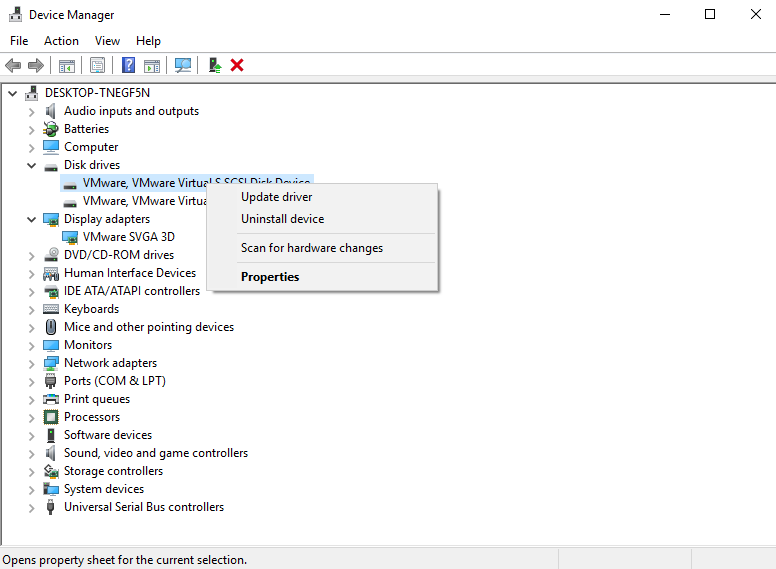
Step 3. Select the “Search automatically for updated driver software” option. Follow the on-screen instructions.
▶ Solution 5. Format the inaccessible external drive
In general, if a Windows PC cannot support the file system of the connected external hard drive, it’s not surprising that your PC cannot detect it. In this scenario, AOMEI Partition Assistant can be an excellent choice for you to format and alter the file systems of your desired partition.
 AOMEI Partition Software
A reliable partition recovery software for Windows 7, 8/8.1, 10, 11, and server.
Step 1. After seeing all the partitions, right-click on your connected external hard drive and select the “Format Partition” option.
Step 2. Choose a file system you want and click the “OK” button. Please remember to “Apply” > "Proceed" and wait patiently.
▶ Solution 6. Repair the corrupted file system
If the file system of your drives or disks is corrupted, no data to recover is detected. So, how to recover data from undetected hard disks? The answer is utilizing CHKDSK.
Does CHKDSK fix corrupt files? Of course, it’s possible because CHKDSK is designed to check the file system and its metadata for logical and physical errors. You need to use the /f, /r, /x, or /b parameters.
Step 1. Type “cmd” in the search bar and click “Run as administrator” to open the command prompt window.
Step 2. Type “chkdsk X: /f /r” and press Enter as needed.
▶ Solution 7. Perform a full scan
No data to recover detected? Perhaps it might be the presence of viruses or malware on your PC. Specifically, harmful viruses or malware could cause your files automatically delete themselves from drives. Therefore, you’re advised to perform a full scan to delete malicious threats from your computer.
Step 1. Press “Win + I” to open Windows Settings. Then, go to Update & Security > Windows Security > Virus & threat protection.
Step 2. Click the “Scan options” button.
Step 3. Choose “Full scan” and click “Scan now” to start the scanning process. Please wait patiently.
Further reading: How to perform hard drive data recovery with ease?
After detection, some users are lucky to get their needed files back. But for other users, it might not be so lucky. So, how to recover files from external hard drives in Windows 10 computers with ease? Especially for users who don't have a backup.
To some degree, there’s no better method than using reliable data recovery software like AOMEI FastRecovery to find deleted & lost files on external hard drives.
AOMEI FastRecovery- 👍Free data recovery, supporting up to 500MB.
- 2️⃣ scanning modes: Integrate Quick Scan and Deep Scan to find all the recoverable data.
- 📚 1000+ data types: Recover deleted & lost documents, compressed files, photos, videos, audio, etc.
- 🔎 Easy to find: Sort, search, filter, and preview files before recovery.
- 💾Excellent compatibility: Support HDDs/SSDs, external drives, USB drives, SD cards, etc., and NTFS, FAT32, exFAT, ReFS file systems.
- 💻Recoverable scope: Recover data in any scenario, such as permanent deletions, disk formatting, system crashes, virus attacks, etc.
 100% Secure
Download AOMEI FastRecovery on your Windows 11, 10, 8, 7, or Windows Server to perform hard drive data recovery!
Step 1. Connect your external hard drive to your computer. After launching AOMEI FastRecovery, hover the mouse over your external hard drive and click Scan.
Step 2. You can quickly locate your desired files after scanning. By default, your files are displayed by Type or Path, allowing you to sort through different options.
📍📍📍Notes:
✅ For specific files or folders, type the file name or the extension in the search box. Or click the filter button to specify the data type (e.g., Images).
✅ Click the Deep Scan button if the Quick Scan fails to locate the desired files. Deep Scan searches every sector of the disk to find more files.
Step 3. Select the files/folders you want and click “Recover” to start hard drive data recovery.
Wrapping up
No data to recover detected? Please get the possible factors and the corresponding fixes for this issue from the above content. Nevertheless, if files are missing after detecting your external hard drives, you’re supposed to restore files from backups or use AOMEI FastRecovery.
Moreover, it’s time for you to develop a good habit of making backups if you’ve realized that only regular backups are the best data loss prevention measure.

 as a preferred
source on Google
as a preferred
source on Google