




Dead Hard Drive Recovery Complete Guide [2026]
Learn to perform dead hard drive recovery using 3 methods after figuring out possible reasons and symptoms of dead hard drives in this article. Besides, you can get hard disk data recovery tips.

By Ivy Updated on February 3, 2026


Help! Can a dead hard drive be recovered?
Recently, my Seagate 1TB desktop HDD completely stopped working. It cannot show in BIOS, and no question of appearing on my desktop. I had a lot of important files, pics, and projects stored in it. So, how do I recover data from a dead hard drive? Thanks.
- Question from Reddit
In computing, dead hard drive recovery is the process of salvaging, recovering, and copying data from unusable, inaccessible, or technically damaged hard drives, and it's possible, classified into two categories:
✦ Logical damage: Primarily refers tosoftware-related failure in hard drives. The hard drive itself is not physically damaged, but its data becomes inaccessible due to corrupted or outdated device drivers, damaged file systems (bad sectors), power outages, etc.
✦ Physical damage: As the name suggests, physical damage refers to hard drives’ moving parts (disk heads, spindles, or platters) failing. Physical shock, overuse, and power surges are blamed for mechanical failures.
Major symptoms of dead hard drives
Here are 4 primary symptoms of dead hard drive failures you can refer to. Check them carefully before attempting any repairs.
👉 Showing as RAW: When trying to access the drive, it may warn that "You need to format the disk before you can use it." In addition, it will show as RAW in Disk Management.
👉 File corruption & bad sectors: Your drive will fail as the number of bad sectors grows. Not to mention reading or writing data.
👉 Blue Screen of Death (BSOD): Blue Screen of Death is an error message displayed by the Microsoft Windows or ReactOS operating systems. This screen indicates system crashes, system terminations, or system failures.
👉 Strange sounds: Most mechanically dead hard drives make grinding or clicking noises, while some may never spin up.
How to recover data from a dead hard drive
Suppose your Windows operating system has detected that your drive is dead, and you’ve executed delete operations. In this case, seek help from professional Windows data recovery software to recover deleted files from hard drives.
📍📍📍 Warning: Please avoid any write operationson your dead hard drive to improve the success rate of data recovery.
Fix 1. Recover data from dead hard drives with data recovery software
When it comes to problems regarding how to recover data from a dead hard drive, using one of the best Windows data recovery tools - AOMEI FastRecovery could be your second-to-none choice, as most users have yet to develop the habit of making regular backups.
Even if the drive is showing as RAW in Disk Management and preventing you from accessing it or data, you can perform dead hard drive data recovery in 3 simple steps.
 AOMEI FastRecovery
- ✅Recoverable Scope: Recover data in any scenarios, such asaccidental deletions, disk formatting, system crashes, virus attacks, etc.
- 🧬1000+ data types: Recover lostdocuments, compressed files, photos, songs, videos, audio, websites, and morefrom HDDs/SSDs, USB drives, SD cards, etc.
- 👵 Easy and efficient: Quick Scan and Deep Scan can find as many deleted & missing files as possible. You can also sort, search, filter, and preview files.
- 📚 Flexible Layout: Organize and display deleted or lost files by Type or Path, allowing sorting across multiple options.
- 💻 Excellent compatibility: Support NTFS, FAT32, exFAT, and ReFS drives as well asWindows 11, 10, 8, 7, or servers.
 100% Secure
AOMEI FastRecovery can recover files from hard drive for free up to 500MB in total. The sooner you start dead hard drive data recovery, the better chances you’ll have.
Step 1. After launching AOMEI FastRecovery on your Windows PC, hover the mouse over your dead hard drive (identify it through the capacity) and click Scan.
Step 2. This will automatically scan your damaged hard drive to find recoverable data and display it by Type (default) or Path. Click the data modified, name, size, etc., to sort files.
🌟Tip: To narrow your search, you can click the filter button to specify the data type. Or directly enter the file name or extension into the search box.
Step 3. Preview the files you want to recover and confirm. Then, click “Recover” to begin the dead hard disk data recovery process.
🌟Tips:
✅ Please remember to save these retrieved files in a new saved path.
✅ If you can't start from dead drive, create a bootable media torecover data from hard drive without OS.
Fix 2. Update or reinstall your device drivers
As a matter of fact, an outdated or corrupted device driver can prevent you from viewing hard drives. Not to mention accessing any files. So you can try to update or reinstall your device driver.
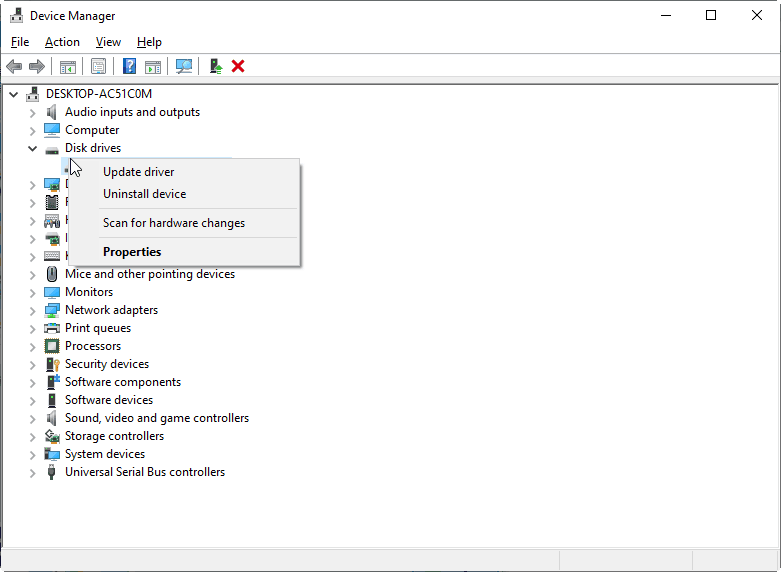
Step 1. Press “Win + X” and select “Device Manager” to open it.
Step 2. Go to Disk drives and right-click on your dead hard drive. Then, select “Update driver” or “Uninstall driver” based on your needs.
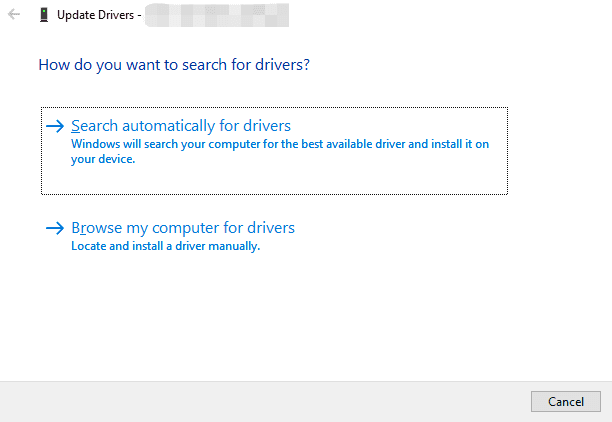
Step 3. Click the “Search automatically for drivers” button. Follow on-screen instructions.
Fix 3. Update BIOS/UEFI to recognize your drive
BIOS/UEFI is the software that is built into the computer’s motherboard to communicate with your drive. Please keep your BIOS/UEFI settings be the latest version.
Step 1. Press “Win + I” to open Windows Settings and click the “Update & Security” button.
Step 2. Click “Recovery” on the left. Under the “Advanced startup” tab, click the “Restart now” button.
Step 3. Your PC will reboot into the Windows recovery environment. Then click Troubleshoot > Advanced options >“UEFI Firmware Settings”.
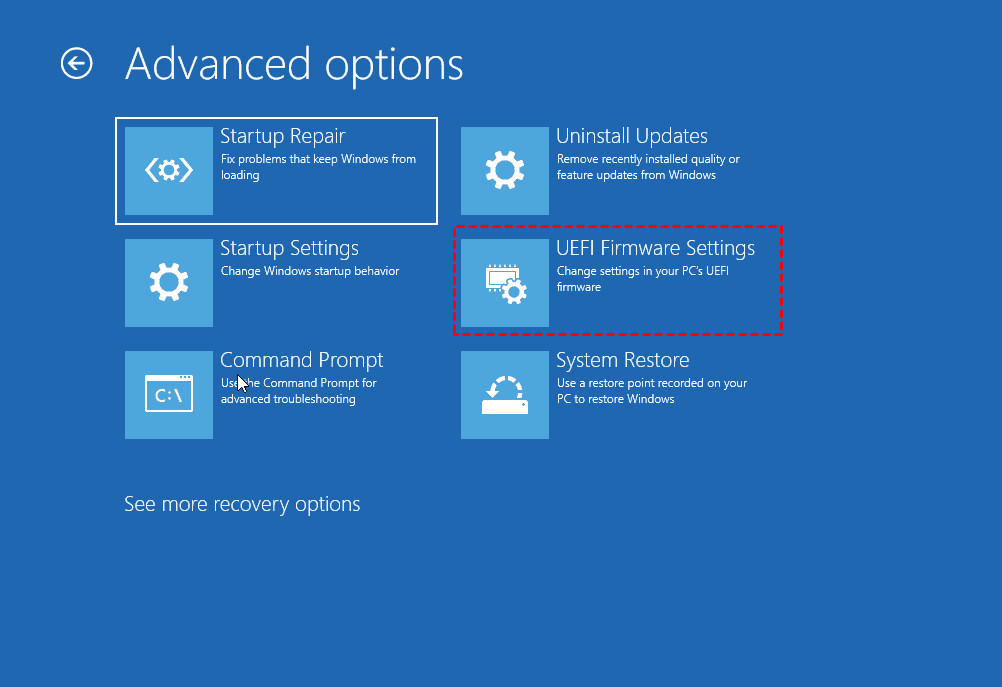
Step 4. Click “Restart” to boot into BIOS.
Step 5. After entering the BIOS, choose the BIOS update file from your USB drive. Please wait patiently during the BIOS update process. Then, confirm if your drive is recognized in Disk Management.
Conclusion
How to perform a dead hard drive recovery? After figuring out possible reasons and main symptoms of dead hard drives, you can refer to a more targeted fix to recover data from broken hard drives and even repair some of the drive’s issues. If all else fails, professional recovery services are always an option.

 as a preferred
source on Google
as a preferred
source on Google