




Windows 11 External Hard Drive Not Showing up? Try These 5 Fixes
This guide covers 5 practical fixes for external hard drive not showing up in Windows 11. Plus, a reliable recovery software if your data gets lost in the process.

By Ivy Updated on June 30, 2026


Why is external hard drive not showing up in Windows 11?
You plug in your external hard drive, open File Explorer, and wait. Nothing. No drive. No pop‑up. Just silence.
It's a moment of panic, especially if you need those files right away.
"Windows 11 external hard drive not showing up" is one of the most common issues users face. And while it can feel like a hardware failure, it's often fixable. Usually, the culprit is something simpler than you think:
-
faulty USB port
-
uninitialized drive
-
outdated driver
-
missing drive letter
And a few other common causes… Let's walk through each one and get your drive back on screen.
Solved: Windows 11 external hard drive not showing up
Thus, how to solve external hard drive not showing up in Windows 11? Try the following methods to let it visible normally in Windows Explorer.
| Fix 1. Check the USB port |
| Fix 2. Initialize external hard drive |
| Fix 3. Update disk driver |
| Fix 4. Assign a new drive letter |
| Fix 5. Format external hard drive |
Fix 1. Check the USB port
The most basic solution to the Windows 11 external drive not showing up issue is to check if there are errors on the USB port connection.
You can try to plug your external hard drive into another USB port on the computer to see if the external hard drive can show up in Windows 11 normally.
Fix 2. Initialize external hard drive
Sometimes, your external drive not showing up in Windows 11 because it is new and has not been initialized. So, please initialize your new external hard drive before you begin using it.
1. Press the Windows and R keys on your keyboard. Input diskmgmt.msc to run Disk Management.
2. Right-click on your external hard drive and choose the Initialize Disk option. Set MBR or GPT as the partition style.
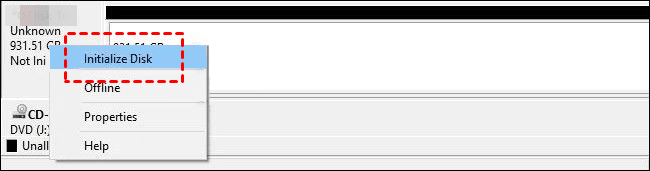
Then, you can right-click on it to choose New Simple Volume to create a partition on the external hard drive to use it.
Fix 3. Update disk driver
An outdated external hard drive driver is a common cause of Windows 11 external hard drive not showing up. Please keep the driver updated by following the steps here.
1. Right-click on the Start menu on your computer to choose Device Manager.
2. Under the Disk drivers tab, right-click on your external hard drive and choose the Update driver option.
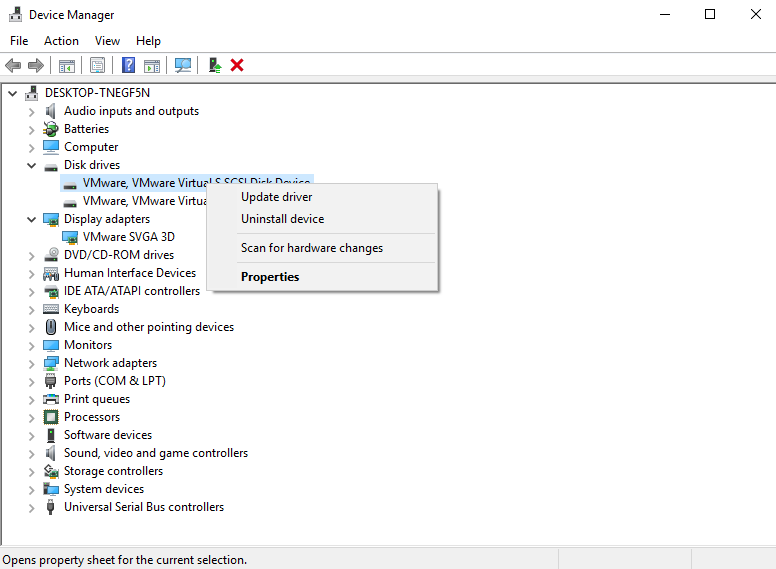
3. Next, click Search automatically for drivers. Your Windows computer will choose the most suitable driver to install.
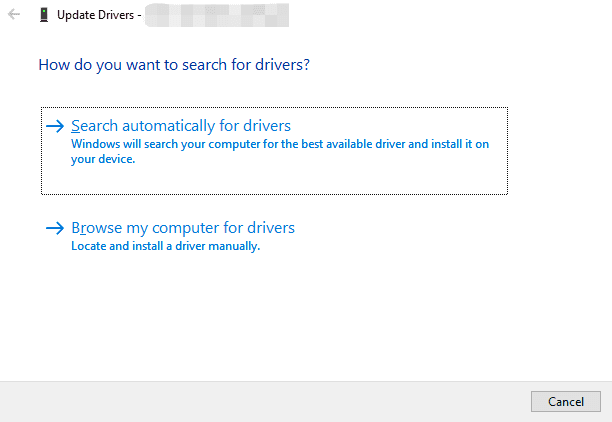
If updating the driver cannot solve your problem, you can choose Uninstall Device.
Fix 4. Assign a new drive letter
You may meet USB not recognized or external hard drive not showing up in Windows 11 and there is an asterisk next to your external hard drive in Disk Management. You can assign a drive letter to your external hard drive to solve this issue.
1. Go to the Disk Management page. Find your external hard drive and right-click on it to select Change Drive Letter and Paths....
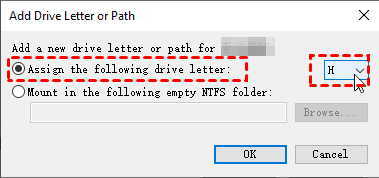
2. If there is no drive letter, choose Add. If there was a drive letter before, select Change. Now you can choose a letter from A to Z as you like. Then press OK.
Fix 5. Format external hard drive
The file system on your external hard drive may be incompatible with Windows 11. For this, you can format the external hard drive. Likewise, you can go to Disk Management to format your external hard drive there.
1. Run Disk Management from the Start menu.
2. Find your external hard drive and right-click on it to choose Format.
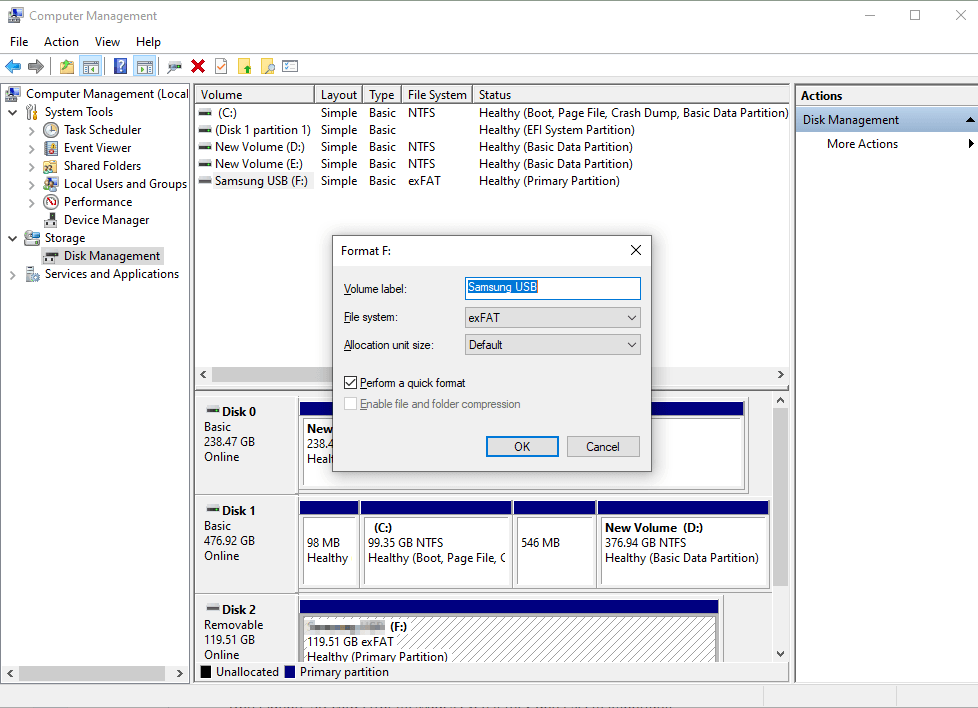
3. Choose a file system that is supported in Windows 11, then click OK to format your external hard drive now.
Drive Fixed? Recover Your Lost Data Now
While working through the fixes above, you might run into another problem: data loss. If your external hard drive is now visible but files are missing, don't panic, there's still a way to get them back.
AOMEI FastRecovery is a professional data recovery tool built for exactly this situation. It can recover lost data from external drives in Windows 11, whether due to accidental deletion, formatting, system crash, etc.
 AOMEI FastRecovery
- Dual-scan modes: Integrate Quick Scan and Deep Scan to scan hard drive for deleted files, ensuring a high success rate.
- 1000+ data types: Recover deleted or lost documents (TXT, DOC, XLSX, CSV), images (JPG, PNG, TIF, HEIC, GIF), videos (MP4, MOV, AVI, ASF, WMV), and more.
- Find your files fast: Browse by type or path, and sort, search, filter, and preview deleted files.
- Versatile: Works seamlessly with different types of external hard drives, such as SanDisk, Samsung, WD, etc.
- Free to try: The free edition can recover data up to 500MB – no commitment required.
- Safe & easy to use: Read-only, no data overwriting. simple, intuitve interface.
 100% Secure
Step 1. Connect your external hard drive to your computer and click Deleted Files Recovery after launching AOMEI FastRecovery.

Step 2. Hover the mouse over the drive and click Scan.
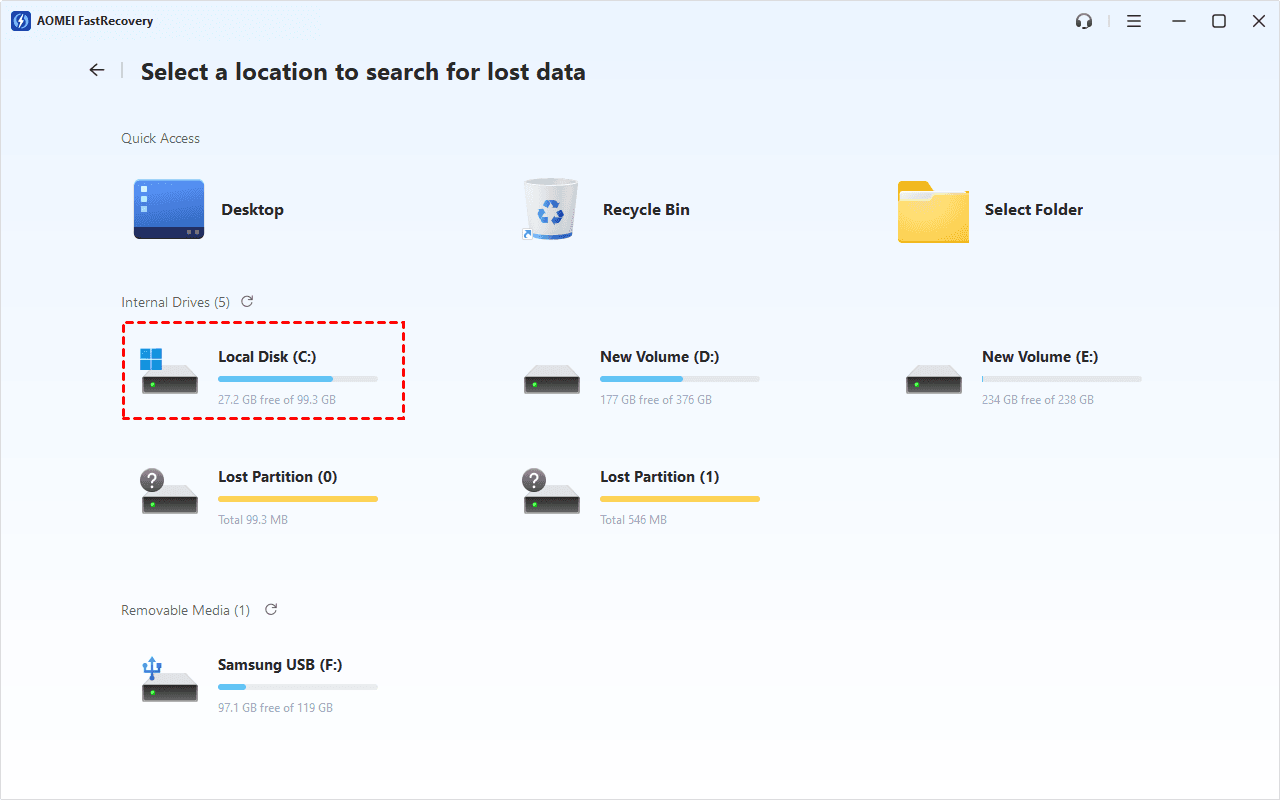
Step 3. It will automatically start a quick scanning process. Wait, and in the scanning result window, check the specific data type and formats to recover. Just click Recover to get your data back quickly.
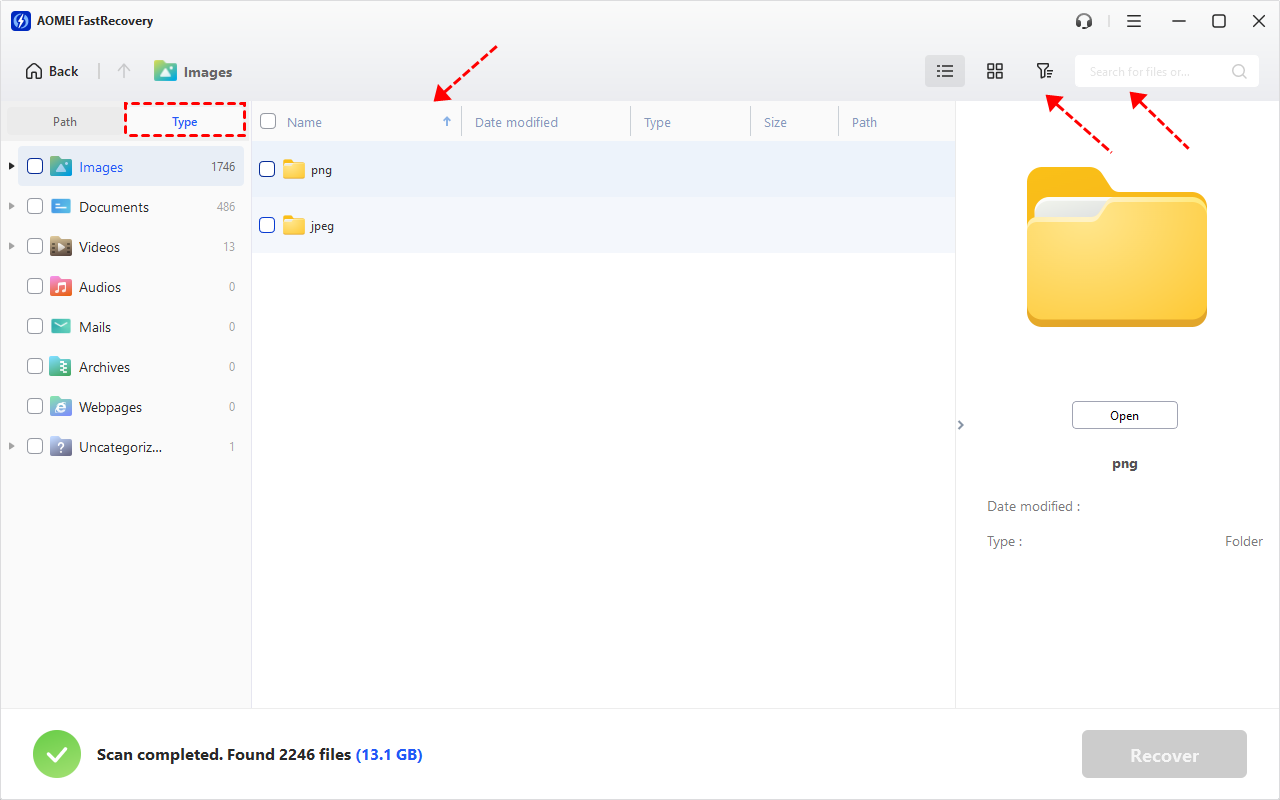
You can also expand to check Deleted Files, Recycle Bin, or Existing Files for specific files. To find files quickly, combine the following options:
-
Sort files by name, date modified, type, etc., using the column headers.
-
For faster searching, type the file name or extension in the search box.
- Or click the funnel-shaped button to narrow your search by type or size, especially useful for large deleted files.
To sum up
Windows 11 external hard drive not showing up is a common issue in Windows 11. We conclude some efficient solutions on this page. In addition, we introduce a professional data recovery tool and it can help you recover deleted files from external hard drive in any situation.
FAQs
1. Why is my external hard drive not showing up?
If your computer doesn't recognize the drive, try a different cable and USB port to rule out a connection issue. If your external drive has LEDs, they may also quickly indicate that the connection and power supply are working properly.
2. How do I force my computer to recognize an external hard drive?
Make sure it's plugged in and turned on. Restart your computer. Try a different cable, port, or PC. Update your drivers. Activate and format the drive in Disk Management. Clean the disk and start over. Remove the bare drive and test it.
3. Does Windows 11 support external hard drive?
To read an external hard drive on Windows 11, you need to connect it to your computer using a USB cable. Once connected, you can access it by going to My Computer or This PC and double-clicking the drive.

 as a preferred
source on Google
as a preferred
source on Google