




How to Recover Files Lost in Cut and Paste: 5 Proven Ways
Lost files during a cut-and-paste operation? Learn 5 practical recovery methods to get your documents, photos, and other important data back.

By Lily Updated on October 28, 2026


Can Cut and Paste Files Be Recovered?
Yes, files lost during a cut-and-paste operation can often be recovered. However, the outcome depends on what happened during the transfer, where the files were stored, and whether the original data has been overwritten.
When you cut files in Windows, they are not necessarily deleted immediately. The files generally remain in their original location until the move operation completes. If the process is interrupted by a system crash, power failure, connection problem, or accidental action, the files may appear to be missing from both the source and destination folders.
How to Recover Files Lost During Cut and Paste
Try the following five methods in order. Start with simple ways to locate or restore your files before moving on to data recovery software.
Method 1: Undo the File Move
If you have just moved files in File Explorer and have not performed other file operations since then, you may be able to undo the move.
Step 1. Press Ctrl + Z immediately after moving the files.

Step 2. Check the original folder to see whether the files have returned.
💡 Notes:
- To revert a file move, you can also right-click on an empty area of the File Explorer background (or the desktop) and select Undo Move.
- Undo may not be available after closing or restarting File Explorer, performing other operations, or moving files through certain applications. If the transfer is still running, wait for it to finish or fail before attempting to undo it.
Method 2: Search for the Missing Files
Your files may have been moved successfully but placed in a different folder than expected. Windows Search can help you locate them.
Step 1. Open File Explorer by pressing Win + E.
Step 2. Select This PC in the left pane to search across accessible drives, or choose the drive where you think the files were moved.
Step 3. Enter the file name or part of the name in the search box. If you cannot remember the name, search for a file extension such as .docx, .jpg, .xlsx, or .pdf.
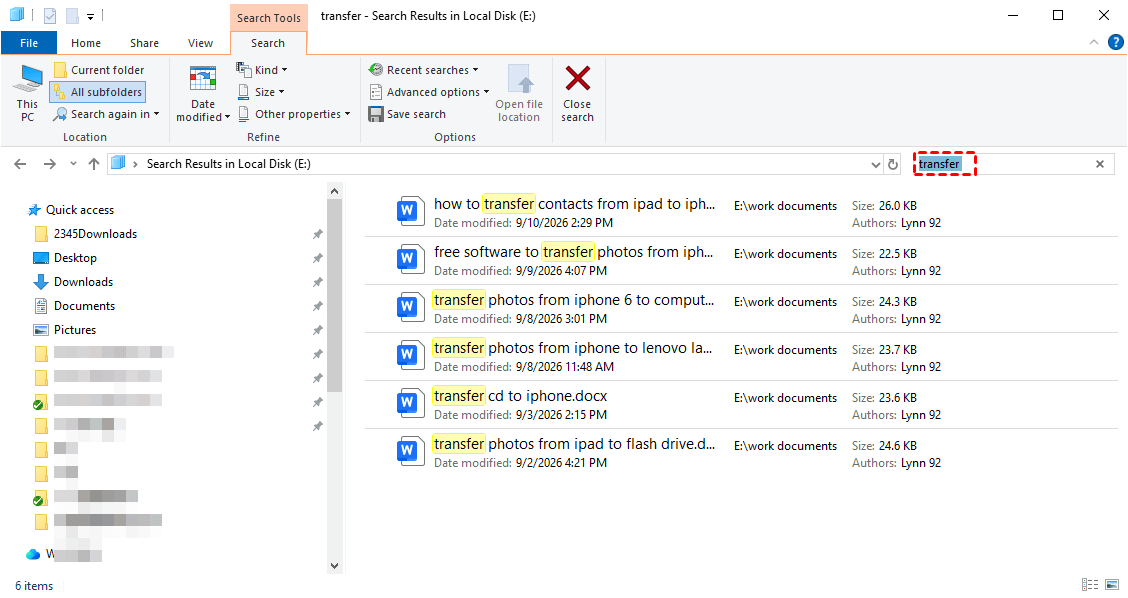
Step 4. Wait for the search to finish. If the files appear, right-click one and select Open file location to find its folder.
Step 5. If you still cannot find the files, check the source and destination folders manually. Also inspect the Recycle Bin in case the files were deleted rather than moved.
💡 Note: If the destination was an external drive or USB device, make sure it is connected and recognized by Windows before searching it.
Method 3: Show Hidden Files
Files may still exist on the drive but be hidden because of file attributes or folder settings. You can enable hidden-item display to check.
Step 1. Open File Explorer and click View. Then show hidden files depending on your Windows version.
- In Windows 10, check the box for Hidden items.
- In Windows 11, hover over Show, then clickHidden itemsto toggle it on.
Step 2. If the file still doesn't appear, access Folder Options for more control.
- In File Explorer Windows 10, click View→Options.
- In File Explorer Windows 11, click the three-dot menu →Options.
Step 3. Select the View tab and enable Show hidden files, folders, and drives. Click Apply and then OK.
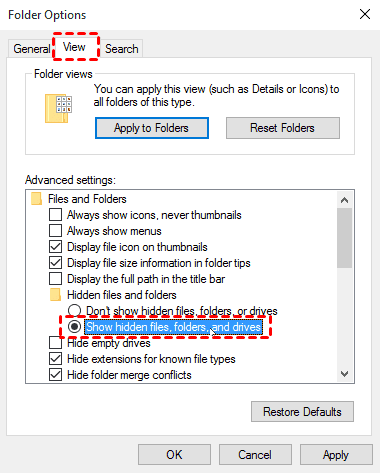
Step 4. Check whether the missing files or folders appear.
Method 4: Recover Files Lost in Cut and Paste via Data Recovery Software
If the previous methods do not work, data recovery software may help retrieve files that became inaccessible or were deleted during the transfer. AOMEI FastRecovery can scan supported storage devices for recoverable files, including documents, photos, videos, and other file types.
 AOMEI FastRecovery
- Use Quick Scan and Deep Scan to search for deleted or lost data.
- Recover documents, photos, videos, compressed files, and other supported file types.
- Search or filter scan results by file name, extension, data type, and other criteria.
- Recover individual files or folders instead of recovering everything.
- Work with common file systems such as NTFS, FAT32, exFAT, and ReFS.
- Provide different recovery scenarios, such as deleted file recovery, Recycle Bin recovery, deleted partition recovery, and recovery from USB or SD cards.
 100% Secure
Follow the instructions below to recover files lost during cut and paste with AOMEI FastRecovery:
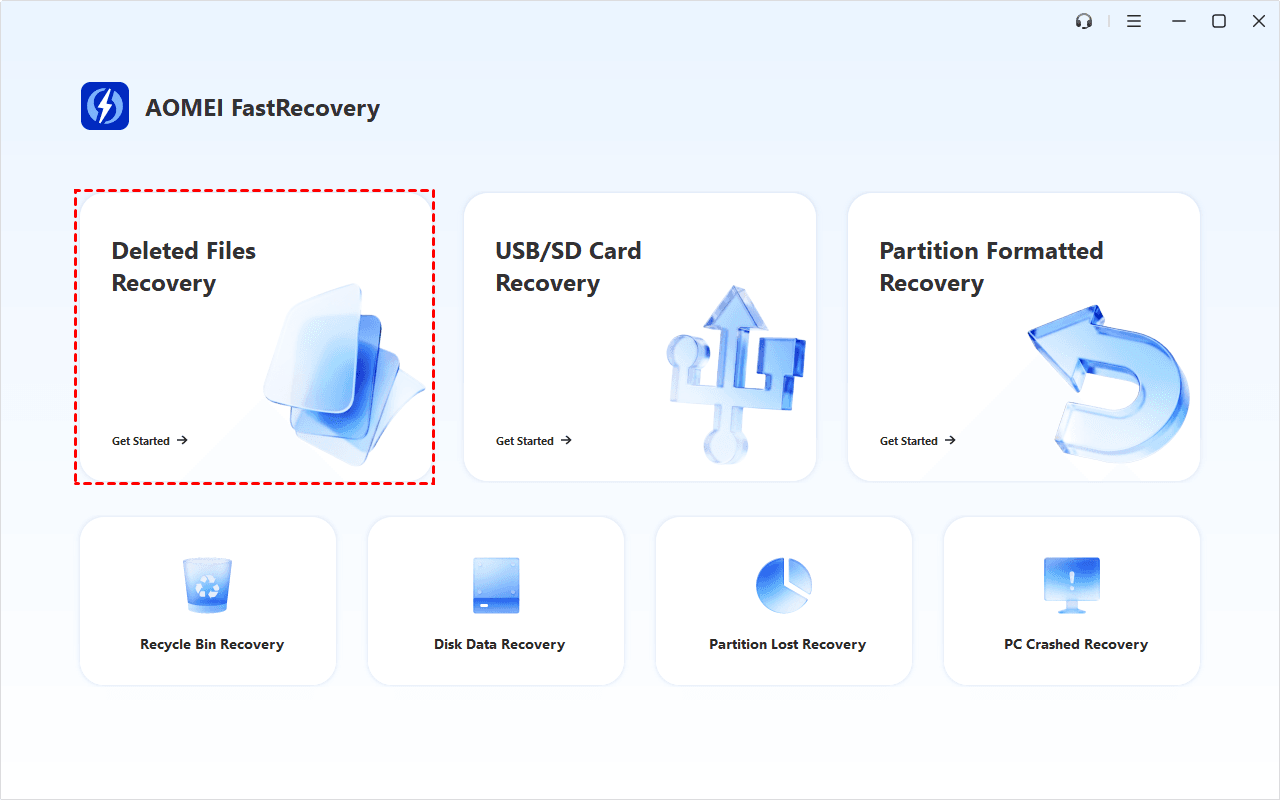
Step 1. Download and install AOMEI FastRecovery on a drive that is different from the affected drive. Launch the software and select Deleted Files Recovery.
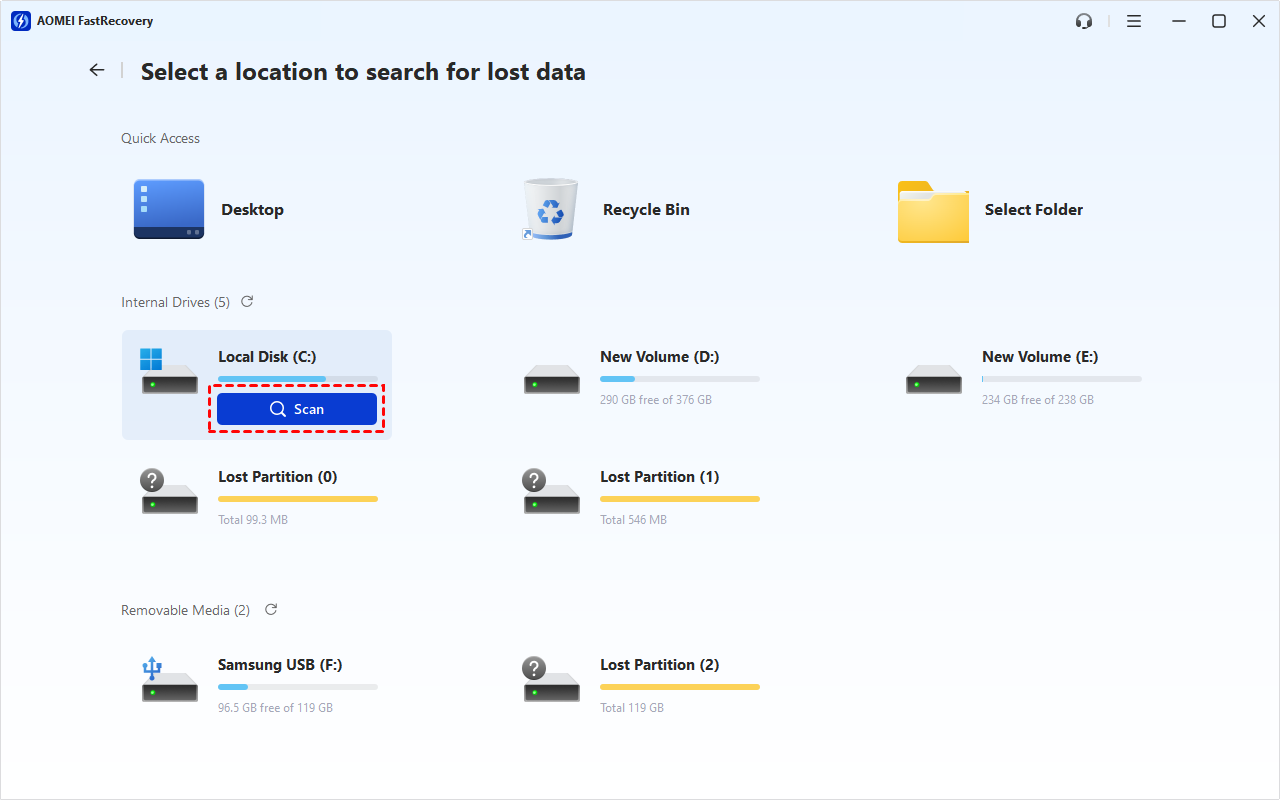
Step 2. Point to the drive where the files were originally stored or where they disappeared. Click Scan to find recoverable files.
Step 3. After the scan finishes, browse the results by Path or Type (default). You can also use Sort, Search, Filter, and Preview to narrow down the results.
- Sort: Arrange files by name, modification date, type, or other available criteria.
- Search: Enter the original file name or extension, such as .docx, in the search box.
- Filter: Select a data type (e.g., Documents) or specify a suitable file size (e.g., 512KB~10MB).
- Preview: Check supported files before recovering them. Please upgrade to enjoy this feature.
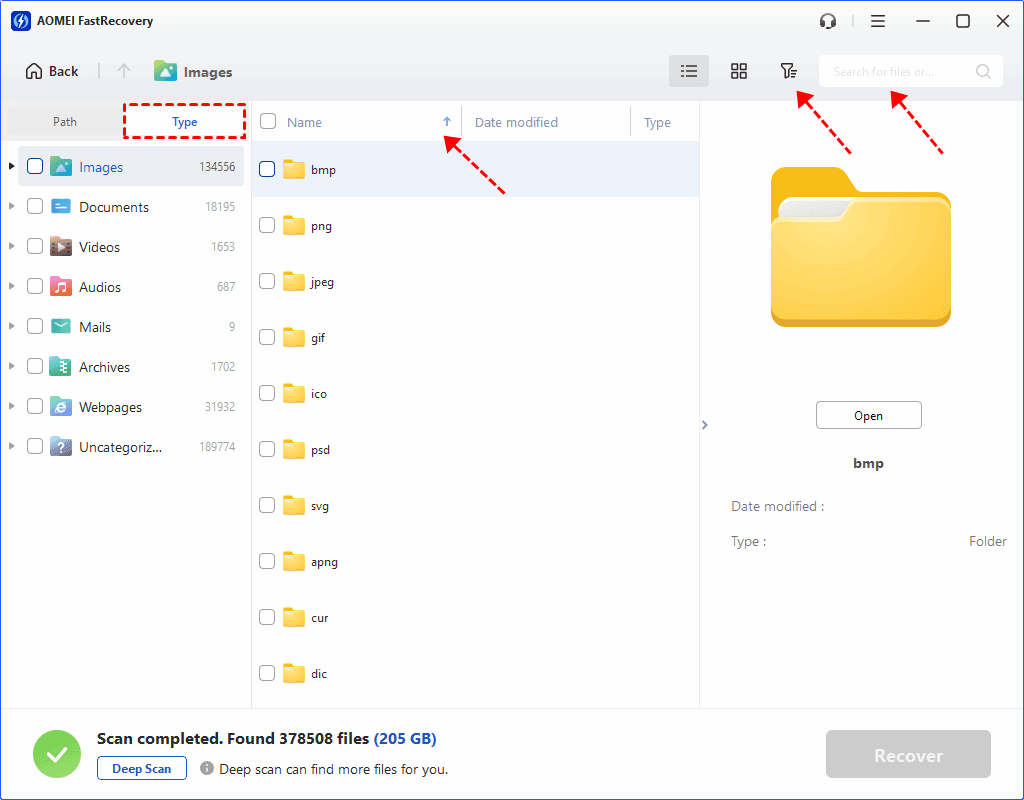
💡 Note: If the missing files don’t appear after Quick Scan, click the Deep Scan button at the bottom left to perform a more thorough search.
Step 4. Select the files you want to recover and click Recover. Choose a different drive or storage location to save the recovered files.
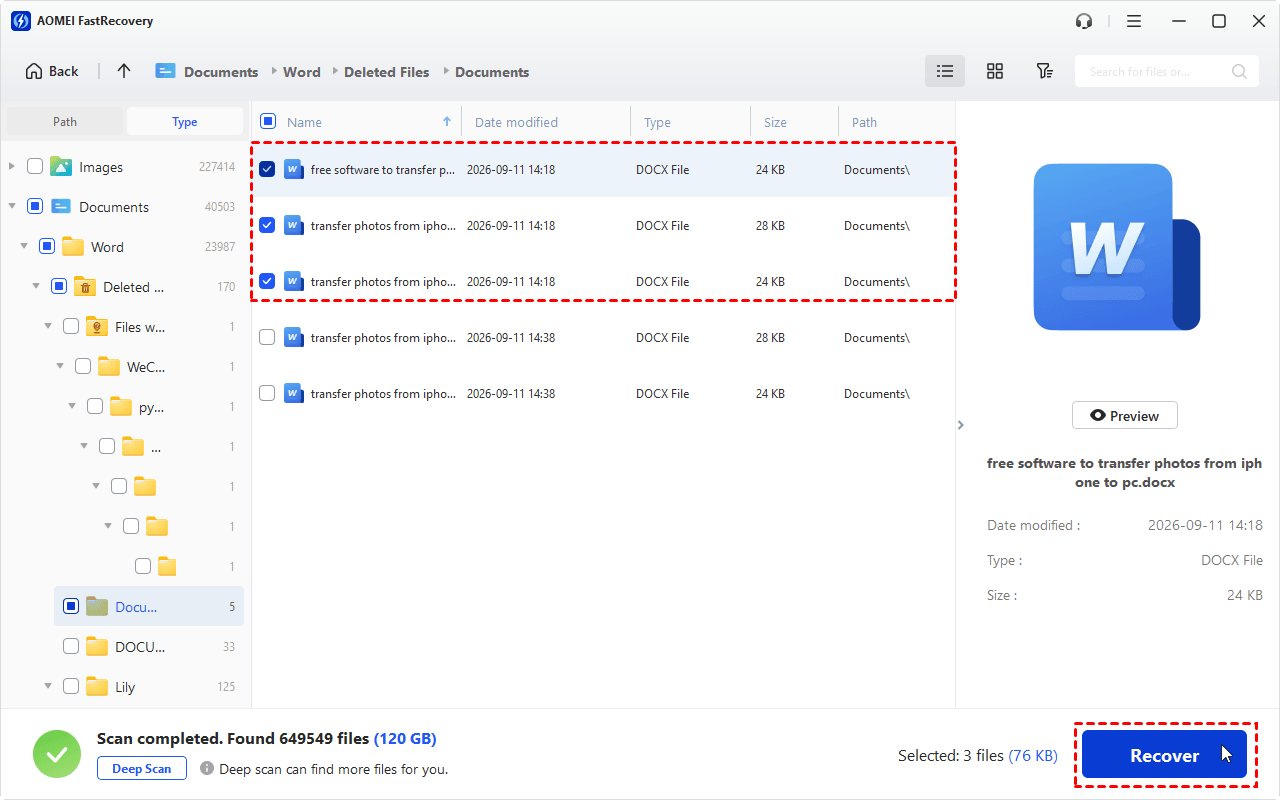
Step 5. Open the destination folder and check whether the recovered files can be accessed.
💡 Note: Recovery is not guaranteed. The chances depend on the storage device, the cause of the loss, and whether the data has been overwritten. If the affected drive is failing or making unusual noises, stop using it and consider professional data recovery assistance.
Method 5: Recover Cut and Paste Files Using File History
If File History was enabled and had backed up the relevant folders before the files disappeared, you may be able to restore an earlier copy.
Step 1. Connect the external drive or other storage location used for your File History backups, if applicable.
Step 2. Open Control Panel and navigate to System and Security > File History.
Step 3. Select Restore personal files.
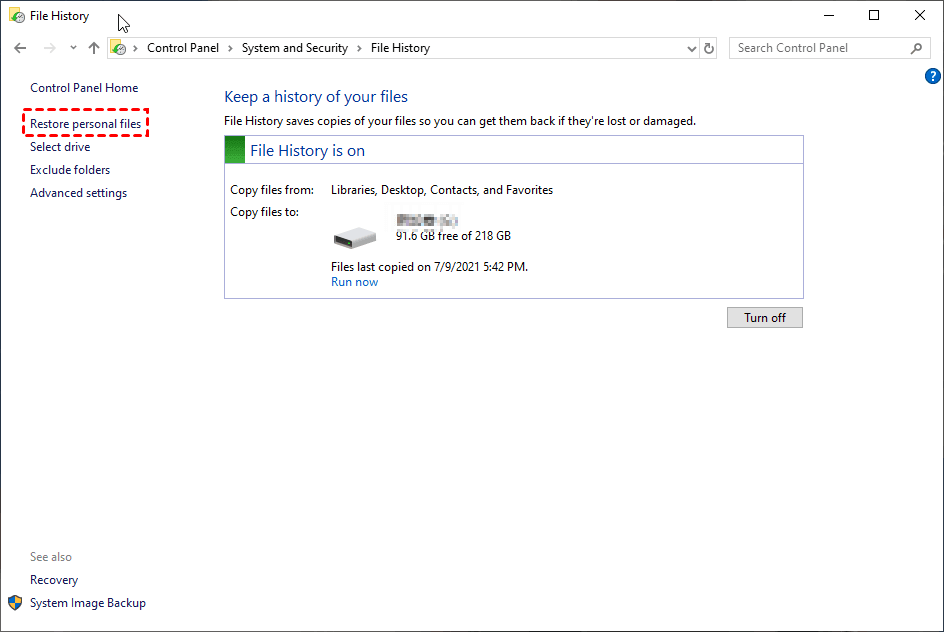
Step 4. Browse the available backup versions to find the folder or files you want to recover. Use the navigation controls to select an earlier version if necessary.
Step 5. Select the files or folders and click the Restore button. Then open the restored files in the original location and verify that their contents are intact.
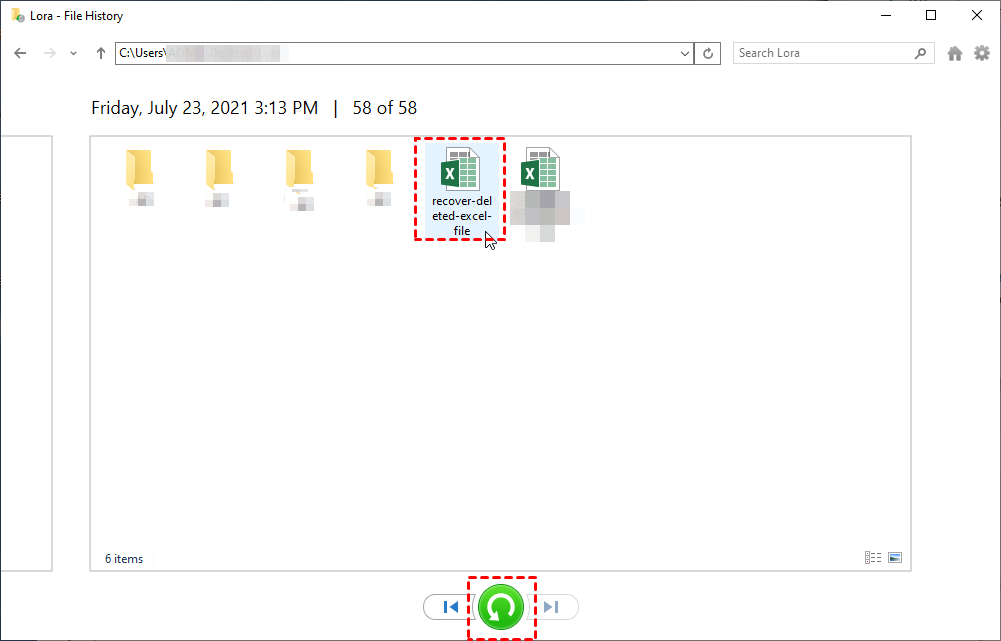
💡 Note: If you want to avoid overwriting existing files, click the gear icon in the upper-right corner and select Restore to to specify a different destination location.
How to Prevent File Loss During Cut and Paste
You can reduce the risk of losing files during future transfers with a few precautions:
- Copy important files first: Use copy and paste instead of cut and paste when moving valuable data. After verifying the copied files, delete the originals if you no longer need them.
- Wait for the transfer to finish: Do not shut down your computer or disconnect the storage device while files are being transferred.
- Check the destination: Open the destination folder and confirm that the files are complete and accessible before removing the source copies.
- Keep regular backups: Use File History, Windows backup options, or reliable backup software to maintain another copy of important data.
- Check storage-device health: Replace unreliable USB drives, SD cards, and external hard drives, and safely eject removable storage after transfers finish.
- Avoid interrupting large transfers: For very large folders, transfer files in smaller batches when practical, especially when using an unstable connection.
- Maintain multiple copies of critical files: Keep another copy on a separate physical drive or in a trusted cloud storage service.
The most important precaution is to maintain a backup. File recovery tools can help after data loss, but a verified backup is usually the most dependable way to restore important files.
FAQs About Cut and Paste Data Recovery
1. Where do files go when cut and paste fails?
They may remain in the original folder, be partially transferred, or have been moved to an unexpected destination. In some cases, a failed operation or storage-device error can make the files inaccessible. Check both the source and destination locations before attempting more advanced recovery.
2. Can I recover files lost during cut and paste without software?
Yes, in some cases. Try Ctrl + Z, search for the files in File Explorer, show hidden items, and check the Recycle Bin. If you previously enabled File History or another backup service, restore an earlier copy. If these methods fail, data recovery software may be worth trying.
3. Can I recover cut-and-paste files from a USB drive or SD card?
Often, recovery is possible if the data has not been overwritten and the device is still readable. Stop writing new data to the device, connect it properly, and scan it with a suitable recovery tool. Save any recovered files to a different physical drive.
Conclusion
This article offers you 5 effective methods to recover files lost in cut and paste. Start by undoing the move, searching your folders, and checking whether the files are hidden. If those options fail, try AOMEI FastRecovery to scan the affected drive for recoverable files, or use File History if a suitable backup exists.
Besides recovering files after accidental deletion, AOMEI FastRecovery can also help you recover data from an SD card after format. Don’t hesitate to try it out!

 as a preferred
source on Google