




How to Recover Files from a Toshiba External Hard Drive
You can recover files from Toshiba external hard drive storage through a software scan or an existing backup. Start with your drive’s condition, then choose a method that fits how the files disappeared.

By Ivy Updated on October 19, 2026


Your Toshiba external hard drive still opens, but the folder holding your photos or documents is gone. Accidental deletion is a common recovery situation, and many people discover they have no backup.
To recover files from Toshiba external hard drive, stop saving anything to the disk first. AOMEI FastRecovery can scan a recognized drive for deleted files. An existing backup offers another option, while Windows File Recovery provides a free command-line alternative.
Your next step depends on what happened. A deleted folder, a formatted drive, and a clicking hard disk need different handling.
Choose a Method That Matches Your Situation
Your missing files may still have an accessible copy. Check the Recycle Bin for recognizable filenames before scanning. Whether they show up there depends on the drive and how the files were deleted, so an empty Recycle Bin doesn't rule out recovery.
Your situation determines which method you should use:
| 🧩 Your situation | ✅ What to choose | 📌Key point |
|---|---|---|
| You deleted files from a drive that remains readable | Method 1: AOMEI FastRecovery | Save recovered files to another drive |
| You prefer a free command-line tool | Method 2: Windows File Recovery | Match the scan mode to the file system |
| File History previously protected missing folders | Method 3: File History | A version from before deletion must exist |
| A Windows backup contains missing files | Method 4: Backup and Restore (Windows 7) | The backup must include the Toshiba files |
Your files may also be hidden or moved rather than deleted. If you do not remember deleting anything, check: files disappeared from external hard drive.
Your drive needs different handling if it clicks, repeatedly disconnects, or no longer appears in a computer. Stop repeated recovery attempts and consider professional assessment. Do not format or initialize it to make recovery software recognize it.
Method 1: Recover Files from Toshiba External Hard Drive with AOMEI FastRecovery
👍 Best for: You deleted files from a recognizable Toshiba external hard drive and want a graphical recovery workflow.
AOMEI FastRecovery is easy-to-use Toshiba external hard drive recovery software that can retrieve deleted photos, documents, videos, etc., in Windows 11, 10, 8, 7, and Windows Server. Deleting a file can leave its data on the disk until new writes overwrite it.
 AOMEI FastRecovery
- 🧩 Selective scenarios: Select a recover method based on your scenario, each fit a targeted scanning methods.
- 🔎 Dual Scan Mode: Quick Scan searches for deleted files, with an optional Deep Scan for a more thorough search.
- 📚 1000+ Data Types: Recover deleted files, from documents to images, videos, audios, archive files, and more.
- 📂 Flexible Browsing: Browse by type or path, then combine search, sort, filter, and thumbnail previews to narrow the results.
- 💰 Free Tier: Recover data up to 500MB for free. Need more? Upgrade for unlimited recovery.
 100% Secure
Step 1. Connect the Toshiba external hard drive to your Windows PC. Meanwhile, download and install AOMEI FastRecovery as well. Launch this software and select Deleted Files Recovery. You can also choose Partition Formatted Recovery, Disk Data Recovery, or another suitable method.

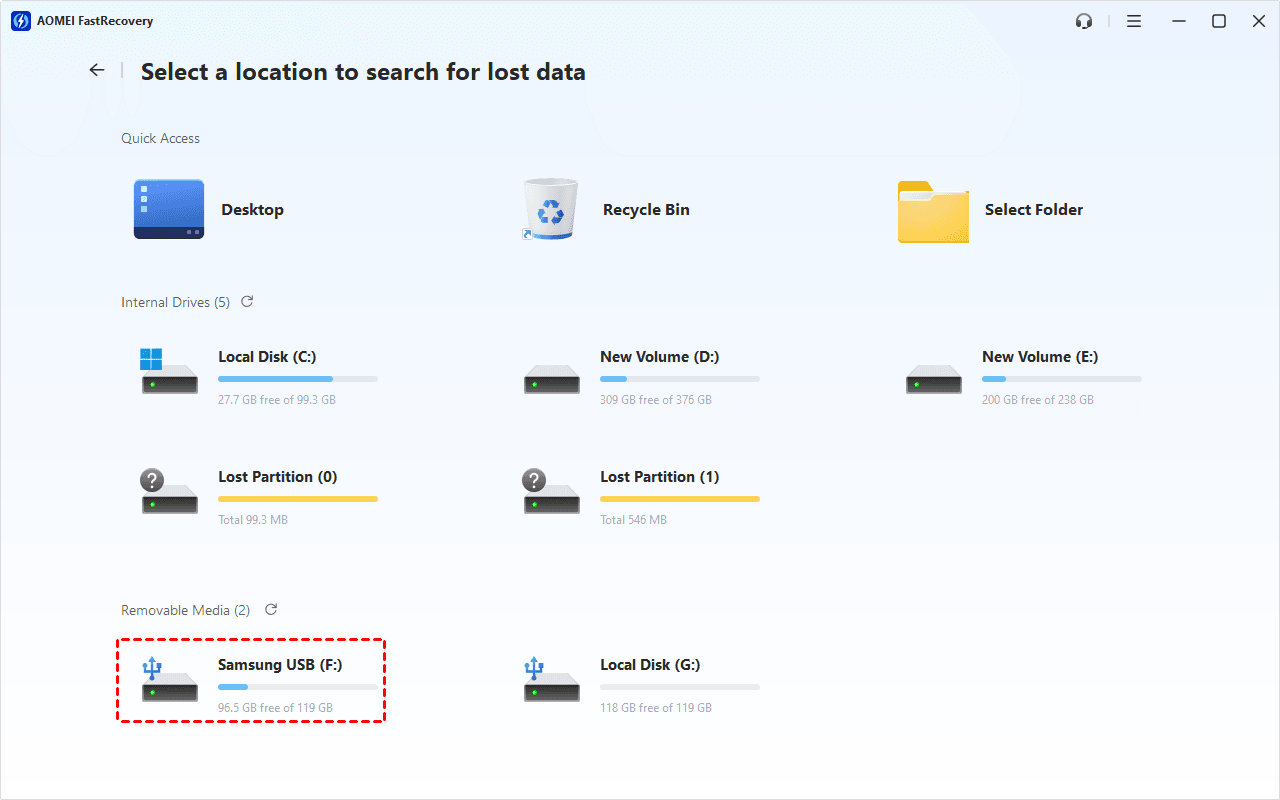
Step 2. Select the Toshiba hard drive, then click Scan. A Quick Scan starts automatically.
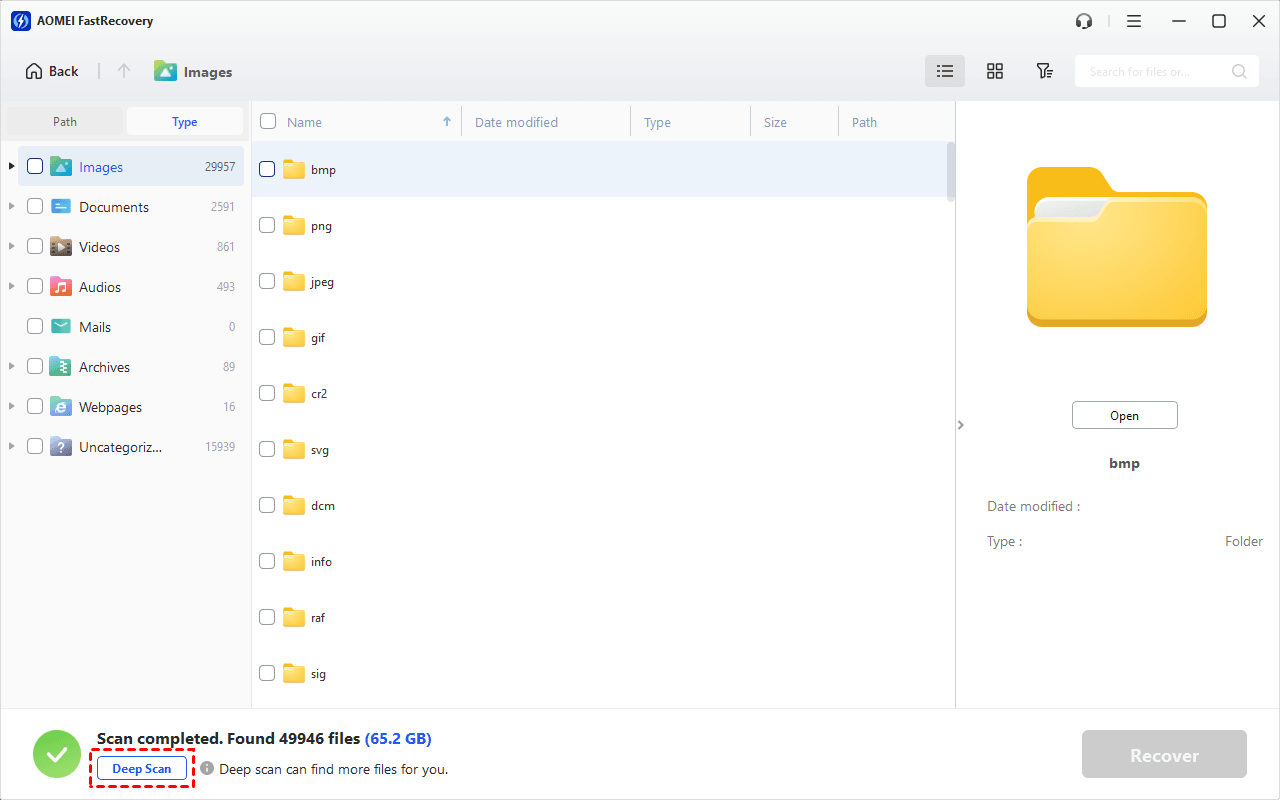
Step 3. Browse Path for the original folder, or use Type to look through data categories. Search for a filename or extension, or sort and filter the results to narrow things down.
Step 4. Select Deep Scan if the required files are missing. This searches more thoroughly and may take longer.
Step 5. Select the files and click Recover. Choose a folder on your PC or another external drive as the destination. Do not save recovered files back onto the Toshiba external drive as it may cause data overwritting.
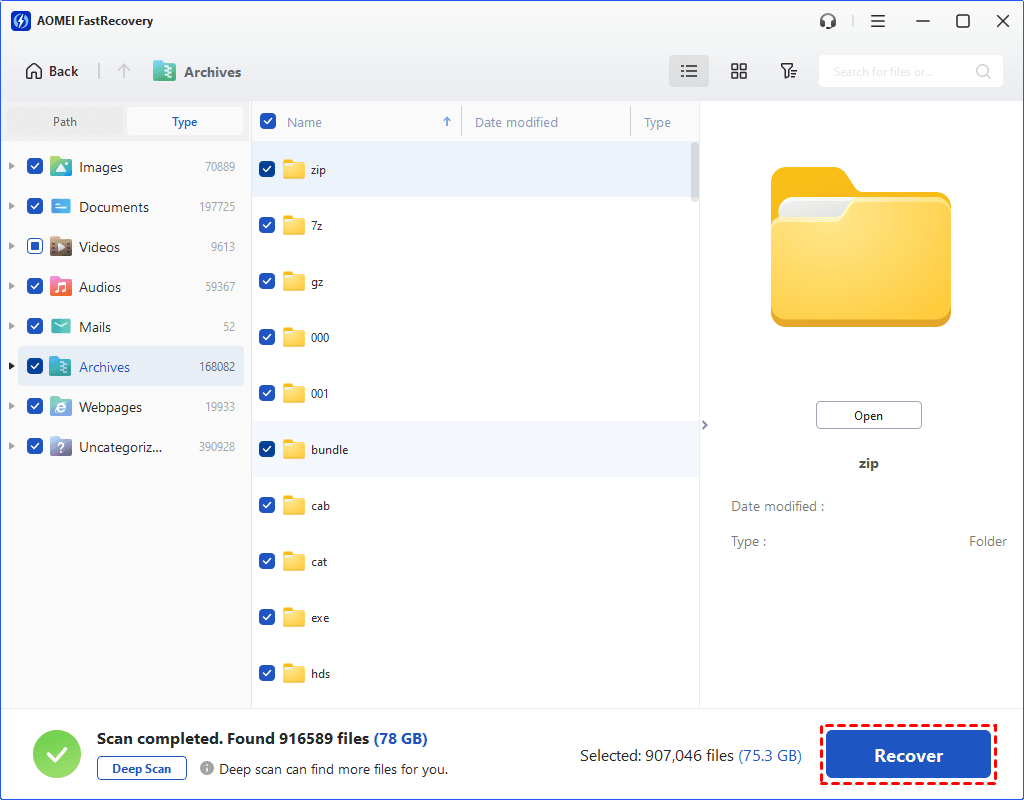
The free edition lets you recover up to 500MB. Recovering more requires an upgraded edition.
Your recovered files should open in their usual applications. Check important documents and play representative videos before considering the recovery as complete.
Method 2: Recover Deleted Files from External Dirve with Windows File Recovery
👍 Best for: You want a free Microsoft recovery tool and are comfortable entering commands.
Windows File Recovery is Microsoft’s command-line application for recovering deleted files from local storage, including external hard drives. You can target particular filenames or extensions instead of recovering every supported file type. Its scan mode depends on the file system and loss situation, so check those details before entering a command.
Step 1. Connect the Toshiba external drive and prepare a different drive as the destination. Install Windows File Recovery from Microsoft Store on your PC, not on the source drive.
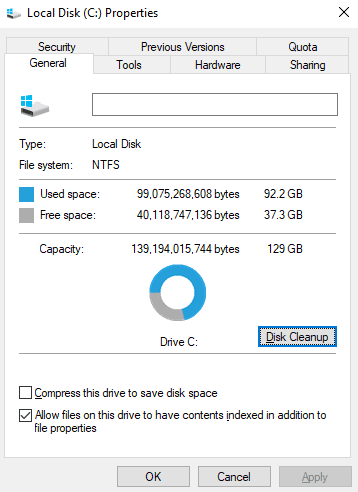
Step 2. Open This PC, right-click the Toshiba drive, and choose Properties. Note its file system and drive letter.
Step 3. Launch Windows File Recovery and approve the administrator prompt. For recently deleted PDFs on a healthy NTFS drive, use:
winfr F: D: /regular /n *.pdf
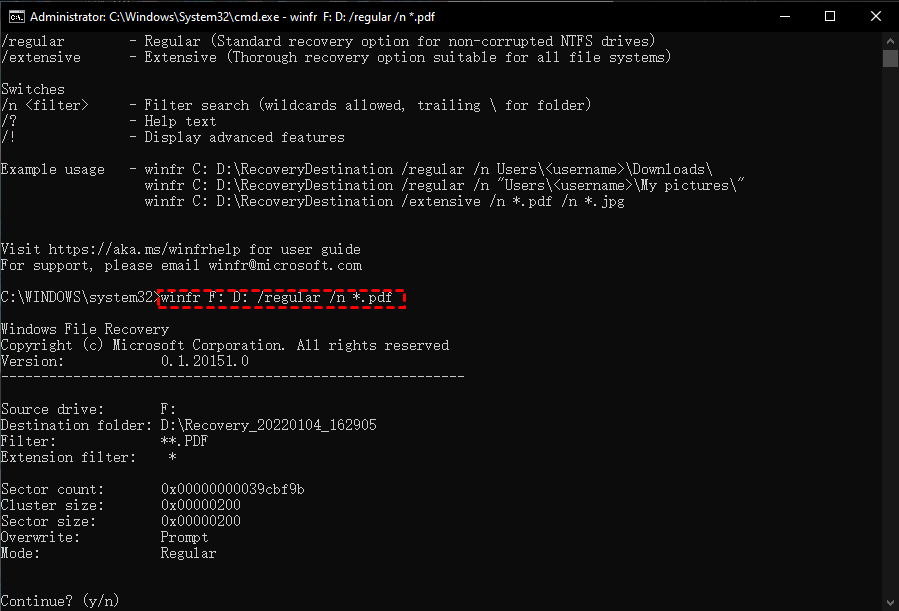
Replace F: with the Toshiba source and D: with your destination. These must be different drives.
Step 4. Use Extensive mode for FAT/exFAT, older NTFS deletions, or an unsuccessful Regular scan:
winfr F: D: /extensive /n *.pdf
Change *.pdf to your required extension.
Step 5. Enter Y when prompted. After completion, check the Recovery_… folder on the destination drive. Your results depend on the remaining file data. A scan cannot guarantee recovery after overwriting.
Method 3: Restore Protected Folders with File History
👍 Best for: File History saved the missing Toshiba folders before deletion.
File History is a Windows backup feature that can restore earlier copies of protected files and folders. It helps you recover files from Toshiba external hard drive only when those source folders were included in a backup before deletion.
Step 1. Connect the Toshiba external drive and the drive containing your File History backup. In File Explorer, right-click the folder containing deleted files and select Restore previous versions. If it was a root folder, right-click the drive itself.
Step 2. Select a saved version from before deletion. Use Open to check its contents.
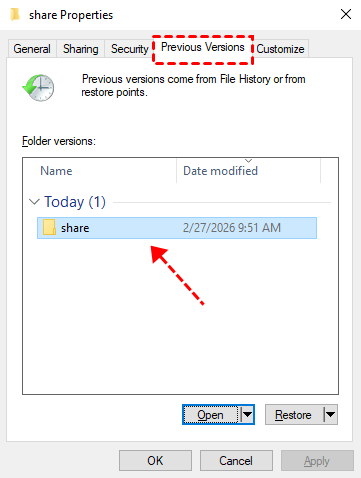
Step 3. Open the arrow beside Restore and choose Restore to…. Select a folder on another drive to keep the restored copy separate.
Your missing files require a saved version containing them. Turning on File History after deletion cannot create that earlier copy.
Method 4: Restore Files from Backup and Restore (Windows 7)
👍 Best for: An existing backup created by Backup and Restore (Windows 7) includes lost data on external drive.
Backup and Restore (Windows 7) is a Windows backup feature that saves copies of your user's folder. So you can easily restore files from an existing backup. Be sure your files on external hard drive are included.
Step 1. Connect the device containing your existing Windows backup. Prepare another drive for the restored files. Open Control Panel and search for backup. Select Backup and Restore (Windows 7).
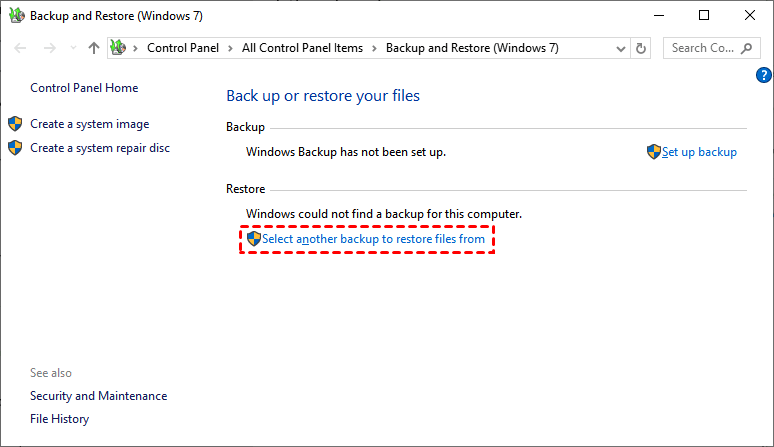
Step 2. Click Select another backup to restore files from. Choose the backup containing your Toshiba files and click Next.
Step 3. Click Search, Browse for files, or Browse for folders to find and select the required files.
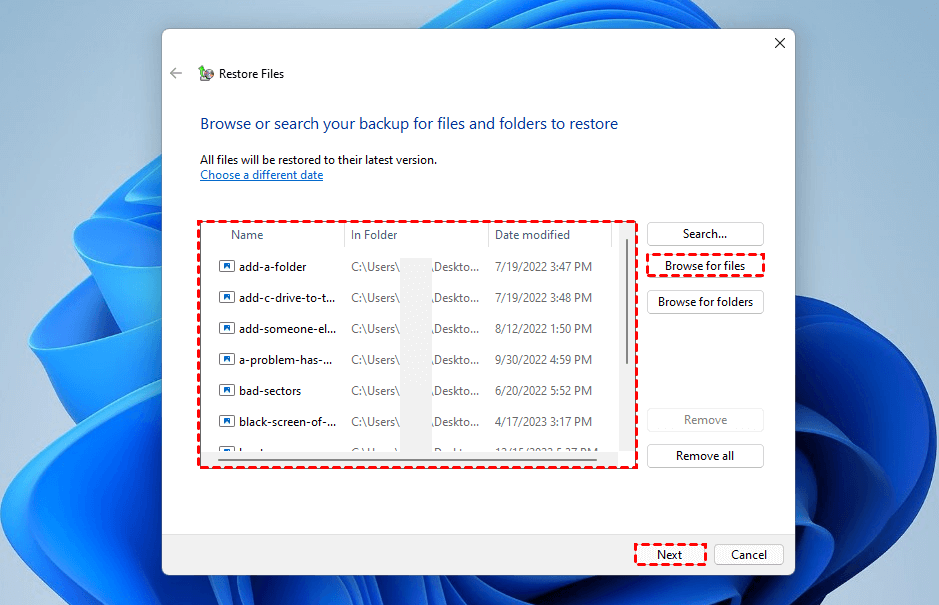
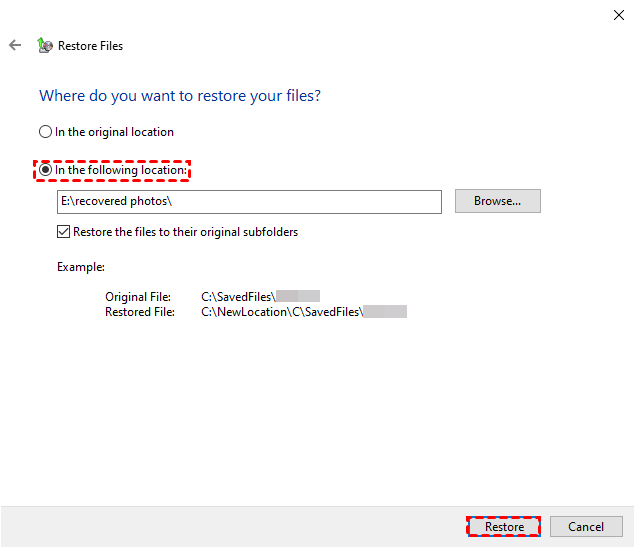
Step 4. Choose In the following location and select your prepared folder. Click Restore, then open the restored files to check them.
FAQs
Can I recover files after formatting my Toshiba drive?
Your files may remain recoverable after a quick format, depending on subsequent writes and the drive’s condition. Stop using the disk and choose a workflow for formatted storage. The Deleted Files Recovery steps above demonstrate ordinary deletion.
Why are my deleted files missing from the Recycle Bin?
Your deletion may have bypassed the bin because of Shift+Delete, drive behavior, or file size. For a size-related deletion message, see how to recover files too large for the Recycle Bin.
What if the entire Toshiba partition disappeared?
Your missing partition needs a separate assessment. Do not create a new volume in its place before recovery. AOMEI FastRecovery helps to recover lost partition on external hard drive, including the data inside it.
Should I run CHKDSK before recovering files?
Your deleted files do not need a file-system repair first. CHKDSK repair options modify the volume, so prioritize recovering important files before considering repairs.
In the End
To recover files from Toshiba external hard drive storage, choose a scan for deleted files or restore a verified backup. For a readable drive with accidental deletions, start with AOMEI FastRecovery and save the results elsewhere. Check the recovered files before putting the Toshiba drive back into everyday use.

 as a preferred
source on Google
as a preferred
source on Google