




How to Recover Duplicate Files Deleted by Accident
Accidentally deleted duplicate files? Don’t worry, this page offers several easy and effective ways to recover duplicate files deleted by accident, including the Recycle Bin, File History, and powerful data recovery software - AOMEI FastRecovery.

By Ivy Updated on May 26, 2026


Accidentally deleted duplicate files while cleaning up your computer? You’re not alone. Many users remove duplicate photos, videos, documents, etc., by mistake and later realize the files are still important. The good news is that accidentally deleted duplicate files can often be recovered before they are overwritten.
In this guide, you’ll learn several proven ways to recover duplicate files deleted by accident quickly and safely, even if they were removed from the Recycle Bin.
Solution 1: Recover deleted duplicate files in the Recycle Bin
In general, accidentally deleted files are stored in the recycle bin until you empty the Recycle Bin. The retention time is 30 days by default. Once exceeded, your files are permanently deleted. So, you need to recover files from recycle bin as soon as possible.
Step 1. Double-click the “Recycle Bin” icon on your desktop.
Step 2. Locate your accidentally deleted files, right-click them, and select the “Restore” option. All deleted files will return to the original location where they were previously saved.

Solution 2: Restore duplicate files deleted by accident from File History
What happens if you empty the recycle bin regularly? The files are deleted again and cannot be found on your computer. Don't worry, it is always possible to restore files from backup. That's where File History (navigating to “Control Panel” > “System and Security” > “File History”) comes in.
File History, a Windows 10 or 11 backup tool, can be used to back up and restore user's folder, including Pictures, Documents, Downloads, etc. It also helps to restore the previous version of files from the original folder.
Step 1. Search for “restore files” in the search box and open “Restore your files with File History”.
Step 2. Check the folder where your deleted files are stored.
Step 3. Click on the green restore button to restore accidentally deleted duplicate files. To select a new path, click the Settings icon and select Restore to.
You can also right-click a blank space on the original folder with deleted files and select “Previous versions”. Depending on the date modified, you can click the “Restore” button to restore duplicate files deleted by accident.
Solution 3: Accidentally recover deleted duplicate files with software
If you are unable to recover duplicate files from the Recycle Bin or File History backup, you can turn to professional data recovery software. AOMEI FastRecovery is one of the leading data recovery software packages due to its core scanning technologies, ease of use, complete suite of recovery features, etc.
AOMEI FastRecovery- It is easy to use, allowing users without technical expertise to recover deleted or lost duplicate files in just a few steps.
- Integrate Quick & Deep Scan to scan the hard drive for all recoverable data, ensuring a high recovery rate.
- Recover deleted or lost images (JPEG, PNG, GIF, SVG), documents (DOC, XLSX, CSV, PPT), audios (MP3, CDA, WAV), videos (MP4, MOV, AVI, ASF, WMV), etc., up to 1000+ data formats.
- Organize and display data by type and path, with options to sort, search, filter, and preview files, making it easier and faster to find files.
- Support internal and external hard disks, memory cards, USB drives, and more, as well as NTFS, FAT32, exFAT, and FAT16 file systems.
- Recover data in the event of accidental deletion, disk formatting, empty the recycle bin, system crash, etc.
 100% Secure
Don't hesitate to download this utility on your Windows 11, 10, 8, 7, or Windows Server! In just 5 steps, you can restore permanently deleted files from Recycle Bin.
Step 1. On your computer, download and install AOMEI FastRecovery. Then, click Deleted Files Recovery.

Step 2. Select the hard drive containing accidentally deleted duplicate files, and click Scan.
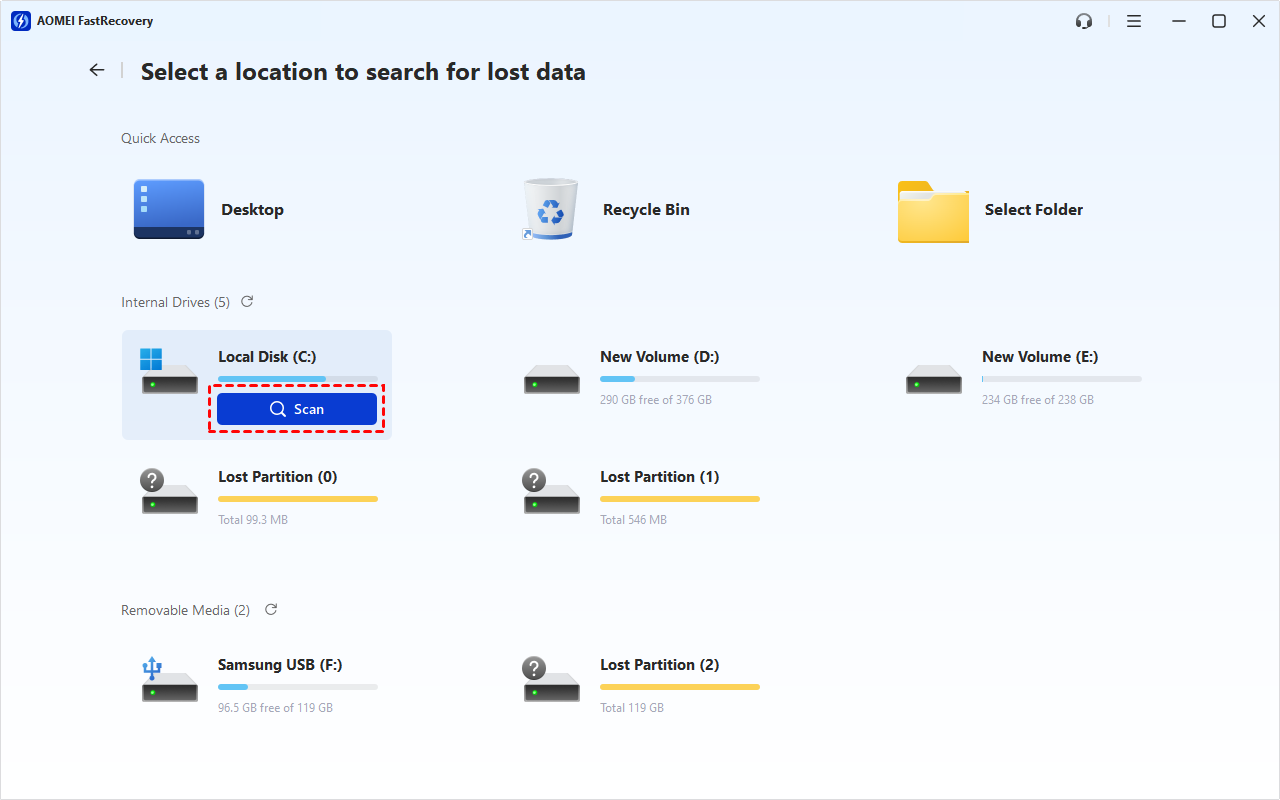
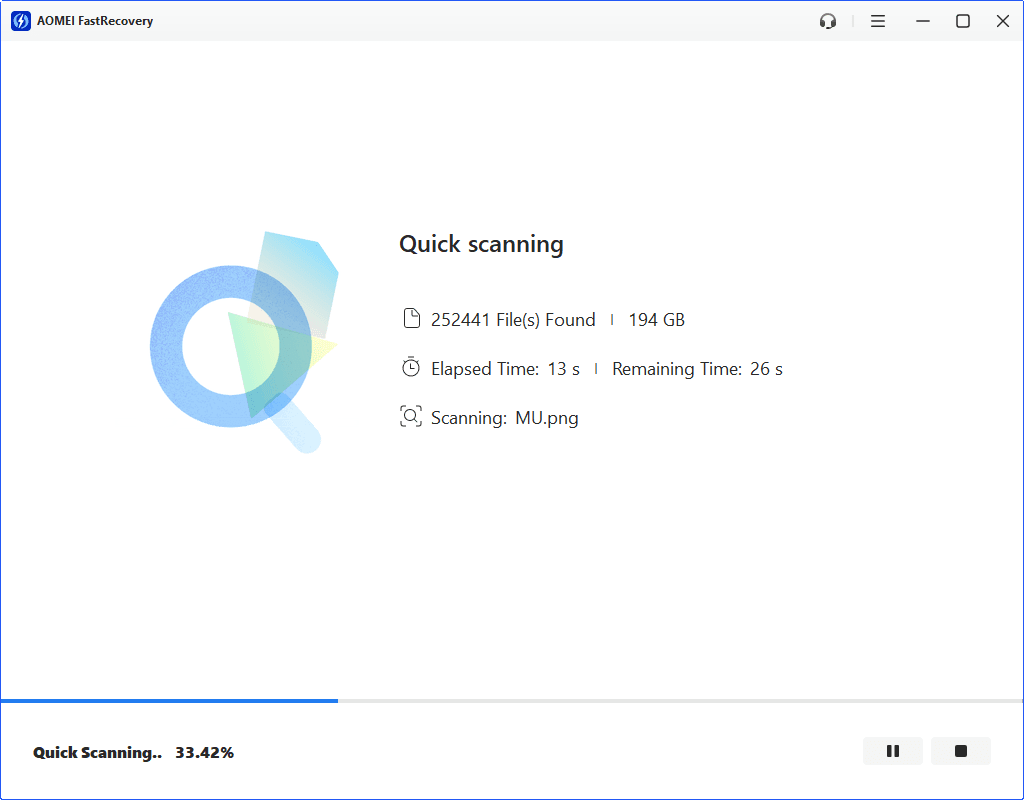
Step 3. It will start the quick scanning process to find all recoverable data. You won't have to wait long. Scan time mainly depends on disk size and health, especially regarding bad sectors or file system corruption.
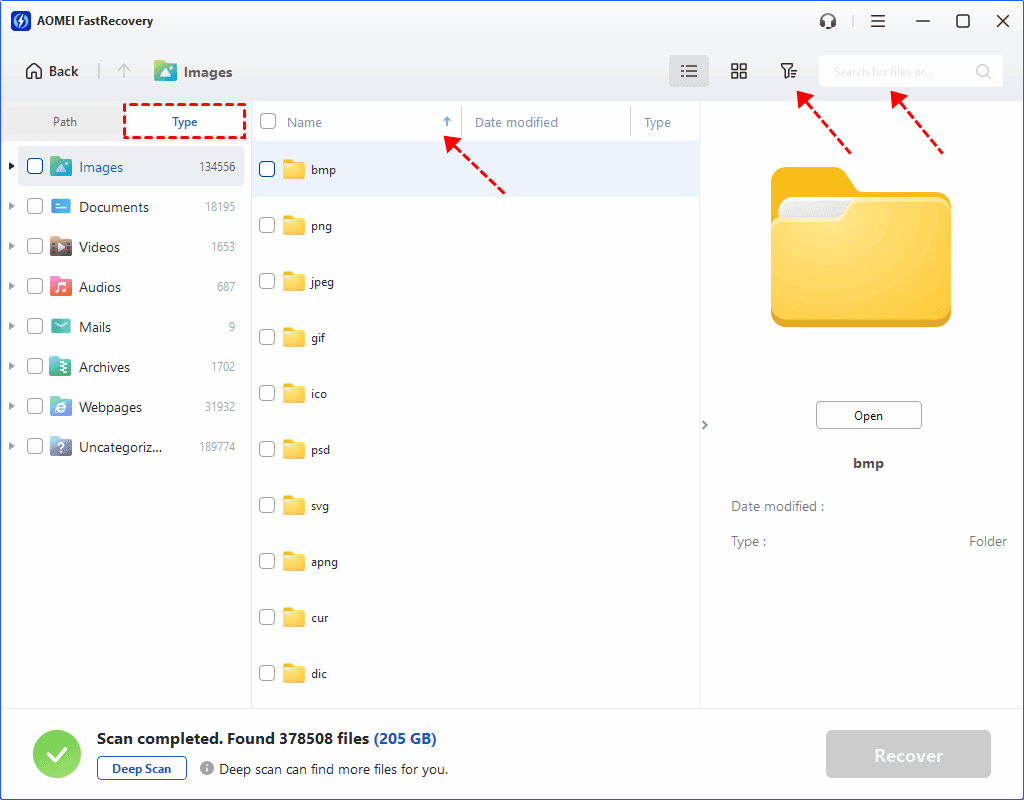
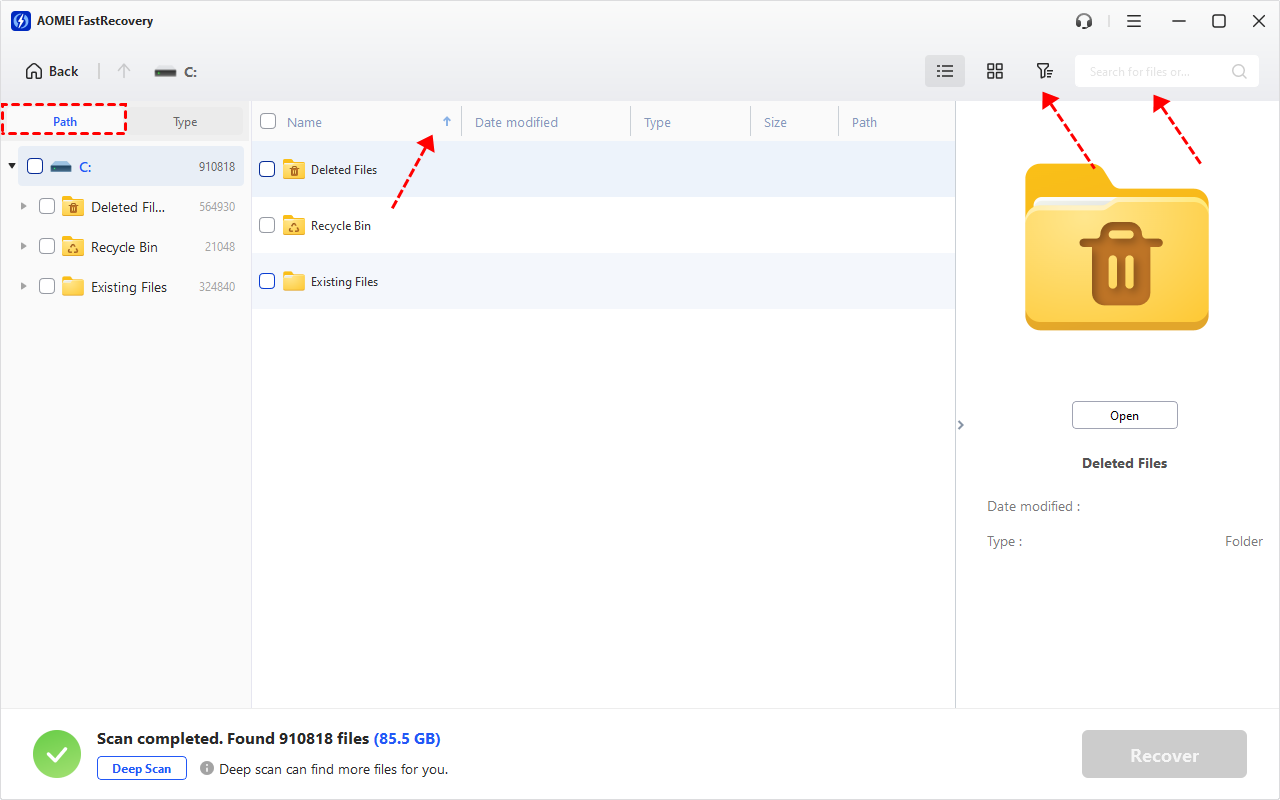
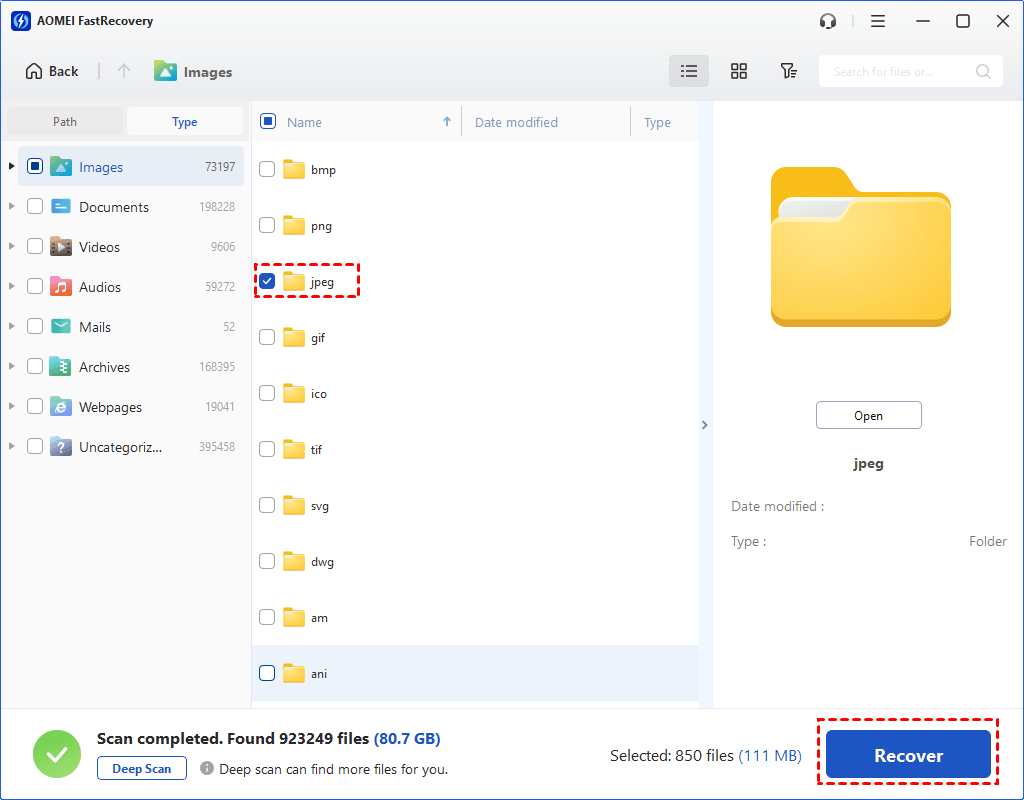
Step 4. Wait for the process to complete. You can select files by Type (default) or Path, with options to sort, search, filter, and preview files, making it easier and faster to find files.
👉Under the Type section:
- Specify the data type and click the arrow next to type, size, date modified, etc., to sort files.
- To locate files quickly, type the file name or extension in the search box.
- Or use the filter feature, similar to the Type category, allowing you to further specify the size of files, from less than 512 KB to 1GB above.
- Once found, double-click the files to preview.
👉 Under the Path section: Directly navigate to the original location where you saved deleted files. Sort files if needed.
- The Type categories and filter options include all supported data types, such as images, videos, documents, mails, web pages, compressed files, etc.
- Click the Deep Scan to find more data if Quick Scan fails. It will scan every sector of the disk and take longer.
Step 5. Select the deleted duplicate files and click on Recover to recover files. Please save the recovered files to a new path, significantly reducing the risk of data overwriting.
Tips for Preventing Accidental Deletion
While knowing how to recover duplicate files deleted by accident is essential, implementing preventive measures is equally crucial. Here are some tips to help you avoid accidental deletion:
- Organize files effectively: Keeping your files organized reduces the risk of accidental deletion. Create clearly labeled folders, and avoid cluttering your desktop with numerous files. This simple step can make it easier to identify and manage your files.
- Create regular backups: Regularly backing up your important files is a proactive measure that can let you restore files from backups with ease.
- Use recovery tools proactively: Without a backup, using a recovery tool is an excellent option, usually offering a high success rate.
Conclusion
In conclusion, recovering duplicate files deleted by accident is a common challenge, but with corresponding methods, including Recycle Bin, File History, and powerful data recovery software - AOMEI FastRecovery, it can be effectively addressed.
By implementing preventive measures such as organizing files effectively, creating backups, and using recovery tools proactively, users can minimize the risk of accidental deletion or other data loss scenarios.

 as a preferred
source on Google
as a preferred
source on Google