




What Is a DNG File & How to Recover DNG Files
Learn to recover DNG files from camera SD cards with 4 and free reliable methods in this article. Besides, there’s a recommended backup tool for you to prevent photo loss.

By Ivy Updated on April 29, 2026


Losing essential files, like DNG (Digital Negative) files, can be a stressful experience, especially if they’re critical to your photography projects. But don’t worry! There are 4 reliable methods to help you recover deleted DNG files. Let’s dive in and explore more.
What is a DNG file?
Developed by Adobe Systems, the DNG file format is primarily used for storing camera RAW images. It serves as a Digital Negative, preserving the uncompressed image data captured by a wide range of popular camera models such as Hasselblad and Pentax.
The DNG format was released in September 2004, with the intention of encouraging widespread adoption among camera manufacturers and image-editing software. It has gained popularity among professional photographers due to its ability to retain exceptional image quality.
How to recover deleted DNG files (4 methods)
We'll show you how to recover deleted DNG files in 4 simple and effective methods. Always check the Recycle Bin first.
Way 1. Restore deleted DNG files from Recycle Bin
The first place to check is the Recycle Bin (Windows) or Trash (Mac). Often, deleted files are temporarily stored here before permanent removal, making it the easiest recovery option.
👉 For Windows Users:
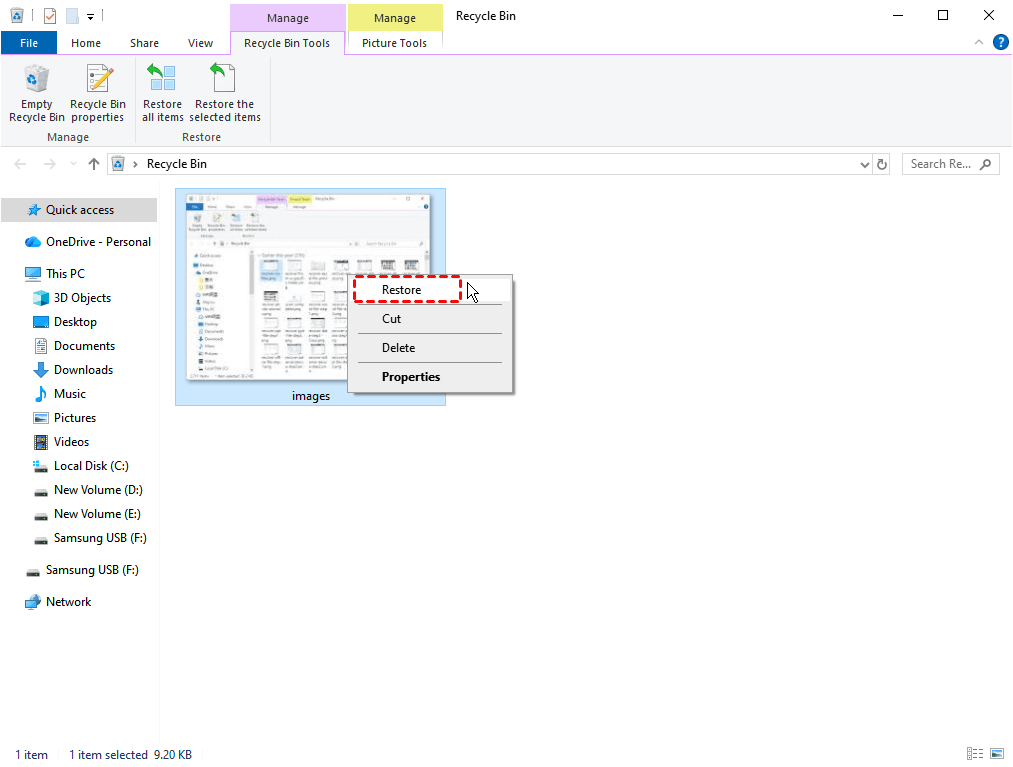
Step 1. Locate the Recycle Bin on your desktop. Open it and search for your deleted DNG files.
Step 2. Right-click the file and select Restore to return it to its original location.
👉 For Mac Users:
Step 1. Open the Trash icon from your dock. Look for your deleted DNG files.
Step 2. Right-click and choose Put Back to restore them.

Way 2. Recover deleted DNG files using software (with highest success rate)
Sometimes, accidental deletion is unavoidable while you’re organizing your DNG files. Precisely, the SD card doesn’t provide a temporary storage like Recycle Bin to keep recently deleted files. Considering that deletion stands as the most prevalent data loss reason, let’s depict how to recover deleted DNG images from camera SD cards.
Without file backups, powerful SD card photo recovery software can be the most effort-saving approach. Supported by AOMEI Tech, AOMEI FastRecovery excels in recovering deleted & missing images (JPG, PNG, BMP, ICO, TIFF, etc.) from different SD cards, such as Standard SD card, SDHC, SDXC, CFast, XQD, etc.
AOMEI FastRecovery- Recover 1000+ data types, including images, documents, videos, audio, text, and more.
- Integrate Quick & Deep Scan to find as many deleted or missing files as possible.
- Organize and display data by Type or Path for easier navigation, along with options to sort, search, filter, and preview files.
- Apply to various data loss situations, accidental deletion, disk formatting, lost partition, virus attack, system crash, etc.
- Free data recovery, up to 500MB🔥
 100% Secure
Step 1. Connect the camera SD card to your Windows via a USB or SD card reader. Open AOMEI FastRecovery after installing. On the main interface, click USB/SD Card Recovery.
Step 2. Select the SD card containing DNG files and click Scan to search it deeply and display all recoverable data.
Step 3. Under the Type section, specify the Images data type and expand it to find DNG files. You can sort them or search the name to locate files quickly.
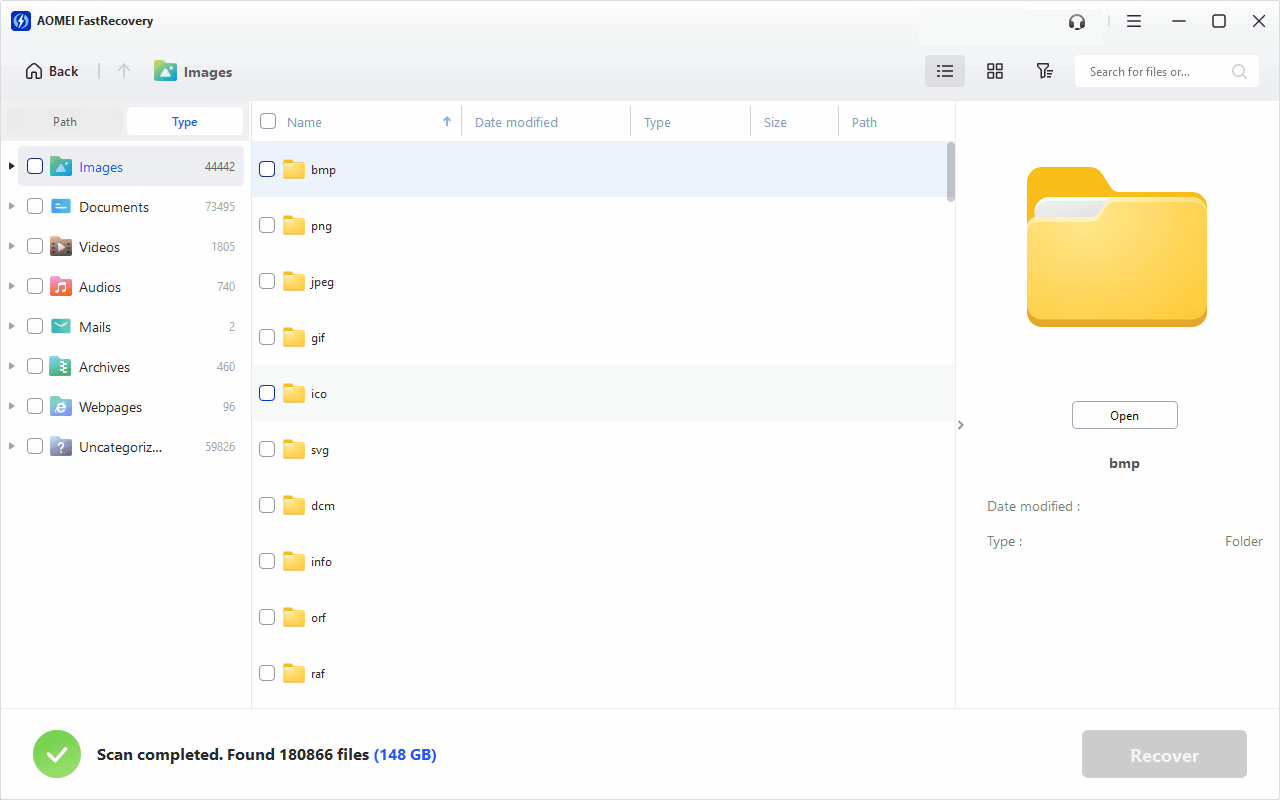
Step 4. Select all the deleted or lost photos or videos and click Recover. Please select a new location to save the recovered files as restoring to the original location may result in data overwriting.
You can perform USB drive data recovery for free, up to 500MB. To recover unlimited data, please upgrade to the advanced edition of AOMEI FastRecovery.
Way 3. Recover deleted DNG files using File History
If you’ve enabled backup features on your system, such as File History on Windows or Time Machine on Mac, you may be able to recover your DNG files from a previous version.
Step 1. Go to Control Panel and then click File History.
Step 2. Click Restore personal files on the left list.
Step 3. Select the DNG files you want to recover and click the green restore botton. To change a path, click the Settings icon and select Restore to.
Or, you could restore previous versions of DNG files.
- Right-click the folder that includes deleted DNG files and select Properties.
- Under the Previous Versions tab, find the right folder version according to the date and time.
- Confirm it and click “Restore” to bring the folder back to a previous date.
Way 4. Seek professional data recovery services
If all else fails, professional data recovery services like Geek Squad, DriveSaver, SlavageData, etc., are a reliable option. These experts use advanced tools and techniques to recover files from damaged or inaccessible devices. Here are the overall steps:
-
Submit a request with details about the issue and device
-
Ship or deliver the storage device securely
-
Receive an evaluation and diagnosis report
-
Approve the recovery quote and process
-
Start data recovery and return your drive
How to open DNG files
Windows users can open DNG camera RAW images using various image-editing software such as Microsoft Photos, File Viewer Plus, Adobe Lightroom, Adobe Photoshop 2023, Adobe Photoshop Elements, ACD Systems ACDSee Photo Studio, or CyberLink PhotoDirector 365.
Let’s show how to open DNG files using Microsoft Photos.
Step 1. Connect the SD card to your computer.
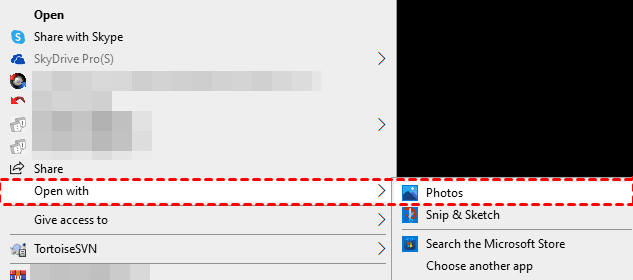
Step 2. Open the saved path of your DNG images, right-click on one DNG file and select Open with > Photos.
For Mac operating systems:
- Apple Preview
- Apple Photos
- Adobe Photoshop 2023
- Adobe Photoshop Elements
- Adobe Lightroom
- MacPhun ColorStrokes
- CyberLink PhotoDirector 365
How to prevent DGN files loss
To reduce the risk of losing your precious DNG images and protecting your data, please refer to the following preventive measures.
- Keep a reliable network connection and utilize a UPS (Uninterrupted Power Source) to prevent data loss during critical situations.
- Invest in a trustworthy and proven antivirus to protect your files.
- Consider utilizing Cloud or other online storage services for an additional layer of file backup.
- Adhere to the manufacturer’s standards when storing your storage devices.
- Please don’t eject your camera's SD card as it reads or transfers data.
- Make file backups regularly. Free backup software - AOMEI Backupper Standard is good at backing up files/folders, partitions, disks, or systems and allows you to run this task automatically.
Step 1. Launch AOMEI Backupper on your Windows PC. Under the Backup tab, select File Backup.
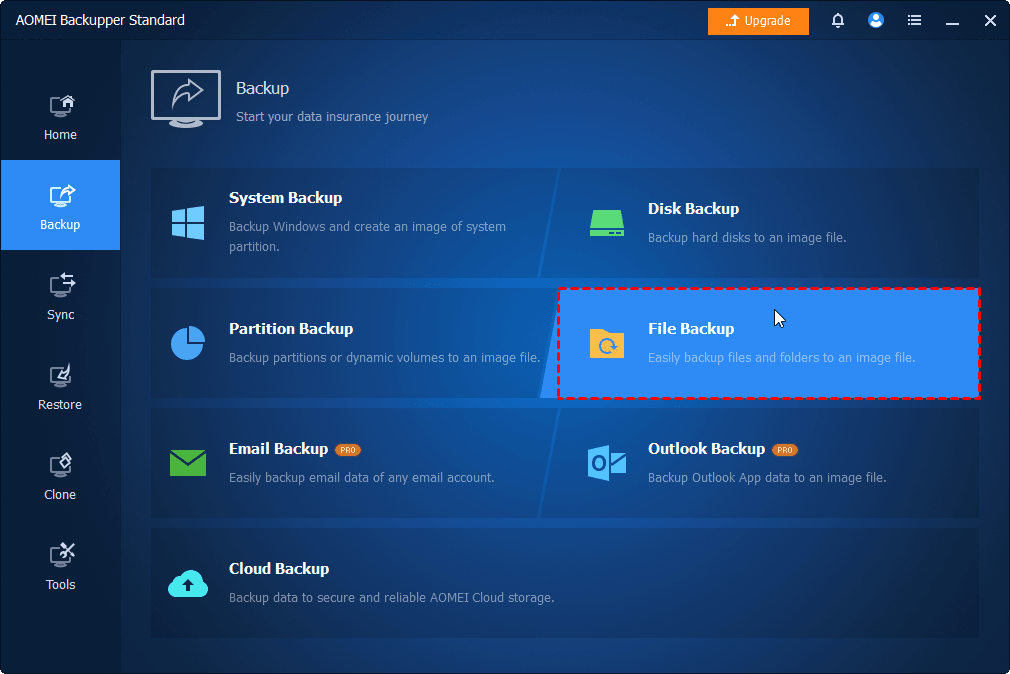
Step 2. Click Select Source > Add Folder/Add File to add any files or folders you want to backup. Then, click the PC icon to select a destination.
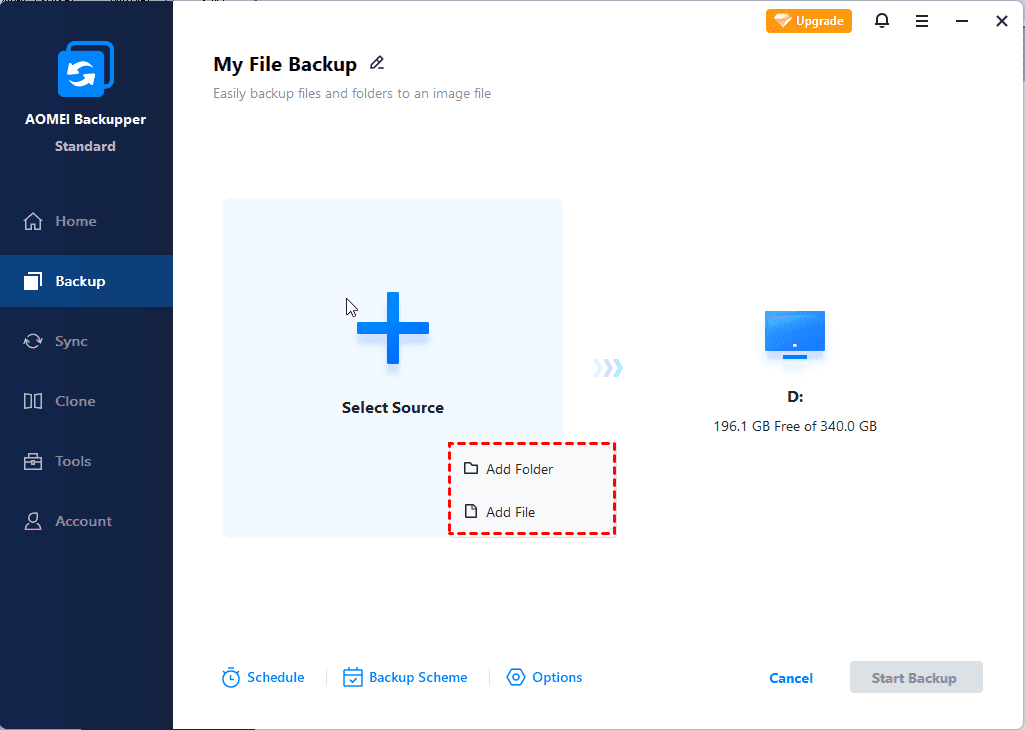
Step 3. Click Schedule to enable Daily, Weekly, Monthly (By Date), Event triggers, etc., based on your needs. Then, click Start Backup.

Conclusion
What is a DNG files? How to recover DNG files? And how to open deleted DNG images? After reading this passage, you can find the corresponding answers. The best way is to try to recover deleted DNG files using FastRecovery, which is an excellent tool with a high success rate in recovering lost data.

 as a preferred
source on Google
as a preferred
source on Google