




How to Recover Deleted MPO Files (5 Ways)
This article describes 5 easy & efficient methods to recover deleted MPO images on Windows and Mac, along with step by step instructions. Scroll down to learn more.

By Ivy Updated on March 31, 2026


What is an MPO file?
An MPO file is a special type of image file saved in the Multi Picture Object (MPO) format thatcan be used in the realm of 3D photography and allows for an immersive viewing experience.
You can also use it to store stereoscopic images. It combines two separate 2D JPG images to create a single 3D image, while the two 2D images represent the left and right views of the scene.
In addition, you can use the following software to open MPO files:
- StereoPhoto Maker (Windows)
- Microsoft Photos (Windows)
- MPO Explorer (Windows)
- CyberLink PowerDVD 21 (Windows)
- Apple Preview (macOS)
- StereoPhotoView (Linux), etc.
How to recover deleted MPO files on Windows
Where do permanently deleted photos goon Windows? These files are still on the hard drive. In computing, the Windows OS only removes your deleted MPO file from its file category and designates this space as free space, preparing for new data.
Don't worry, we'll show you how to recover deleted MPO files on Windows in 3 useful methods. Please don't do any operation that results in data overwriting, making data recovery more difficult.
- Continue using the hard disk after recognizing data loss.
- Add new data to the hard disk with deleted images.
- Format the hard disk after deleting photos.
In addition, you need to start MPO file recovery as soon as possible, as scheduling can also affect the success rate of data recovery.
Method 1. Recover deleted MPO files with data recovery software
AOMEI FastRecovery, supported by AOMEI Tech, the leading benchmark of the data security industry, is good at recovering deleted/lost images (MPO, JPG, JPEG, GIF, BMP, ORF, CR3, etc.) from computer hard drives, external disks, USB drives, SD cards, etc.
 AOMEI FastRecovery
- Recover about 90+ image formats, from MPO toJPG, JPEG, PNG, RAW, RGB, PSD, 3DM, 3FR, ABM, ART, ARW, BLD, etc.
- Provide Quick Scan & Deep Scan to search all the recoverable files.
- Organizeand display files by Type or Path, allowing you to sort, search, filter, and preview files.
- Recover specific files or folders instead of all.
- Compatible with Windows 11, 10, 8, 7, Server, and NTFS, FAT32, exFAT, and ReFS file systems.
- Handle data loss scenarios, such as permanent deletion, disk formatting, lost partition, system crashes, or virus attacks.
 100% Secure
-
Please install AOMEI FastRecovery and store the retrieved MPO images in a new location to avoid data overwriting.
-
You can recover deleted or lost MPO images for free, up to 500MB.
Step 1. Install and launch AOMEI FastRecovery on your Windows computer. Hover the mouse over the drive containing deleted MPO files, and click Scan.
Step 2. AOMEI FastRecovery will automatically run Quick Scan to scan your selected drive and find all the recoverable files. They will be displayed by Type or Path. Under the Type section, check Images and select MPO files.
Step 3. Once found, double-click to preview and select the deleted MPO images. Then, click the Recover button and select a new location to save the recovered files.
Method 2. Restore recently deleted MPO files from Recycle Bin
Windows operating systems provide a Recycle Bin that temporarily stores deleted MPO and other files. If your files were deleted recently, try to check and recover deleted files fromRecycle Bin.
Step 1. Open your desktop Recycle Bin.
Step 2. Find your deleted MPO file, right-click on it, and select Restore to get your wanted MPO images back.
Method 3. Restore permanently deleted MPO files using File History
File History is a free backup software that can back up all the users' folders, including Documents, Music, Pictures, Videos, Desktop folders, and offline OneDrive files saved on PCs. Try to restore deleted files from backup.
-
Please ensure your MPO files are in one of the user folders.
-
File History also helps to recover overwritten files from previous versions.
Step 1. Go to Control Panel > System and Security >File History and select Restore your files with File History.
Step 2. Click the Restore personal files button.
Step 3. Browse the latest backup to find your MPO files and click Restore to get them back to their original path.
To change its saved path, click the Settings and select Restore to.
How to recover deleted MPO files on Mac
Besides, there are two other ways to recover deleted MPO files on Mac OS.
Method 1. Restore recently deleted MPO from Trash
For accidentally and recently deleted MPO files, Mac users can get these accidentally/recently deleted MPO files from the Trash.
Step 1. Open the corresponding Trash Bin in the Dock.
Step 2. Find the deleted MPO file you prefer, right-click on it, and choose Put Back.
Method 2. Recover deleted MPO files via Time Machine
If you’ve permanently deleted MPO files, Time Machine can be your solution. It's a freebackup software provided by Apple that can automatically generate backups at regular intervals, including hourly, daily, and weekly.
-
You don’t have to launch a window if your lost files were previously stored on the desktop.
-
To show Time Machine on the desktop, go to the Apple menu and click System Preferences > Time Machine > Show Time Machine in menu bar.
Step 1. Open the window where you lost MPO files.
Step 2. Click the Launchpad icon in the Dock, find Time Machine, and click Enter Time Machine.
Step 3. Use the up and down arrows to locate the MPO files you need to restore. Then, click Restore to recover the needed MPO images.
How to avoid losing MPO files
You may not want to lose any data. It's necessary to take some preventive measures in the following.
- Please keep your Windows/Mac OS or installed app up to date for better compatibility. Sometimes, it can cause file corruption or data loss.
- Avoid granting access to unknown users to safeguard your files.
- Avoid downloading suspicious or unrecognized files by your antivirus program.
- Run a reliable antivirus program to protect against viruses, spyware, malware, etc.
- Always make regular backups to prevent your MPO images from data loss at the source.
At this point, here comes a friendly and more flexible Windows backup utility, AOMEI Backupper Standard, which offers you easier operating steps and richer backup choices.
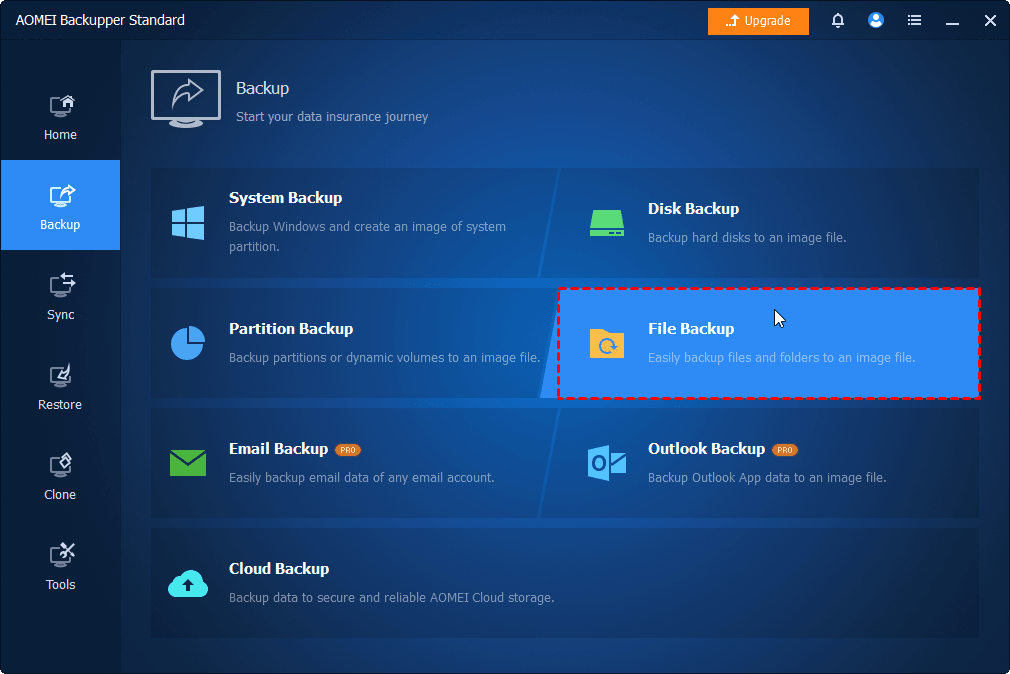
Step 1. Launch AOMEI Backupper on your Windows PC. Then, select File Backup.
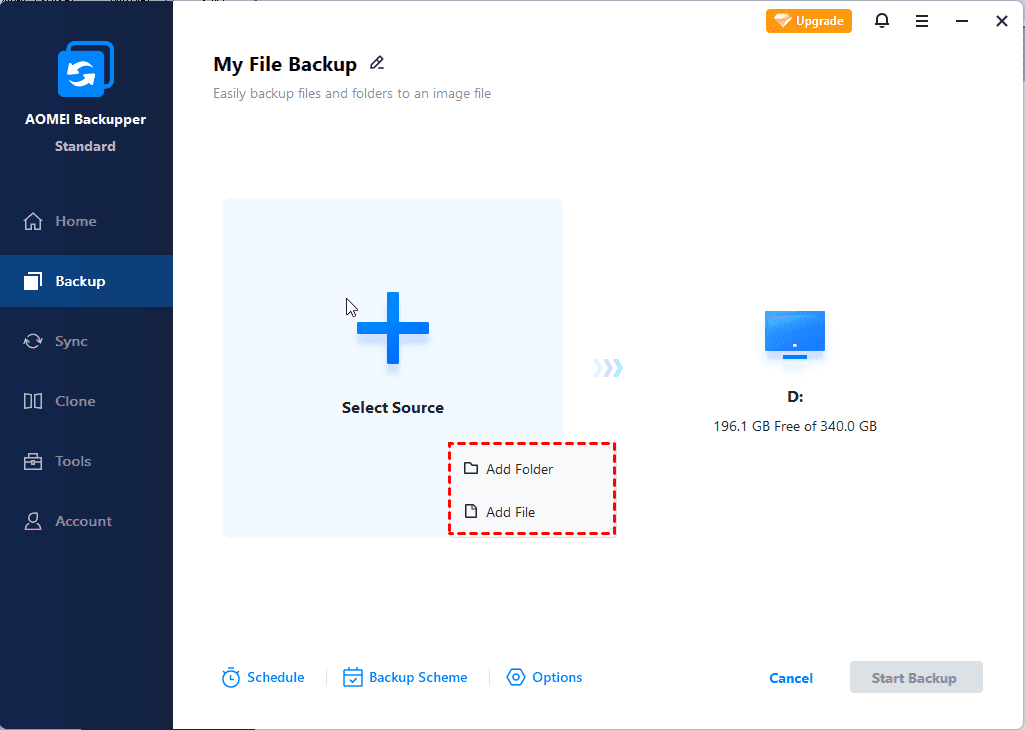
Step 2. Click Select Source > Add Folder/Add File to add the files or folder you want to back up.
Step 3. Click Schedule Backup to enable Daily, Weekly, Monthly(By Date), etc., based on your needs. Then click the Start Backup button.

Wrapping things up
This article mainly describes how to recover deleted MPO images on Windows and Mac, and there are 5 methods in total. The best one is to use powerful data recovery software like AOMEI FastRecovery. It can thoroughly scan your disk to find all recoverable data and save it in the corresponding folder.
But that doesn't mean you can ignore data protection. It's also necessary to back up deleted MPO or other important files, preferably to create a set-and-forget scheduled task. So you don't need to worry about data loss.

 as a preferred
source on Google
as a preferred
source on Google