




How to Recover CR2 Files from SD Cards for Canon
How to recover CR2 files from SD cards? This guide can help you recover deleted CR2 photos effectively, including the best tools and the step-by-step process.

By Ivy Updated on April 30, 2026


Help! Can you Recover Deleted CR2 Files?
How to recover CR2 files from SD card?? Please help!
I accidentally formatted my 32 GB SD card (quick-format by Canon 6D) and did not take more photos or done anything with the card since then. Is there any other way I could recover my raw image files from the card?
- Question from DPReview
CR2 files are commonly associated with Canon cameras, although other programs also utilize this file extension. If you're a professional dealing with CR2 files, you likely understand their significance.
It is not rare to lose CR2 photos from SD cards due to deletion, disk formatting, physical damage, etc. Fortunately, with the right methods, CR2 file recovery is a relatively simple process.
When you delete a file, it vanishes from your access but remains on the SD card. Until new data overwrites the deleted files, there's still a chance of recovery.
What is a CR2 file?
CR2, short for Canon Raw Version 2, serves as a raw image file extension specifically designed for Canon cameras. These cameras store photos in their unprocessed form within a raw image file, enabling them to capture intricate details.
With the CR2 extension, a Canon camera can produce images containing up to 14 bits of RGB data, surpassing the 8-bit capacity of JPEG files. This attribute makes CR2 files highly desirable for professional photographers.
How to recover CR2 files from SD cards for Canon
To recover CR2 files from memory card, utilizing SD card recovery software is recommended. The success of recovery, as discussed earlier, relies on the cause of data loss. Here, we present 3 methods, including one reliable and efficient data recovery software.
Method 1. Recover CR2 files from SD cards using software 🔥
With AOMEI FastRecovery, a powerful SD card data recovery software, you can effortlessly retrieve deleted CR2 from SD card for Canon. Also, this software also applies to the following cameras and raw images.
AOMEI FastRecovery- Recover deleted or lost photos, videos, audios, documents, compressed files, etc., up to 1000+ formats.
- Integrate Quick & Deep Scan to find as many deleted or missing files as possible.
- Organize and display data by Type or Path, along with options to sort, search, filter, and preview files.
- Recover data in any scenario, such as permanent deletion, disk formatting or corruption, lost partition, system crashes, etc.
- Support different types of memory cards, including SD/SDHC/SDXC/SDUC, microSD, XQD, CFast, etc.
- Optional recover the entire disk, partition(s), or specific files or folders.
 100% Secure
🔥 You can download AOMEI FastRecovery to recover CR2 files, up to 500MB for free. Once exceeded, please upgrade to the advanced edition of AOMEI FastRecovery.
Step 1. Download and install this trustworthy data recovery software - AOMEI FastRecovery. On the main interface, click USB/SD Card Recovery.
Step 2. Select the SD card for Canon camera and click Scan. It will start the deep scanning process to find and display all recoverable data.
Step 3. Under the Type section, specify the Image data type and expand it to find CR2 files. You can sort them or search the extension (.cr2) to locate files quickly.
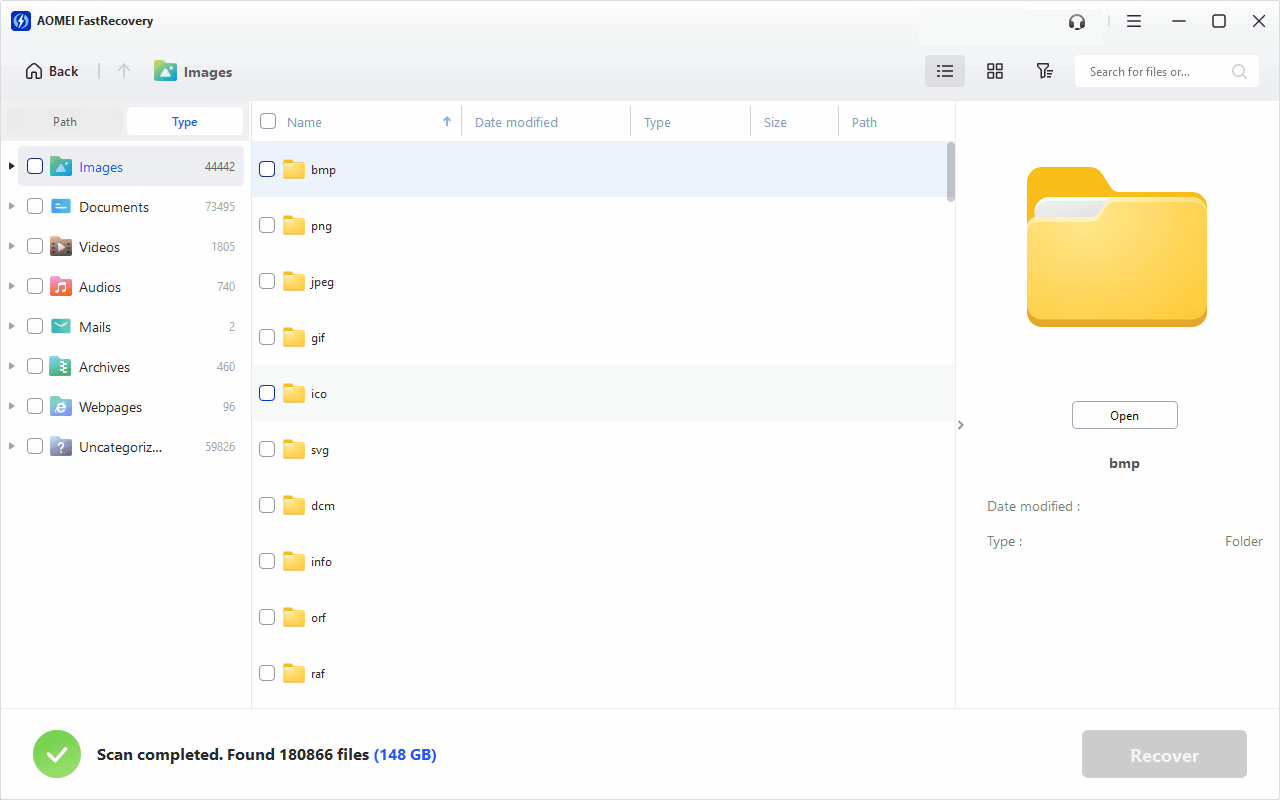
Step 4. Select deleted CR2 files and click Recover. Please select a new location to save the recovered files as restoring to the original location may result in data overwriting.
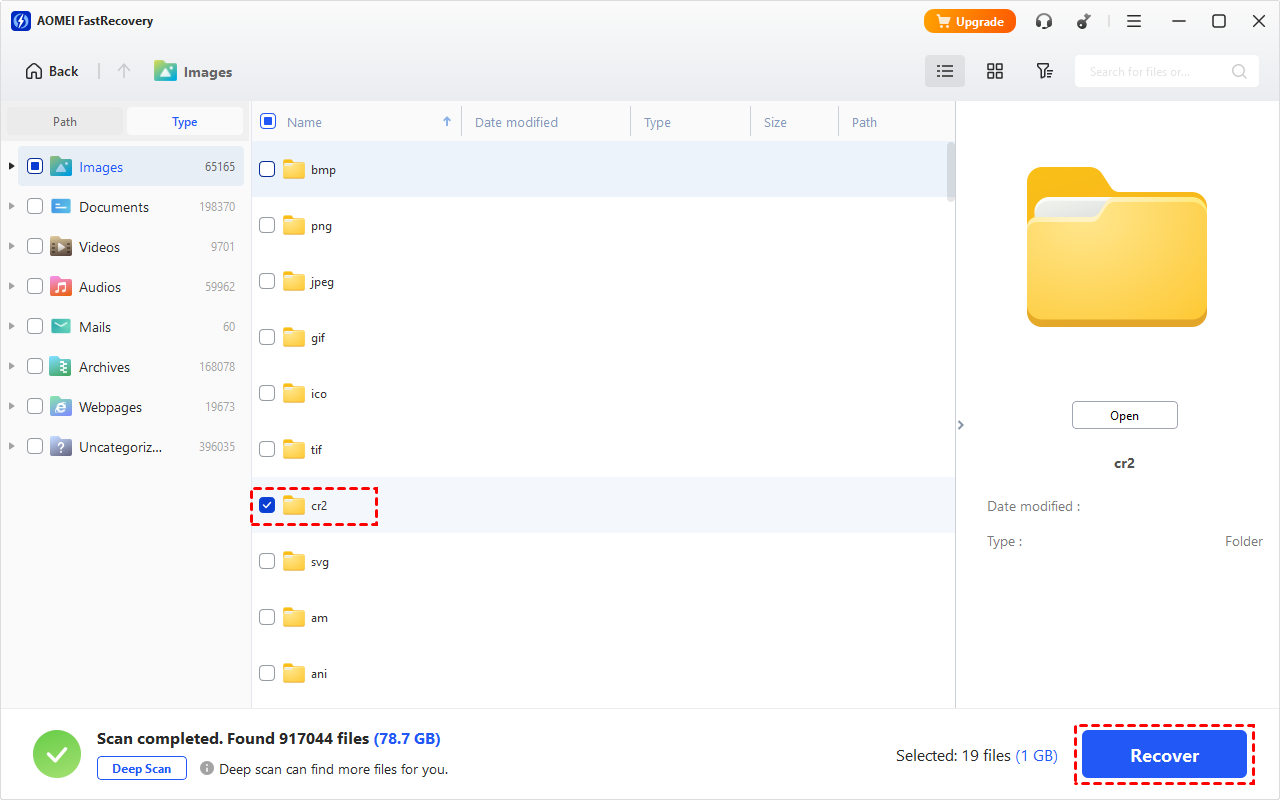
You can perform CR2 file recovery for free, up to 500MB. To recover unlimited data, please upgrade to the advanced edition of AOMEI FastRecovery.
Method 2. Recover CR2 files from Recycle Bin
Also, there are some other methods to get back the wanted photos. Try checking the Recycle Bin first. Generally, files deleted from external devices are not in Recycle Bin after deletion, but it is worth trying.
Step 1. Double-click on the recycle bin icon to access it.
Step 2. Find the CR2 file you want to recover, right-click on the file and select Restore to return it to its original location.
Method 3. Recover CR2 files from SD cards using Windows File Recovery
When recovering files from a local hard drive, users often rely on Windows backups or restoring previous file versions. However, these methods are not effective for memory cards. Instead, you can utilize the Windows File Recovery tool, a command-line utility designed to scan the hard disk for deleted and missing files.
winfr source-drive: destination-drive: [/mode] [/switches]
Notes:✎...
- Only available on Windows 10, version 2004 (Build 19041), or later versions.
- Two basic modes: Regular & Extensive, and two advanced modes: Segment & Signature.
- Ensure the destination drive (which stores the recovered files) is not the same as the source drive (which stores the permanently deleted files).
- Be sure to check the file system on the drive, as this will help decide the recovery mode.
- For more info, type winfr.exe to search.
Step 1. Properly connect the SD card to your PC using a card reader. In File Explorer, right-click the SD card and select Properties. Then, scroll down to confirm the file system, usually NTFS or FAT32.
Step 2. Choose the appropriate recovery mode based on the file system and scenarios.
| File system | Scenarios | mode |
| NTFS | Deleted recently | Regular |
| NTFS | Deleted for a while | Extensive |
| NTFS | Formatted disk | Extensive |
| NTFS | corrupted disk | Extensive |
| FAT and exFAT | Any | Extensive |
Step 3. Select switches to filter and target specific files.
| Switches | Meaning | Supported mode(s) |
| /n | Filter the scan range: scans for a specific file with its file name/path/type, etc. | All |
| /y: | Recovers specific extension groups. | Signature |
| /k | Recovers system files. | NTFS Segment |
| /segment | Segment mode; recovers files under NTFS drives using file record segments. | Segment |
| /signature | Signature mode; recovers files under all file system types using file headers. | Signature |
| /u | Recovers undeleted files, for example, from the Recycle Bin. | NTFS Segment |
Step 4. In the Microsoft Store, search for and download Windows File Recovery.
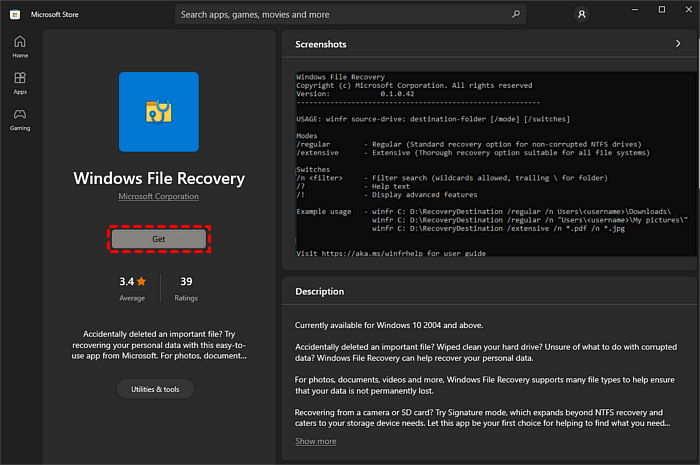
Step 5. Type the winfr command to recover deleted CR2 files from F: to D: based on syntax and following example:
winfr F: D: /extensive /n *.cr2
How to recover corrupted CR2 files
If your CR2 files become corrupt, you can attempt several methods to repair them. Below, we outline a few approaches for fixing corrupt CR2 photos.
Method 1. Use a Different Program
In some cases, opening a corrupt CR2 file with a different program can resolve the issue. This method works best for files with minimal corruption.
For CR2 files, try using Adobe Photoshop or Lightroom instead of Canon's software to open the files and check if they can be accessed correctly.
Method 2. Convert CR2 to JPEG
Converting CR2 files to a different format, like JPEG can help overcome corruption problems. Online converters such as Iloveimg and Cloudconvert offer the capability to convert CR2 files to JPEG. Although the resulting photos will be in JPG format, you can still access and utilize them effectively.
Further reading: Reasons for CR2 files loss
Understanding the potential causes is essential as they determine the likelihood of file recovery. For instance, significant wear and tear on a hard drive may hinder complete file recovery. Conversely, recently deleted files have a higher chance of successful recovery.
- Accidental deletion: It is common if you have accidentally delete photos from SD cards since you may commit human error while actively using the camera.
- Formatting: In cases where your external storage device malfunctions, your PC might prompt you to format it. If you unknowingly proceed with the format, your CR2 files will be deleted. Similarly, formatting an SD card while it's still inside the camera can also erase files unknowingly. Fortunately, it's possible to undo a formatted drive.
- Corruption: Various factors, such as virus attacks, soft and hard bad sectors, or physical damage, can lead to the corruption of an SD card or hard drive. The success of recovering photos from corrupted SD cards depends on the extent of the corruption.
- Wear and tear: As SD cards and hard drives age, they become susceptible to wear and tear, ultimately leading to failure.
Conclusion
This article helps users recover CR2 files from SD cards. Users can rely on efficient and advanced data recovery software like AOMEI FastRecovery to scan for deleted CR2 photos quickly. It provides users with a wide range of recovery features, such as sort, filter, preview, etc., making the process simple and efficient. It can also help you recover CR3 files and other raw image formats.

 as a preferred
source on Google
as a preferred
source on Google