




Files Deleted From External Hard Drive Not in Recycle Bin
Found files deleted from external hard drive not in Recycle Bin? Get help in this article and learn how to recover deleted files from external hard drive.

By Ivy Updated on May 6, 2026


Using external storage devices to save important files or use them as a backup device is a common and good choice for users. It facilitates people to manage and organize their data.
When organizing the data stored on the external hard drive, users may delete some old unwanted files to free up some space or make space for new items to add in. But found files deleted from external hard drive not in Recycle Bin?
Recycle bin not showing deleted files for an external hard drive
As I connect the HDD to the laptop and I delete any files from the HDD the files do not appear under the recyclebin of the laptop. I wish for your helpful suggestions.
- Question fromMicrosoftCommunity
There are a number of reasons why deleted files are not in the Recycle Bin: you might have accidentally emptied the Recycle Bin, used Shift + Delete keys, or, very likely, the files were deleted from a portable storage device.
Why files deleted from external hard drives not in Recycle Bin?
External hard drives indeed come with a “Recycle Bin,” but depending on the device, the way the “Recycle Bin” works may vary.
👉 External Hard Drive Delete Files without Prompt
For some brands, like Samsung, when deleting files from the external hard disk, no prompt like “Are you sure you want to delete/move this file to the Recycle Bin?” will be asked.
Deleted items are moved directly to the “Recycle Bin” on your desktop. However, when you disconnect the external drive, these deleted files will disappear. Thus, deleted files are actually stored in the external hard drive’s own “Recycle Bin.”
👉 External Hard Drive Delete Files with Prompt
However, with certain brands, when you delete anything, a question such as "Are you sure you want to permanently delete this file?" may pop up. If you click "Yes," the data will be permanently deleted.

As a result, some users may discover files deleted from external hard drives not in Recycle Bin.
How to recover files deleted from external hard drive not in Recycle Bin
For those who want to recover deleted files from external hard drive, 2 feasible methods are prepared.
Method 1. Restore files deleted from external hard drive not in Recycle Bin effortlessly
AOMEI FastRecovery is one of the best data recovery software for Windows that can help you recover files deleted from external hard drive not in Recycle Bin in 3 simple steps. The same applies to USB drives and SD cards.
AOMEI FastRecovery- User-friendly: The intuitive user interface allows easy navigation and data recovery in just three clicks.
- Recoverable scope: Recover data in any scenario, such as permanent deletion, disk formatting, system crashes, or virus attacks.
- Top algorithms: Integrate Quick & Deep Scan to find all recoverable data thoroughly.
- High-efficiency: Recover deleted or lost photos, videos, audio files, documents, emails, compressed files, etc., up to 1000+ formats.
- Simplified layout: Organize data by type and path for easier navigation, providing options to sort, search, filter, and preview files.
- Wide compatibility: Compatible with Windows 11, 10, 8, 7, Server, and NTFS, FAT32, exFAT, and ReFS file systems.
 100% Secure
- Don't download and install AOMEI FastRecovery to the drive containing deleted BMP files, which may result in data overwriting.
- The free edition allows you to recover deleted BMP files over 500MB.
- To recover a large number of files, upgrading AOMEI Fast Recovery is a better and more cost-effective choice.
Step 1. Open FastRecovery after installing. Then, click Deleted Files Recovery to get started.

Step 2. Hover the mouse over the external hard drive containing deleted files, and click Scan to start the quick scanning process and display all recoverable data.
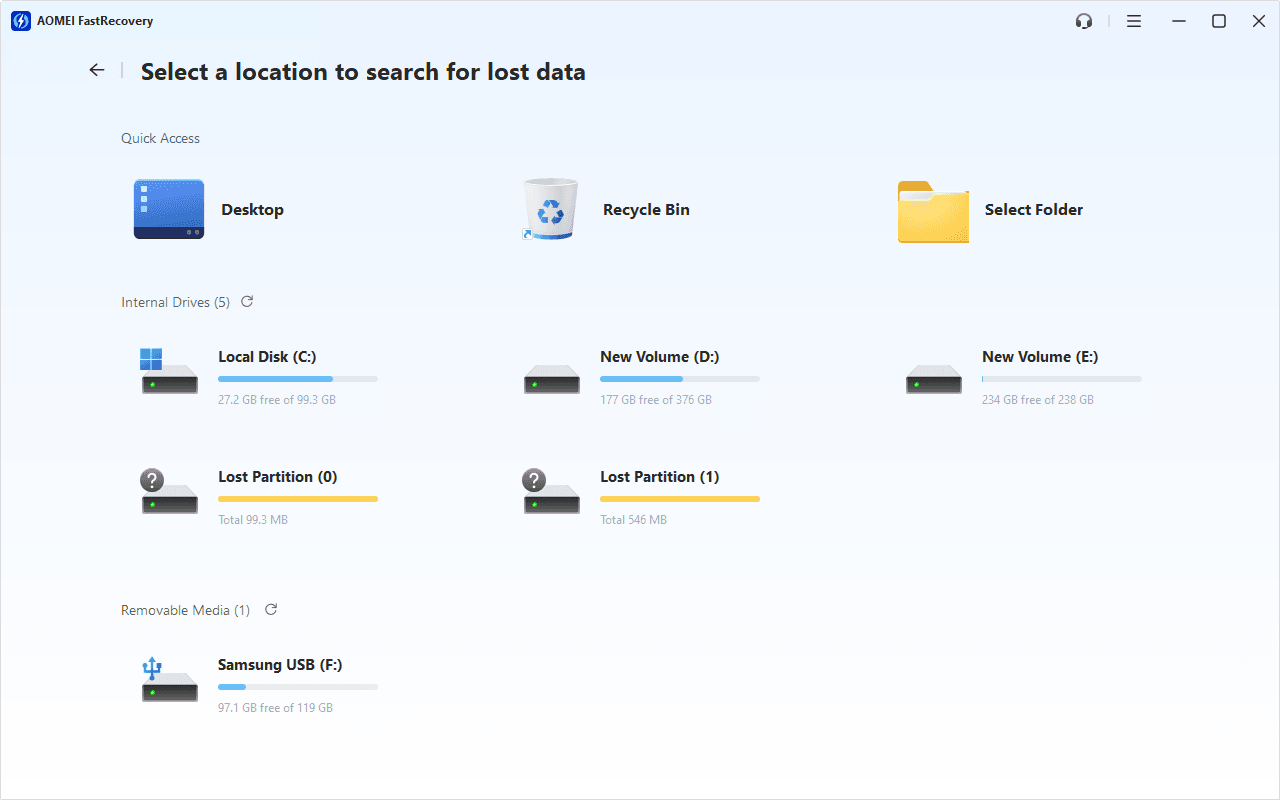
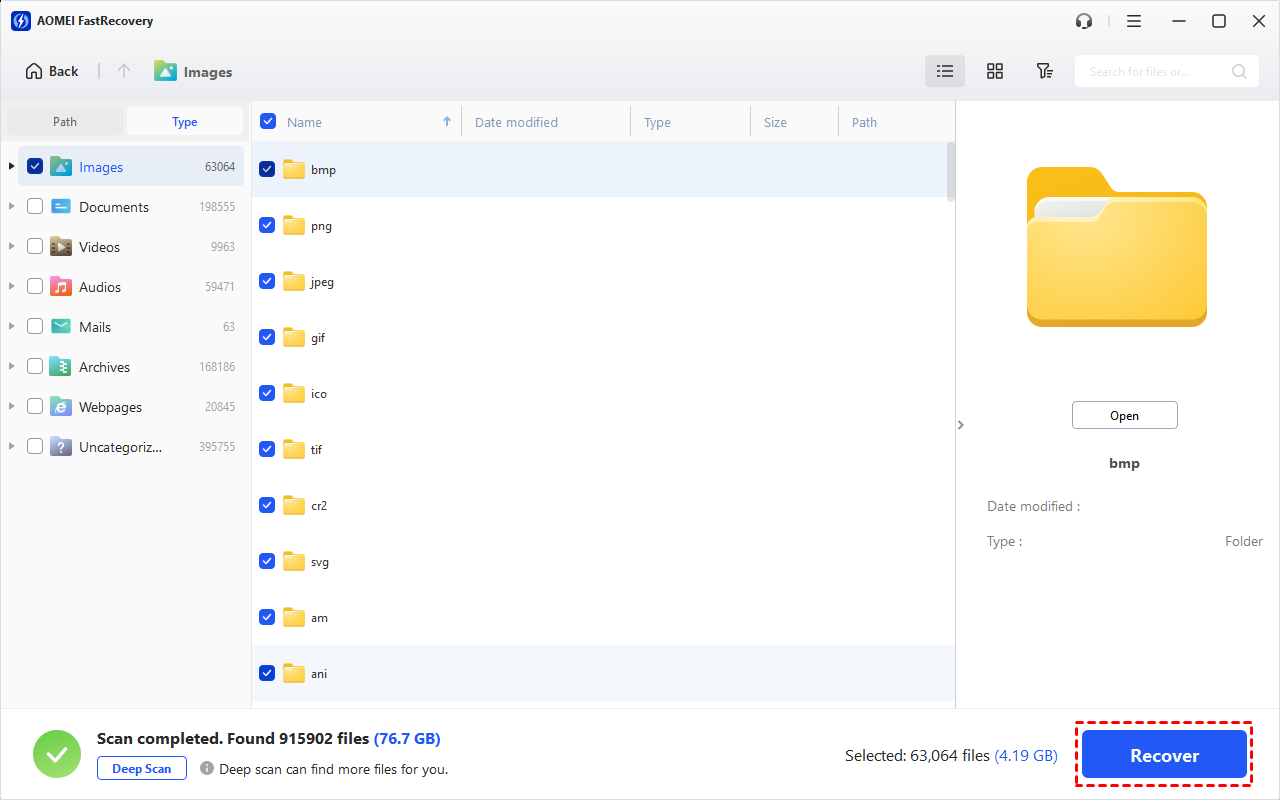
Step 3. Under the Type section, specify a data type (e.g., Images) and expand it to see all data formats. You can sort them or search the name to locate files quickly.
-
You can also locate deleted files by Path if you remember this.
-
Click the Deep Scan button if the Quick Scan fails. Deep Scan searches every sector of the disk to find more files.
Step 4. Select the deleted files you want and then click Recover to recover files from external hard drive. Please select a new location to save them, as restoring to the original location may result in data overwriting.
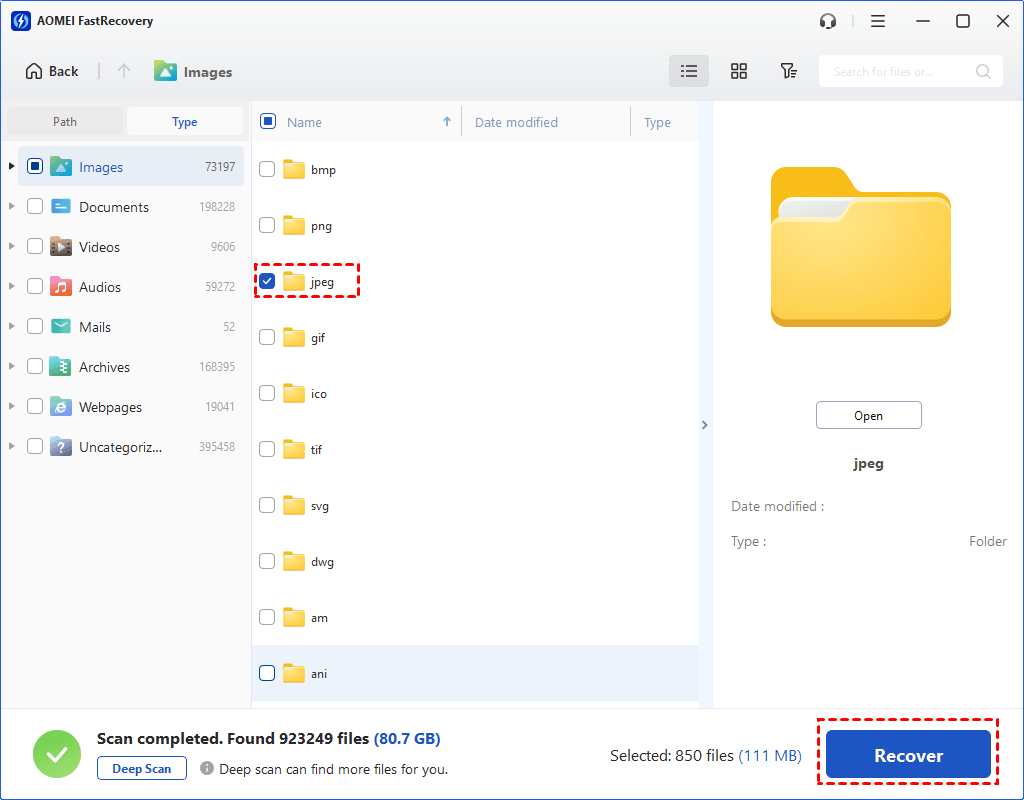
You will be asked to upgrade to the advanced edition of AOMEI FastRecovery to enjoy unlimited data recovery. The free edition supports up to 500MB.
Method 2. Recover deleted files from external hard drive using Official tool
Windows File Recovery is a command line utility, released by Microsoft, to restore deleted and lost files from healthy/formatted/corrupted hard drives, including external hard drives.
- The basic command format: winfr source-drive: destination-drive: [/mode] [/switches]
- 4 recovery modes: Regular, Extensive, Segment, and Signature.
- Ensure the destination drive (which stores the recovered files) is not the same as the source drive (which stores the permanently deleted files).
- Only compatible with Windows 10 and above. No GUI interface.
- For more info, type winfr.exe to search.
Step 1. Connect the external hard drive to your PC. Go to This PC, right-click on it, and select Properties to check the file system.
Step 2. Choose a recovery mode according to the file system and scenarios.
| File system | Scenarios | mode |
| NTFS | Deleted recently | Regular |
| NTFS | Deleted for a while | Extensive |
| NTFS | Formatted disk | Extensive |
| NTFS | corrupted disk | Extensive |
| FAT and exFAT | Any | Extensive |
Step 3. Select switches to narrow the scanning range and shorten the time.
| Switches | Meaning | Supported mode(s) |
| /n | Filter the scan range: scans for a specific file with its file name/path/type, etc. | All |
| /y: | Recovers specific extension groups. | Signature |
| /k | Recovers system files. | NTFS Segment |
| /segment | Segment mode; recovers files under NTFS drives using file record segments. | Segment |
| /signature | Signature mode; recovers files under all file system types using file headers. | Signature |
| /u | Recovers undeleted files, for example, from the Recycle Bin. | NTFS Segment |
Step 4. Go to Microsoft Store, search Windows File Recovery and click Get to install it.
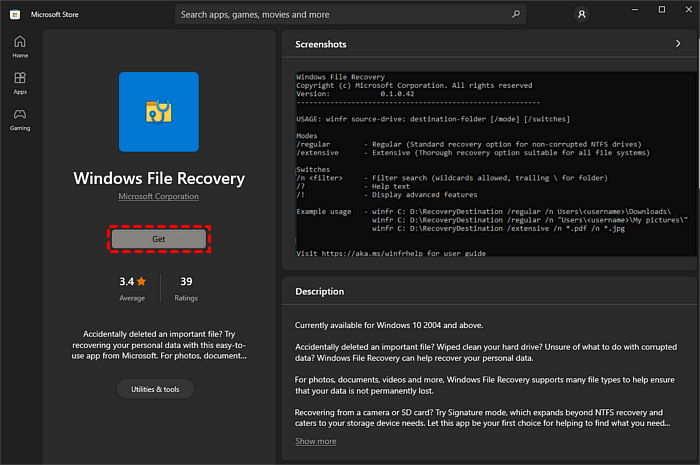
Step 5. Type the winfr.exe command based on syntax and example.
For example, to recover jpg files from F: to D:, type:
winfr F: D: /extensive /n *.jpg
Conclusion
This article describes why files deleted from external hard drive not in Recycle Bin and how to recover deleted files from external hard drive in 2 useful methods. AOMEI FastRecovery is user-friendly and supports a wide range of recovery features, while Windows File Recovery requires users to learn syntax and necessary parameters.

 as a preferred
source on Google
as a preferred
source on Google