




How to Restore Permanently Deleted Files in Windows 8/8.1
Did you accidentally delete some important files? Don't worry, this article will show you how to restore permanently deleted files in Windows 8/8.1.

By Ivy Updated on February 27, 2026


Accidentally deleting important files happens all the time, and it's incredibly easy to do. You might accidentally select extra files or press the delete key at the wrong moment. But don't panic, deleting a file doesn't mean it's gone forever.
This article will cover 4 proven methods to recover deleted files in Windows 8/8.1, even if the Recycle Bin is emptied or you use Shift + Delete to permanently delete files. You can also restore the previous version of files.
Method 1. Recover Deleted Files on Windows 8/8.1 from Recycle Bin
If you accidentally delete a file or just change your mind about deleting it, the first place you should go is to the Recycle Bin. This handy location is a temporary repository for deleted files and gives you a chance to recover files you decide to keep.
You can find the Recycle Bin on your desktop, or if you can't see the icon, you can open Explorer to find it. Double-click the desktop icon to open the Recycle Bin, or click the Recycle Bin icon in File Explorer. Locate the target file to be recovered, right-click on it, and select “Restore” from the menu that appears.

Method 2. Restore permanently deleted files in Windows 8/8.1 using File History
The Recycle Bin isn't the only option available in Windows 8/8.1 for recovering deleted files. File History, as a free backup tool, can back up user data such as documents and the desktop, allowing you to restore files anytime you need them. However, it's not foolproof and will only work if you manually enable it.
Step 1. Click the Start button, type File History, and then click on the search result labeled Restore files using File History.
Step 2. In the search box, type the name of the file you want to recover. Once found, click the left and right arrows to browse all versions of the file.
Step 3. Select the right version and click Restore. To restore a deleted file to another location, right-click on it and select “Restore to”.
Way 3. Recover deleted/lost files in Windows 8 using data recovery software
Without backups, how to recover deleted files from Recycle Bin after emptying? At the moment, you’d better use a reliable data recovery tool that can search for deleted or lost files. Here comes a highly praised tool, AOMEI FastRecovery, with powerful features and a user-friendly design.
AOMEI FastRecovery-
❥ User-friendliness: With a simple and intuitive interface, users can use it easily.
-
❥ 1000+ datatypes: Support Word, Excel, PPT, Photos, Videos, Audio, Compressed files, and so on.
-
❥ Easy to find: Sort, search, filter, and preview files before recovery.
-
❥ 2 scanning modes: Integrate Quick Scan and Deep Scan to find all recoverable data.
-
❥ Disk compatibility: Support HDDs/SSDs, USB drives, SD cards, etc., and NTFS, FAT32, exFAT, and ReFS file systems.
-
🔥 Free data recovery, up to 500 MB.
 100% Secure
Step 1. After running the tool, hover the mouse over the drive and click Scan.
Step 2. Wait to see all the recoverable data after scanning. Your files will be displayed by Type or Path. For specific files or folders, the easiest method to find them quickly is to search directly.
Step 3. Select permanently deleted files in Windows 8/8.1 and click the “Recover” button to get your selected files back. Please save them in a new path to avoid data overwriting.
Way 4. Restore permanently deleted files in Windows 8 using Windows File Recovery
Windows File Recovery is a command-line utility that can recover deleted or lost files, even emptied from Recycle Bin. It only supports Windows 10 2004 and later. However, it doesn't have a user-friendly graphical interface, which means you need to recover deleted files using CMD.
- The basic command format: winfr source-drive: destination-drive: [/mode] [/switches]
- 4 recovery modes: Regular, Extensive, Segment, and Signature.
- Ensure the destination drive (which stores the recovered files) is not the same as the source drive (which stores the permanently deleted files).
- Only compatible with Windows 10 and above. No GUI interface.
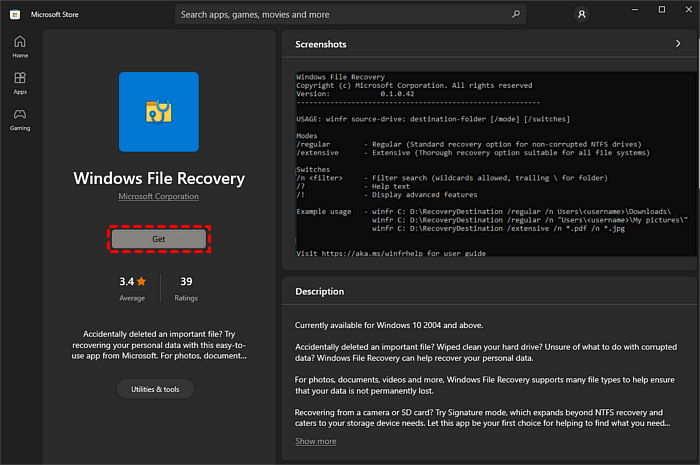
Step 1. Type “Microsoft Store” in the search box and open it. Find “Windows File Recovery” and click “Get” to download it. Then, open it after installing.
Step 2. Right-click the drive saving deleted files and select “Properties” to check the file system. Then, select a recovery mode based on the file system and scenarios.
|
File system |
Scenarios |
Recommended mode |
|
NTFS |
Deleted recently |
Regular |
|
NTFS |
Deleted a while ago |
Extensive |
|
NTFS |
After formatting a disk |
Extensive |
|
NTFS |
A corrupted disk |
Extensive |
|
FATandexFAT |
Any |
Extensive |
Step 3. Check the common switches you want to use in winfr.exe command.
|
Parameter/switch |
Description |
Supported mode(s) |
|
/n |
Scans for a specific file by using a file name, file path,file type, orwildcards. For example:
|
|
|
/y: |
Recover specific extension groups, comma-separated |
Signature |
|
/p: |
Saves a log file of the recovery operation in a different location than the default location on the recovery drive (for example, D:\logfile). |
All |
|
/segment |
Segment mode, recoveryoptionfor NTFS drives using file recordsegments |
Segment |
|
/signature |
Signature mode, recovery option for all file system types using fileheaders |
Signature |
For example, if you want to recover a zip file but don’t know the detailed name from C: drive to E: drive, you could input the following command:
winfr C: E: /regular/n \C:\Recycler\*.zip
Summary
This article describes 4 useful methods and how to recover permanently deleted files in Windows 8/8.1 step by step.
- First, be sure to check if your files are in the Recycle Bin. If not, they are permanently deleted.
- Second, you can use File History to restore files from backup in Windows 8.
- In addition, try data recovery software - Windows File Recovery or AOMEI FastRecovery (easier).

 as a preferred
source on Google
as a preferred
source on Google