




SanDisk USB Data Recovery: How to Recover Deleted & Lost Data
How to perform Sandisk USB data recovery? You can find the most suitable method for it in this comprehensive guideline, and it is user-friendly for you to operate.

By Ivy Updated on March 12, 2026


SanDisk, a renowned manufacturer of flash memory products like SD cards and USB drives, is famous all over the world. However, their reliability is not infallible, which is why discussions about SanDisk USB drives or memory card recovery frequently occur in online forums.
Reasons for Data Recovery from SanDisk USB Drive
SanDisk users typically require SanDisk USB data recovery due to accidental deletion, data corruption during transfers, or physical damage to the devices.
While readily available SanDisk data recovery software can restore files in cases of accidental deletion or data corruption, physically damaged storage devices require the help of specialized data recovery service centers.
Best Software to Recover Deleted Files from SanDisk USB Drives
For reliable flash drives, memory cards, and USB data recovery, we recommend the professional Windows data recovery software - AOMEI FastRecovery, with a user-friendly interface, extensive file support, efficient recovery, quick yet thorough scanning capabilities, etc., enabling you to recover a Sandisk USB drive with just 3 simple steps.
Don't wait any longer. Click the icon below to download this powerful SanDisk data recovery software and recover your lost files from SanDisk USB drive effortlessly.
 AOMEI FastRecovery
- 1000+ recoverable data types - Recover deleted X3F/JPEG/SVG/HEIF images, AVI/MP4/MPG videos, DOC/DOCX/TXT/XLXS documents, etc.
- Free: It has a free edition that can recover data up to 500MB.
- Integrate a quick & deep scan to find all recoverable data for complete recovery.
- Organize and display data by Type or Path, allowing you to sort, search, filter, and preview files.
- Selectively recover files instead of all.
- Retrieve deleted files in any scenario, such as accidental deletion, disk formatting, virus infection, etc.
- Compatible with internal or external disk, USB drive, SD card, etc., as well as FAT32, exFAT, NTFS, and ReFS file systems.
 100% Secure
3 Steps to Recover Data from SanDisk USB Drive
Step 1: Connect your SanDisk USB drive to your computer. Launch AOMEI FastRecovery after installing, hover the mouse over your SanDisk USB drive, and click Scan.
Step 2: You'll see all the deleted or lost data after Quick Scan automatically. Try to find deleted or lost data by Type or Path. To locate files quickly, you can directly type the file name or extension in the search box.
Step 3: Select the desired files from the scanned list and click the Recover button. Finally, choose a new destination to save the recovered files.
-
You can click the Deep Scan button if the Quick Scan fails. Deep Scan searches every sector of the disk to find more files.
-
Please save the recovered files in a new location instead of the original SD card. Otherwise, they may be overwritten.
-
You can recover data from USB drive for free, up to 500MB. For unlimited data recovery, consider upgrading to the advanced version.
How to Recover Data from SanDisk USB Drives using CMD
If you prefer not to rely on third-party software for data recovery from SanDisk USB drive, you can use the Command Prompt (CMD) to retrieve deleted or lost files.
Step 1: To restore the SanDisk USB drive, connect it to your computer. Then, type cmd in the Start menu and choose Run as administrator.
Step 2: In the Command Prompt window, enter the command ATTRIB -H -R -S /S /D X:, and press Enter. Replace X with the letter corresponding to your Sandisk USB drive.
After executing the command, you can check your USB drive to verify the successful recovery of your data.
How to Protect Your SanDisk Storage Devices with Regular Backups
While SanDisk provides a comprehensive warranty for its products, it's essential to be aware of certain limitations. As stated on SanDisk's website, their warranty does not cover reimbursement for data recovery services, emphasizing the importance of regularly backup your data and pictures.
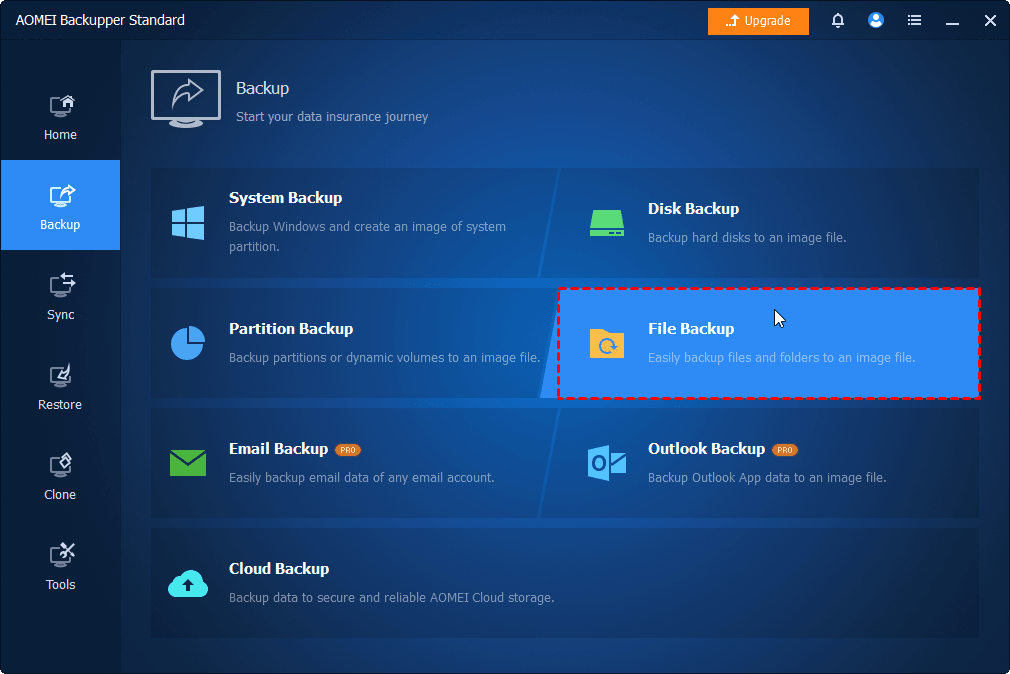
To prevent damage caused by data loss due to physical damage, you can consider creating regular backups for your SanDisk USB drive. AOMEI Backupper Standard is a free backup software that offers a user-friendly interface, time-saving backup solutions, and comprehensive features, enabling you to effortlessly back up any desired data and make it run automatically.
Shining points of AOMEI Backupper
- Enhancing backup efficiency is the primary objective of Block-Level Backup, which is alternatively referred to as an image-level backup.
- The default incremental backup can effectively save both time and storage space.
- Enable scheduled Backup to create backups based on daily, weekly, or monthly, minimizing manual effort.
- For flexibility and convenience, you can sync files to external hard drive, cloud storage, etc., which does not compress files to an image file.
FAQs
Can I recover my lost data from a SanDisk USB drive?
Yes, it is possible to recover lost files from a SanDisk USB drive even if you don't have a backup. In this case, you can try using specialized data recovery software - AOMEI FastRecovery, or by seeking professional data recovery services.
2. What steps should I take immediately after data loss from a SanDisk USB drive?
It is important to stop using the USB drive immediately to prevent further data overwriting. Avoid any actions that might cause additional damage, and consider using reliable data recovery software or consulting with a professional data recovery service.
3. How can I prevent data loss in my SanDisk USB drive in the future?
To prevent data loss, it is recommended to regularly back up important files, avoid improper ejection of the USB drive, use reliable antivirus software, and handle the drive with care to avoid physical damage.

 as a preferred
source on Google
as a preferred
source on Google