




PS4 Cannot Access System Storage? Fixed!
Scroll down and learn to fix PS4 cannot access system storage on this page. Besides, you can also recover data from PS4 hard drives with ease.

By Ivy Updated on February 28, 2026


PS4 cannot access system storage!
If you encounter the error code CE-34335-8 and the accompanying message that PS4 cannot access system storage, there is likely an issue with your PS4’s internal hard drive.
When playing games on your PS4, some users have encountered the CE-34335-8 error after disassembling the hard drive. It indicates that the PS4 cannot detect the hard drive.
Before fixing this issue, you need to check the precise cause:
- Is the hard drive properly connected?
- Is the connection to the hard drive loose?
- Is the PS4’s hardware processor damaged?
- Are there any bad sectors on the hard drive?
- Is the power supply connector for the hard drive damaged?
Part 1: How to fix PS4 cannot access system storage
If you cannot start the PS4 cannot access system storage, you can refer to the following steps to initialize your PS4.
Step 1. Press and hold the power off > release it and wait for two beeps to enter Safe Mode.
Step 2. Connect the DualShock®4 controller using a USB cable and press the PS button.
Step 3. Click Initialize PS4 (Restore System Software) to begin the process.

After initialization, please ensure your PS4 is the latest system software version. Then, you can connect the external USB to your PS4 and check whether the extended storage functionality has been restored.
Part 2. Replace the internal hard drive and recover data from hard drives
As a first step, try pressing the power button for one second to turn off the PS4 and then turn it back on to see if the error persists.
But several users have reported attempting all available options in Safe Mode without success. So you can remove the hard drive from the PS4 and reconnect it to another PC. Sometimes, this way can help you recover files from a dead computer.
Step 1. Preparations to fix cannot access system storage PS4
- A screwdriver.
- A working PC connected to the Internet.
- An external storage device with at least 1GB of free space.
- Ensure you have a PlayStation 4 full-size system, specifically models CUH-1000 to CUH-1200 or model CUH-1215.
- Obtain an officially supported replacement drive. Only 2.5-inch internal type and serial ATA internal drives are supported by the PS4 system.
Step 2. Make a disk backup of your PS4
To prevent data loss, you’d better make a disk backup of your PS4’s internal hard drive including all games, apps, saved data, captures, and themes.
Here comes a free Windows backup tool, AOMEI Backupper. This freeware is designed to back up files, partitions, disks, or systems. Let’s take disk backups as an example.
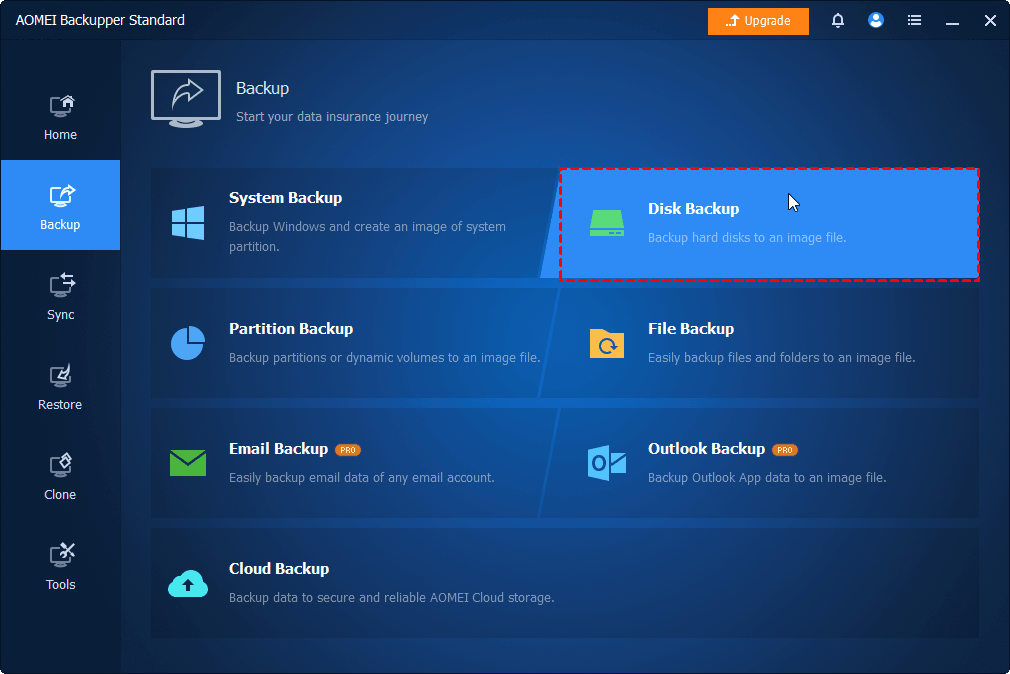
Step 1. Download and install AOMEI Backupper on your Windows PC. Connect your PS4 hard drive to the computer. Under the Backup button, select the “Disk Backup” option.
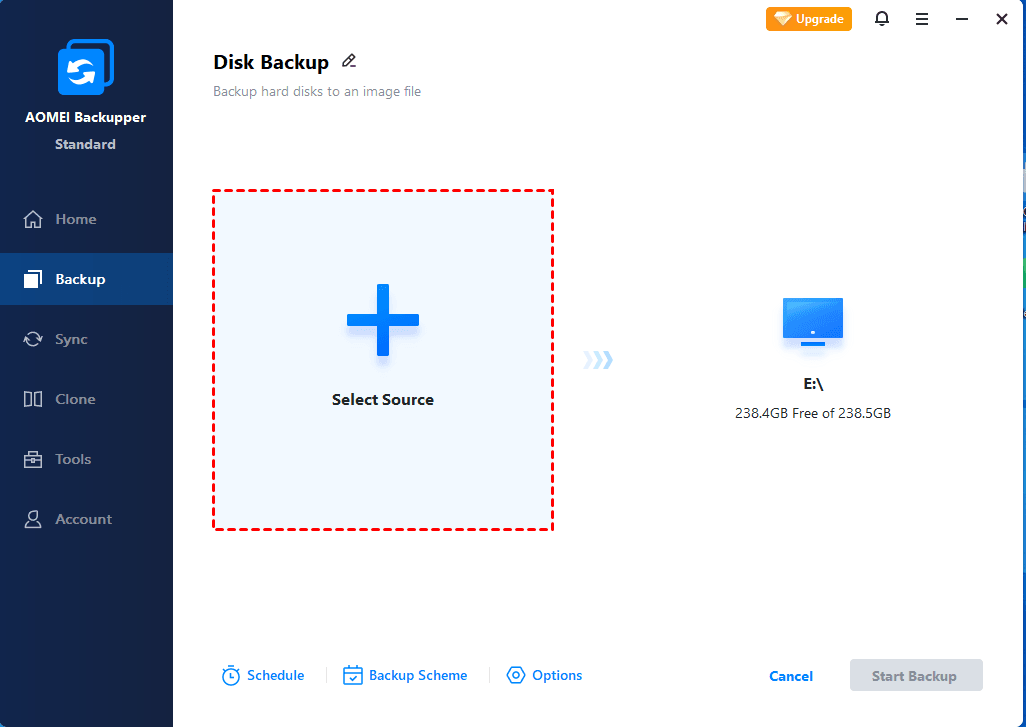
Step 2. Click “Select Source” to choose your connected PS4.
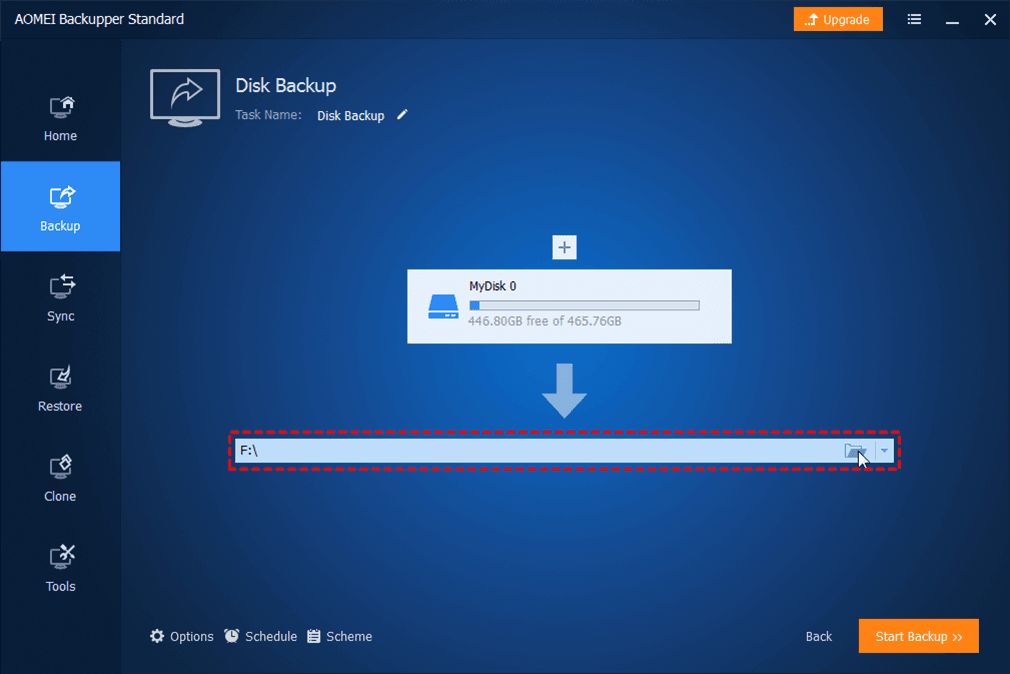
Step 3. Click the PC icon to select a destination path. Once done, click the “Start Backup” button.
Step 3. Replace your internal hard drive
If your PS4’s hard drive is severely damaged, please consider purchasing a new one and replacing it yourself instead of spending significant money on professional repairs. This way also can resolve your PS4 cannot access system storage.
Step 1. Ensure the PS4 is completely turned off.
Step 2. Remove the old internal hard drive using screwdriver. Then, replace it with a larger drive compatible with PS4.
After replacing the hard drive, you can copy the saved data to your PlayStation 4 system. Please remember to sign in with the same account during the process.
Step 4. Recover data from PS4 hard drive
Many users may have mishandled their hard drives by repeatedly installing, connecting, or removing them without proper consideration. What’s worse, using a single hard drive across various devices can also cause hard drive data loss.
Or if you’ve accidentally deleted files from PS4 hard drives, can you recover data from PS4 hard drives? In this situation, using reliable data recovery software such as AOMEI FastRecovery is the optimal solution for recovering deleted and missing files from PS4 hard drives.
AOMEI FastRecovery-
👍 Free data recovery, supporting up to 500MB.
-
📚1000+ data types: Recover deleted or lostimages (PNG, JPG, JPEG, BMP, etc.), videos (MP4, MOV, etc.), documents (DOC, XLSX, PDF, PPT), etc.
-
2️⃣ scanning methods: IntegrateQuick Scan & Deep Scan automatically to search all the recoverable files.
-
🔎 Easy to find: Sort, search, filter, and preview files before recovery.
-
💻 Crashed PC recovery: Recover data from hard drive without OS.
-
💾Excellent compatibility: Support HDDs/SSDs, external drives, USB drives, SD cards, and NTFS, FAT32, exFAT, and ReFS file systems.
 100% Secure
Download and install AOMEI FastRecovery on your Windows 11, 10, 8, 7, or Server PC now!
Step 1. Connect the PS4 external HDD to your Windows. After launching AOMEI FastRecovery, hover the mouse over the drive where the deleted files are saved, and click Scan.
Step 2. AOMEI FastRecovery can automatically scan your PS4 external hard drive and display all recoverable files by Type or Path, allowing you to sort from different options.
📍📍📍Notes:
✅ For specific files or folders, type the file name or the extension in the search box. Or click the filter button to specify the data type (e.g., Images).
✅ Click the Deep Scan button if the Quick Scan fails to locate the desired files. Deep Scan searches every sector of the disk to find more files.
Step 3. Select the needed files and click “Recover” to begin the data recovery process. Please save photos in another partition instead of the original PS4 hard drives.
📍📍📍Note: AOMEI FastRecovery enables you to recover data for free, up to 500MB. To recover unlimited files, please upgrade to the advanced edition.
In the end
If your PS4 cannot access system storage, please refer to the above to fix this issue. To recover deleted files, try data recovery software - AOMEI FastRecovery. Moreover, if you’re unwilling to suffer data loss, you’d better make a regular backup.

 as a preferred
source on Google
as a preferred
source on Google