




Google Drive Files Missing? Here's How to Recover Them
Google Drive files missing? It's stressful, but most cases are fixable. This guide walks you through the most reliable ways to find and recover missing files, from Google's built‑in recovery tools to local folder. No panic needed.

By Ivy Updated on July 3, 2026


Why did my files disappear from Google Drive?
Google Drive makes it easy to sync, store, and share files whether you're using it as personal cloud storage or a team collaboration tool.
But like any cloud service, it's not perfect. Sync errors, missing files, and unexpected disappearances can happen to anyone. Just search online, and you'll find countless threads from users asking the same question: "Where did my Google Drive files go?"
I am missing two files that are very important to me on my drive. I'm not sure if I permanently deleted them on accident to make space. I have also emptied my trash.
- Question from GoogleDriveHelp
The reasons vary -deleted parent folder, removed shared file, sync error, or even files removed by Google. And yes, Google can delete your files under certain conditions. We'll explain why.
But here's the good news: in most cases, missing Google Drive files are recoverable. This guide walks you through the steps to get your files back - starting with the simplest fixes first.
Why does Google delete files?
Yes, Google can delete your files under certain circumstances, but it's rarely random. Here are the most common reasons and what you can do to check.
- Harmful, spamming, illegal, etc., content is found.
- Repeated actions that breach the use terms are found.
- Or, out of legal requirement.
But an ordinary user hardly ever breaches the user terms. So, if your account is in normal use, your files and accounts will be safe and sound.
Then, how to fix the problem: Google Drive files missing? Check the 5 fixes below.
How to recover missing Google Drive files
If you've found Google Drive files missing, don't panic - you're not alone, and you're not out of options. Here are some proven ways to track them down and get them back.
Fix 1. Try an advanced search to find missing files
When a parent folder gets deleted, the files inside it aren't actually gone — they're just moved. They're still safely stored in your Drive, waiting to be found. You can use Google Drive's advanced search to filter by file type, date, or owner. In most cases, a quick search is all it takes to bring them back.
Here's how to locate them:
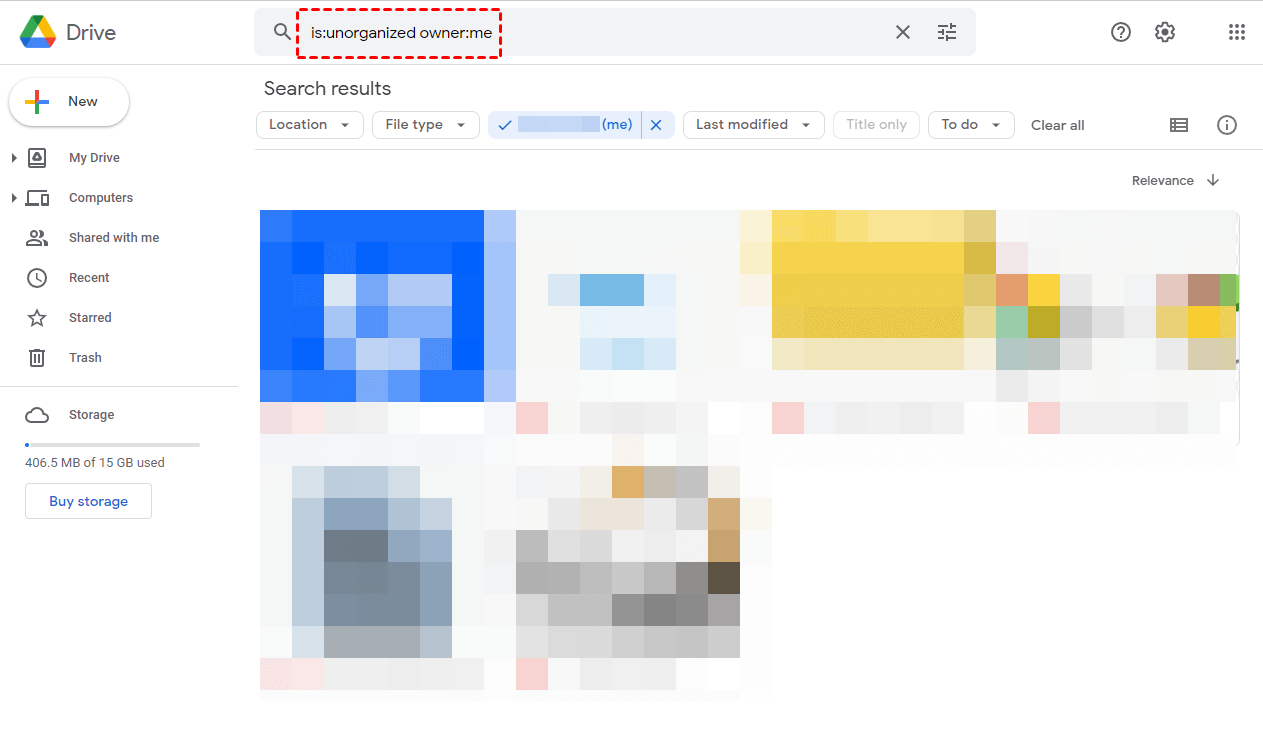
Sign in to your Google account > go to Google Drive > input is:unorganized owner:me in the search box. Thus, you could find your files under a deleted folder shared with you.
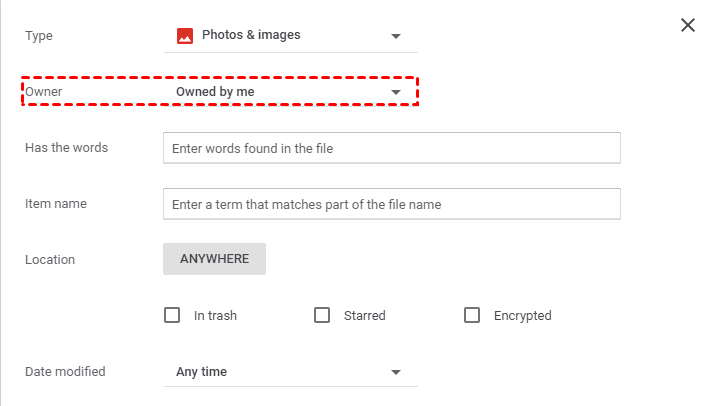
Or, click the filter icon beside the search box > choose the filter option according to your situation. E.g., Type, Owner, Item name, Location, etc.
Fix 2. Take a look at the Activity Panel
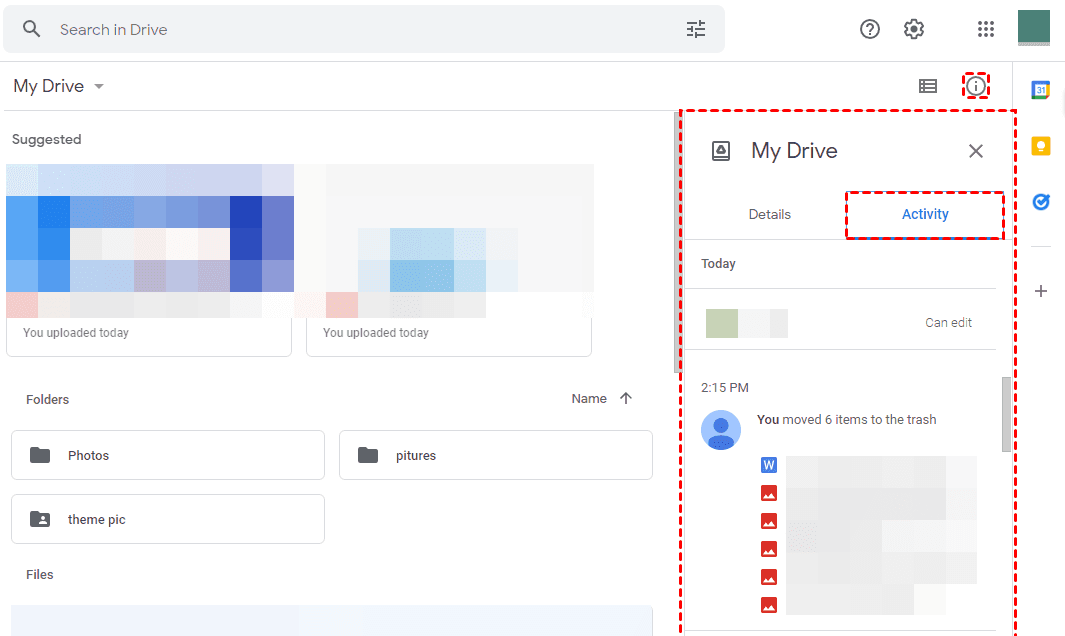
Activity will record your operations: adding, editing, sharing, deleting, etc. Check the Activity panel to locate your wanted files.
Step 1. Go to My Drive > click the Info icon in the top-right corner.
Step 2. Click Activity > see if you can find your needed files.
Fix 3. Recover deleted Google Drive files from Trash
If the methods above could not help you regain access to your files, then perhaps your files were deleted somehow.
Firstly, let’s check the Trash. The Trash works similarly to the Recycle Bin on your computer. You could recover deleted files from Recycle Bin easily. But, slightly different, all items deleted will be temporarily stored here only for 30 days.
Step 1. Sign in to your Google account.
Step 2. Go to Trash > check if your wanted files are there > choose what you need > right-click on the files > click Restore.
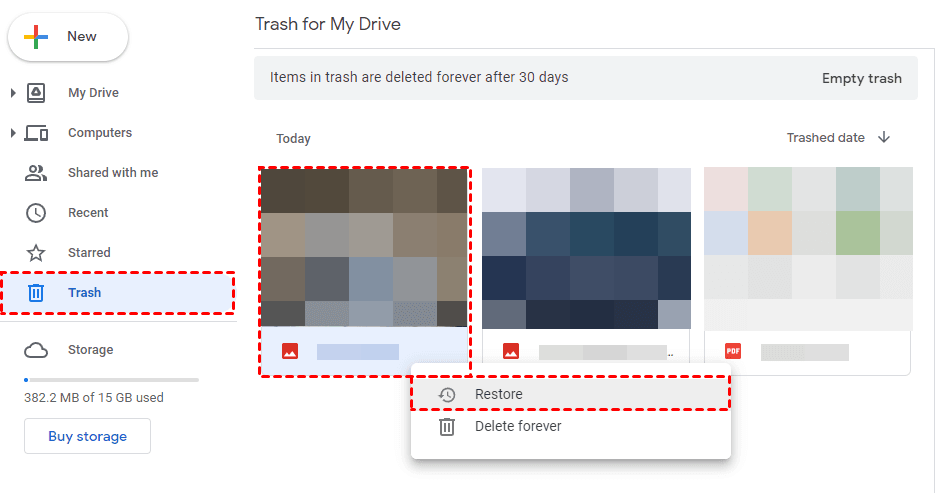
To select multiple files at a time, tap the “CTRL” key.
Fix 4. Contact Google Drive Support
If no needed files are found in the Trash, then maybe your files have been permanently removed or exceeded the 30-day limit.
With this, you could try to contact Google Drive Support and ask them to recover the files for you.
But attention, please, that files that were permanently deleted too long ago might not be recovered successfully.
Step 1. Go to the Google Drive Help site > sign in to your account.
Step 2. Fill in the required info > click I consent to allow Google to attempt to recover files… > click Submit to send your request.
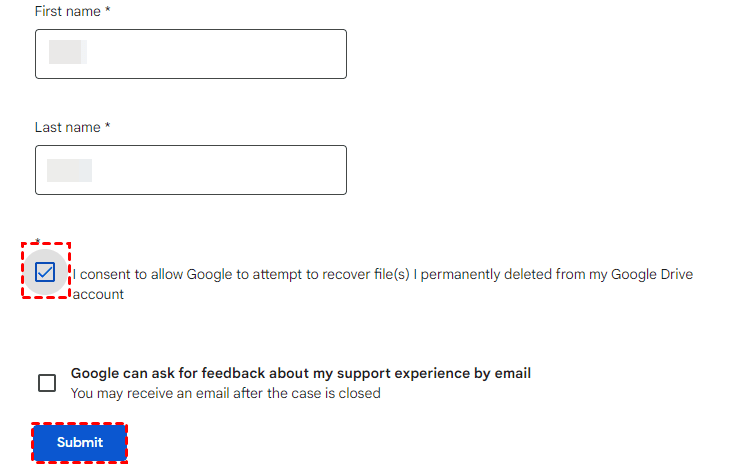
Step 3. A reply will be sent back in about 12-48 hours. Afterward, check if all the files were recovered in your Google Drive.
Still Missing? Recover Google Drive Files from Your PC
Google Drive's support can restore files but only recent ones, and it can take up to two days. That's time you may not have.
Every minute you keep using your computer, the risk of overwriting your lost files increases. Once that happens, recovery becomes impossible.
So if you've synced files to Drive before they went missing, there's another method - use a professional data recovery software like AOMEI FastRecovery to scan the local Google Drive folder and find missing files (e.g., photos, documents, videos,etc.) in minutes, not days.
 AOMEI FastRecovery
- 🔎 Dual-Scan Modes: Quick Scan for recently deleted files, Deep Scan for more complex scenarios. Together, they find more files and recover them with greater success.
- 📚 1000+ Data Types: Recover deleted or lost documents (TXT, DOC, XLSX, CSV), images (JPG/JPEG, PNG, GIF), videos (MP4, MOV, AVI, WMV), audio, and more.
- 🧩 Wide Range of Scenarios: Recover files from accidental deletion, emptied Recycle Bin, formatted drive, virus attack, system crash, and more.
- 🚀 Find Your Files Fast: Browse by type or path, sort, search, filter, and preview files before recovery. No more digging through endless lists.
- ✅ Safe & Easy to Use: Read-only, no data overwriting. simple, intuitve interface.
- 👍 Try It with No Risk: The free edition recovers up to 500MB of data - no commitment, no quality compromise.
 100% Secure
Now start recovering files missing in Google Drive in a breeze.
Step 1. Run AOMEI FastRecovery after installing. Then, click Deleted Files Recovery, specifically designed for quick recovery.

Step 2. Hover the mouse over the affected local drive > click Scan.
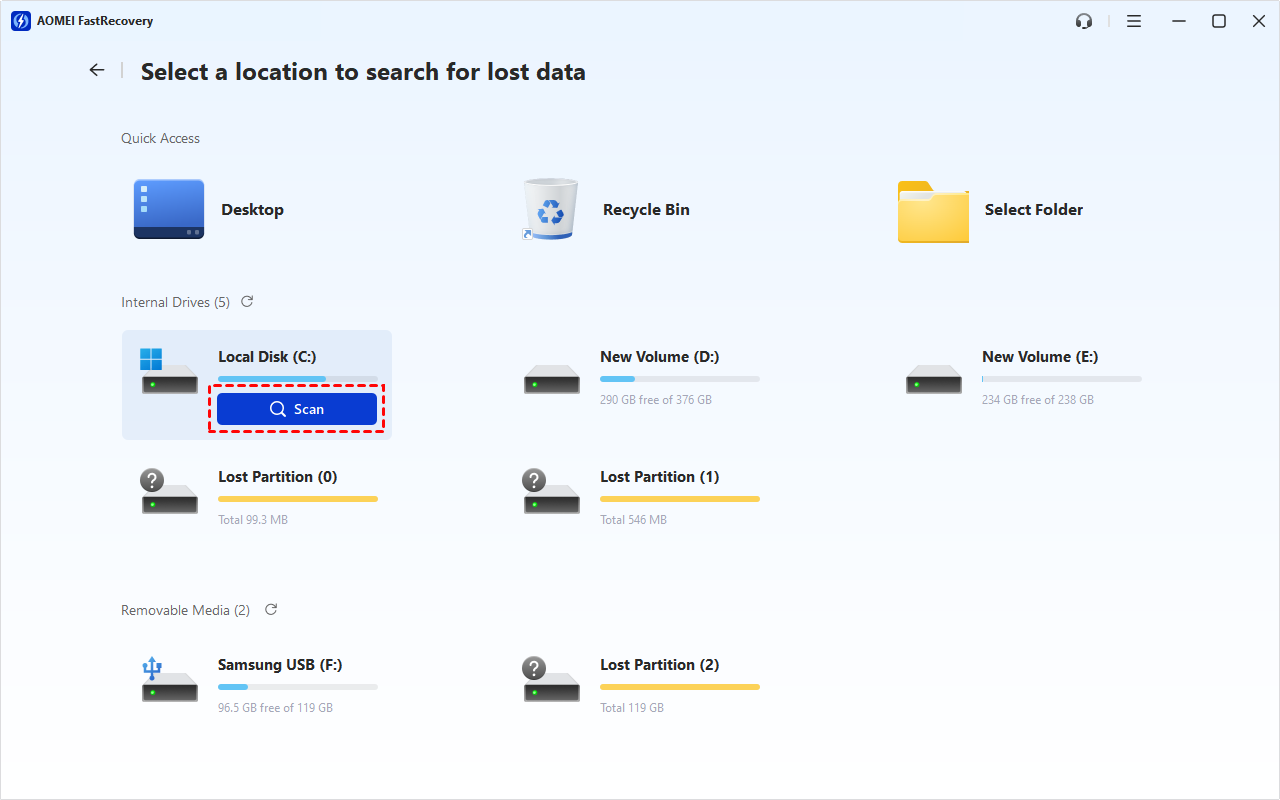
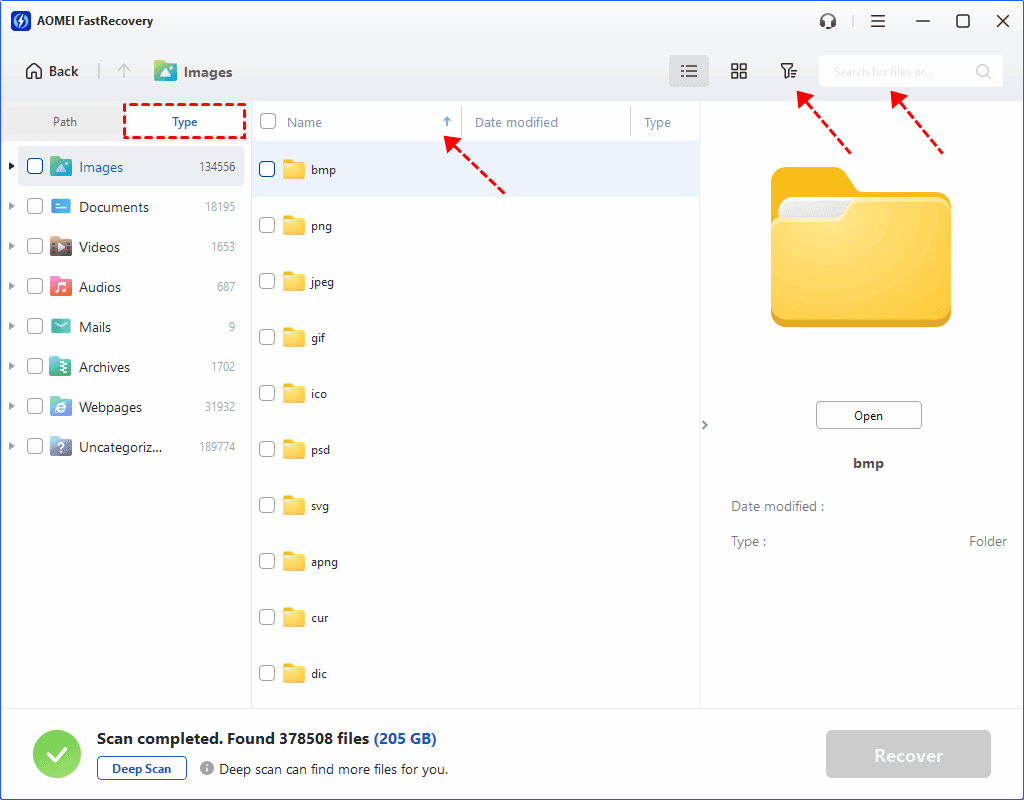
Step 3. The quick scan starts automatically. Once it finishes, check the results by file type (e.g., Images) and specific formats. Expand to check specific files in the Deleted Files, Recycle Bin or Existing Files directories.
To find files quickly, combine the following options:
-
Sort files by name, date modified, type, etc., using the column headers.
-
For faster searching, type the file name or extension (.png) in the search box.
- Or click the funnel-shaped button to narrow your search by type or size, especially useful for large deleted files.
-
Browse by Path if you remember where the file was originally saved.
-
Click the Deep Scan to find more data if Quick Scan fails. It will scan every sector of the disk and take longer.
Step 4. Select missing Google Drive files in the local folder and click Recover to get them back quickly. Always save them to a new location to avoid data overwriting.
You can recover Google Drive missing files for free, up to 500MB. To recover all files, consider upgrading to the advanced editions.
Conclusion
If you've found Google Drive files missing, don't panic - most cases are recoverable. Start with Google's built‑in tools: Trash, Activity panel, advanced search, and support. If those don't work, your files may still exist locally.
Stop using the drive, run AOMEI FastRecovery, and recover what's still there.
It can scan your local drive for Google Drive sync leftovers - recovering documents, photos, videos, and more. The free edition restores up to 500MB with no commitment.

 as a preferred
source on Google
as a preferred
source on Google