




How to Download and Install Windows 11 Arm ISO on Your PC
You can download and install Windows 11 Arm ISO directly from Microsoft. Check your Windows PC’s architecture first, then choose an installation method based on whether you want to retain files and apps.

By Ivy Updated on October 16, 2026


You’re getting ready to reinstall Windows on your Arm-based PC. You open Microsoft’s download page, only to find separate x64 and Arm64 ISO files. Which one should you choose, and can you install it without losing your files?
Your PC needs the Arm64 image. Microsoft provides an official download, so you don’t need to build an ISO yourself or join the Windows Insider Program.
This guide shows you how to download and install Windows 11 Arm ISO. You’ll learn how to check your PC, run Setup while keeping eligible files and apps, or prepare USB media for a clean installation.
How to Download Official Windows 11 Arm64 ISO
Step 1. Open Microsoft’s Windows 11 Arm64 download page. Choose the release currently offered rather than following an old build number.
Step 2. Select the Windows 11 ISO and click Download Now. Choose your language and confirm the selection.
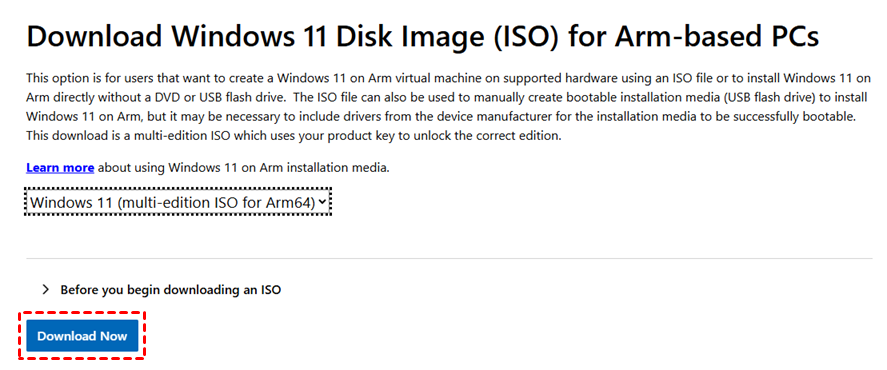
Step 3.Click Download Now again.
Step 4. Save the ISO to a drive with sufficient space.
Step 5. Expand Verify your download on Microsoft’s page. Open PowerShell and enter this command with your actual file path:
Get-FileHash -LiteralPath "C:\Users\YourName\Downloads\YourWindows11Arm64.iso" -Algorithm SHA256
Compare the result with Microsoft’s SHA256 value for the same download and language. A match confirms file integrity, but it doesn’t establish hardware compatibility.
The download contains multiple Windows editions. Your license determines which edition you can activate. Downloading the ISO doesn’t include a Windows license.
Check Your Windows PC Before Installing
Open Settings > System > About and check System type. The target computer must have an Arm-based processor. Intel and AMD Windows PCs need the x64 image instead.
Your PC must also meet the applicable Windows 11 system requirements. Check your manufacturer’s support page for the exact model and its available drivers.
| 🎯 Your goal | 🛠️ Installation method | 📋 What to prepare |
|---|---|---|
| Keep eligible files and apps | Method 1: Run Setup inside Windows | Matching ISO language and a backup |
| Start with a fresh installation | Method 2: Boot from USB media | A backup, compatible media, and drivers |
| Restore the manufacturer’s configuration | Device-specific recovery media | The recovery image for your exact model |
Copy important folders to separate storage before proceeding. Open several copied files to check the backup. Keep your BitLocker recovery key accessible outside the computer.
Disconnect the backup drive before a clean installation. This also makes the installation destination easier to identify.
Method 1: Install Windows 11 Arm from the Mounted ISO
👍 Best for: A compatible Arm PC that starts normally, especially when you want to retain files and apps.
Windows Setup can run directly from the mounted image without creating a USB installer.
Step 1. Connect your PC to a stable power. Then, right-click the downloaded ISO and select Mount. Open the new virtual DVD drive in File Explorer.
Step 2. Double-click setup.exe and approve the permission prompt. Follow the compatibility checks.
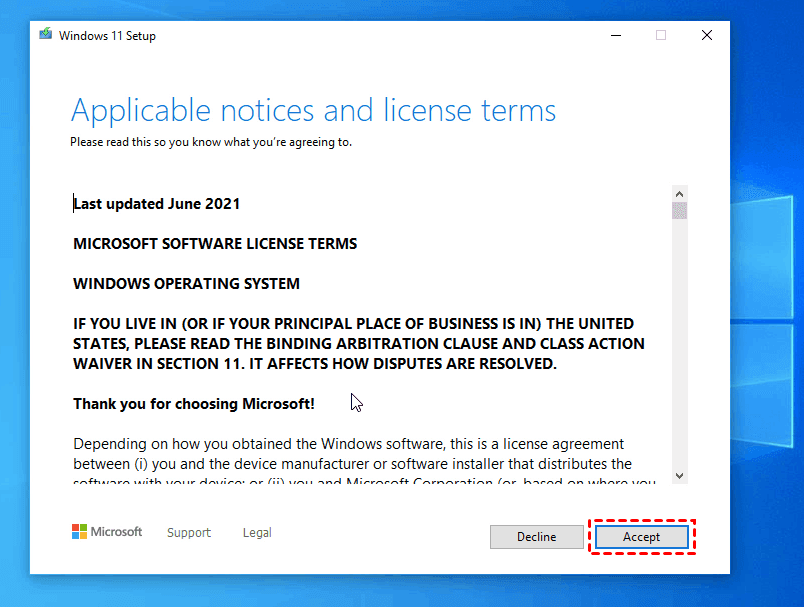
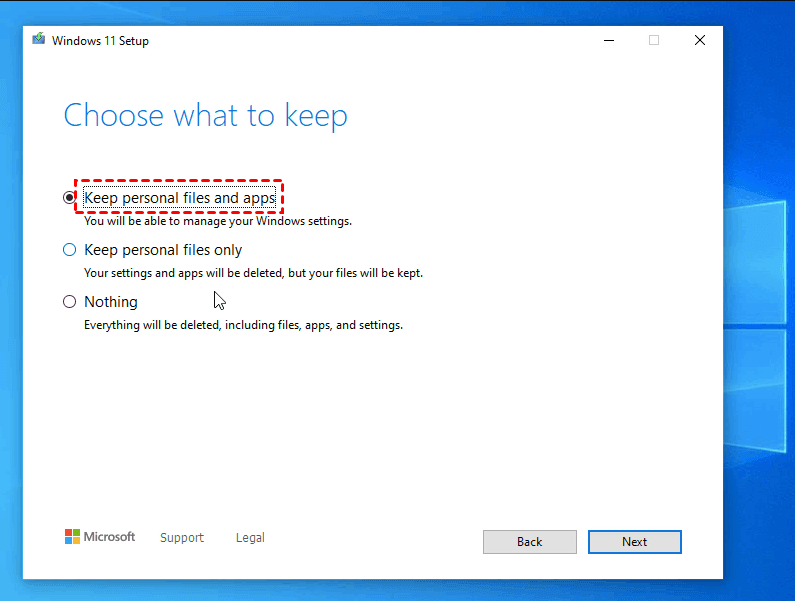
Step 3. Select Change what to keep when available. Choose Keep personal files and apps to preserve your documents, programs, and settings.
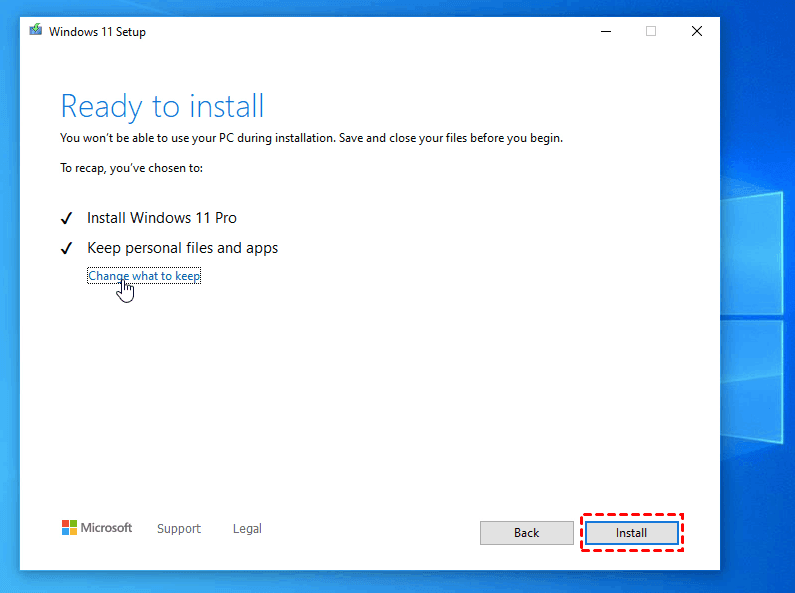
Step 4. Review the final installation summary and select Install. During the process, your computer may restart several times.
After signing in, check your folders and essential programs. If files appear missing, start by checking the account and original storage location. You can also refers to recover lost files after Windows 11 update.
Method 2: Clean Install Windows 11 Arm from Installation USB
👍 Best for: A compatible Arm PC that needs a fresh installation and already has a verified backup.
Booting from installation USB starts a separate Setup session. It doesn’t provide the same app-retention workflow as running Setup inside Windows.
Prepare the USB installer
Before you start:
- Check your manufacturer’s recovery options first. Device-specific media includes tested drivers and may be the simpler choice.
- If not, prepare a blank USB drive with sufficient capacity. Microsoft specifies at least 8GB.
- Copy any existing USB files elsewhere before formatting. Otherwise, you'll lose them.
Step 1. Connect the prepared USB drive to your computer. Right-click the Start menu and select Disk Management to open it.
Step 2. Identify the USB by capacity, right-click it and select Format. Be sure you select FAT32 as its file system and click OK.
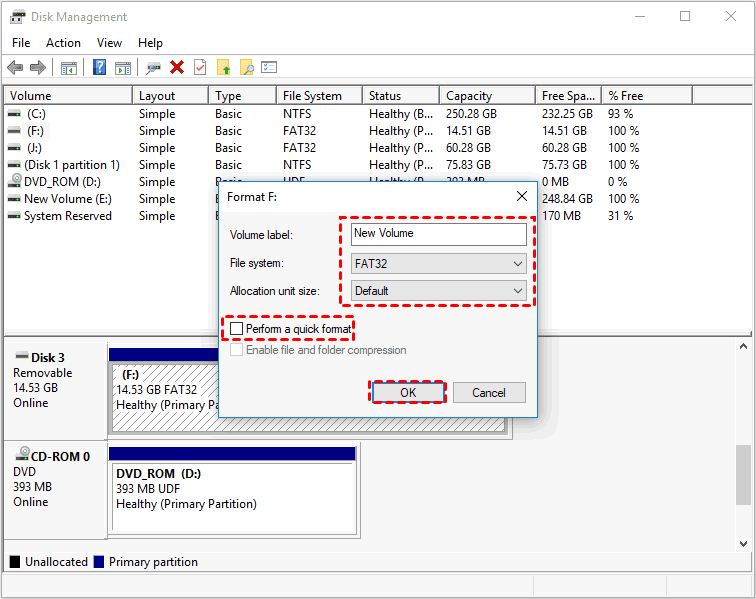
Step 3. Mount the Arm64 ISO and copy everything to the USB drive. If sources\install.wim exceeds the size limit, leave it and split the file with this command:
Dism /Split-Image /ImageFile:D:\sources\install.wim /SWMFile:E:\sources\install.swm /FileSize:3800
Replace D: with the mounted ISO drive and E: with your USB drive. Keep all generated .swm files together in the USB’s sources folder.
Install Windows on the destination PC
Step 1. Connect the USB installer. Restart your computer and press the BIOS key to access Windows recovery environment. Then, set this USB drive as the first boot option and press F10 to save changes and restart.
Step 2. On the Windows Setup screen, choose your preferred options, then click Next > Install now.
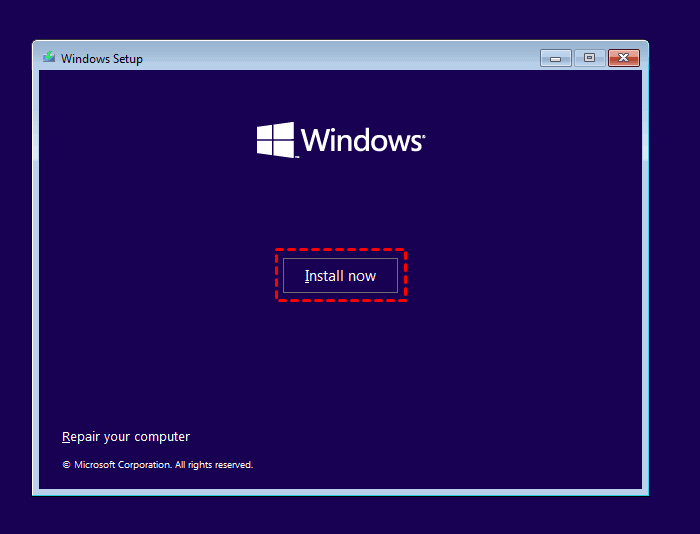
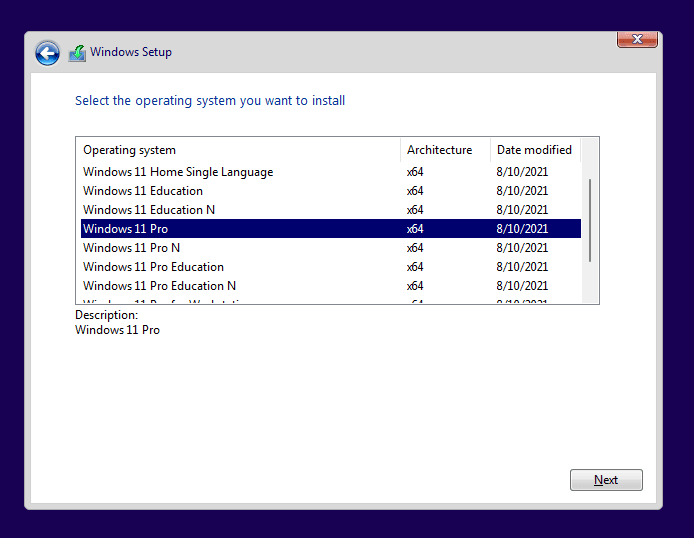
Step 3. Follow Windows Setup and select the Windows edition matching your license.
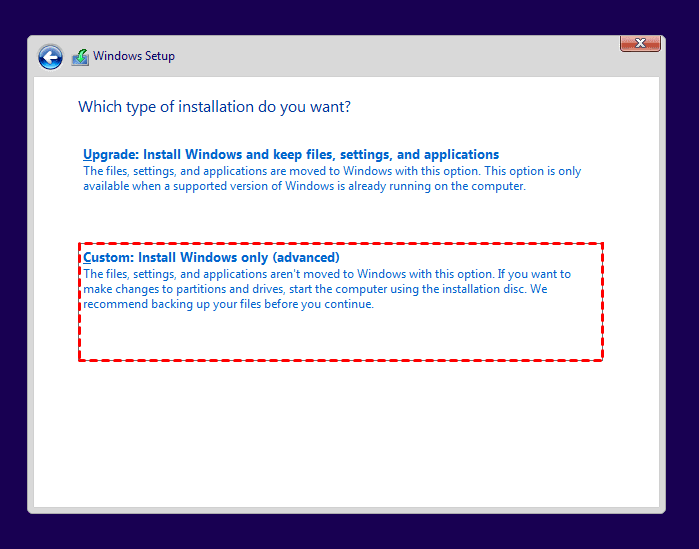
Step 4. When asked to choose an installation type, select Custom: Install Windows only (advanced).
Step 5. Select the drive where you want to install Windows 11, usually the previous system drive, then click Delete or Format > Next. Windows 11 will begin installing automatically.
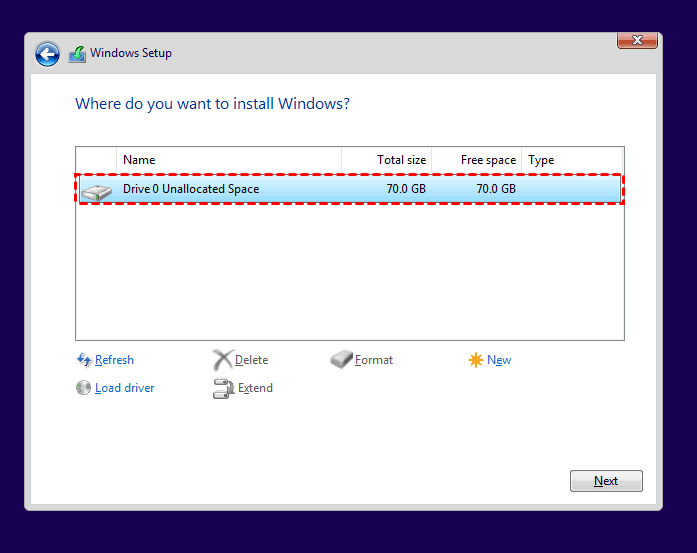
Wait for the installation to finish, then complete the initial account setup. Run Windows Update and install any remaining manufacturer drivers.
Deleted USB Files While Preparing the Installer?
You might clear an old USB drive before noticing an important folder. Stop using that USB immediately. Writing Windows installation files onto it can overwrite the deleted documents or photos.
AOMEI FastRecovery is easy-to-use USB data recovery software that can scan drive for deleted files, from documents to images, videos, archived files, and more. Search and filters help you locate individual files, and thumbnail previews make it easy to find specific photos and videos.
 AOMEI FastRecovery
A reliable USB data recovery software
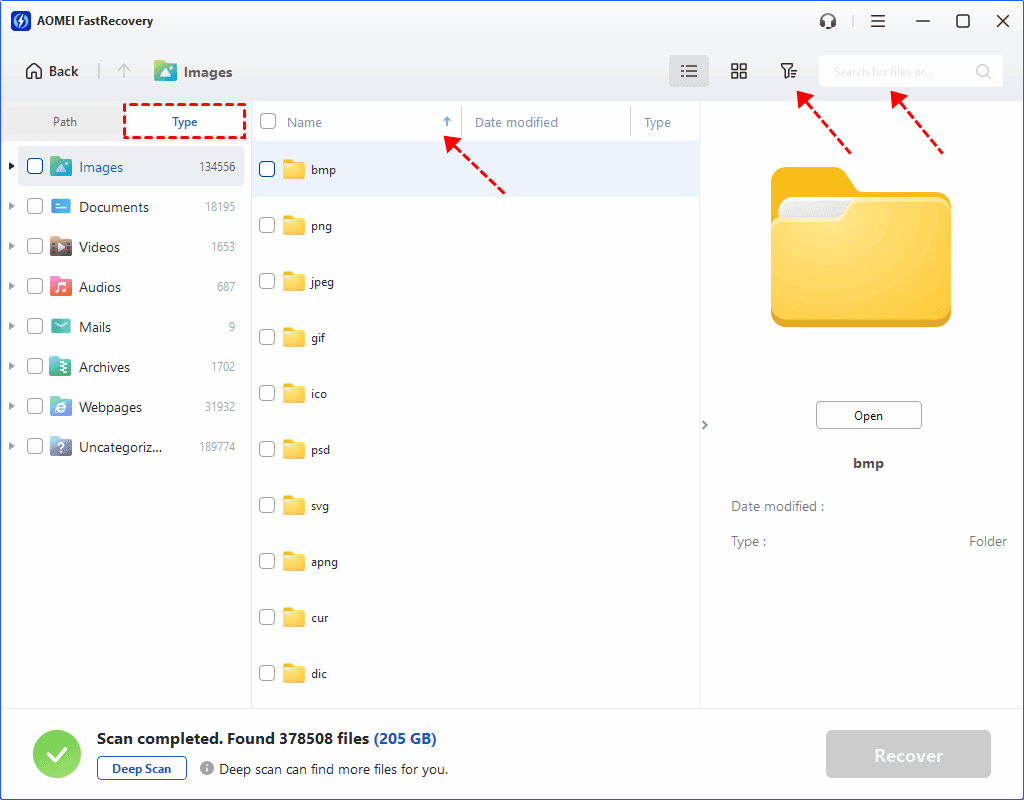
Use another supported Intel/AMD Windows PC for this recovery task. Download and install the software away from the USB and save recovered files to another drive to avoid data overwriting.
For further guidance, see: recover deleted files from USB drive. Recovery depends on surviving file data. The free edition can recover up to 500MB. Larger recovery requires an upgrade.
Check Drivers and Files After Installation
Open Settings > System > Activation to check activation. Test Wi-Fi, sound, touch input, and connected accessories.
Check essential applications individually. App compatibility and driver compatibility are separate issues. A program may run while an attached device still needs an Arm-compatible driver.
Keep your important files backed up, so you have a way to recover them if they're deleted or lost. Otherwise, you can only recover data after reinstalling Windows with a software scan. Avoid further writes to the affected drive.
FAQs
Is Windows 11 Arm ISO free to download?
Yes. Microsoft offers the ISO publicly. Activating Windows still requires an appropriate license.
Do I need the Windows Insider Program?
No. The regular public Arm64 ISO doesn’t require Insider enrollment.
Can the Media Creation Tool create Arm64 installation media?
Microsoft’s Arm ISO documentation states that the Media Creation Tool doesn’t currently create Arm64 bootable media. Use compatible manual preparation or your manufacturer’s recovery process.
Why won’t the USB installer boot?
Check that the ISO is Arm64 and that your PC supports the media. Device drivers may be required before the installer can boot. Follow the manufacturer’s boot instructions for your exact model.
In the End
To download and install Windows 11 Arm ISO, use Microsoft’s official image and check your PC’s support requirements. Run Setup inside Windows to retain eligible files and apps. For a fresh installation, prepare compatible USB media with your backup and driver plan ready.

 as a preferred
source on Google
as a preferred
source on Google