




How to Recover Data after Reinstalling Windows 10 (2 Ways)
This article describes 2 effective methods and how to recover data after reinstalling Windows 10 step by step. But sometimes you don't need to reinstall Windows 10.

By Ivy Updated on May 6, 2026


How can I recover my data after installing Windows 10?
“I recently ran into a problem with Windows 10 update that resulted in reinstalling Win 10. My drive C was completely wiped clean, and I need to reinstall all of my programs. But my D drive (a separate physical drive) was not affected. Luckily, it saves my most data.
My question is: Is it safe to restore the backup to the C drive because the message says the selected hard disk is not empty? If I continue, all the data on the disk will be deleted. So, how to recover data from reinstalling Windows 10?”
- Question from a user
Yeah, in the field of computers, when there is a problem with the Windows operating system, users sometimes need to reinstall the Windows OS to restore it to a good status, but they don't want to lose data. Here are 3 different situations and recovery methods:
- #1: Still don't reinstall Windows. Microsoft offers you the "Keep my files" option while resetting, which, as the name suggests, allows you to reinstall Windows 10 without losing data. Also, it's necessary to backup files (if possible).
- #2: Already Reinstalled Windows. Microsoft still allows users to recover data from Windows.old folder created after reinstalling Windows. Note Windows will automatically delete it after 28 days.
- #3: 28 days after Reinstall Windows. You need to check if there are any backups available or try reliable data recovery software. This is what we are going to focus on.
How to recover files after reinstalling Windows 10
As mentioned previously, you can easily recover data from Windows.old folder after reinstalling within 28 days. Please check if there is a Windows.old folder. If not, go ahead and learn 3 different methods to recover deleted or lost files from Windows 10.
Option 1. Recover files after reinstalling Windows 10 with File History
File History, first introduced in Windows 8 and later inherited in Windows 10, allows you to back up copies of files in the Documents, Music, Pictures, Videos, Desktop folders, and those available offline OneDrive files and save them in an external drive or network drive that is not affected by Windows reinstallation.
Step 1. Connect external hard drive to your computer. Start Control Panel and go to System and Security > File History.
Step 2. Click Restore personal files.

Step 3. Select the deleted files you need and click the Recover button. Click the arrow icon to see earlier versions.
To change the path, click the Settings icon and select Restore to.
Option 2. Recover files after reinstalling Windows 10 with AOMEI FastRecovery
If there is no available backup, you can still try AOMEI FastRecovery. Supported by advanced technology, this powerful and user-friendly data recovery software can handle broader data loss scenarios, such as accidental deletion, disk formatting, system crash, etc., even lost partition.
AOMEI FastRecovery- The intuitive interface and easy-to-follow guide make it easy to use for all users.
- Integrate Quick & Deep Scan to find all recoverable data for complete recovery.
- Retrieve 1000+ data types, including texts, pictures, videos, audios, emails, compressed files, etc.
- Organize and display data by Type or Path, allowing you to sort, search, filter, and preview files.
- Recover specific files or folders instead of all.
- Create a bootable USB to recover data from a failing drive.
- Support Windows 11/10/8/7 and Windows Server and NTFS, FAT32, exFAT, and ReFS file systems.
 100% Secure
- Don't download and install AOMEI FastRecovery to the drive containing lost files, which may result in data overwriting.
- The free edition of FastRecovery can recover data up to 500MB for free. To enjoy unlimited data recovery, please upgrade to the advanced version of AOMEI FastRecovery.
Step 1. Open FastRecovery after installing. Then, click Partition Lost Recovery to get started
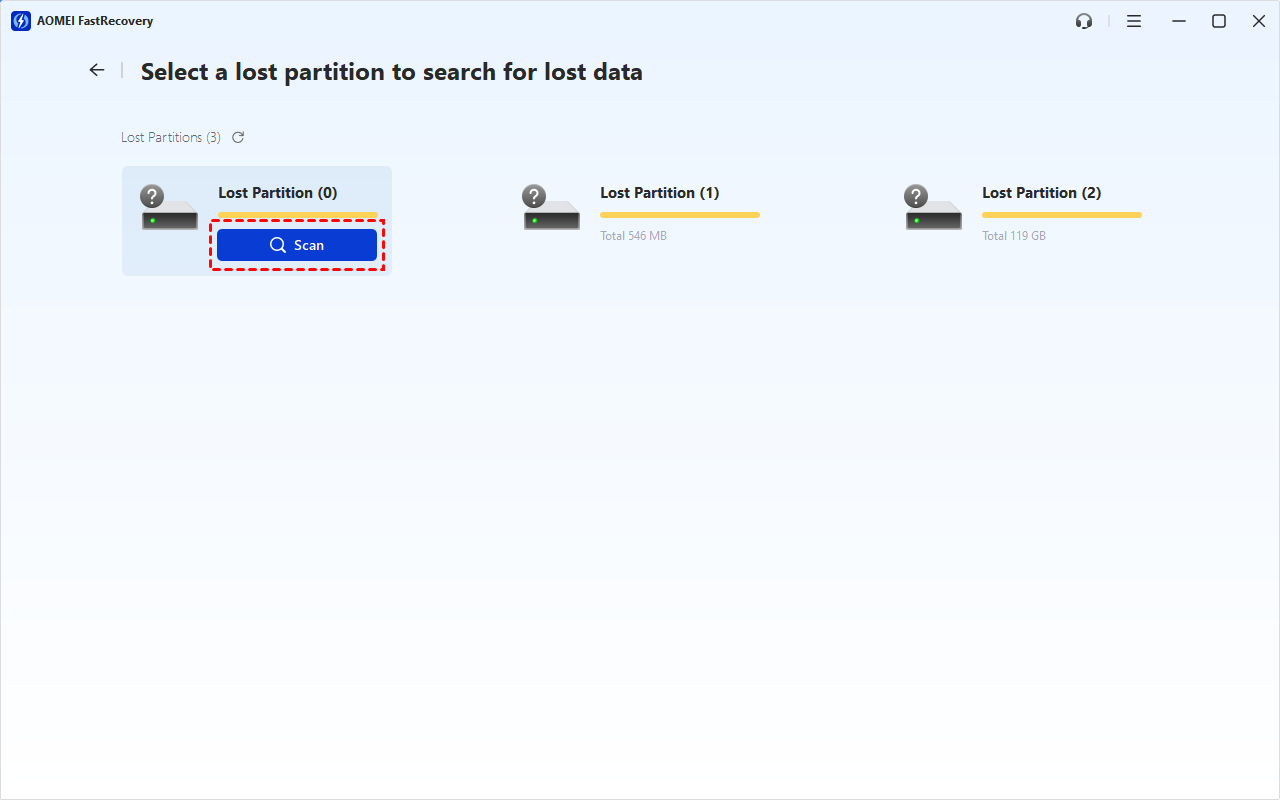
Step 2. Select a lost partition and click Scan. It will scan your partition deeply to find all recoverable data on it.
Step 3. Under the Type section, specify a data type and expand it to see all data formats. or to sort them or search the name for quick recovery.
Step 4. Select the desired data and click Recover to get data back after reinstalling Windows 10. Double-click to preview files if you are not sure.
You will be asked to upgrade to the advanced edition of AOMEI FastRecovery to enjoy unlimited data recovery. The free edition supports up to 500MB.
Sometimes you don't need to reinstall Windows 10
The System Restore Point is a snapshot of the system configuration and Windows Registry settings that can be used to restore Windows operating system to a previous date when it was running smoothly. In other words, if the problem is related to system files, installed apps, system settings, etc., you don't need to reinstall Windows 10.
Step 1. Press Windows and type Create a restore point. Then, click Open.
Step 2. In the System Properties window, click System Restore.
Step 3. Click Next and then select a system restore point from the list. You can also click Scan for affected programs to confirm what applications will be affected.
Step 4. After confirming your restore point, click Finish> Next.
Step 5. Click Yes to start the restoration process. After that, your PC will reboot.
Backup files if you still don't reinstall Windows
It is easy to know that data loss is common for different reasons in the information age. Our computers carry many personal files and working documents. If you are experiencing a situation in need of reinstalling Windows, it's suggested to backup files to external hard drive or other devices (if possible). Thus, you need reliable backup software.
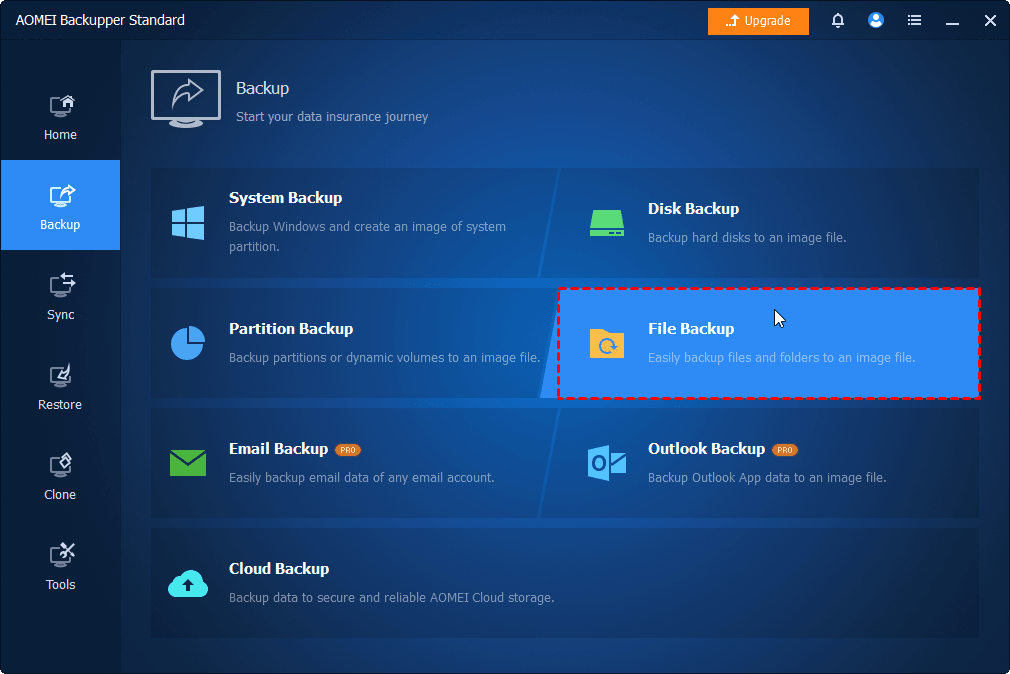
If you’re not familiar with these Windows features, you could utilize a handy third-party tool like AOMEI Backupper Standard. It offers users “System Backup,” “Disk Backup,” “Partition Backup,” or “File Backup” features, so you can backup any items you want.
For instance, if you want to backup some important files, select the “File Backup” option. It even allows you to schedule backup system daily, weekly, or monthly, and backup only changed or new files by default, greatly saving backup space and time. You can also backup the entire Windows 10.
Wrapping up
Windows reinstallation could put you on the verge of data loss. At the moment, how to recover data after reinstalling Windows 10? This comprehensive guide lists 2 effective ways for you, as well as other important suggestions. FastRecovery is worth trying data recovery software if you don't have any backup.
Meanwhile, the handiest and most efficient way for data loss prevention is to seek help from free backup software - AOMEI Backupper Standard. It is much more flexible and easier to use than Windows features.

 as a preferred
source on Google
as a preferred
source on Google