




Deep Scan SD Card Recovery: Find and Recover Lost Files
Deep scan SD card recovery can help locate files after deletion, formatting, or partition loss. Check whether your card is suitable for scanning, follow the recovery steps, and save the files to a separate drive.

By Ivy Updated on October 20, 2026


Your SD card still appears in Windows, but important files are missing. These might be photos, videos, documents, or an entire folder. Perhaps you deleted the wrong files, formatted the card, or lost access to its partition.
Deep scan SD card recovery searches storage more thoroughly than a quick scan. AOMEI FastRecovery offers a USB/SD Card Recovery option that scans the whole card using Deep Scan by default. It helps locate recoverable files beyond the folders you can currently open. Windows File Recovery is another option.
First, stop saving anything to the card. Then check the conditions below before choosing a recovery method.
Check Whether Deep Scan Fits Your SD Card
Both Quick Scan and Deep Scan use file system information to find recoverable data. Deep Scan goes further, searching the SD card sector by sector, which usually takes longer.
So, use Quick Scan for recently deleted files or simple cases like accidental deletion. Only switch to Deep Scan if Quick Scan can't find what you need.
| 🧩 Your situation | 👉 Suitable method | 🔑 Key points |
|---|---|---|
| Files were accidentally deleted | Use Method 1 to scan the card | Avoid saving new files to the card |
| The card was formatted | Consider Method 1 while old data may remain | Do not format it again |
| The partition disappeared | Check whether the card remains detectable | Don't create a new partition just to make it recognized |
| The card has a drive letter and you prefer commands | Consider Method 2 | Use a different destination drive |
| The card disconnects repeatedly or is physically damaged | Stop repeated scans and seek professional assessment | Software cannot repair damaged hardware |
Formatting does not always erase every file immediately. However, recovery depends on the formatting operation and any later writes. See recovering files from formatted SD card for that situation.
A missing partition may disappear from File Explorer while the complete card remains detectable. Scanning the card may extract remaining files, but exporting files does not recreate its partition.
If another drive already contains the files, copy that existing backup to your computer instead. Scanning is useful when you still need to retrieve files from the card itself.
Method 1: Deep Scan the SD Card with AOMEI FastRecovery
👍 Best for: Recovering deleted files from a detectable SD card through a visual interface. 500MB free data recovery.
AOMEI FastRecovery is an easy-to-use SD card recovery software that helps you find and restore files deleted from your memory card.
 AOMEI FastRecovery
- 💾 USB/SD Card Recovery: Uses Deep Scan by default for a more thorough search. Handles accidental deletion, formatting, lost partitions, and more.
- 📚 1000+ File Types: Recover deleted or missing documents, photos, videos, audio files, compressed archives, and more.
- 🗂️ Flexible Browsing: Browse by Type or Path, then use search, sort, and filters to narrow the results.
- ✅ Selective Recovery: Choose the files you need instead of exporting every scan result.
- 💰 Free Tier: Recover up to 500MB for free. Need more? Upgrade for unlimited recovery.
 100% Secure
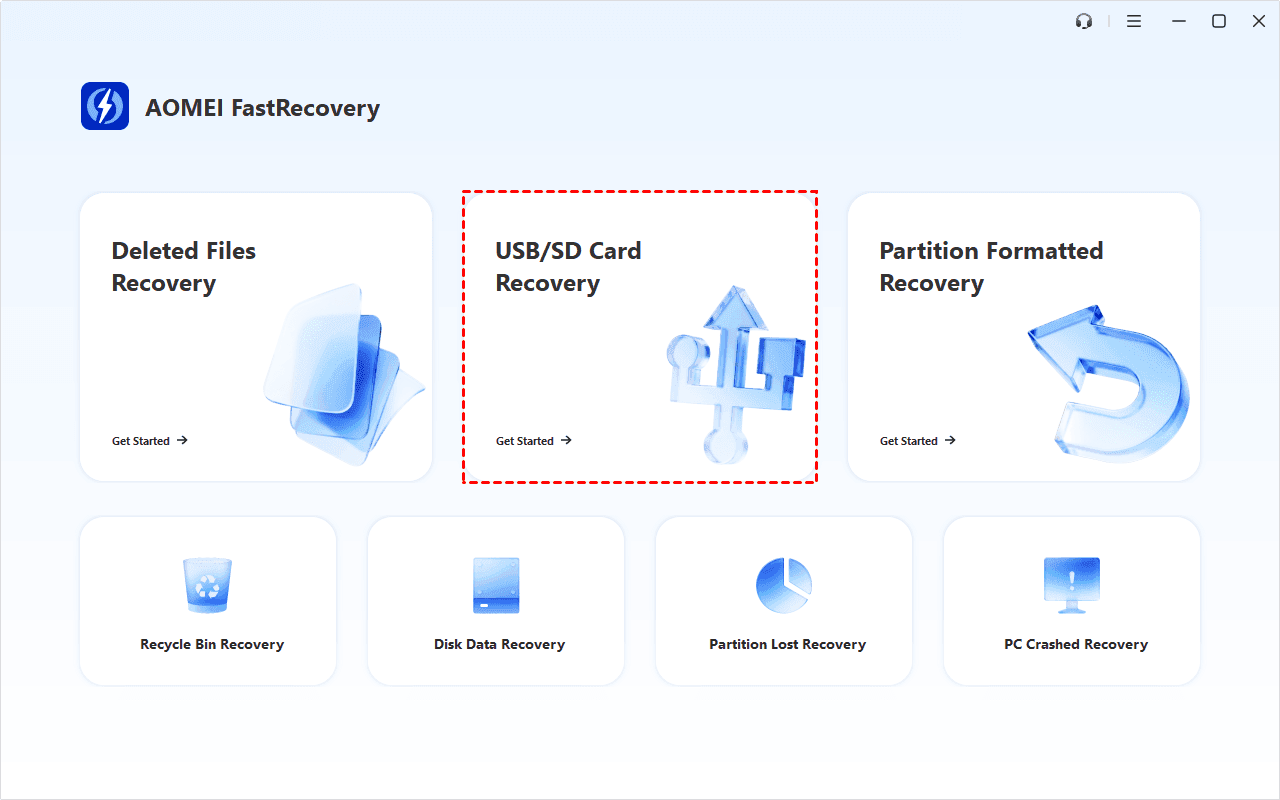
Step 1.Connect SD card to a Windows computer through a compatible card reader. Download and install AOMEI FastRecovery on your computer, not the SD card. Then, open this software and select USB/SD Card Recovery.
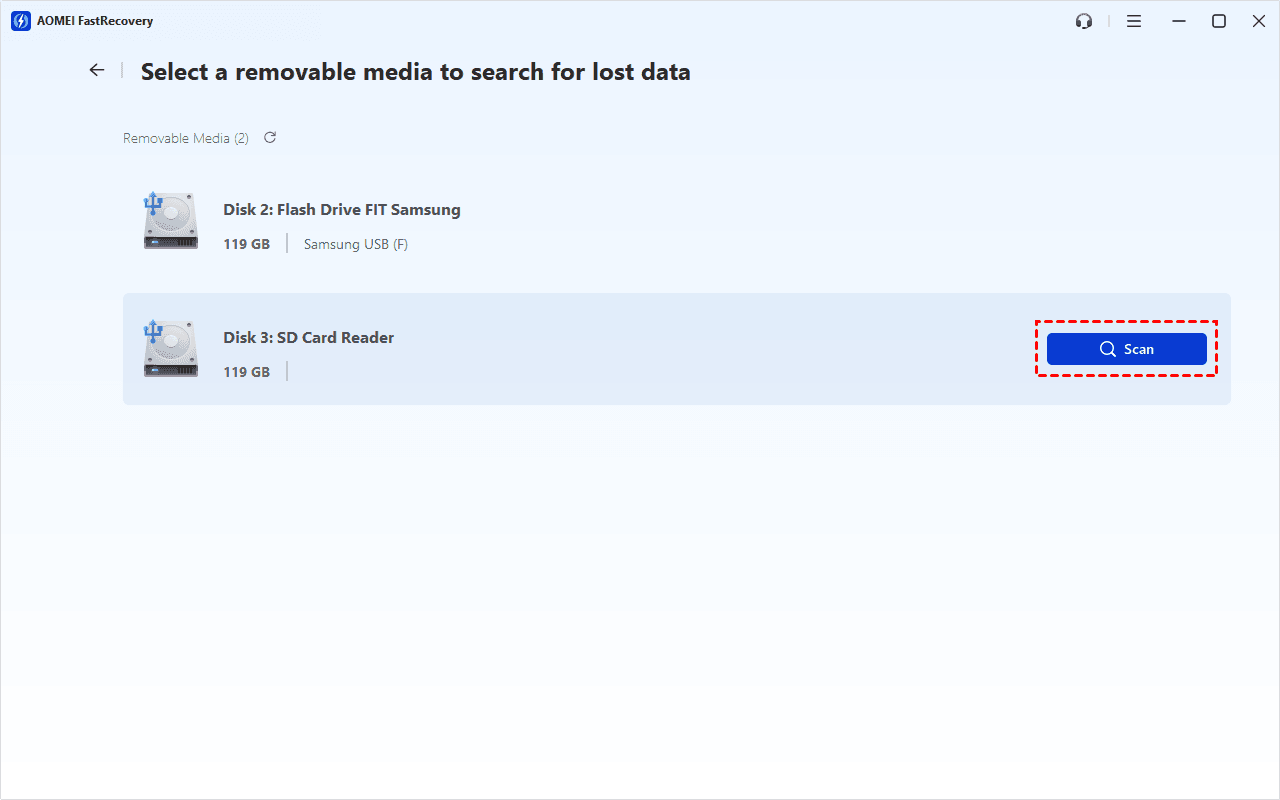
Step 2. Locate the SD card and click Scan beside it. A Deep Scan starts automatically. Scan time depends on the card's capacity, connection speed, and condition.
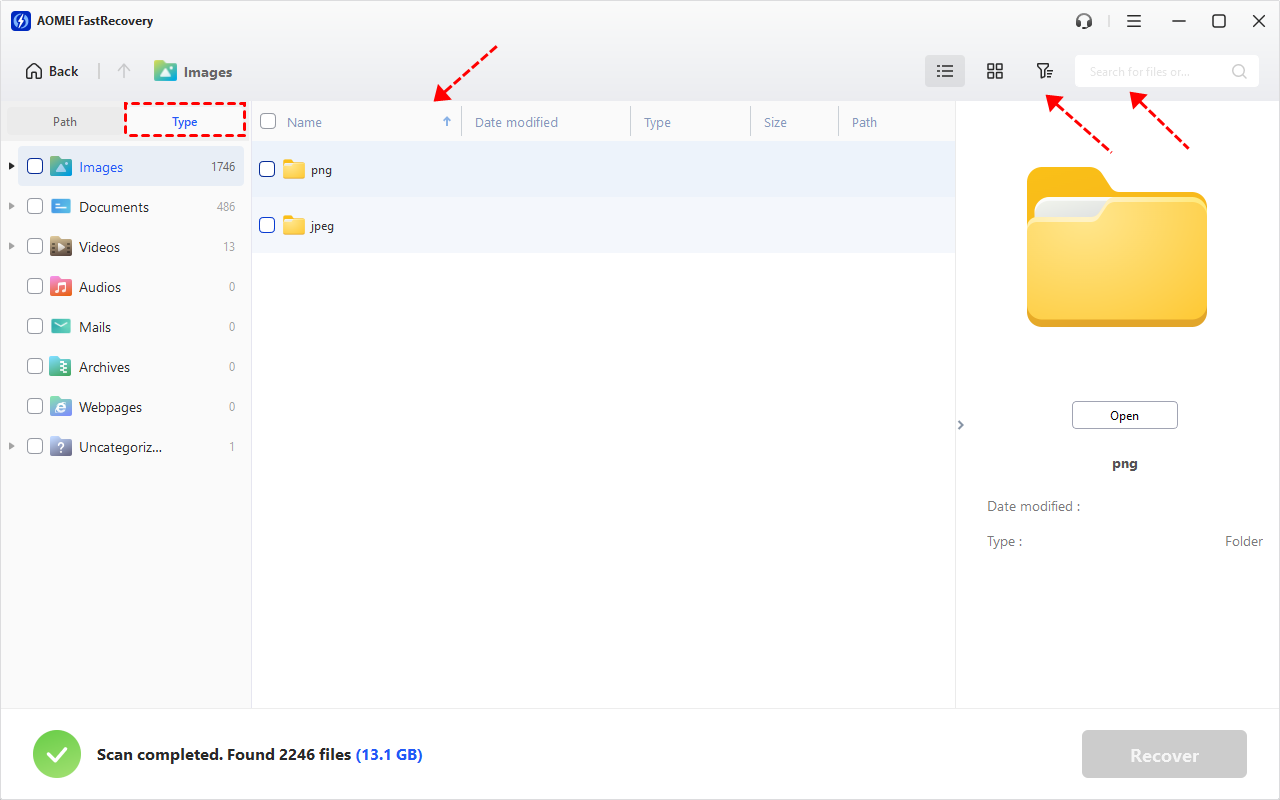
Step 3. Review the results by Type or Path. Use Type to browse categories like documents, pictures, or videos. Use Path when you know the folder location. Then, search by file name or extension, sort or filter to narrow the results. Thumbnail preview helps identify images.
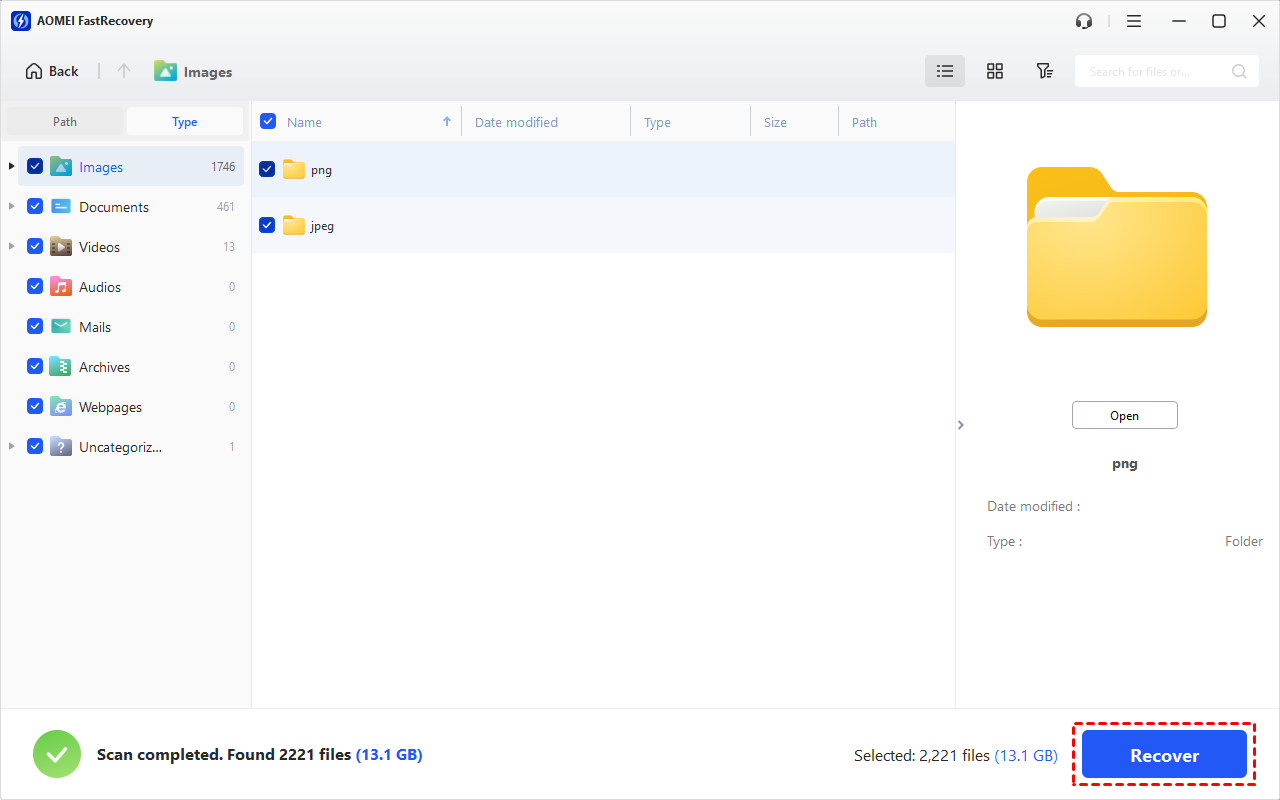
Step 4. Select the files you need and click Recover. Choose a folder on your computer or another separate drive. Do not save recovered files back to the source SD card.
Deep scan SD card recovery may find files without their original names or folders. Search by extension, such as .docx, .jpg, or .mp4, instead of relying only on the old filename. for specific images, check how to recover deleted JPEG files.
-
Keep the source card untouched until you've checked your important files. Open your Word documents, play recovered videos past the opening seconds, and so on, confirm they actually work.
-
The free edition supports scanning, thumbnail previews, and recovery up to 500MB. Recovery beyond that allowance requires an upgraded edition.
Method 2: Scan the SD Card with Windows File Recovery
👍 Best for: Recovering files from an SD card with an assigned drive letter when you are comfortable entering commands.
Windows File Recovery is Microsoft’s command-line recovery application. Its Extensive mode supports recovery from FAT and exFAT cards. Learn more in see FAT recover.
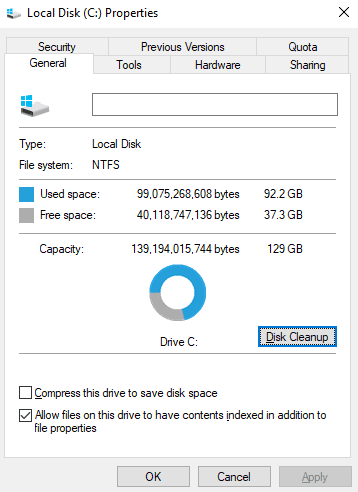
Step 1. Connect the SD card and check its drive letter in File Explorer. Also, right-click the card and select Properties to check its file system. Prepare a different drive with enough free space for the recovered files.
Step 2. Install Windows File Recovery from Microsoft Store and open it. Select Yes at the permission prompt.
Step 3. In the Command Prompt window, enter winfr F: D: /extensive and press Enter. To recover specific images, for example, .jpg, type winfr F: D: /extensive /n *.jpg instead.
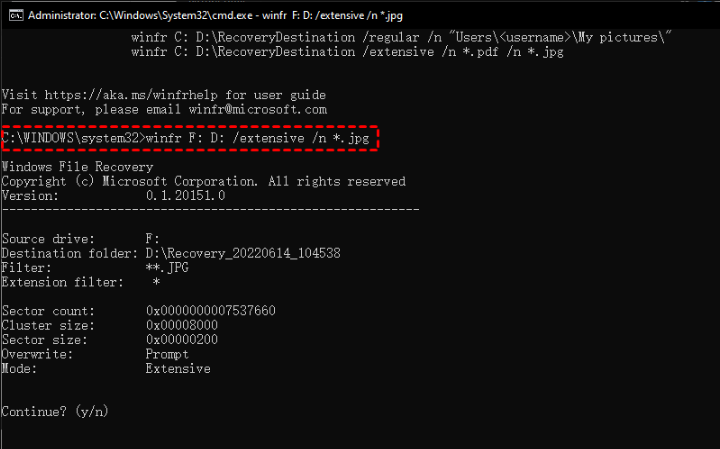
Replace both drive letters with your actual drives. This example uses F: for the SD card and D: for the destination. Reversing the letters would select the wrong source, so verify them against File Explorer.
Enter Y when prompted to begin recovery. After completion, open the Recovery_ folder on the destination drive and check the recovered files.
In the End
Deep scan SD card recovery is useful after deletion, formatting, or partition loss when recoverable file data remains accessible. Choose AOMEI FastRecovery for a visual, complete-card scan, or use Windows File Recovery with a suitable source drive letter.
Save recovered files elsewhere and check them before reusing the card. Once you have working copies, keep another backup before deciding whether the SD card should return to service.

 as a preferred
source on Google
as a preferred
source on Google