




FAT Recovery: Lost Data from Your USB or SD Card? Get It Back Fast
Need FAT Recovery for your USB drive, SD card, or external hard drive? This guide covers 3 proven methods - software recovery, CHKDSK repair, and professional services. Plus prevention tips. Keep reading.

By Ivy Updated on July 15, 2026


You've got a USB drive, memory card, or external hard drive that suddenly won't open, and all your files are trapped inside. Maybe you accidentally formatted it. Maybe the drive got corrupted. Maybe you're not even sure what happened.
If your drive uses the FAT16, FAT32, or exFAT file system, the good news is this: your files are likely still recoverable. This guide covers how to recover lost data from any FAT drive quickly and easily.
What Is a FAT File System?
FAT (File Allocation Table) is a file system architecture commonly used on USB flash drives, memory cards, and external hard drives. Its main versions are FAT16, FAT32, and exFAT. The exFAT file system is an updated version of FAT32, designed to handle larger files and storage capacities, making it the default choice for modern SD cards and USB drives.
While FAT drives are widely compatible across different operating systems, they are also prone to data loss. The good news is that in most cases, the actual files remain on the drive and can be recovered with the right tools.
Quick Guide: Which Situation Are You In?
| ❓ Your Situation | 🔧 What to Do |
|---|---|
| Files were accidentally deleted | Use AOMEI FastRecovery - deleted files are often recoverable |
| The drive was formatted | Use AOMEI FastRecovery - quick formatting doesn't erase the actual data |
| The drive is corrupted or shows as RAW | Try CHKDSK first, then use AOMEI FastRecovery |
| The drive is physically damaged | Seek professional recovery service |
Why Do FAT Drives Lose Data?
FAT drives can lose data for several common reasons:
-
Accidental deletion: Files are deleted by mistake and removed from the drive.
-
Formatting: The drive is formatted, wiping the file index but not the actual data.
-
File system corruption: The drive becomes corrupted due to improper ejection, power failure, or system crashes.
-
Virus or malware attacks: Harmful software can damage the file system or hide your files.
-
Physical damage: The drive itself is damaged, making data inaccessible.
In most cases, the actual data remains on the drive and can be recovered with the right tools.
How to Recover Data from a FAT Drive with AOMEI FastRecovery
AOMEI FastRecovery is a professional data recovery tool designed to recover lost or deleted files from FAT drives quickly and easily. It supports all FAT file systems - FAT16, FAT32, and exFAT and works with USB drives, SD cards, external hard drives, and more.
 AOMEI FastRecovery
 - 🔎 Dual-Scan Mode: Quick Scan for recently deleted files, Deep Scan for complex data loss. Together, they give you the best chance of recovery.
- 📁 1000+ Data Types: Recover deleted or lost documents (Docx, XLXS, PPT), images (JPG/JPEG, PNG, GIF), videos (MP4, MOV, AVI, WMV), audio, and more.
- 🛡️ Wide Range of Scenarios: Recover files from accidental deletion, disk formatting, system crashes, unbootable drives, and more.
- 🚀 Find Your Files Fast: Browse by type or path, preview files, and recover only what you need. No more digging through endless lists.
- ✅ Safe & Easy to Use: Read-only, no data overwriting. simple, intuitve interface.
- 🎁 Try It with No Risk: Free edition recovers up to 500MB - no commitment, no quality compromise.
 100% Secure
Step 1. Download and install AOMEI FastRecovery on your Windows PC. Connect your FAT drive (USB, SD card, or external hard drive) to the computer. Then, click Deleted Files Recovery for fast recovery.

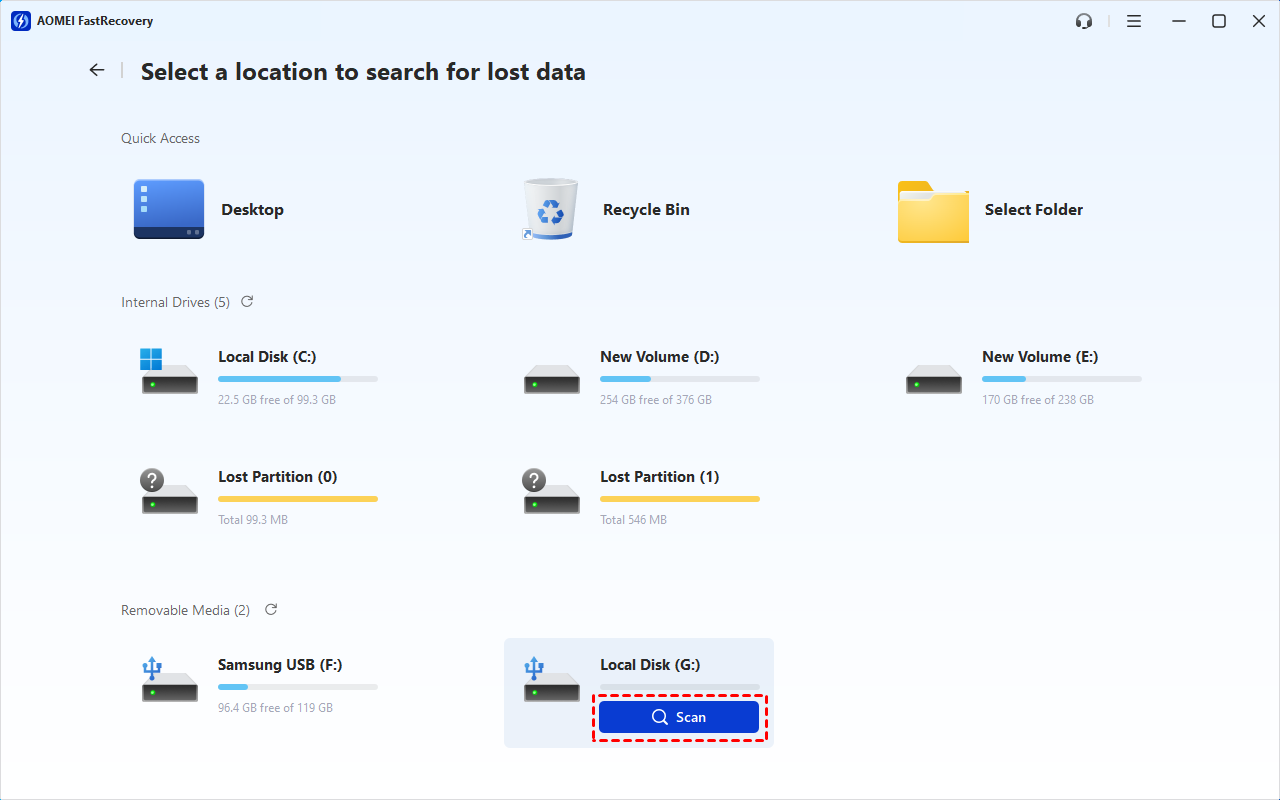
Step 2. Hover your mouse over the FAT drive and click Scan. The software will automatically run Quick Scan to find all recoverable data.
Step 3. Once the scan finishes, all recoverable files will be organized by type. Browse by Type, select all the data types and formats you need, and click Recover.
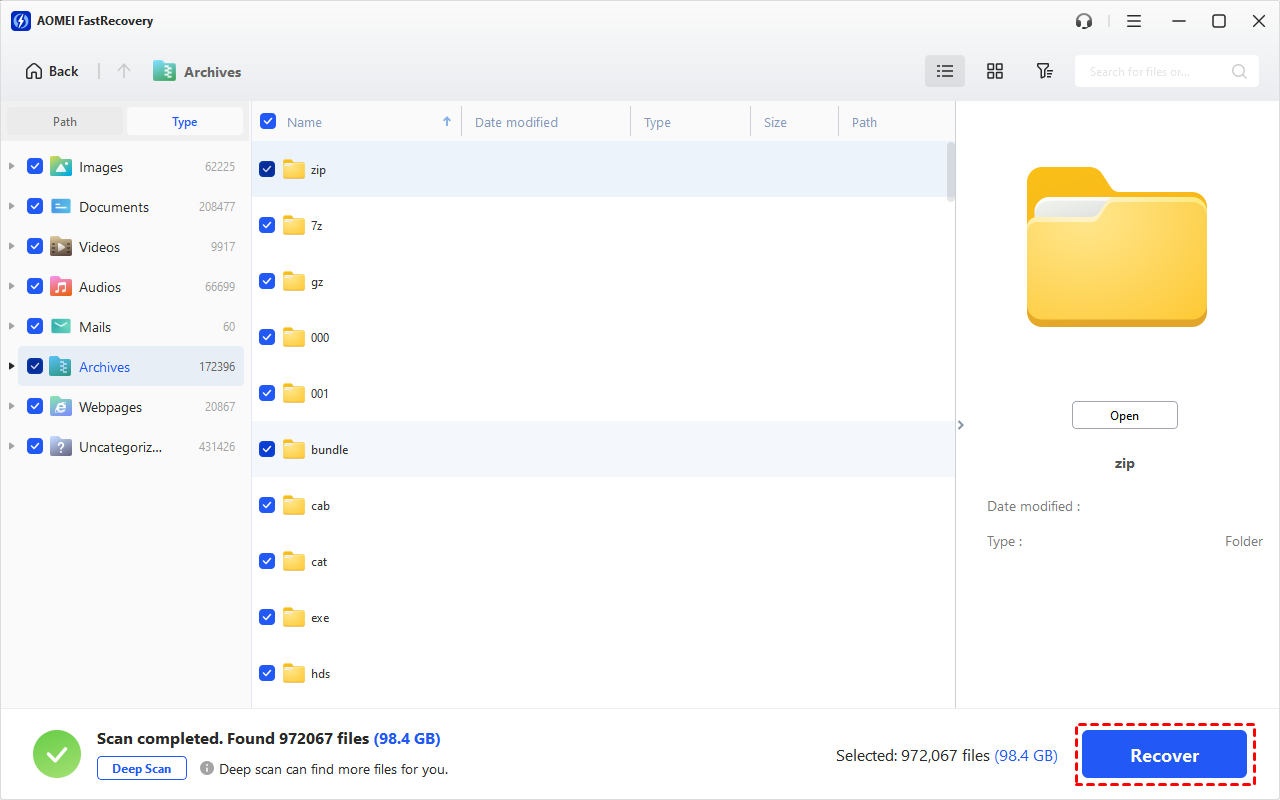
To locate your photos quickly, use the Search box to type file names (e.g., .jpg, .png), or click the Filter button to narrow down by file type (Images, Documents, etc.) or size. You can also preview files by double-clicking them
What If AOMEI FastRecovery Doesn't Work?
While AOMEI FastRecovery is highly effective for most FAT drive data loss scenarios, there are cases where it may not be able to recover your files. If that happens, don't lose hope, you still have options.
1. Try CHKDSK to repair file system errors
If your FAT drive is corrupted or showing as RAW, the file system itself may be damaged. Running CHKDSK can sometimes fix the underlying issue and make your files accessible again.
Step 1. Type cmd in the search box and select Run as administrator.
Step 2. Then, in the Command Prompt window, type: chkdsk X: /f /r and press Enter. Replace X: with your drive letter.
Wait for the scan to complete. CHKDSK will attempt to repair file system errors and recover readable data from bad sectors.
2. Seek professional data recovery services
If your drive is physically damaged, making unusual sounds, not recognized by any computer, or exposed to water or fire, software recovery won't help. In these cases, professional data recovery services are your best option.
⚙️ How It Works:
Professional data recovery services use specialized equipment to read data directly from the drive's internal components. They can often recover files that software cannot access.
💰 Cost & Turnaround:
-
Cost: $200–$2000+ depending on the extent of the damage.
-
Time: Typically 3-10 business days.
-
Success rate: Generally high for physical damage, but not guaranteed.
✅ How to Choose a Service:
-
Check verified customer reviews
-
Get a free evaluation and quote upfront
-
Ask about their data security and privacy policies
-
Confirm what happens if recovery is unsuccessful (some services charge nothing if they can't recover your data)
If your data is irreplaceable, professional recovery is often worth the cost.
How to Prevent FAT Drive Data Loss
Recovery is great, but prevention is even better. Here are four practical steps to protect your FAT drives:
1. Back up regularly
Use free backup software like AOMEI Backupper Standard to schedule automatic backups of your important files to an external drive or cloud storage.
2. Use a UPS (Uninterruptible Power Supply)
A UPS keeps your computer running during a power outage, giving you time to save your work and shut down properly, preventing file system corruption.
3. Eject safely
Always use the safe eject option before removing your FAT drive from the computer. Abrupt removal during read/write sessions can corrupt the file system.
4. Be cautious during system installations
When setting up dual or multi-operating systems, take extra care - partition table corruption can occur if the installation is interrupted. If it occurs, click to recover corrupted partition table.
Final Words
Losing data from a FAT drive can be stressful — but as this guide shows, recovery is often straightforward.
Here's the simple rule:
-
Use AOMEI FastRecovery for most FAT drive recovery scenarios — it's the easiest and most reliable option.
-
Try CHKDSK first if the drive is corrupted or shows as RAW.
-
Seek professional help if the drive is physically damaged.
Most importantly: stop using the drive immediately. Every file you save after data loss increases the risk of overwriting the data you're trying to recover.

 as a preferred
source on Google
as a preferred
source on Google