




Data Recovery with Original Folder Structure: Top 2 Ways
Want to recover lost files without losing your folder structure? Learn how to use two effective tools to restore deleted data while keeping your original folders and file organization intact.

By Lily Updated on October 30, 2026


Can You Recover Files with Original Folder Structure?
Yes. In many cases, you can recover deleted or lost files while retaining their original folder structure. Whether this is possible depends on the file system, the type of data loss, and whether the directory information is still intact.
When Windows deletes a file, it typically marks the space occupied by the file as available for reuse rather than immediately erasing all its contents. The file's name and directory information may also remain available for a period of time. If this information has not been overwritten, recovery software may be able to identify the files and their original locations.
The following two methods can help you recover files while keeping as much of the original directory organization as possible.
Method 1: Data Recovery with Original Folder Structure via AOMEI FastRecovery
AOMEI FastRecovery is a Windows data recovery tool that can scan supported storage devices for deleted or lost files.
 AOMEI FastRecovery
- Perform a Quick Scan automatically and integrate Deep Scan to search for all recoverable files.
- Organize and display files by Type or Path, allowing you to sort, search, filter, and preview files before recovery.
- Support various file types, including Word documents, Excel spreadsheets, PowerPoint presentations, PDFs, ZIP files, JPG and JPEG images, PNG files, and more.
- Provide different recovery scenarios, such as deleted file recovery, Recycle Bin recovery, deleted partition recovery, and recovery from USB or SD cards.
- Support Windows 11/10/8/7 and Windows Server 2025/2022/2019, etc.
 100% Secure
Follow the instructions below to recover files with original folder structure using AOMEI FastRecovery:
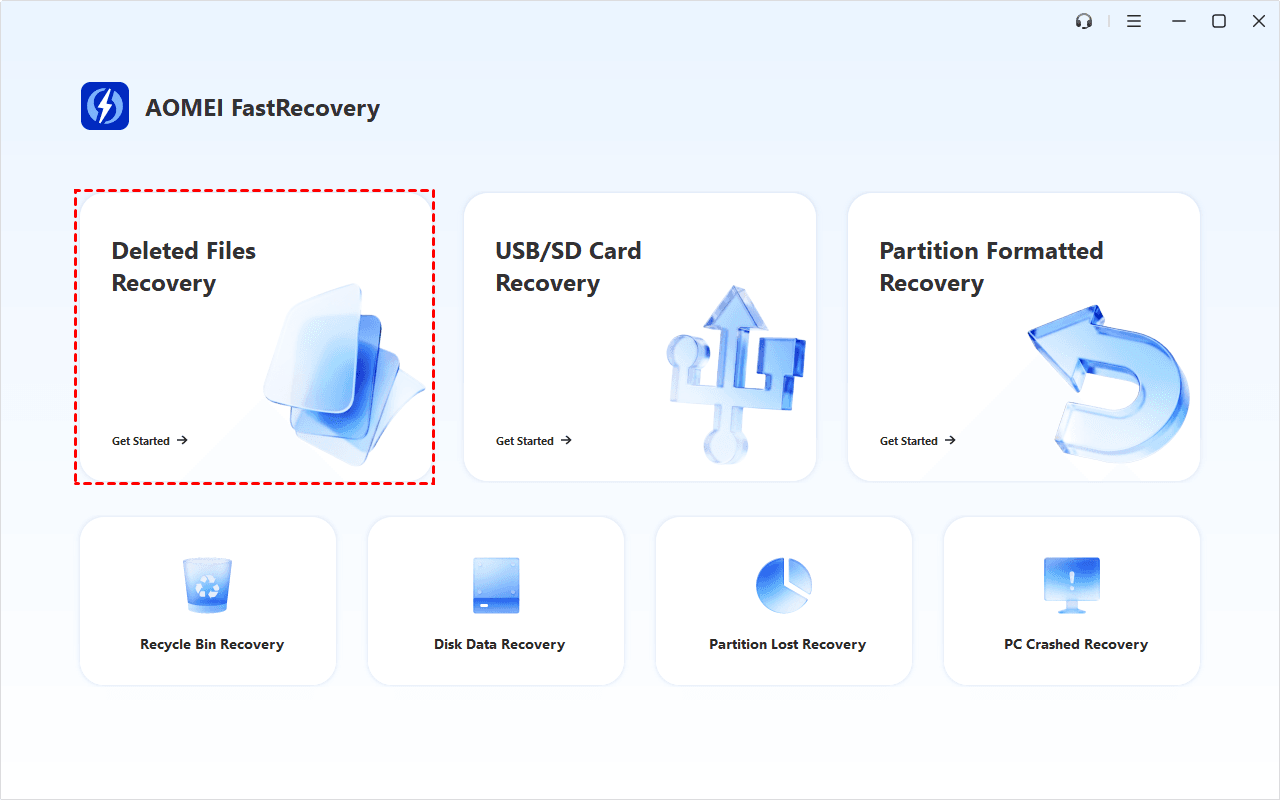
Step 1. Download and install AOMEI FastRecovery on a drive different from the one containing the lost data. Launch the software and select Deleted Files Recovery.
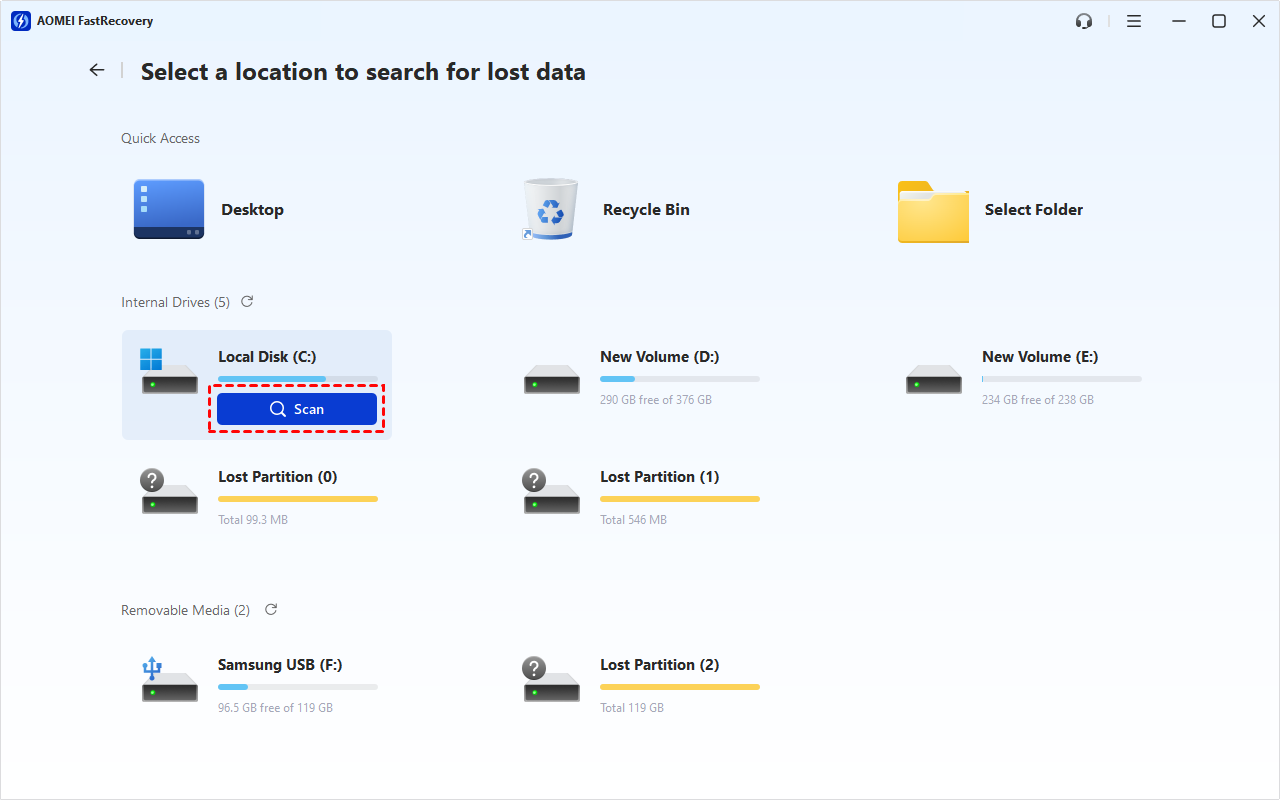
Step 2. Select the affected drive or partition and click Scan. Wait for the scan to find deleted or missing files.
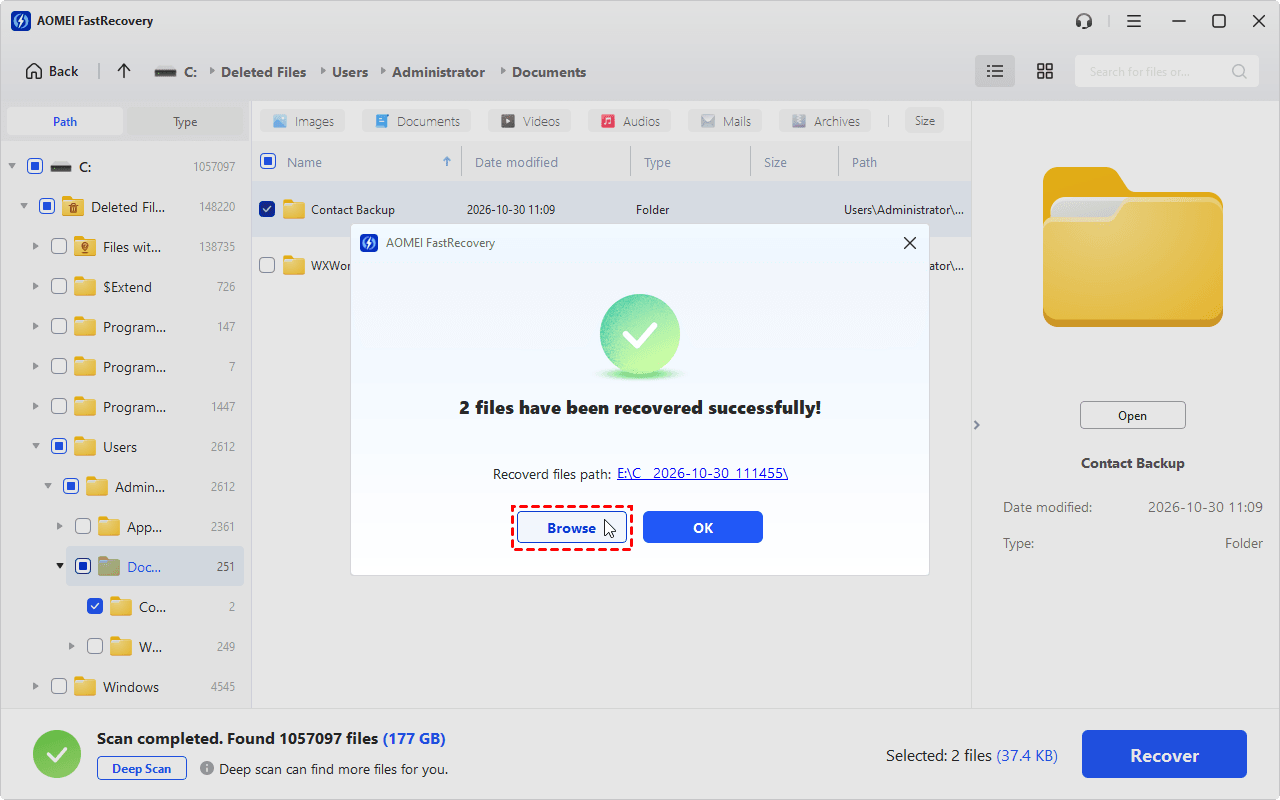
Step 3. The results are displayed by Type by default. To recover deleted files with original folder structure, click Path in the top-left corner and navigate to C → Deleted Files → the original folder path.
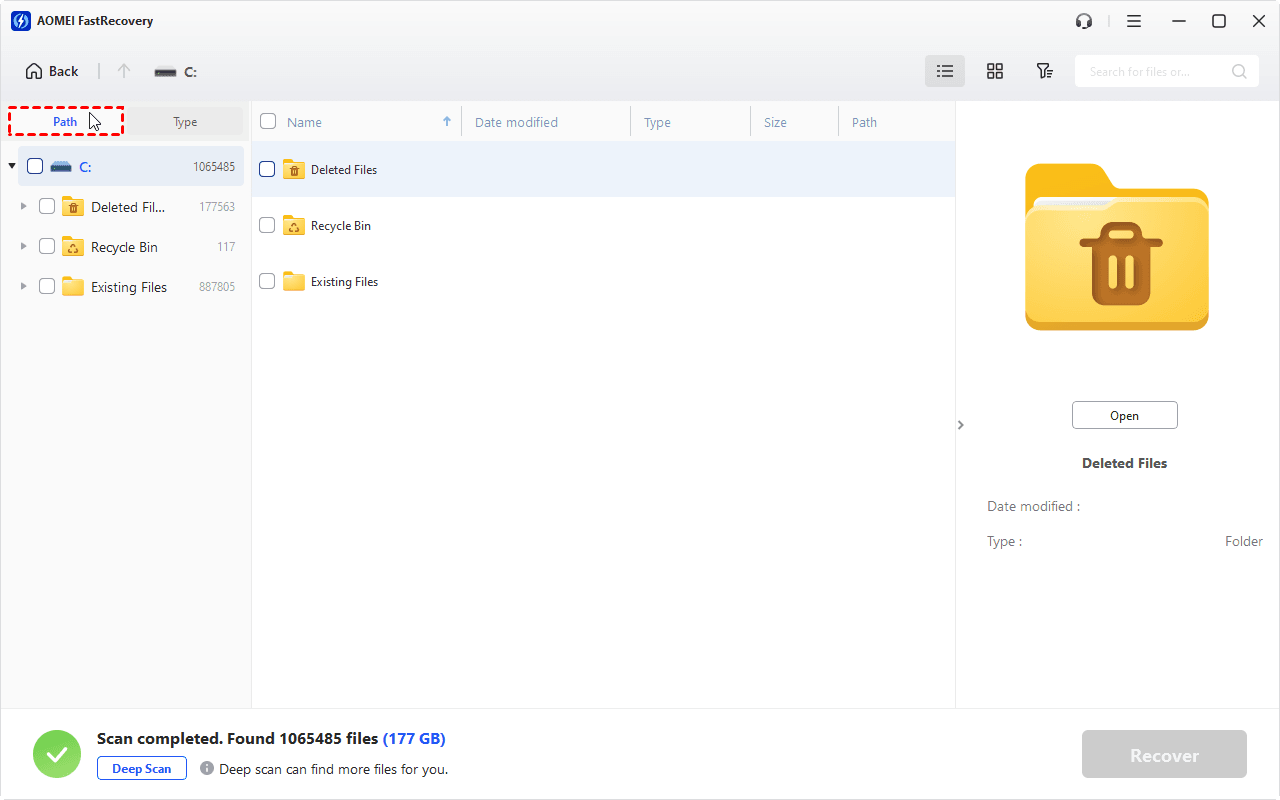
Step 4. Open the target folder to check whether the files you need are included. If the files don't appear in the initial results, click the Deep Scan button at the bottom left to search for more files.
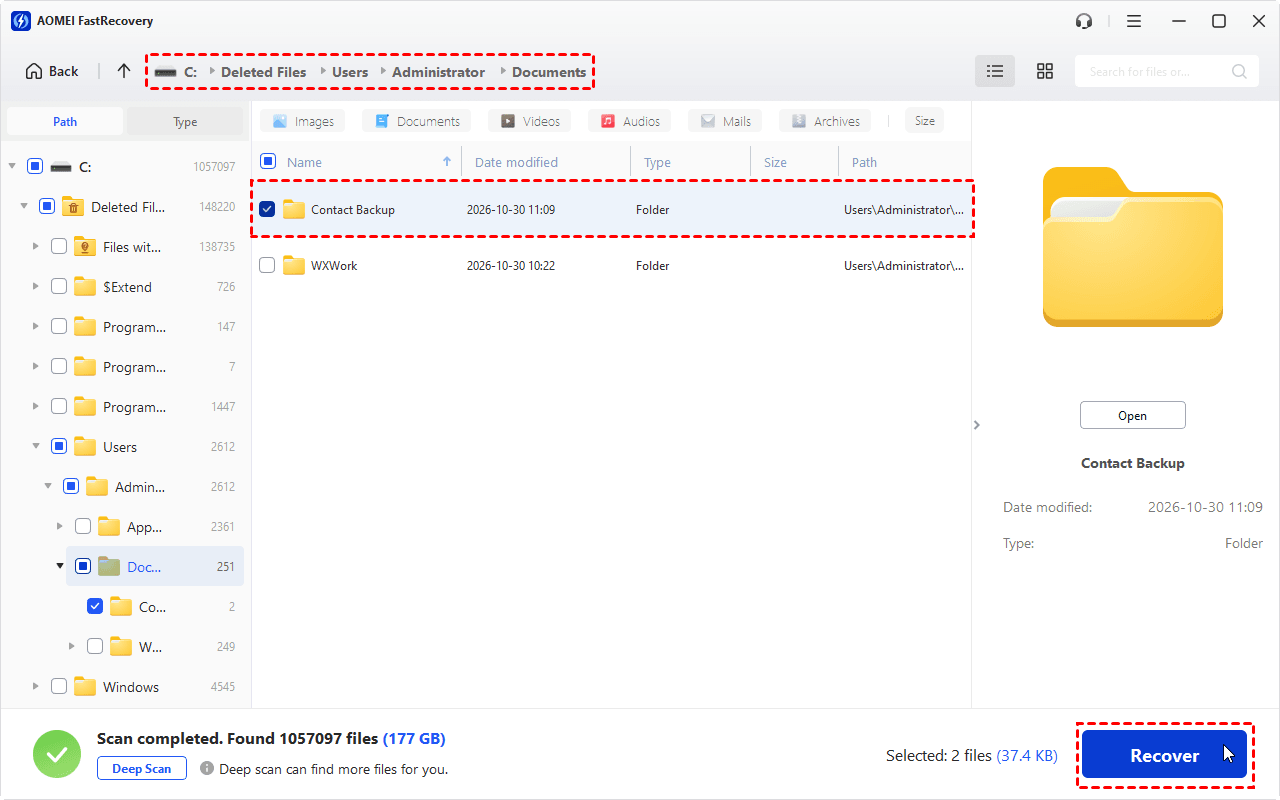
Step 5. Select your desired folder, click Recover, and save them to a different drive or safe destination.
Step 6. After recovery finishes, you’ll see a message, "xx files have been recovered successfully!" Click Browse to check the recovered files along with the original folder structure in the destination folder.
Method 2: Recover Data with Original Directory Structure with TestDisk
TestDisk is a free, open-source recovery utility that can recover deleted files from supported file systems, including FAT, exFAT, NTFS, and ext2. Unlike many graphical recovery applications, TestDisk uses a text-based interface.
One useful feature is that you can browse the directory where the deleted files were originally stored. You can select individual files or entire directories and copy them to another storage device. This can help retain the original folder organization when the directory information is still available. Here is how to use TestDisk:
Step 1. Visit the official TestDisk website and download the version for your operating system. Extract the downloaded archive to a folder.
Step 2. Run testdisk_win.exe with administrator privileges. When it opens, select Create to create a new log file.
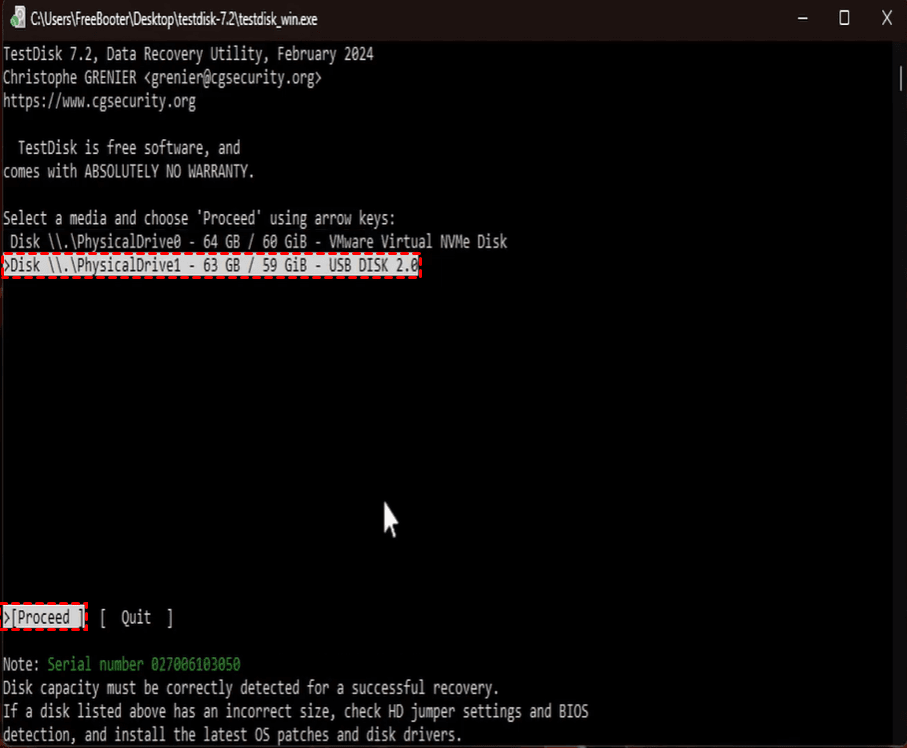
Step 3. Select the disk containing the lost files. Confirm the disk by checking its capacity and model, then choose Proceed.
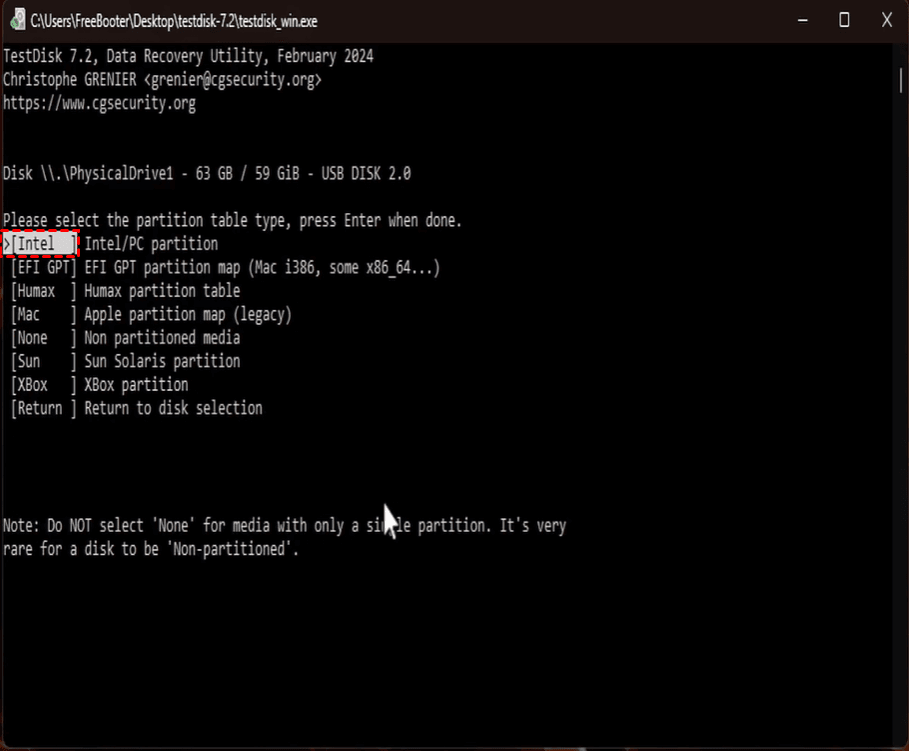
Step 4. Select the partition table type suggested by TestDisk. In most cases, the automatically detected option is appropriate. Press Enter to proceed.
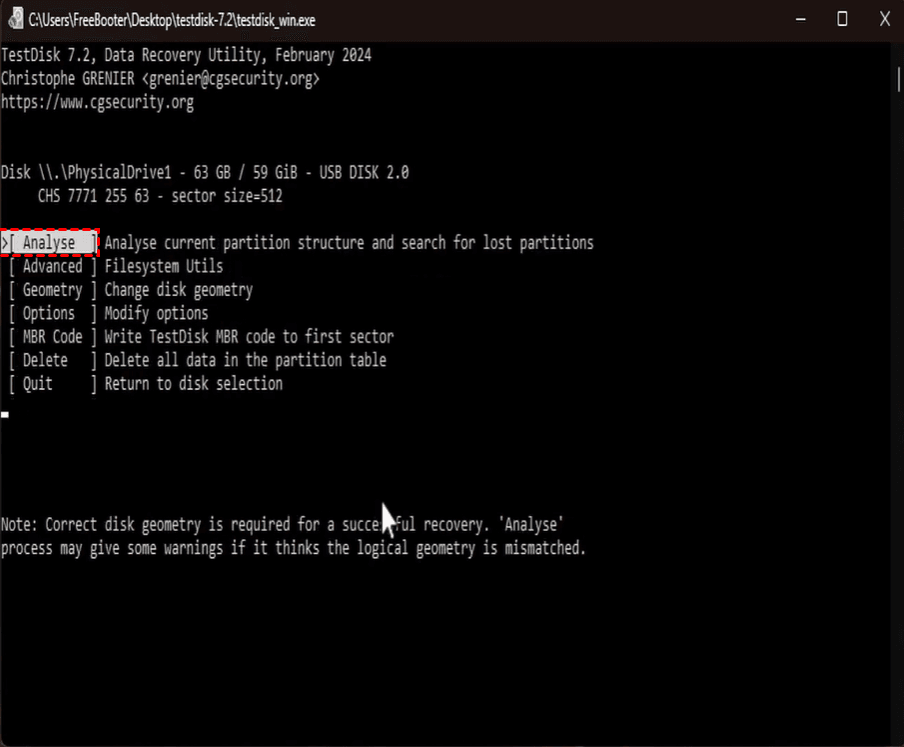
Step 5. Choose Analyse and run Quick Search to look for missing files/partitions.
Step 6. If TestDisk finds the partition that contained the deleted files, highlight the partition and press P to list files.
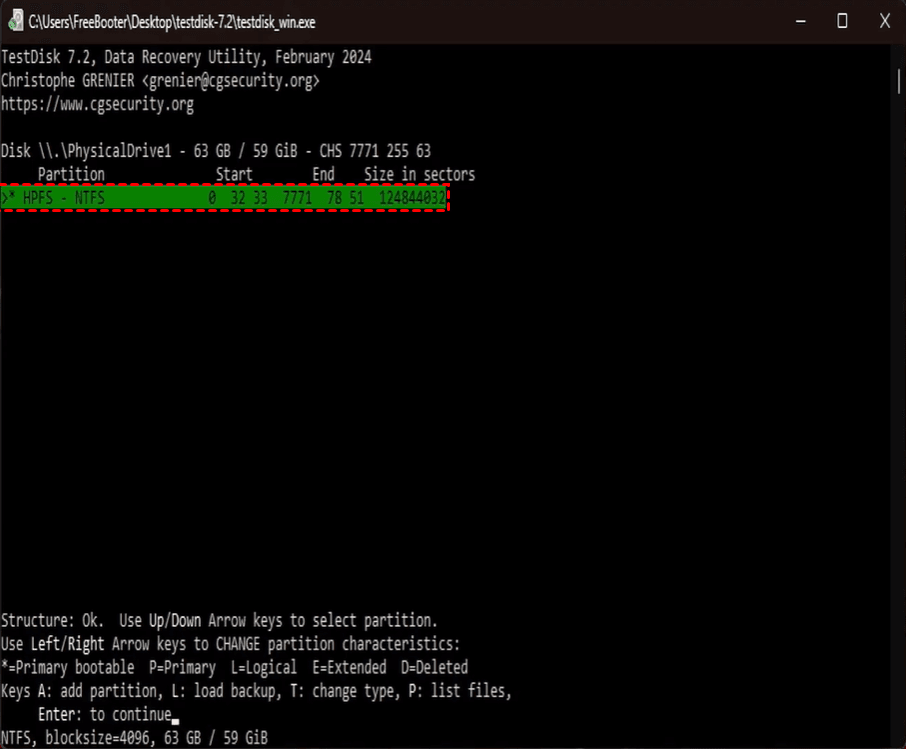
✍ Tip: If the result of the Quick Search does not include your desired partition, press Q to go back and choose Deeper Search.
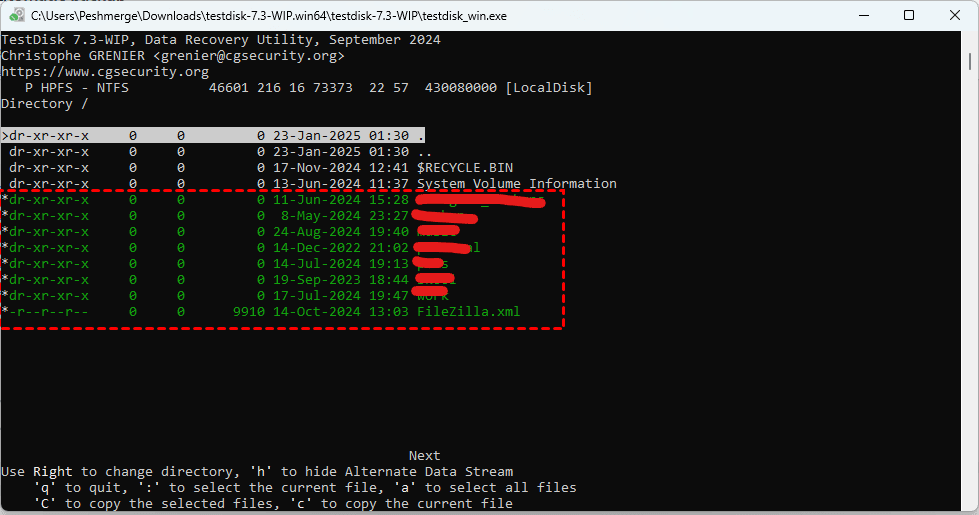
Step 7. Select all files and directories in the partition you want to restore by pressing the colon key. Then press C to copy them.
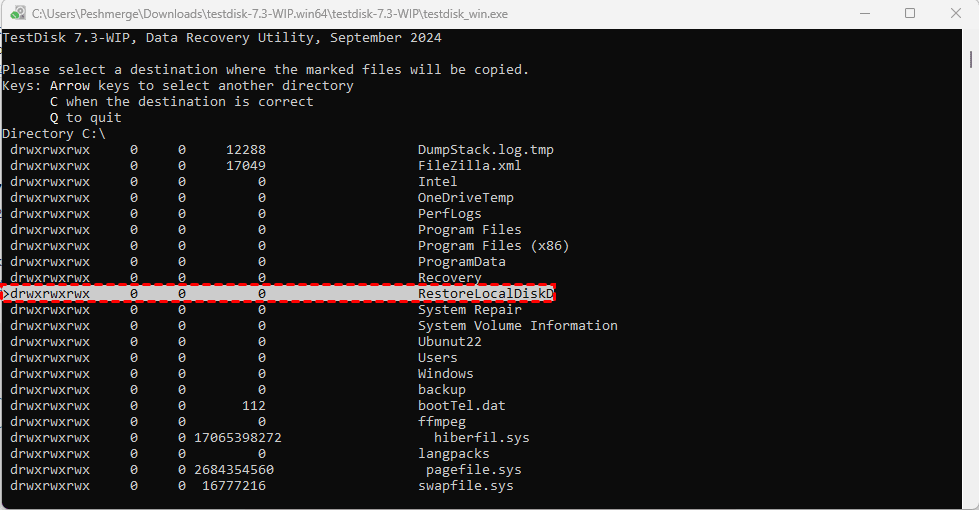
Step 8. Choose a destination on another physical drive to store the recovered files/folders. Then press C to confirm the choice and start the recovery process.
Step 9. Once finished, open the destination and verify the recovered data and directory organization.
Tips to Preserve Folder Structure During Data Recovery
Even when a recovery tool can identify original directory paths, some file system information may already be damaged. Follow these tips to improve your chances of recovering files with their original organization:
- Stop using the affected drive: New data can overwrite deleted files and directory information. Avoid downloading, installing, copying, or saving anything to the source drive.
- Recover entire folders when possible: If the recovery tool displays the original directory hierarchy, select the required folders rather than recovering files individually. This can help retain the folder organization.
- Choose another physical drive as the destination: Do not save recovered files to the source drive. Use another internal or external drive with sufficient free space.
- Avoid formatting or repairing the drive before recovery: Formatting, repartitioning, or running repair operations may modify information needed to recover files and their original paths.
- Keep the recovered folder hierarchy organized: If some files are recovered without their original paths, create folders based on available filenames, timestamps, or other reliable information. Avoid assuming that a file's original location can be reconstructed when its directory metadata is missing.
- Make regular backups: Use File History or backup software to keep copies of important files and folders. A backup is often the most reliable way to restore the original directory structure.
Verdict
Data recovery with original folder structure is possible when the file system's directory information remains intact. AOMEI FastRecovery offers a more straightforward graphical workflow for scanning and selecting recoverable files, while TestDisk provides a free, text-based option that lets you browse and copy deleted files and directories.
Whichever method you choose, stop using the affected drive as soon as you notice data loss and save recovered files to a different physical drive. For future protection, maintain regular backups so you can restore not only your files but also their original folder organization.

 as a preferred
source on Google