




[Fixed] Windows Computer Won’t Open Excel Files
What should I do if a computer won't open Excel files? This page provides 6 simple and effective methods to fix it. The way to recover files is also included if you accidentally deleted them.

By Ivy Updated on May 6, 2026


Help! My computer won't open Excel files
Data analysts often use Microsoft Excel to organize and calculate data, greatly improving efficiency. But have you ever failed to open your Excel files when you are managing data?
Help! I can’t open Excel files on my Windows 10 PC. So do I open an Excel file that won’t open? Any suggestions will be appreciated.
- Question from a user

Let’s get an overview of the possible causes below.
👉 Mismatched file extensions: Excel has two different file formats (XLS & XLSX). These two formats are not directly compatible with each other.
👉 Problematic add-ins: Prevent users from opening their Excel programs.
👉 Broken file association: Undeniably, broken file associations can cause Excel files not to open. Some users also reported that files on desktops were not opening.
👉 Outdated/corrupted program: If you keep using an older MS version instead of the latest version, your files are likely to be incompatible with the newer version.
👉 Corrupted Excel files: If your desired document becomes corrupted, it’s not surprising that you cannot open it.
How to fix your computer won’t open Excel files
When it comes to problems regarding how to fix your computer won’t open Excel files, there are seven feasible methods for your reference.
▶ Fix 1. Change the wrong file extensions
As stated earlier, both XLS and XLSX are extensions of Excel programs. XLS was still in use in 2003. After that, XML and XLSX became the new file extensions. If you can’t open Excel files, try switching from XLSX to XLS or vice versa.

▶ Fix 2. Uncheck the ignore Dynamic Data Exchange (DDE) box
The Dynamic Data Exchange (DDE) settings determine how the Excel application interacts with other programs. If this setting has been activated before, you can’t open Excel files. At the moment, you’re supposed to uncheck the ignore DEE box.
Step 1. After starting your Excel program, click the File menu.
Step 2. Click Options > Advanced > General.
Step 3. Uncheck the Ignore other applications that use Dynamic Data Exchange box. Then, click OK to save these changes.
▶ Fix 3. Disable COM Add-ins
Some add-ins, such as Excel add-ins and COM add-ins, can prevent you from opening and accessing Excel files. Try to disable them if there are. After that, you may open your Excel files.
Step 1. Open a new Excel file and click File > Options > Add-ins on the left.
Step 2. Under the Manage box, select the COM Add-ins option and click Go.
Step 3. Select disable all add-ins in the menu.
▶ Fix 4. Reset Excel file associations
The file association is what enables your Excel files to open smoothly. It instructs your Excel to open your selected document. But sometimes, its file association fails and refuses to open Excel files. To address this issue, consider resetting the file associations of Excel to default settings.
Step 1. Type Control Panel in the search bar and open it. Then go to Programs and select Default Programs.
Step 2. Click Set your default programs.
Step 3. After entering the Default apps interface, click Set default by apps.
Step 4. Locate your Excel program and click Manage.
Step 5. Select the file that won’t open and set its default app as Excel.
▶ Fix 5. Repair Microsoft Office programs
However, if the above solutions are useless, perhaps there’s something wrong with your Microsoft Office program. "So how do I repair Microsoft Programs?" Please be calm, and here comes another practical method. Besides, this method also applies to Microsoft Word and PPT.
Step 1. Type Control Panel in the search bar and open it. Then, go to Programs > Programs and Features.
Step 2. Locate your malfunctioning Microsoft Excel, right-click on it, and select Change.
Step 3. Select Quick Repair and click Repair to repair your Office programs.
▶ Fix 6. Repair corrupted Excel files
In some cases, the reason why you can’t open Excel files is that they’ve been damaged. If it happens to be your case, you can recover corrupted Excel files via the built-in Repair features.
Step 1. Open your Microsoft Excel application. Then, click Open Other Workbooks > Computer/This PC > Browse.
Step 2. Locate the damaged Excel file you want to repair. Click Open and Repair under the Open tab.
Step 3. After that, click “Repair” to salvage as much data as possible. Likewise, you can also extract values and formulas from your damaged Excel file by selecting the “Extract Data” option.
Bonus: How to recover accidentally deleted Excel files
Sometimes, you may accidentally deleted Excel files, but forget, or find you still need them. You can check the Recycle Bin to find deleted files. If deleted files are not in the Recycle Bin, try a reliable data recovery software - AOMEI FastRecovery, which has attracted many users due to its powerful features, easy-to-follow operating steps, good compatibility, etc.
AOMEI FastRecovery- Quick & Deep Scan: With two advanced scanning methods, you can scan deleted or lost data on any device thoroughly.
- 1000+ file types: Recover deleted or lost images, videos, audio, documents, etc., with up to 1000+formats, such as CR3, X3F, HEIF, MP4, WMV, MXF, AIFF, etc..
- Simplified layout for easier navigation: Primarily organized by file type and path, along with options to sort, search, filter, and preview files.
- Recovery scope: Support different data loss scenarios, such as accidental deletion, formatting,virus infection, lost partition, etc.
- Multiple devices compatible: Compatible with HDDs/SSDs, USB drives, SD cards, etc., as well as NTFS, FAT32, exFAT, and ReFS file systems.
 100% Secure
Please download AOMEI FastRecovery on your Windows 11, 10, 8, 7, or Windows Server PC!
- Don't download and install AOMEI FastRecovery to the drive containing the deleted Excel files.
- Don't add new data to the drive containing deleted Excel files. Or reformat it. These operations may result in data overwriting.
Step 1. Run AOMEI FastRecovery after installing it. Then, click Deleted Files Recovery to get started.

Step 2. You'll see a list of devices. Hover the mouse over the drive containing deleted Excel files, and click Scan to start the quick scanning process and display all recoverable data.
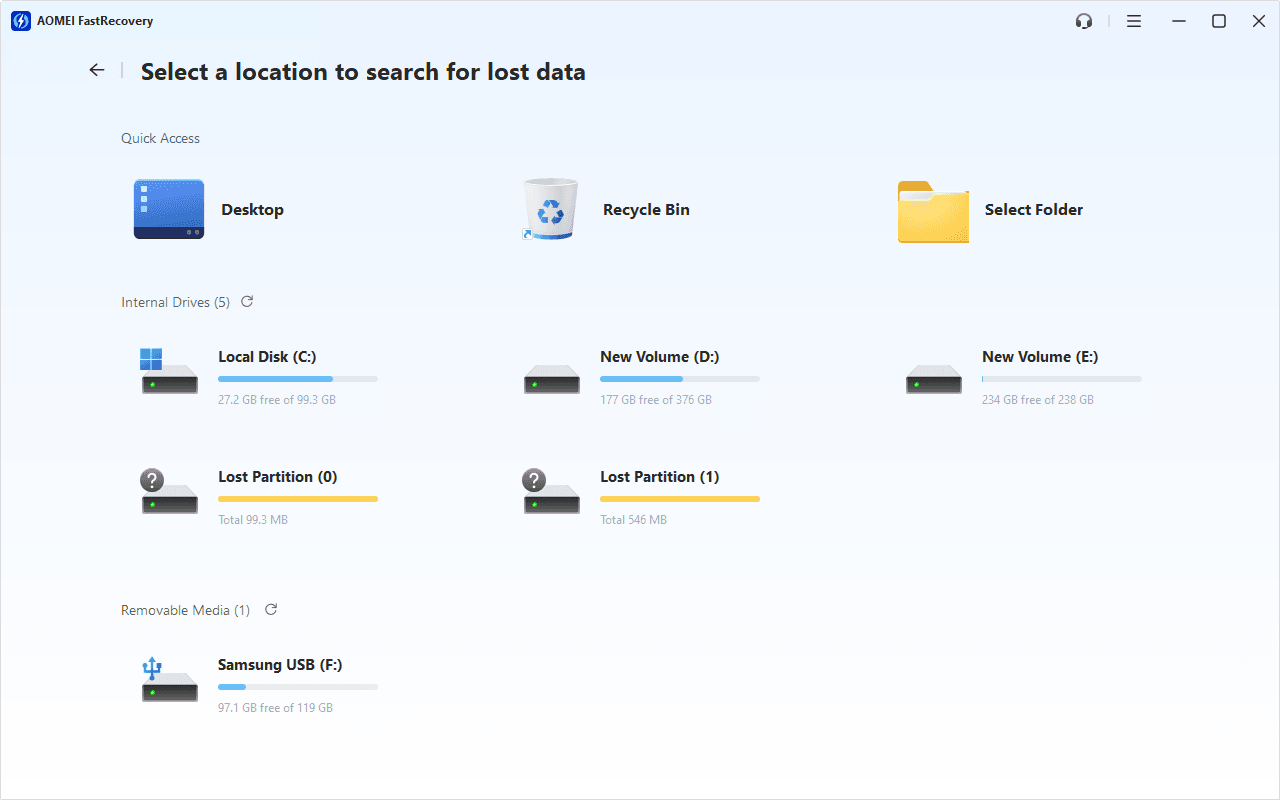
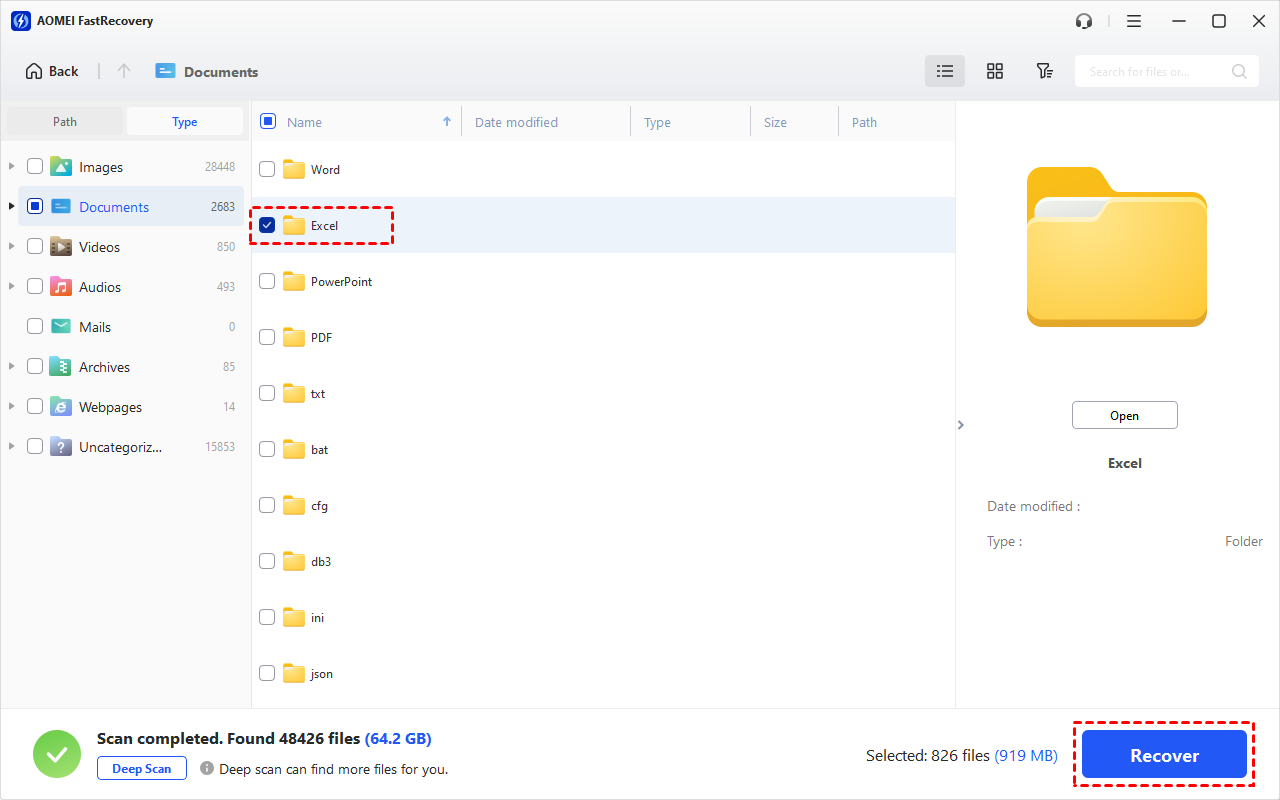
Step 3. Under the Type section, specify the Documents data type and expand it to find Excel files. You can sort them or search the name for quick recovery. At last, click Recover.
-
You can also locate deleted files by Path if you remember this.
-
Click the Deep Scan button if the Quick Scan fails. Deep Scan searches every sector of the disk to find more files.
-
Please save the retrieved Excel files in a new path instead of the original drive, preventing data overwriting.
The free edition enables you to recover 500MB of files for free. To easily recover a large number of files, please upgrade to the advanced version of AOMEI FastRecovery.
In the end
Windows computer won’t open Excel files? You can figure out the possible reasons and get related fixes to address this problem.
For deleted/missing Excel files, the sooner you begin data recovery, the higher your chances you’ll be. Try reliable data recovery software - AOMEI FastRecovery, with a high success rate.

 as a preferred
source on Google
as a preferred
source on Google