



Transfer Data from Old Computer to New on Windows 11 (2 Cases)
Upgrading to a new Windows 11 PC? This guide covers 2 proven methods to transfer your files and even Windows itself—so you can pick up exactly where you left off.

By Lily Updated on August 13, 2026


2 Scenarios of transferring data from old PC to new PC Windows 11
When upgrading to a new PC, the way you transfer data from old computer to new Windows 11 depends on what exactly you want to move. Some users only need personal files, while others want to migrate the entire system environment. Below are the two most common scenarios:
✨ Scenario 1: Transfer Files from Old PC to New PC
If your new PC already has Windows 11 pre-installed and you prefer a fresh system setup, you may only transfer:
- Documents, PDFs, spreadsheets
- Photos, videos, and music
- Desktop files and downloads
- Project folders and work files
✨ Scenario 2: Transfer Windows from Old Computer to New
If you want the new PC to look exactly like the old one and you don’t want to reinstall Windows or programs, you may transfer:
- Windows operating system
- Installed applications and programs
- System settings and drivers
- All personal data
In this guide, I’ll show you 2 proven methods to transfer only files or entire system from the old computer to the new computer.
👉 Method 1: Transfer files from old PC to new PC on Windows 11
👉 Method 2: Transfer Windows from old computer to new on Windows 11🔥
Method 1: Transfer files from old PC to new PC on Windows 11
If you only need to move personal files, using built-in File Sharing is one of the easiest ways to transfer data from old computer to new on Windows 11. Follow the instructions below:
Step 1. Connect both the old PC and the new Windows 11 PC to the same Wi-Fi or LAN network.
Step 2. On both computers:
- Go to Control Panel → Network and Sharing Center → Change advanced sharing settings.
- Under the Private section, turn on Network discovery and File and printer sharing.
- Click Save changes.
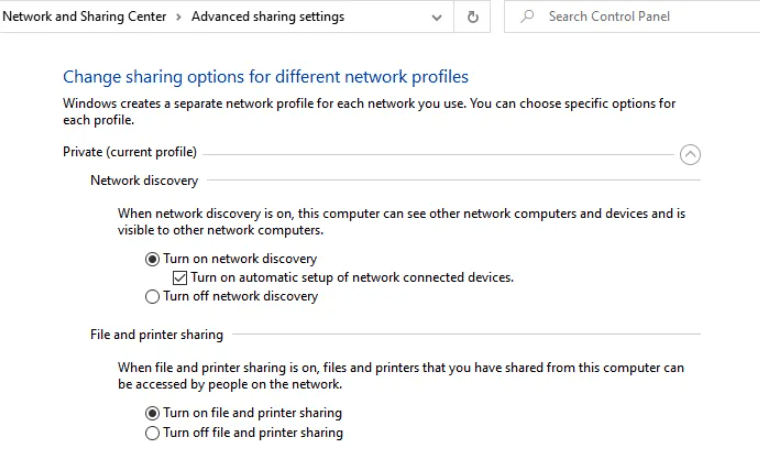
Step 3. Share the folder you want to transfer on the old PC.
3.1. Right-click the folder you want to transfer and select Properties.
3.2. Go to the Sharing tab and click Share.
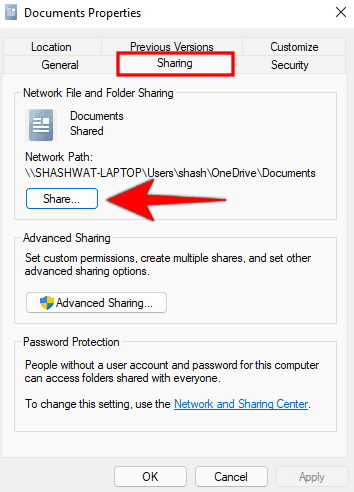
3.3. Choose Everyone from the dropdown menu. Click Add, then set permission level:
- Read (view only)
- Read/Write (allow copying and editing)
3.4. Click Share. Take note of the network path shown (for example: \\OldPC\SharedFolder).
Step 4. Access shared files from the new Windows 11 PC.
4.1 On the new PC, open File Explorer. Click Network in the left panel.
4.2. Select the old computer’s name and open the shared folder.
4.3. Copy and paste files to your new PC.
Alternatively, you can type the network path directly in the File Explorer address bar.
Method 2: Transfer Windows from old computer to new on Windows 11
When transferring a full system, built-in Windows tools are not enough. AOMEI Cloner provides a complete disk and system migration solution.
 AOMEI Cloner
- System Clone: Migrate only Windows OS and boot-related partitions.
- Disk Clone: Transfer the entire hard drive to another disk.
- Intelligent Clone: Copy only used sectors, making the transfer faster and compatible with different-sized drives.
- SSD Alignment: Improve performance when migrating to an SSD-based PC.
- Broad Compatibility: Clone between different partition styles, such as clone MBR disk to GPT disk.
 100% Secure
Learn how to transfer Windows from old computer to new in Windows 11 below.
💡 Notes:
◆ If the old PC is running Windows 11/10 or Server 2025/2022/2019/2016, the cloned drive will remain bootable whether the new PC has the same hardware or different hardware.
◆ If the old PC is running Windows old versions and the new PC has dissimilar hardware, you may use AOMEI Backupper tobackup Windows and restore on another computerto ensure a successful boot.
Step 1. Remove the hard drive from the new computer. Connect it to your old computer using a USB adapter or enclosure.
Step 2. Download and install AOMEI Cloner on your old computer, then open the program. Select System Clone to transfer only OS.
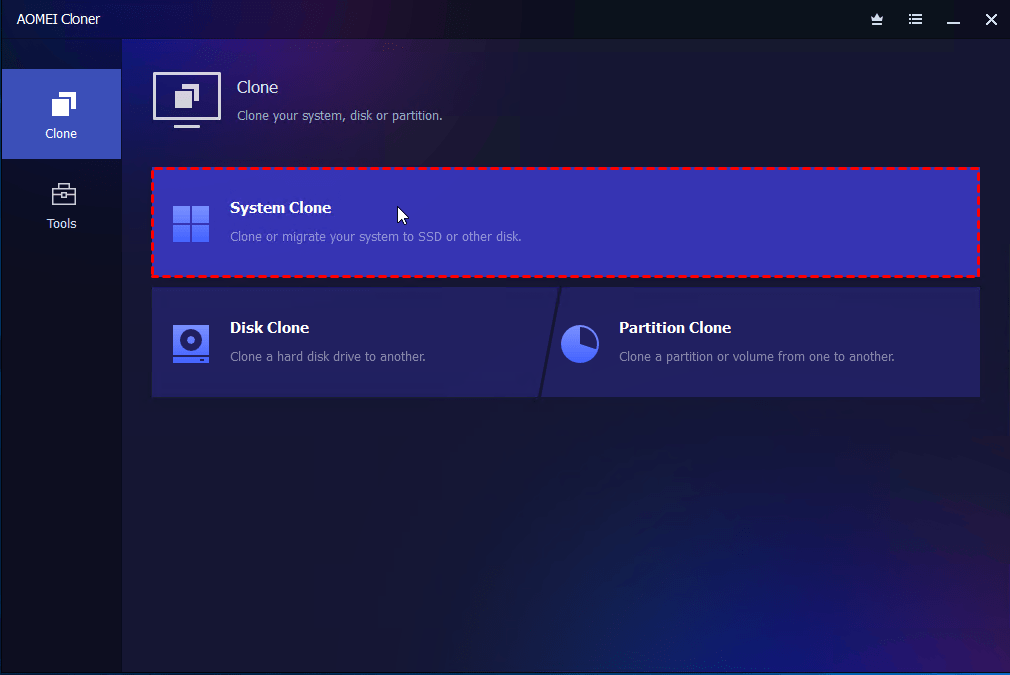
✍ Tip: To copy everything including all partitions, please choose Disk Clone.
Step 3. The system installed on your computer is selected by default as the source. Choose the new SSD or HDD as the target disk.
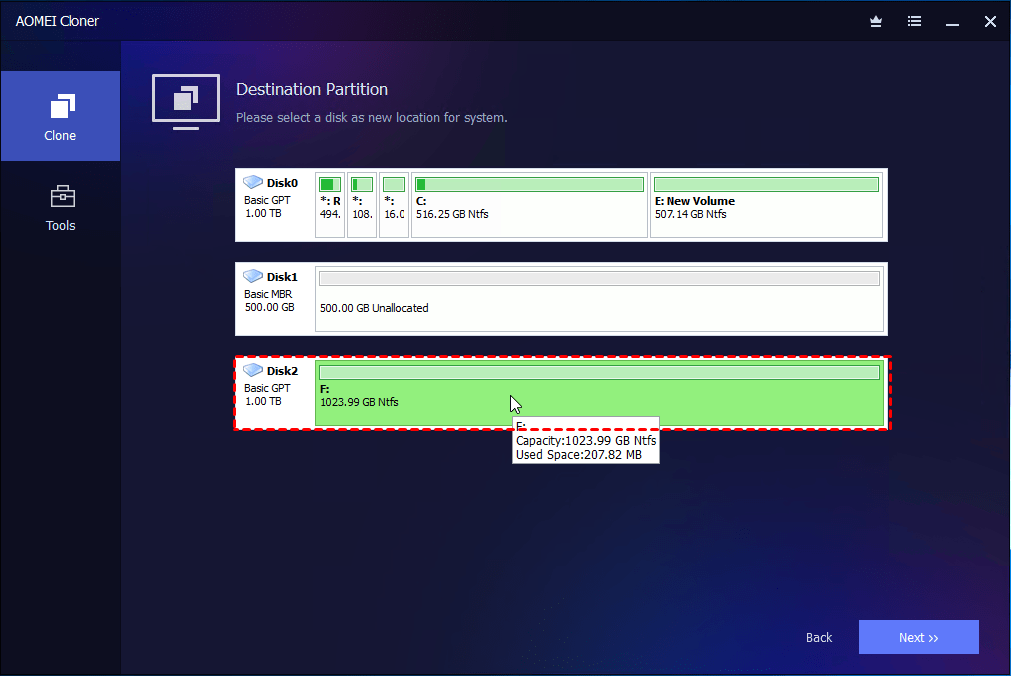
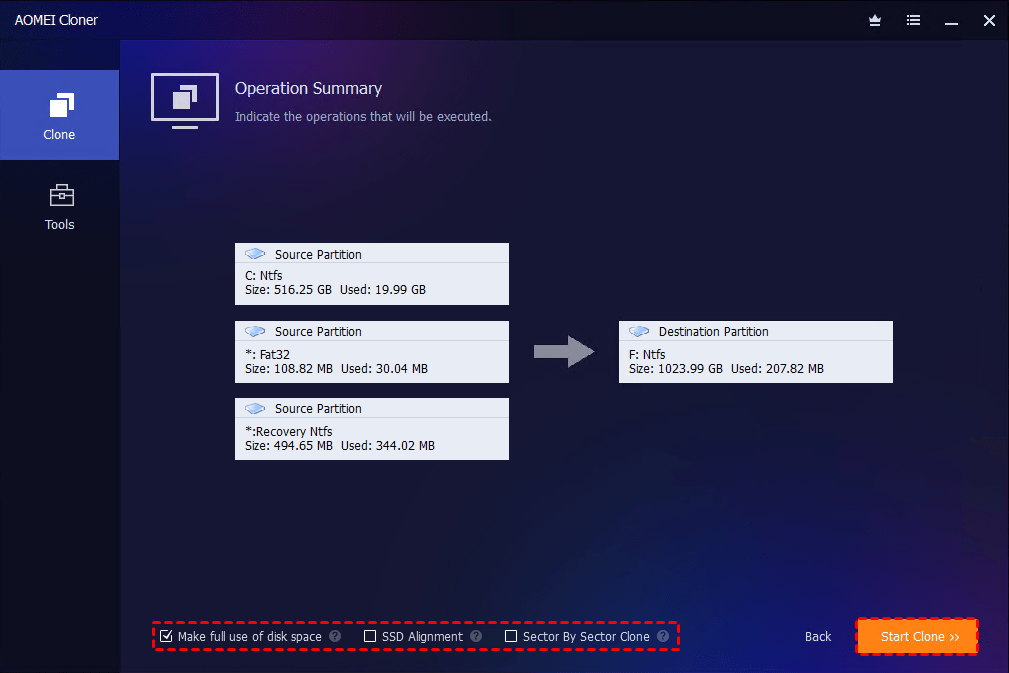
Step 4. Configure cloning options.
- If there are multiple boot-related partitions and the target disk is larger, the option Make full use of disk space will appear and be checked by default to maximize disk space usage.
- If there is only C drive to be cloned, you can click Edit Partition to adjust partition size on the target disk.
- If cloning to SSD, enable SSD Alignment for better performance.
Step 5. Confirm the clone contents and settings, then click Start Clone. In the Data Safety Notice window, click Start Clone again and wait for the process to complete. The time required depends on the amount of data.
Step 6. Boot the new PC.
- Install the cloned drive into the new computer.
- Enter BIOS/UEFI settings. Set the cloned disk as the first boot device.
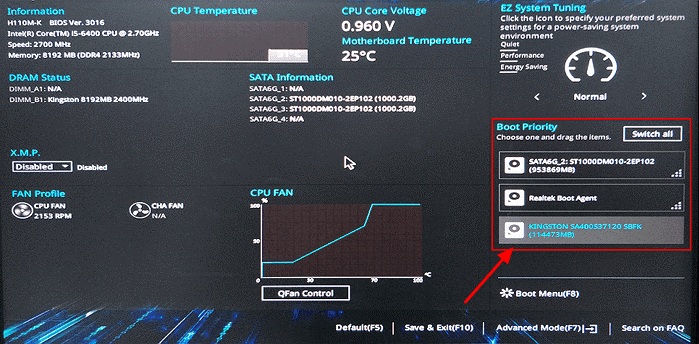
- Save and restart. Your new PC should now boot into the transferred Windows 11 system.
What to do after transferring data to a new PC on Windows 11?
After you successfully transfer data from old PC to new PC on Windows 11, your job isn’t completely finished. Here’s a practical post-migration checklist.
1. Verify All Files and Folders
Start by confirming that everything transferred correctly.
- Check Documents, Desktop, Downloads, Pictures, and Videos
- Open several files to confirm they aren’t corrupted
- Compare folder sizes if necessary
- Make sure hidden folders (like AppData, if migrated) are intact
If you performed a full system clone, ensure your user profile loads correctly and desktop layout appears as expected.
2. Check Installed Programs and Reinstall If Needed
If you only transferred files (not the system):
- Reinstall essential applications
- Log back into software accounts (Microsoft 365, Adobe, etc.)
- Restore program-specific settings if backed up
If you cloned Windows:
- Launch key applications to confirm they work properly
- Update them to the latest versions
3. Update Drivers and Run Windows Update
New hardware often requires updated drivers.
- Go to Settings > Windows Update.
- Click Check for updates. Install all available updates.
Then check:
- Device Manager for unknown devices
- Graphics driver updates (NVIDIA/AMD/Intel)
- Motherboard chipset drivers
This step improves stability and performance.
Summary
Successfully transferring data from an old computer to a new Windows 11 PC doesn’t have to be complicated. Whether you choose to transfer files only using File Sharing or migrate the entire Windows system with professional cloning software, the key is selecting the right method based on your needs.
Actually, AOMEI Cloner supports both Windows PC and Server systems. You can use it to clone a hard drive in Windows Server 2019/2022/2025, etc. Download it now to enjoy smooth data migration!

 as a preferred
source on Google
as a preferred
source on Google