




How to Fix: Microsoft Defender Not Working
Are you having issues with Windows Defender not working on Windows 10? This may lead to virus or malware attacks on your PC or data loss. This article offers effective methods to help you run Windows Defender again.

By Jonna Updated on May 13, 2026


Why is My Microsoft Defender Not Working?
I’m experiencing a critical issue where Windows Defender immediately crashes about 5 seconds after opening. Why is my Windows Defender not working? How can I fix it? Do you guys have any recommendations?
Microsoft Defender, built into Windows, protects your device against malware, ransomware, and other threats in most cases. However, it is sometimes inevitable that issues may arise, such as Windows Defender won't open, Windows Defender not allowing APP to run, and so on. In this guide, we will focus on Windows Defender not working on Windows, providing causes and practical, step-by-step fixes.
Below are the most prevalent reasons:
- Conflicts with third-party antivirus software
- Disabled services - Microsoft Defender relies on several background services. If these services are stopped or misconfigured, the program won’t function correctly.
- Outdated Windows system - Missing updates can lead to compatibility issues or bugs that prevent Defender from working as intended.
- Corrupted system files - Damaged or missing system files can interfere with core Windows features, including security components.
- Registry misconfigurations - Incorrect registry entries may disable Defender without your knowledge.
How to Solve Microsoft Defender Not Working Easily
Fixing Windows Defender not opening/working/running doesn’t require advanced technical knowledge in most cases. You can first try restarting your computer. If this does not work, you can dive into the step-by-step fixes below.
Fix 1. Disable Third-Party Antivirus for Conflicts
One of the most frequent reasons for Defender issues is interference from other antivirus programs. Windows is designed to avoid running multiple security tools simultaneously. To address this:
- Open your installed antivirus software.
- Locate its real-time protection settings.
- Temporarily disable protection or exit the program.
- Restart the computer and check Microsoft Defender again.
Fix 2. Restart the Windows Defender Service
Microsoft Defender depends on specific background services to function. If these services stop running, the application may fail to start. Follow these steps to restart them:
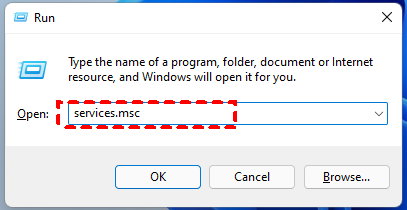
Step 1. Press Win + R to access the Run dialog, type services.msc, and hit Enter.
Step 2. Locate Microsoft Defender Antivirus Service, right-click on it, and select Restart.
Step 3. You should also ensure its startup type is set to Automatic.
You can also check related services such as Windows Security Service and Security Center. Restarting these services can often resolve temporary glitches and restore full functionality.
Fix 3. Perform a System Update
Running an outdated version of Windows can easily lead to the Windows Defender not working on Windows 11/10 issue. Microsoft frequently releases updates that fix bugs, patch vulnerabilities, and improve compatibility.
Step 1. Open Windows Settings, and then navigate to Update & Security.
Step 2. Click on Windows Update, and then hit Check for updates.
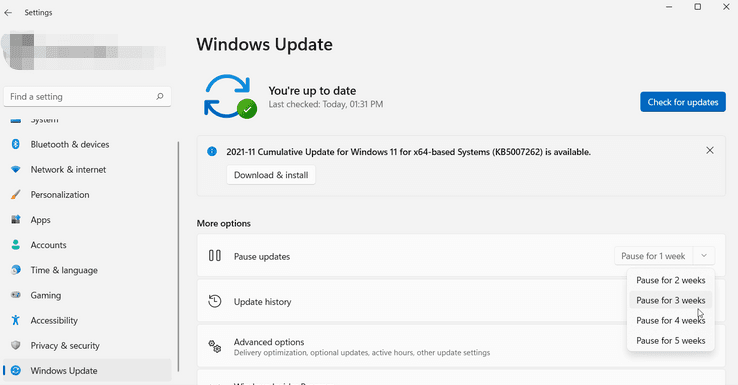
Step 3. Follow the on-screen guide to install all available updates and restart the PC.
Fix 4. Run System File Checker & DISM Tool
Corrupted system files are another common culprit of Windows Defender not open. Fortunately, Windows includes built-in tools to detect and repair these files.
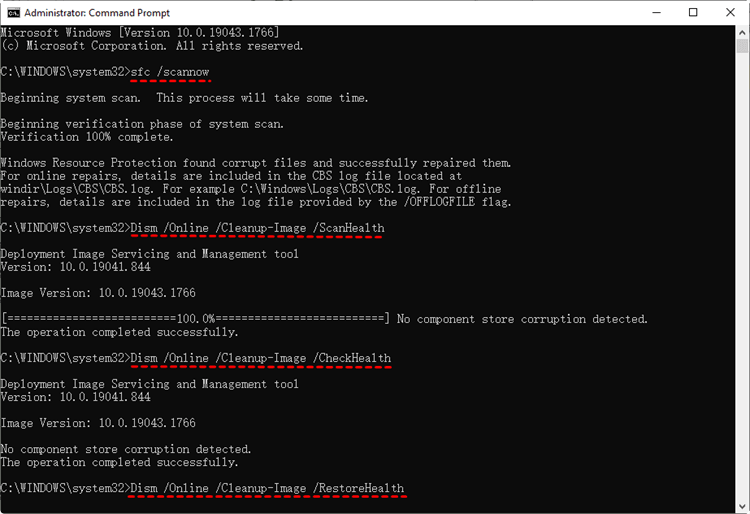
Step 1. Search cmd in the Windows Search box to open Command Prompt with admin permissions.
Step 2. Type the command sfc /scannow and press Enter. The scan may take 10–20 minutes. Do not close the terminal until it finishes.
Step 3. If SFC finds and repairs errors, run these commands one by one:
- DISM /Online /Cleanup-Image /CheckHealth
- DISM /Online /Cleanup-Image /ScanHealth
- DISM /Online /Cleanup-Image /RestoreHealth
Step 4. After the scans finish, restart your PC to apply repairs.
Step 5. Open Windows Security and check if real-time protection is enabled.
Fix 5. Enable Windows Defender in Registry
Sometimes, Microsoft Defender is disabled through the Windows Registry. This can happen due to malware, system tweaks, or leftover settings from other software.
Step 1. Press Win + R, type regedit, and press Enter. Then, navigate to HKEY_LOCAL_MACHINE\ SOFTWARE\Policies\ Microsoft\ Windows Defender.
Step 2. In the right pane, look for DisableAntiSpyware. If it exists, double-click it and set its value to 0.
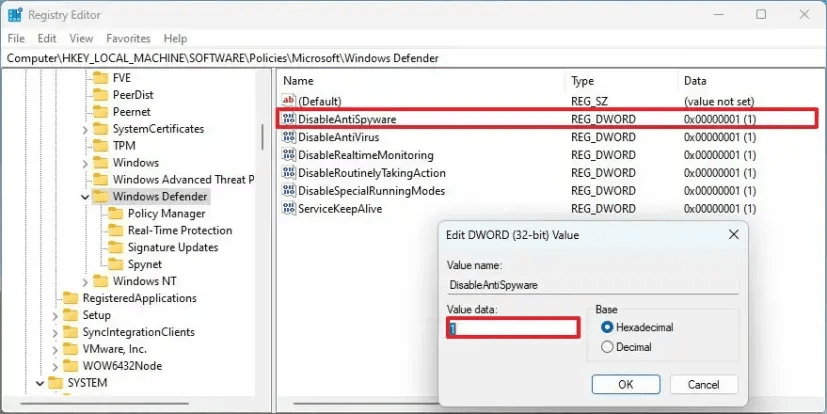
Step 3. If the value doesn't exist, right-click the empty space in the right pane > New > DWORD (32-bit) Value, name it "DisableAntiSpyware," and set it to 0.
Step 4. You can also check additional registry keys by navigating to HKEY_LOCAL_MACHINE\ SOFTWARE\Microsoft\ Windows Defender\ Real-Time Protection. Ensure no DWORD values like DisableRealtimeMonitoring are set to 1. If found, set them to 0.
Fix 6. Modify Group Policy Editor
In some cases, like Windows Defender not working after reset, Group Policy settings may prevent Defender from running. This is more common on professional or enterprise versions of Windows. To check and modify these settings:
Step 1. Press Win + R, type gpedit.msc, and press Enter.
Step 2. Navigate to Computer Configuration > Administrative Templates > Windows Components > Microsoft Defender Antivirus.
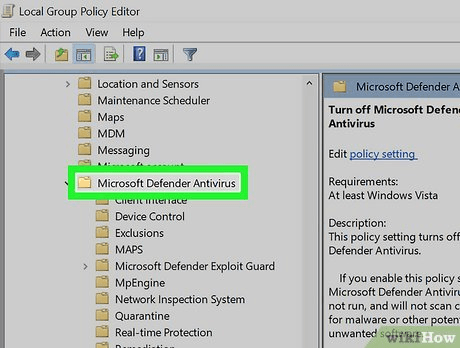
Step 3. Look for Turn off Windows Defender Antivirus on the left, double-click it, and set it to Not Configured or Disabled.
Step 4. Apply the changes and restart your system.
Use Microsoft Defender with PC Ransomware Protection Software for Data Safety
While fixing Windows Defender not working restores your real-time protection, it’s important to know that no single security tool is 100% foolproof. Ransomware, phishing attacks, and zero-day vulnerabilities can bypass even the best antivirus software. To ensure comprehensive data safety, pair your working Windows Defender with a robust backup and ransomware protection solution like AOMEI Backupper.
AOMEI Backupper is not an antivirus replacement, but it adds a critical layer of defense by ensuring you can always restore your data, even if Defender fails to block an attack. Together, Windows Defender and AOMEI Backupper create a "dual protection" strategy that covers both prevention and recovery.
 AOMEI Backupper
- Comprehensive backups: Create file, disk, and system backup to network drive, NAS, external hard drive, local drive, cloud storage, etc.
- Auto backup: Create daily/weekly/monthly backups for continuous data protection.
- Ransomware protection: Protect backup images you have created with this tool, and specified file types & file/folder paths from ransomware for quick recovery.
- Simple data recovery: Restore systems, disks, partitions, or individual files/folders quickly to restore data with ease.
 100% Secure
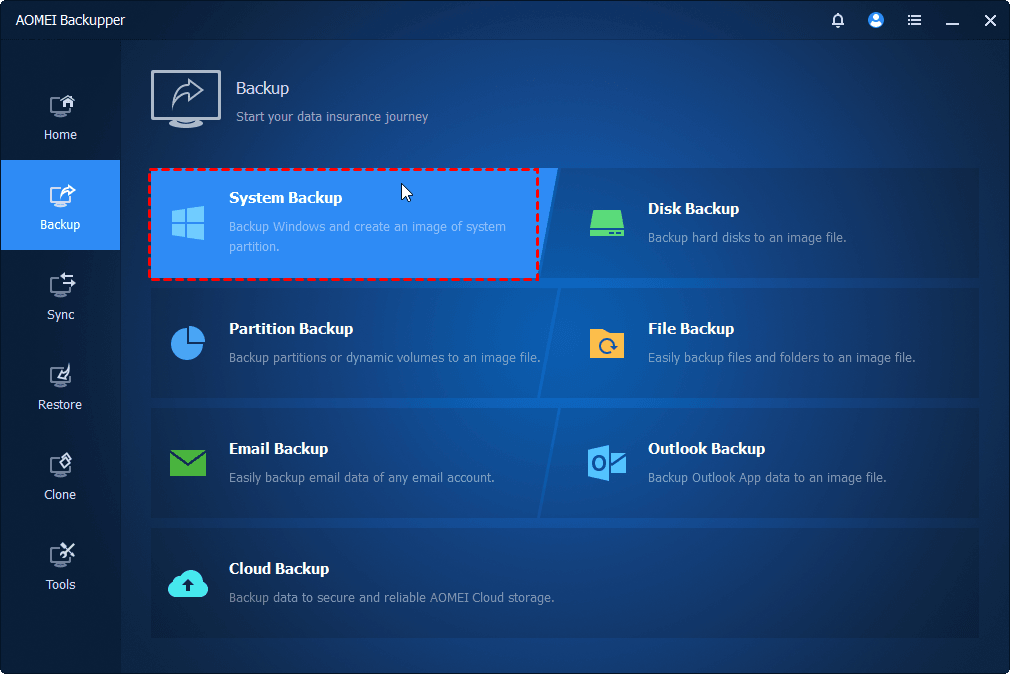
Step 1. Click on Backup on the main interface of AOMEI Backupper, and choose a backup option, such as System Backup, to create a system image.
Step 2. Head to Tools > Ransomware Protection.
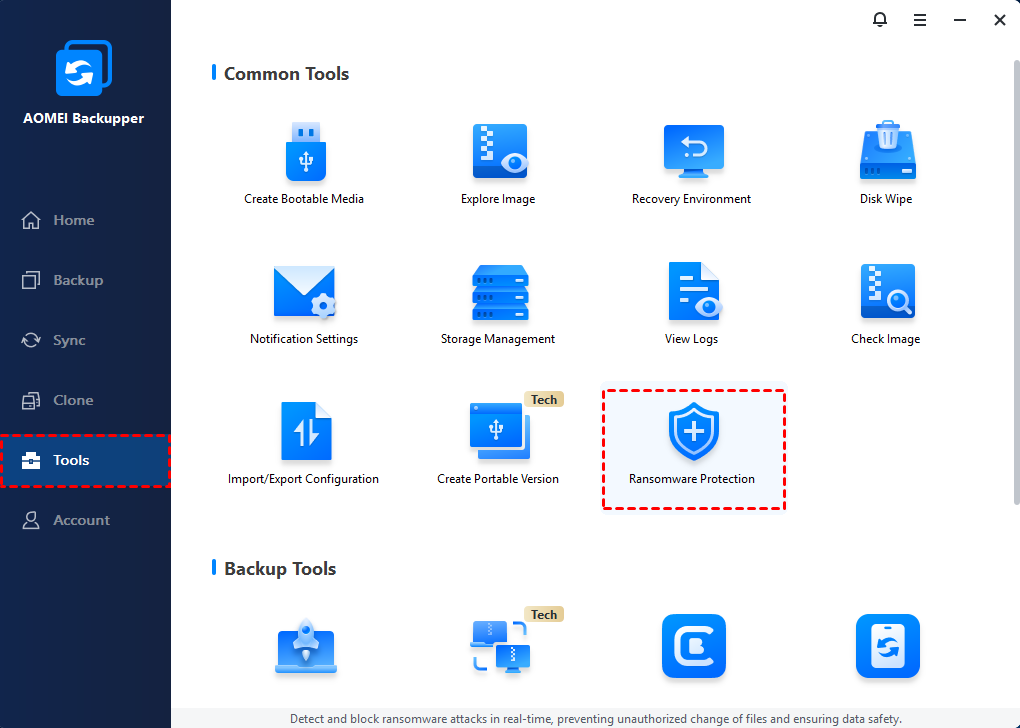
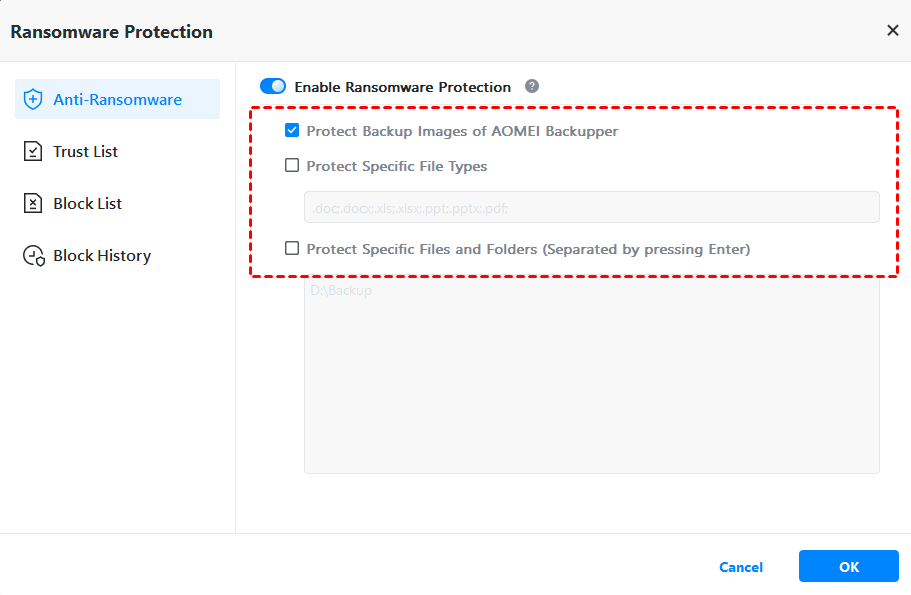
Step 3. Enable Ransomware Protection by toggling the switch, and check the sub-options as needed, then click OK to save the settings.
- Protect Backup Images of AOMEI Backupper: Ticked by default to protect backup image files you have created with AOMEI Backupper.
- Protect Specific File Types: Protect specific file types by adding file extensions like .doc, .pdf, .ppt, etc.
- Protect Specific Files and Folders: Protect some important files or folders by adding their paths, like C:\ProgramData, etc.\
Conclusion
Don’t worry if your Windows Defender is not working. Here are the most effective solutions to fix this issue. To make sure that your data is always safe, you can try to use Microsoft Defender with AOMEI Backupper together.
With AOMEI Backupper, you can create system backup, transfer files from PC to PC, clone disk to disk, and so on.

 as a preferred
source on Google
as a preferred
source on Google