




Computer Running Slow on Windows 7 - How to Fix (7 Ways)
Still struggling with computer running slow on Windows 7? Act now to get seven Windows 7 lagging and freezing fixes on this page to optimize Windows 7 easily.

By Jonna Updated on May 13, 2026


User Case: How to Speed up Old Win7 Laptop?
My Windows 7 laptop, having been used for about 8 years, is experiencing some issues. It takes about 5 minutes to boot up and log in each time. After logging in, the desktop remains completely black for another 3 minutes before the Windows user interface and desktop finally load. On top of that, I can't even use my web browser normally - it's extremely laggy. So, do you have any suggestions for resolving the computer running slowly in Windows 7?
Although Windows 7 is known for its stability and simplicity, over time, startup delays, freezing screens, and painfully slow response times can cause a headache. But don’t worry. Here are some solutions that can help you restore speed and stability to Windows 7.
7 Tips to Fix Computer Running Slow on Windows 7
Resolving a computer working slow on Windows 7 may require a combination of cleanup, optimization, and preventive. The following sections outline 7 practical methods that can significantly fix slow computer on Windows 7.
Way 1. Run Performance Troubleshooter
Before making manual changes, it’s smart to let Windows 7 diagnose itself. Windows 7 includes a built-in Performance Troubleshooter designed to detect common issues that affect speed and responsiveness. Here are the steps to run Performance Troubleshooter to speed up computer in Windows 7:
Step 1. Click Start and open Control Panel.
Step 2. Type Troubleshooting in the search box to open the Troubleshooting program.
Step 3. Click on Check for performance issues.
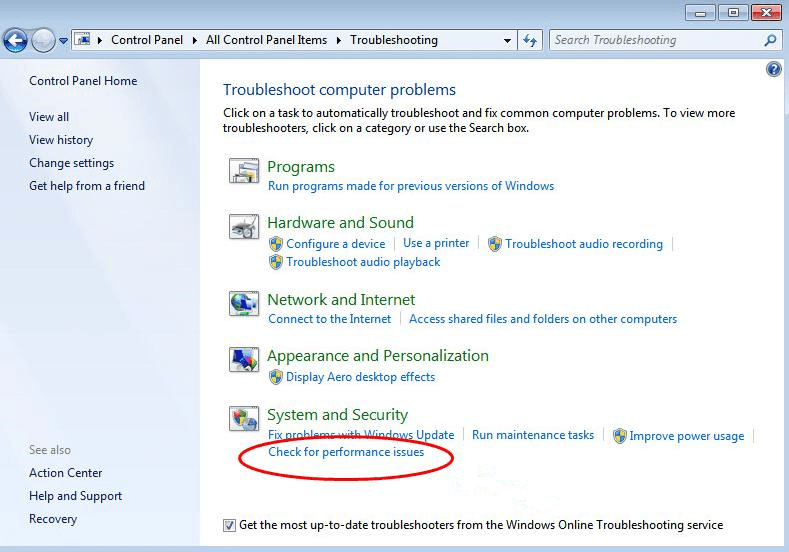
Step 4. Follow the on-screen prompts and apply recommended fixes.
Way 2. Free up Disk Space
When your system drive is nearly full, Windows may struggle to manage temporary files and virtual memory. This directly leads to computer running slow and freezing on Windows 7. Here is how to free up disk space as a Windows 7 lagging and freezing fix:
- Delete temporary files using Disk Cleanup - Right-click your system drive > select Properties > click Disk Cleanup > check items like Temporary files, Recycle Bin, and System cache > click OK to delete selected files to fix computer running slow on Windows 7.
- Empty the Recycle Bin regularly - Open Recycle Bin on Windows 7 and click Empty to erase all deleted data completely from PC.
- Move large personal files to another drive - You can transfer files from C drive to D drive or external hard drive to make room on the system drive.
- Upgrade hard drive - If you truly don't have enough hard drive space, you can consider upgrading your hard drive.
- Remove old downloads, videos, and unused documents
Way 3. Reduce Start-up Programs
Many applications automatically configure themselves to launch at startup. Over time, this leads to longer boot times and sluggish performance immediately after logging in. To manage startup programs:
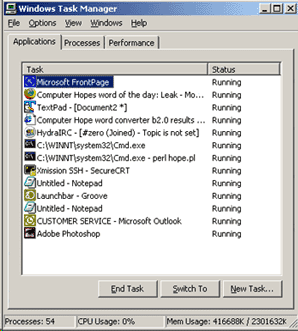
Step 1. Open Task Manager quickly by pressing Ctrl + Shift + Esc.
Step 2. Click on the program that you don’t need to run with startup, and click End task.
Way 4. Run Disk Defragment
If your Windows 7 system still uses a traditional HDD, disk fragmentation can slow file access dramatically. Fragmentation forces the drive to work harder to access files, resulting in slower performance. You can defragment your disk to make Windows 7 faster on old PC:
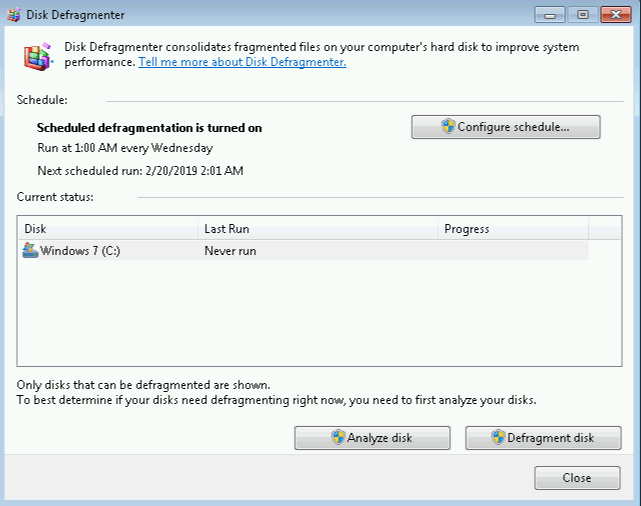
Step 1. Click Start in the bottom-left corner and type defrag.
Step 2. Select Disk Defragmenter from the search results.
Step 3. Click Defragment disk to start the defragmentation process.
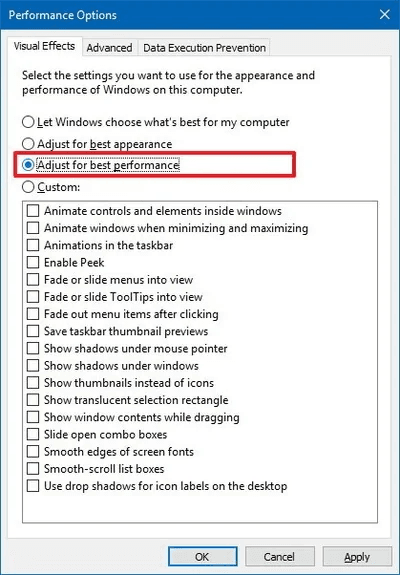
Way 5. Disable Visual Effects in Windows 7
Windows 7 includes visual effects such as animations, shadows, and transparency. While attractive, these effects consume system resources, which can slow down older hardware. Disabling unnecessary effects helps to resolve computer is slow on Windows 7:
Step 1. Press the Windows Key + R keys and type sysdm.cpl to open System Properties.
Step 2. Navigate to Advanced > Performance > Settings.
Step 3. Switch to Adjust for best performance under Visual Effects, and click OK.
Way 6. Uninstall Unnecessary Programs
Unused programs quietly occupy system resources and valuable disk space. Some may run background services without realizing it.
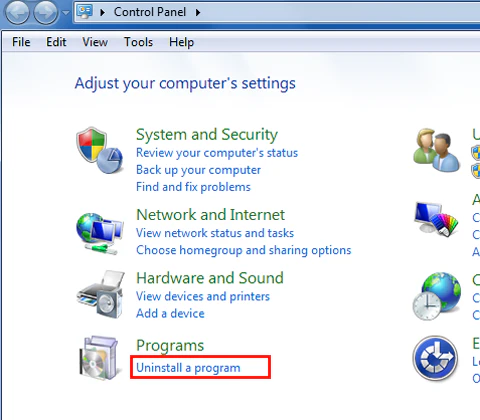
Step 1. Open Control Panel and select Programs or Programs and Features.
Step 2. Click on Uninstall a program, review installed applications, click on the target program, then click on Uninstall.
Step 3. Follow the on-screen prompts to complete the uninstallation process.
Way 7. Check for Viruses
Malware infections are a major cause of a computer running slow on Windows 7. Viruses, spyware, and adware consume resources, generate unwanted processes, and compromise system stability.
Running a full system scan with reliable antivirus software is critical. Ensure virus definitions are up to date and scan all drives thoroughly. If malware is detected, follow removal instructions carefully and restart the system to get rid of computer running slow in Windows 7.
Important: Backup Windows 7 to Prevent System Crash or Data Loss
Computer running very slow on Windows 7 always carries some risk, especially on older systems. Hardware failure, system crashes, or accidental data loss can occur without warning. So, backing up Windows 7 is not optional.
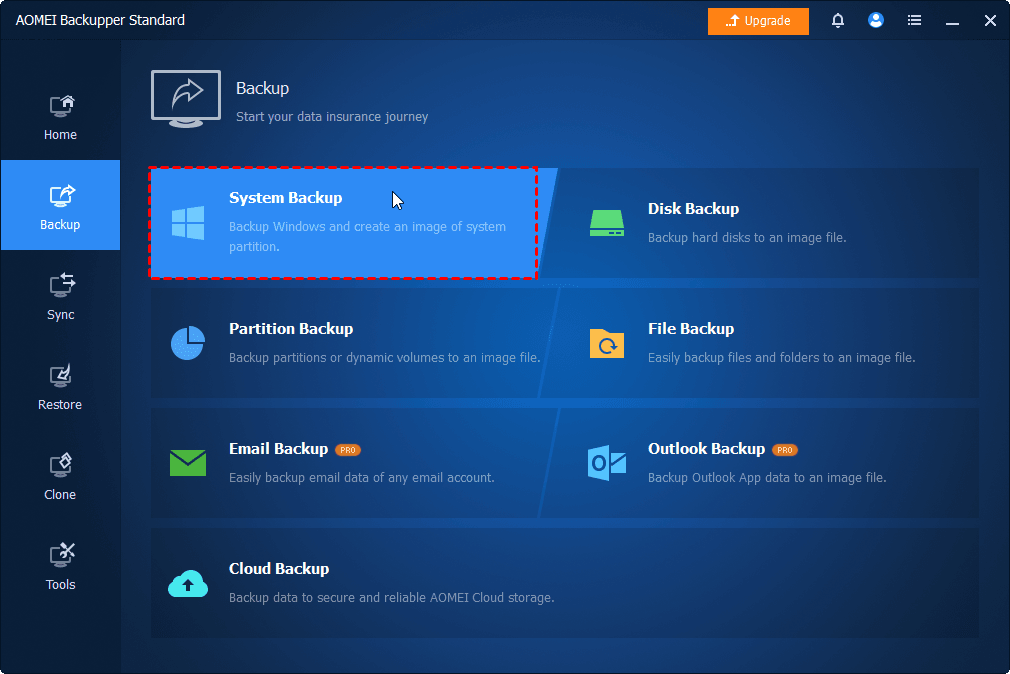
AOMEI Backupper Standard is a professional yet free backup solution designed for Windows systems, including Windows 7. It offers full backup and restore options to protect your data and system from hardware failure or software corruption strikes.
 AOMEI Backupper
- 4 backup types: system backup, disk backup, partition backup, and file backup, meeting your various backup needs.
- Backup only changed files: This tool uses incremental backup to backup only changed files, savingmuch backup time and disk space.
- Various devices: You can backup to external drive, USB drive, network drive, and so on.
- Other useful backup features: You can create bootable USB or CD/DVD to boot your computer in case of system failure.
 100% Secure
You can download and run this software, go to Backup, and choose a backup option as needed.
Summary
A computer running slow on Windows 7 does not automatically mean device replacement is the only option. You can try running built-in troubleshooters to freeing disk space, disabling visual effects, and removing malware, each method contributes to speed up computer on Windows 7.
But is it always recommended to backup computer to prevent sudden system crash or data loss due to disk failure with AOMEI Backupper. Also, this software offers sync and clone functions for data migration from one drive to another. And if you wish to transfer OS to a larger drive, upgrade its Pro version for OS transfer without reinstalling.

 as a preferred
source on Google
as a preferred
source on Google