




Toshiba Laptop Recovery Mode | What Is It & How to Start It
How to boot Toshiba laptop into recovery mode for factory reset, system recovery, or other recovery options? Here are two methods and an alternative Toshiba recovery solution.

By Jonna Updated on May 13, 2026


What is Recovery Mode on Toshiba Laptop?
Want to perform a factory reset for your Toshiba laptop? Or, the Toshiba laptop refuses to boot properly, crashes repeatedly, or becomes unbearably slow? Running Toshiba laptop into recovery mode might help. Recovery mode is a pre-installed Windows recovery environment stored on a dedicated partition of your Toshiba laptop. Here's what recovery mode allows you to do:
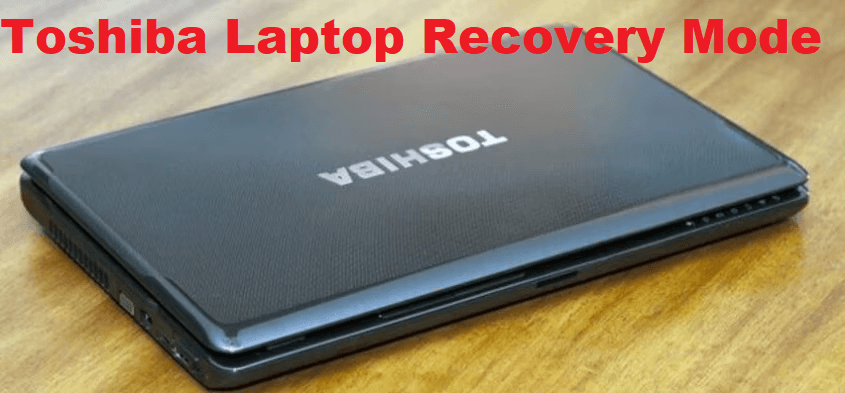
- Factory reset the laptop - This returns your system to its original condition, just like when you first unboxed it.
- Repair damaged system files - If Windows refuses to boot because critical files are broken, it helps repair startup problems that prevent Windows from loading.
- Erase hard disk - Wipe hard drive and reset the laptop before selling or giving it away.
- Remove malware effects - Sometimes it’s easier to reset than waste time trying to clean an infected OS.
- 👉Note:
- A full factory recovery will erase all personal files, installed programs, and custom settings. Only the original factory software and Windows version will remain. Backing up important files before entering recovery mode is strongly recommended.
Way 1. Start Toshiba Laptop in Recovery Mode via Zero Key
One of the most well-known and traditional methods to access Toshiba Satellite recovery mode is by using the Zero (0) key during startup. This method works primarily on older Toshiba laptops and many Satellite series models that still retain the factory recovery partition. And it allows you to perform Toshiba laptop factory reset without password.
You can follow these steps carefully to start Toshiba laptop in recovery mode:
Step 1. Shut down the Toshiba laptop completely, and remove USB drives, external storage, and accessories to avoid conflicts.
Step 2. Press and hold the 0 (zero) key on the keyboard. While holding the key, press the Power button to turn on the laptop. Continue holding the 0 key until the laptop beeps or the recovery screen appears.
Step 3. Release the key and wait for the Toshiba Recovery Wizard to load.
Step 4. Choose the appropriate recovery option, such as Recovery of Factory Default Software.
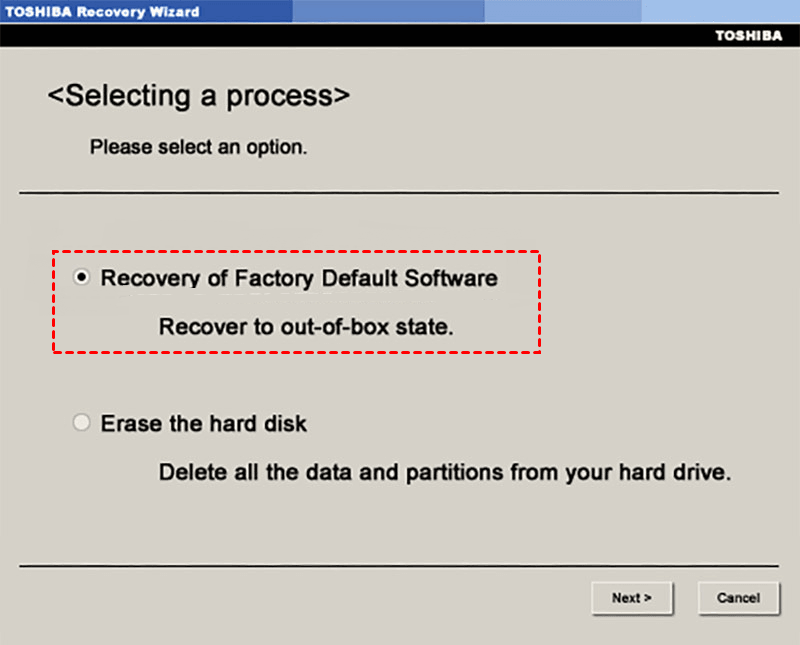
Step 5. Then, follow the instructions to begin the recovery process.
Way 2. Access Toshiba Laptop Recovery Mode via Settings
On newer Toshiba laptops running Windows 10 or Windows 11, Toshiba Satellite laptop recovery mode can often be accessed directly through Windows settings to fix boot problems or reinstall Windows. This method does not require special keys and works well when Windows is still able to boot, and you can use it to
Step 1. Right-click the Windows icon in the taskbar and select to open Settings.
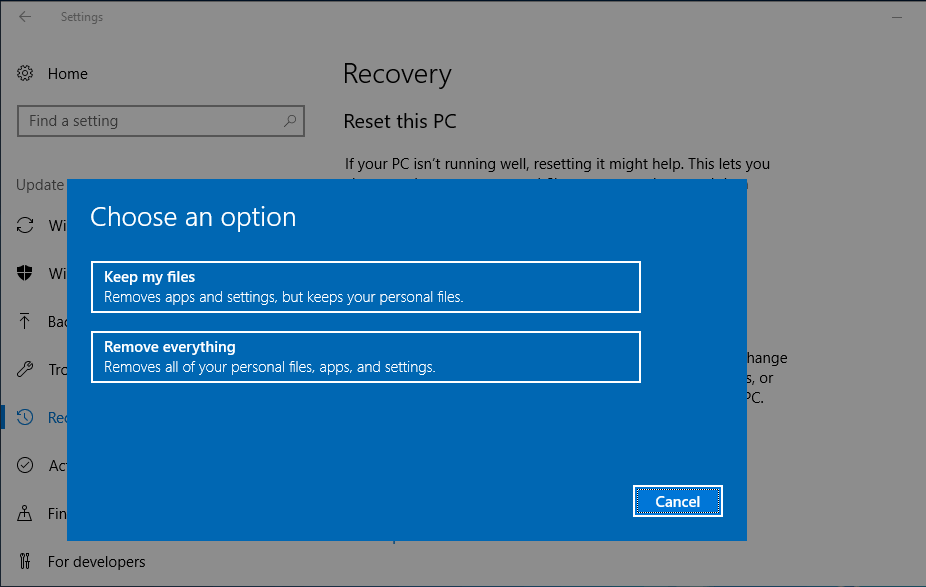
Step 2. Select Update & Security, then go to Recovery > Get Started (under Reset this PC) to boot Toshiba laptop into recovery mode.
Step 3. Select Keep my files or Remove everything, then proceed to complete the reset.
Easier Way to Perform Toshiba Laptop Recovery
While Toshiba laptop recovery mode is useful, it has limitations. Recovery partitions can fail, and the factory reset option might not work properly. For users who want more control and reliability, you can try AOMEI Backupper Professional, which provides a self-booting recovery environment and allows you to restore a Windows system image in case of a system crash.
 AOMEI Backupper
- Recovery environment: You can add the AOMEI Backupper recovery environment to Windows boot options to restore the computer easily when it won't boot.
- Bootable media: You can also create a bootable USB, CD, or DVD to restore the computer when it fails to boot.
- Quick restore: It offers full system backup, disk backup, and file backup, and allows you to perform system restore, disk restore, and other backup images whenever needed.
 100% Secure
Follow the guidelines below to create recovery environment on Toshiba laptop for system restore with this tool:
Part 1. Enable AOMEI Backupper Recovery Environment on Toshiba
Step 1. Download and run AOMEI Backupper on your computer. Go to Tools, and select Recovery Environment.
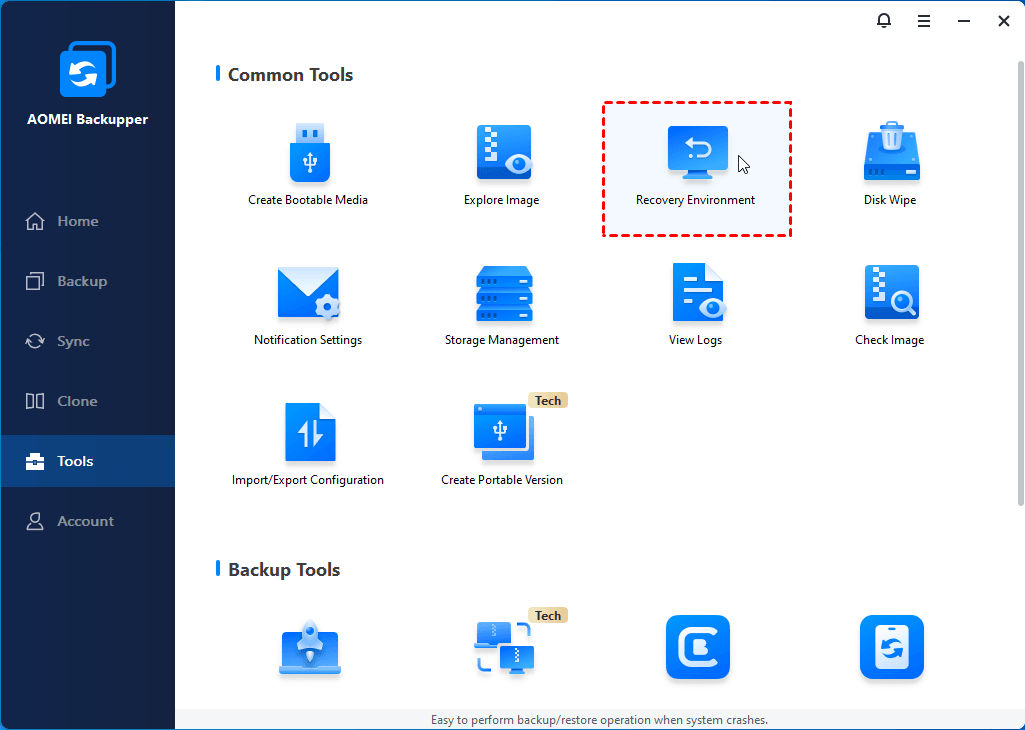
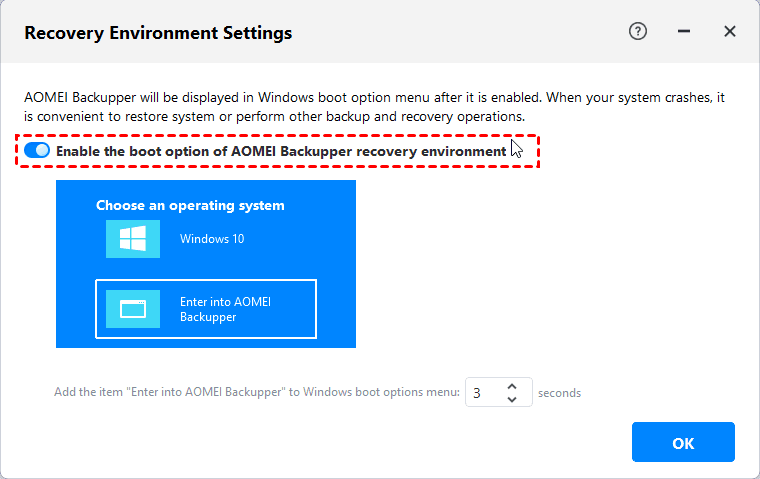
Step 2. On the Recovery Environment Settings page. Check the option Enable the boot option of AOMEI Backupper recovery environment. Then, set the standing time as needed (3 seconds by default), and click OK.
Part 2. Boot into AOMEI Backupper Recovery Environment for System Restore
Step 1. When your Toshiba laptop won’t boot, select Enter into AOMEI Backupper on the Choose an operating system screen.
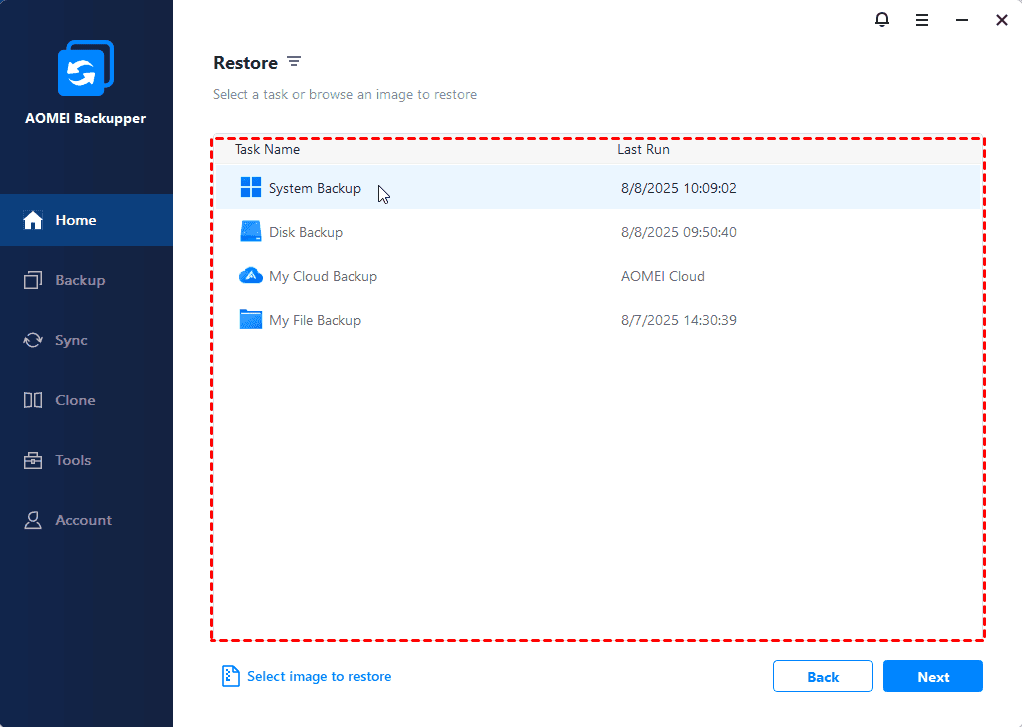
Step 2. When the software launches, you can go to the Home tab, select Restore, and choose the Windows backup image to restore easily.
- Notes:✎...
- If no system image is available, you can create a system backup image from a working computer, and perform universal restore, which enables you to restore system image to a different computer.
- You can disable the AOMEI Backupper recovery environment at any time by toggling the "Enable AOMEI Backupper recovery environment boot option" switch to off.
FAQs about Toshiba Laptop Recovery Mode
#1. Why Toshiba factory reset 0 not working?
The Zero key factory reset may fail for several reasons:
- The recovery partition has been deleted or corrupted
- Windows was reinstalled using a non-Toshiba installation image
- The laptop uses UEFI firmware that disables legacy recovery shortcuts
- The keyboard is not registering the key press during boot
#2. How to factory reset Toshiba laptop on Windows 10 without password?
To factory reset a Toshiba laptop without a password, use the built-in recovery options by either holding the 0 (zero) key during startup for the Toshiba Recovery Wizard or by using the Windows 10 Advanced Startup by holding Shift + Restart at the login screen to access "Troubleshoot" > "Reset this PC," ensuring you select "Remove everything" for a full wipe.
#3. How to perform Toshiba Satellite factory reset on Windows 7?
For Toshiba Satellite laptops running Windows 7, you can use the Zero key method to perform a Toshiba Satellite factory reset.
Conclusion
Toshiba laptop recovery mode is an effective tool for resolving system issues, restoring factory settings, and so on. Whether accessed via the Zero key method or through Windows settings, it provides built-in solutions for numerous common problems. And if you want a more controllable recovery solution, try AOMEI Backupper. It provides you with all-around backup and recovery options. And you can even restore a system image to a different computer.
Besides, it comes with cloning features that help you upgrade Toshiba SSD without OS reinstalling and data loss.

 as a preferred
source on Google
as a preferred
source on Google