



Best Toshiba Cloning Software to Move OS without Reinstallation
The Toshiba software is often used with Toshiba solid-state drives (SSDs) when upgrading from a hard drive (HDD) to an SSD or migrating to a newer Toshiba SSD. It can provide seamless system migration and a time-saving process.

By Lily Updated on August 13, 2026


Why You Need Toshiba Cloning Software
Toshiba cloning software can make a hard drive upgrade or replacement seamless and secure. Here are the key reasons why you might need it.
1. Seamless OS and Data Migration for SSD: Cloning software can transfer your entire system, including the operating system, applications, settings, and personal files, from your current drive to your new Toshiba SSD.
2. System Bootability Preservation: Cloning ensures your system remains bootable after the transfer. It can handle the partition structure and boot sector correctly.
3. Time and Effort Saving: Cloning software helps to save hours of work by duplicating the drive exactly as it is.
4. Compatibility with Toshiba SSDs: It can ensure maximum compatibility with Toshiba hardware, reducing the likelihood of transfer errors or hardware conflicts.
🌟 Note: Toshiba's memory business has been renamed Kioxia. However, the way to transfer data from one hard drive to another remains the same. AOMEI Cloner supports cloning to/from Toshiba SSD and Kioxia SSD effortlessly.
Toshiba Official Cloning Software
When it comes time to use Toshiba cloning software, you might be thinking, "Does Toshiba have its own official cloning software?" The answer is no, it usually bundles third-party software with its SSDs, and NTI Echo is the most commonly bundled official cloning software.
Key Features of NTI Echo:
- One-click cloning of the entire drive.
- Supports resizing of partitions to match the target SSD.
- Automatically makes the cloned drive bootable.
- Supports both MBR and GPT partition styles.
There is another tool – Toshiba SSD Utility, developed by Kioxia, but it is not a cloning software; it offers:
- Drive health monitoring
- Firmware updates
- TRIM optimization
- S.M.A.R.T data viewing
📌Tip: Toshiba SSD Utility does not include cloning capabilities, but it’s great to use after cloning, to maintain your new drive’s performance.
Alternative Toshiba Cloning Software [More Robust]
Although NTI Echo is officially recognized, its functions are very limited. It only supports Toshiba SSDs and cannot clone hard drives of other brands. In addition, there are compatibility issues in some Windows versions. Therefore, you can choose to use other cloning software, and AOMEI Cloner is the tool you can choose.
It can achieve seamless hard drive upgrades without reinstallation and is suitable for all branded hard drives.
 AOMEI Cloner
- It supports HDDs and SSDs from all major brands, including Toshiba, so you’re not limited like you often are with OEM cloning tools.
- You clone the entire drive, just the OS, or specific partitions. That makes it great whether you’re moving to a bigger SSD or backing up data.
- You can use intelligent clone to copy only used data or sector-by-sector clone for a perfect bit-for-bit duplicate.
- It includes SSD alignment to boost speed and extend the life of your target SSD.
- You can create a WinPE bootable media (USB/CD) so you can clone drives even when Windows won’t start.
 100% Secure
📢Follow a few clicks to clone HDD to Toshiba SSD:
Step 1. Connect the Toshiba SSD to your computer. Download and install AOMEI Cloner. Go to Disk Clone.

Step 2. Click Select Source Disk to select the computer hard drive you want to clone as the source disk, and click Next.
Step 3. Click Select Destination Disk to choose the Toshiba SSD as the destination disk, and click Next.
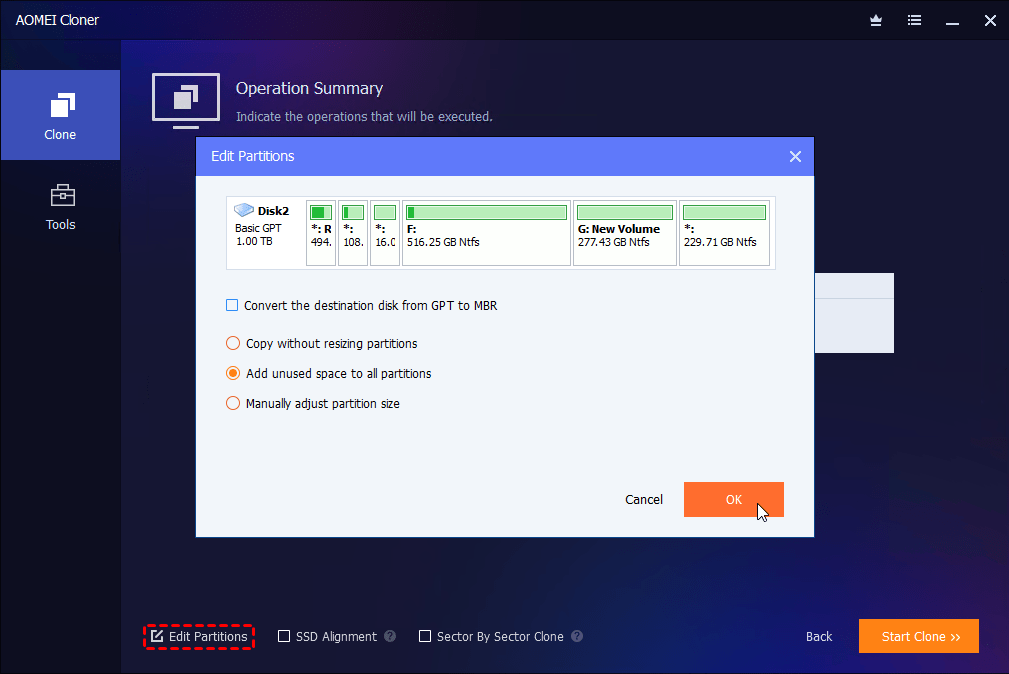
Step 4. (Optional) If cloning to a larger disk, click Edit Partitions to make full use of the disk capacity.
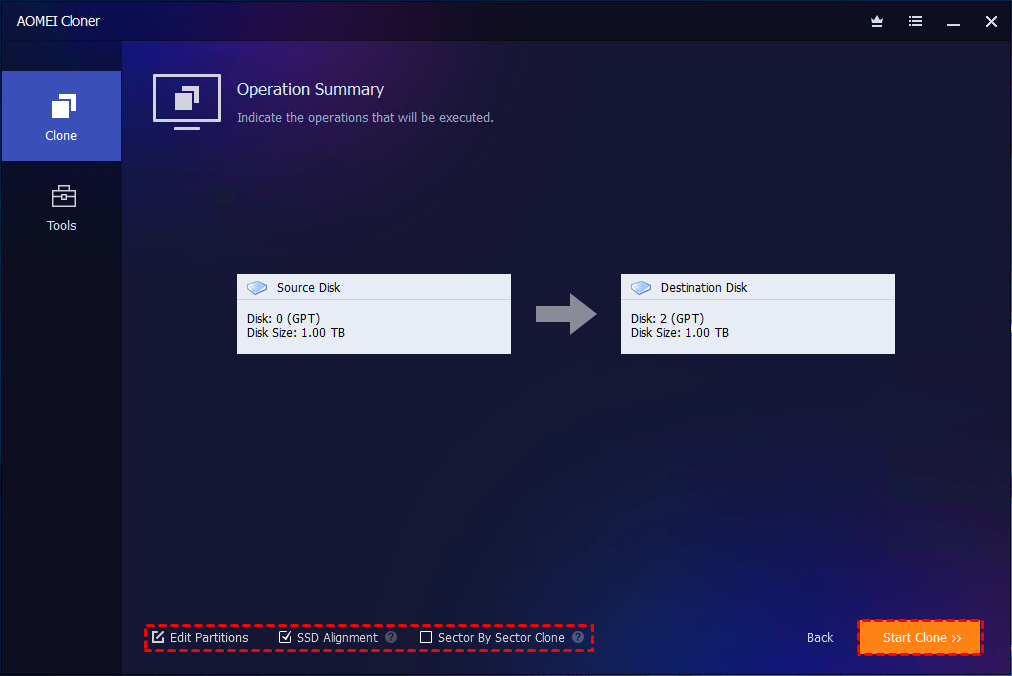
Step 5. Check SSD Alignment to improve the read/write speed of the Toshiba SSD and extend its lifespan. Review your settings and click Start Clone.
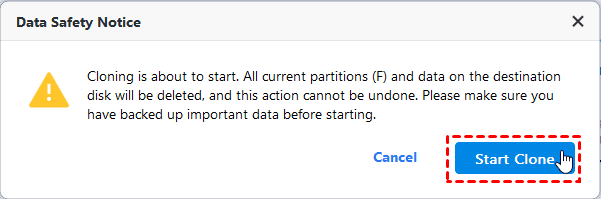
Step 6. Confirm the data loss warning and click Start Clone to start the process.
Further Questions
1. Is it possible to clone a Toshiba drive using a USB-to-SATA adapter?
Yes, this is one of the most common ways for laptop users to upgrade from a hard disk to an SSD.
2. Can I clone a Toshiba SSD to a non-Toshiba SSD?
Yes, but Toshiba’s software, like NTI Echo, might not support non-Toshiba drives as the destination. Third-party tools work better in this case, for example, AOMEI Cloner.
3. What should I do if the cloned Toshiba SSD doesn’t boot after cloning?
This is pretty common and usually fixable:
- Set SSD as the first boot device in BIOS/UEFI.
- Disconnect the old drive to avoid boot conflicts.
- Check BIOS mode (UEFI or Legacy) matches SSD’s partition style (GPT or MBR).
- Run Startup Repair using a Windows installation USB.
Get detailed information here: SSD doesn’t boot after cloning.
Conclusion
If you are looking for Toshiba cloning software, you can use NTI Echo, but for greater compatibility and to enjoy more features, you can use AOMEI Cloner, a flexible and powerful tool that provides everything you need to successfully clone a Toshiba hard drive or solid-state drive (SSD).

 as a preferred
source on Google
as a preferred
source on Google